Create and Edit Pipelines
Pipelines are user-centric, simplified alternatives to traditional build configurations and build chains. Introduced in TeamCity 2025.07, they became generally available in 2026.2 and are fully supported for projects of any size and complexity. Some advanced functionality from classic build configurations is still on its way — see TeamCity Pipelines Roadmap for what's planned.
Pipelines vs Build Configurations and Chains
Before we dive into creating pipelines, it’s important to understand the differences between build configurations and pipelines and when to use each. Note that once created, you cannot convert a pipeline (or any of its jobs) into a build configuration, and vice versa. See the Limitations and Special Notes section for more information.
- Parents
Both build configurations and pipelines are owned by TeamCity projects. Each project can have an unlimited number of configurations and pipelines.
- Children
A build directly owns its build steps.
A pipeline owns jobs, which in turn own regular build steps.
- Supported VCS types
Classic TeamCity build configurations support Git, Subversion, Mercurial, TFS, and Perforce, with integrations for major VCS providers like GitHub, GitLab, Bitbucket, Azure, and others.
TeamCity Pipelines offer built-in integrations with GitHub, GitLab, and Bitbucket Cloud. Other Git repositories can be connected via direct URLs. Subversion, Mercurial, TFS, and Perforce are not currently supported.
- Execution mode
Pipelines always run from start to finish, executing all jobs unless interrupted by errors like compilation failures or connection issues.
Build configurations support conditional step execution. For example, you can add a step that runs only if a previous one fails.
- Dependencies
Both build configurations and pipelines can be linked into large build chains across different TeamCity projects.
- Configuration as code
Both pipelines and build configurations can store their settings as code, right next to your project source code. Both entities support branched settings, meaning each repository branch can have its own configuration file.
Build configurations store their settings in XML or Kotlin DSL format. You cannot edit these files from the TeamCity UI.
Pipelines store their settings in YAML which can be edited directly in TeamCity, and auto-generated Kotlin.
- Limitations
Build configurations are core TeamCity components, offering extensive features and customization options.
Introduced in TeamCity 2025.07, Pipelines focus on providing the most intuitive way to design CI/CD workflows. However, they may lack some of the functionality available in build configurations. For example, by default they do not include the majority of build steps and build features (although they can be enabled manually).
In summary, while both pipelines and build configurations are owned by projects, they serve different needs. Pipelines are ideal for simpler CI/CD workflows in smaller projects (typically up to 10–15 builds). Choose build configurations instead if:
Your project involves more complex workflows than 10–15 sequential builds.
You are an experienced user who needs advanced features (such as Build Approval) not yet available in pipelines.
You require fine-grained control over which build chain configurations run, when, and how.
Create and Set Up Pipelines
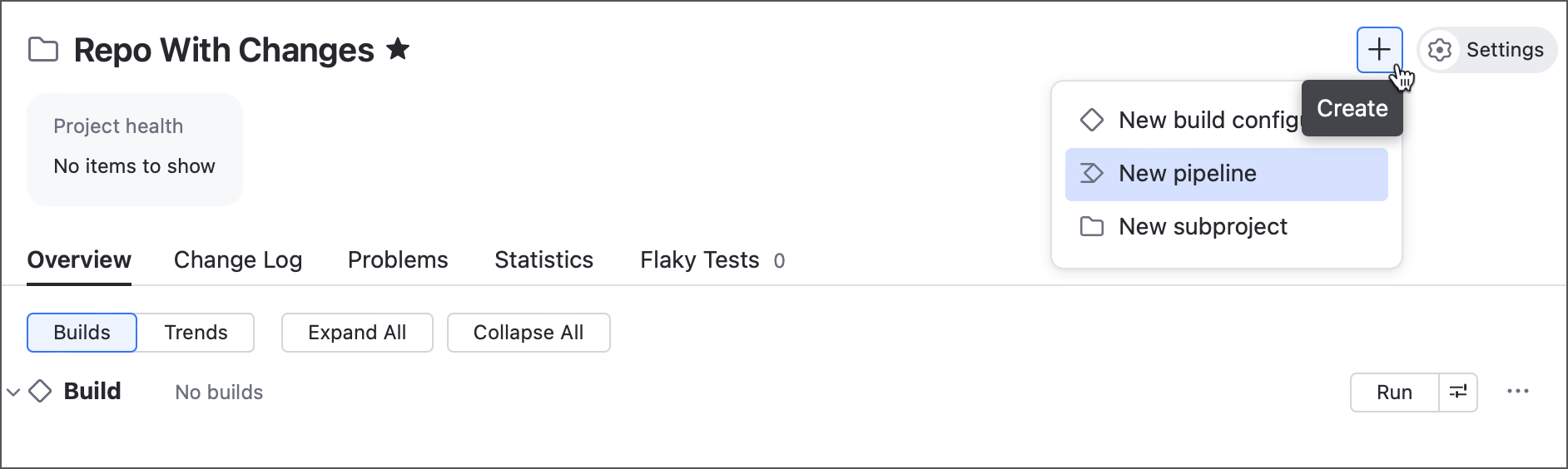
To add a pipeline to a project, use the + button in the project header or TeamCity sidebar.
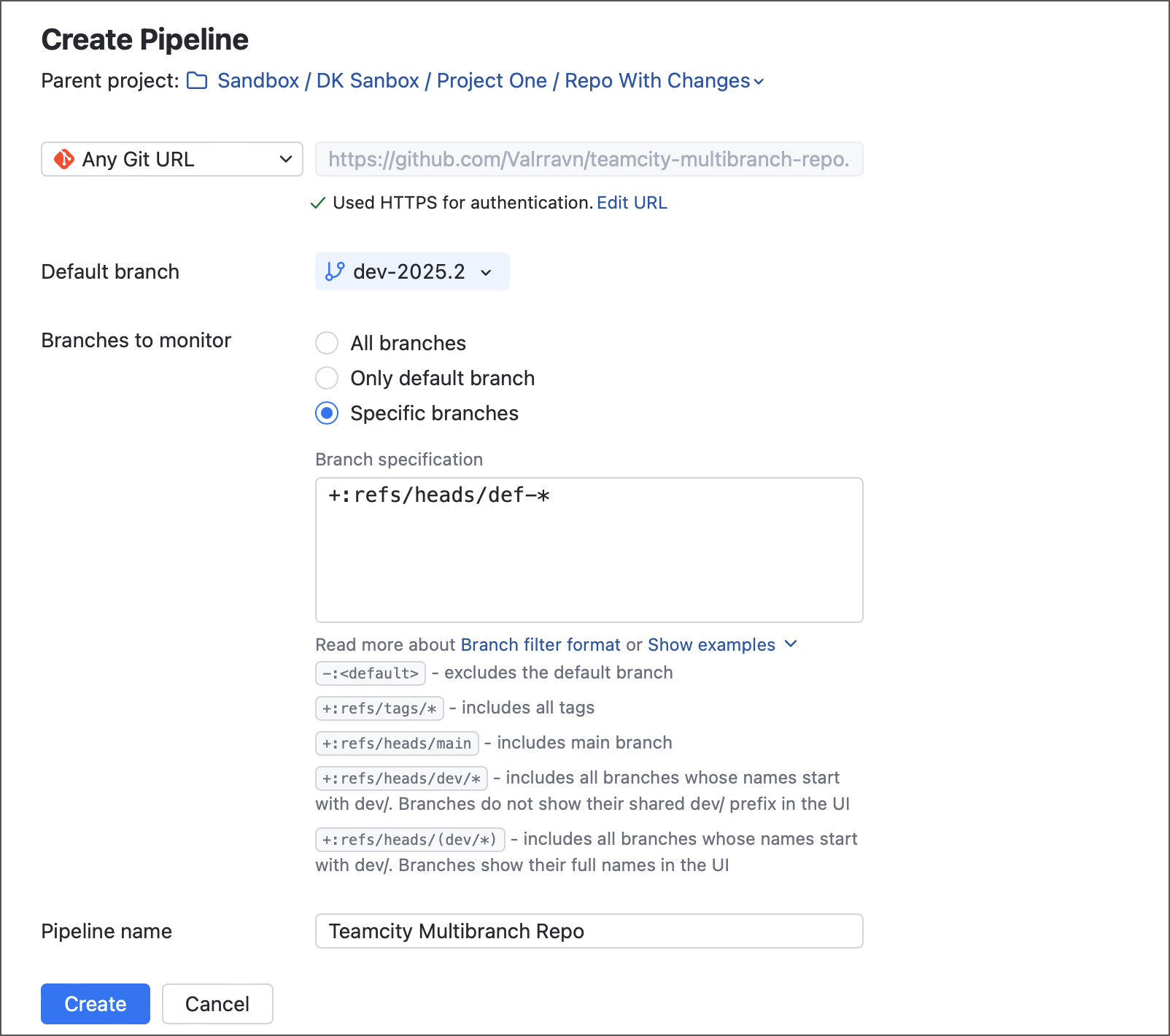
TeamCity will ask you to choose a remote repository that will be processed by this pipeline: you can choose an existing Git VCS root, a supported connection to a VCS hosting, or enter a Git URL manually. Default branch and branch specifications follow the same rules as regular build configurations, see Default Branch and Common Specification Syntax for more information. Note that if you select an existing root, branch settings will be disabled — modify root settings to edit them.
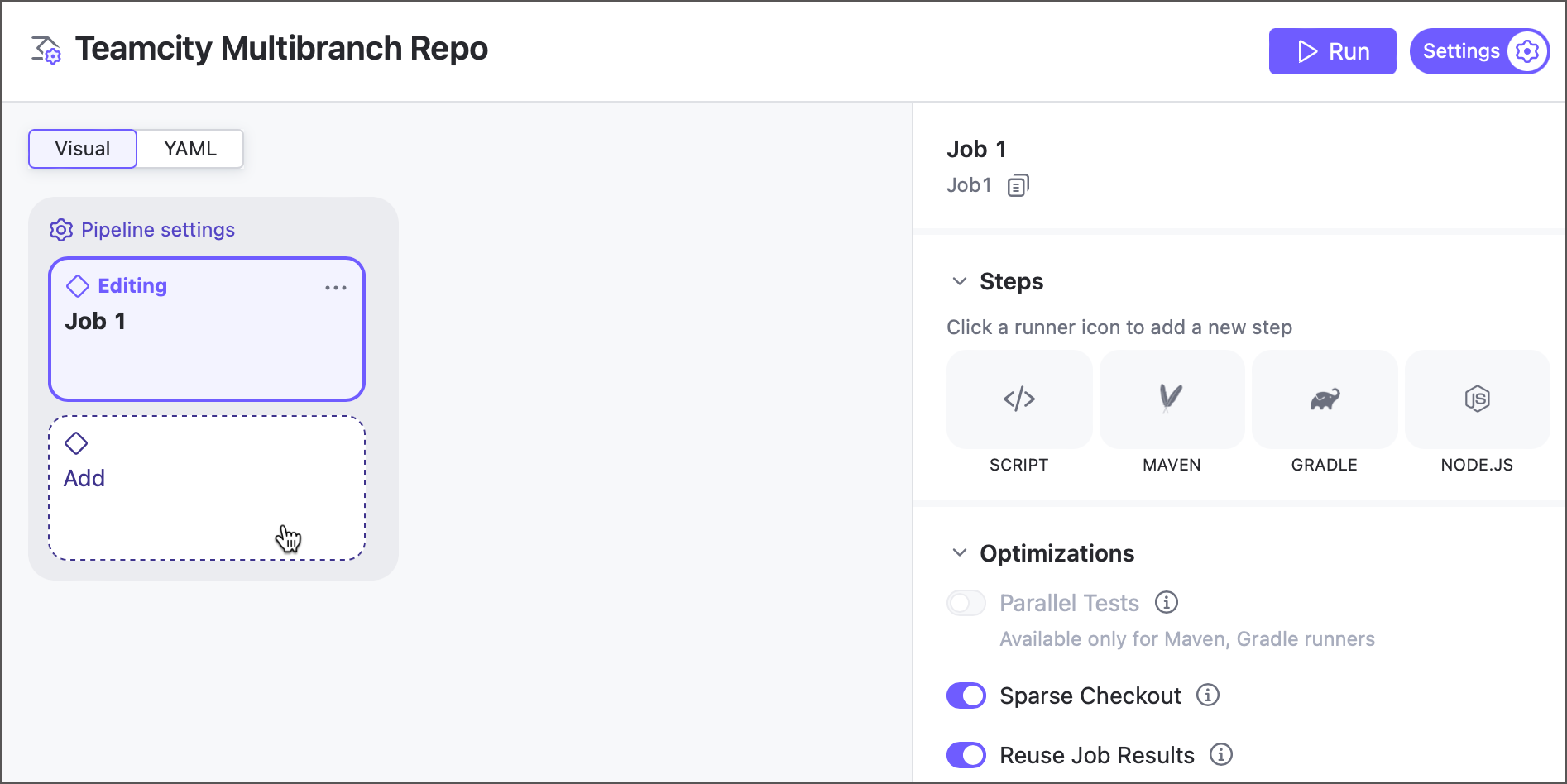
Every new pipeline has an empty job. You can click a job tile to view its settings, or click a corresponding area to add new jobs.
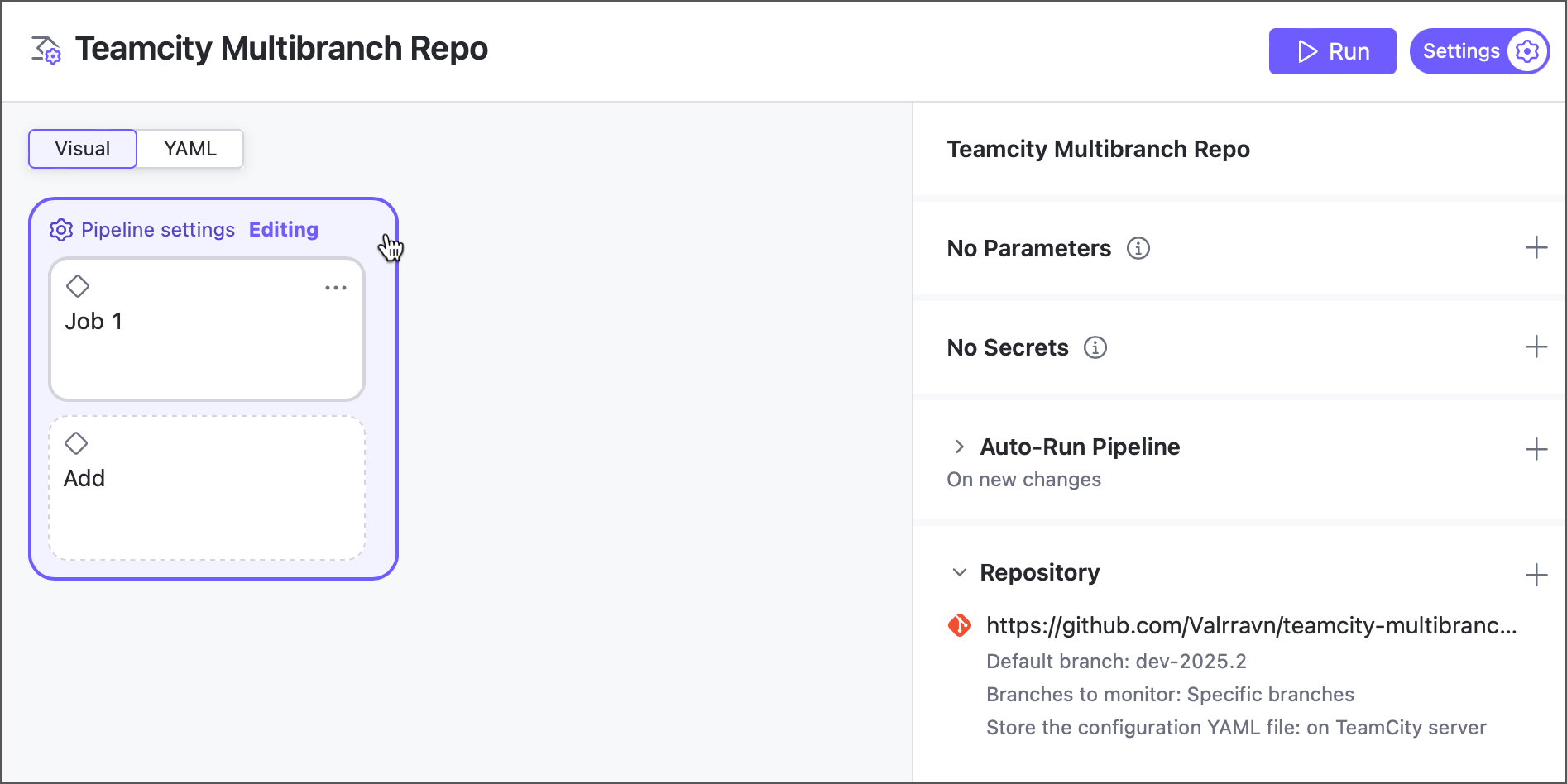
To view global pipeline settings, click a highlighted area in the visual editor.
To arrange pipeline jobs in the required order, select a job and check its upstream jobs in the Dependencies section. You can also use the visual editor to drag and drop a line from one job side to another.
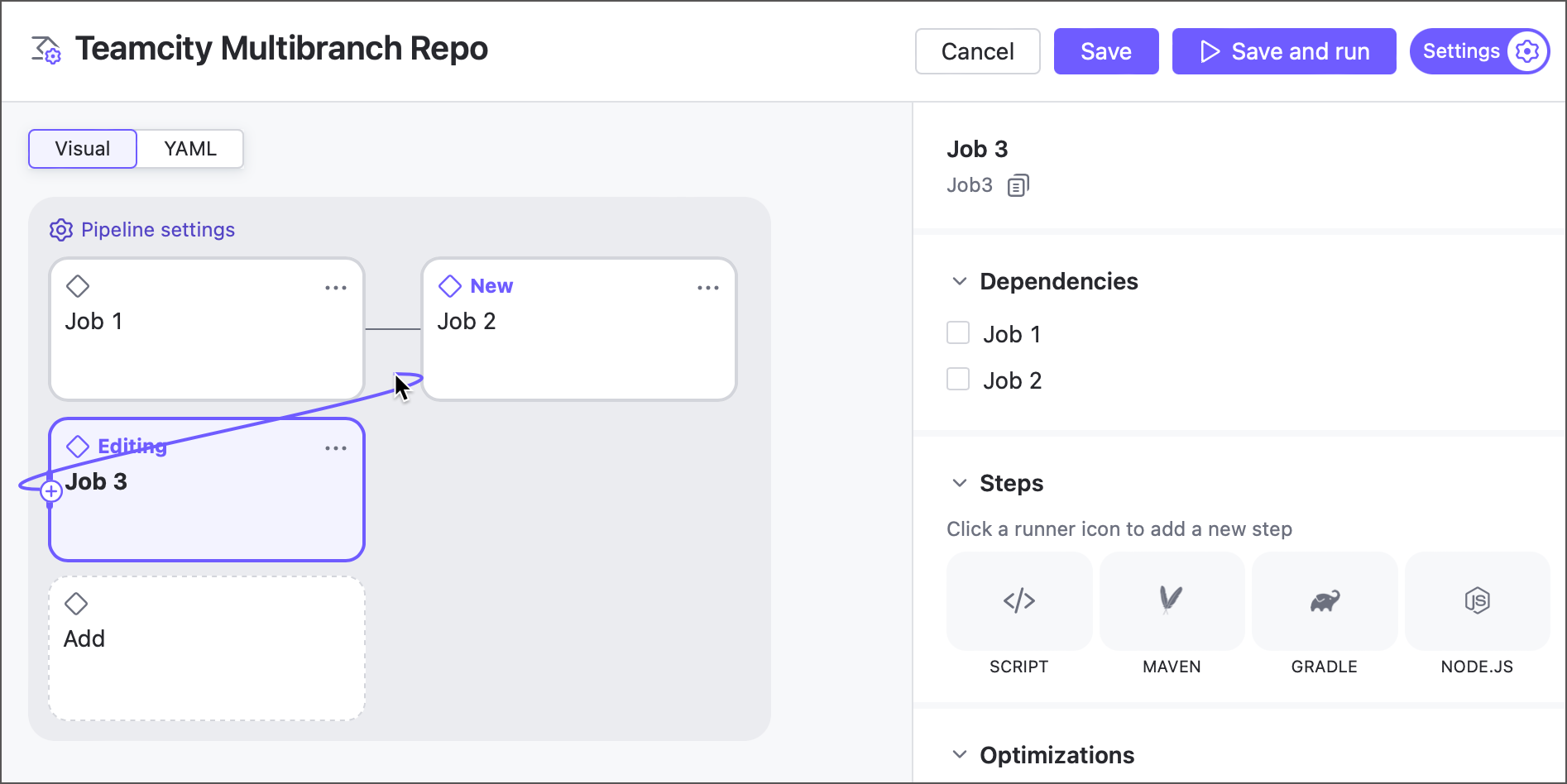
See Pipeline Settings and Job Settings for more information on basic operations.
Shared Files
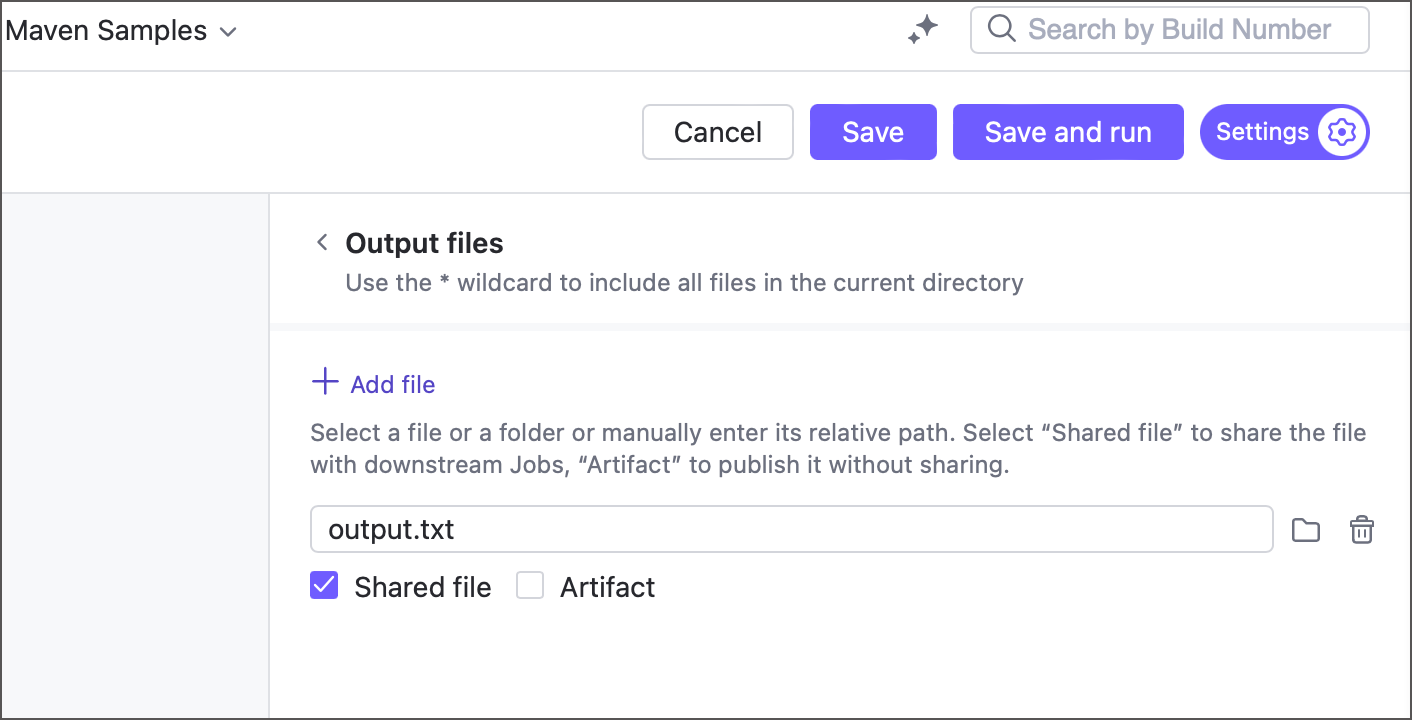
Jobs can share files produced during a run. These files can be shared with either downstream jobs or TeamCity users (or both).
Files shared with downstream jobs. In this case, jobs that follow the current one can import shared files and use them in their own scripts.
The sample below illustrates a three-job pipeline whose jobs work with a file created and shared by the first job.
jobs: Job1: name: Create file steps: - type: script script-content: touch output.txt files-publication: - path: output.txt share-with-jobs: true publish-artifact: false Job2: name: Modify file dependencies: - Job1: files: - output.txt steps: - type: script script-content: 'echo "Modified by Job #2" >> output.txt' Job1_2: name: Print file dependencies: - Job2 steps: - type: script script-content: cat output.txtShared files are displayed as hidden artifacts in the ".shared_files.zip" archive.
Files shared with users (artifacts). These are identical to build artifacts produced by classic build configurations. TeamCity shows artifacts in the Artifacts tab of a run results page.
To choose who a job should share a file with, tick related checkboxes under the job's Output files section entry.
Dependencies
Another classic TeamCity concept reworked in pipelines is dependencies. In pipelines, snapshot and artifact dependencies are merged in a single option. Click a job to view its settings, choose which jobs should precede it, and decide whether you want this job to import their outputs.
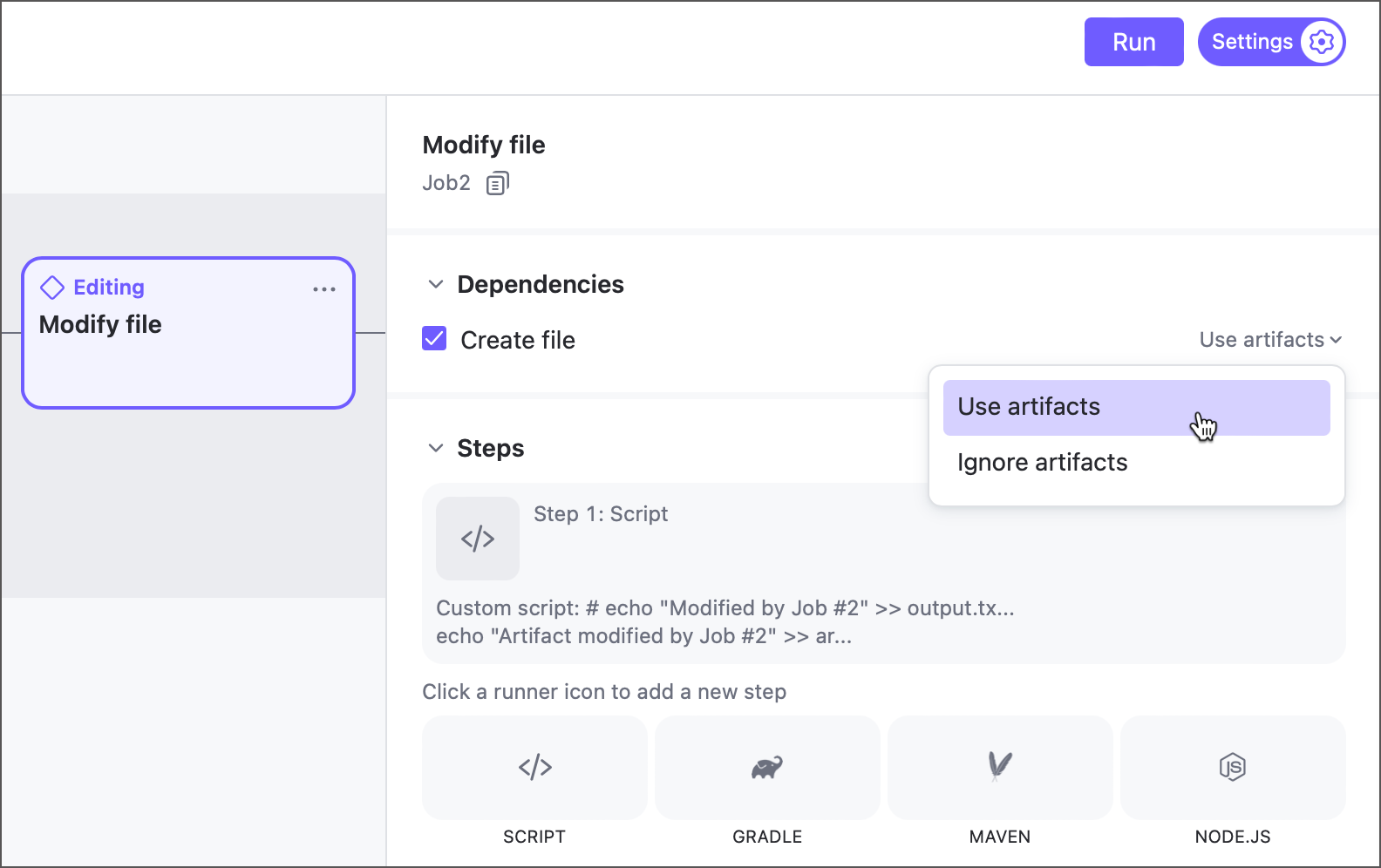
You can also choose whether to import files by clicking a dependency line in the visual editor.
Webhooks
Classic TeamCity supports two methods for detecting repository changes: periodic polling and webhooks. While webhooks offer near-instant updates and lower server load, they require manual setup. For more information, see the Collecting Changes section.
Pipelines use webhooks by default as a faster and more efficient alternative to the polling mechanism. When you create a pipeline from a connection, TeamCity automatically registers a webhook in your repository settings. Polling remains as a fallback if the webhook is removed or fails to deliver updates.
Publish Run Statuses to VCS
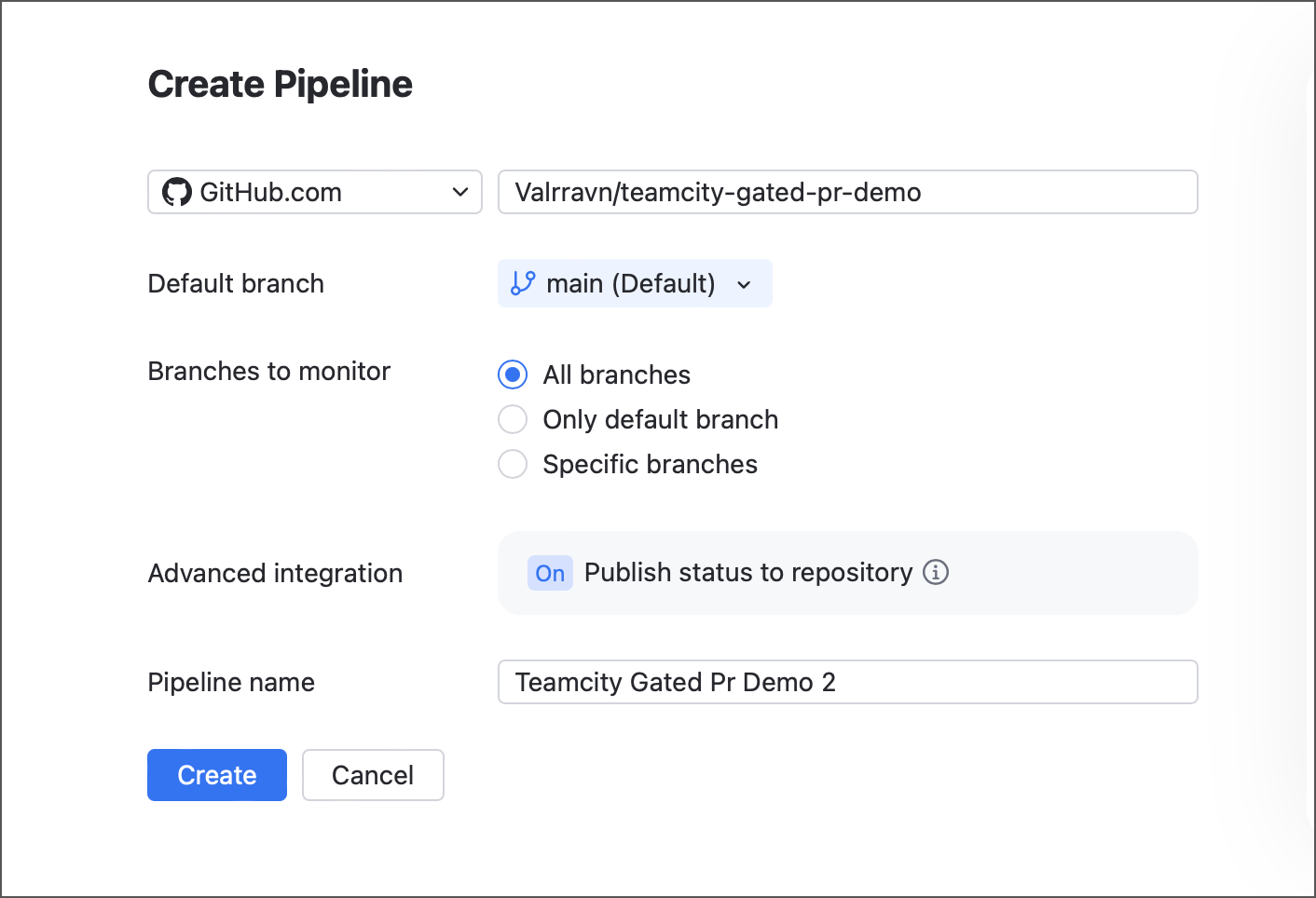
Commit Status Publisher is one of the most popular TeamCity build features that communicates build statuses back to the VCS side. If you create a pipeline using HTTP authentication, this integration is available automatically.
The figure below illustrates TeamCity run statuses reported to the repository page on GitHub.
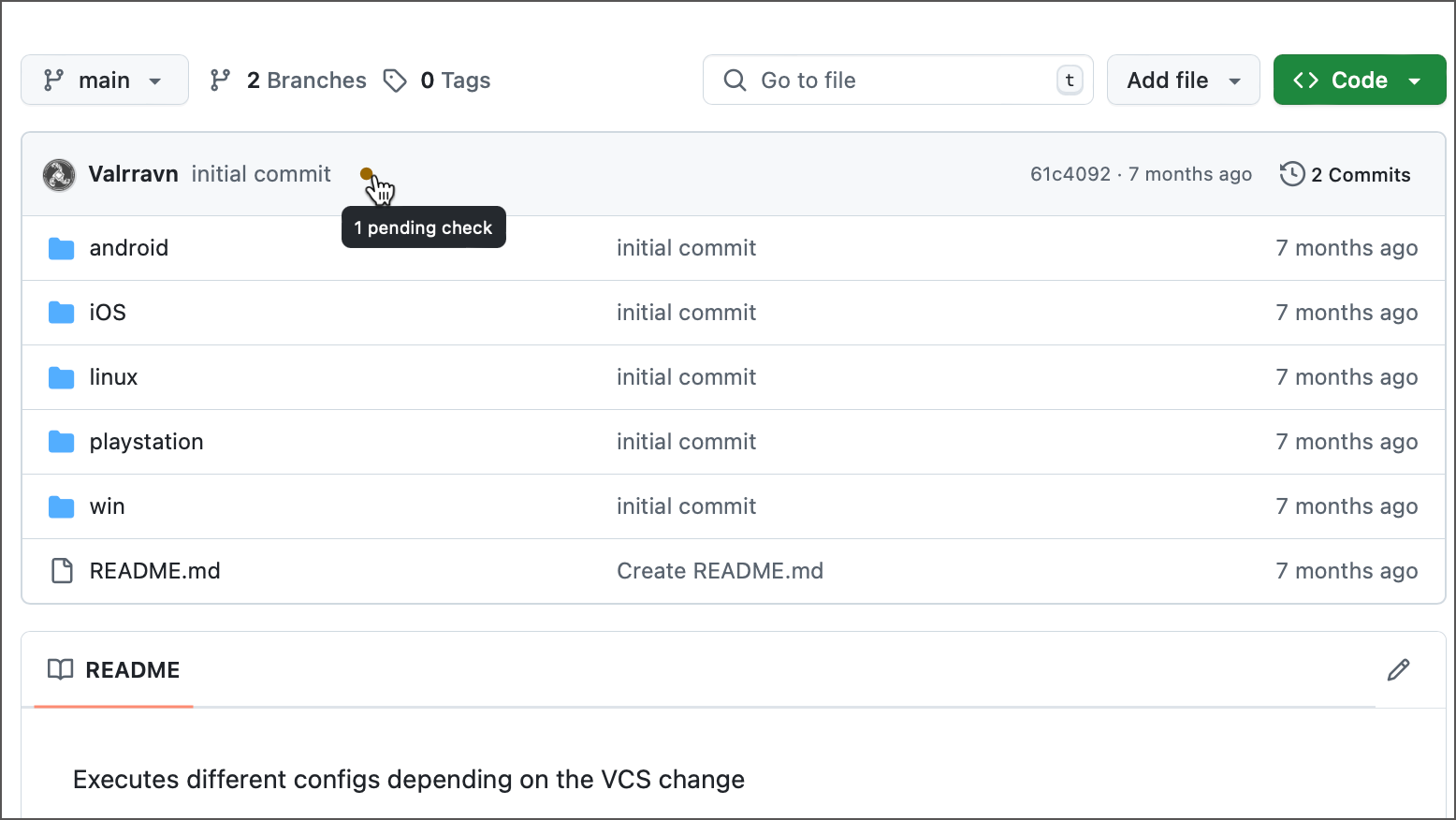
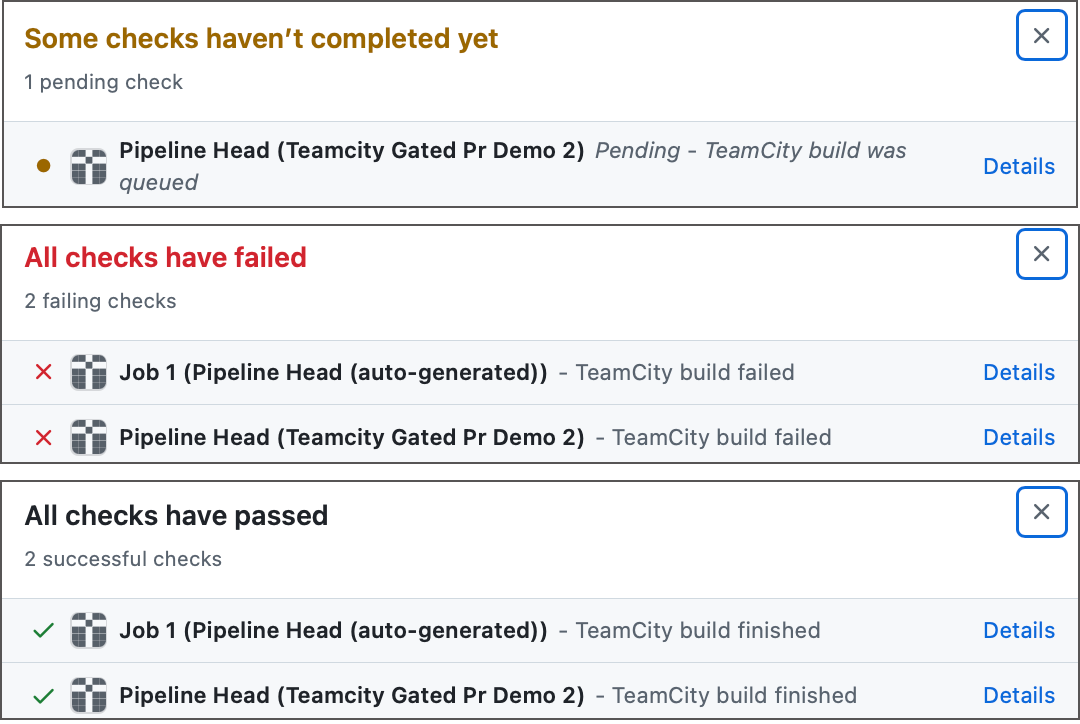
You can click the status icon to open the detailed description. The Details link leads to the corresponding pipeline run on the TeamCity server.
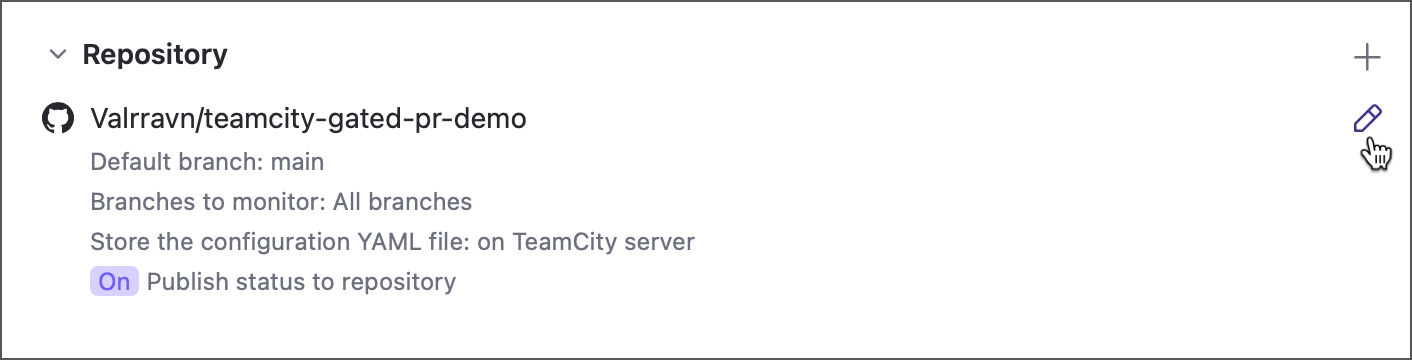
To disable this integration, click a pipeline to edit corresponding repository settings and toggle Publish status to repository off.
Debug Jobs
A regular pipeline run always triggers every job in order. While you are still designing a pipeline, you can instead run and inspect individual jobs as a quick way to confirm a job works before triggering the whole workflow.
To start or stop debugging a job, click its ellipsis button (top right corner) and choose the corresponding option — debugging always uses the job's current settings, whether or not they are saved.
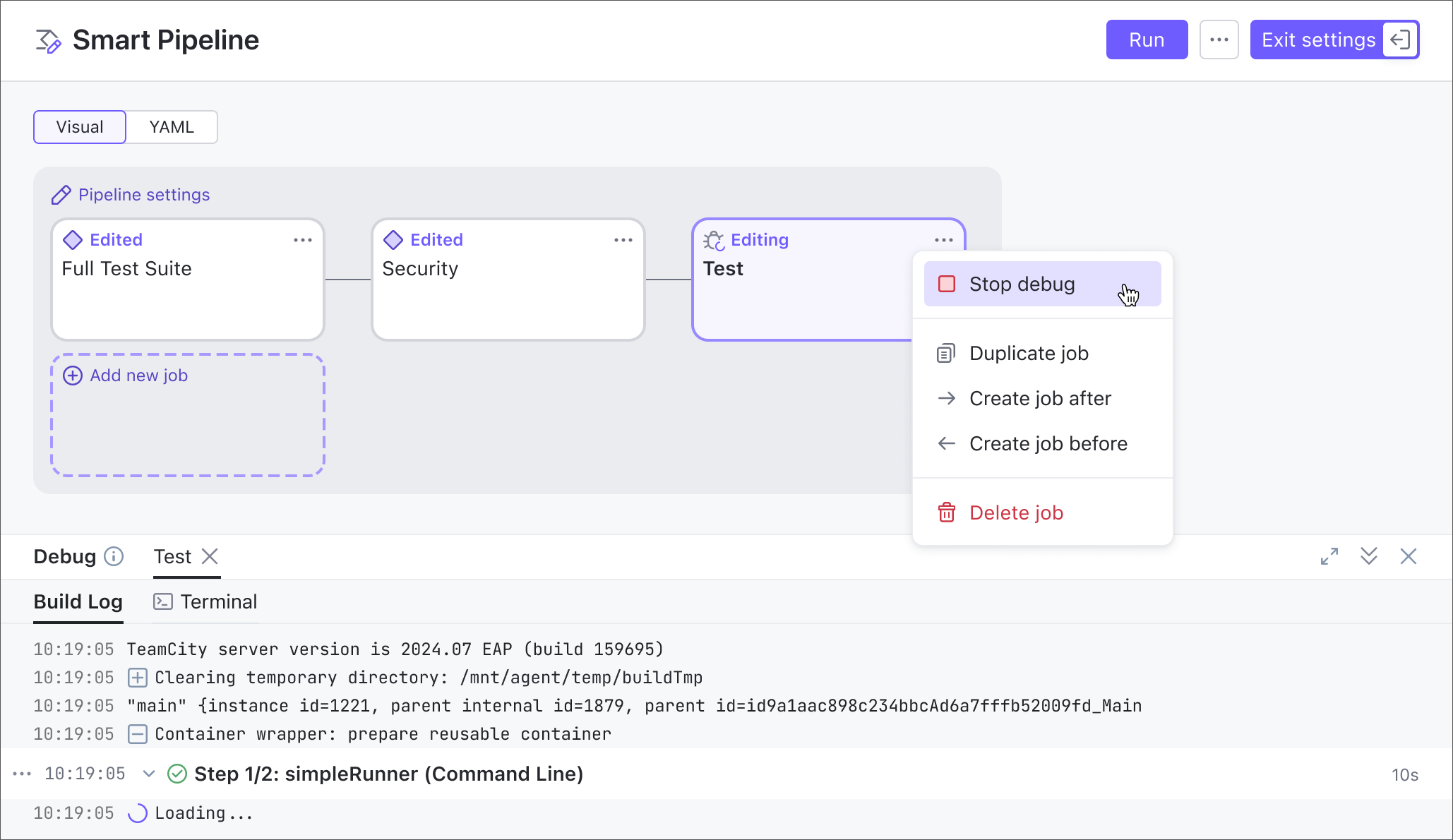
While a debug session is running, TeamCity opens a Debug panel with a separate tab for each job you debug. Every tab shows that job's build log and gives you terminal access to the agent that ran it. The panel and its logs disappear as soon as you edit the pipeline again.
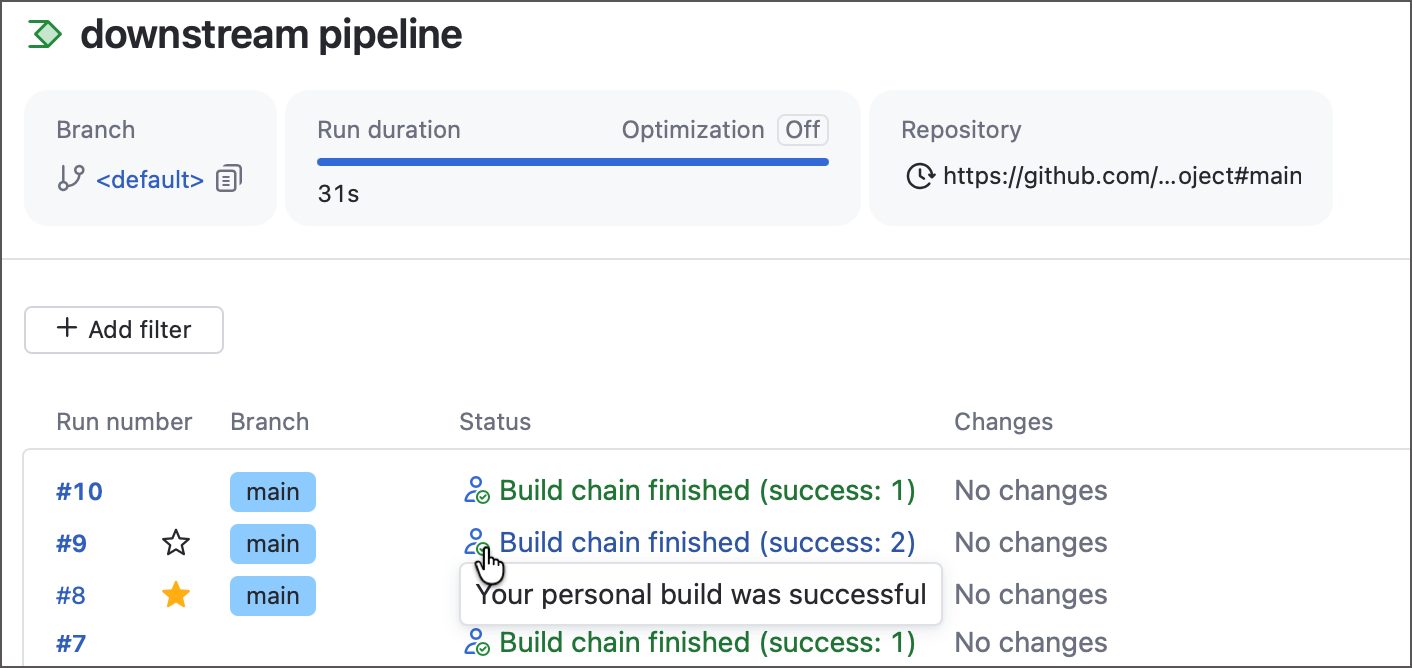
This does not mean the run itself is gone: every debug run is a personal build, and you can find it later on the pipeline overview screen, outside the settings editor.
Limitations and Special Notes
While we expect pipelines to become the default choice for anyone building a CI/CD workflow, they currently lack some features available in classic build configurations. We plan to expand the pipeline toolset and add the most requested features in future releases.
- Build steps
In addition to the universal Command Line (Script) step, pipeline jobs support three dedicated build steps for Maven, Gradle, and Node.js. The single .NET build step seen in build configurations is available as a set of single-purpose steps: build, clean, pack, publish, and more.
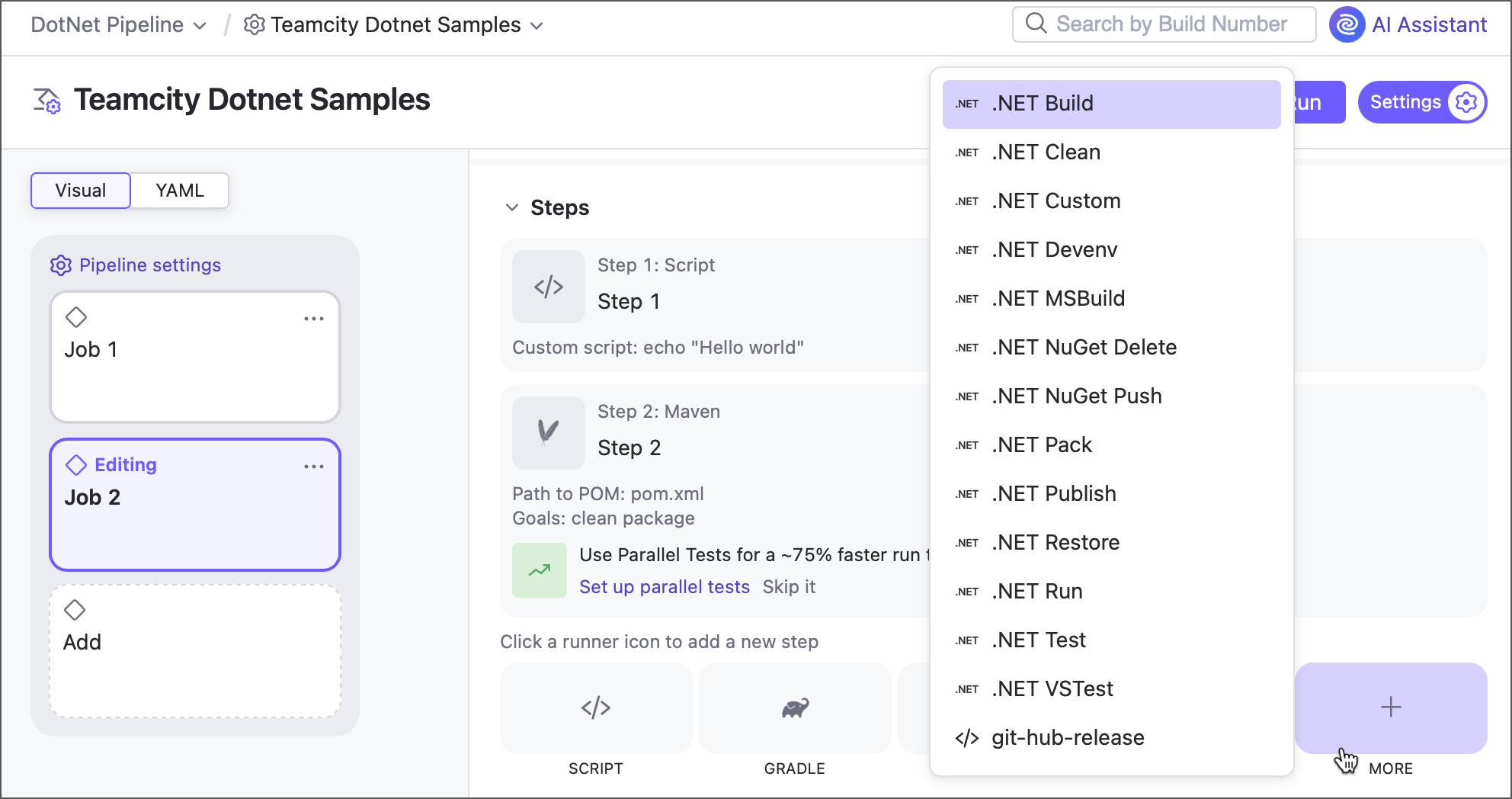
Other steps can be enabled on demand. To try them out, join our Slack channel or contact our support for the instructions.
- Connections
TeamCity pipelines currently support GitHub OAuth, GitLab, and Bitbucket Cloud connections.
Note that you do not need configured connections to create pipelines, you can do so from any Git repository URL.
- VCS roots
Pipelines use VCS roots internally but present a simplified Repositories section instead of exposing VCS root settings directly. As a result, options like clean and checkout policies, custom polling intervals, and submodule handling are not configurable through the pipelines UI.
However, you can still create and configure a VCS root in the classic TeamCity UI, then create a pipeline from this root.
- Build features
Pipelines are designed to offer the simplest, most user-friendly way to set up CI/CD routines. To support this goal, we are working on integrating key functionality directly into pipelines, avoiding the need for separately configured build features.
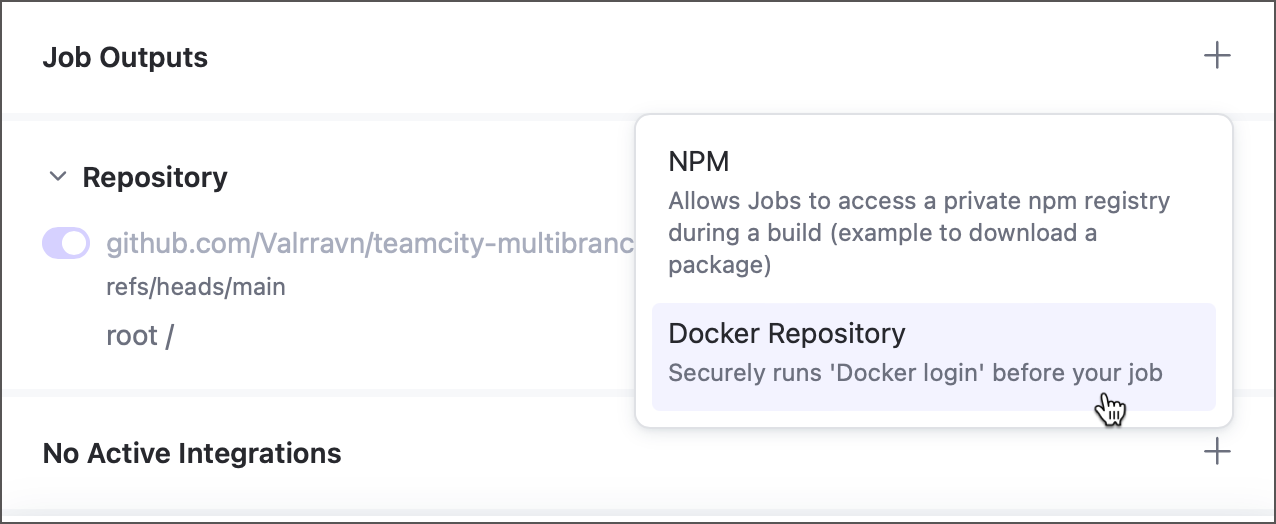
For example, the Commit Status Publisher is enabled automatically is enabled automatically when using connections, and registry connections are managed as Integrations within pipeline and job settings (rather than through separate Docker Registry Connections and NPM Registry Connection build features).
Some of the classic build features are also available for jobs, with little or no difference from build configurations. You can add them in Job settings | Build features.
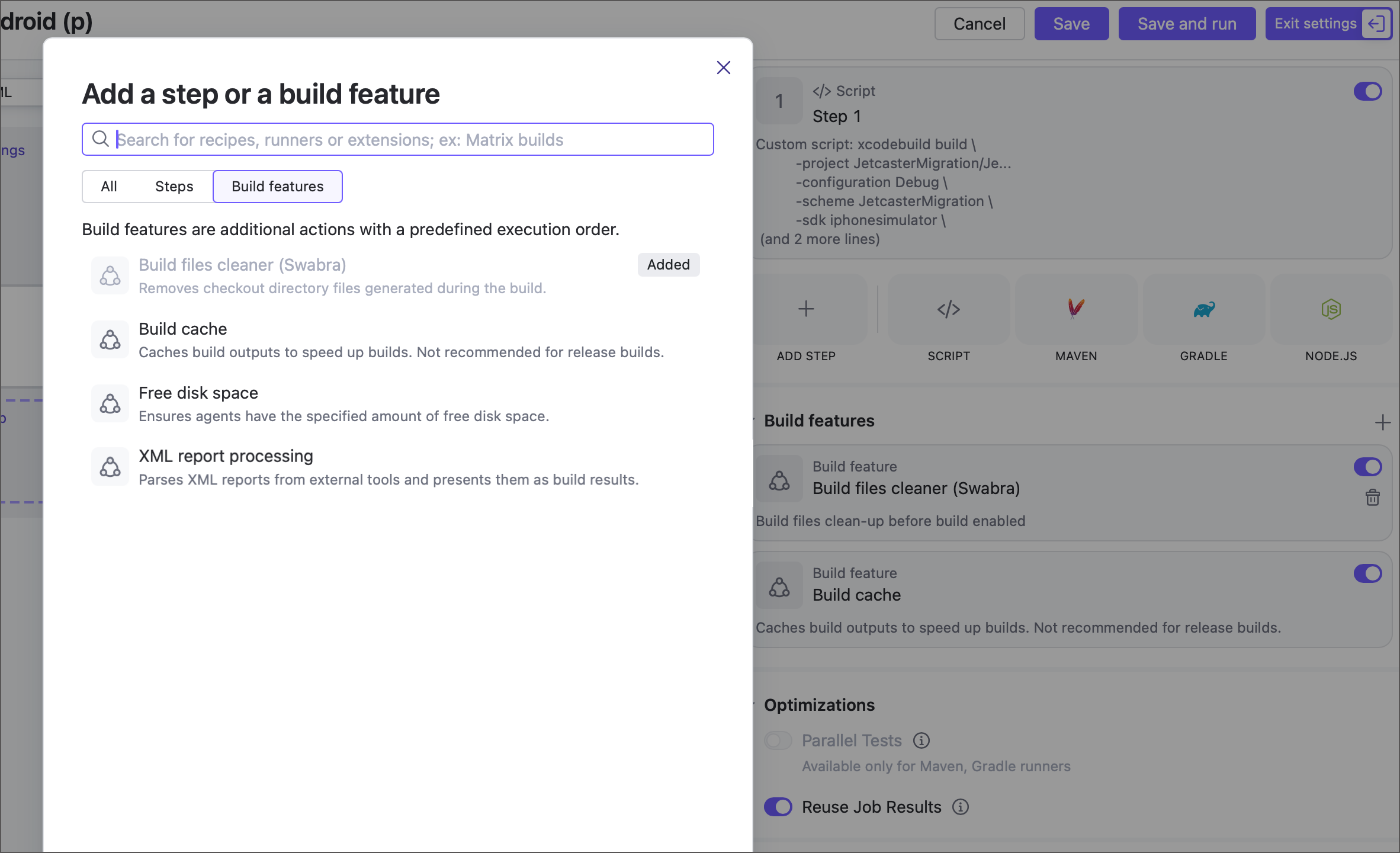
Some build features, such as Build Approval, are not yet available in pipelines, either as reworked functionality or as standalone build features. We are reviewing your feedback to prioritize next steps and deliver the most requested features in a clear and consistent way.
- Triggers
TeamCity pipelines currently support two types of triggers that allow CI routines to start automatically:
Schedule trigger that starts new runs on the given date and time.
VCS trigger that starts runs on new code changes.
Both are configured in the Auto-Run Pipeline section of pipeline settings.
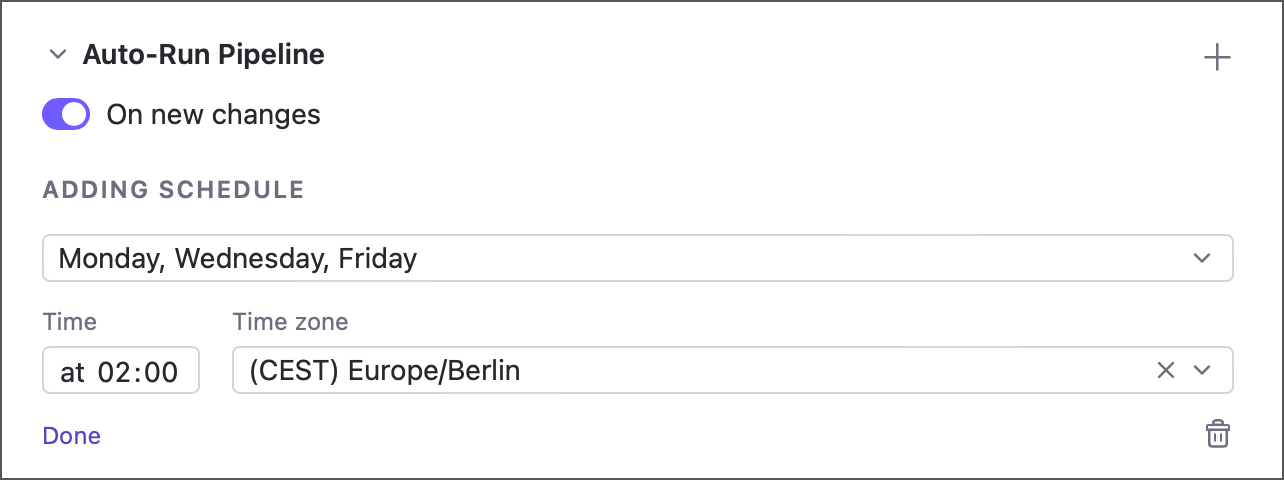
Other trigger types (for example, the Finish build trigger or GitHub checks trigger are currently not supported).