Creating and Editing Projects
In TeamCity, actual building tasks are carried out by build configurations and pipelines. However, both of them must be placed inside a project.
This topic illustrates different ways to create projects.
Root Project and Settings Inheritance
Before you begin, note that every TeamCity server includes a built-in, undeletable project called the Root project. All new projects are created as its children, but it cannot host build configurations and pipelines directly.
In TeamCity, child projects inherit many settings and entities from their parent, such as connections and cloud agent profiles. The Root project lets you take advantage of this concept and define server-wide resources. For example, you can create AWS cloud profile that spawns cloud agents accessible to all projects on the server.
You can navigate to the Root project settings by clicking the <Root project> breadcrumbs item in edit mode...
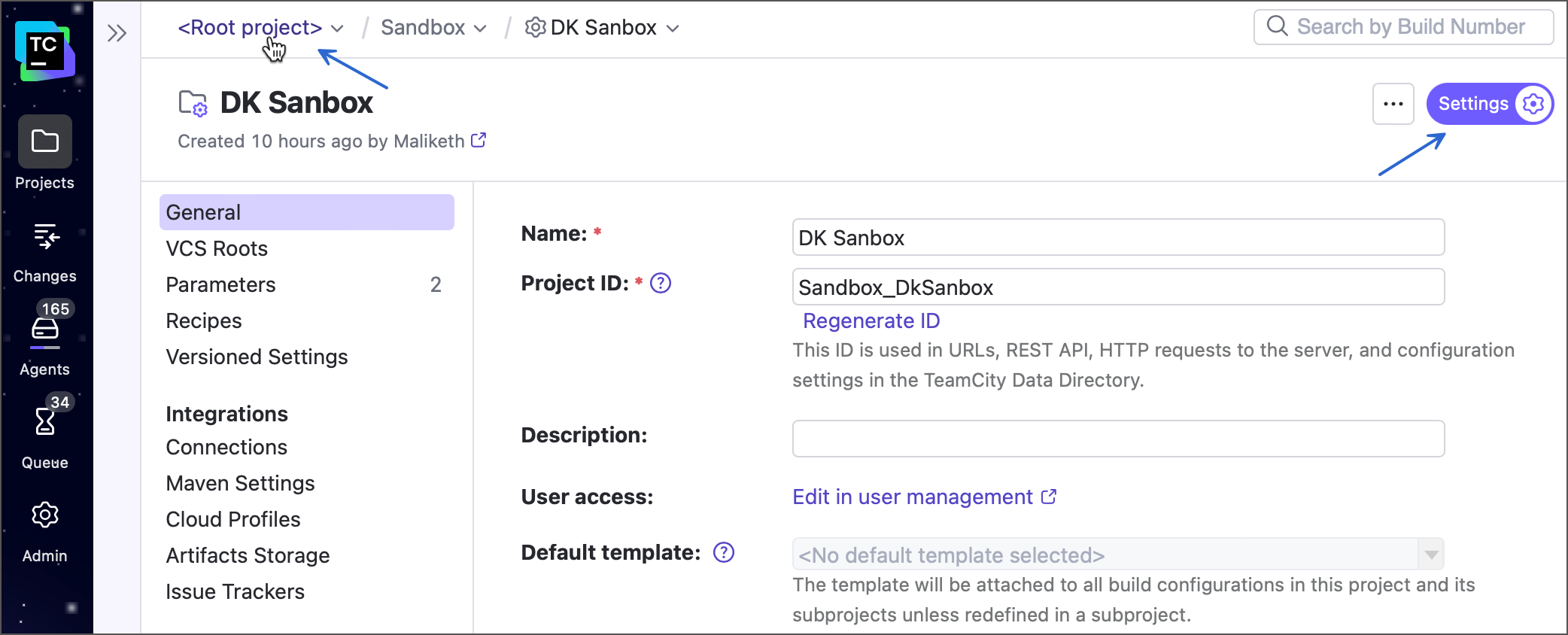
...or by going to the <your_server_URL>/admin/editProject.html?projectId=_Root URL directly. Note that since user permissions are project-based, only Root project administrators can edit its settings.
Create New Projects in TeamCity UI
New TeamCity projects can be added using corresponding sidebar buttons. The Create button next to the Projects menu item allows you to add top-level projects owned directly by the Root project.
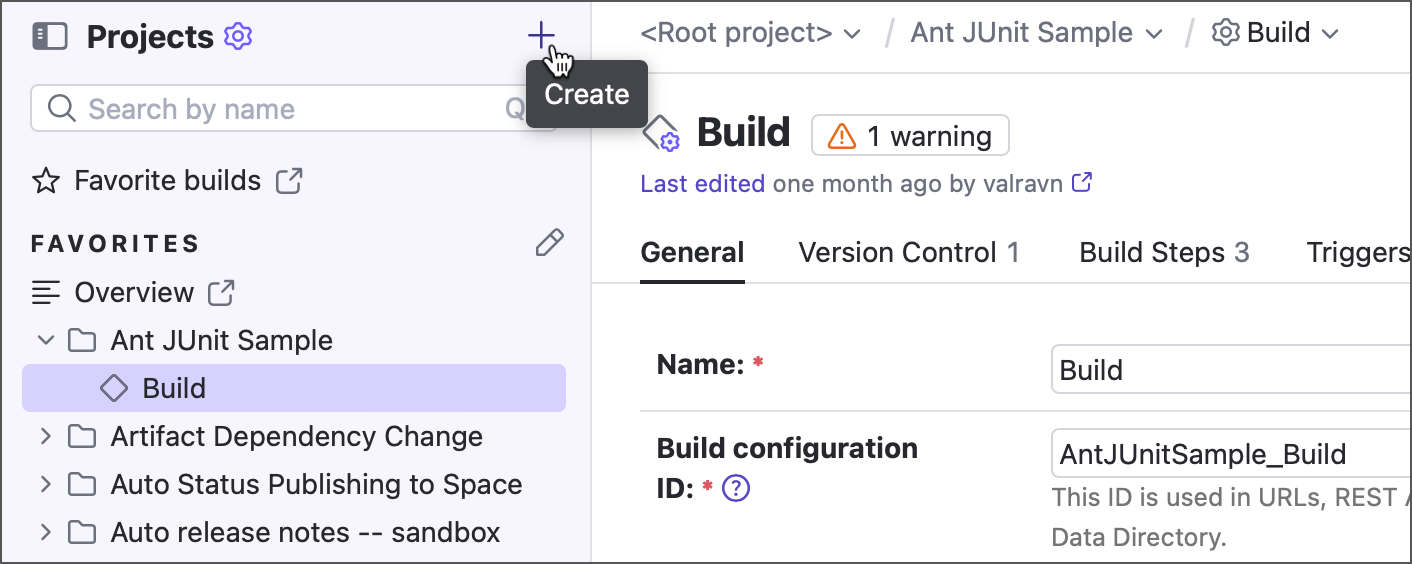
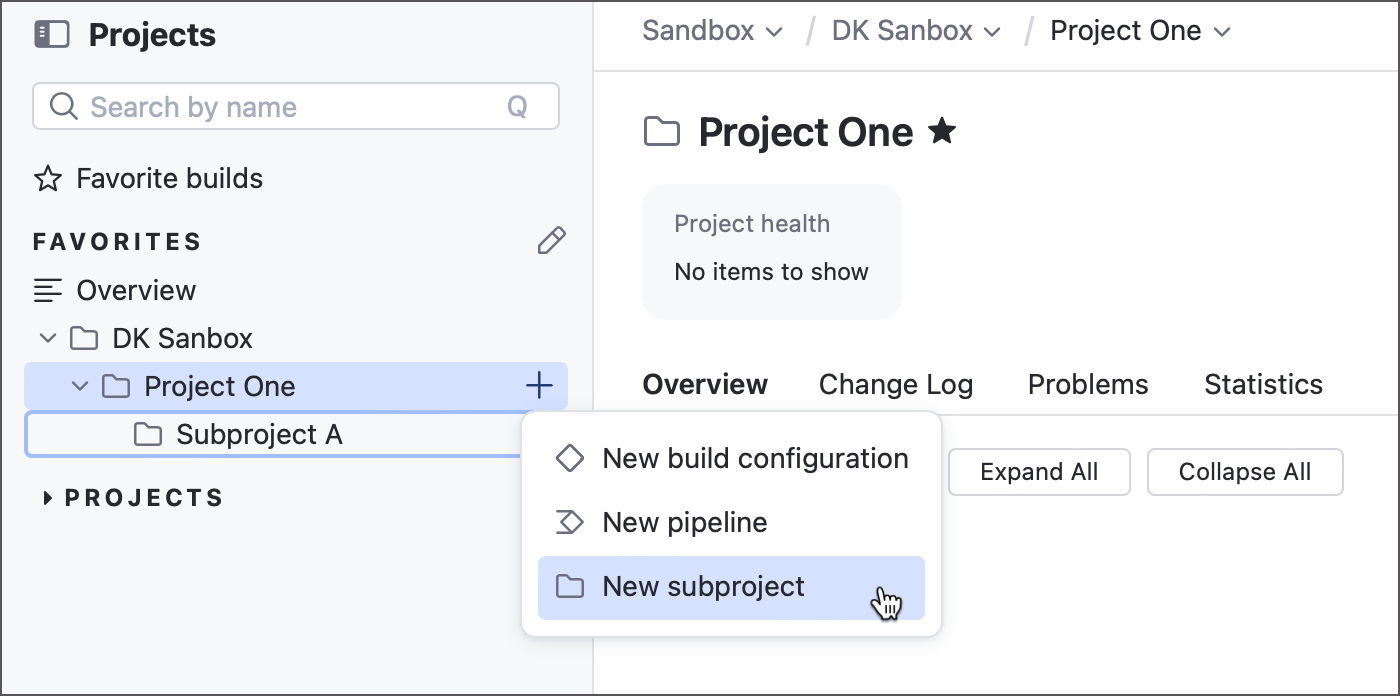
To add a subproject of an existing project, click the identical button next to that project.
The New Project page asks you to enter a name and (optionally) a description of your project.
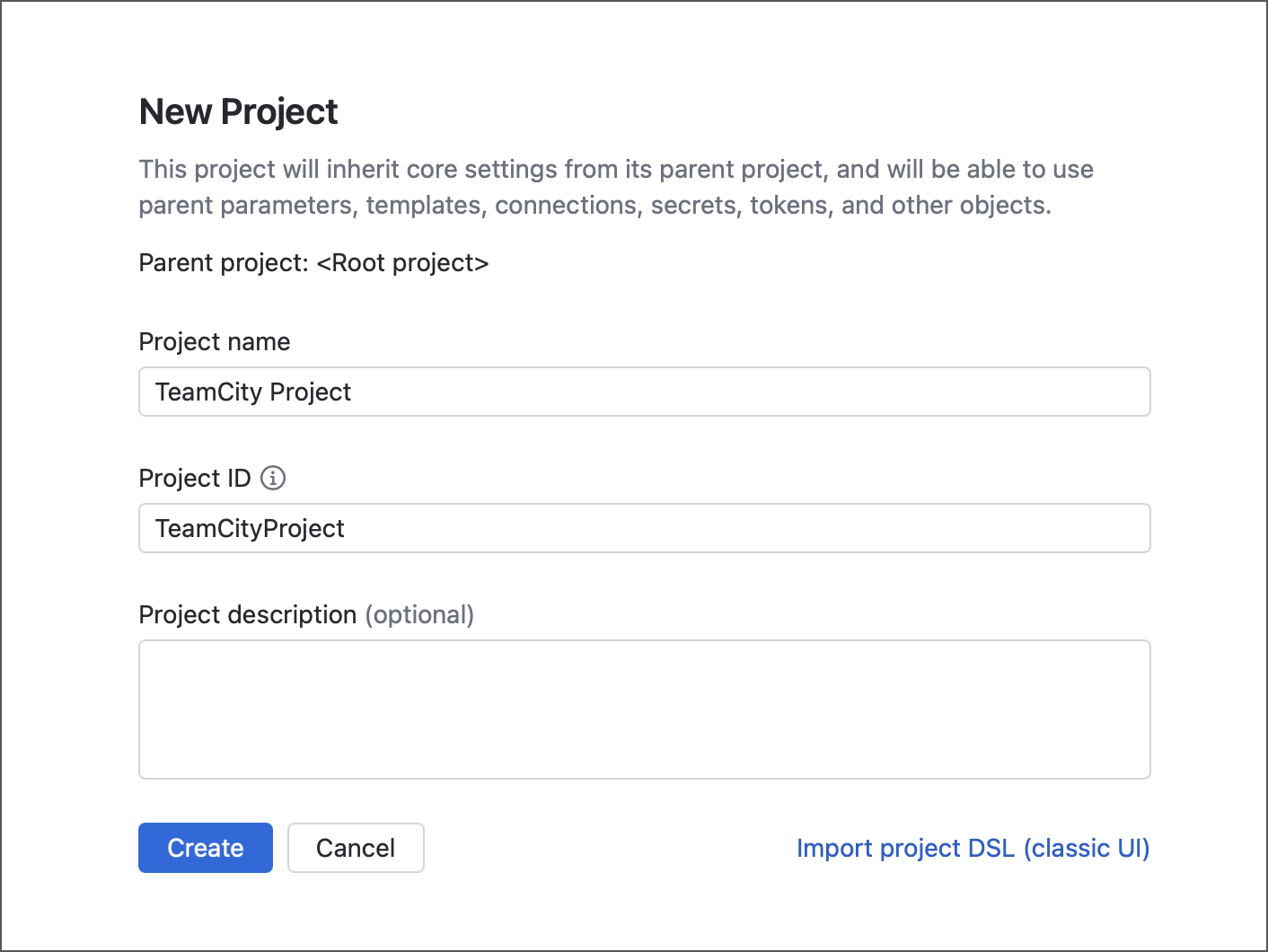
After you click Create, the project is created and TeamCity brings you to the Set up your build page. This page allows you to add a child element for your new projects:
Build configuration — A sequence of build steps that run on the same agent. It can include various build features and link to other configurations in a build chain. This classic TeamCity entity offers the most control and supports advanced scenarios, though it may be more challenging to set up for new users.
Pipeline — A collection of jobs containing build steps. Features an intuitive UI with an advanced visual editor and YAML support. This newer entity is under active development; while it may not yet have all the features of build configurations, it is easier to use and well-suited for simpler workloads and beginners.
You can choose any of these options or click Close in the top-right corner of the page. The latter option creates a blank new project, which you can use to set up a project hierarchy: create a top-level project and add subprojects later. You can add build configurations or pipelines at any time from the General tab in project settings or by clicking the "+" icon in the navigation sidebar.
Create New Projects in Kotlin DSL
The following Kotlin code creates a project with two subprojects.
To create a TeamCity project that imports settings stored in a remote repository:
On the New Project page, click Import project DSL (classic UI) (see the image above).
Select the Manually tile to create an empty project and enter its name.
In project settings, navigate to the Versioned Settings tab.
Check Synchronization enabled and click Create VCS root.
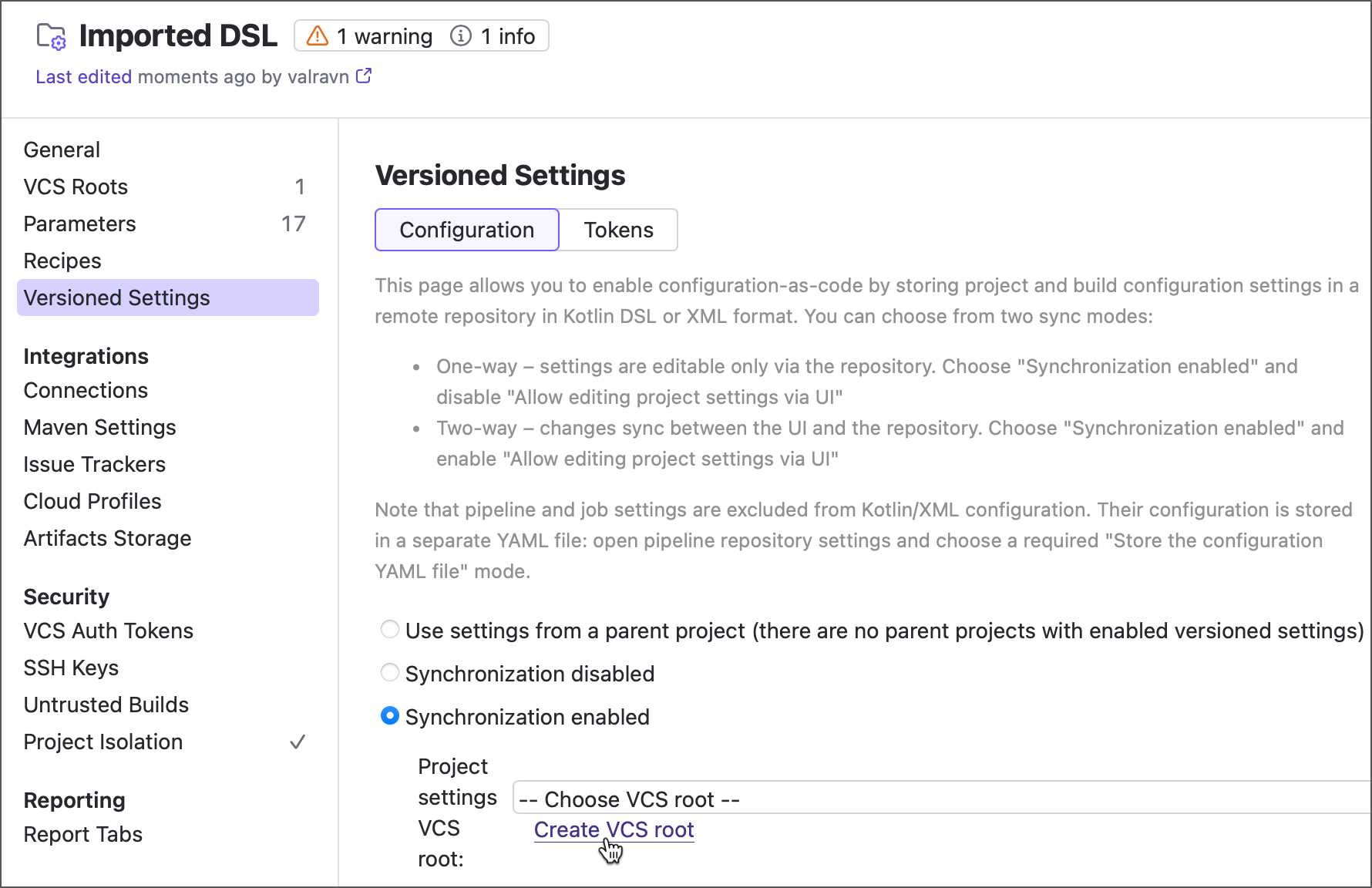
Configure the root to connect to a remote repository that stores DSL settings. See the Configuring VCS Roots article to learn more.
Click Apply. Once TeamCity connects to the repository, select Load project settings from VCS....
By default, TeamCity uses two-way synchronization for project settings:
Edits made in the TeamCity UI are committed back to the VCS.
Changes in the versioned settings are reflected in the UI.
To make the configuration file the only editable source, clear the Allow editing project settings via UI checkbox.
See these articles for more information:
Create New Projects From REST API
The following request creates a new empty TeamCity project owned by the specific parent project.
See the following REST API documentation article for more information: Create and Delete Projects.
Manage Projects
You can view all available projects and subprojects on the Projects page listed in the alphabetical order by default. Administrators can customize the default order.
When you select a project from the list, TeamCity displays the Project Home page where you can preview its nested build configurations and recent build results. To access the project's settings, click the corresponding toggle in the top right corner to switch to the edit mode.
To copy, move, delete or archive a project, use the Actions menu in the upper right corner of the project settings page.
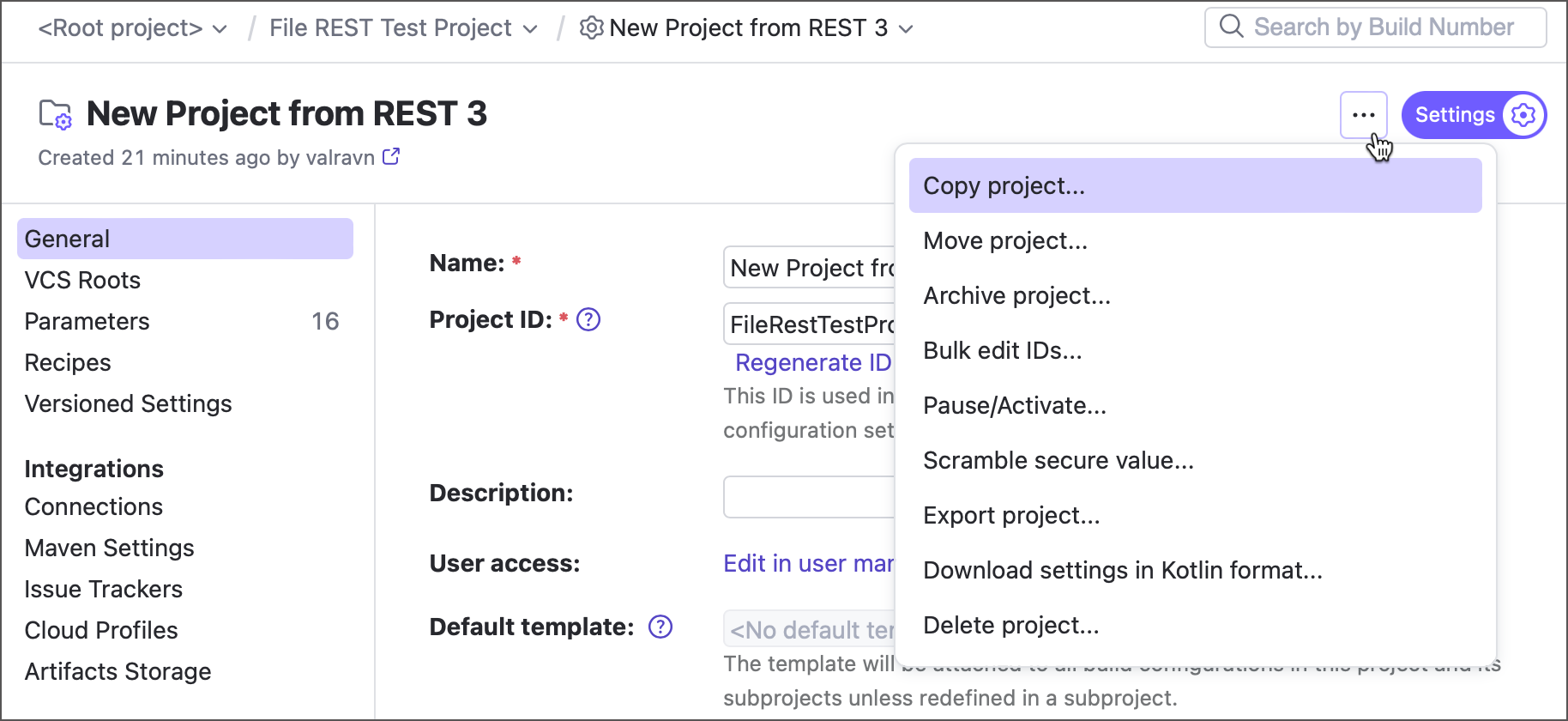
These options are not available for the Root project.
Copy a Project
Invoke the project Actions menu and click Copy project.... Projects can be copied and moved to another project by project administrators.
A copy duplicates all the settings, subprojects, build configurations, and templates of the original project, but no data related to builds is preserved. The copy is created with the empty build history and no statistics.
You can copy a project into the same or another parent.
On copying, TeamCity automatically assigns a new name and ID to the copy. It is also possible to change the name and ID manually.
Selecting the Copy project-associated user, agent and other settings option makes sure that all the settings like notification rules or agent's compatibility are exactly the same for the copied and original projects for all the users and agents affected.
You can also opt to copy build configurations build numbers.
Move a Project
Invoke the project Actions menu and click Move project....
When moving a project, TeamCity preserves all its settings, subprojects, build configurations/templates, and associated data, as well as the build history.
Archive a Project
Invoke the project Actions menu and click Archive project.... Refer the following help article to learn more about archiving TeamCity projects: Archiving Projects.
Bulk Editing IDs
Invoke the project Actions menu and click Bulk edit IDs.
The current project and build configuration IDs are displayed. You can modify or reset the IDs for all subproject, VCS roots, build configurations and templates. Click Regenerate to get new Ids automatically or edit them manually.
Click Submit.
Pause / Activate Triggers
Invoke the project Actions menu and click Pause / Activate... to temporarily disable triggers configured for multiple build configurations owned by this project.
Export a Project
Invoke the project Actions menu and click Export project... to move a project to a different TeamCity server.
Delete a Project
Invoke the project Actions menu and click Delete project....
When you delete a project, TeamCity will remove its .xml configuration files. After the deletion, the project is moved to the \< TeamCity Data Directory \>/config/_trash/.ProjectID.projectN directory. There is a configurable timeout (5 days by default) before all project-related data stored in the database (build history, artifacts, and so on) of the deleted project is completely removed during the next build history clean-up.
The TeamCity Data Directory /config/_trash/ directory is not cleaned automatically and can be emptied manually if you are sure you do not need the deleted projects.