Maintain syntax styles
One of the aspects of the code style is how to use interchangeable language syntax constructions. For example, two method definitions below are identical from the compiler point of view, but the choice of syntax constructions makes them look different:
[Conditional("DEBUG")]
[Test]
static public void Foo(String str)
{
foreach (Char ch in str)
{
System.Console.WriteLine(value: ch);
}
}
|
[Test, Conditional("DEBUG")]
public static void Foo(string str)
{
foreach (var ch in str)
Console.WriteLine(ch);
}
|
Configure code syntax styles
When you start using ReSharper, it will refer to its default settings to make sure that interchangeable syntax constructions are used consistently throughout your codebase. However, you can configure each individual preference to your liking.
Use ReSharper custom EditorConfig code style properties to specify your preferences in EditorConfig files, which will also allow you to have consistent code styles across your team.
If you have used ReSharper for Visual Studio or JetBrains Rider on your computer, or have opened the current solution using these tools, ReSharper for Visual Studio Code will read and apply your syntax style settings from
.DotSettingsfiles. However, any settings configured via .editorconfig will take precedence.
Check and fix code syntax style with code inspections
ReSharper provides a number of code inspections that check your code for compliance with your code syntax style and suggests quick-fixes where the style is violated — for example, if the order of modifiers differs from your preferences:
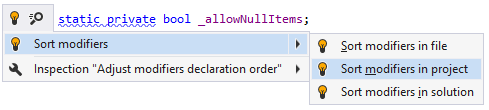
Syntax style features
- Bodies of type members
- Braces for single nested statements
- Built-in type references
- File-Scoped Namespaces
- Implicit/explicit typing ('var' keyword)
- Modifiers
- Multiple attributes
- Named/positional arguments
- Optional member qualifiers
- Optional parentheses
- Trailing commas
- Object creation
- Default value expressions
- Empty string
- Null checking pattern
- EditorConfig properties for C#: Syntax Style