Code Syntax Style: Trailing Commas
When multiple items are separated by commas (object, array, and collection initializers, as well as enums and switch expressions) , C# allows you to have the trailing comma after the last item.
var list = new List<string>
{
"one",
"two"
};
|
var list = new List<string>
{
"one",
"two", // trailing comma
};
|
ReSharper helps you arrange trailing commas in the existing code and takes your preferences into account when it produces new code with code completion and performs refactorings.
Enforce preferences for trailing commas
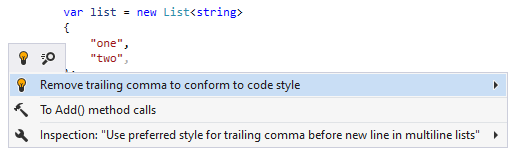
By default, ReSharper highlights trailing commas as redundant and helps remove them:
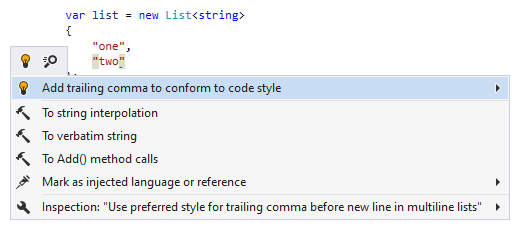
If you prefer trailing commas in your code, you can change the corresponding preference and ReSharper will help you add missing trailing commas:
Configure preferences for trailing commas
You can configure syntax style settings via EditorConfig. These settings can be stored in .editorconfig files on different levels of your solution hierarchy. The files are normally put under VCS so that settings defined there are shared among the project team.
If you have used ReSharper for Visual Studio or JetBrains Rider on your computer, or have opened the current solution using these tools, ReSharper for Visual Studio Code will read and apply your syntax style settings from .DotSettings files. However, any settings configured via .editorconfig will take precedence.
Configure preferences for trailing comma style using EditorConfig
Open the desired .editorconfig file.
Add the required trailing comma style properties to the file. For example:
trailing_comma_in_multiline_lists = false