Code Syntax Style: Modifiers
C# modifiers of types and type members can be written in any order. However, arranging them in a similar way throughout your code is a good practice, which improves code readability. Besides, you may prefer using or not using private and internal modifiers explicitly.
ReSharper helps you arrange modifiers in the existing code and takes your preferences into account when it produces new code with code completion and performs refactorings.
Arrange modifiers in existing code
By default, ReSharper suggests using private and internal modifiers explicitly, and to arrange modifiers in a specific order. If necessary, you can flexibly configure these preferences.
If your code does not comply with these preferences, ReSharper highlights such declarations and suggests the corresponding quick-fix for the order of modifiers:
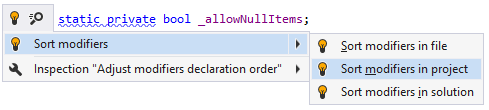
... for the private modifier:

... and for the internal modifier:
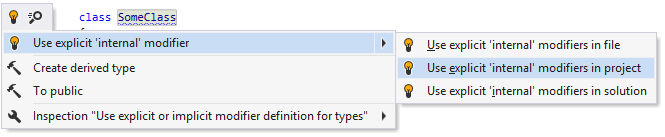
Configure preferences for modifiers
You can configure syntax style settings via EditorConfig. These settings can be stored in .editorconfig files on different levels of your solution hierarchy. The files are normally put under VCS so that settings defined there are shared among the project team.
If you have used ReSharper for Visual Studio or JetBrains Rider on your computer, or have opened the current solution using these tools, ReSharper for Visual Studio Code will read and apply your syntax style settings from .DotSettings files. However, any settings configured via .editorconfig will take precedence.
Configure preferences for modifiers using EditorConfig
Open the desired .editorconfig file.
Add the required modifiers properties to the file. For example:
default_private_modifier = explicit