License usage statistics
With statistics and reports, you can track and optimize license usage for all products in your License Vault.
License allocation statistics
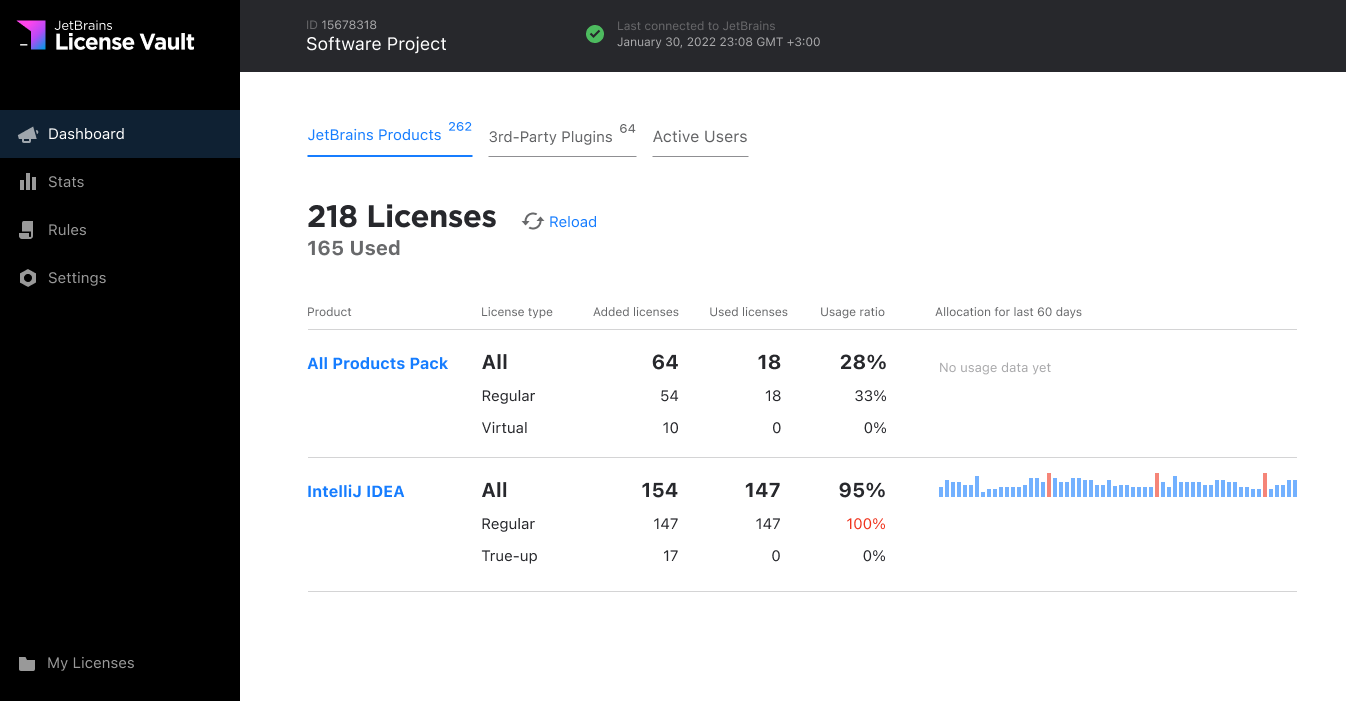
To see the allocation data divided by product and license type, go to the License Vault dashboard.
License types
There are three possible license types.
Prepaid: The annual or monthly licenses your company purchased before adding them to License Vault.
Postpaid: The postpaid licenses provided with the postpaid IDE licensing billing option.
Virtual: The temporary licenses provided with your License Vault instance for evaluation purposes. For example,
50 All Products Packlicenses provided for free with the License Vault trial.
Usage data
For current usage data, see the Quantity and In use columns.
In the image above, 97 out of 150
All Products Packlicenses are currently allocated to users.For aggregated 60-day statistics, see the 60-day usage chart bar chart.
Each dark-colored bar in the chart represents a day when the maximum license capacity was reached for this product.
To see detailed allocation statistics for each product, click on the product’s name. To see the list of active users, go to the Active Users tab.
Allocation chart
Use the license allocation chart to check how your licenses have been used over time. You can look at data for the past 24 hours, 30 days, 60 days, or 12 months.
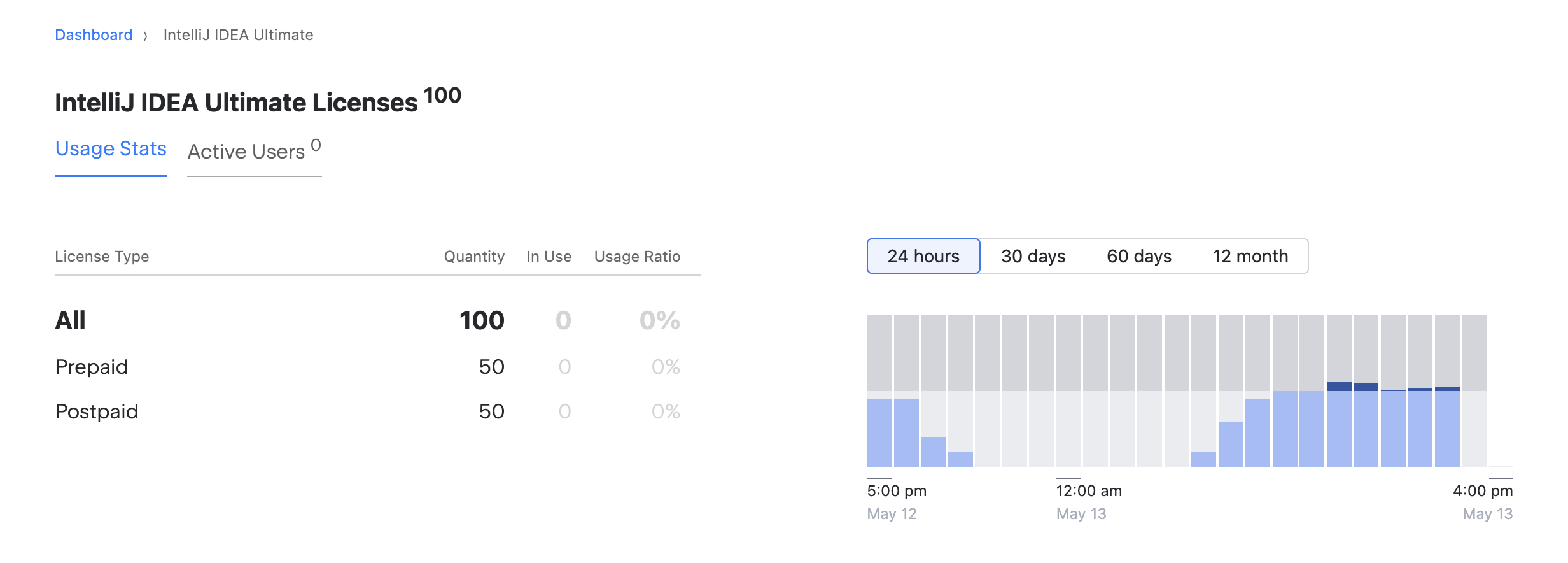
Each bar in the chart represents:
1 hour in the 24-hour view
1 day in the 30- and 60-day views
1 month in the 12-month view
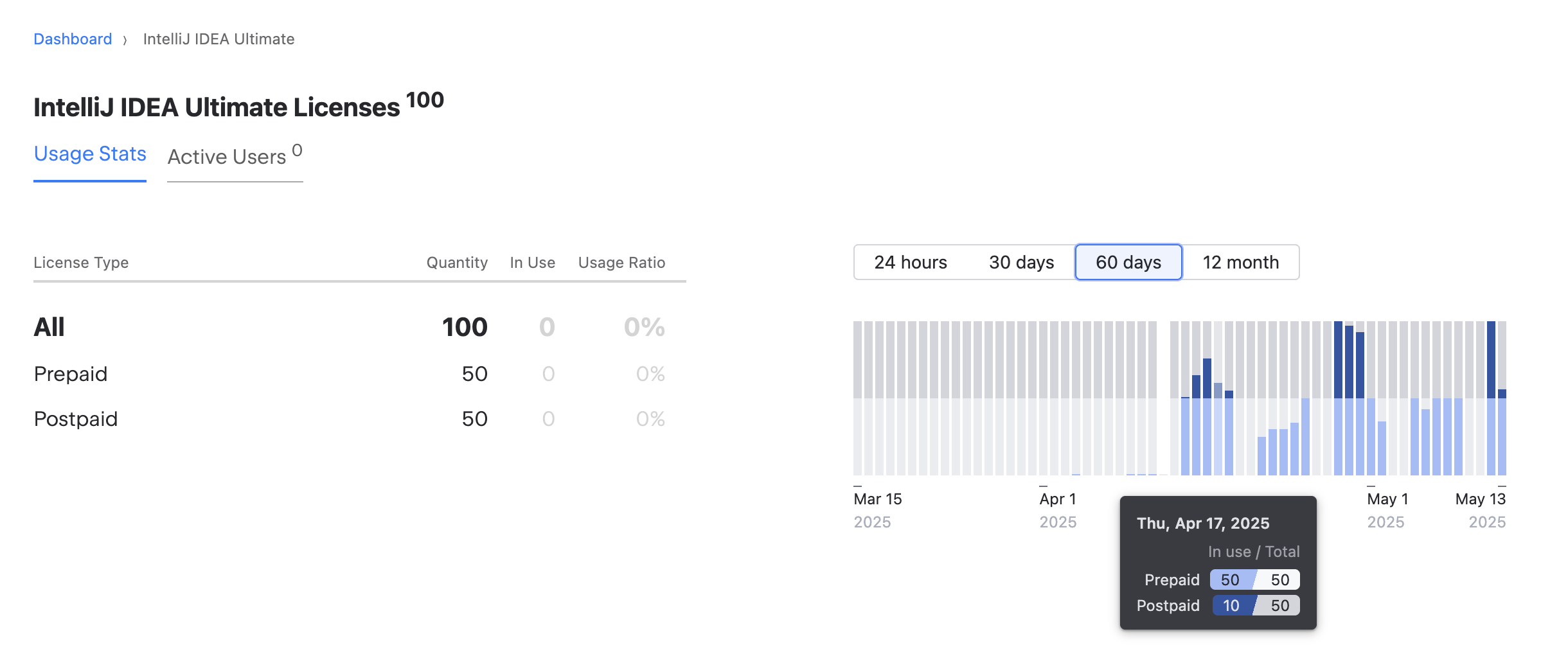
Each bar in the chart shows a set of parameters for that time interval, with each one color-coded.
Parameter | Color code |
|---|---|
Total number of prepaid licenses |
|
Total number of postpaid licenses |
|
The number of prepaid licenses that are in use |
|
The number of postpaid licenses that are in use |
|
 Light grey
 Dark grey
 Light blue
 Dark blue
Hover over any bar in the chart to see a tooltip with exact numbers for that time period.
Active Users list
To check who’s using a license for any product, go to the Active Users tab on the Dashboard.
To see all license users for a specific product, click on the product’s name on the Dashboard and select the Active Users tab.
The table shows how many licenses each user has, along with the name of the products they’re using.
Use the search bar at the top of the page the list to find a specific user or check who has licenses for a particular product.
Export license allocation statistics
You can export license usage statistics for a selected period from the Active users list. To do so:
Go to the Dashboard and select the Active Users tab.
Click Export usage statistics.
In the dialog, select the desired period and click Export.
License Vault will generate a CSV file. Each line of the file describes a single occasion when a user ran a particular product. Each line contains the following fields:
- allocation_id
A string that identifies a unique combination of a user and a license allocated to this user.
allocation_idstays the same if the user switches between products and machines while using the same license. If a new license is allocated to this user, theallocation_idchanges.- allocated_license
The name of the license allocated to the user (like
All Products PackorIntellij IDEA).- user_product
The name of the product the user was running (like
PyCharmorCLion).- username
The user's username supplied by JetBrains Hub.
- user_email
The user's email address supplied by JetBrains Hub.
unknownif not specified.- user_ip
The IP address of the user's machine.
- user_hostname
The name of the user's machine.
- external_id
The unique user ID supplied by JetBrains Hub.
- used_from
The date and time when the user started their JetBrains product, indicated as a string in ISO 8601 format.
- used_to
The date and time when the user stopped using their JetBrains product, indicated as a string in ISO 8601 format.
If the product is still in use, this field is empty.
Denials report
Users may fail to obtain a license from License Vault due to access restrictions or the lack of available licenses. Every denied license request is shown in the Denials Report.
To open the Denials Report, select Stats in the menu on the left.
There you'll find aggregated statistics of all denied license requests, as well as a table listing all denials with accompanying details, such as the user's name, product, and why their request was denied.
The Denials Report provides data for the past 24 hours or 7 days. To change the time period, click the corresponding option in the upper-right corner.
Troubleshooting
The table below describes possible denial reasons in the Denials Report and possible solutions.
Denial reason | Cause | Possible solution |
|---|---|---|
| When the user requested a license, all licenses were already in use. | You can buy more licenses for the product or use the postpaid IDE licensing option. |
| Access rules don't allow this user to get a license for this specific product. | Try checking the user's effective permissions to see if they are affected by any existing rules. If no rules affect the user, check if Global access to licenses is restricted in your License Vault. |
| The user is not a part of the IDE Authorized user group that's allowed to obtain licenses from License Vault. | Add the user to the correct group. |