Getting started
Set up a free License Vault trial
License Vault is managed via JetBrains Central Console – a cloud-based admin console that helps organizations manage JetBrains products and services.
A free trial of License Vault is available to organizations with 50 or more active licenses for JetBrains IDEs and .NET tools.
Start a free License Vault Cloud trial
In JetBrains Central Console, go to .
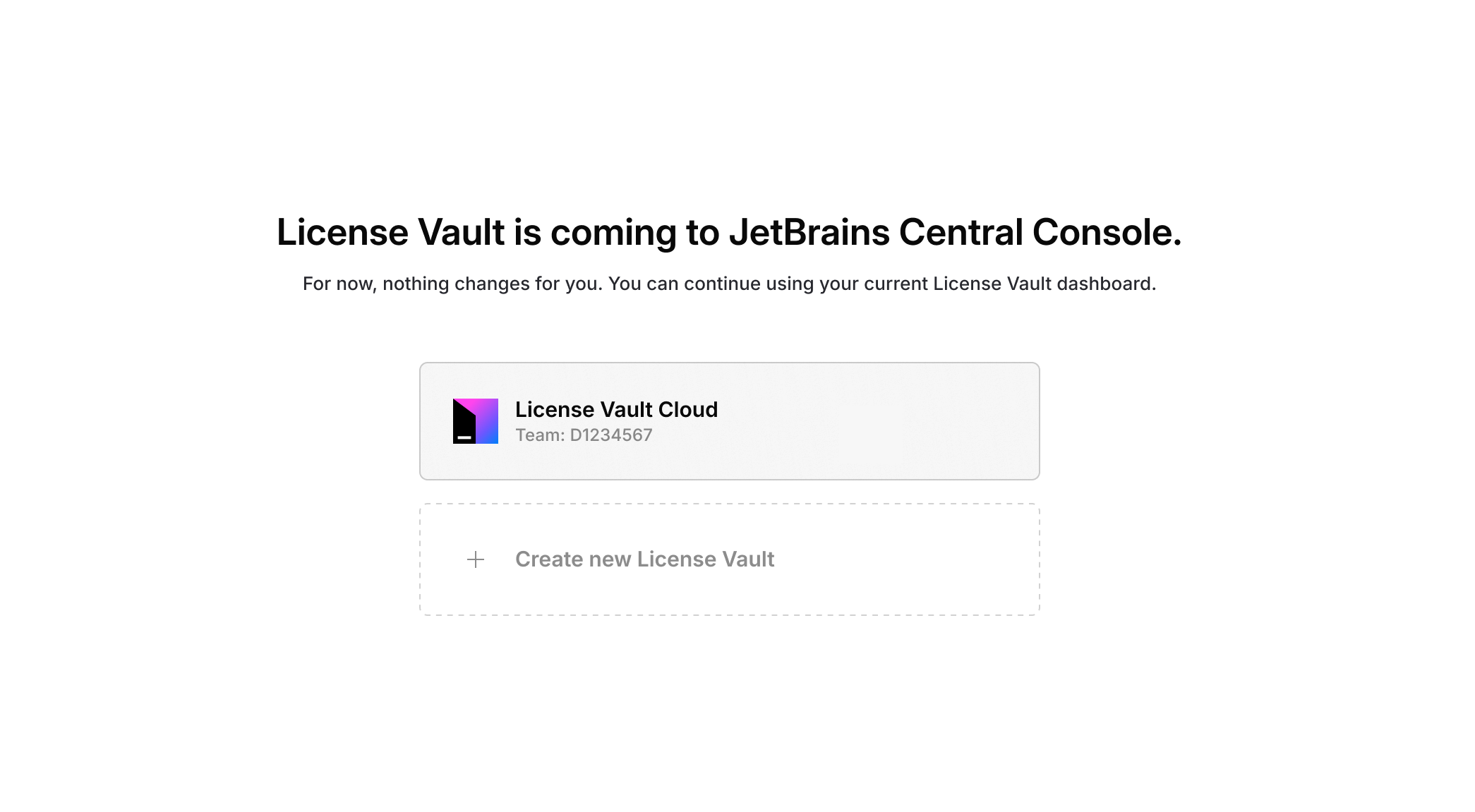
(Optional) If your organization already has a License Vault, click Add new server in the upper right-hand corner.
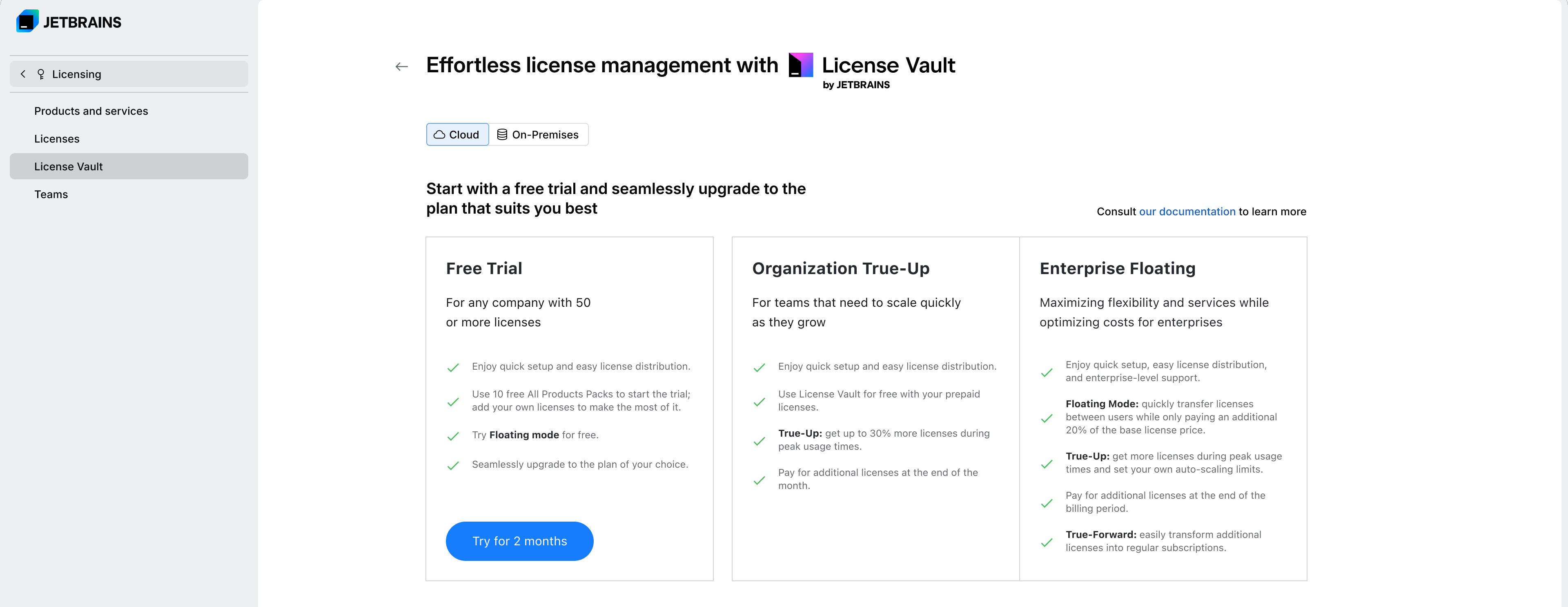
Click Try for 2 months.
Read the License Vault Cloud Terms and Conditions and click Accept and continue. You will be redirected to the License Vault setup screen.
If you want to try out Floating mode, click the toggle to turn it on.
The same toggle will also be available on the License Vault settings page, and you can turn it on or off at any time during your trial.
Specify the Server name. Use letters and digits. Spaces are not allowed.
Configure User access to licenses.
At this step, you can set up JetBrains Account as the first authentication module for your License Vault.
With JetBrains Account, access to licenses is granted or denied based on the email domain. Users who log in with an email address that belongs to any of the domains you specify here will have access to licenses. Anyone who tries to log in with an email address from a different domain will be denied access.
To configure user access via JetBrains Account:
Leave the Grant access... checkbox selected. This will grant access to all users who log in via JetBrains Account with an email address from the same company domain as your own.
Add other email domains used in your company to the text field below the checkbox. For security reasons, public email domains, like gmail.com, are not allowed.
If you prefer not to configure user access via JetBrains Account at this stage, clear the Grant access... checkbox. If you don’t see the checkbox, simply leave the domain list empty. You can return to these settings later when configuring authentication modules.
Click Start License Vault.
Once your License Vault is up and running, cick Go to License Vault at the bottom of the page and enter your JetBrains Account credentials to log in to your License Vault for the first time.
Managing an existing License Vault instance
Access License Vault from JetBrains Central Console
In JetBrains Central Console, go to .
Select the License Vault you want to manage.
You'll be taken to the License Vault settings page inside the dedicated License Vault team.
Configure your authentication modules
To obtain licenses from License Vault, users need to log in through an authentication provider.
The default JetBrains Account auth module works out of the box. Skip this step if you configured it when setting up your License Vault and intend to use it as the only auth module.
If you want to configure a different auth module used in your organization, confirm that it is on the list of supported auth modules and consult Configuring a new authentication module for setup instructions.
You can configure more than one module. If you do so, users will be able to select their preferred authentication provider when logging in.
Share the License Vault URL with your users
Your License Vault is now ready to issue licenses.
Copy the License Vault URL from the License Vault settings page and share it with your users. Refer them to User guide: Activating a license for instructions.
Internet connection requirements
An internet connection is required both to obtain a license from License Vault and to continue using it.
Users can work for up to 48 hours without an internet connection, as long as they don't restart the product. After 48 hours, they'll have to reconnect to the internet to continue using the product.
If they restart their product while disconnected, they'll immediately lose access to their license and won't be able to use the product until they reconnect to the internet.
Connecting to License Vault via a proxy
If JetBrains products in your organization are configured to use a proxy to connect to the internet, make sure that the URLs listed in Connecting to License Vault via a proxy are reachable through it.
Set up access rules and view usage statistics
When your users start obtaining licenses, you may choose to set up rules to restrict or provide access to licenses for certain users or groups. Refer to License distribution policy and access rules for instructions.
To learn about the real-time usage data and aggregated statistics License Vault provides, check out License usage statistics.
Add more licenses to explore License Vault to the fullest
After you've taken your License Vault for a quick test drive with the 10 free All Products Pack licenses provided with the trial, you might want to add your own licenses to see how the automatic distribution works on a larger scale.
To add licenses, simply transfer them to the License Vault team that was added to your organization profile when you first set up your License Vault. See Transferring licenses between teams for instructions.
Once you transfer the licenses to the License Vault team, they will appear in License Vault and become available to users.
Transferring licenses that are directly assigned to users
Licenses that are directly assigned to users will be revoked from them when transferred to License Vault.
The affected users will need to activate their products again using the License Vault URL. Refer them to User guide: Activating a license for instructions.
Upgrade your plan
To continue using License Vault after the trial period, you'll need to upgrade to a commercial plan of your choice. Refer to Choosing your plan and upgrading for guidance.
Migrate from License Server to License Vault
If you're using License Server (on-premises), you can switch to License Vault in two simple steps.
Transfer your licenses from the License Server team to the License Vault team.
Consult Transferring licenses between teams for instructions.
Share the new License Vault URL and activation instructions with your users.
Still in doubt about whether you want to make the move to License Vault? Check out this page to learn about the benefits of License Vault compared to License Server.