Build configurations and deployment
This walkthrough completes the build chain started in the previous tutorials (part 1, part 2) by adding its third and final stage: a classic build configuration that pushes the image to Docker Hub.
Topic covered in this tutorial:
Build configurations
Deployment configurations
Deployer build steps
Parameter appearance and behavior settings
Passing parameters in a build chain
Step execution conditions
Project connections
Build features (Build Approval and others)
Before you start
Deploying a build usually means updating an external resource: for example, uploading an installer to a production website, publishing a package, or releasing an image to a registry. In this tutorial, we use a build configuration to explore this TeamCity concept, but deployment tasks can also be handled in pipelines.
The same flexibility applies to build steps. TeamCity includes a variety of Deployers: ready-to-use steps for common deployment tasks, such as uploading files to an FTP server. However, deployment configurations are not limited to dedicated deployers. You can use any build step that fits your workflow.
In this tutorial, we are deploying a Docker image, so the Docker build step is the natural choice. For a .NET application, you would likely use the .NET build step instead. For anything more specific, you can always fall back to the generic Command Line (Script) step.
Step 1: Create a deployment configuration
Go to the General settings of the project that owns the pipelines created in the previous tutorials (part 1, part 2).
Click Create build configuration.
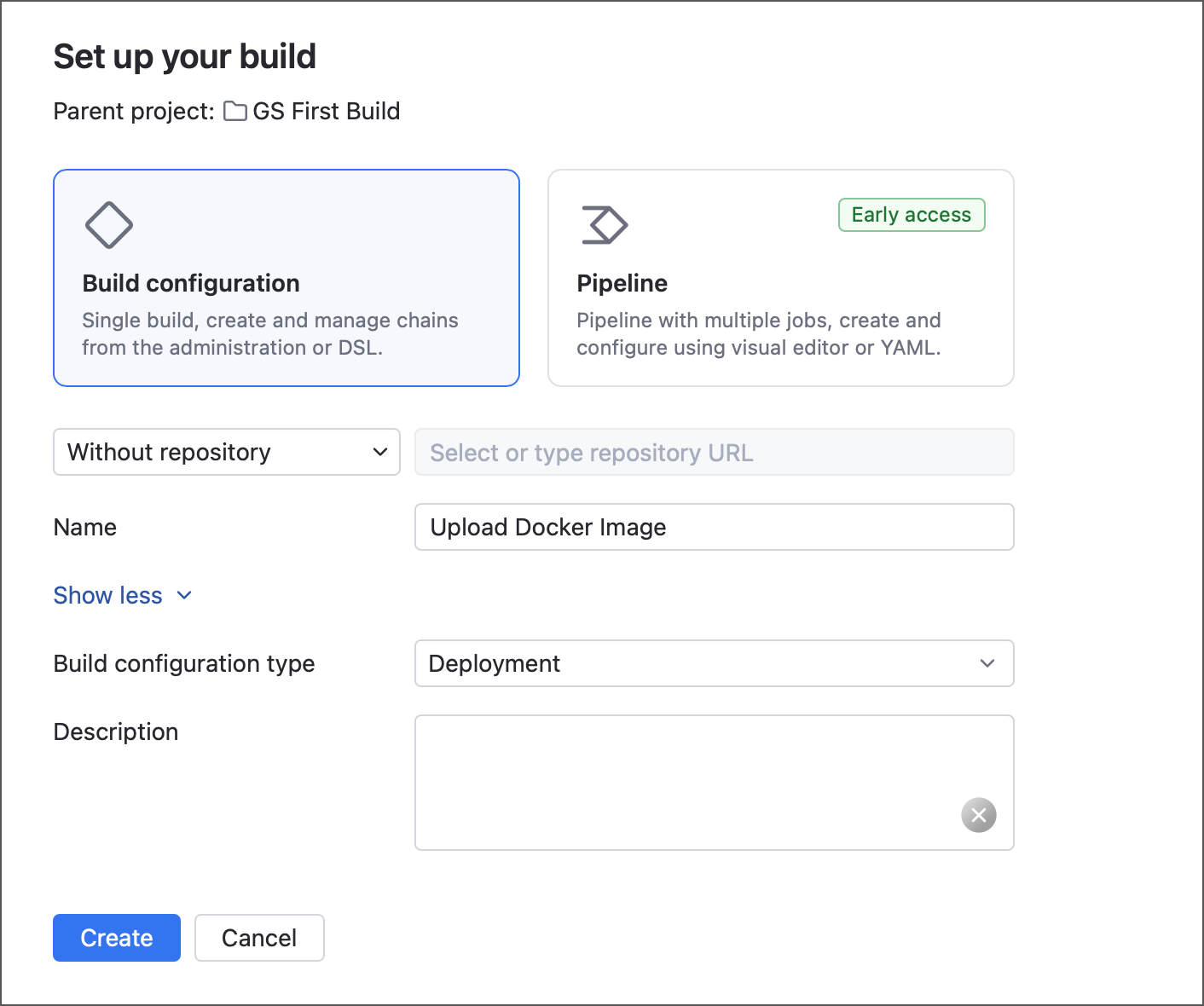
Since this build configuration will only upload the Docker image to Docker Hub and will not process any applications stored in a VCS, it does not need access to repositories (attached VCS roots). On the Set up your build page, select Without repository.
Enter a name for the build configuration.
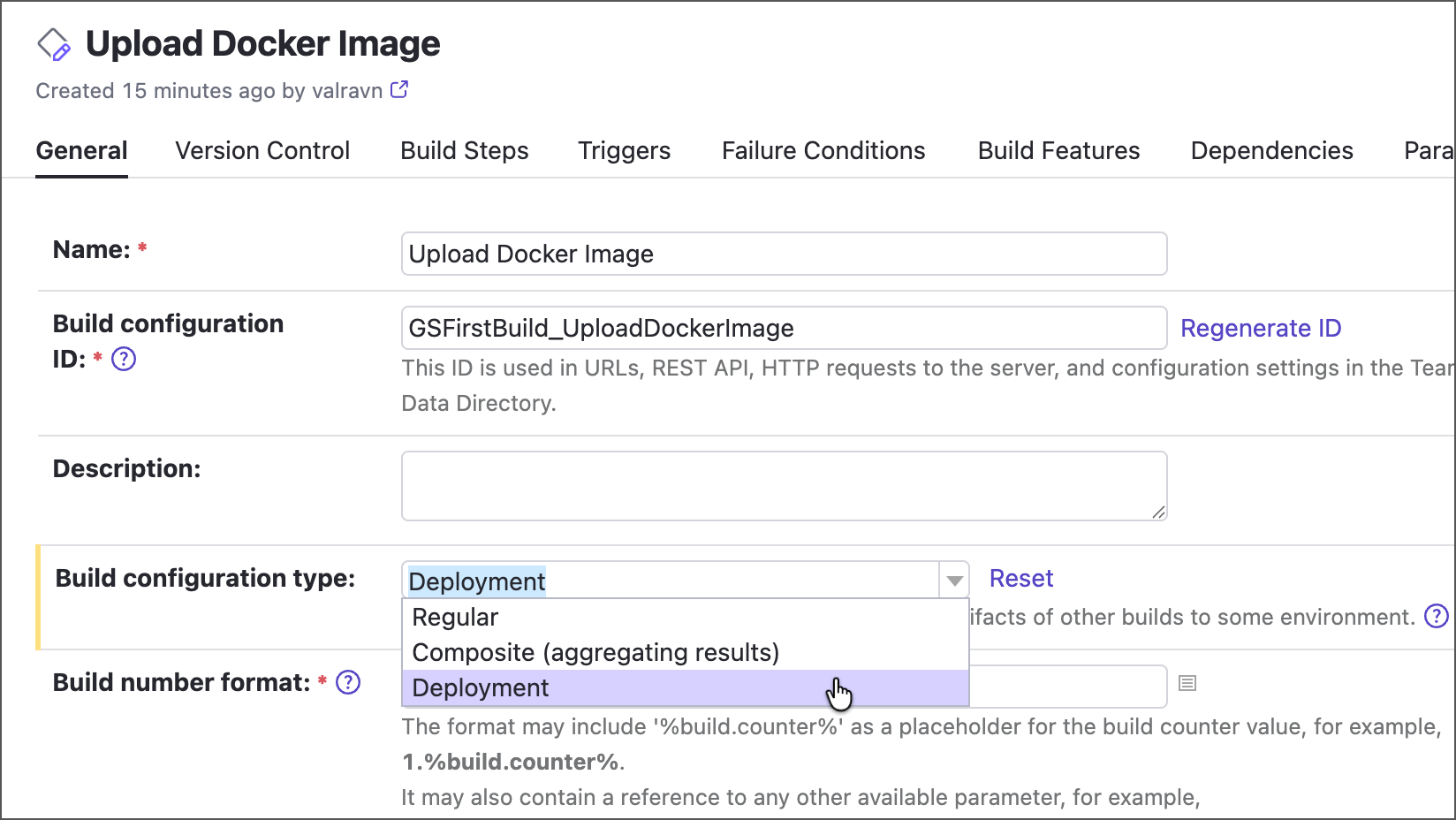
Before clicking Create, click Show more to view additional settings and change the configuration type from "Regular" to "Deployment".
TeamCity supports three build configuration types:
Regular — a set of build steps for building and/or testing an application.
Deployment — functionally identical to regular configurations, but with cosmetic enhancements optimized for deployment workflows.
Composite — designed as the final element of a build chain or part of one. This configuration cannot include build steps and serves as a dashboard that aggregates results from preceding builds, letting you track the chain status on one screen.
You can change the build configuration type at any time in its General settings.
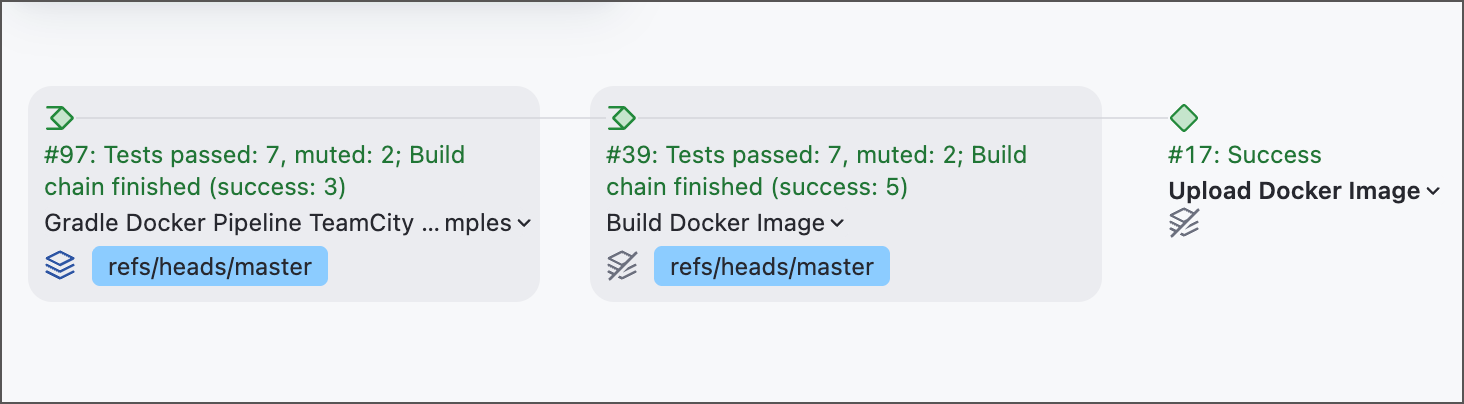
Configure the new build configuration to run after the "Build Docker image" pipeline created in the previous tutorial. This makes it part of the same build chain.
Build configurations are added to a chain in the same way as pipelines: by adding dependencies to upstream elements. In the build configuration settings, open the Dependencies tab and click Add new snapshot dependency. Leave all dependency settings at their default values. These are the same settings covered in Step 2: Configure a build chain.
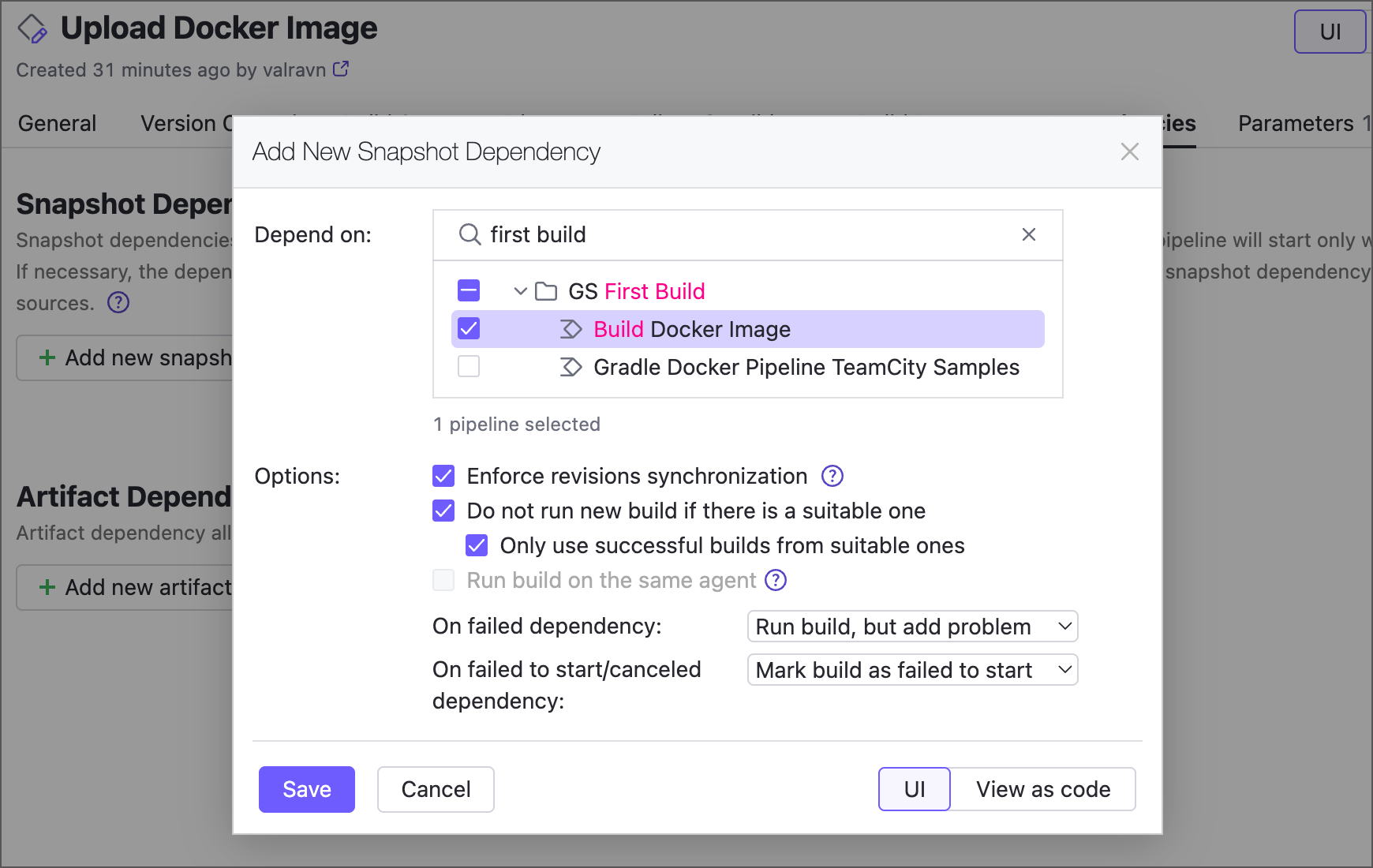
In a real-life CI/CD workflow, you would likely have "build image" and "push image" as build steps of the same build configuration or pipeline. For the sake of this tutorial, we have split them into different stages, which leads to a potential problem.
The "Build Docker image" pipeline builds the Docker image and stores it in the Docker Engine running on the build agent. Docker images are local to the Docker instance that created them, so a different agent with a different Docker Engine will not be able to find this image. To allow the deployment build to push the image created by the previous build, both builds must run on the same build agent.
To ensure your build chain runs as expected, configure identical agent requirements for both builds. The simplest option is to use the agent name, as shown in Step 3: Publish and exchange artifacts.
# Build image pipeline jobs: Job1: name: Docker build ... runs-on: self-hosted: - requirement: exists name: ImageBuilderTool parameter: container.engine - requirement: equals name: Agent name parameter: teamcity.agent.name value: MyAgent1 ...// Deploy image configuration import jetbrains.buildServer.configs.kotlin.* object UploadDockerImage : BuildType({ name = "Upload Docker Image" type = BuildTypeSettings.Type.DEPLOYMENT dependencies { snapshot(BuildDockerImage) { reuseBuilds = ReuseBuilds.NO } } requirements { equals("teamcity.agent.name", "MyAgent1") }})The new build configuration does not have any build steps yet. Run it anyway to check that it starts the upstream build chain as expected.
This also gives you a chance to see how Deployment configurations differ from regular ones.
- 'Deploy' button
The most glaring difference is the main action button in the upper-right corner: it is called Deploy instead of Run.
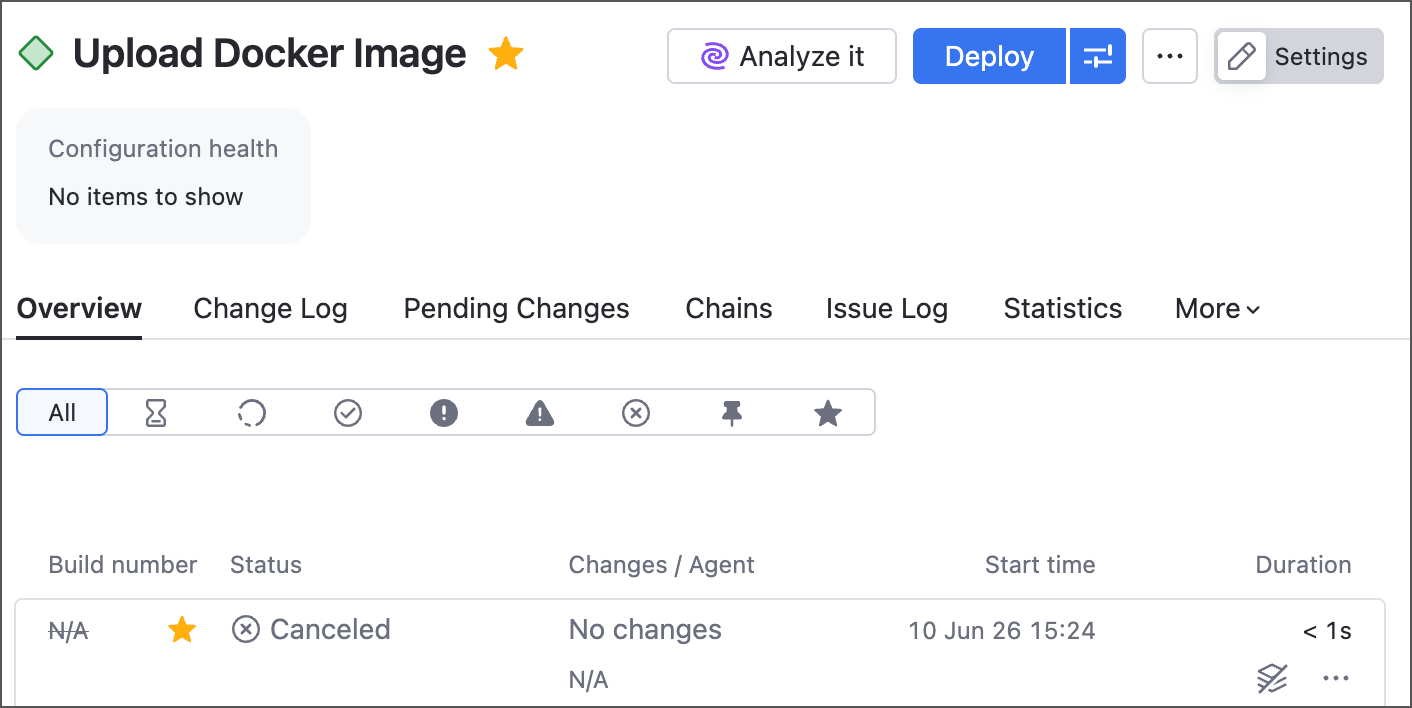
Deployment tasks usually affect external resources: upload NuGet packages, update production environments, publish GitHub releases, and so on. The Deploy label acts as a simple guardrail, making it harder to trigger a sensitive action by mistake.
- 'Deployment' section
Upstream builds show their downstream deployment configurations in the Deployments section of the Overview tab.
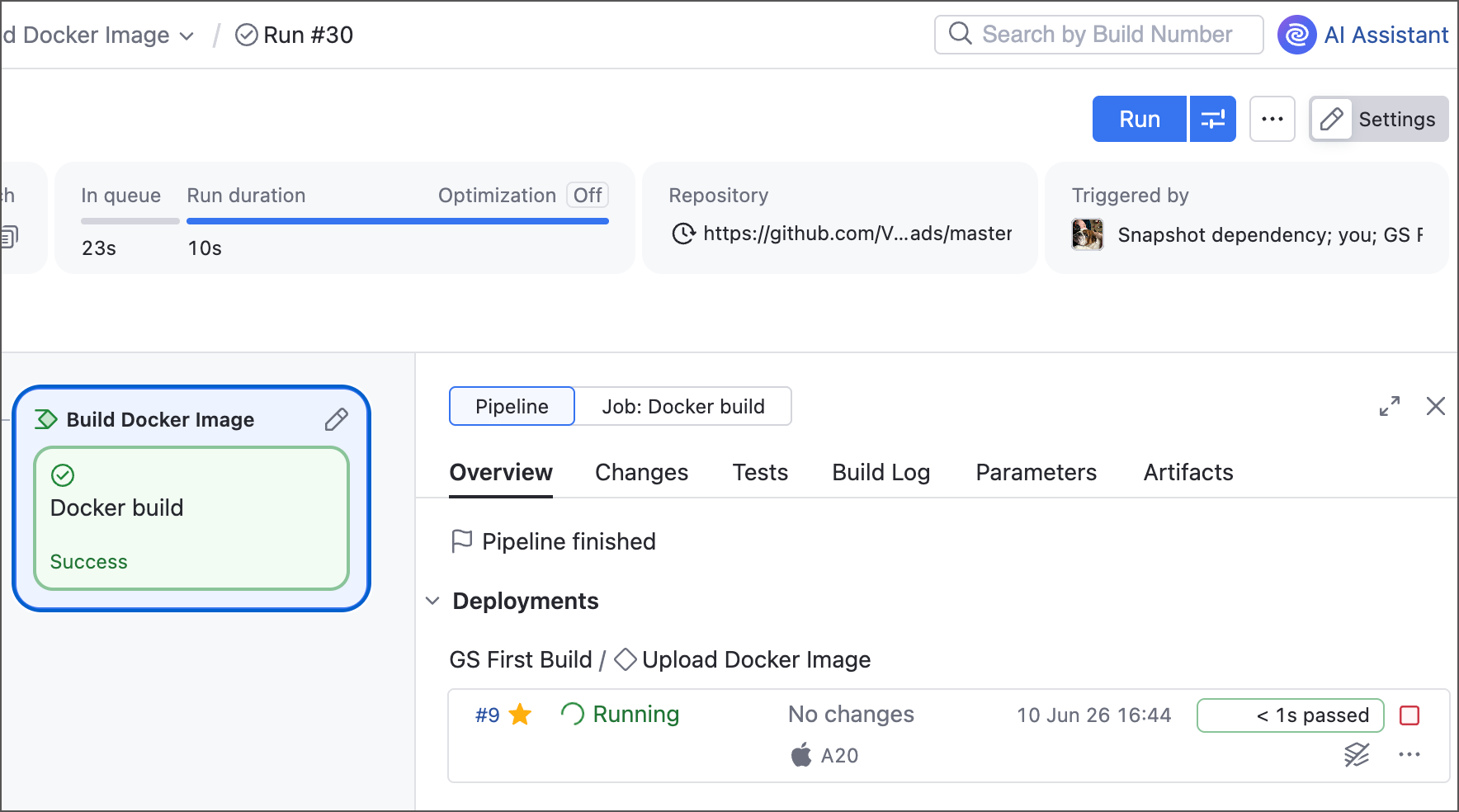
From this section, you can:
View all downstream deployment configurations related to this build. For example, the "Build app" pipeline can feed both "Deploy to staging" and "Deploy to production". If either deployment is running, its status appears here.
Start a deployment from a completed upstream build. If the deployment configuration has not run yet, click Deploy next to its name. After the first run, this button changes to Redeploy.
Having this button gives you room to pause, review the build results, and deploy only when you are ready, without rerunning the entire chain.
Step 2: Configure build steps
Results of the same upstream build can be deployed to multiple locations. For example, to staging and environment servers. The easiest way to do so is to create separate configurations. For this tutorial, we will follow a more sophisticated approach: a single configuration whose actions depend on a parameter value.
Prepare two repositories under your Docker Hub account: one for private and another for public images. For example,
valrravn/teamcity-gs-privateandvalrravn/teamcity-gs-public.Edit the Build Docker image pipeline so that the images are initially tagged for the private repo. This will be our default deployment destination.
jobs: Job1: name: Docker build steps: - type: script script-content: >- docker build -f ./docker/Dockerfile -t valrravn/teamcity-gs-private:%build.number% .In the build configuration settings, open the Parameters tab and create a new parameter with the following properties:
Name:
deployment.target.Value type:
Select. This turns the editor into a combo box with predefined values.Value:
private. This is the default value used unless you choose another one.Items:
public,private, andbothon separate lines. These are the values you will be able to choose from. You can also add custom UI labels that differ from the actual parameter values using thelabel => valuesyntax.Display:
Prompt. Normally, users can override parameters only through the Run custom build dialog. Prompt parameters open this dialog every time the build starts, making sure you choose a value before deployment.Label and Description: optional text that helps other TeamCity users understand what this parameter controls.
object UploadDockerImage : BuildType({ name = "Upload Docker Image" type = BuildTypeSettings.Type.DEPLOYMENT params { select("deployment.target", "Private", label = "Upload to", description = "Choose the Docker Hub repository to which this image should be uploaded.", display = ParameterDisplay.PROMPT, options = listOf("Private repository" to "Private", "Public repository" to "Public", "Both")) } })TeamCity will now ask you to choose the deployment target whenever you start this configuration, whether you run it directly or click Deploy or Redeploy from an upstream build.
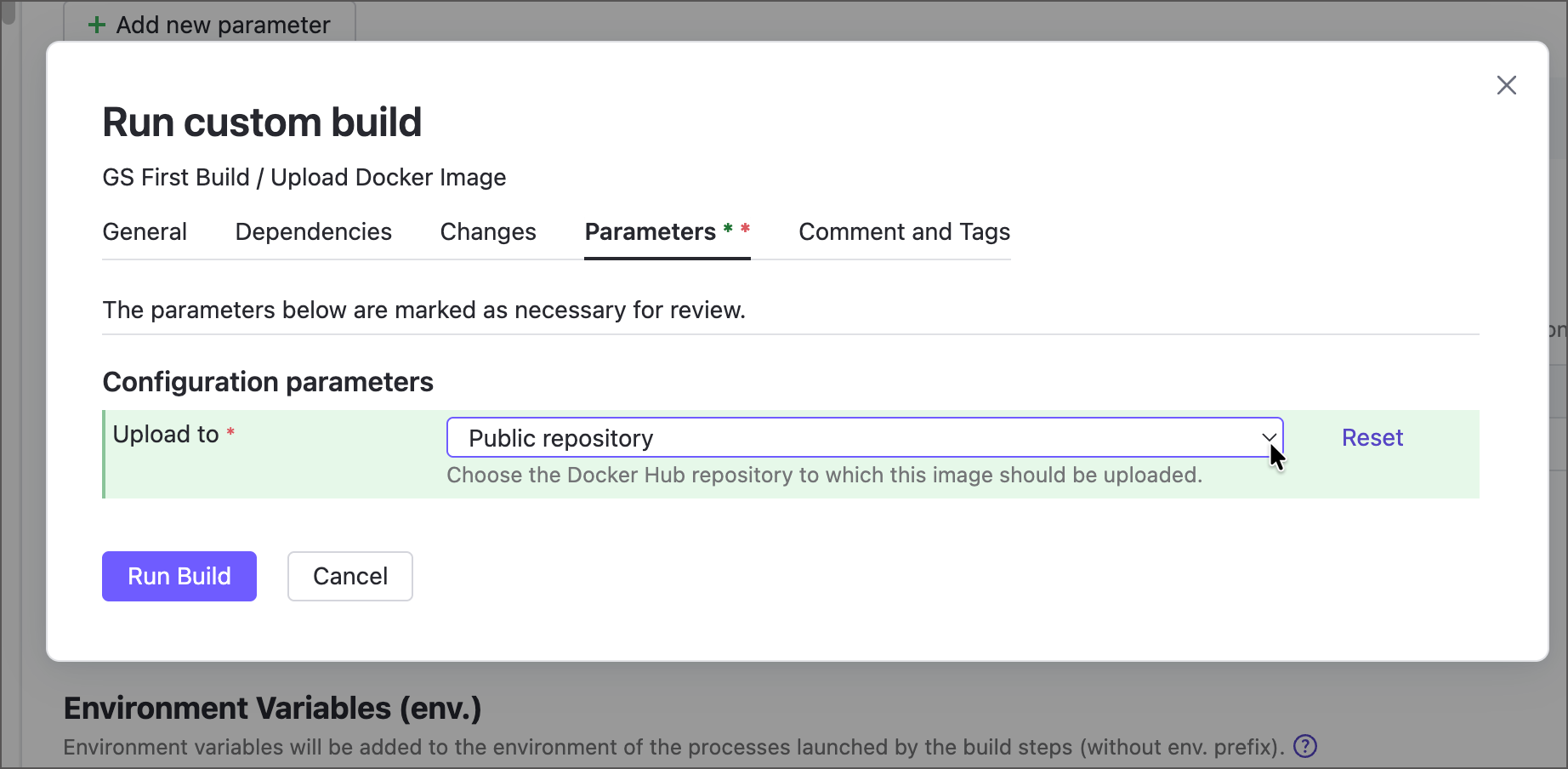
Save your pending changes and leave the build configuration settings. Open the parent project settings and go to the Connections page.
Add a new Docker Registry connection. TeamCity will use this connection to authenticate with Docker Hub and push Docker images.
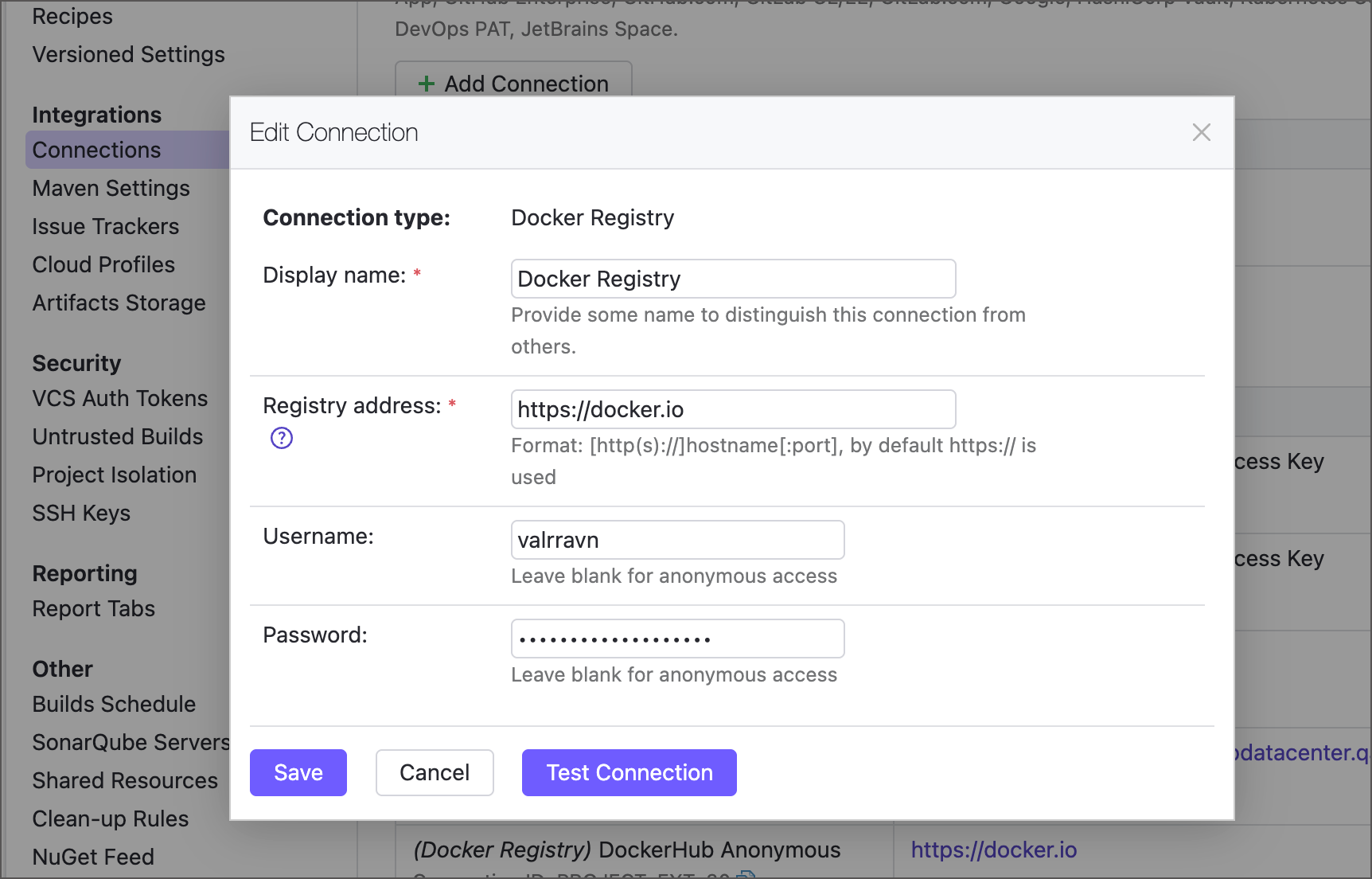
Return to the build configuration settings and add the Docker Registry Connections build feature. Select the Docker Registry connection created in the previous step.
Add the Docker build step to your configuration and set the following options:
Docker command:
pushImage name:tag:
valrravn/teamcity-gs-private:%dep.<BuildImagePipelineID>.build.number%(see the note below)Remove image from agent after push:
Disabledsince one of the deployment options is both public and private repositories. As a result, we will require two Docker build steps. After the first step finishes, it should leave the image for the next one.
import jetbrains.buildServer.configs.kotlin.* object UploadDockerImage : BuildType({ name = "Upload Docker Image" type = BuildTypeSettings.Type.DEPLOYMENT // ... steps { dockerCommand { name = "Push to private repo" id = "Push_to_private_repo" commandType = push { namesAndTags = "valrravn/teamcity-gs-private:%dep.GSFirstBuild_BuildDockerImage.build.number%" } } } // ... })In the build step settings, find Execute step and click Add condition | Other condition.... Add the
deployment.target does-not-equal publiccondition.This condition uses the parameter created earlier to control when the step runs. The Docker image will be pushed to the private repository only if you select "Private" or "Both" when starting the build. For more information, see Build Step Execution Conditions.
steps { dockerCommand { conditions { doesNotEqual("deployment.target", "Public") } // ... }Run the deployment build configuration a few times to check that the image is uploaded to the private Docker Hub repository, and that it only happens when "Private" or "Both" is selected.
Repeat steps #7 and 8 to add a similar Docker step, this time for uploading a public image. You will also need a Command Line (Script) step that re-tags the image before the push.
object UploadDockerImage : BuildType({ name = "Upload Docker Image" type = BuildTypeSettings.Type.DEPLOYMENT // ... steps { // ... script { // Change the image tag to match the public repository name = "Retag image" id = "Retag_image" conditions { doesNotEqual("deployment.target", "Private") } // The 'p' char is added before the build number // to better distinguish public and private versions scriptContent = "docker tag " + "valrravn/teamcity-gs-private:%dep.GSFirstBuild_BuildDockerImage.build.number% " + "valrravn/teamcity-gs-public:p%dep.GSFirstBuild_BuildDockerImage.build.number%" } dockerCommand { // Push the re-tagged image to the public repo id = "DockerCommand" conditions { doesNotEqual("deployment.target", "Private") } commandType = push { namesAndTags = "valrravn/teamcity-gs-public:p%dep.GSFirstBuild_BuildDockerImage.build.number%" } } } // ... })Deploy your build configuration again to verify all three deployment destination options work as expected.
Private repository (default option, images tagged with build numbers):
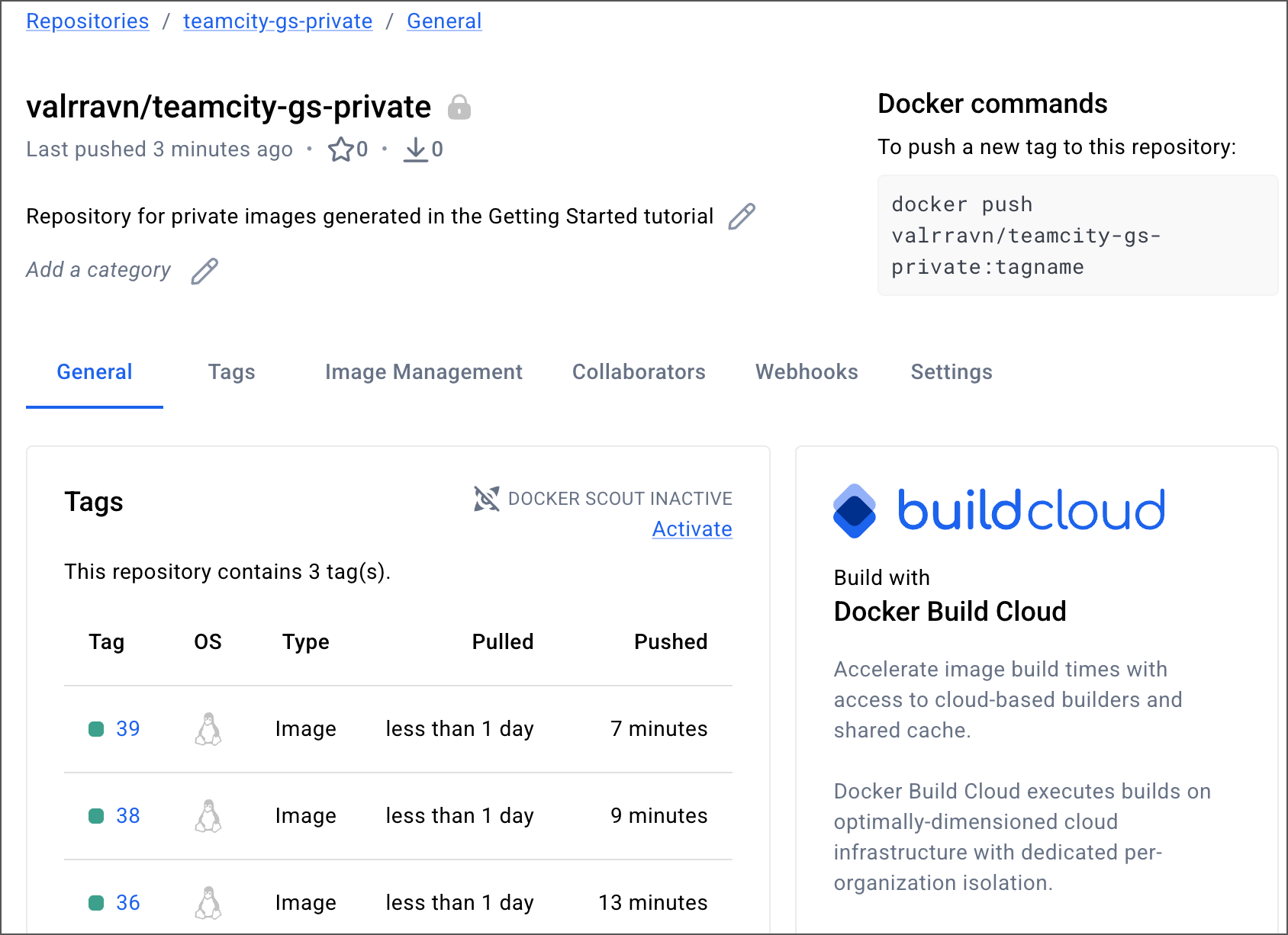
Public repository (images tagged with build numbers and
pprefix):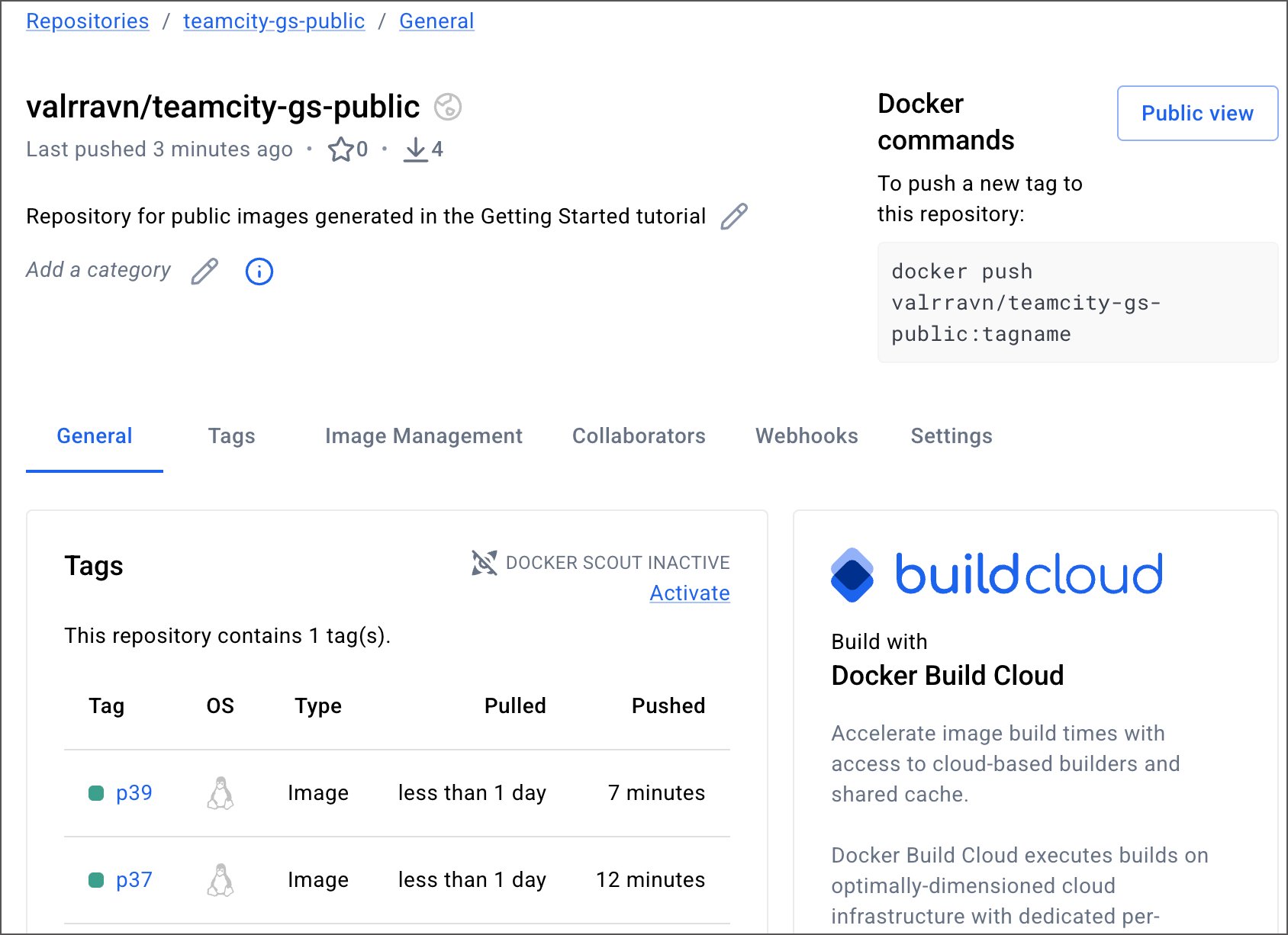
Step 3: Protect your deployment configuration
As a final touch, let's make sure the deployment configuration is never run by mistake.
Setting a configuration to the "Deployment" already raises some awareness by changing the "Run" button label to "Deploy". However, a much more reliable option to secure a sensitive build configuration is to configure the Build Approval build feature. This feature keeps new builds queued until designated reviewers (individual TeamCity users or members of a user group) explicitly allow it to run. Builds that were not approved in time are automatically canceled. You might have seen a similar behavior if you configured Untrusted builds in the first tutorial.
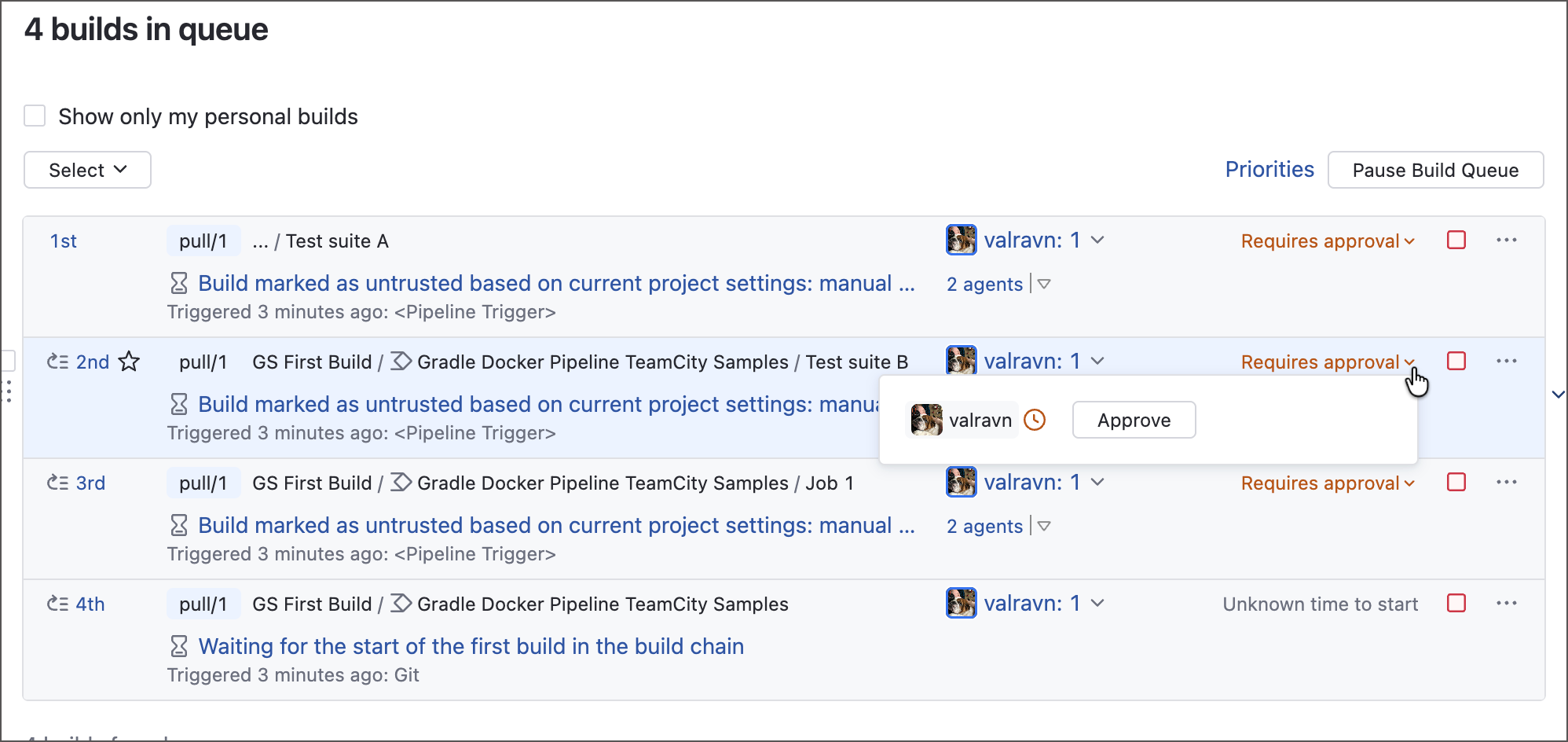
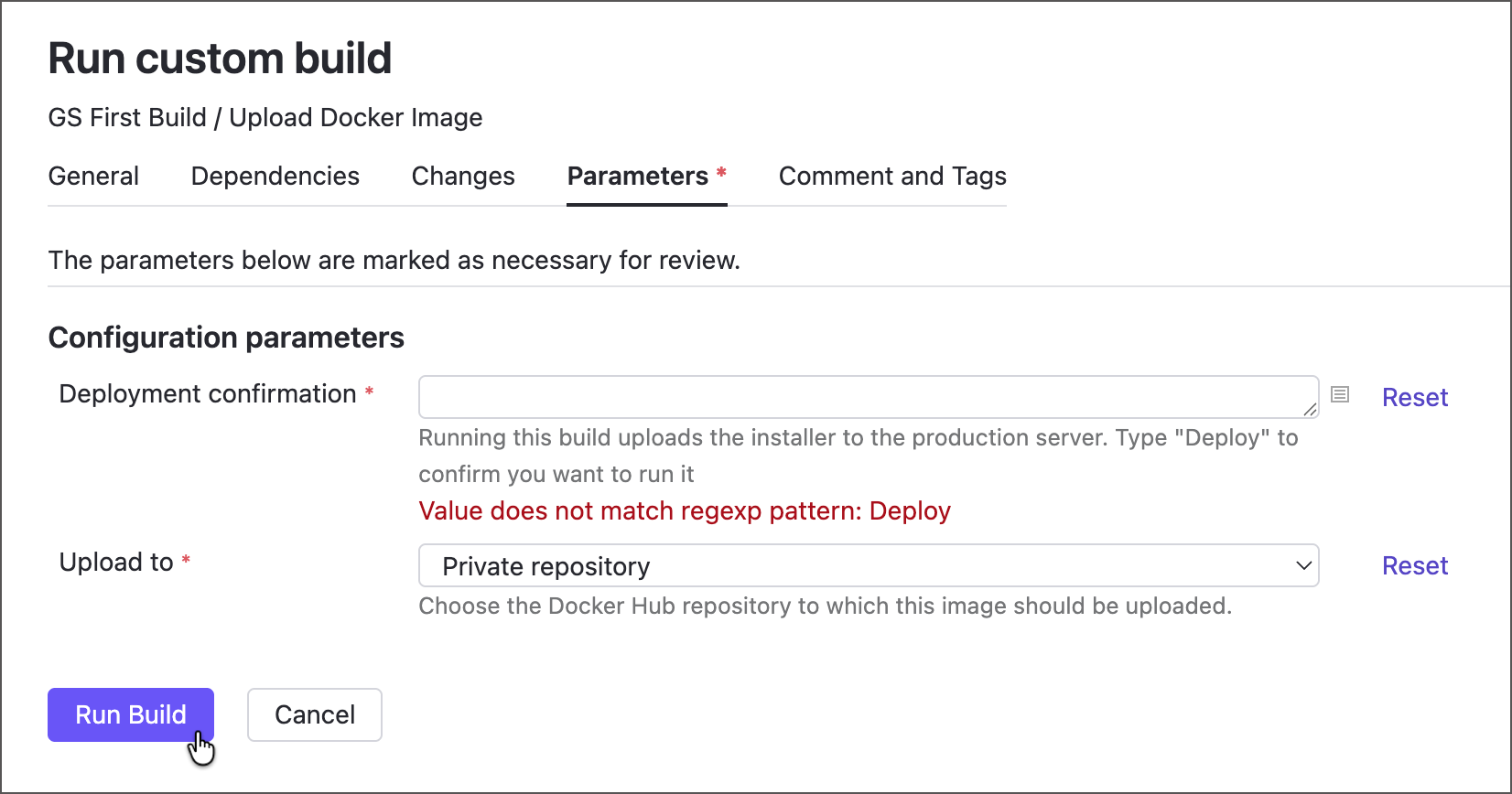
If you prefer that a deployment configuration can be run by anyone but still have some kind of confirmation logic, you can leverage appearance and behavior settings of TeamCity parameters to create a custom confirmation prompt. Add a prompt parameter of the RegEx type, and the configuration will only start once a user types in the required word.