Configure and Run Your First Build
This tutorial guides you through the basic features of TeamCity and shows you how to set up a typical project. At the end of this guide you will create a workflow that builds and tests a sample Java application using Gradle.
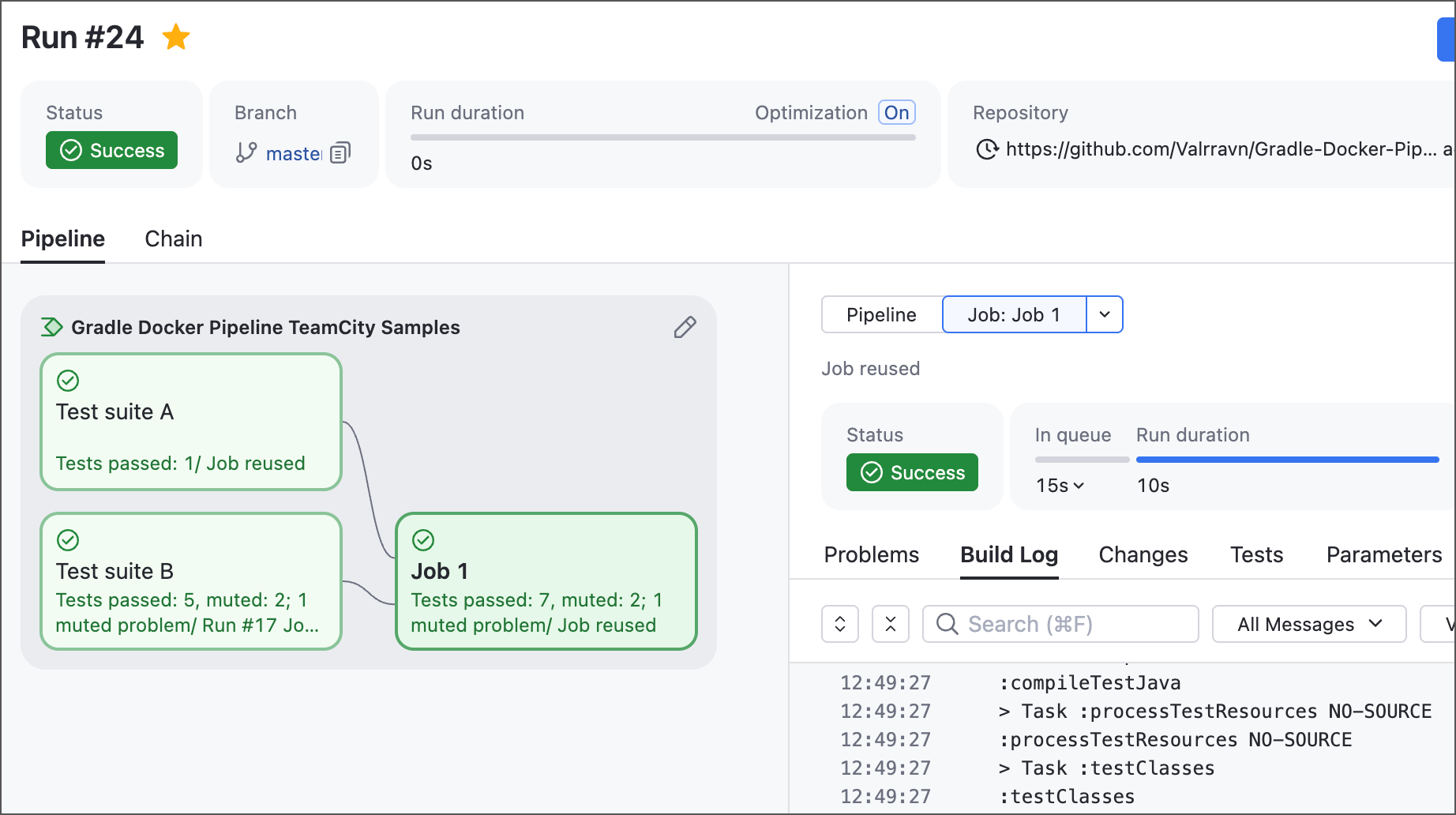
Topic covered in this tutorial:
Getting familiar with basic TeamCity entities
Accessing remote repositories
Working with pipelines, jobs, and build steps
Running TeamCity workflows and inspecting their results
Working with failures
Building and testing pull requests
Tweaking auto-run policies and branch filters
Main TeamCity elements
Before we jump to configuring a project, let's have a quick look at core elements from which any TeamCity CI/CD workflow consists. These elements are described more thoroughly in the project administrator guide article.
- Build step
The smallest TeamCity element that encapsulates one action (or a sequence of actions). For example:
The
./buildAll.shcommand that launches your custom build script.The
mvn clean buildcommand that uses Maven to build a project.A series of consecutive cURL commands that upload your project to an FTP server.
A build step has two key characteristics: it cannot be executed partially, and it runs on the same machine as its neighboring steps.
- Build configuration / Pipeline
Build configurations and pipelines are parents for build steps. Their main objectives are to manage in which order and on which machines (build agents) these steps should run.
Pipelines offer a more user-friendly UX and feature the UI/YAML toggle. In pipelines, build steps are grouped into jobs that can run in parallel on different build agents.
Build configurations have much more advanced customization options, but are more challenging to configure for novice users. Configurations directly own build steps, without any intermediate entities, and run from start to finish on one build agent.
- Project
TeamCity projects own other projects (subprojects), along with pipelines and build configurations. Projects don’t define any executable actions; their main objective is to categorize your build configurations and pipelines in an easy-to-navigate hierarchy.
In addition, TeamCity users have roles and permissions that specify which actions they’re allowed to perform. These roles and permissions are project-scoped, meaning your organization administrators can configure separate top-level projects for each team where each member can access only their related subprojects, configurations, and pipelines.
- Build chain
A sequence of build configurations and/or pipelines with right-to-left dependencies. For example, if "Build" and "Test" are two stand-alone pipelines, you can configure the "Build → Test" chain where:
"Build" can be triggered independently;
"Test" has a dependency on "Build";
Because of this dependency, triggering "Test" automatically starts "Build" first. "Test" can begin only after "Build" finishes.
Parts of a build chain can belong to one or multiple projects.
Step 1: Create a pipeline
Fork the Gradle & Docker Pipeline (TeamCity Samples) repository. You can configure your first project that’ll process this public repo directly, but you’ll have more options with a forked one. For example, you’ll be able to create and build pull requests, and publish TeamCity statuses back to GitHub.
On a new TeamCity installation, you need to first create a project that’ll house our sample pipeline. You can add further configurations and pipelines to this same project, or create new projects and subprojects to create a neat build server hierarchy.
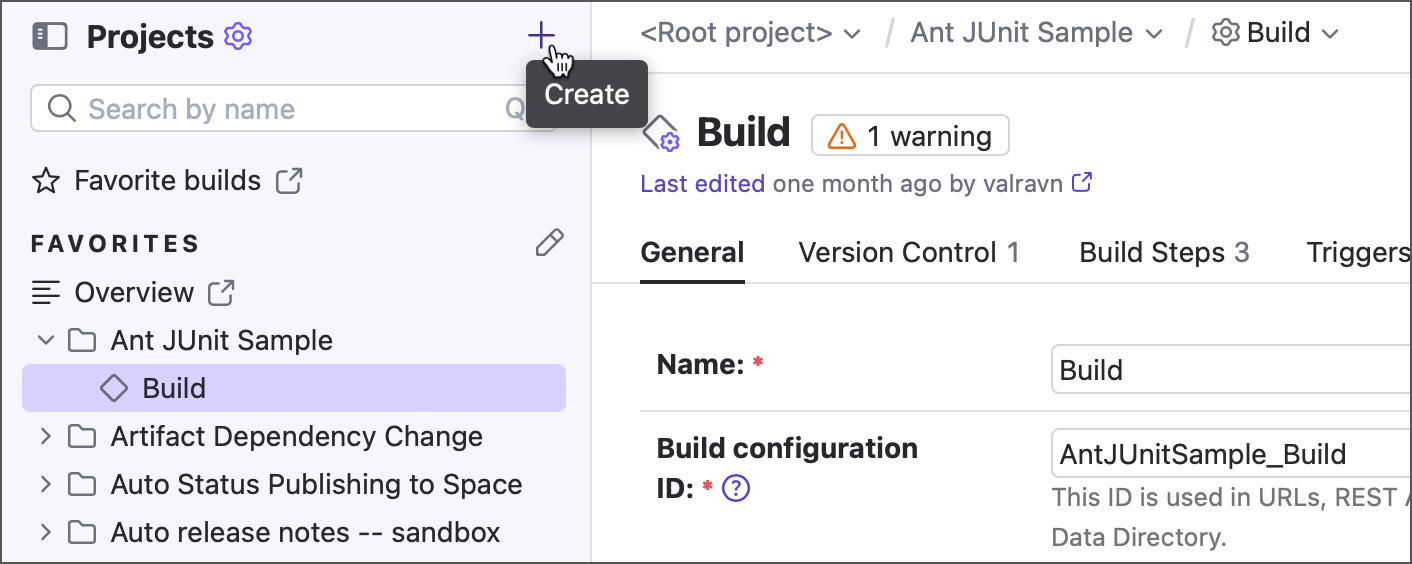
Click the plus icon in the TeamCity sidebar to add a new project, then enter the project name and optional description.
A project doesn’t directly own any CI/CD actions and serves as a shell for build configurations and pipelines. As such, once you configure basic project settings, TeamCity asks you to choose the child element type.
Click the Pipeline tile and open the dropdown menu that lists all available options to create a pipeline.
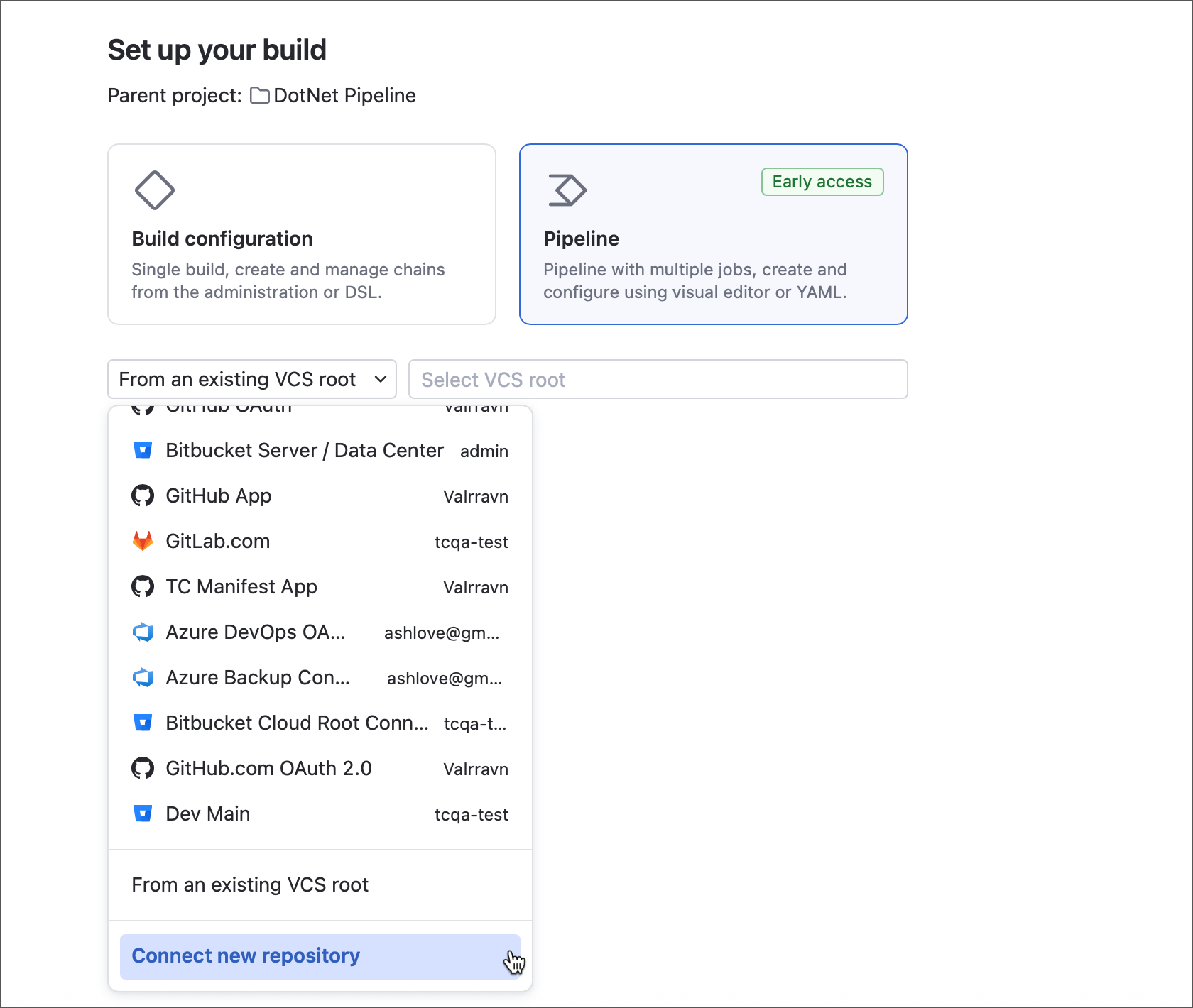
In the drop-down menu, click Connect new repository and choose any of the following options to connect to your new forked repository:
Create a pipeline using a direct repository URL. If you choose this option, you’ll require manually specifying auth options (SSH key, user/password credentials, access token, or anonymous). In the end, TeamCity will have access only to this repository.
Click the GitHub icon to configure a permanent OAuth or App connection to GitHub. Since this option involves installing and authorizing the application on GitHub side, it takes a few more clicks to configure. However, it’s much more beneficial in the long run. Having a connection to a VCS provider makes the process of adding new configurations and pipelines as easy as choosing a required repository from the list — the connection will take care of all auth settings automatically.
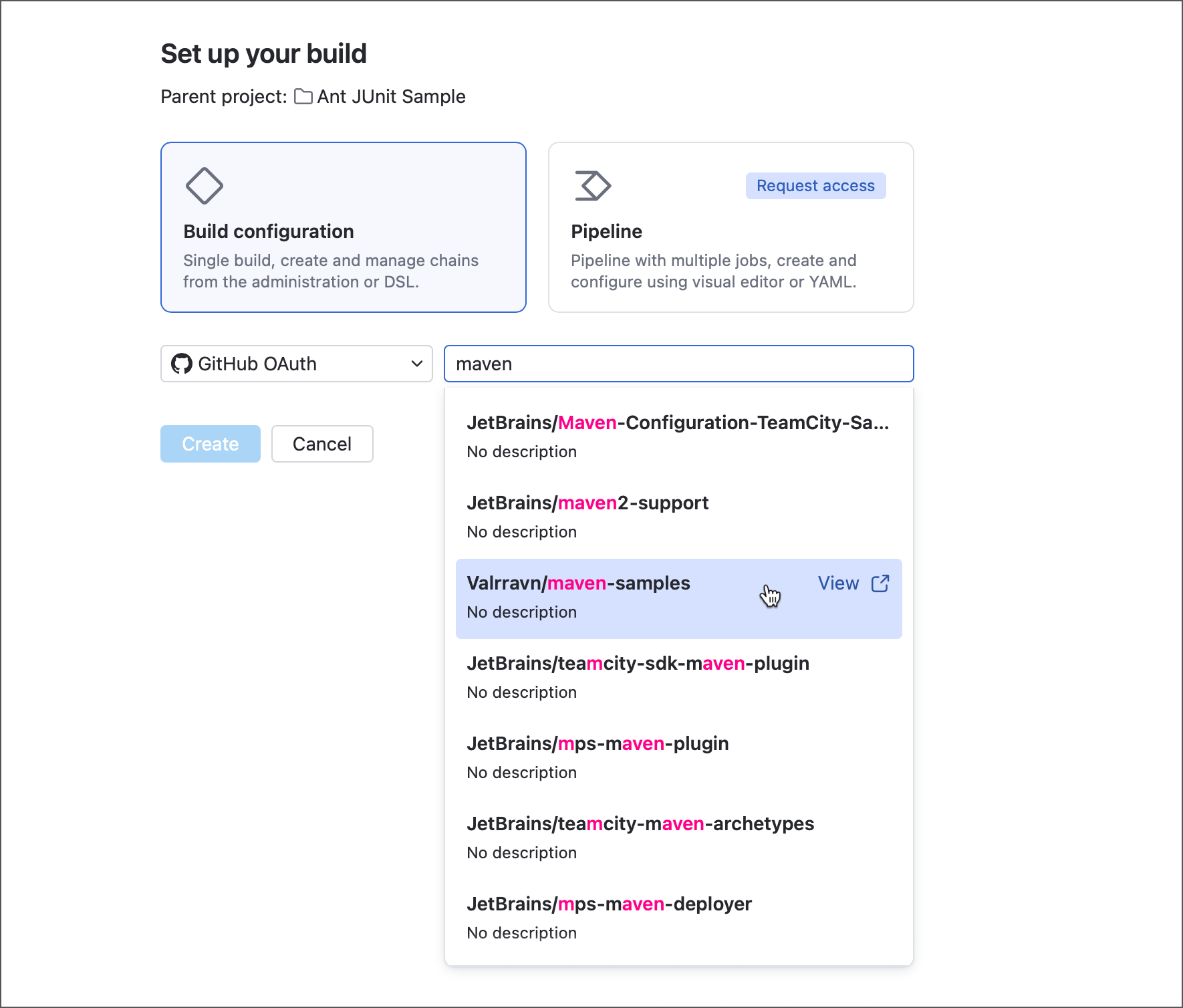
Leave all settings in their default states. We’ll change some of them later.
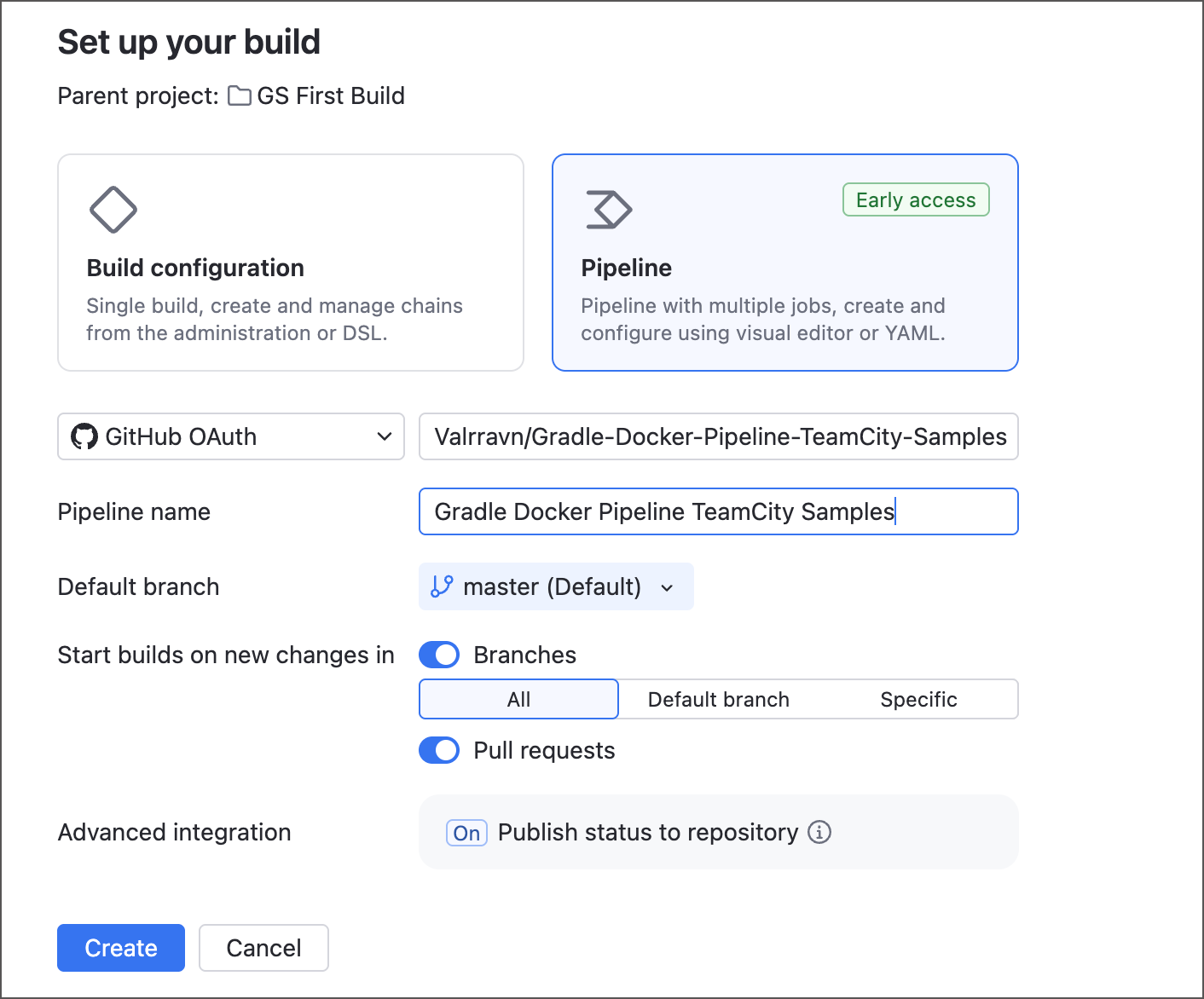
Default branch — the repository branch that TeamCity should consider a default one.
Start new builds on new changes — the list of branches in which new commits automatically trigger new TeamCity builds.
Pull requests — allows TeamCity to track pull requests in addition to regular changes in stable branches.
Publish statuses to repository — if enabled, TeamCity reports build statuses (started, running, successful, and failed) back to GitHub. These statuses are visible on the main repository page.
Click Create to save your new project with pipeline. You can now add jobs with build steps that perform required actions.
Select the job tile and add a "Gradle" step in its Steps section.
Set the following step settings, then click Save to finish the setup.
Step name — "Build app".
Tasks —
clean build.JDK — Choose JDK 11 with the architecture that matches your build agent.
For example, on ARM macOS machines you should end with something like the following (switch the top left toggle from Visual to YAML to view and edit settings in yml format):
jobs: Job1: name: Job 1 steps: - type: gradle name: Build app tasks: clean build jdk-home: '%env.JDK_11_0_ARM64%'
Step 2: Run your first build
Now that your first pipeline is ready, let's run it and make sure everything works as expected.
Click Run in the top right corner to build the app. You can track the progress in the Build Log tab.
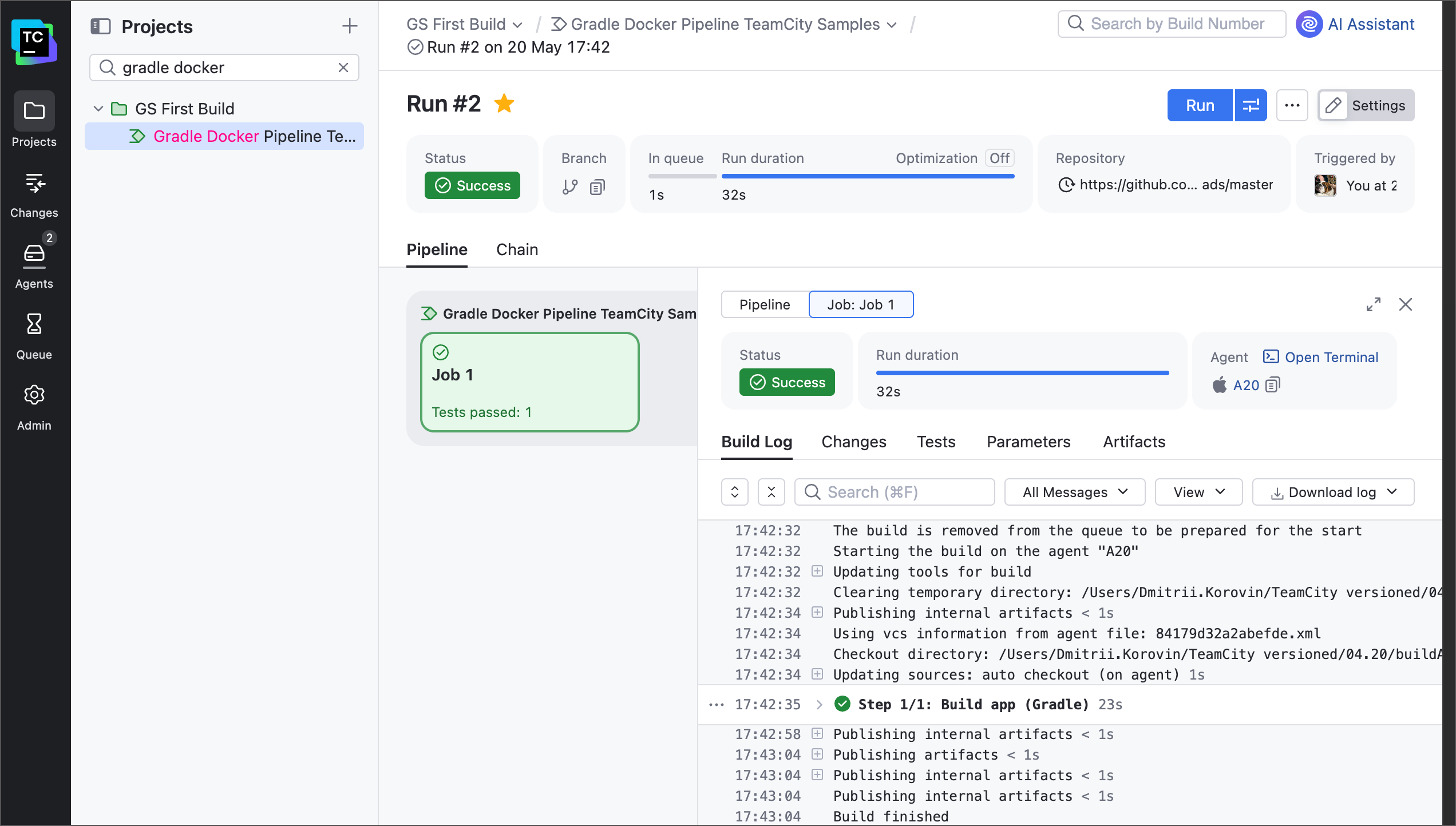
Try toggling the Settings button on and off. You can do so to switch between the edit and view modes of the current project, build configuration, or pipeline.
Click on your pipeline in the breadcrumbs panel or side navigation bar to go to the overview page. Here you can see the history of all runs for this pipeline.
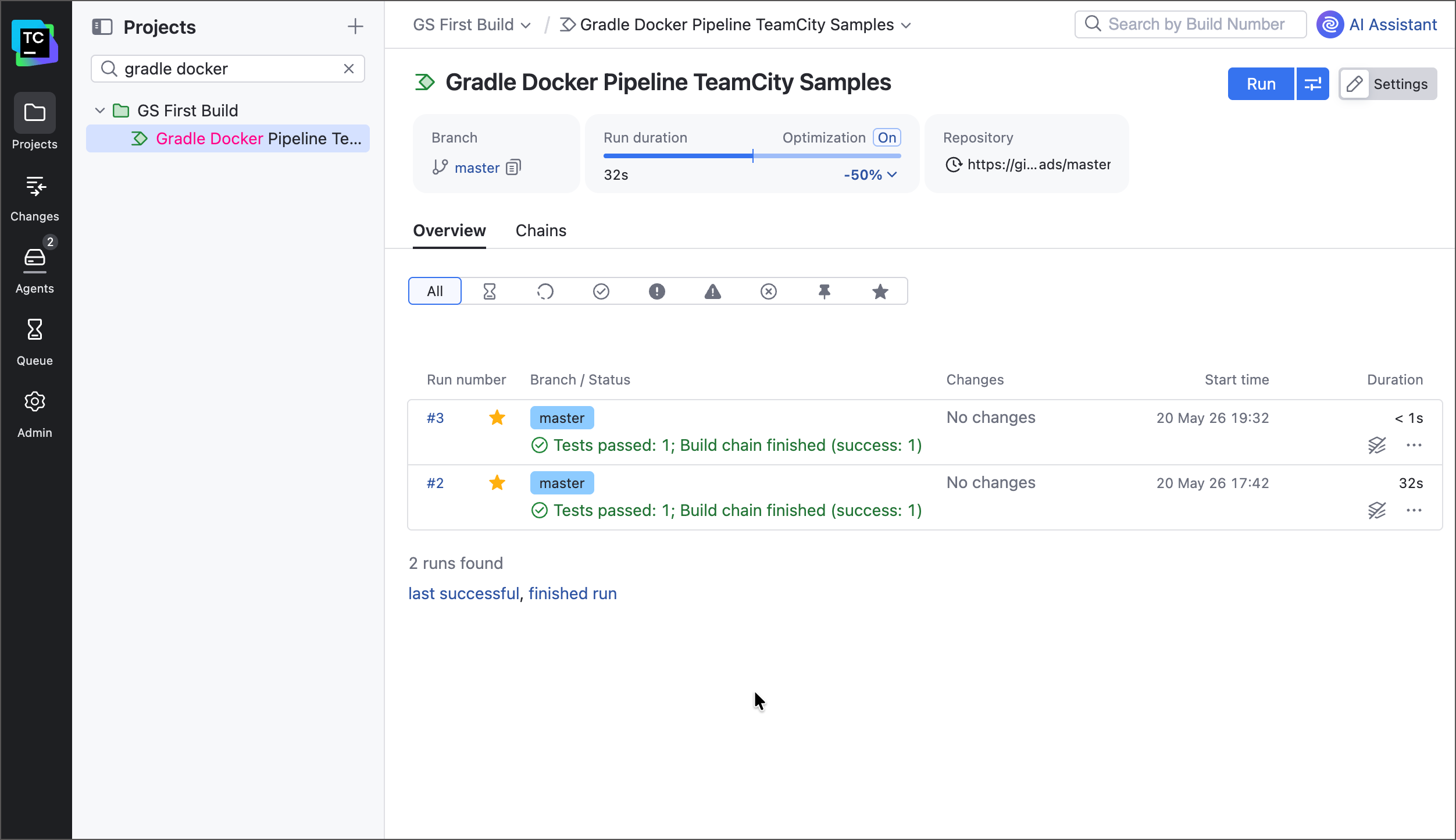
From this page, click on any build number to zoom into this specific run for additional info: run time, build log, test results, published artifacts, and so on.
Try running the same pipeline again. You will notice that it finishes instantly, and TeamCity displays "0 seconds" for the duration. This happens thanks to one of TeamCity optimization features, build reuse: if your previous run was successful and neither the remote repository nor the job itself changed, TeamCity will simply "clone" previous results for a fresh run and add the "Job reused" label to a job tile. You can read more about job optimizations in TeamCity here.
Step 3: Add testing jobs
A pipeline can include multiple jobs running consecutively or in parallel on different build agents. In this step, you’ll add two upstream jobs and learn how to deal with build problems.
Click Settings to enter the edit mode for your pipeline and edit its YAML configuration as follows:
jobs: Job1: name: Job 1 steps: - type: gradle name: Build app tasks: clean build jdk-home: '%env.JDK_11_0_ARM64%' dependencies: - Job2 - Job3 Job2: name: Test suite A steps: - type: gradle name: Run test suite A tasks: test jdk-home: '%env.JDK_11_0_ARM64%' working-directory: test1 Job3: name: Test suite B steps: - type: gradle name: Run test suite B working-directory: test2 tasks: test jdk-home: '%env.JDK_11_0_ARM64%' allow-reuse: falseSwitch to the Visual editor and take a minute to check out your new pipeline configuration.
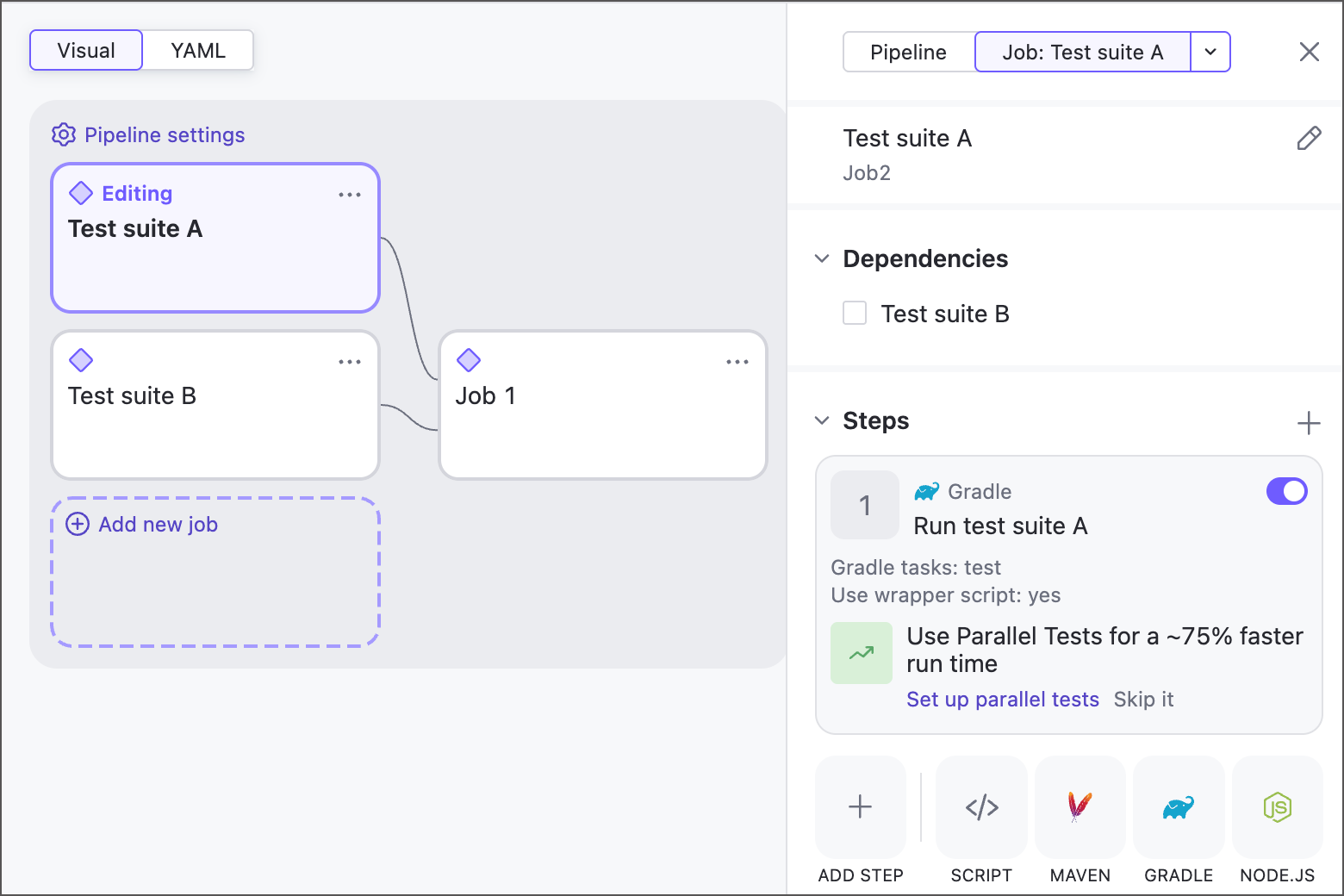
Select your initial build job and expand its Dependencies settings section. Both testing jobs are checked, which means the build job depends on them. The new jobs have no dependencies. As a result, the build job waits for the testing jobs to finish, while the testing jobs have equal priority and can run simultaneously on different build agents.
Inspect the settings of a Gradle build step in any of the testing jobs. Unlike in the building job, these steps have a custom working directory set. This means that
gradle testtasks will start in respective directories rather than the repository root.
Save and run your updated pipeline. Since both new jobs are running tests, you can use the Tests tab of the run results page in addition to Build log to track the results.
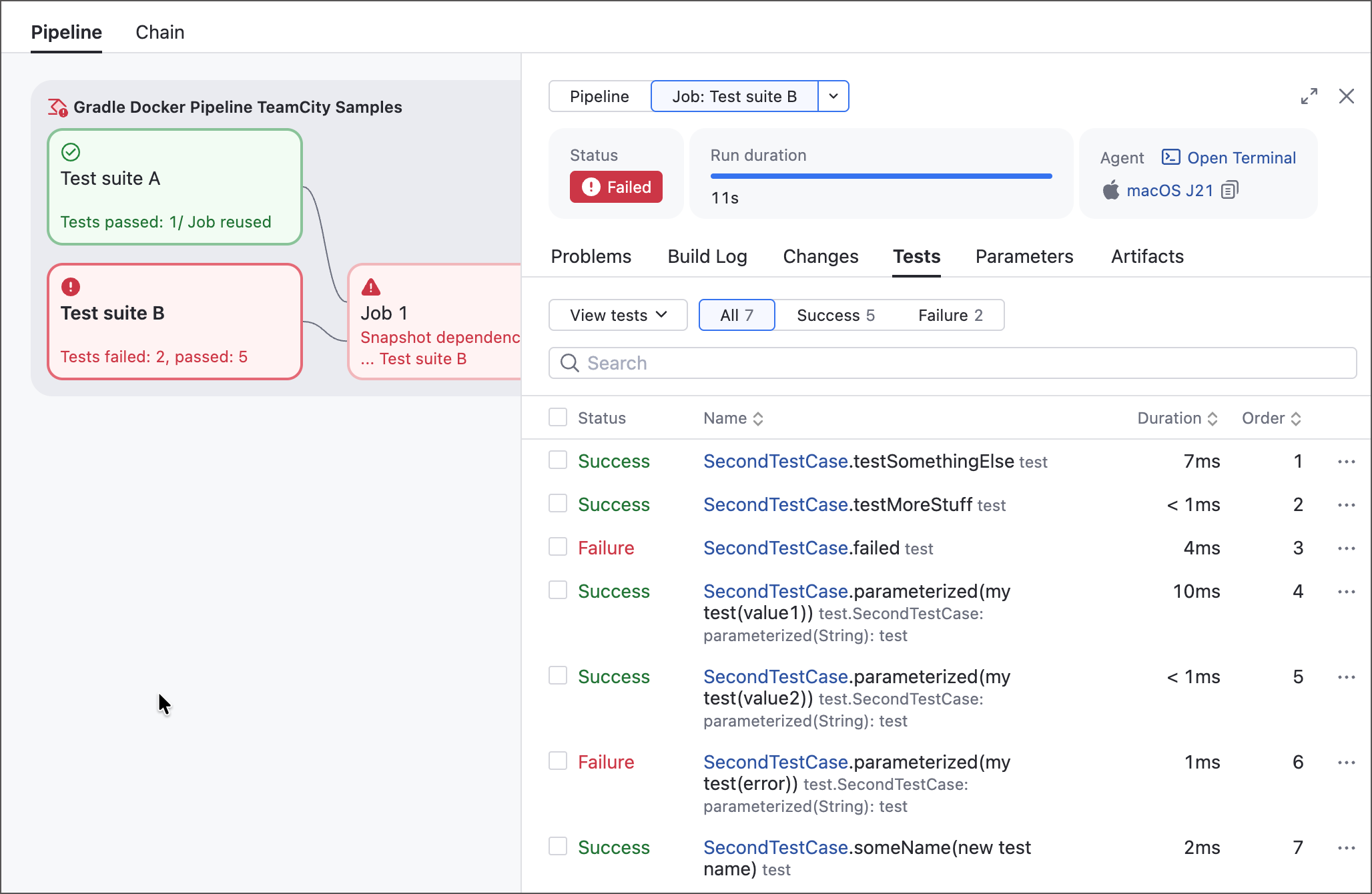
"Test suite A" finishes its tests successfully.
Tests from the "SecondTestCase" suite run with mixed results: five finish successfully while two fail. As a result, the entire job is labeled as failed.
Because of "Test suite B" job failing, the main building job fails without running. This is the default TeamCity logic: if some downstream stage of a workflow is unsuccessful, there’s no point in running the upstream operations that depend on it.
Fixing a build problem can take time. To keep it from failing subsequent builds, you can mute it. A muted failure doesn’t block later stages or cause the entire workflow to be reported as failed.
Select failing tests in the Tests tab and click Mute.
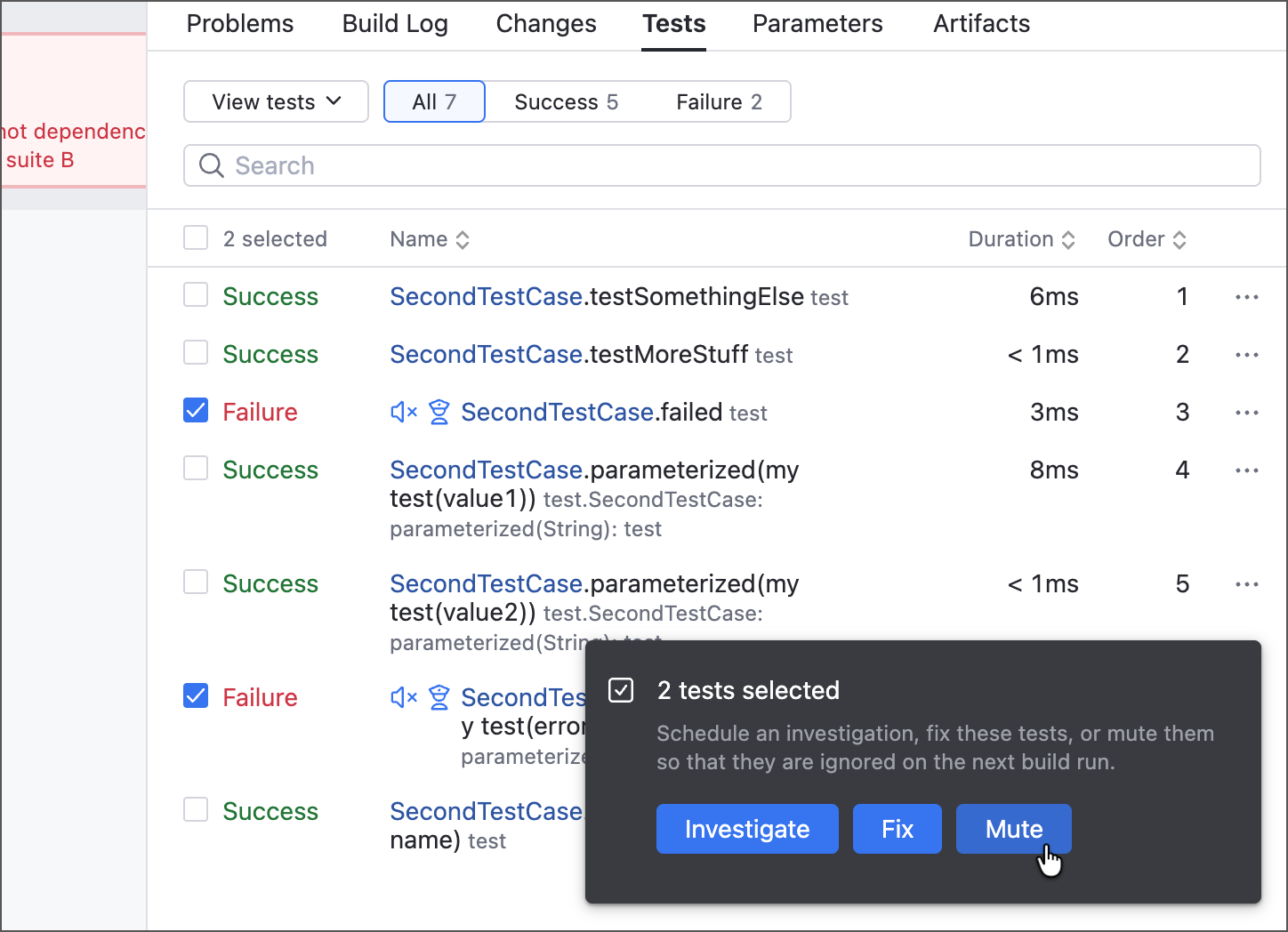
In the Investigate / Mute dialog, specify the following settings:
Investigated by — assign the investigation to a TeamCity user so that your teammates know someone’s working on it.
Mute in — allows you to choose the mute scope. Your only available option at the moment will be "Project-wide", since you only have one pipeline.
Unmute — set the unmute policy. The default "Automatically when fixed" option means TeamCity should stop ignoring this problem once you invoke this dialog again and select "Mark as fixed" under investigation options.
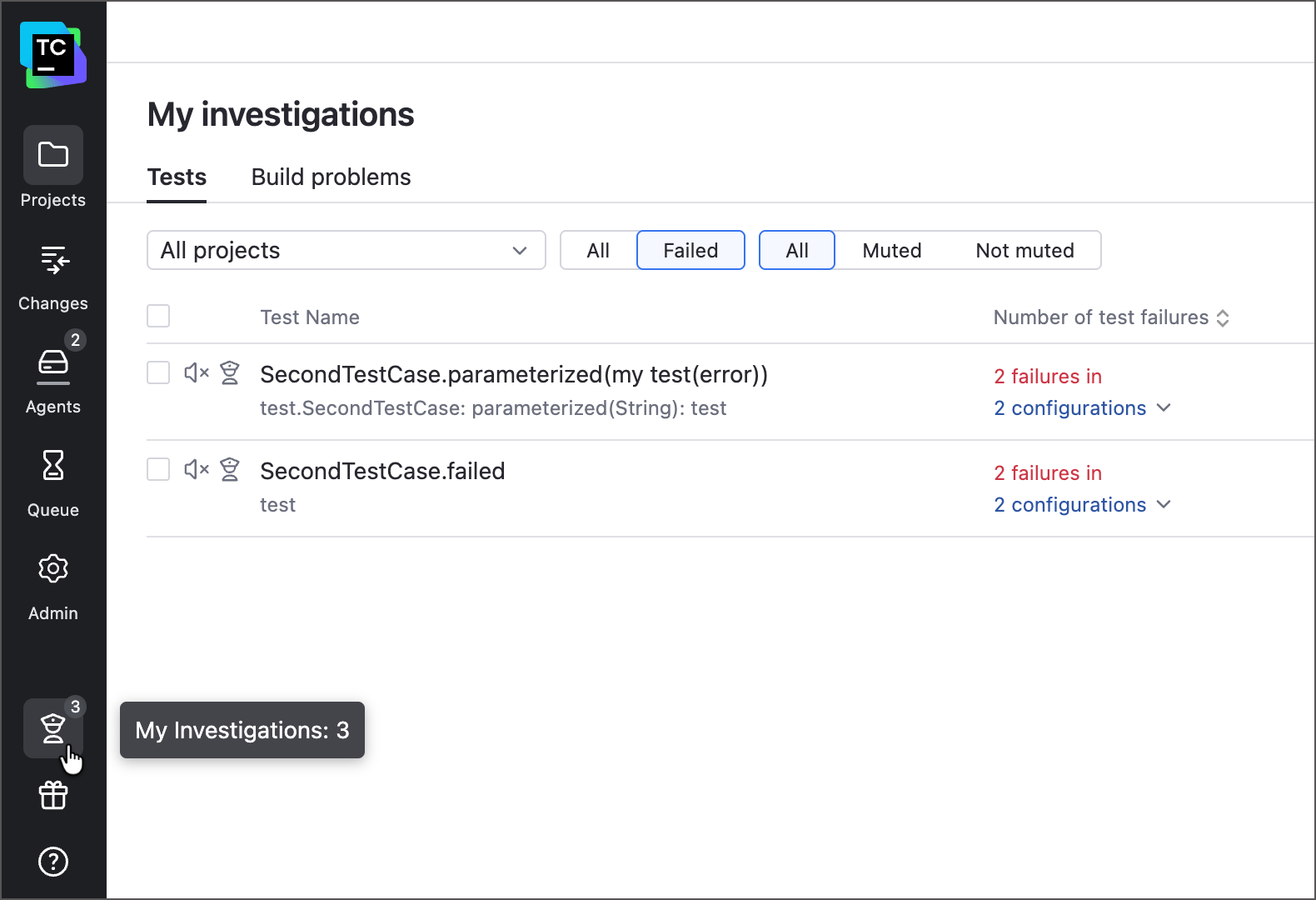
If you assigned the investigation to yourself, you can quickly access them from the My investigations page.
Mute the related build problem in the Problems tab similarly to how you muted the failing tests in the Tests tab, then re-run your pipeline. Compared to the previous run, it should exhibit the following differences:
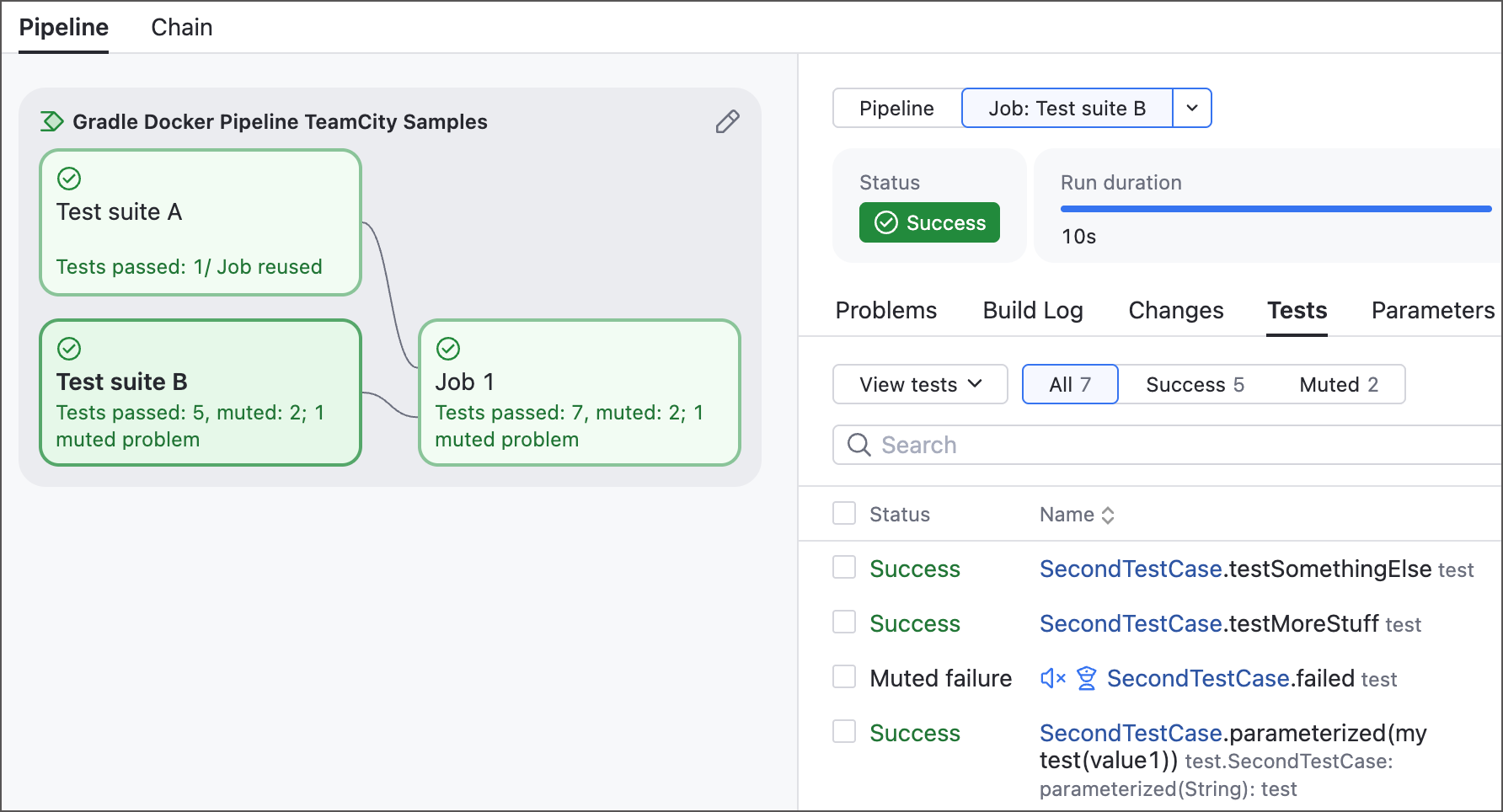
Previous issues still occur but are marked as muted failures and display the police officer icon to signal the ongoing investigation.
The final building job no longer automatically fails.
TeamCity adds the muted issue summary to job tiles.
Step 4: Triggers, branches, and pull requests
Modify any file in the forked repository (for example, the README.md). A few moments later, your pipeline will trigger a fresh run to process these changes. This happens because the "On new changes" setting is on under the Auto-Run Pipeline section of pipeline settings.
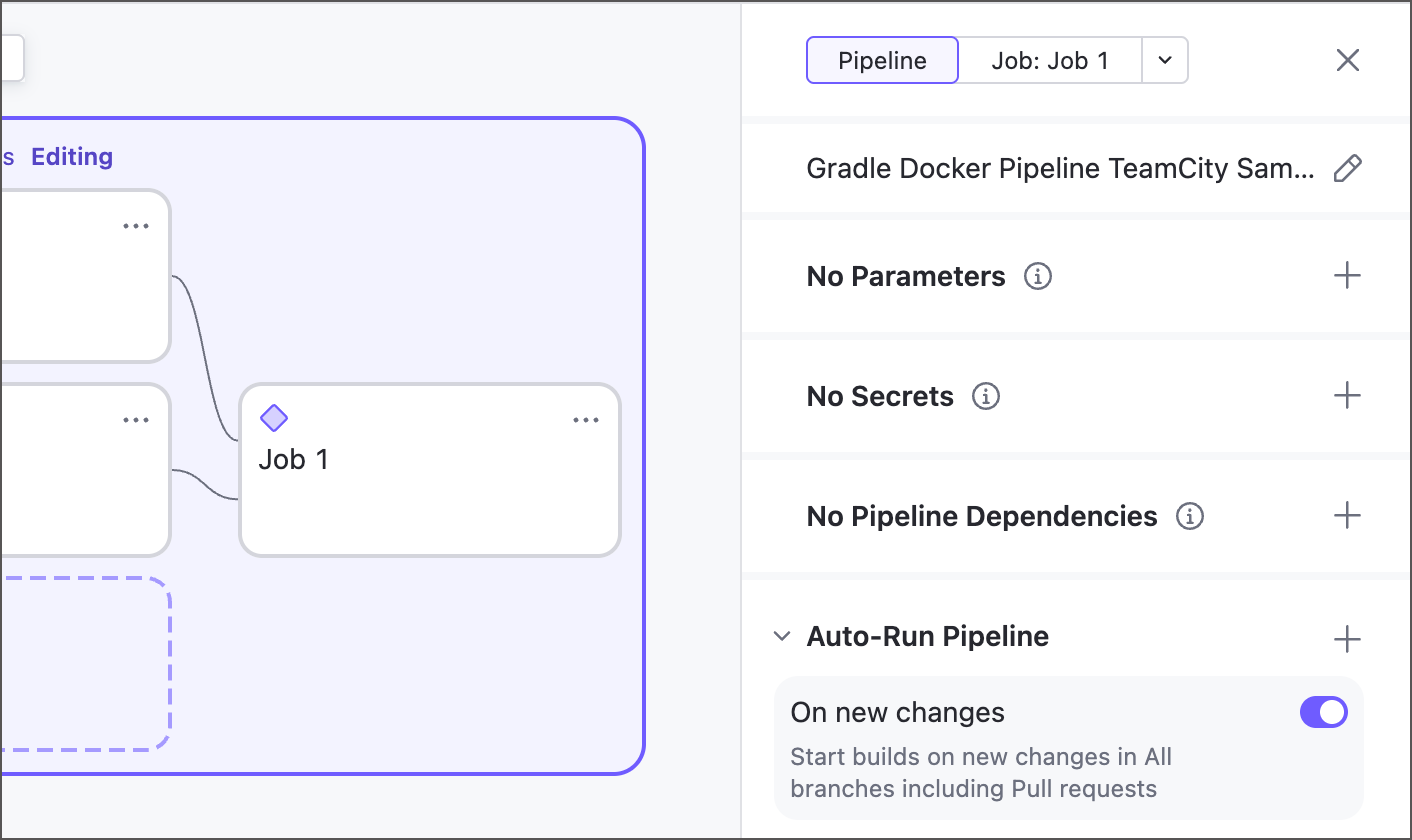
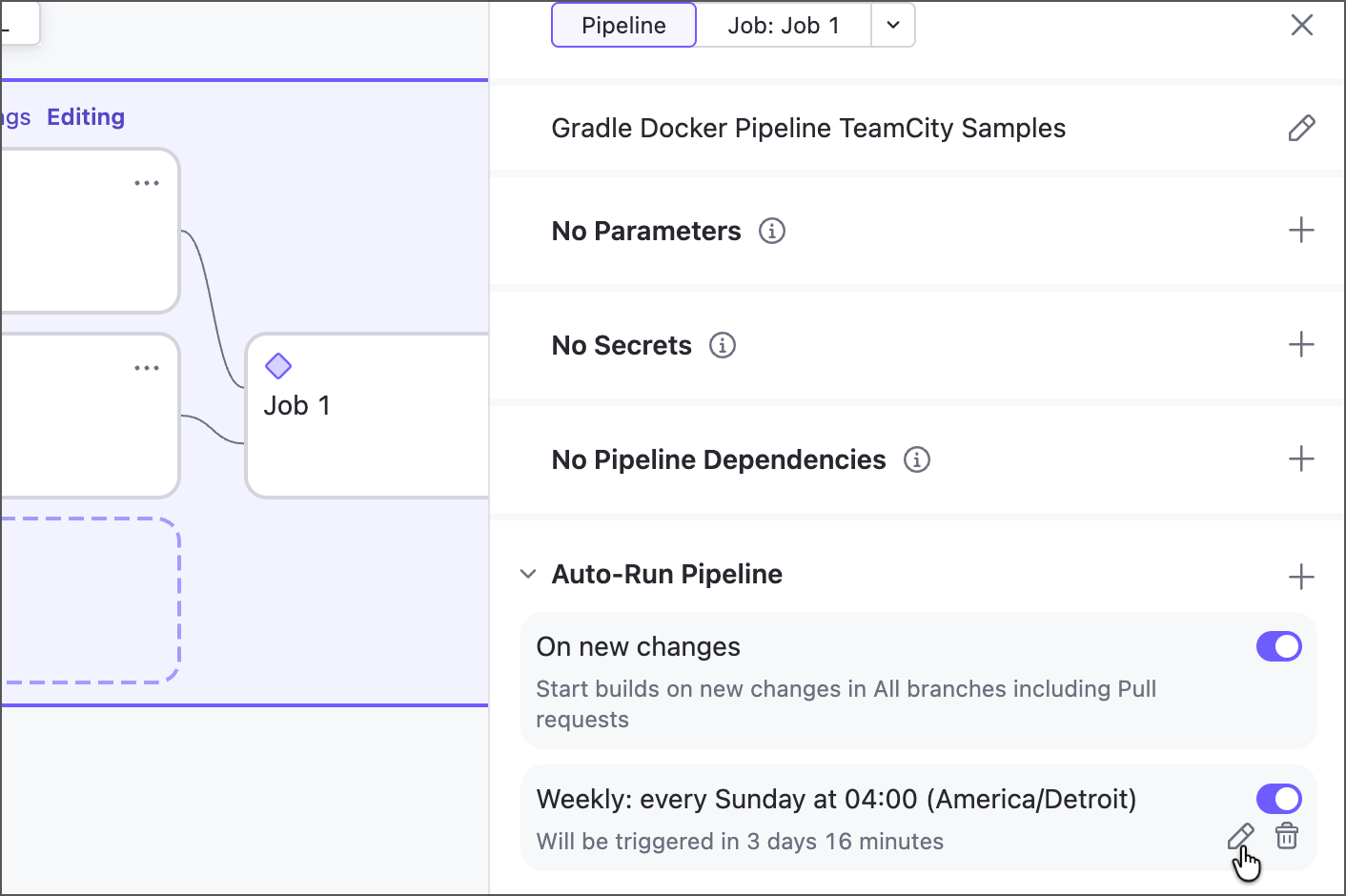
Click the plus icon in the Auto-Run Pipeline section to add more trigger conditions. For example, you can schedule automatic nightly runs that occur each Sunday.
Commit another change, but this time send it as a pull request. Doing so will also trigger a new run. You can edit the "On new changes" trigger to disable this behavior.
You might have noticed that TeamCity triggers your pipeline twice whenever you create a pull request. This happens because you configured TeamCity to watch all stable branches (and your changes are stored in a branch like
johndoe-patch-1before committed to the main one) and pull requests (that come fromrefs/pull/Nbranches).You can change this behavior by editing the branch specification in the pipeline Repositories section. For example, you can disable tracking all branches as the baseline rule and manually add the branches to watch. The following ruleset allows TeamCity to watch only two branches, plus all
refs/pull/Nbranches if the corresponding toggle is enabled:-:refs/heads/* +:refs/heads/master +:refs/heads/sandboxIn this setup, TeamCity ignores the source branches of incoming pull requests, such as
johndoe-patch-N, and triggers your pipeline only when arefs/pull/Nbranch is created or modified.