Command Line (Script)
Command Line (in build configurations) or Script (in pipelines) is the most flexible build step in TeamCity. It runs commands directly on the agent machine, allowing interaction with any installed tool (for example, cURL, Homebrew, Python, or Unreal Engine).
You can also use it as an alternative to tool-specific TeamCity steps. For instance, run mvn package script instead of using the Maven step with the package goal.
Step Settings
The list of Script step settings and their corresponding UI labels slightly differ depending on whether you configure a build configuration or a pipeline.
Main Settings
- Run
Allows you to choose between running a custom script entered to the corresponding step settings field or (currently available only in build configurations) launching any executable with required parameters.
Scripts are executed as executable scripts in Unix-like environments and as
*.cmdbatch files on Windows. Under Unix-like OS the script is saved with the executable bit set and is then executed by OS. This defaults to/bin/shinterpreter on the most systems. If you need a specific interpreter to be used, specify shebang (for example,#!/bin/bash) as the first line of the script.- Working directory
The directory where the build step starts. By default, this is the same root directory where the agent checks out remote sources. See this topic for more information: Build Working Directory.
Advanced Settings
- Format stderr output as
Allows you to choose how the error output should be handled by the step. Available options:
error — Any output to
stderris handled as an error.warning (default) — Any output to
stderris handled as a warning.
Container Settings
This build step can run inside a container deployed by Docker or Podman.
Classic build configuration steps display a set of properties that allow you to specify the image name, platform, and additional run arguments. The Pull image explicitly ensures TeamCity pulls an image from the target container every time this step runs.
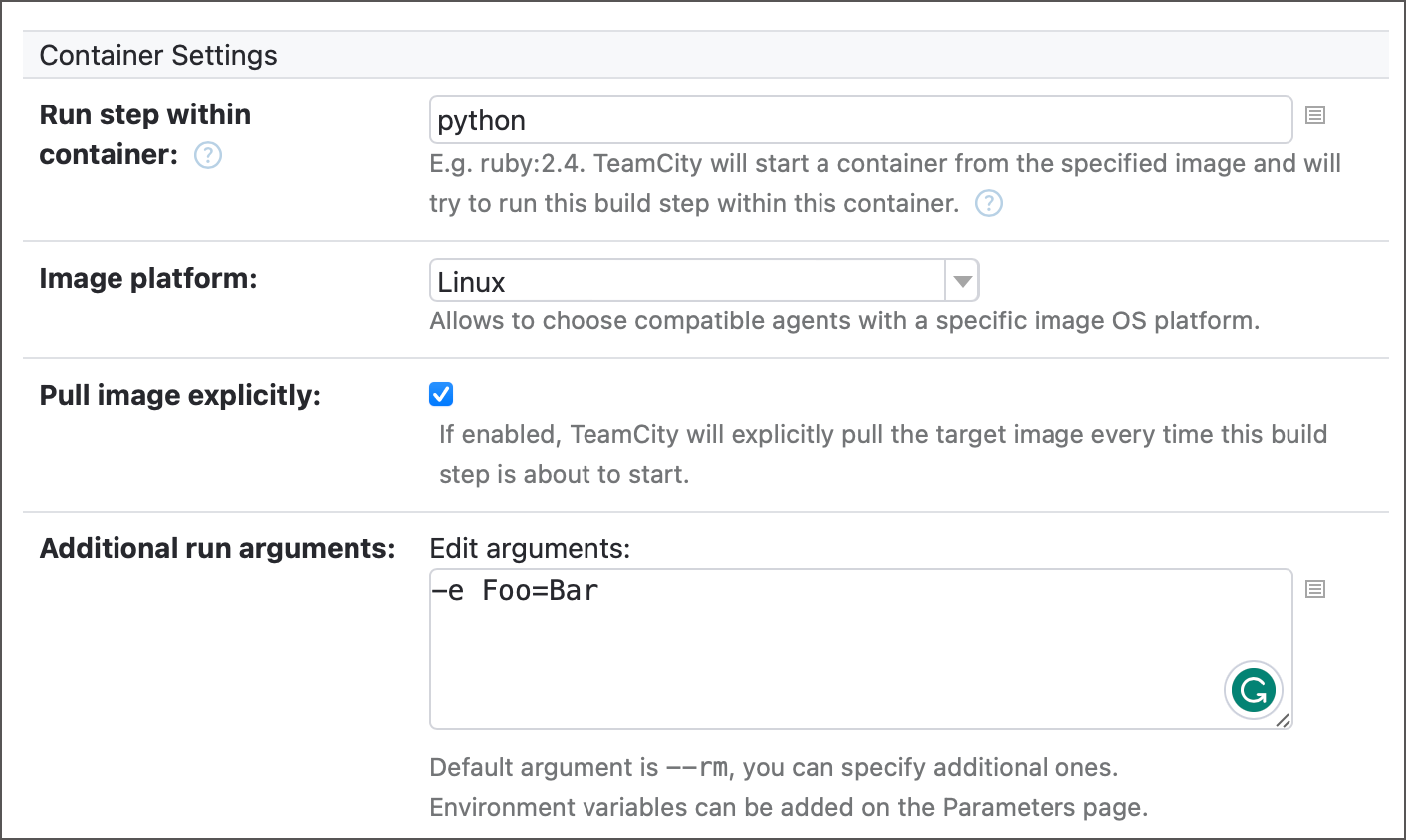
To point TeamCity to a registry where it should look for the specified image, add Docker/Podman connection to your project. By default, this connection allows TeamCity to pull images from Docker Hub in anonymous mode, but you can set it up for any container registry.
See the following article for more information: Container Wrapper.
Toggle Run in Docker on to run a step inside a container. When enabled, this element displays two options.
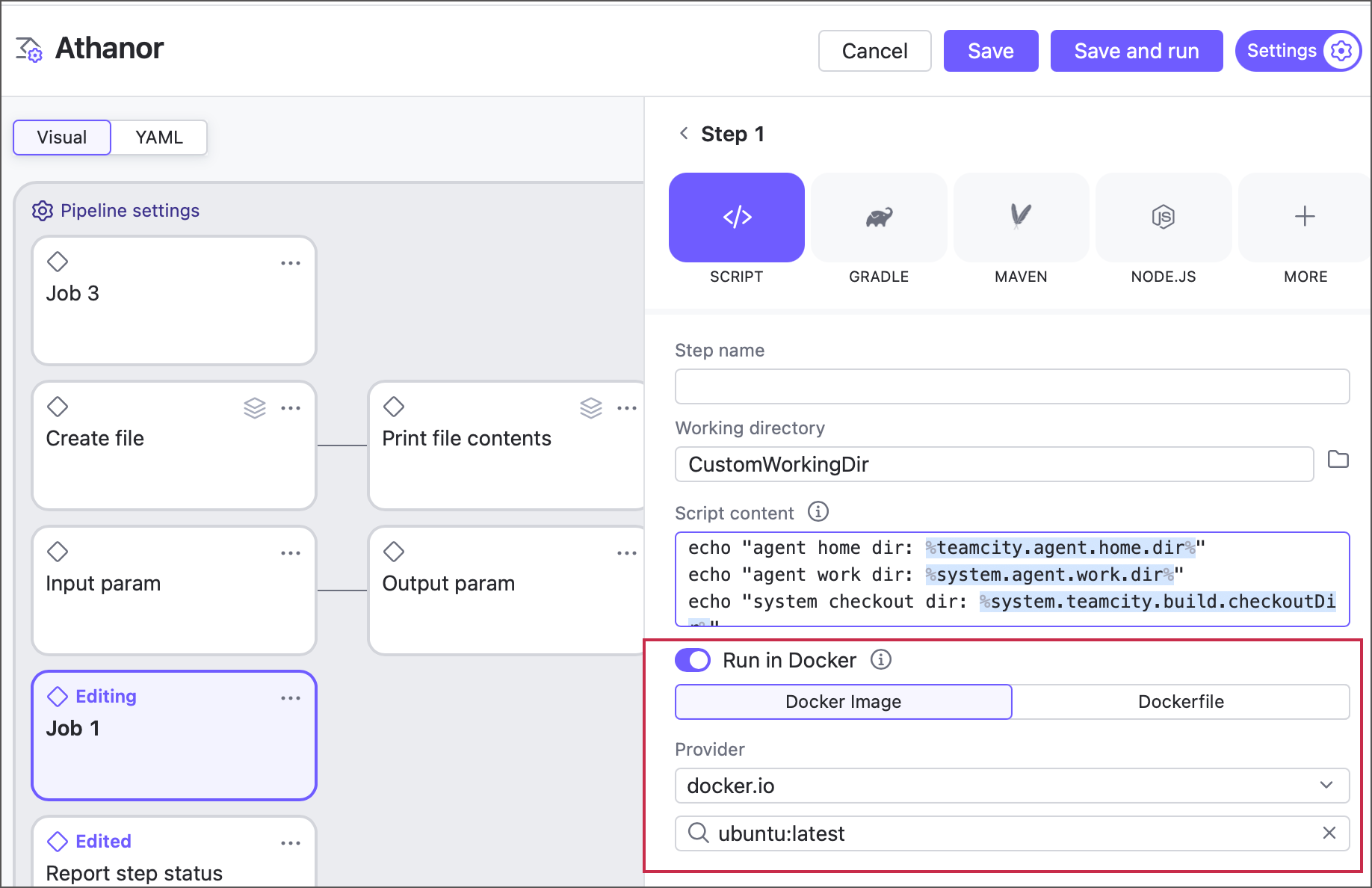
Docker image — allows you to pull an image from a Docker or Podman registry. By default, TeamCity can pull Docker Hub images in anonymous mode. For other cases (private images, custom image registries, non-anonymous mode that ensures you do not violate Docker Hub rate limits), configure a Docker integration on a pipeline or job level.
Dockerfile — allows you to build a custom image from a Dockerfile.
Configuration as Code
The following snippets illustrate a customized build step in both YAML (only pipelines) and Kotlin DSL formats.
See also: ScriptBuildStep Kotlin DSL documentation