Run Build Chains
By default, triggering a downstream object runs the entire build chain on a single shared sources snapshot. This article covers how to trigger a chain, run only part of it, and stop it.
Triggering a chain
The recommended approach is to add triggers only to the final (most downstream) object of a chain. When that object is triggered, TeamCity automatically queues all of its upstream dependencies. Upstream objects do not need their own triggers.
This follows the "think about the result" principle: configure the trigger on the build you ultimately want, and let the chain pull in everything it needs.
The VCS build trigger has another option that alters triggering behavior for a build chain. With this option enabled, the whole build chain will be triggered even if changes are detected in dependencies, not in the final build.
Let's take a build chain from the example: pack setup — depends on — tests — depends on — compile.
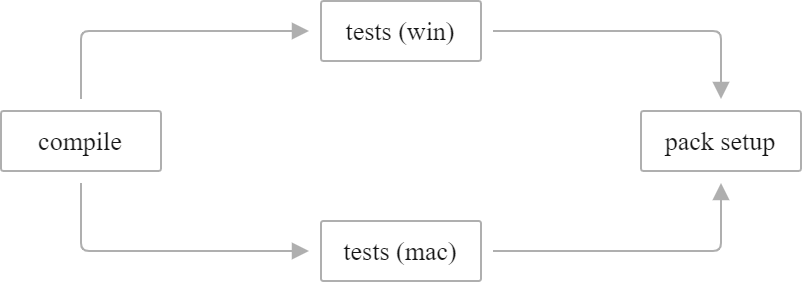
With the VCS Trigger set up in the pack setup configuration, the whole build chain is usually triggered when TeamCity detects changes in pack setup; changes in compile will trigger compile only and not the whole chain. If you want the whole chain to be triggered on a VCS change in compile, add a VCS trigger with the " Trigger on changes in snapshot dependencies " option enabled to the final build configuration of the chain, pack setup. This will not change the order in which builds are executed, but will only trigger the whole build chain if there is a change in any of the snapshot dependencies. In this setup, no VCS triggers are required for the compile or tests build configuration.
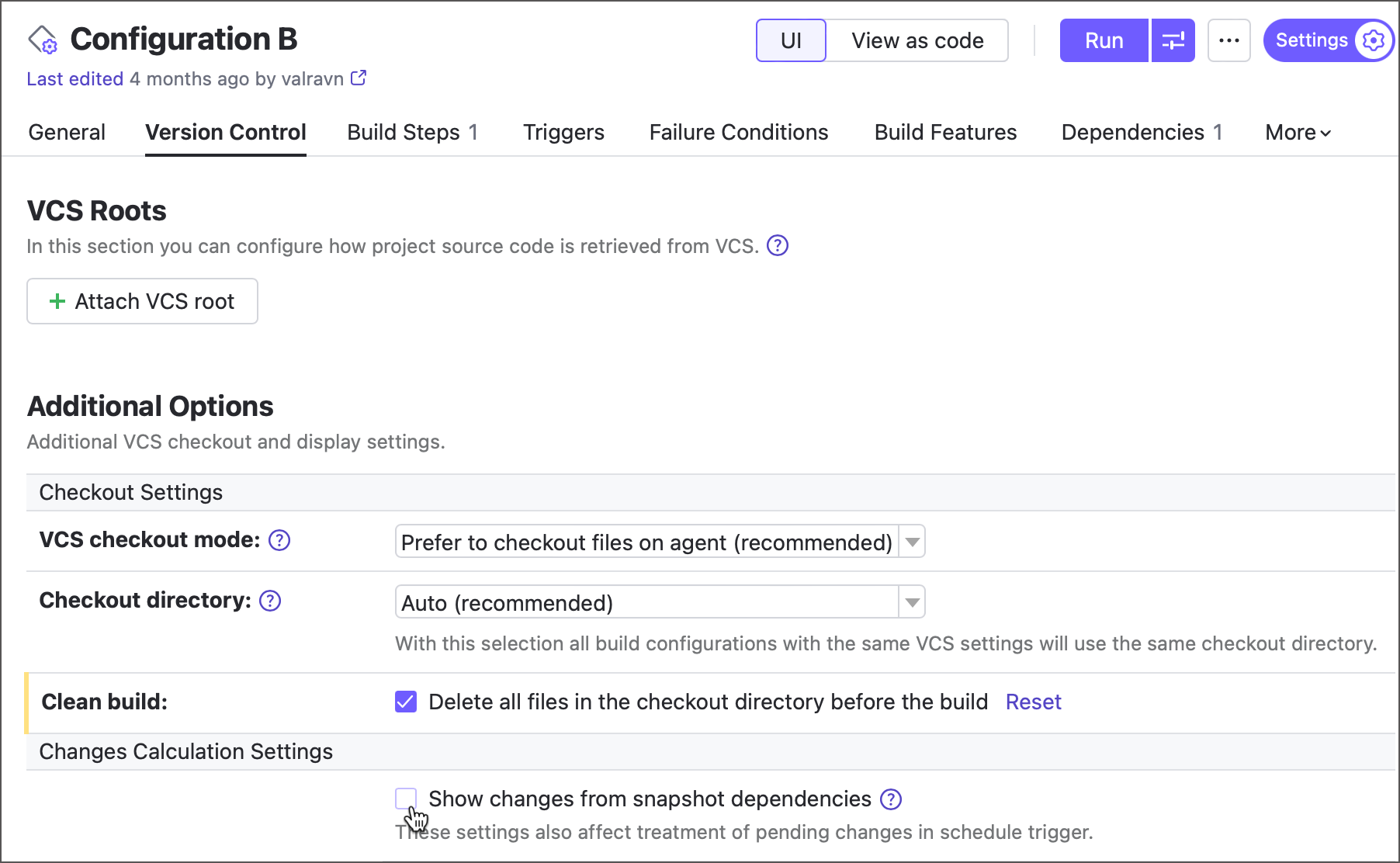
To make upstream changes visible in the downstream object, enable the Show changes from snapshot dependencies option in the Version Control Settings section. This shows upstream changes in the Change Log and Pending Changes tabs of the downstream object.
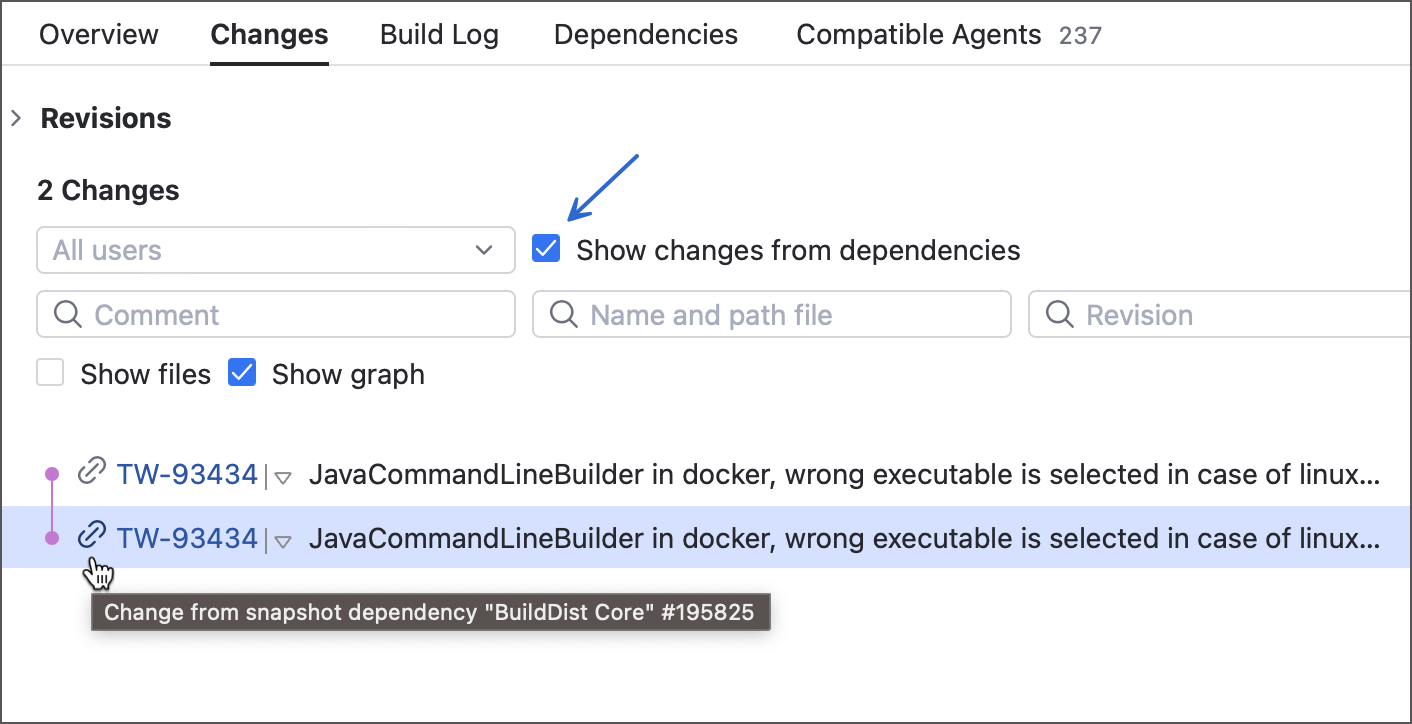
Regardless of this default, users can include or exclude changes that originate from dependencies when viewing a build's change list.
Re-run failed chain builds
Build failures generally fall into two categories: true failures that recur on every run (a syntax error, a missing reference), and transient ones that a plain retry can resolve — flaky tests, checkout hiccups, or a temporarily unavailable external resource (AWS S3, Dockerhub, NuGet, maven.org, and so on). Re-running an entire chain to work around a transient failure at its far end can be costly, so TeamCity offers three ways to retry a failed build without restarting the whole chain.
Automatic retries
If a build can no longer continue due to an infrastructure issue (for example, TeamCity loses connection to its agent), TeamCity starts a replacement build automatically, for both standalone and chain builds. This requires no manual configuration on your side.
Retry build triggers
Add a Retry build trigger to a configuration to start a new build automatically whenever the previous one fails.
For a configuration that is part of a chain, also enable Trigger a new build with the same revisions. TeamCity will then reuse every successful build from the previous chain run and only rebuild the failed dependencies, on the same revision.
This trigger does not pause the chain: a new build is queued to replace the failed one, but downstream builds proceed based on the original failure. Thus, a downstream build can still end up red with the "Snapshot dependency failed" error.
Dependency retry settings
Unlike a retry trigger, dependency retry settings make a downstream build wait. If a direct or indirect snapshot dependency fails, TeamCity delays the downstream build and retries the failed dependency automatically, up to a set number of attempts, before proceeding. While a retry is pending, the unsuccessful upstream build is marked as canceled rather than failed.
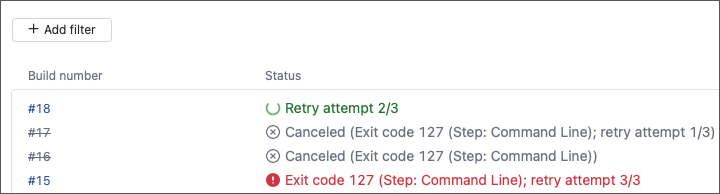
These settings can be configured in the Dependencies tab of build configuration settings.
- Use custom retry settings
Sets up retry behavior for this configuration explicitly. Otherwise, with Use retry settings from the nearest dependent (downstream) build enabled, the configuration inherits its settings from whichever build depends on it. You can define retry settings once, on the last configuration in the chain, and have them apply to every upstream build that does not define its own.
- Retry dependency even if the failure is the same
Keeps TeamCity retrying a failed dependency, even if every attempt fails for the same reason, until it succeeds or runs out of attempts. If disabled, a repeated failure is left as is and is not retried again.
Partial chain execution
Sometimes only part of a chain needs to run. TeamCity offers three mechanisms, from ad-hoc to fully automated.
Promote a build
Sometimes you don't want to run a chain from the very beginning — you want to reuse one specific finished build and continue the chain from there. Open that build's results page, click Actions | Promote, and TeamCity triggers the downstream portion of the chain using this build as its source.
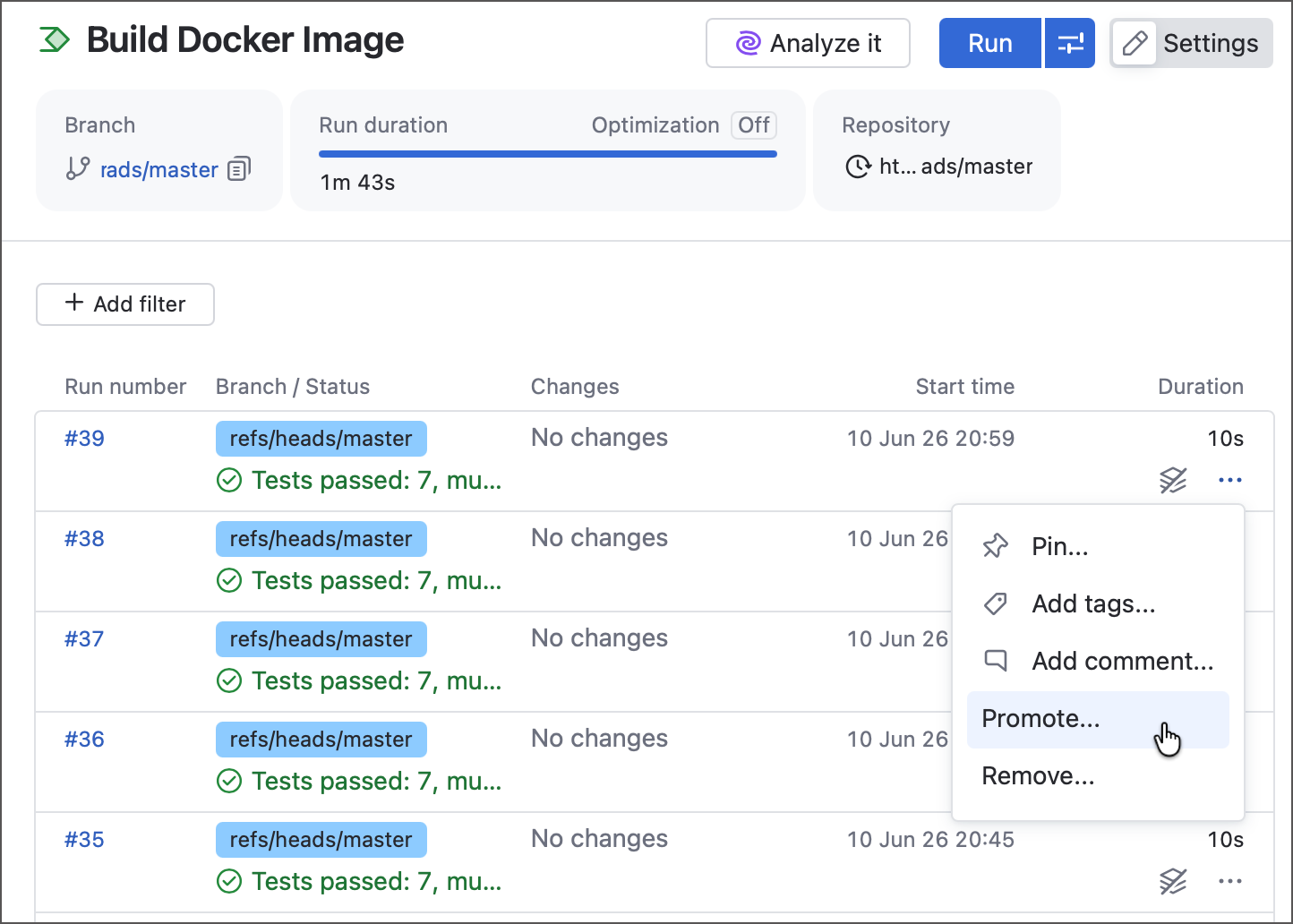
This is useful for two common scenarios:
Reusing an older build's results instead of the latest. For example, promote a successful "Build Docker image" run into the "Upload to DockerHub" configuration or pipeline to re-deploy that same artifact without rebuilding it.
Manually starting a downstream object that has no automatic trigger — for example, a deployment configuration you only want to run on demand.
Promotion is a one-time override: it affects only this specific run. Afterwards, both build configurations and pipelines revert to their normal dependency logic (the latest successful or pinned build).
Skip builds on demand
For a one-off partial run, use the Run Custom Build dialog. On the Dependencies tab, set the Skip option for any directly linked configuration you want to ignore.
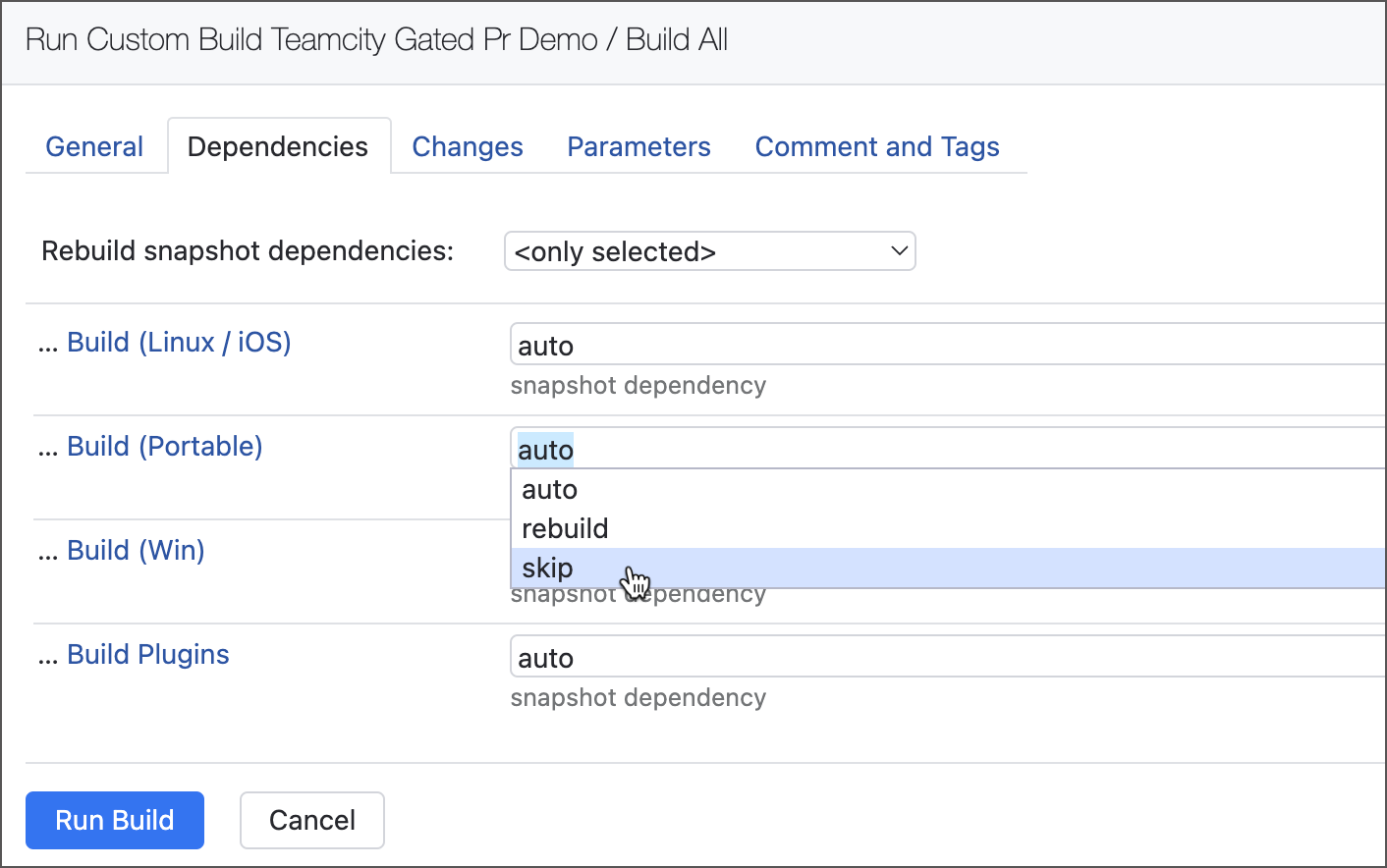
You can only skip configurations directly linked to the one you trigger. For the "Build 1 → Build 2 → Build 3 → Build 4" chain, starting "Build 4" lets you skip only "Build 3".
Conditional dependencies with tags
For a repeatable setup, use the teamcity.build.chain.skipTags and teamcity.build.chain.onlyTags configuration parameters (available since 2024.12).
teamcity.build.chain.skipTags— excludes matching configurations. The chain runs everything except them.teamcity.build.chain.onlyTags— keeps matching configurations and their dependencies. Configurations between kept ones cannot be skipped.
Both parameters accept a comma-separated list of:
Tags — values of the
teamcity.configuration.tagsparameter, which you set on any configuration you want to label.Configuration IDs — shown in configuration settings or copied from configuration URLs.
TeamCity reads these parameters only from the configuration that triggers the chain; values on dependency builds are ignored.
Example: skipTags
A composite "Build All" configuration triggers a full chain. To let it run only the core "Build..." configurations and skip the optional tests, tag the optional configurations and reference that tag:
To run the full chain instead, remove the parameter or set it to a value that matches nothing. A common pattern is a schedule trigger that overrides the value for full nightly builds:
Example: onlyTags
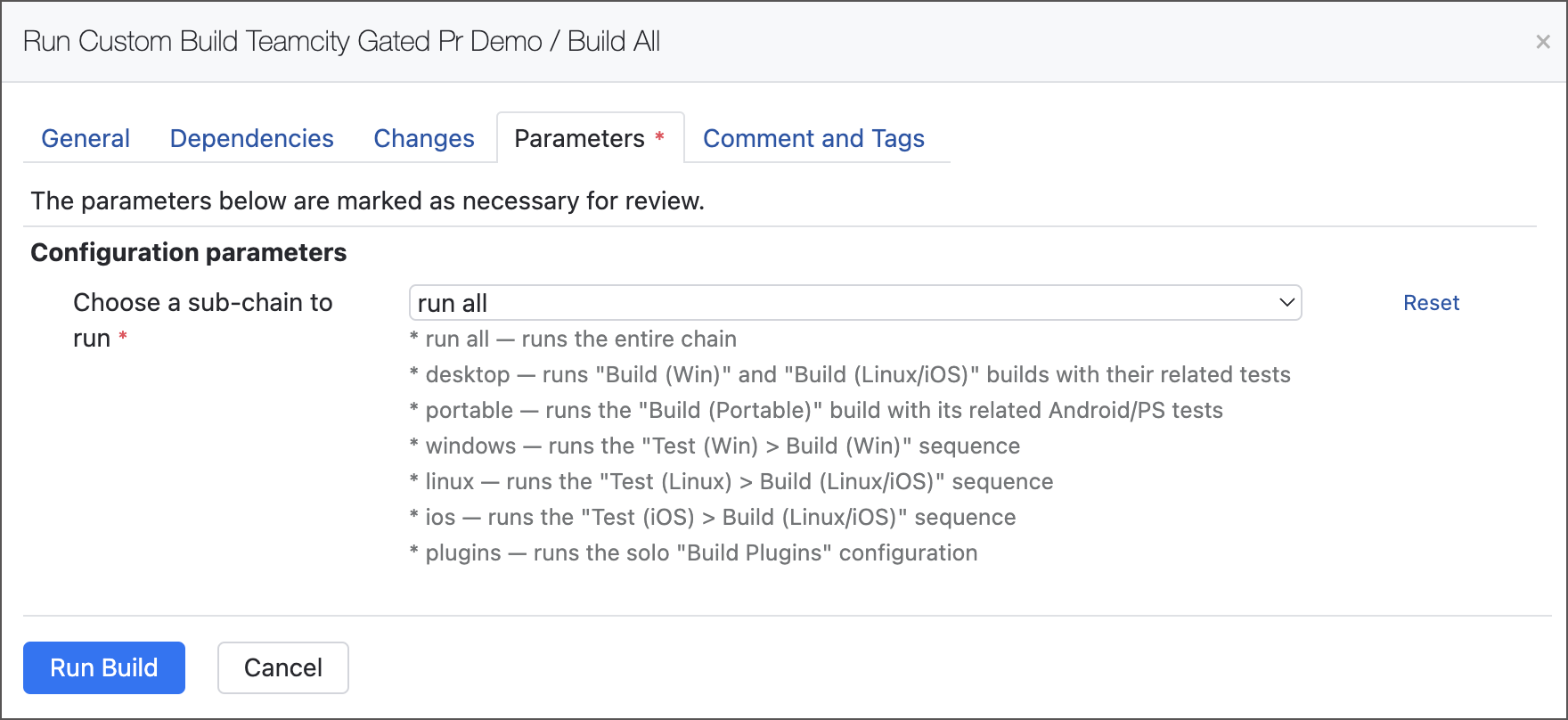
To let users choose a sub-chain at trigger time, style onlyTags as a Select parameter with the "Prompt" display mode:
When triggered manually, the Run Custom Build dialog prompts the user to pick a value. An empty value runs the whole chain; a tag runs only the configurations carrying it, plus their dependencies.
Skip queued builds at runtime
To cancel queued downstream builds dynamically from a running build step, send the service message:
The tags argument accepts the same tags and configuration IDs as the parameters above. This is useful for canceling specific branches of a chain based on runtime conditions — for example, skipping selected test suites from a "Build" step:
Avoid skipping an entire mid-section, which leaves a confusing "Build → ??? → Deploy" gap. For that case, maintain a separate lean chain instead.
Stopping chain builds
When you stop or remove from the queue a build that is part of a chain, TeamCity shows the message " This build is a part of a build chain " and lists the other running or queued chain members under Stop other parts.
Each listed build you can access has a checkbox. It is selected by default when stopping the current build would inevitably cause that build to fail.
Builds you lack permission to stop are shown without a checkbox.
Builds you lack permission to view are hidden, replaced by a warning that you cannot see all parts of the chain.
If all other parts of the chain have already finished, no additional information is shown.
Running personal builds in a chain
When a personal build triggers a chain, all of its upstream dependencies also run as personal builds. The exception is build reuse: if reuse is enabled and a finished non-personal build satisfies the revision requirements, TeamCity uses it instead of running a personal upstream build that would add no value.