Configuring Chain Dependencies
A build chain is assembled by declaring dependencies in downstream objects that point to upstream ones. The available settings are the same for both build configurations and pipelines — only the UI and code representation differ.
Snapshot dependencies
Snapshot dependencies link two build configurations in a chain. The term "snapshot" refers to source revision synchronization: both the upstream and downstream builds share the same code snapshot, which is the key guarantee that makes the chain meaningful.
To add a snapshot dependency to a build configuration:
Open configuration settings and navigate to the Dependencies settings tab.
Click Add new snapshot dependency and select the upstream configuration.
Pipeline dependencies
Pipeline dependencies link pipelines to other pipelines or to classic build configurations.
To add a pipeline dependency:
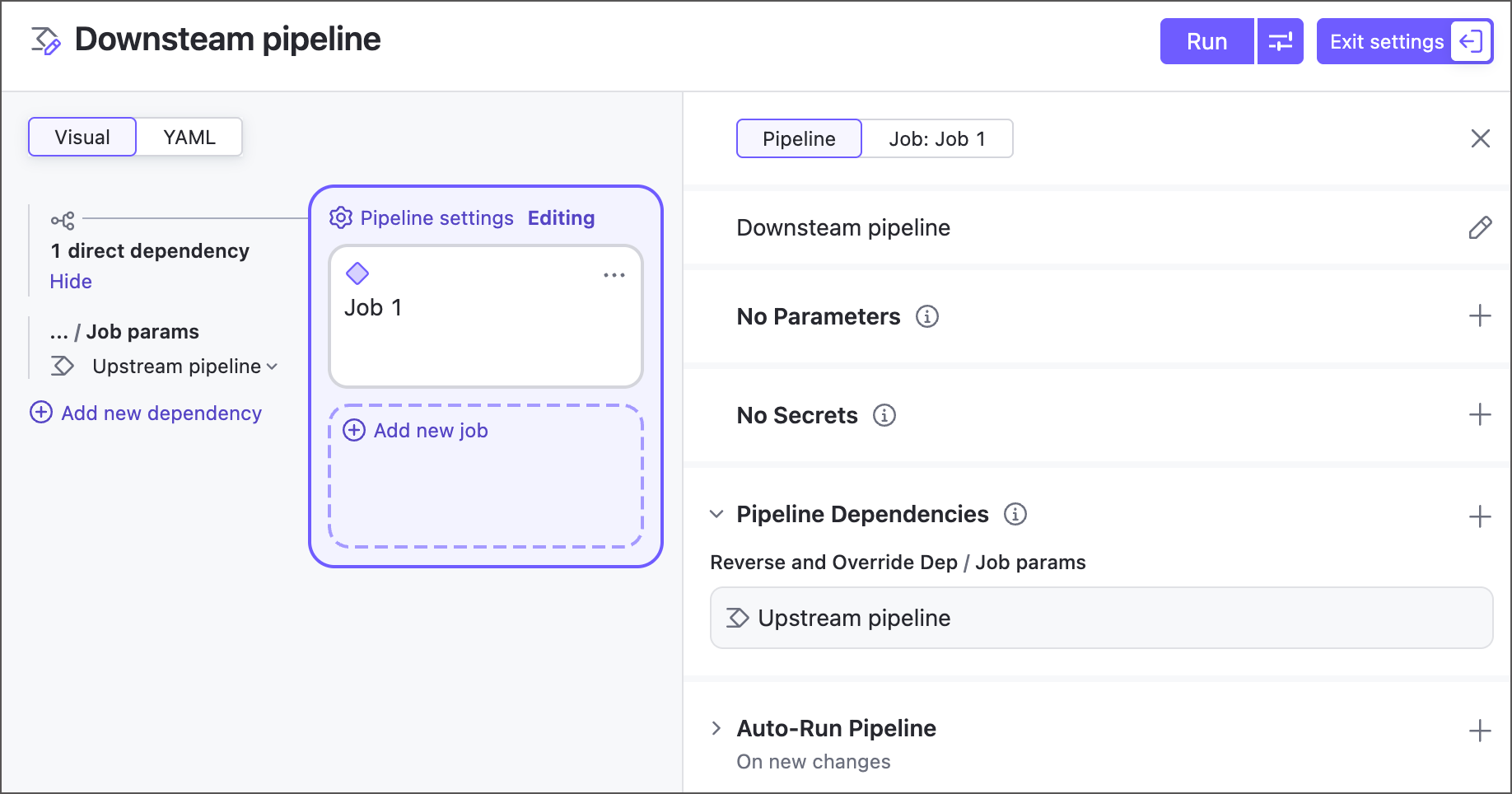
Click anywhere in the pipeline canvas area (outside any job) to open pipeline-level settings.
Click Add in the Pipeline dependencies section.
Select the upstream pipeline or build configuration from the Depend on list.
Dependency settings
The following settings apply to both snapshot dependencies and pipeline dependencies.
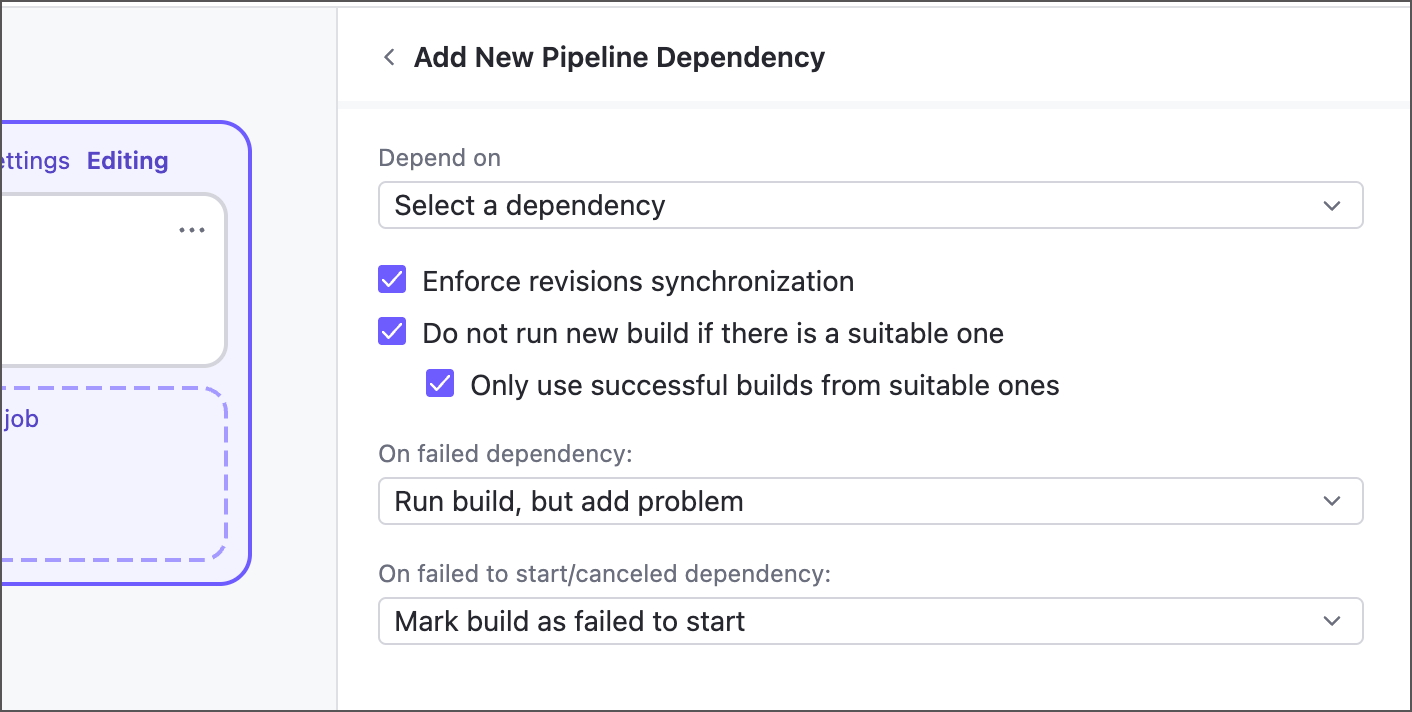
- Depend on
Choose the upstream configuration or pipeline that must finish before this object can start.
- Enforce revisions synchronization
Specifies whether TeamCity should ensure both objects linked by a dependency use the same revision of code sources.
Revision synchronization enabled: recommended for setups that need to use the same state of the sources. For example, in the "A → B" chain: "A" starts on revision 1.2 and is promoted to "B" when finished. Build "B" runs on the same 1.2 revision even if its latest revision is 1.4.
Revision synchronization disabled: use this setup when builds do not have strict sources' dependencies (for example, separate package and deploy steps). In this case, a downstream build uses the latest available revision. In the "A → B" chain: "A" starts on revision 1.2 and is promoted to "B", but "B" runs on its latest 1.4 revision.
See Revision Synchronization for the effects this setting has on a whole build chain.
- Do not run new build if there is a suitable one
If this option is enabled, TeamCity does not run a new upstream build when another running or finished build with the appropriate sources' revision already exists. See Suitable Builds for the criteria TeamCity uses to determine a reusable build.
In this case, when a downstream build is triggered, the upstream build is still put into the queue. Then, once the changes for the chain are collected, this upstream build is removed from the queue and the dependency is linked to the suitable finished build instead.
- Only use successful builds from suitable ones
A new triggered build will only use successfully finished suitable builds as dependencies. If the latest finished suitable build failed, it is rerun.
- Run build on the same agent
When enabled, the downstream build runs on the same build agent that ran the upstream build within the same chain. Use this when an upstream build modifies system state — installed tools, environment variables, or local files — that the downstream build relies on.
- On failed dependency / On failed to start or canceled dependency
These settings let you control whether a downstream build should run if its upstream build fails, and, if it should, whether the same build problem should appear in its results.
Run build, but add problem: the downstream build runs and the problem is added to it, changing its status to failed (unless the problem was muted earlier).
Run build, but do not add problem: the downstream build runs and no problem is added.
Mark build as failed to start: the downstream build does not run and is marked as " Failed to start ".
Cancel build: the downstream build does not run and is marked as " Canceled ".
Re-run failed chain builds
Build failures generally fall into two categories: true failures that recur on every run (a syntax error, a missing reference), and transient ones that a plain retry can resolve — flaky tests, checkout hiccups, or a temporarily unavailable external resource (AWS S3, Dockerhub, NuGet, maven.org, and so on). Re-running an entire chain to work around a transient failure at its far end can be costly, so TeamCity offers three ways to retry a failed build without restarting the whole chain.
Automatic retries
If a build can no longer continue due to an infrastructure issue (for example, TeamCity loses connection to its agent), TeamCity starts a replacement build automatically, for both standalone and chain builds. This requires no manual configuration on your side.
Retry build triggers
Add a Retry build trigger to a configuration to start a new build automatically whenever the previous one fails.
For a configuration that is part of a chain, also enable Trigger a new build with the same revisions. TeamCity will then reuse every successful build from the previous chain run and only rebuild the failed dependencies, on the same revision.
This trigger does not pause the chain: a new build is queued to replace the failed one, but downstream builds proceed based on the original failure. Thus, a downstream build can still end up red with the "Snapshot dependency failed" error.
Dependency retry settings
Unlike a retry trigger, dependency retry settings make a downstream build wait. If a direct or indirect snapshot dependency fails, TeamCity delays the downstream build and retries the failed dependency automatically, up to a set number of attempts, before proceeding. While a retry is pending, the unsuccessful upstream build is marked as canceled rather than failed.
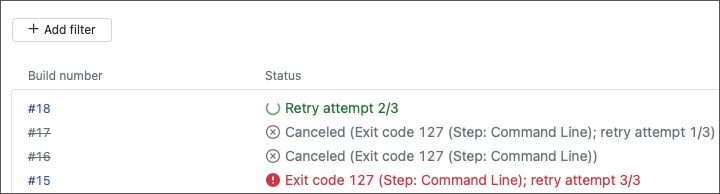
These settings can be configured in the Dependencies tab of build configuration settings.
- Use custom retry settings
Sets up retry behavior for this configuration explicitly. Otherwise, with Use retry settings from the nearest dependent (downstream) build enabled, the configuration inherits its settings from whichever build depends on it. You can define retry settings once, on the last configuration in the chain, and have them apply to every upstream build that does not define its own.
- Retry dependency even if the failure is the same
Keeps TeamCity retrying a failed dependency, even if every attempt fails for the same reason, until it succeeds or runs out of attempts. If disabled, a repeated failure is left as is and is not retried again.
Build reuse
Running every upstream build on every chain trigger is often wasteful — if a matching build already exists, TeamCity can reuse it. This is what makes a chain more than a fixed sequence: rather than blindly rerunning everything, TeamCity decides which upstream builds to execute and which to substitute with earlier results.
Reuse is controlled by the Do not run new build if there is a suitable one dependency option. When it is enabled, TeamCity looks for a suitable build to use instead of starting a new one.
Suitable builds
A suitable build is an existing build that TeamCity can reuse in place of a queued upstream build. When build reuse is enabled, TeamCity searches for a suitable build and, if one is found, links the dependency to it and drops the redundant queued build.
A build is considered suitable when all of the following hold:
It belongs to the same or the default branch.
It uses the same sources snapshot as the queued chain (the same revision, or revisions taken at the same moment if VCS roots differ).
It is successful — if the Only use successful builds from suitable ones option is enabled.
It is a regular, non-personal build with no customized parameters.
The build configuration settings have not changed since the build ran.
All of its own dependency builds are also suitable.
It is not a "hanging" build.
If no build meets every criterion, TeamCity runs a new upstream build instead.
VCS settings that disable build reuse
Some VCS root configurations make it impossible for TeamCity to reliably calculate revisions, which disables build reuse entirely. These are:
Subversion — "Checkout, but ignore changes" mode.
CVS — "Checkout by tag" mode.
Perforce — "Stream" or "Client" connection settings, or a label specified as the "Label/revision to checkout".
Starteam — checkout mode set to "view label" or "promotion date".
Parallel tests and build reuse
The Always run new build behavior (the snapshot dependency Do not run new build if there is a suitable one setting disabled) affects only the main configuration build. Virtual build configurations that spawn dynamically when the Parallel Tests feature is used might still reuse their previous results. If no new repository commits were detected, only previously failed test batches run new builds, while successful batches are reused.
In the figure below, the "Composite Conf" configuration depends on "Maven App" configuration. The latter runs its tests in two parallel batches. Note that the main "Maven app" build #18 is triggered anew, whereas the dynamically spawned "Maven app 1" configuration reuses its previous successful build (#12).
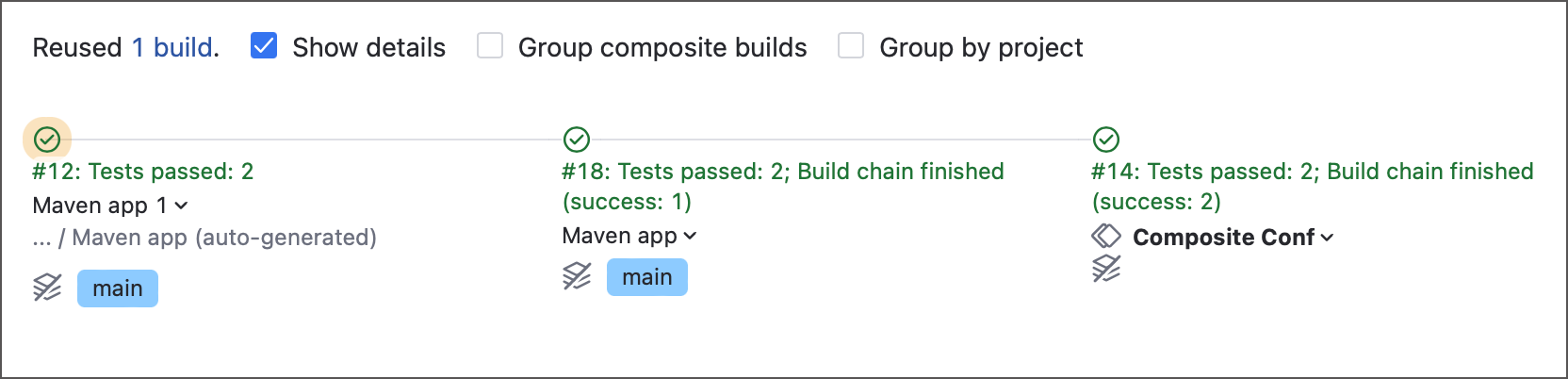
You can force TeamCity to re-run all virtual configuration builds. In this case, even if no new repository commits were found, every individual test batch will run anew.
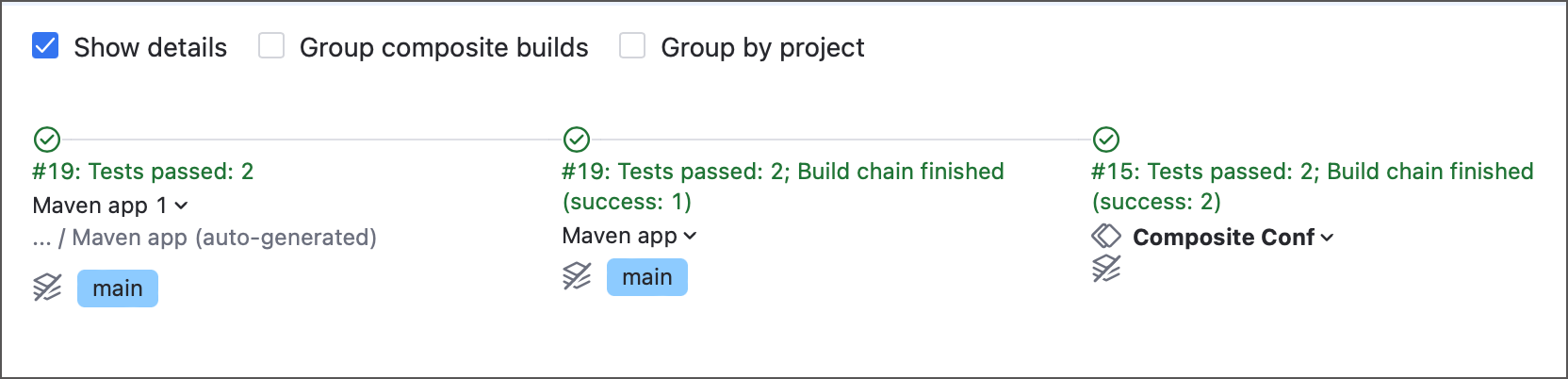
To do so, add the teamcity.internal.splitBuild.dependency.takeStartedBuildWithSameRevisions=false parameter to the configuration with the parallel tests feature.
Revision synchronization
By default, every member of a chain runs on the same sources snapshot. Disabling Enforce revisions synchronization on a specific dependency breaks the chain into independent revision groups, so a build can be promoted across that link onto a newer revision.
The typical use case is deployment: you want to deploy an older, validated build using the latest deployment scripts.

Consider a "D → C → B → A" chain where D compiles, C runs integration tests, B runs system tests, and A deploys. Synchronization is disabled on B's dependency, but enabled for A and C:
D and C are synchronized — both run on revision 1.
B and A are synchronized — both run on revision 3.
The C → B link is desynchronized, so the two groups can use different revisions.
This lets you promote an older compilation (D, revision 1) directly to B, skipping C, while B and A still run on the latest revision 3.
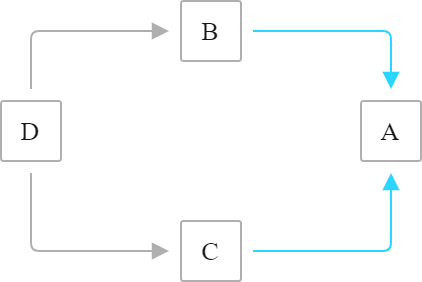
The one rule to follow: do not desynchronize a link if its downstream build also synchronizes with another upstream build through a different path. That creates a contradictory revision requirement. The two safe topologies are: synchronization disabled along one full side of a fork...
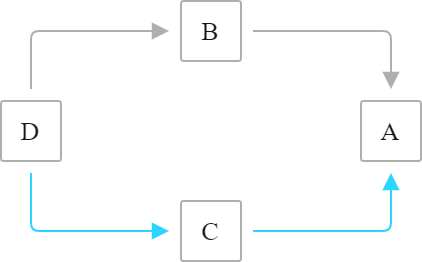
...or disabled on both legs before they rejoin.