Getting started with C#
This tutorial helps you get started with C# development in JetBrains Fleet. It covers installation, project setup, and working with C# code.
Prerequisites
Download and install JetBrains Toolbox
Download and install JetBrains Toolbox.
For macOS, you can also download the installer that matches your processor type: Apple Silicon or Intel. Ensure you select the correct option based on your system's processor.
Download and install JetBrains Fleet
In JetBrains Toolbox, click Install next to the JetBrains Fleet icon.

C# environment
JetBrains Fleet supports C# code in .NET/.NET Core and ASP.NET Core projects.
Use instructions from the Install .NET on Windows manual to install and configure .NET. Alternatively, open a web browser and navigate to the Download .NET page.
Open a solution
Press ⌘ O or select from the menu. Then, choose the directory that contains the .sln, .slnx, or .slnf file of the target solution .
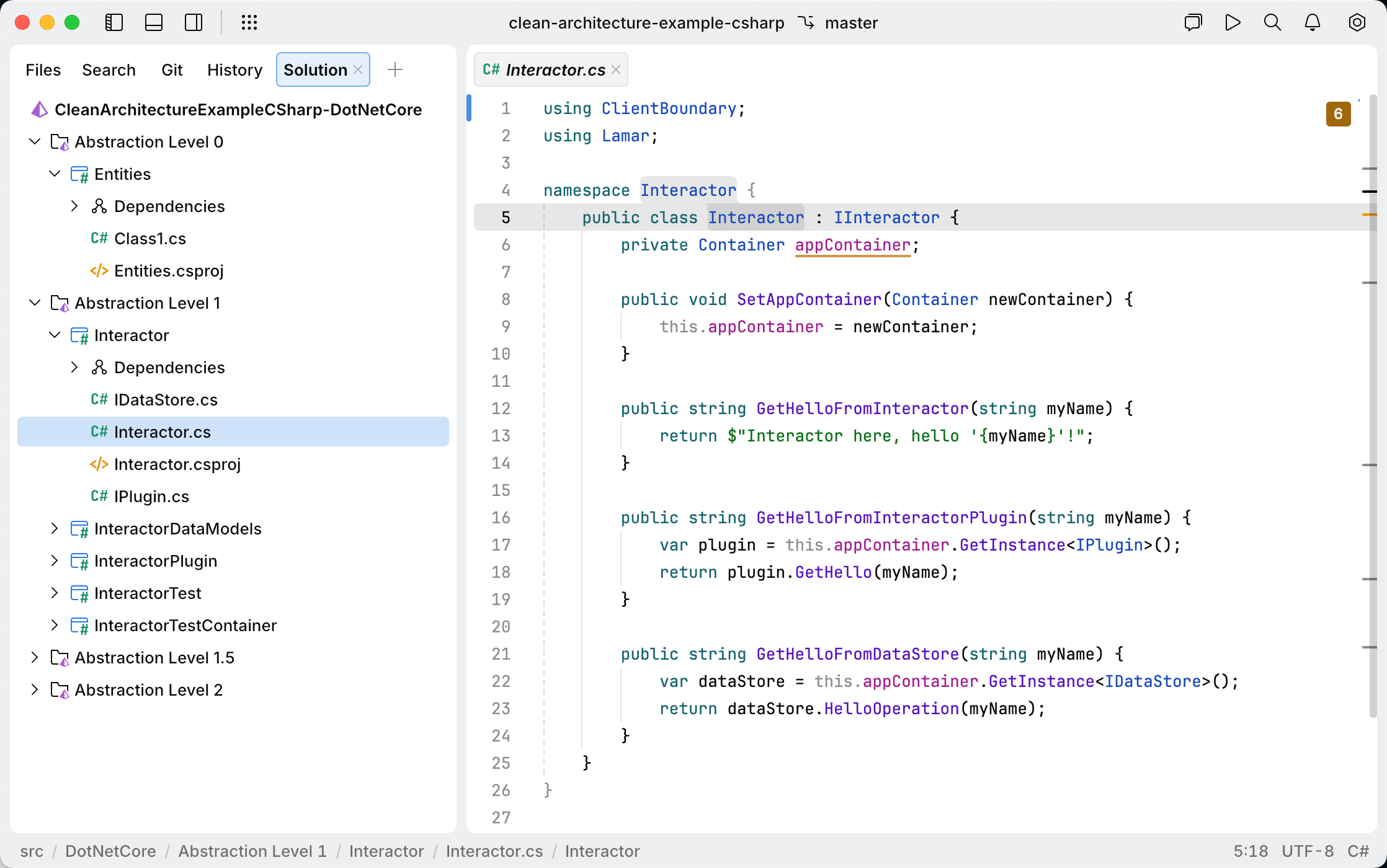
For more information about creating and opening .NET solutions, refer to Manage .NET (C#) solutions, projects, and files.
Enable Smart Mode
You can use JetBrains Fleet as a smart text editor, rather than a full-fledged code editor. However, if you need code intelligence features, you can enable them by turning Smart Mode on. To do so, click the Smart Mode Status icon on the toolbar, then click Enable.

JetBrains Fleet will index the sources, which may take some time. When the indexing is finished, you will recognize Smart Mode by the green icon on the toolbar and syntax highlighting in your source files.
Some of the features described below, such as typing assistance, navigation, and search, are partially available even without Smart Mode. However, Smart Mode uses the knowledge of your solution and project structure to unlock the full potential of those features. For example, you will have more precise suggestions in code completion and better navigation results.
Configure .NET toolchains
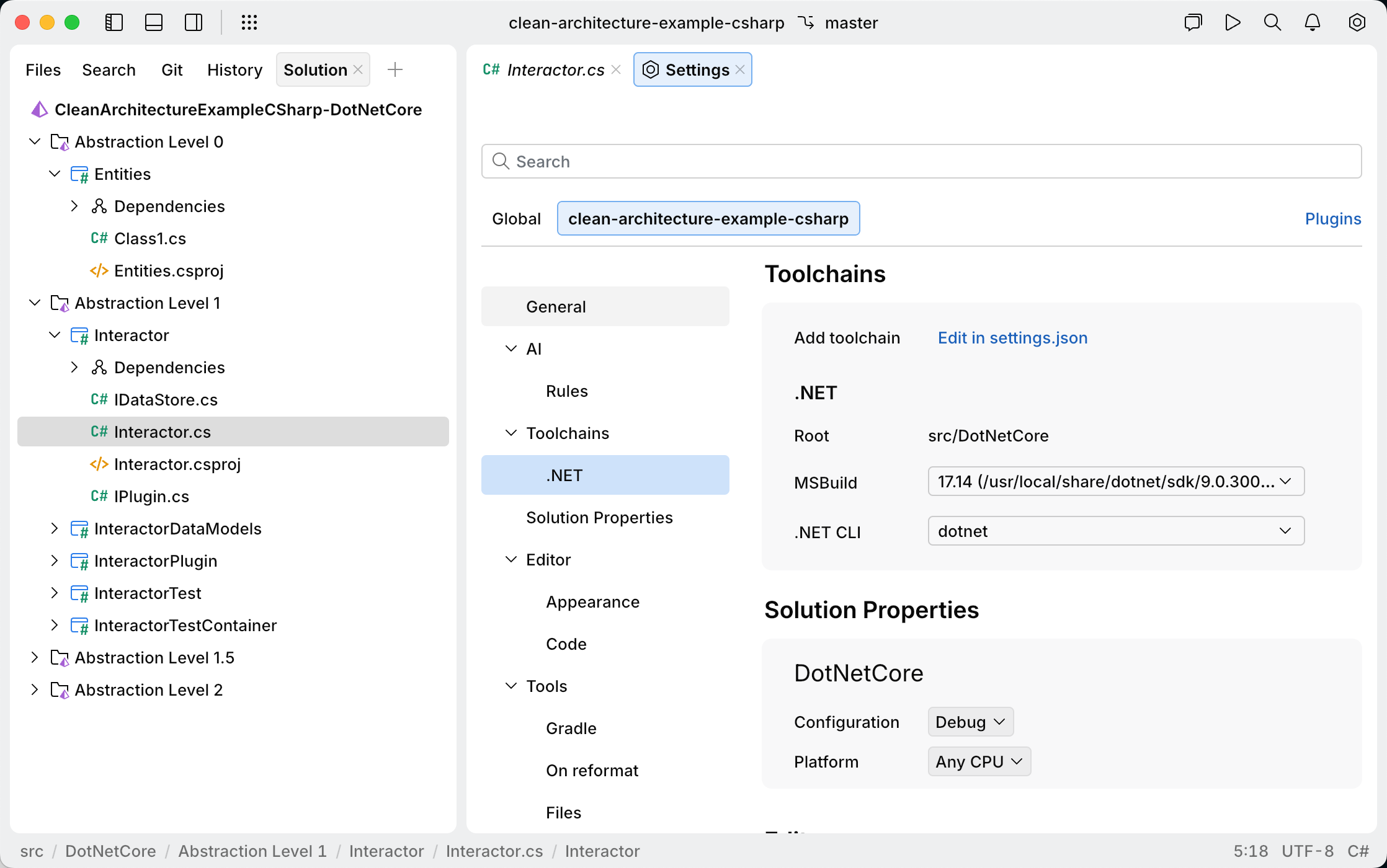
JetBrains Fleet relies on .NET toolchains when indexing your solution. In most cases, toolchains are detected automatically, but if you have a custom setup, you may need to configure .NET CLI and MSBuild for your solution:
Press ⌘ , to open settings.
Alternatively, to open settings, you can use the main menu:
Windows and Linux: click the Menu icon and navigate to .

macOS: from the main menu, click .

Click the tab with the name of your solution.
Navigate to .
Make sure the correct .NET CLI and MSBuild are selected.
Complete code automatically
Typing just a few characters is usually enough to locate and select the desired identifier from the completion list. To invoke code completion manually, press ⌃ Space.
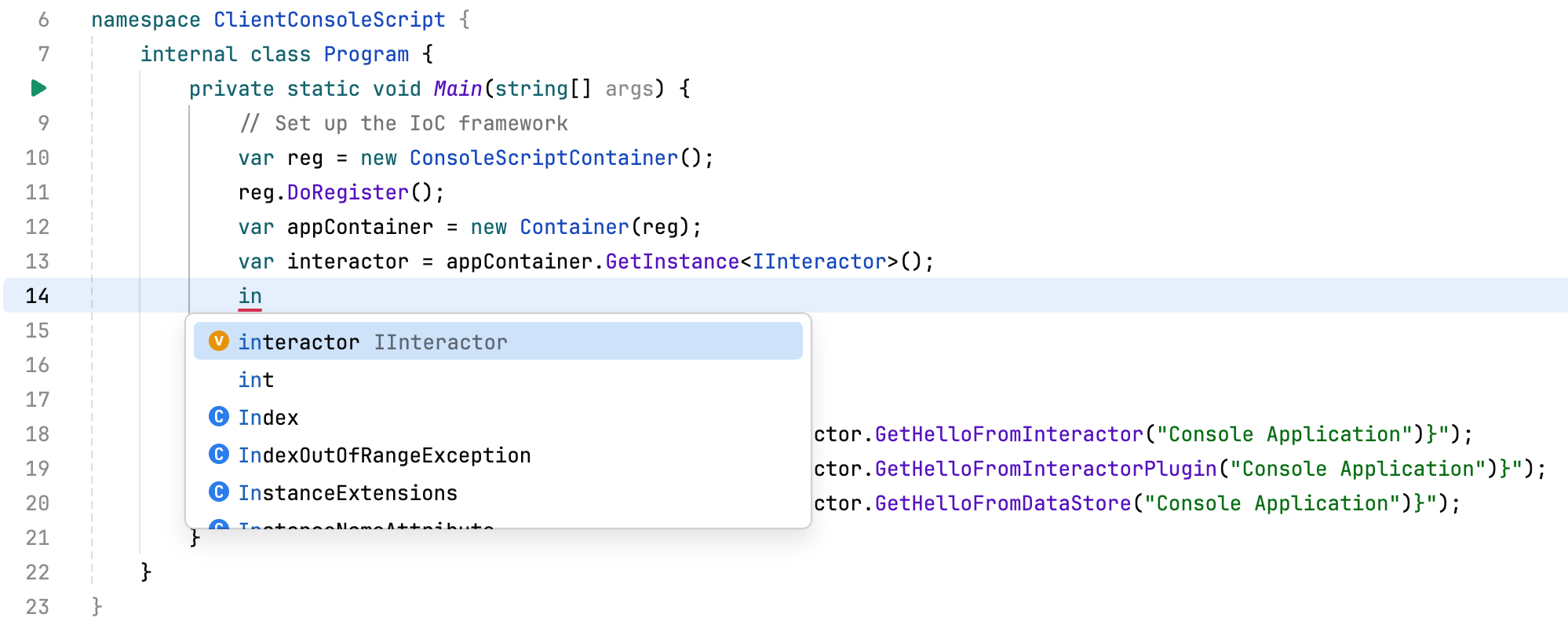
Additional suggestions appear automatically when you type a dot, delimiter, or press ⏎. For more details, refer to Code completion in C# and Typing assistance in C#.
The completion list can also include live, postfix, and source templates to speed up coding even further.
Detect and fix code issues
When Smart Mode is enabled, errors, warnings, and other code issues are underlined in the editor. You can resolve most of them by pressing ⌥ ⏎.
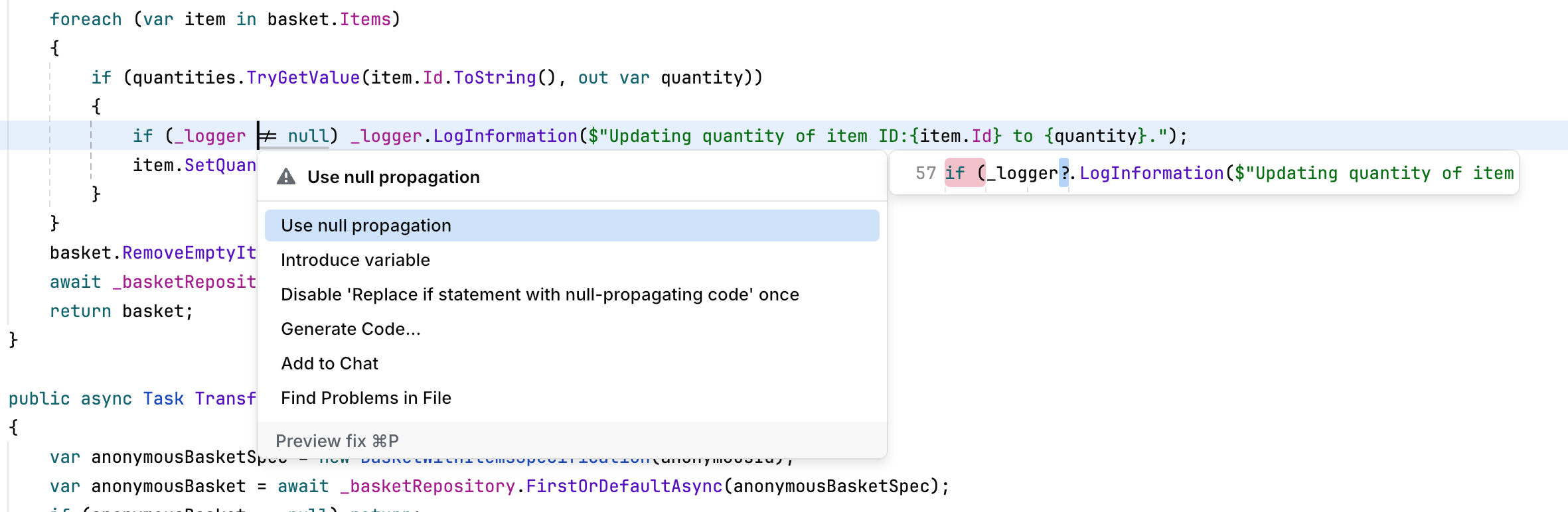
For more information about code inspections and quick-fixes, refer to Inspect and fix C# code.
Transform code with context actions
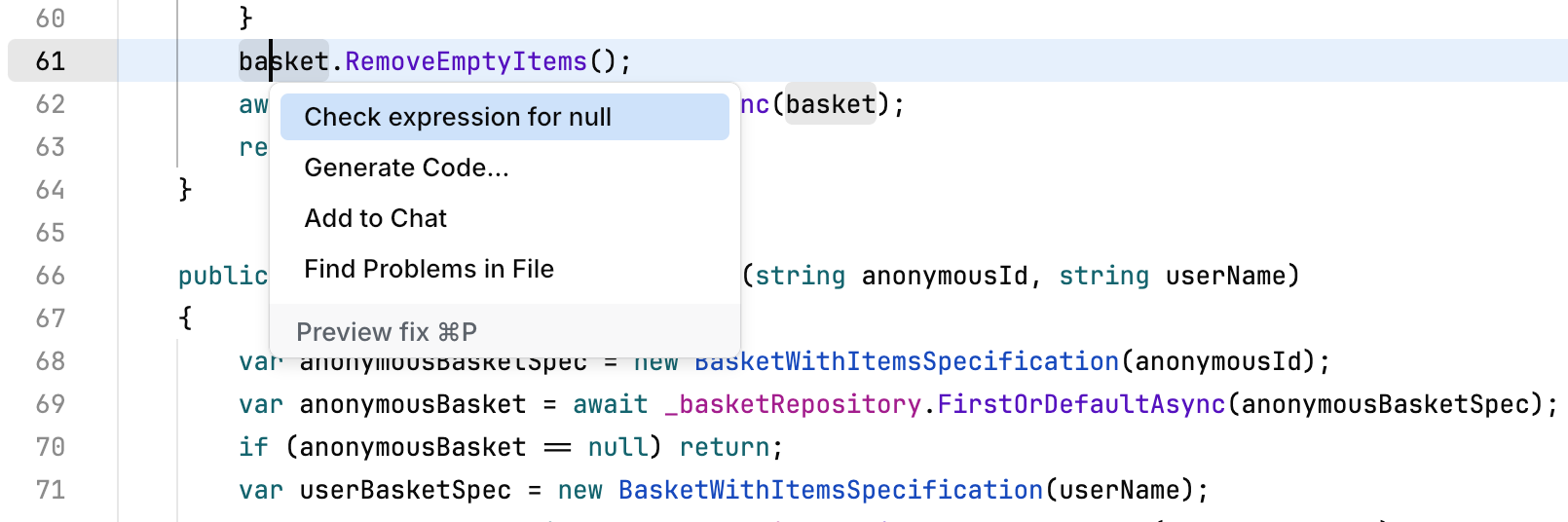
You can also use ⌥ ⏎ to invoke context actions that help you transform existing code or generate new code constructs. For example, press ⌥ ⏎ on a parameter to generate a field, a property, or a null check:
Navigate your solution code
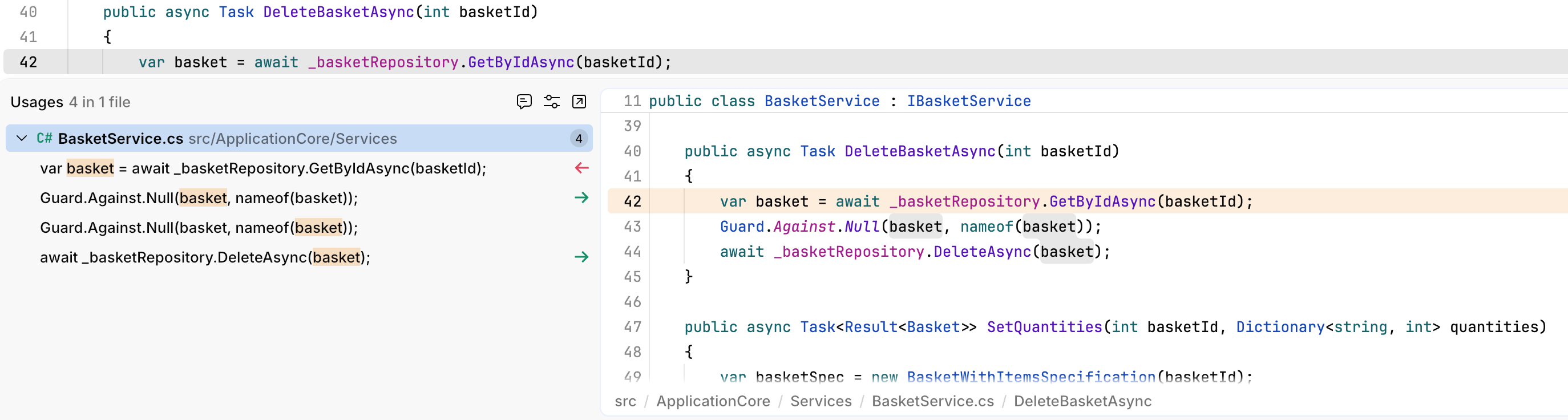
The declaration of a symbol, as well as any of its usages, provides multiple navigation options across the entire solution codebase. For example, press ⌘ U on a declaration or usage of a type to list all occurrences of this type in your solution. You can then preview or jump to any of them:
For more information about available navigation commands, refer to Navigate C# code.
Find anything in your codebase
Press ⌘ K to search for any type, member, or file in your solution. When you invoke this command, you will see recently visited items. Start typing to narrow down the search.
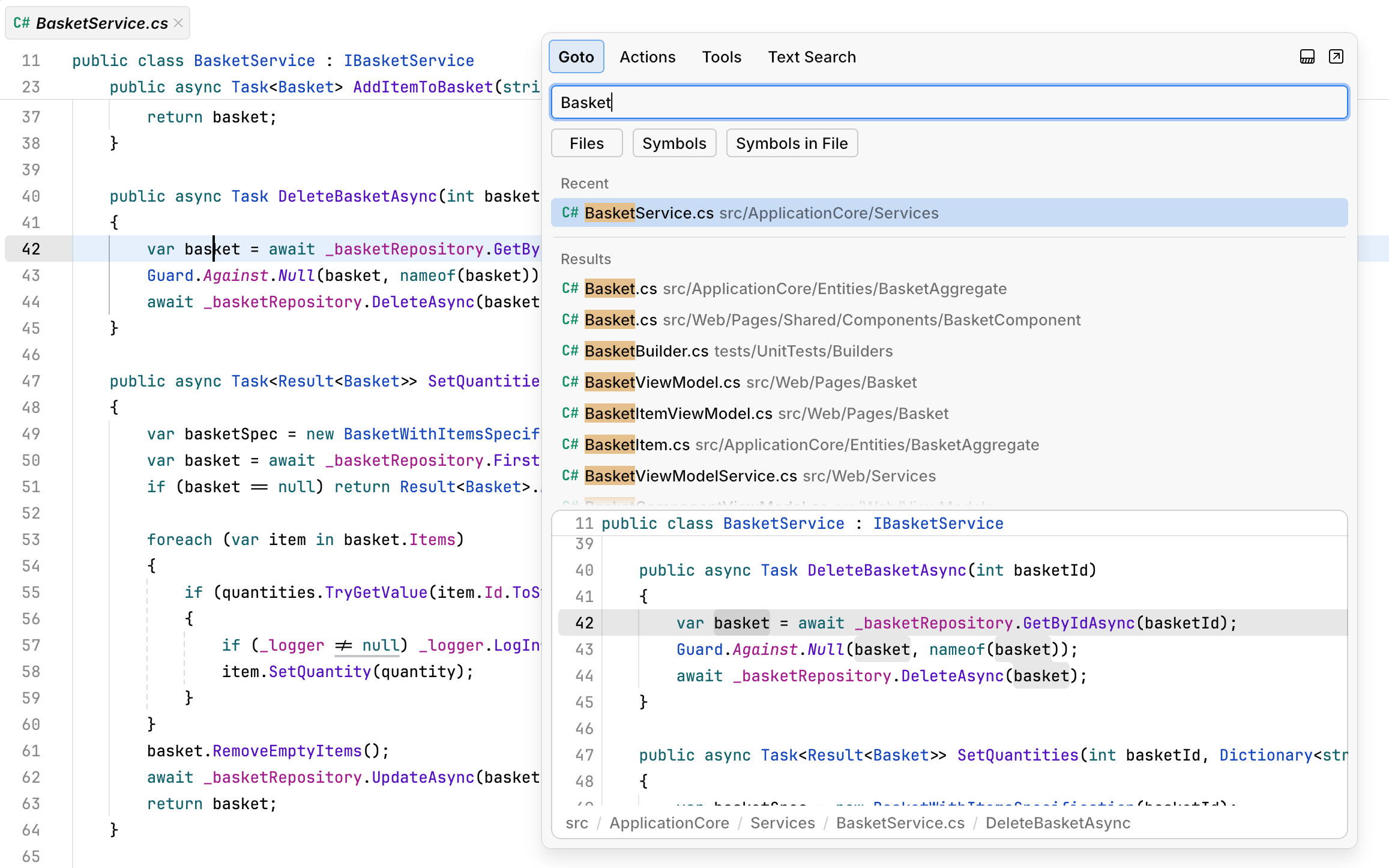
You can also use dedicated commands to limit your search to symbols, files, or members in the current file. For more information, refer to Search C# code.
Reformat code
To reformat code, press ⌥ ⇧ F or choose from the menu. If there is a selection, only the selection is reformatted; if there is no selection, JetBrains Fleet will reformat the whole file.
For more information about formatting settings, refer to Reformat C# code.
Rename symbols
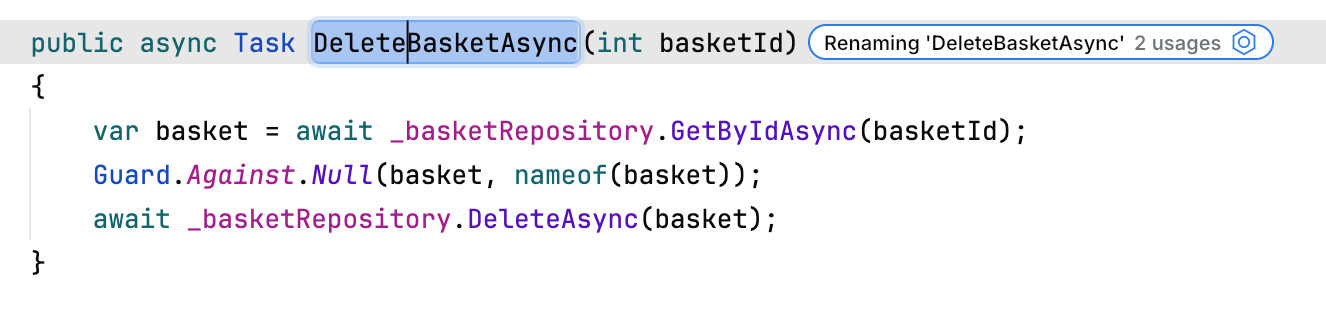
To rename a symbol and all its usages in the current solution, press ⌃ R when the caret is on the symbol declaration or any of its usages. JetBrains Fleet will display the number of usages in the solution. Type the new name over the old one and press ⏎ to apply the refactoring.
Run and debug
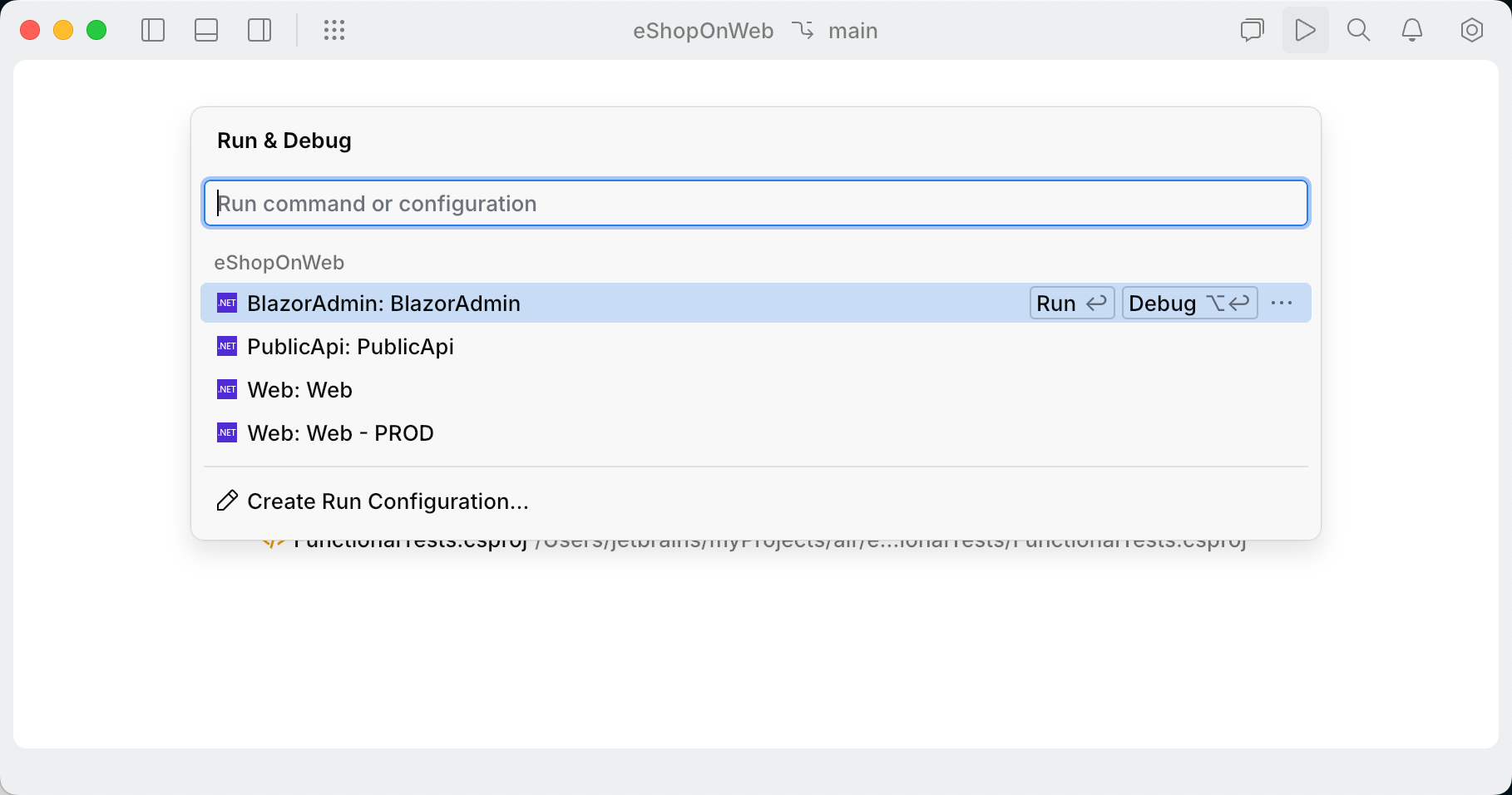
If you have a .NET project of an executable type, you can run or debug it without any additional configuration. Press ⌘ R, then click Run or Debug next to the corresponding configuration:
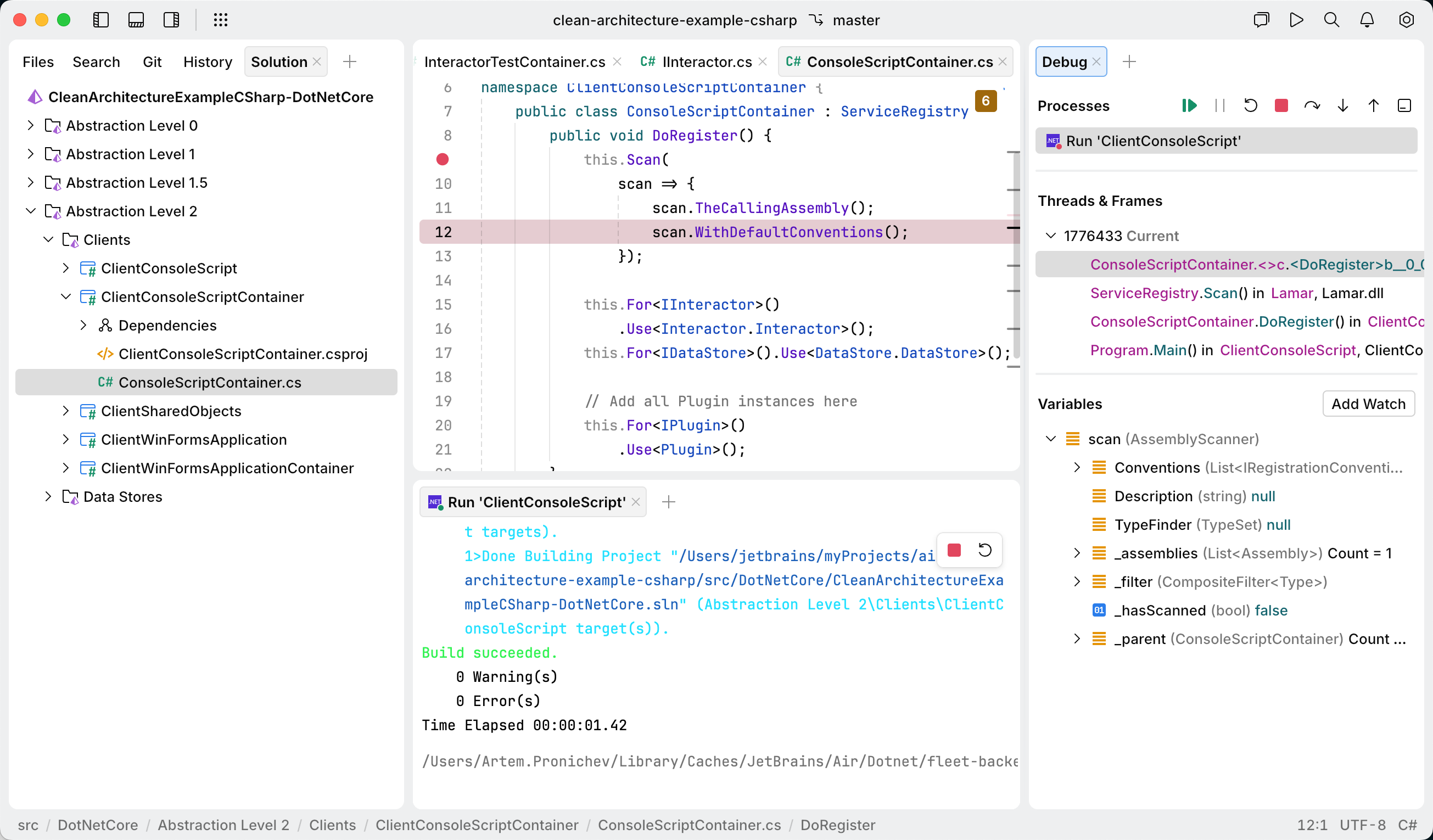
If you choose to debug the configuration, the Debug window will open, where you can control the debugging session:
For more information about running and debugging, refer to Run and debug C# code.