DataGrip for Redis
DataGrip – a powerful Redis GUI tool for Windows, macOS, and Linux.
Free 30-day trial
JetBrains DataGrip is a cross-platform IDE for working with SQL and noSQL databases, including Redis and a wide variety of others.
DataGrip provides accurate highlighting for Redis command syntax, the ability to explore key values, and many other benefits for database developers. It automates routine tasks, detects and fixes errors, and improves overall Redis development efficiency.
Smart IDE for working with databases
On-the-fly coding assistance
Coding is what most developers spend the bulk of their time doing in an IDE. DataGrip’s smart coding assistance for keywords, database names, and key names helps you code faster. Concentrate on the logic, not on what you need to type!
Smart data editor
DataGrip provides the ability to view values from keys of all types and apply type-specific filtering mechanisms to them.
If the key value contains a string in the JSON format, DataGrip will detect it and highlight it accordingly.
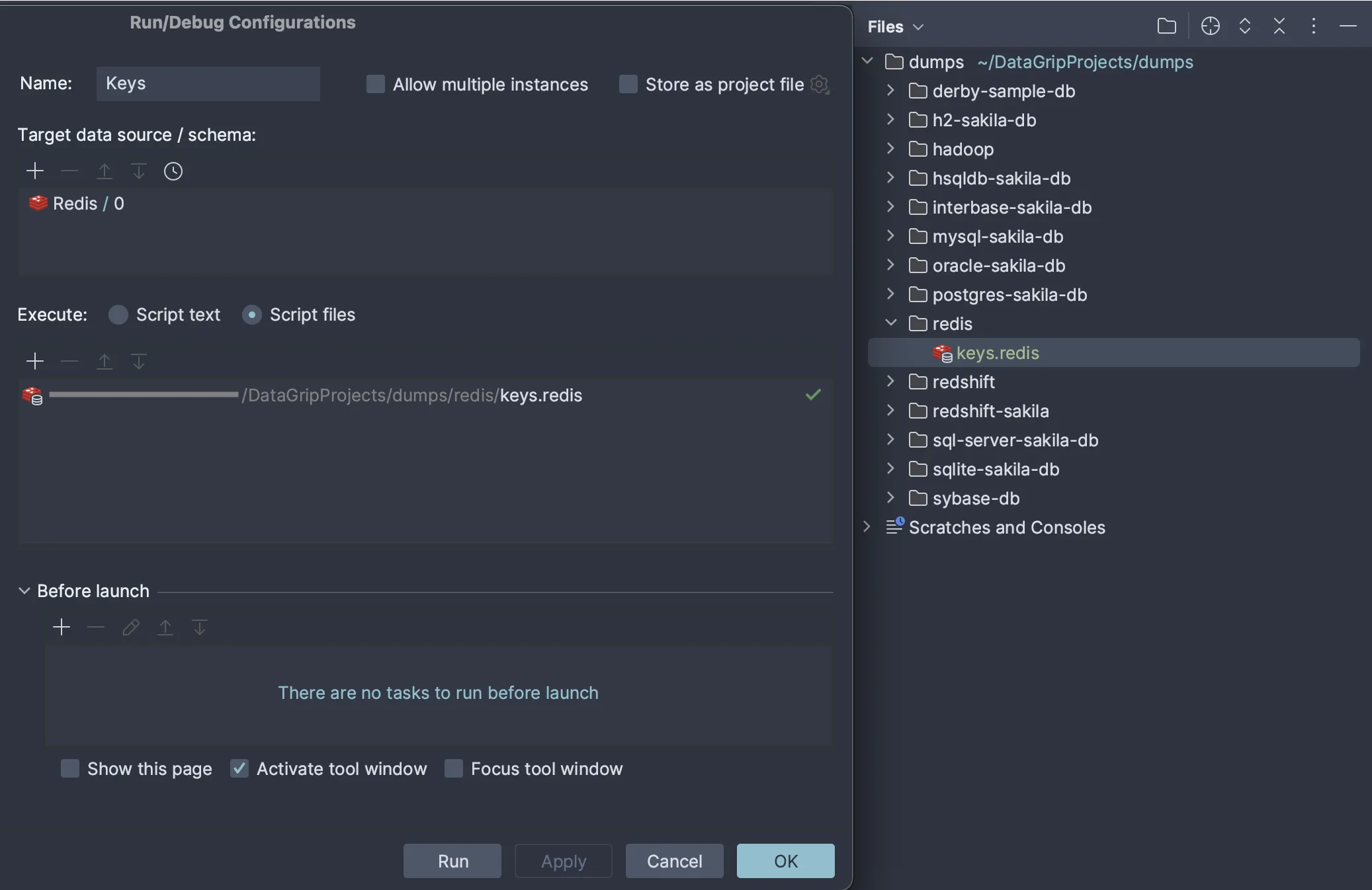
Convenience when working with files
If you work with Redis scripts stored on your computer, then you might already have a directory with tons of them. DataGrip provides a handy interface to streamline your workflow. Attach folders from your computer, associate them with data sources, run scripts against several databases, or even use built-in Git integration!
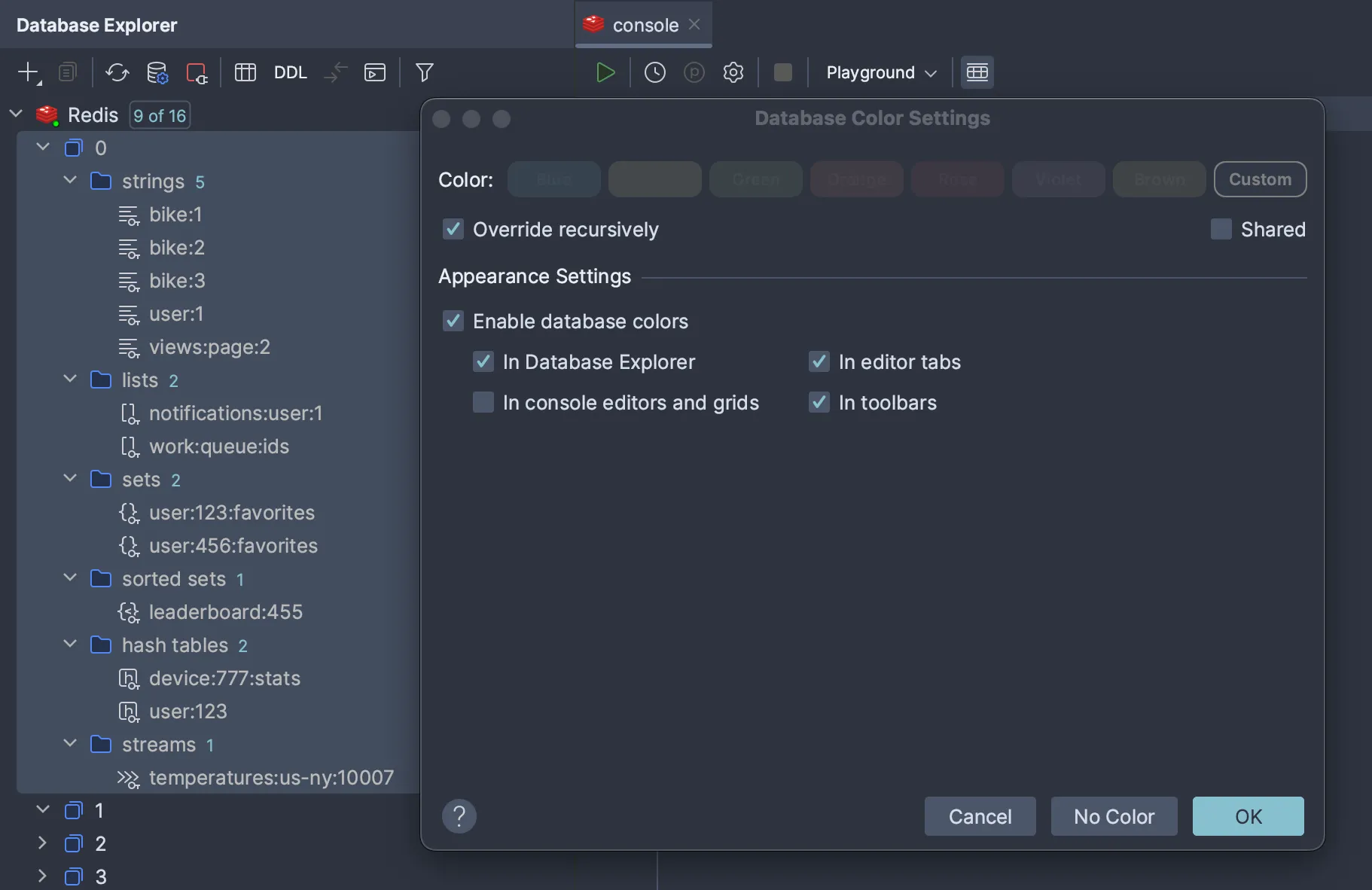
Fully customizable UI
There are many ways to customize the DataGrip interface. You can choose from any of the default appearance themes or create your own, assign distinct colors to data sources, and even customize or set up your own keyboard scheme.
DataGrip for Redis developers
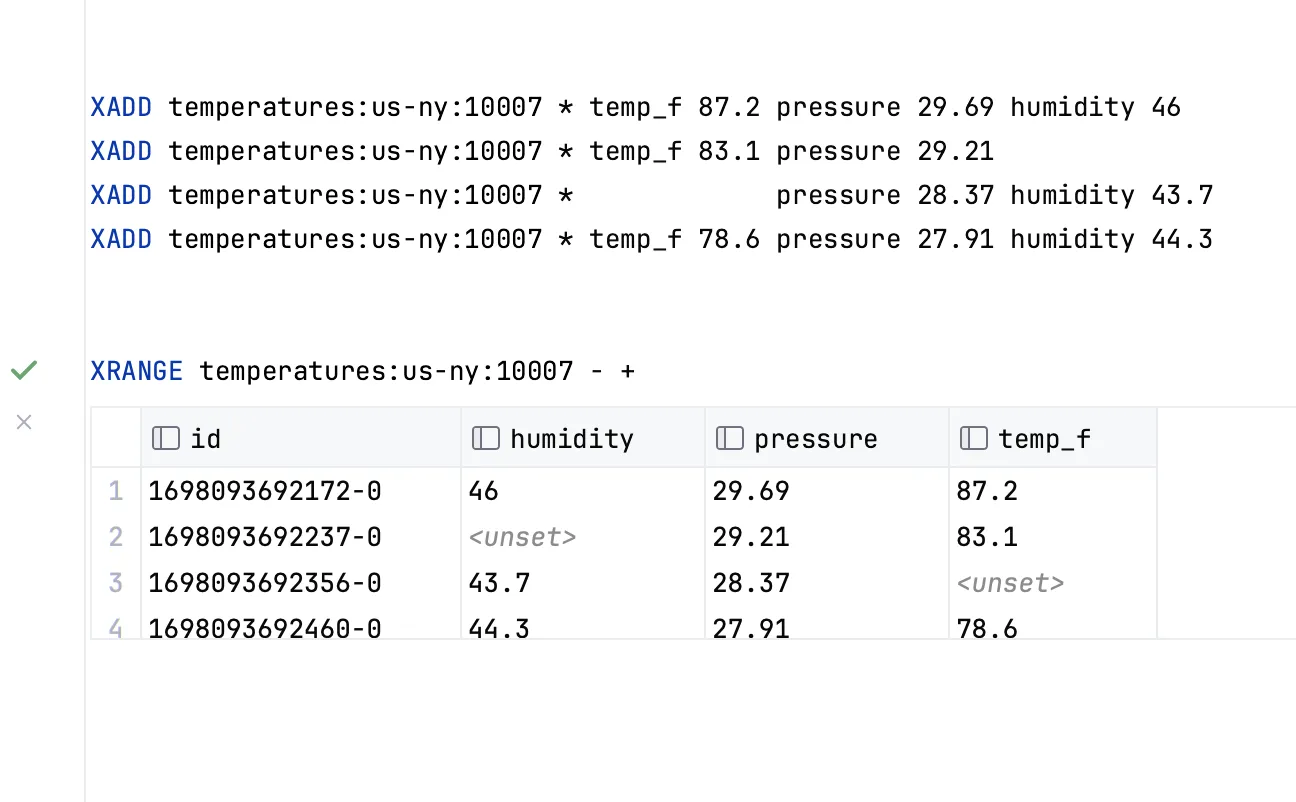
Stream support
DataGrip allows you to view values from streams, which are the most complex Redis key type. These values are represented as a table where each row corresponds to a single stream entry and displays its ID along with the values of its fields.
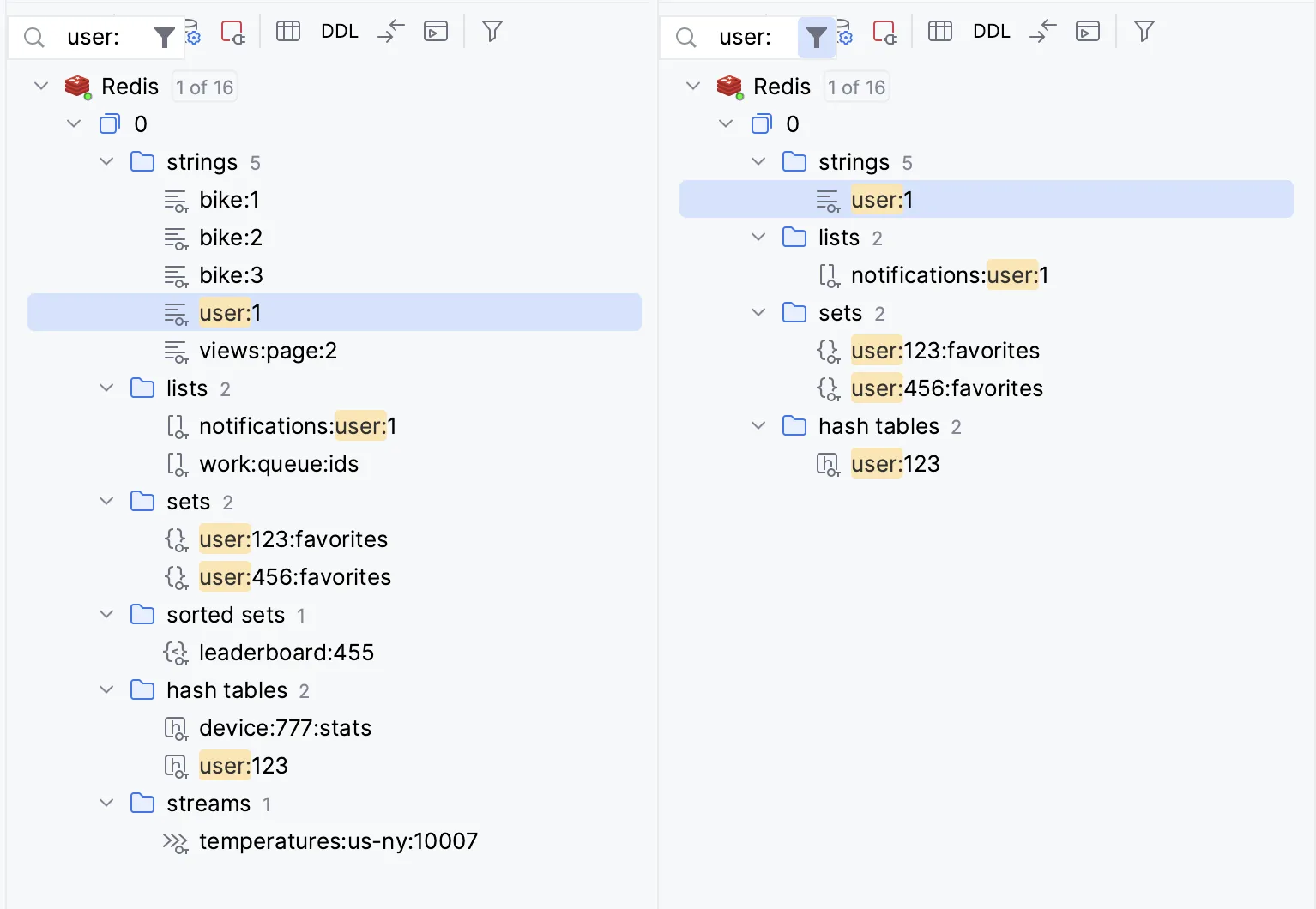
Speed search
A Speed Search action in the Database Explorer allows you to find objects within the tree, which makes searching for keys a piece of cake! When using speed search, you also have the ability to filter objects with the Quick Filter action. All non-matching objects will be hidden.
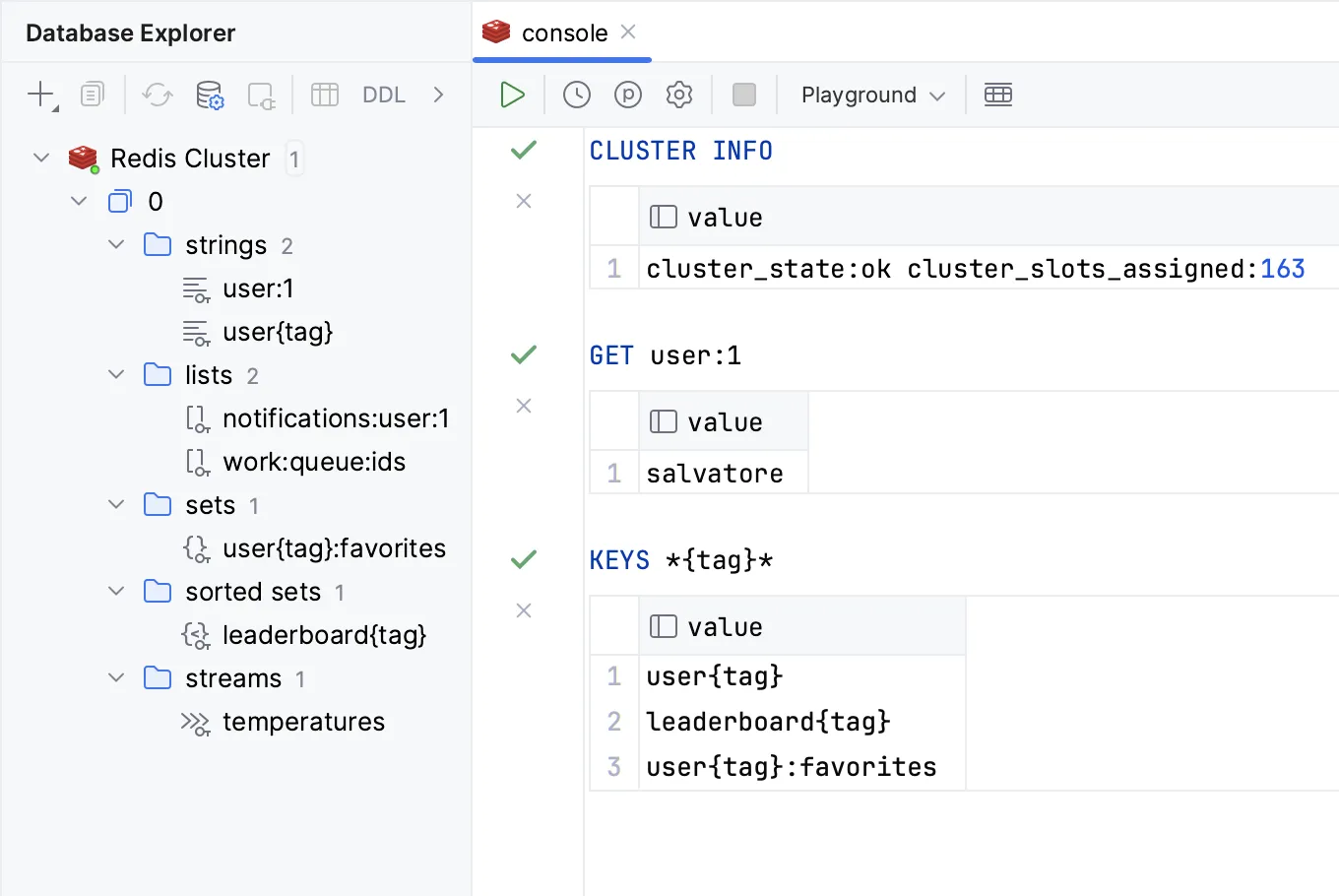
Redis Cluster
You can connect to a Redis Cluster and make use of the same feature set as with standalone Redis. All you need to do is choose the appropriate connection type.
Getting started with DataGrip for Redis
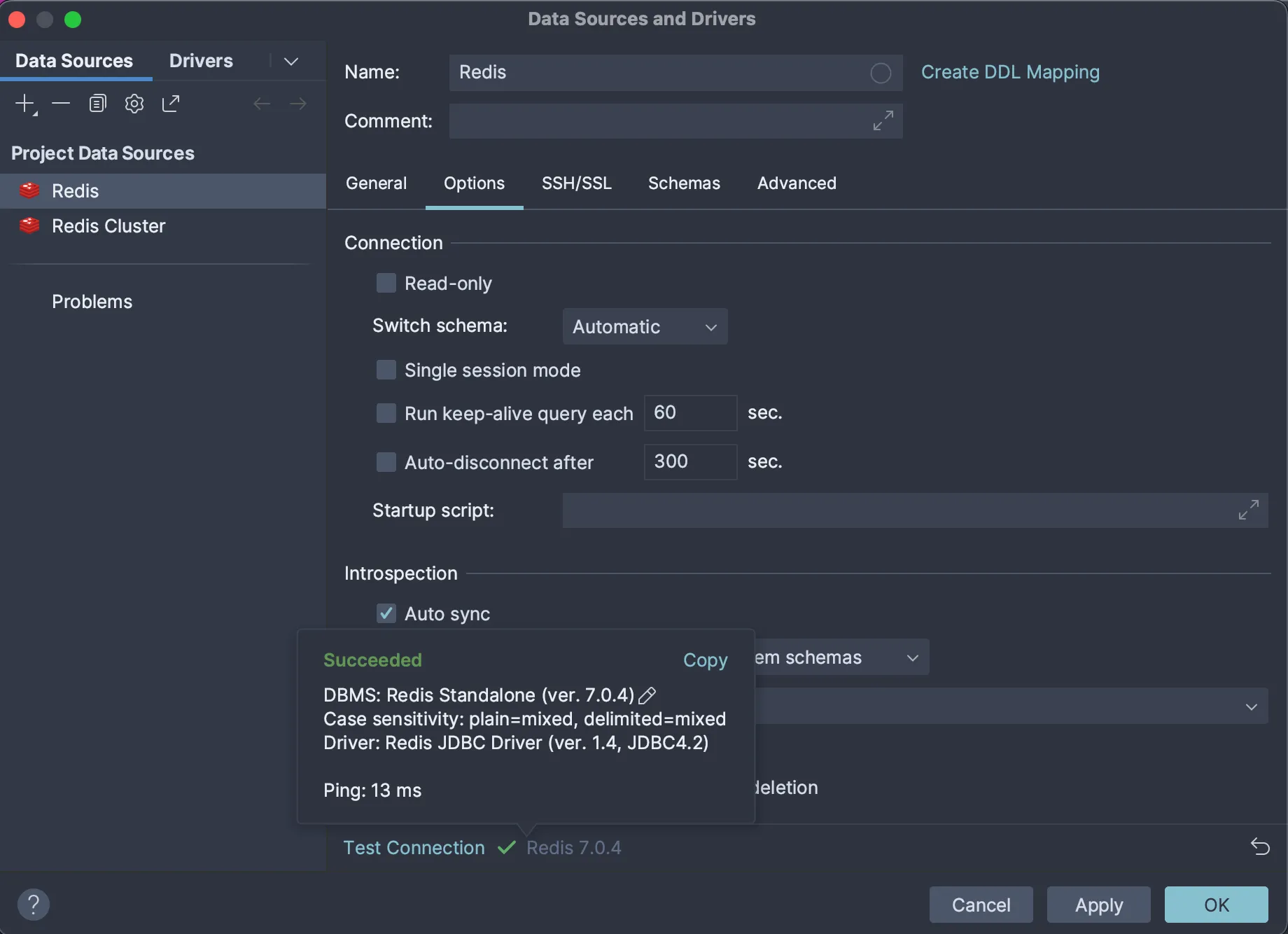
Step 1: Connect to a database
To connect to a database, create a data source that will store your connection details. You can do this in one of the following ways:
- From the main menu, navigate to File | New | Data Source and select Redis.
- In the Database Explorer (View | Tool Windows | Database Explorer), click the New icon (+) in the toolbar. Navigate to Data Source and select Redis.
There are several ways to further configure your new Redis data source:
- Mark the data source as read-only. In this mode, every command that creates a key or modifies its value will be underlined, and a warning will appear if you execute it.
- Run a keep-alive query and enable auto-disconnect to help you manage connection behavior.
- Add a start-up script, which will be run each time you establish a connection.
- Enable auto-sync, which determines whether the database tree should be updated automatically after commands that can create a key are sent.
SSH/SSL options are also available if you need them.
You can find detailed instructions for connecting to a Redis database here.
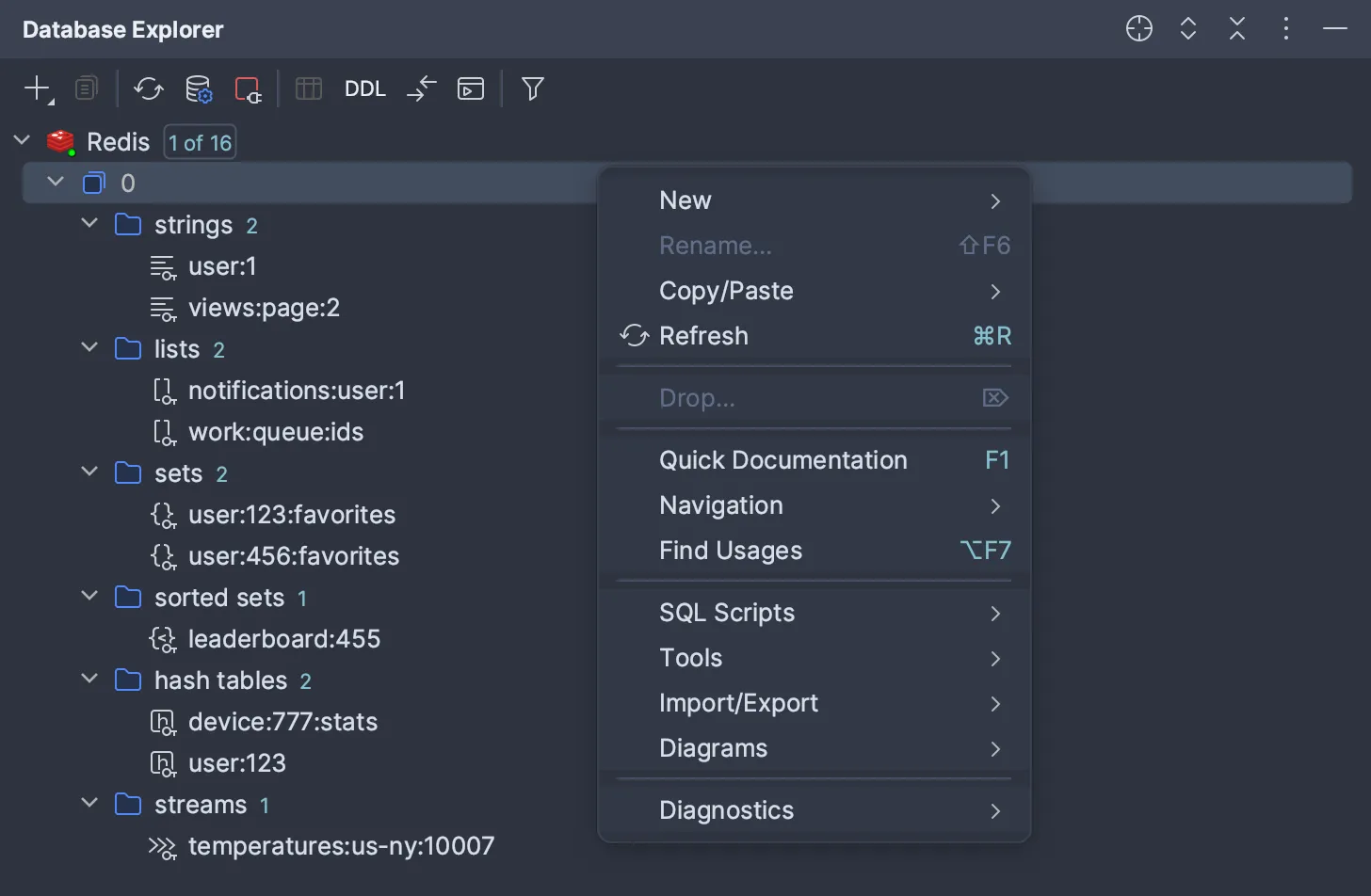
Step 2: Explore database’s objects
Once you’re connected to one of your Redis databases, you’ll see a list of objects in the left-hand pane, called the Database Explorer. Here you can filter objects and choose which databases should be shown.
In Redis v5, all keys will be displayed in the keys folder, but in Redis v6+, keys are separated by type.
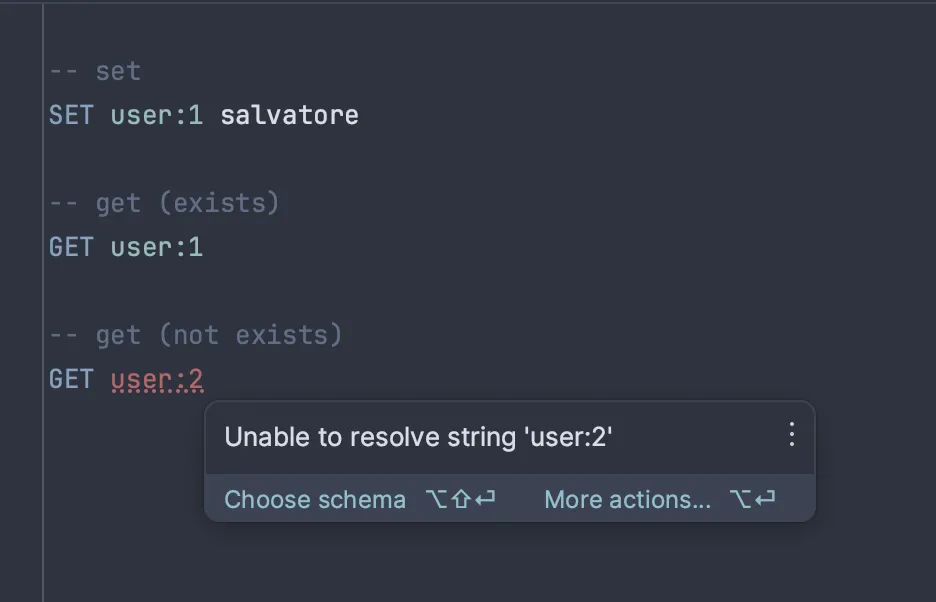
Step 3: Write and send commands
DataGrip highlights native Redis commands and allows you to add comments in separate lines, making it easier to organize your scripts. Moreover, DataGrip can help you detect bugs and problems that are likely to arise in the code of your Redis commands before you send them!
FAQ
A broad range of the IDEs features are available for both Redis Single Instance and Redis Cluster, allowing you to explore key values in the Data Viewer, write and send Redis commands, and more. You can learn more about the specific features available here.
This quick start guide will introduce you to the key concepts and help you take your first steps in DataGrip.
To learn more about connecting to Redis, please refer to the documentation. You can also check out our introduction video, which covers all the major aspects of using DataGrip, including adding data sources, configuring connection options, working in the editor, and installing plugins.
Supported databases
- Azure SQL

- Amazon Redshift

- Amazon DynamoDB

- SQLite

- IBM Db2

- H2

- Sybase ASE

- Exasol

- Apache Derby

- MariaDB

- HyperSQL

- Snowflake

- Apache Cassandra

- ClickHouse

- Greenplum

- Apache Hive

- OpenText

- CockroachDB

- Couchbase

- Google BigQuery


