Cargo tool window
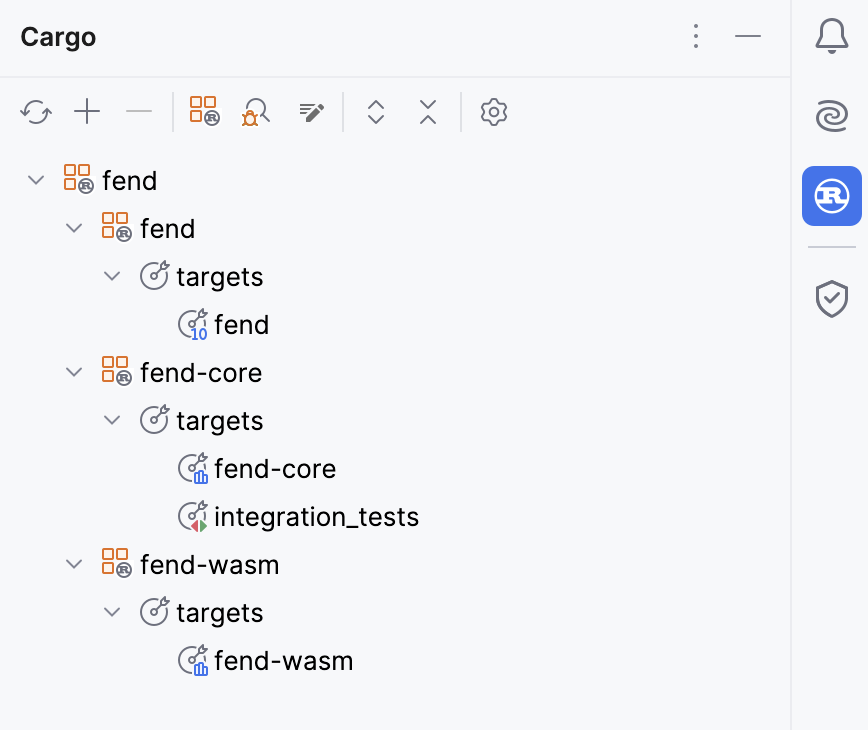
The Cargo tool window allows you to manage workspace members and targets. By default, it is pinned to the tool windows bar and opens automatically on project load. You can also access it via .

The Cargo tool window provides convenient access to common Rust tools such as Rustfmt and external linters. It also gives you a quick way to call Cargo commands, reload the project model, and run project targets.
Run a target from the Cargo tool window
Open the Cargo tool window (click
on the tool window bar or select from the main menu).
Locate and double-click the necessary target. The IDE will run the command that executes the given target type (for example,
cargo runfor a binary,cargo testfor tests, and so on).You will see the results displayed in the Build/Run tool window.

Run a Cargo command
Use one of the following options:
Click
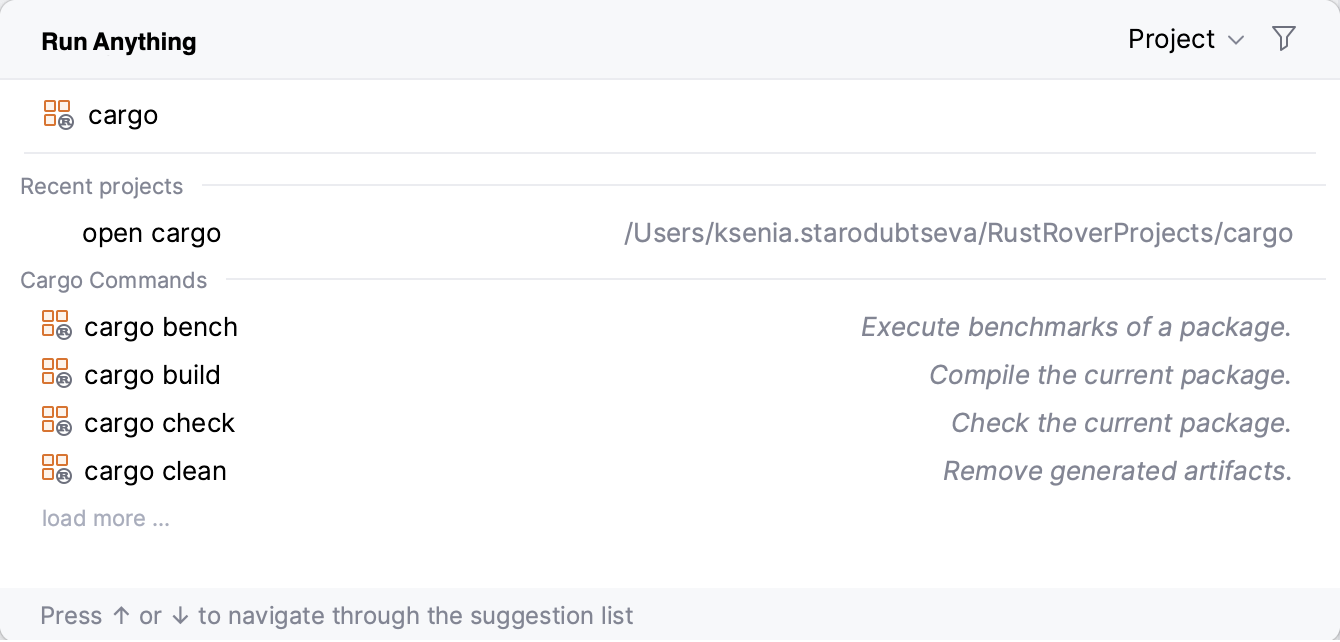
in the Cargo tool window. This will open the Run Anything dialog with a list of pre-filtered Cargo commands:

Press Ctrl twice to open the Run Anything popup and type the command.
Create and then run a Cargo configuration.
- Popular Cargo commands
cargo build: compiles the current package and its dependencies. Build artifacts are saved to the target directory
cargo run: runs the current package.
cargo test: runs unit and integration tests from the current package.
cargo clean: removes build artifacts contained in the target directory.Useful for cleaning up after a build.
cargo update: updates dependencies in the local lock file to the latest versions.
cargo tree: displays a tree of project dependencies.
For the full list of Cargo commands, refer to Rust official docs.