管理 Code With Me Enterprise
为您的组织启用 Code With Me Enterprise
在 Web UI 中,打开 Configuration (配置) 页面并导航到 License & Activation (许可证激活) 选项卡。
在 Code With Me 部分,点击 Enable (启用)。

在 Code With Me Enterprise 对话框中,启用以下选项:
I confirm that global Code With Me access will be disabled (我确认将禁用全局 Code With Me 访问权限) :开发者需要在至少一个配置文件中启用 Code With Me Enterprise,才能使用 Code With Me 功能。 对所有用户将禁用常规版 Code With Me 插件的访问权限。

点击 Enable Code With Me Enterprise (启用 Code With Me Enterprise)。
如果您使用 按需付费结算模式 ,则默认情况下并发 Code With Me 会话数量不受限制。 您可以稍后手动 编辑限制。
如果您使用预付费结算模式,将会看到为 Code With Me Enterprise 预配置的使用限制。
为您的组织停用 Code With Me Enterprise
在 Web UI 中,打开 Configuration (配置) 页面并导航到 License & Activation (许可证激活) 选项卡。
在 Code With Me 部分,点击 Disable (禁用)。
在 Disable Code With Me? (禁用 Code With Me?) 对话框中,启用 I confirm the activation of the public Code With Me plugin (我确认激活公共 Code With Me 插件) 选项,然后点击 Disable (禁用)。

编辑 Code With Me Enterprise 使用限制
在 Web UI 中,打开 Configuration (配置) 页面并导航到 License & Activation (许可证激活) 选项卡。
在 Code With Me 部分,点击 Edit limits (编辑限制)。
在 Configure Code With Me Enterprise (配置 Code With Me Enterprise) 对话框中,为 Code With Me Enterprise 配置限制。
启用 Unlimited concurrent sessions (无限数量的同时会话) 选项。

关闭 Unlimited concurrent sessions (无限数量的同时会话) 选项,并指定并发 Code With Me 会话数的上限。

点击 Apply (应用)。
为您的 IDE 服务添加更多 Code With Me 主机
使用 预付费结算模式时,您可以通过组织的 JetBrains 账户 为 IDE Services 许可证购买更多资源。
使用组织或团队管理员权限登录您的 JetBrains Account。
在左侧菜单中,点击您的组织名称。

在页面顶部,点击 。

在许可证概览页面,选择 Team Tools & Services (团队工具与服务) 选项卡。
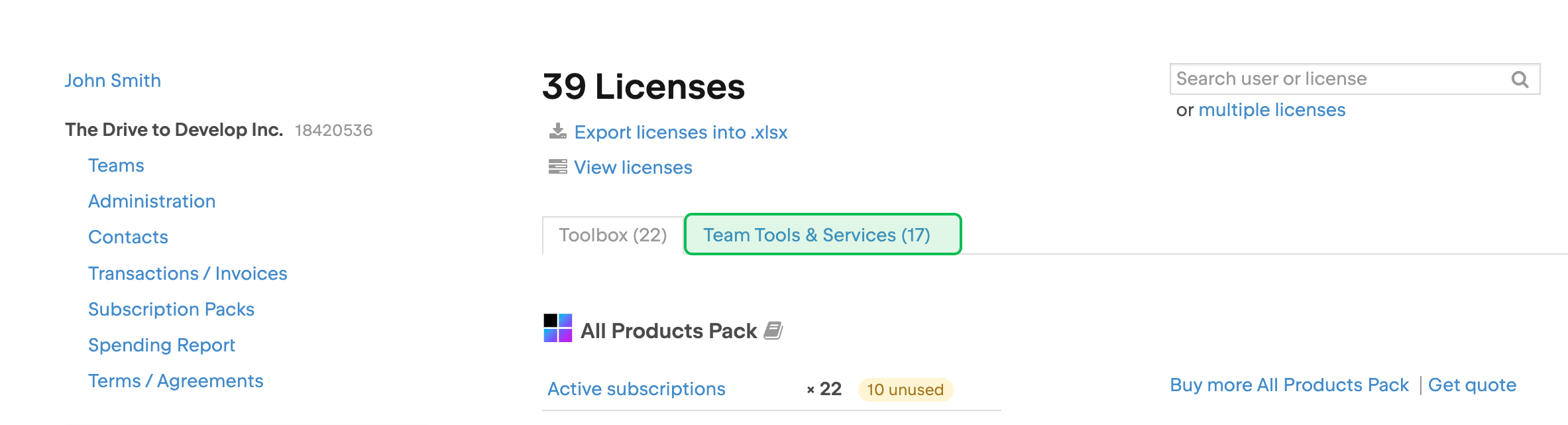
找到 IDE Services 许可证后,点击 Add more resources (添加更多资源)。 您可能需要向下滚动以查找许可证。
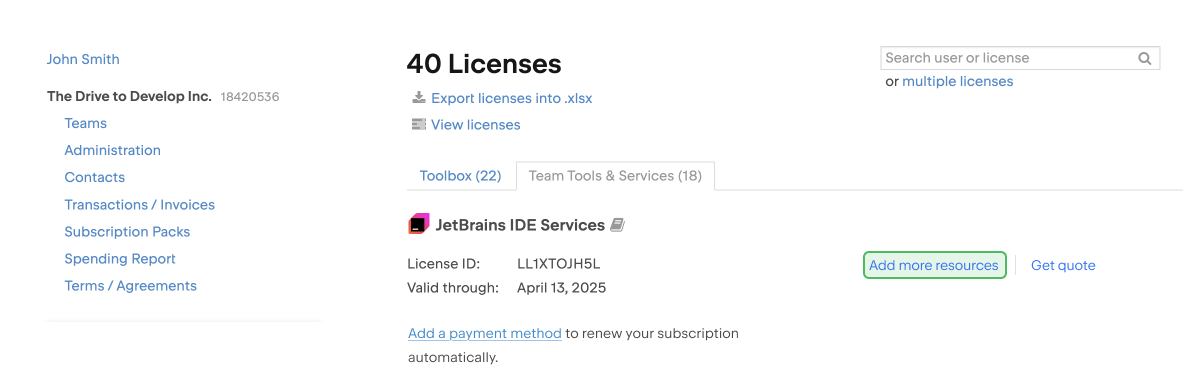
将打开结账页面。 您可以在此选择要添加的资源并进行支付。