Collaborate on a Whiteboard
Whiteboards in YouTrack are for collaboration, allowing multiple users to contribute and make changes in real time. Whether it's brainstorming, planning workflows, or organizing tasks, whiteboards ensure that everyone stays aligned in a shared workspace.
Share a Whiteboard
Sharing a whiteboard enables team members to access and contribute to it. This helps promote collaboration and keeping everyone aligned. You can invite users individually or as part of groups, with customizable access levels for better control.
To share a whiteboard:
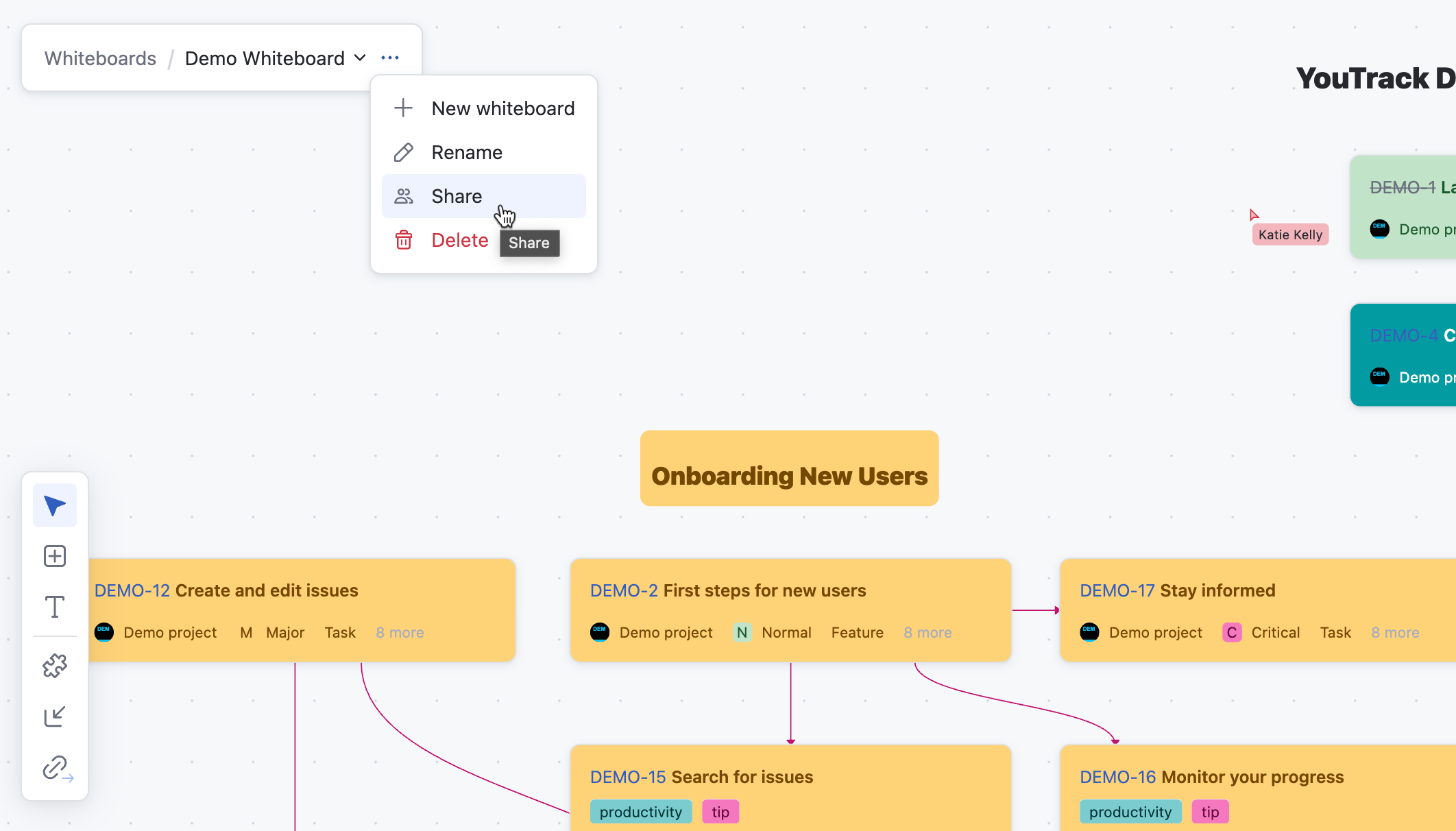
From the main navigation menu, select
 Whiteboards.
Open the whiteboard you want to share through the whiteboard header.
Select
 More in the header toolbar. From the drop-down menu, select
  Share.
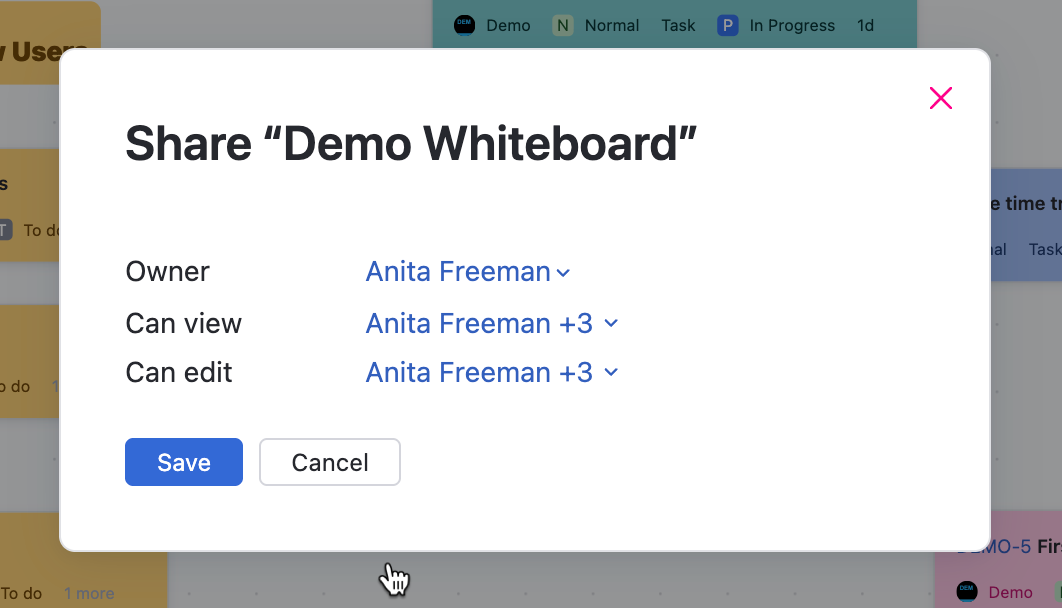
Open the drop-down list and select individual users, groups, or teams who can view or edit the whiteboard.
Click Save to confirm.
Manage Permissions
Permissions determine who can view or edit a whiteboard, providing flexibility to ensure it remains secure while allowing contributions from the right people. You can update access levels at any time to adapt to changing collaboration needs.
Option | Description |
|---|---|
Owner | Set a user as the owner of the whiteboard. Saving a new user as the owner of a whiteboard instantly changes the owner. If you change the ownership of a whiteboard you created to a different user without giving yourself access to view/edit the whiteboard, you will no longer have access to that whiteboard. |
Can view | Set groups or individual users that have read permission for the whiteboard. |
Can edit | Set groups or individual users that have permission to edit the whiteboard. An edit to the whiteboard by any user updates that whiteboard for all users. Groups or users with permission to edit the whiteboard also need permission to view the whiteboard. |
To edit whiteboard permissions:
From the main navigation menu, select
Whiteboards.Open the whiteboard you want to manage sharing permissions for from the whiteboard header.
Select
More in the header toolbar. From the drop-down menu, select Share.Update the whiteboard sharing permissions and click Save.
Real-Time Collaboration
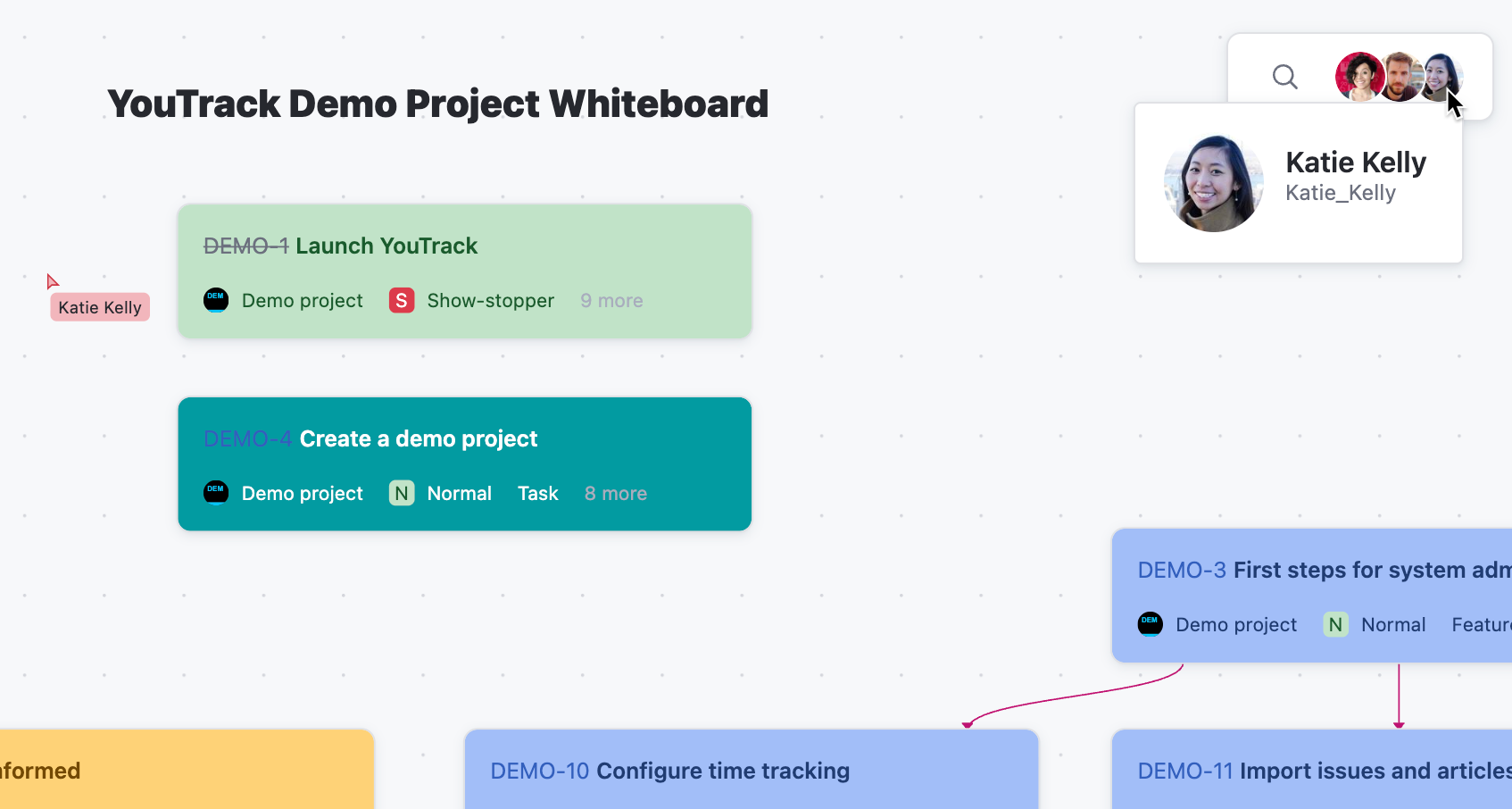
Real-time collaboration allows multiple users to work on a whiteboard simultaneously, with instant updates and presence indicators providing visibility into ongoing activities.
The presence indicator in the top right of the screen displays the avatars or initials of active collaborators, making it clear who is currently viewing or editing the whiteboard. Instant updates synchronize elements like cards, links, and text blocks automatically as users make changes, preventing version conflicts. Highlights of activity, such as cursors or selected sections from other users, show where collaborators focus. These features allow every team member to contribute transparently with other users.