Link Cards
Whiteboards allow you to visually represent relationships between YouTrack issues and ideas by linking cards and text blocks. Links can show dependencies, workflows, or connections across issues, articles, and ideas. Depending on the link type, these connections exist only on the whiteboard or update relationships directly in YouTrack issues.
If YouTrack detects a link between two existing issue cards on a whiteboard, the link appears automatically on the whiteboard to reflect the relationship.
Link Types
Link types define the nature of the connection between cards or text blocks, allowing relationships to appear only visually on the whiteboard or also be synchronized with YouTrack issues. Choosing the appropriate link type ensures clarity and consistency across your whiteboard and YouTrack projects.
There are two categories of links available on the whiteboard: Arrows, which are visual-only and exist solely on the whiteboard, and Issue links, which synchronize relationships between issue cards and the actual linked issues in YouTrack.
Arrows | Description |
|---|---|
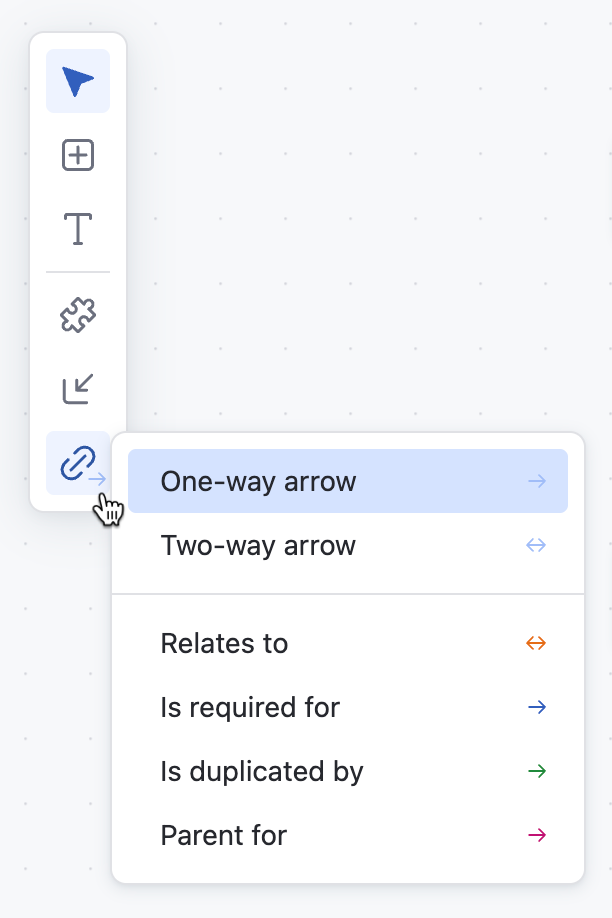
One-way arrow | One-way arrows represent a directional relationship between two whiteboard elements, showing that one element impacts or depends on the other. These links are ideal for workflows where you need a clear sequence or hierarchy. |
Two-way arrow | Two-way arrows indicate a mutual or bidirectional relationship between two elements, representing connections where both items influence or are related to each other. These links are useful for collaborations or tasks with shared dependencies. |
Links | Description |
|---|---|
Relates to | A two-way link establishes a general relationship between two cards. This link type helps show connections without indicating hierarchy or dependency. |
Is required for | A one-way link indicates one card is a prerequisite for another. This shows that the source card must be completed before the destination card can proceed. |
Is duplicated by | A one-way link marks the destination card as a duplicate of the source card, helping to identify and manage redundant tasks or issues. |
Parent for | A one-way link connects a parent card to its child card, representing a hierarchical relationship where the child card is part of the parent’s scope. |
To learn more about linking issues together, see Link Issues.
Administrators can configure additional custom link types in the YouTrack administration settings to suit specific project needs. Once added, these custom link types become available for use on whiteboards.
To learn more about creating new issue link types, see Issue Link Types.
Add Links
You can add links between cards, text blocks, or a combination of both to visually represent their relationships or dependencies. You can also create a new card directly from an existing card and automatically link the two together.
To add a link to an existing element:
From the main navigation menu, select
 Whiteboards.
From the whiteboard toolbar, click the
 icon to open a menu with all available link types.
The selected link type is your current default link type when creating links on the whiteboard.
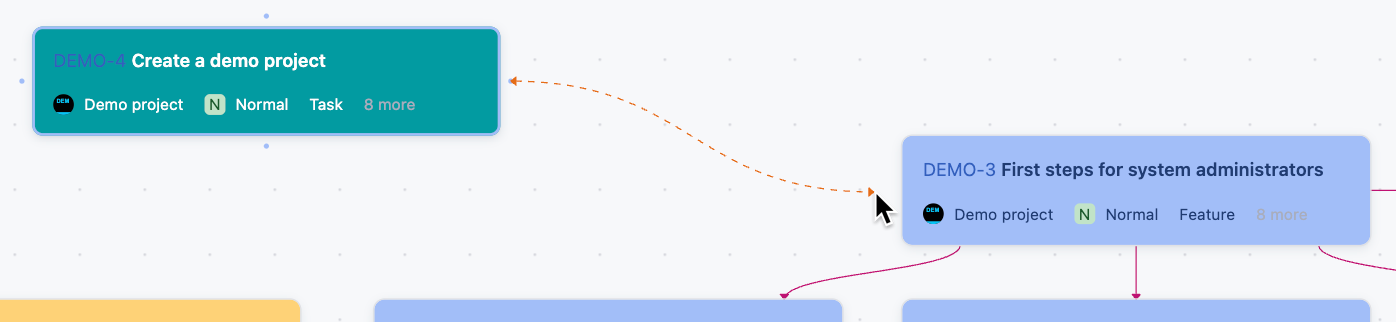
Select a whiteboard element. A dot appears on each side of the element.
Click, drag, and drop from the dot of the selected element to anywhere on a different element on the whiteboard.
A dotted line appears for the intended link.
After you drop the link on the target element, the link line becomes solid.
To add a link to a new card:
From the whiteboard toolbar, click the
icon to open a menu with all available link types.The selected link type is your current default link type when creating links on the whiteboard.
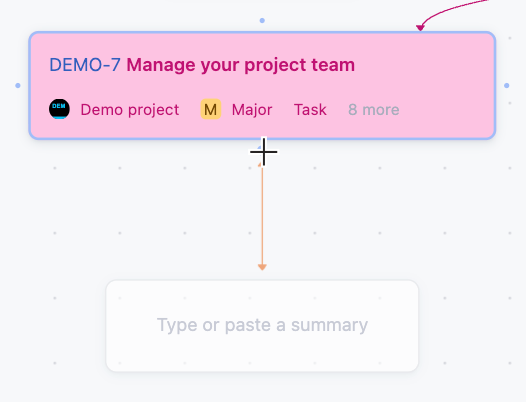
Select a whiteboard element. A dot appears on each side of the element.
Click one of the dots on the side of the element.
A new blank card appears on the whiteboard using the link type selected in the toolbar.
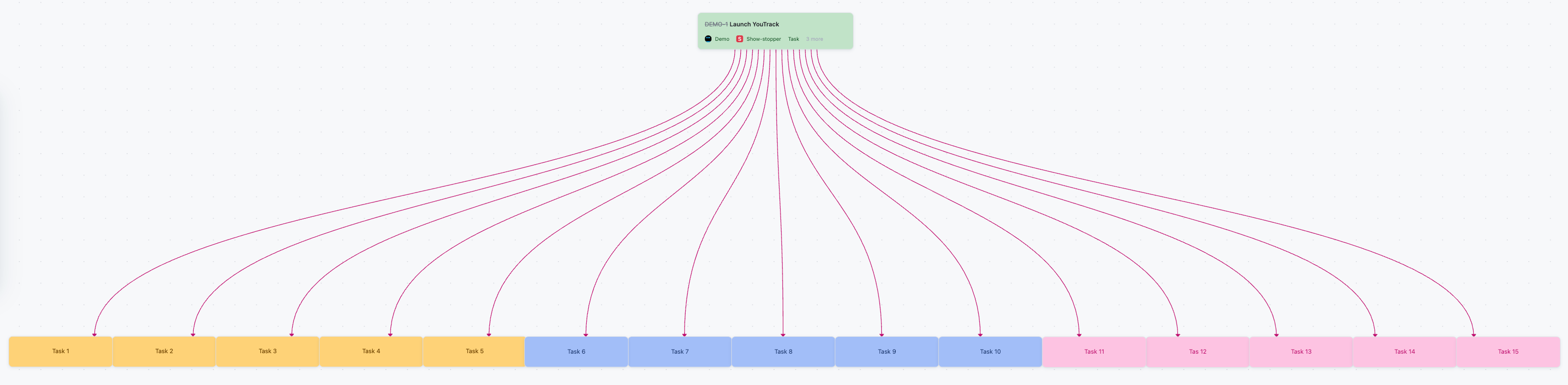
Multiple links can originate from the same whiteboard element. Each link can use a different link type to reflect specific relationships or dependencies.
Edit Links
You can edit links between whiteboard elements to update their type, change their direction, or delete them entirely.
Click on any existing link on the whiteboard to bring up a link toolbar.
Action | Description |
|---|---|
Change the link type | Click the current link type in the toolbar to open a drop-down menu with available link types. Selecting a new type updates the link. For links between issue cards, any updates on the whiteboard also apply to the YouTrack issue. |
Reverse link direction | Select |
Delete link | Select |


Whiteboard Link Best Practices
Following best practices for linking ensures that relationships between cards are clear, organized, and aligned with your project. Thoughtful use of links can improve the clarity of your whiteboard and enhance collaboration across your team.
Choose the right link type
Use arrows for visual representation only and issue links for relationships that need to sync with YouTrack issues.
Organize with multiple links
A single card can use multiple link types to connect to different destinations, enabling detailed relationship mapping.
Regularly update relationships
Review links to ensure they reflect the current priorities and workflows of your project.