Create Whiteboard
A whiteboard in YouTrack is a flexible workspace where you can visually organize issues and articles, plan workflows, brainstorm ideas, and collaborate with your team. You can create a new whiteboard, customize it to fit your needs, and use its tools to organize and manage your projects effectively.
Whiteboards are not tied to specific projects, you can view and interact with issues and articles as cards from any project they have access to. This flexibility helps you organize and manage work across multiple projects in a single space.
Whiteboard User Permissions
All registered YouTrack users can create whiteboards.
Guest user accounts don't have access to whiteboards.
Add a Whiteboard
You can start with a blank whiteboard, name it, and then customize it to fit the needs of your project. Learn how to create and personalize a whiteboard to organize your tasks, plan workflows, and streamline your work.
To add a new whiteboard:
From the main navigation menu, select
 Whiteboards.
Select
 More in the header toolbar. From the drop-down menu, select
  New whiteboard.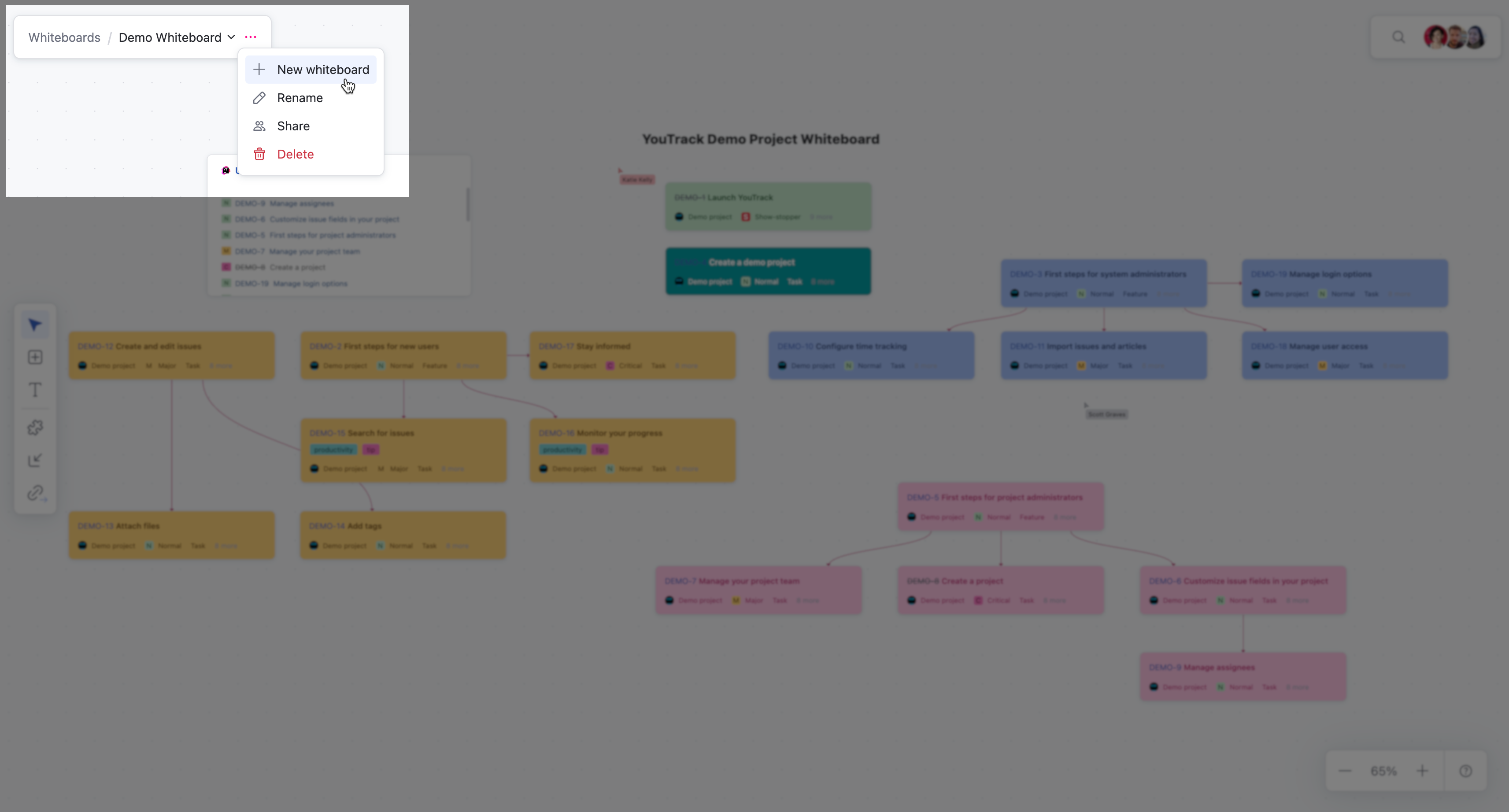
Enter a name for the new whiteboard and click Create.
A new blank whiteboard appears.
Customize a Whiteboard
After creating a whiteboard, you can customize it to suit your project needs. Add cards to represent tasks, notes, or placeholders, and link them to issues or articles to show dependencies. Arrange and group elements visually to organize your project structure and ensure clarity. You can also use card colors to categorize tasks or highlight priorities, making it easier to navigate and track progress. These customization options allow you to create a whiteboard that fits your workflow and aligns with your preferences.
Rename a Whiteboard
After you have created a whiteboard, you can rename the whiteboard at any time to fit your workflow.
To rename a whiteboard:
From the main navigation menu, select
Whiteboards.Select
More in the header toolbar. From the drop-down menu, select  Rename.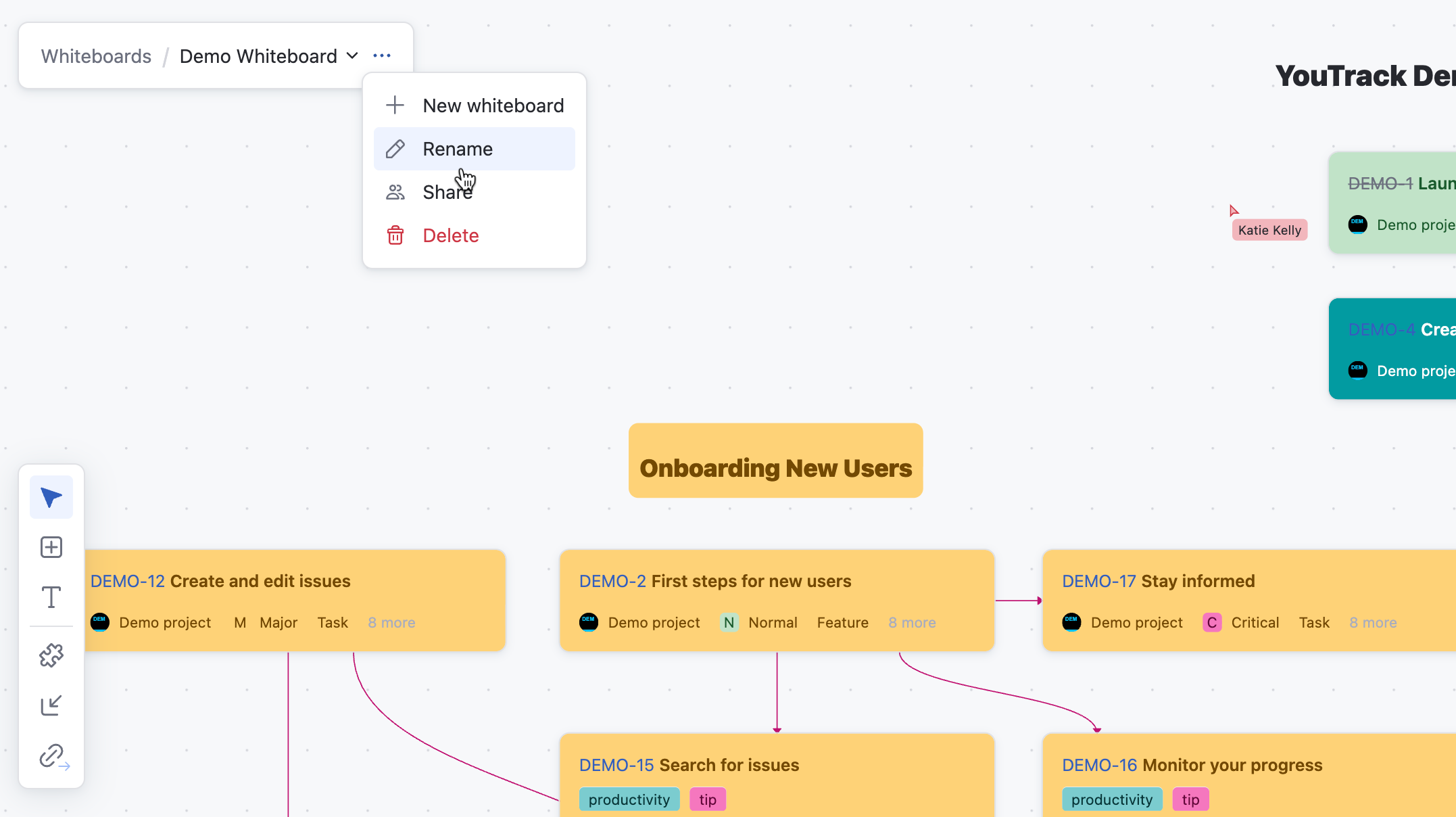
Enter a name for the whiteboard and click Save.
The whiteboard appears with the new name.