Code-first Workflows
Previous tutorials explained how to start your TeamCity project from the UI. However, many software developers prefer to design CI/CD workflows similarly to how a product is developed: via code stored next to the source files. In TeamCity, you can design code-first workflows using YAML and Kotlin DSL.
YAML — simple markup most suitable for moderately complex workflows. Currently supported only in pipelines. See the Pipelines YAML article for the complete YAML schema.
Kotlin DSL — a fully fledged programming language with all corresponding benefits: the ability to dynamically generate objects, create reusable templates and libraries shared across projects (or even TeamCity servers), full IDE support along with refactoring tools and auto-completion, and so on. Supported in both pipelines and build configurations. You can access kDSL API reference documentation locally, by adding
/app/dsl-documentation/index.htmlto your TeamCity server URL, or at our public teamcity.jetbrains.com server.
Create a code-first pipeline
This walkthrough guides you through the basic steps of adding a code-first pipeline.
Add a
.teamcity.ymlfile to the root of your repository and design a pipeline. Refer to Pipelines YAML for complete schema.
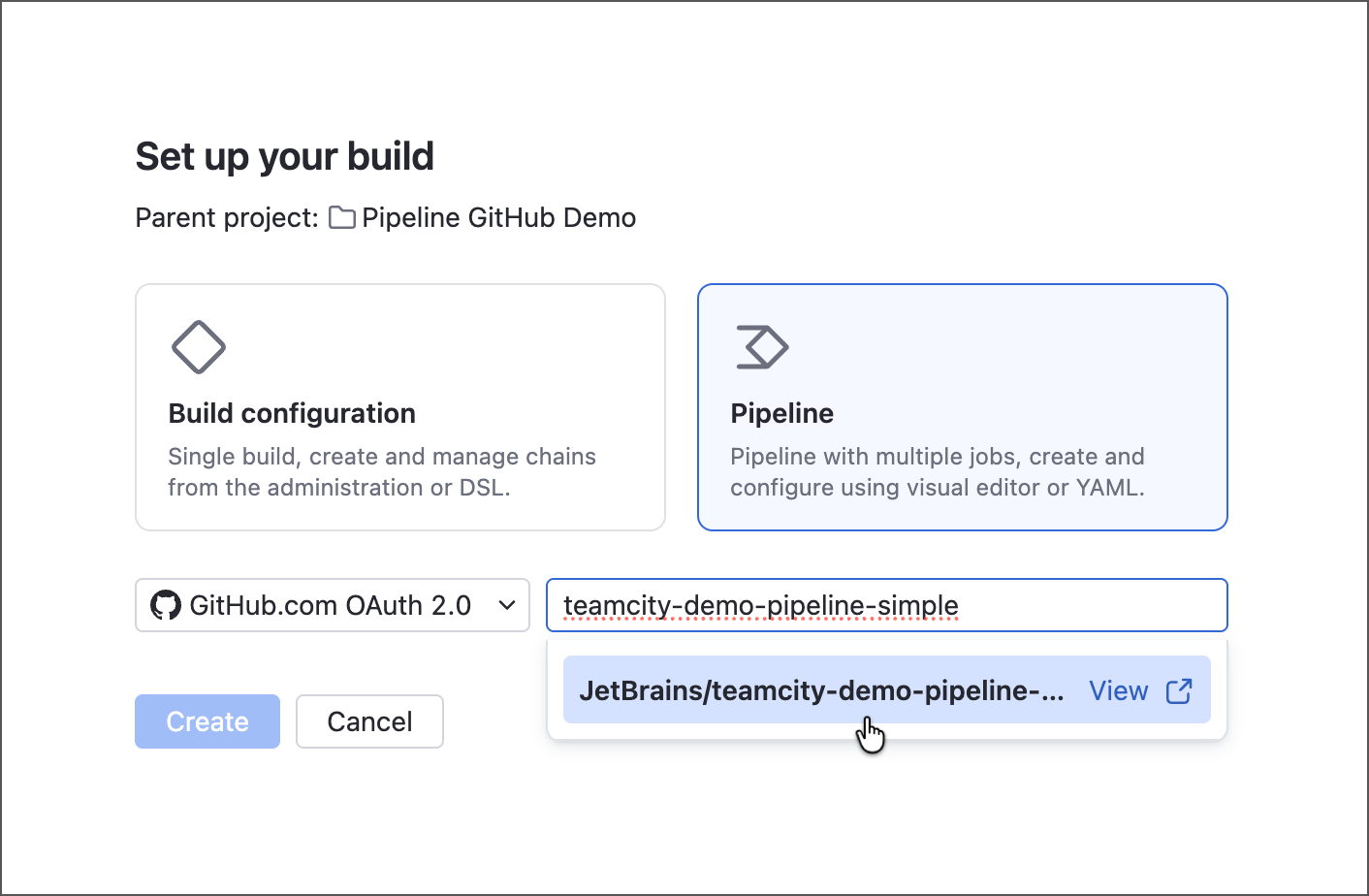
Create a new pipeline that targets the repository with this YAML file.
TeamCity will detect an existing configuration file and ask whether you want to start from scratch, or import pipeline settings from this file. Choose the import option and click Confirm.
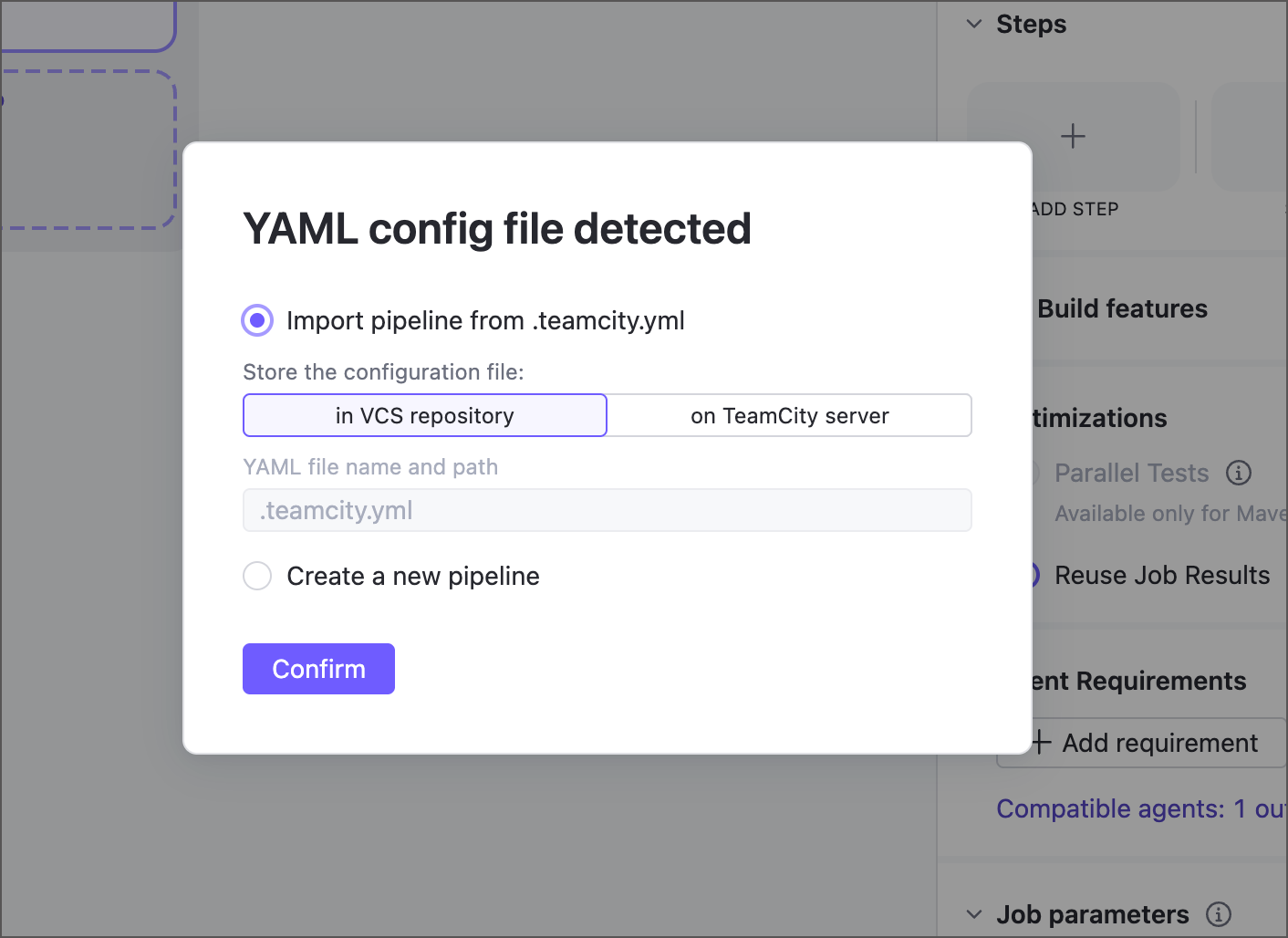
TeamCity will automatically sync changes made to this configuration file and in the UI. You can disable this sync in the pipeline Repository section by choosing to keep the settings file on the server.