Editor basics
Overview of visual elements
The editor has a lot of visual elements that help you read, write, and navigate the code. Let's take a look at some of them.
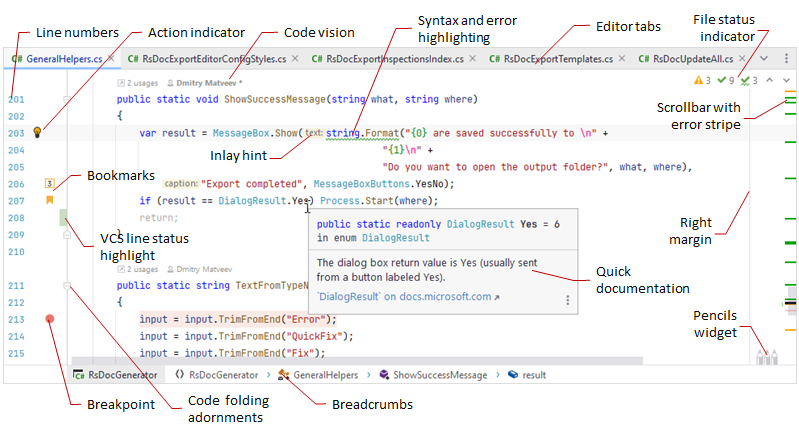
|
|
Colors and fonts
General colors of visual elements in the editor are defined by the user interface theme; colors and font size of specific code elements are defined by the editor color scheme.
Line numbers
By default, editor shows line numbers in all files that you open. If you prefer not to see line numbers, clear the Show line numbers checkbox on the page of JetBrains Rider settings Ctrl+Alt+S.
Apart from that, you can show or hide line numbers in the current document without changing the global setting: select from the main menu.
Line wraps (soft wraps)
When working with code files, you normally do not need soft wraps if your code is properly formatted.
If you need to enable soft wraps in specific kinds of files, select Soft-wrap these files on the page of JetBrains Rider settings Ctrl+Alt+S and add a wildcard for the corresponding file names.
Editor shortcuts
You can use the following shortcuts for basic editing tasks:
Cut | Ctrl+X |
Copy | Ctrl+C |
Paste | Ctrl+V |
Paste as Plain Text | Ctrl+Alt+Shift+V |
Paste from History... | Ctrl+Shift+V |
Copy Paths | Ctrl+Shift+C |
Copy Reference | Ctrl+Alt+Shift+C |
Save All | Ctrl+S |
Undo | Ctrl+Z |
Redo | Ctrl+Shift+Z |
Indent Selection | Tab |
Unindent Line or Selection | Shift+Tab |
Auto-Indent Lines | Ctrl+Alt+I |
Start New Line | Shift+Enter |
Start New Line Before Current | Ctrl+Alt+Enter |
Ctrl+Y | |
Ctrl+Shift+J | |
Duplicate Line or Selection | Ctrl+D |
Toggle Case | Ctrl+Shift+U |
Scratch File | Ctrl+Alt+Shift+Insert |
Open Source in New Window | Shift+F4 |
Show Whitespaces | Ctrl+R, W |
Soft-Wrap | Ctrl+L, W |
Alt+Shift+. | |
Alt+Shift+, |
For the full list of JetBrains Rider keyboard shortcuts, refer to Keyboard shortcuts in predefined keymaps.