Unity Features
Editor helpers
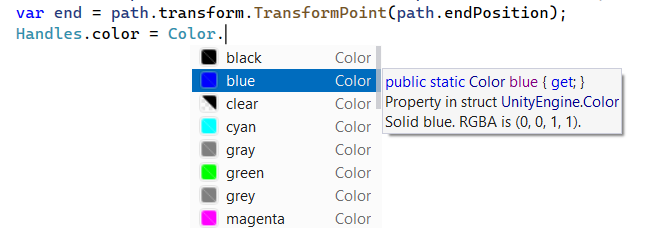
Colors defined via UnityEngine.Color, UnityEngine.Color32, and Color.HSVToRGB are highlighted in the editor. You can also press Alt+Enter on a color usage and choose Pick color from palette to open the color editor and modify the color visually.
Find Usages
In Unity projects, the Find Usages Alt+F7 feature is extended with data pulled from Unity scenes, assets, and prefabs. If you search for a class or a method used as an event handler, ReSharper will show where it is used in Unity files, grouped by type, component name, and parent game objects.
Performance analysis
ReSharper shows you performance-sensitive areas: event functions that are called each frame, such as Update, FixedUpdate and LateUpdate, as well as coroutine methods. Inside these frequently called methods, performance indicators will also draw your attention to known expensive operations, like calls to GetComponent, Find or SendMessage, with context actions to move the initialization to Start or Awake.
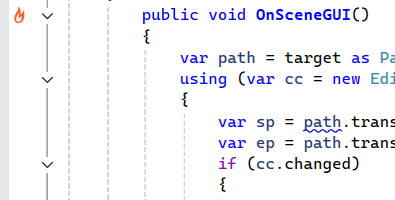
Unity has a number of methods that get called very frequently. These methods are treated as a performance-critical context and are highlighted in the editor gutter.
You can enable and configure performance analysis on the page of ReSharper options Alt+R, O, under Enable performance analysis in frequently called code.
To configure the colors for specific problems, go to the Visual Studio options (), open the Environment | Fonts and Colors page, and then select the desired colors for items that start with ReSharper Unity.
Event functions
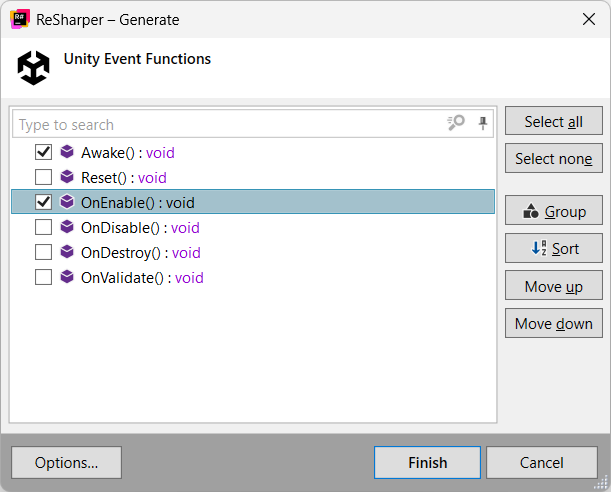
You can generate event functions using Unity Event Functions in the Generate Code menu Alt+Insert. This action is also available from Alt+Enter everywhere inside a Unity-based class.
Auto-completion will suggest event function names when declaring methods in Unity-based classes, and expand to include method signature. Start typing an event function within a class deriving from a known Unity class, such as
MonoBehaviour.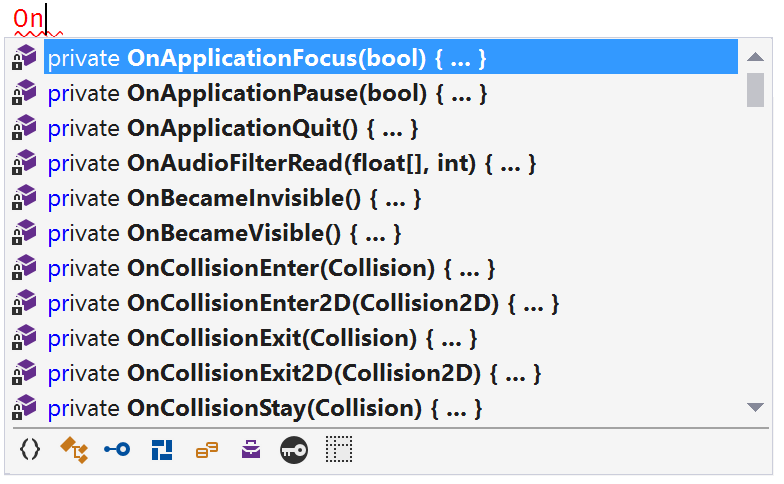
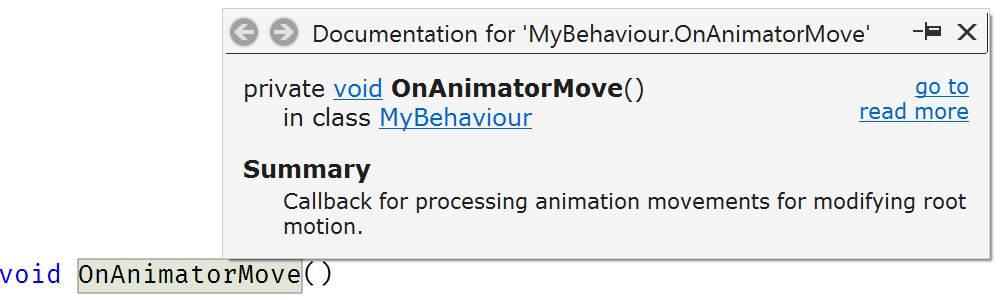
Descriptions for event functions and parameters in Unity-based classes are shown in tooltips and Quick Documentation.
External annotations
A lot of Unity-specific assemblies are annotated with External annotations to improve code inspection when you make use of these assemblies.
Treating code marked with attributes from UnityEngine.dll, UnityEngine.Networking.dll and UnityEditor.dll as implicitly used.
Marking
Component.gameObjectandObject.nameas not-nullable.Debug.Assertmarked as assertion method to help null-value analysis (for example "value cannot be null" afterDebug.Assert(x != null)).Debug.AssertFormat,LogFormat, and so on gets string formatting helper functionality.Assertions.Assertmethods marked as assertion methods to help null-value analysis.EditorTestsWithLogParser.ExpectLogLineRegexgets regular expression helper functionality.Various attributes now require the class they are applied to derive from a specific base type. For example,
[CustomEditor]requires a base class ofEditor.Support for Unity 2017.2's modularised UnityEngine assemblies.
Support for shader developmnet
ReSharper supports Unity shader workflows from authoring and code analysis through render-frame inspection and source-level shader debugging. You can edit ShaderLab .shader files, CG/HLSL blocks, shared .cginc/.hlsl includes, and compute shaders with Rider's code insight, navigation, refactoring, and Unity-aware context tools.
Syntax and syntax error highlighting for ShaderLab syntax.
Brace matching and highlighting, comment/uncomment Control+/, and to-do explorer support.
[Cg/HLSL] Syntax highlighting for
CGPROGRAM/CGINCLUDEblocks and .cginc files[Cg/HLSL] Code completion in Cg/HLSL blocks
Support for assembly definition files
Assembly definition files (.asmdef) are used to separate project scripts into multiple assemblies to reduce compilation time. Unity will rebuild only required assemblies when you make changes in a script.
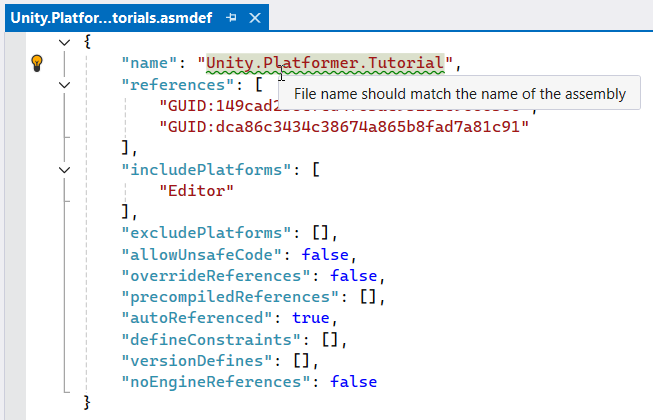
ReSharper provides support for .asmdef files: JSON schema validation, code completion, Find Usages, Rename refactoring, Navigation on references elements, and inspections/quick-fixes for self-reference and filename/assembly name mismatch. For more information about .asmdef files support, refer to the blog post.
Live templates
ReSharper offers a couple of Unity-specific live templates, for example, sprop for a Unity property with a serialized backing field, or sfield for a Unity serialized field.
Here is a full list of predefined Unity-specific file templates.
File templates
ReSharper offers a number of file templates for new C# script, tests, and shader files.
Here is a full list of predefined Unity-specific file templates.