Kubernetes
Kubernetes is a container orchestration engine for the deployment, scaling, and management of containerized applications. Install and enable the Kubernetes plugin for IntelliJ IDEA to add the following features for managing your Kubernetes cluster:
Coding assistance for Kubernetes resource configuration files.
Coding assistance for Helm charts and templates. For more details, refer to the dedicated Helm page.
Validation of custom resources with custom resource definition (CRD) specifications.
Coding assistance for Kustomize files: field and local file path completion, quick documentation, and navigation between Kustomize files and patches. The list of related Kustomize files appears in the editor at the top of the open Kustomize patch.
Interaction with the cluster from IntelliJ IDEA: use the Services tool window to see all resources of the Kubernetes cluster, jump to relevant resource definitions, view logs for containers running on pods, and much more.
The Kubernetes plugin supports Kubernetes versions 1.26 to 1.34 (you can select the applicable version).
Enable the Kubernetes plugin
This functionality relies on the Kubernetes plugin, which is bundled and enabled in IntelliJ IDEA by default. If the relevant features are not available, make sure that you did not disable the plugin.
Press Ctrl+Alt+S to open settings and then select .
Open the Installed tab, find the Kubernetes plugin, and select the checkbox next to the plugin name.
Specify a custom path to kubectl
IntelliJ IDEA uses the default kubectl (and helm if you use it) executables as determined by the PATH environment variable.
If you install kubectl in custom directories, you can manually specify the path to it.
In the Settings dialog (Ctrl+Alt+S) , select .
In the Path to kubectl executable field, specify a path to the kubectl executable file.
Click Test to check the file location. If it's not found, you can either manually check the file location or click Install, and IntelliJ IDEA will download and install missing software.
Use custom Kubernetes configuration files
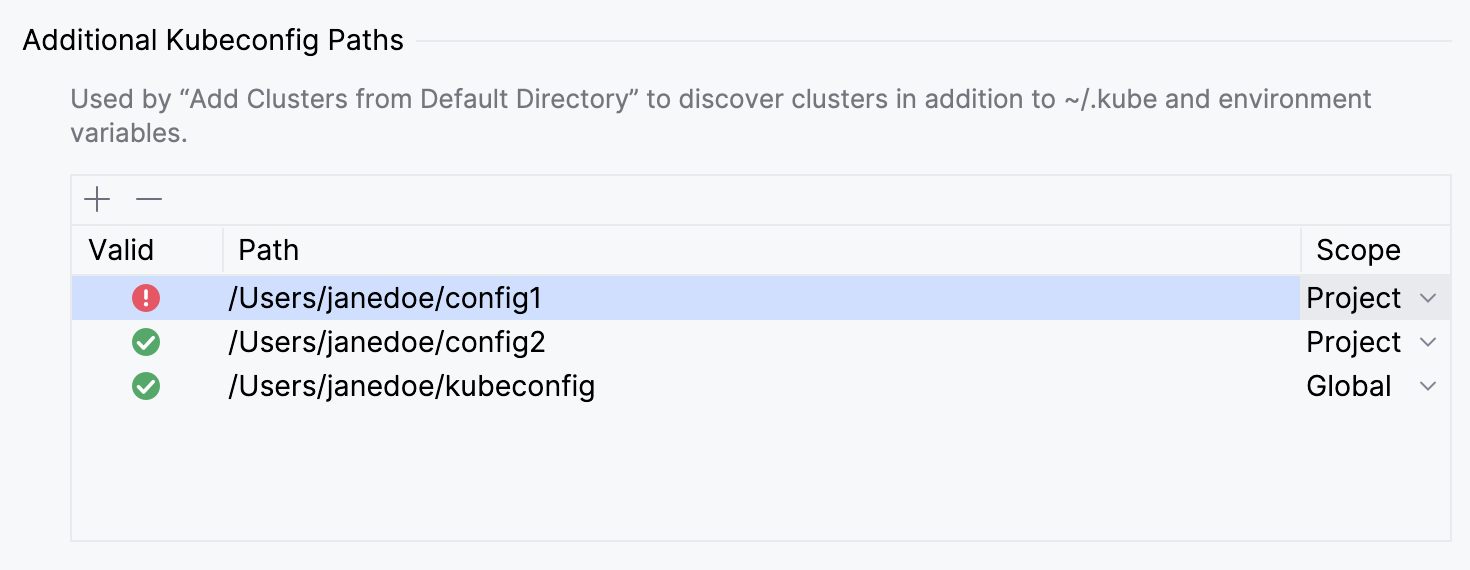
Information about clusters is stored in a kubeconfig file. IntelliJ IDEA detects the default kubeconfig file, which is usually $HOME/.kube/config (this location can be changed by the KUBECONFIG environment variable). If you want IntelliJ IDEA to get information about clusters from custom kubeconfig files and not just from the default one, you can specify them in the IDE settings. You can either apply it globally or use a different file for each project.
In the Settings dialog (Ctrl+Alt+S) , select .
Under Additional Kubeconfig Paths, click
 and specify the path to a
 kubeconfigfile.If you want to use the configuration file in all projects, select Global in the Scope column. To use it only in the current project, keep the Project scope.
When you add a file, IntelliJ IDEA validates its syntax and reports errors, if any.
Configure the Kubernetes API version
IntelliJ IDEA provides completion for configuration key values, navigation to relevant selectors and definitions via gutter icons, specialized inspections that check for deprecated values and required keys, and other assistance features. These depend on the version of the API you are using. The Kubernetes plugin supports Kubernetes versions 1.26 to 1.34. By default, IntelliJ IDEA sets it to the latest version. However, if your resources use an earlier version, you can change it.
In the Settings dialog (Ctrl+Alt+S) , select .
Update the Kubernetes API version option as necessary.
Resource configuration files
The Kubernetes plugin provides rich support for resource configuration files in YAML, and only basic support for the JSON format.
Supported features
Feature | YAML | JSON |
|---|---|---|
Supported | Supported | |
Supported | Supported | |
|
| |
Predefined templates for common resource kinds | No predefined live templates | |
Supported | Not supported | |
Supported | Not supported | |
Label definitions and selectors | Navigation using gutter icons, find usages, and renaming | Not supported |
Enhancements of the original Kubernetes model | Enums instead of plain strings where applicable | None |
IntelliJ IDEA recognizes Kubernetes resource configuration files using the following mandatory fields:
apiVersion: identifies the versioned schema of the object representationkind: identifies the resource type (for example,Service,Pod,Deployment, and so on)
If both fields are present in a YAML or JSON file, IntelliJ IDEA will mark the file with the corresponding Kubernetes icon and enable all available features.
Create a resource file
With IntelliJ IDEA, you can quickly create configuration files for some of the most popular resources in Kubernetes.
In the Project tool window (Alt+1) , right-click a folder, select New or press Alt+Insert, and then select Kubernetes Resource.
In the Name field, type your resource name and select the file template from the list.
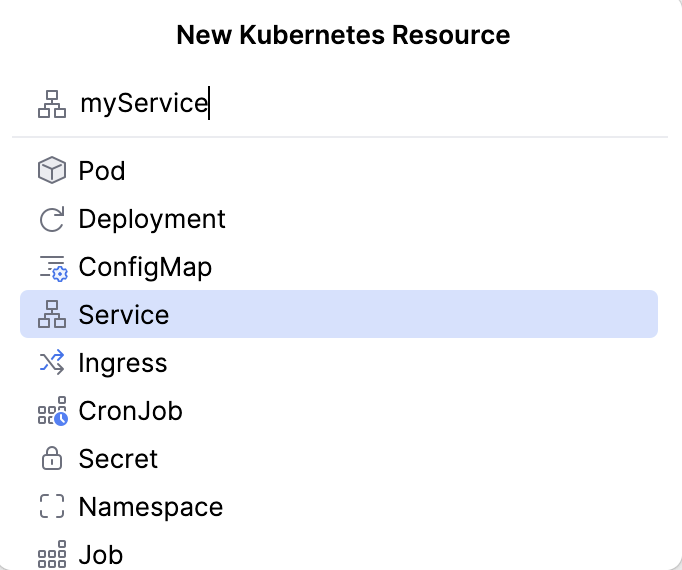
This will create a new file with its contents based on the selected file template Learn more in file template.
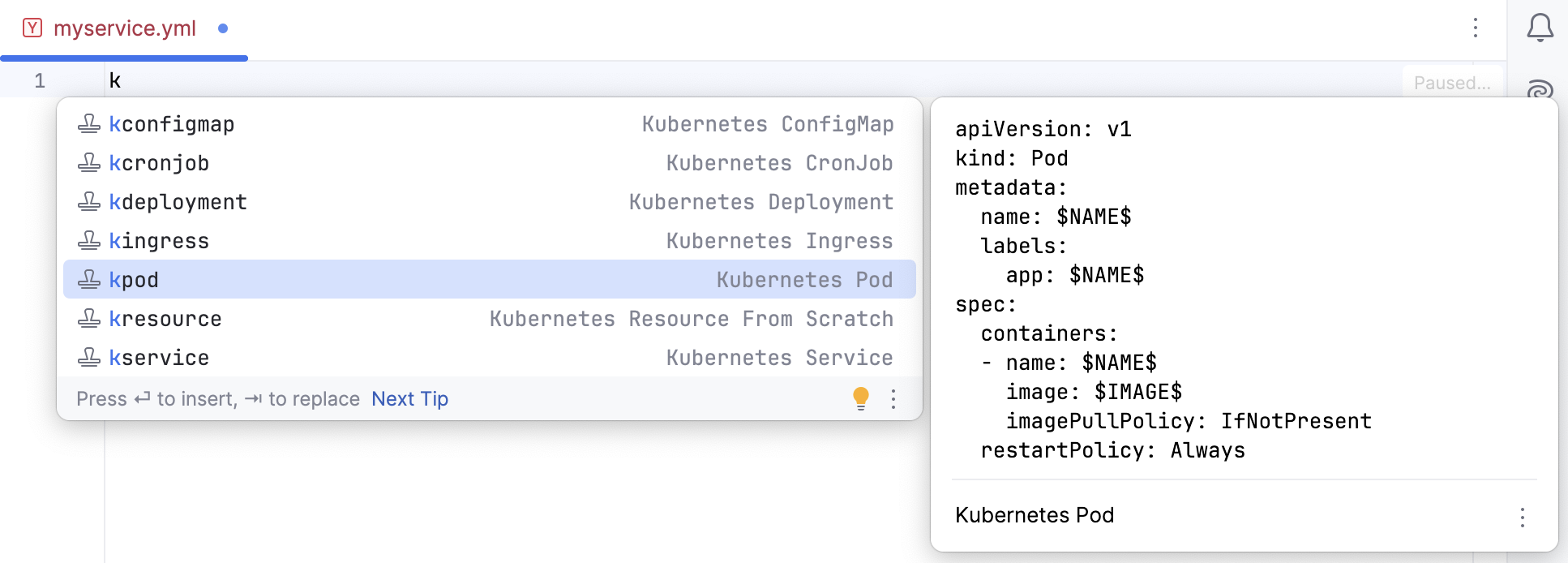
Alternatively, in YAML files, you can use predefined live templates, for example:
kconfigmap: Kubernetes ConfigMapkcronjob: Kubernetes CronJobkdeployment: Kubernetes Deploymentkingress: Kubernetes Ingresskpod: Kubernetes Podkresource: Kubernetes Resource from Scratchkservice: Kubernetes Service
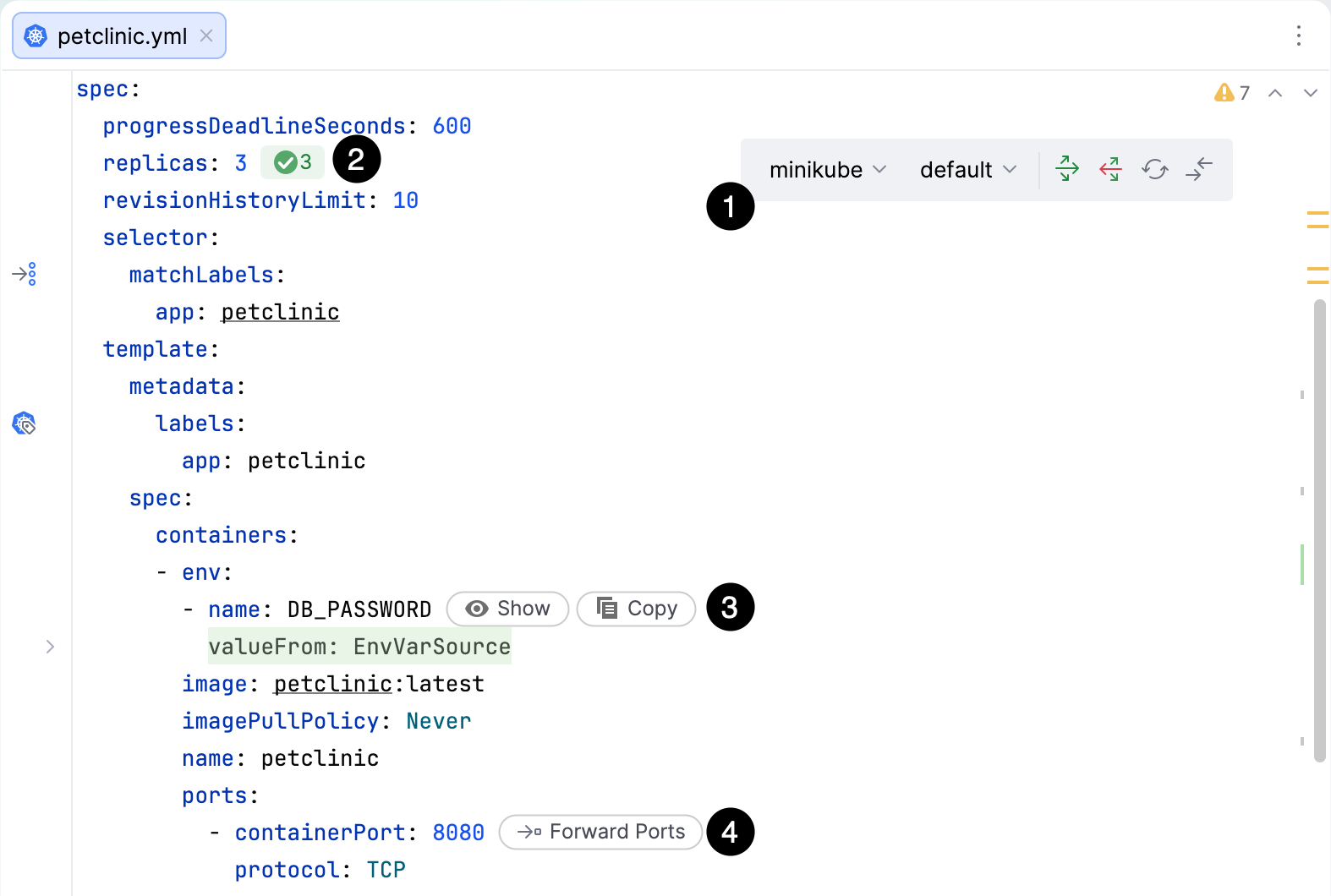
When you open a Kubernetes resource file in the editor, IntelliJ IDEA displays inlay hints and a toolbar with the most popular actions, including:
The floating toolbar where you can:
Select the current cluster and namespace
 Apply the changes and deliver them to the current cluster
 Delete the resource
 Compare the changes with the cluster version
 Reload content from the cluster

Inlay hints to check the statuses of deployed resources
Inlay hints to reveal and copy values of referenced secrets
Inlay hints to forward ports
Configure the floating toolbar appearance
You can configure when to display the floating toolbar in the editor.
Press Ctrl+Alt+S to open settings and then select .
Use the Show floating toolbar in editor option to choose when the floating toolbar appears:
Always
When mouse moves
Don't show
Alternatively, you can right-click the floating toolbar and select the required option.
Disable Kubernetes schema validation
IntelliJ IDEA validates your Kubernetes files against the Kubernetes API schema. This includes checking it for required keys or possible types of resource.
If your file contains apiVersion and kind, but it is not a Kubernetes file, you can disable such validation. You can suppress inspections and change their scope and severity in . Or you can mark a file with a special directive to disable validation in it:
At the beginning of the file, add
# nonk8s.Alternatively, if you already have a warning about an unknown resource, right-click it in the Problems tool window and select .
Manage your cluster
Use the Services tool window to view your cluster, switch between namespaces, and modify the cluster resources.
Add clusters
To interact with Kubernetes clusters, add clusters in the Services tool window.
Open the Services tool window: go to or press Alt+8.
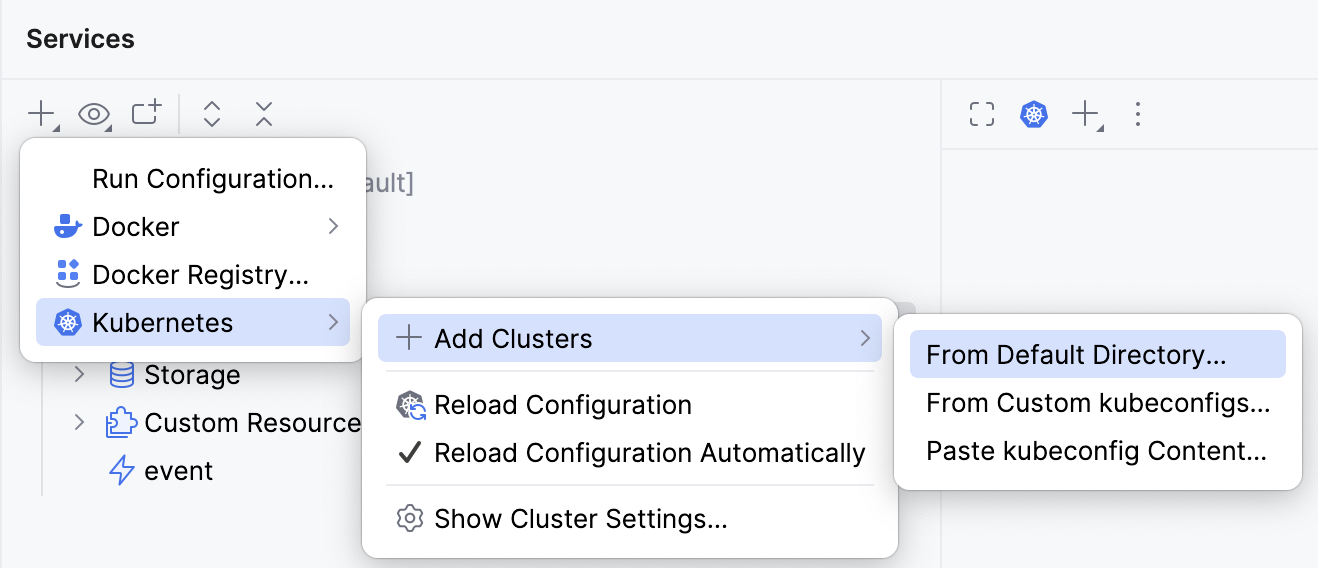
Right-click the Kubernetes node in the Services tool window and select Add Clusters. Alternatively, click
 and select .
Next, select the source for Kubernetes clusters to be added:
From Default Directory: get clusters from the default location (usually
$HOME/.kube/config).From Custom kubeconfigs: select any kubeconfig file from your computer.
Paste kubeconfig Content: paste the kubeconfig content into the textarea that opens.
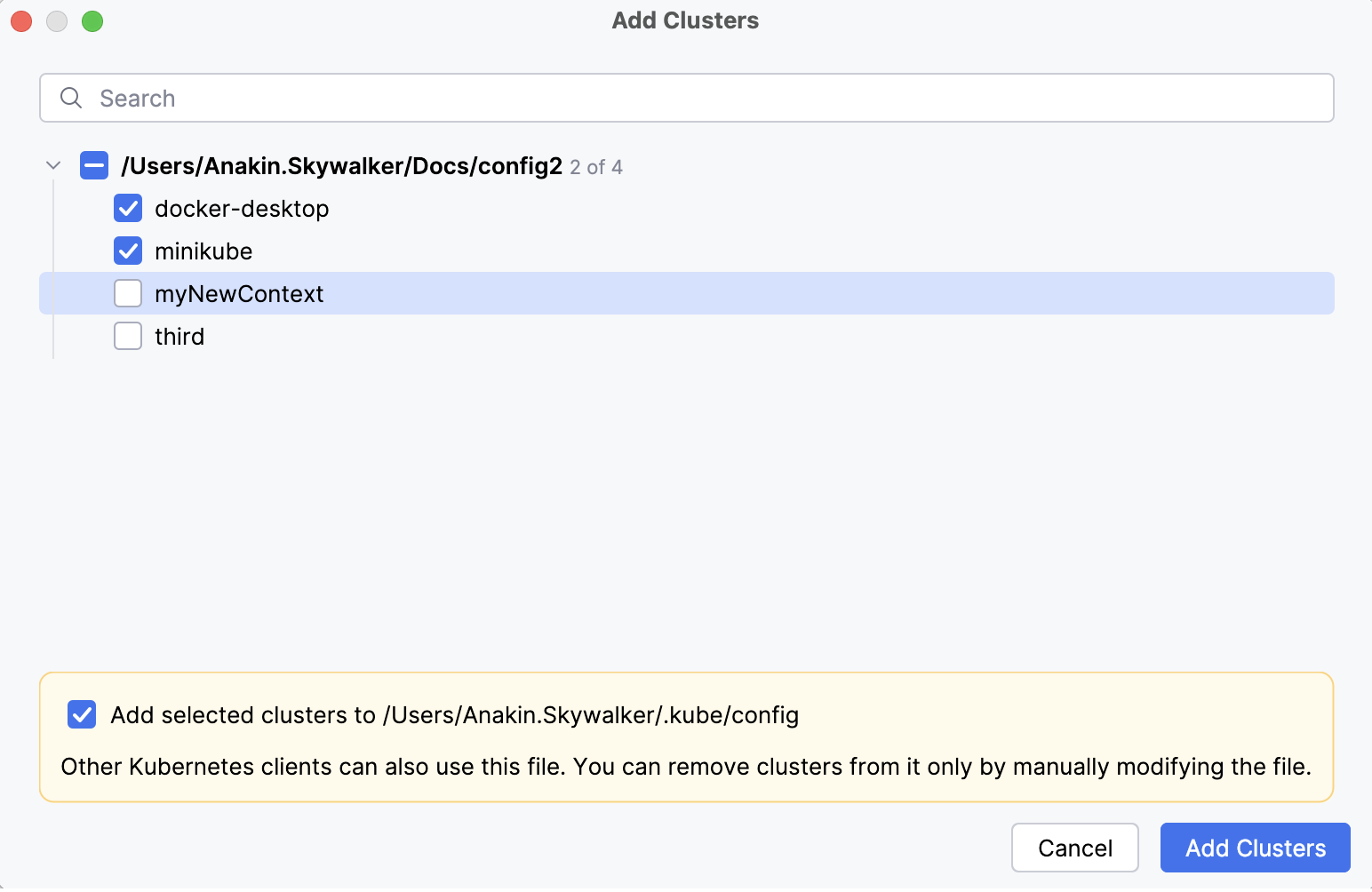
In the Add Clusters window that opens, select a cluster that you want to add and click Add Clusters.
Added Kubernetes clusters will be available in the Services tool window. You can open each of them in a separate tab by right-clicking a cluster and selecting Open in New Tab.
To monitor the cluster resources in real-time, you can connect to the cluster.
Connect to the cluster
Connect to the cluster to interact with it in the IDE: follow logs, preview resources, view their configuration files, and get live updates when they are modified. Without connecting to the cluster, you can modify its resources in the editor.
Open the Services tool window: go to or press Alt+8.
If you do not have clusters in the Services tool window, add a cluster.
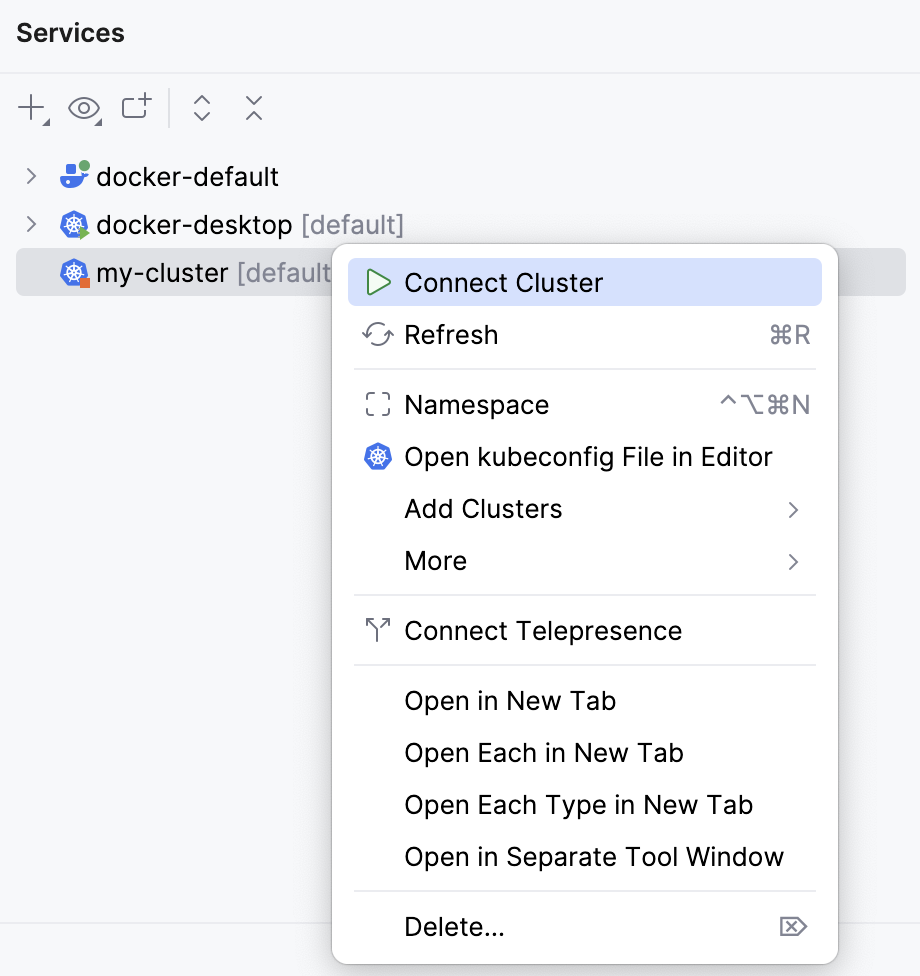
Right-click a cluster and select Connect Cluster.
Edit kubeconfig
The kubeconfig file contains information about clusters, users, namespaces, and authentication.
Open the Services tool window: go to or press Alt+8.
Select a cluster and click
 (Open Kubeconfig File in Editor) on the toolbar. The action is also available when you right-click any Kubernetes object in the Services tool window.
This will open the kubeconfig file in a new tab of the editor. To change the default file opened by this action, you can specify a path to another file in Path to kubeconfig file.
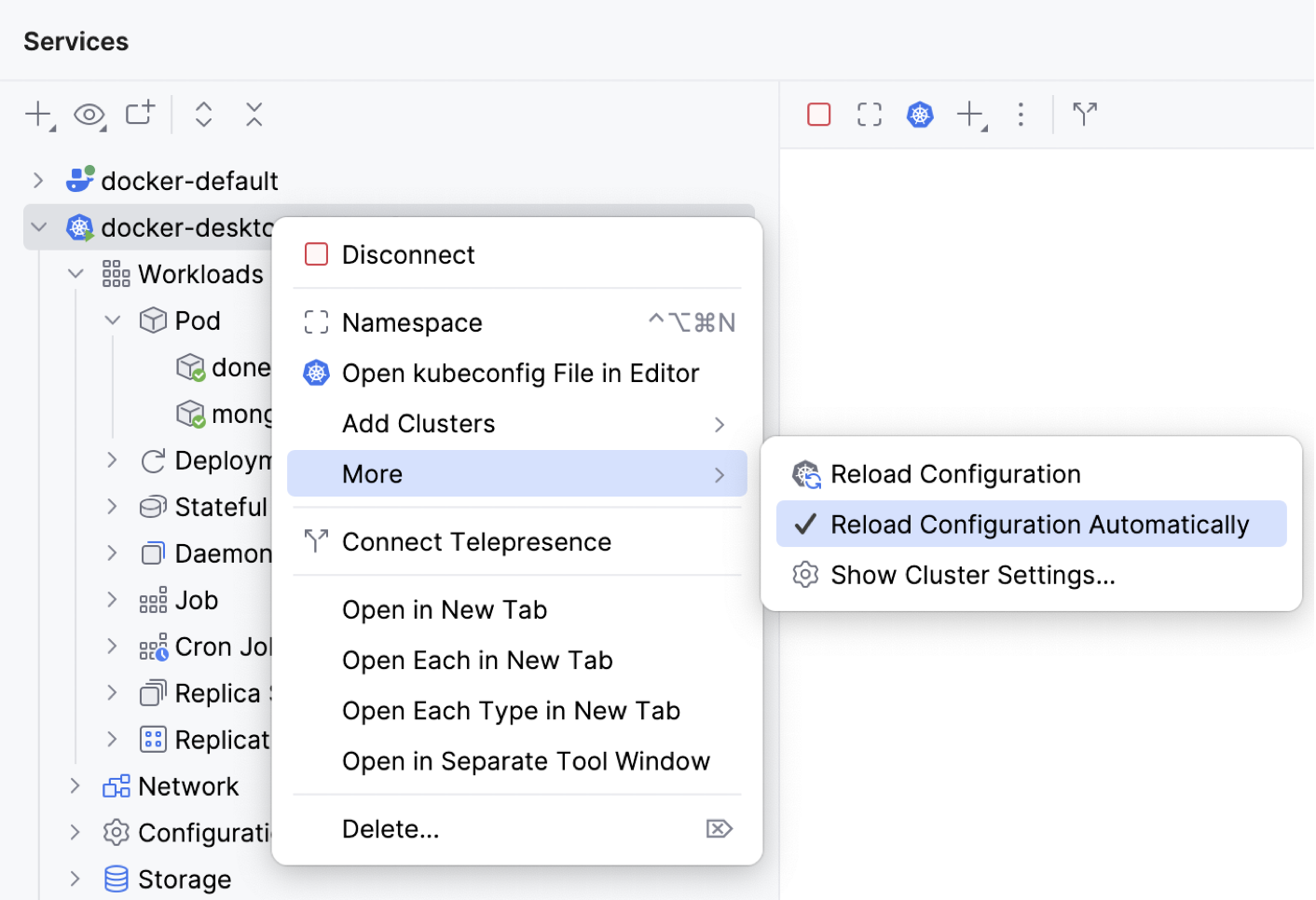
When you change your kubeconfig file, the configuration is automatically reloaded. You can also reload it manually or disable automatic reload by right-clicking a cluster or any Kubernetes object and selecting .
Switch between namespaces
Kubernetes namespaces let you logically isolate resources within your cluster. With IntelliJ IDEA, you can quickly switch between namespaces.
Open the Services tool window: go to or press Alt+8.
Right-click your cluster or any resource, select Namespaces (or click
 on the toolbar), and select the required namespace.
To view resources of all namespaces, select All Namespaces.
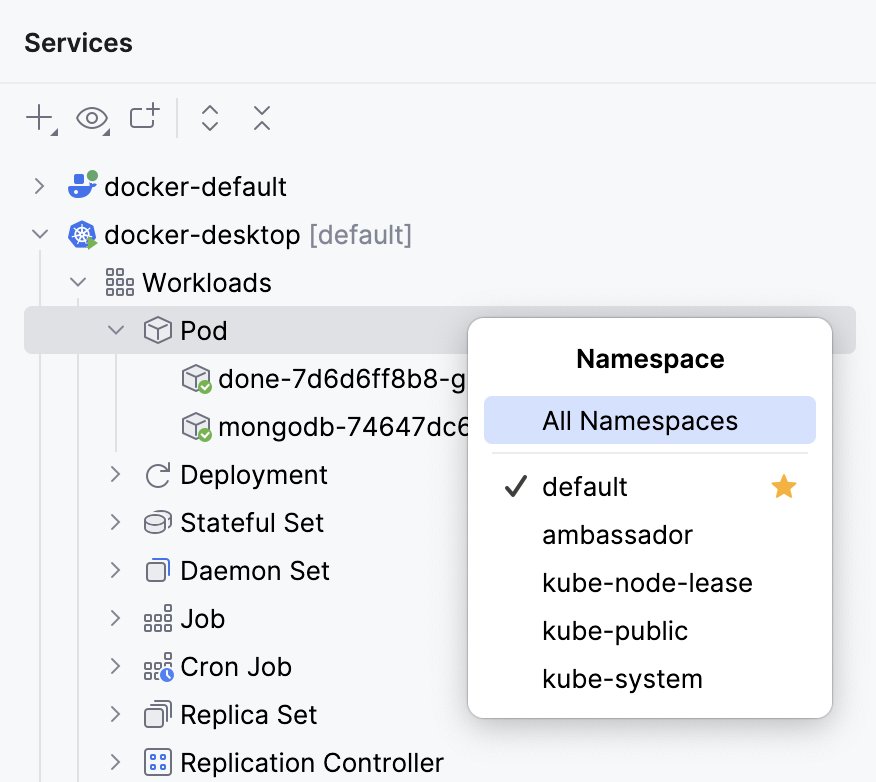
Select the current cluster
A current cluster refers to the cluster that is set as the default for interactions with resources in the editor and in the Project tool window.
When you modify or create a resource file locally, you can select the cluster to which to apply the resource by clicking  or using the floating toolbar. You can also choose it in advance.
Open the Services tool window: go to or press Alt+8.
Right-click a cluster and select Set Cluster as Current.
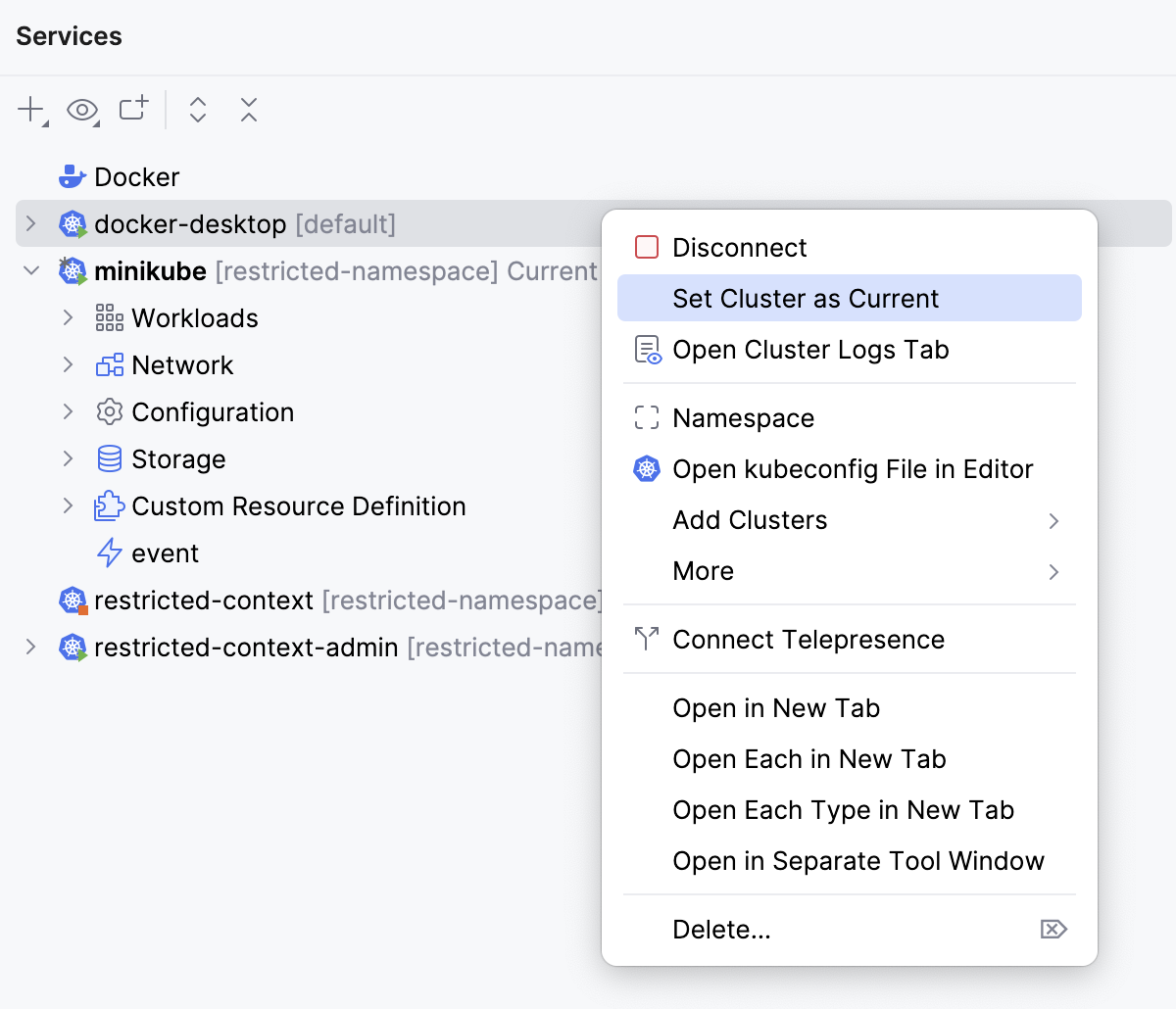
Alternatively, select a cluster and click
 on the toolbar.
Create a resource in the cluster
After creating a resource file, you can create a corresponding resource in the cluster.
Open the required resource file in the editor. If the current cluster is not set, select it using the floating toolbar.
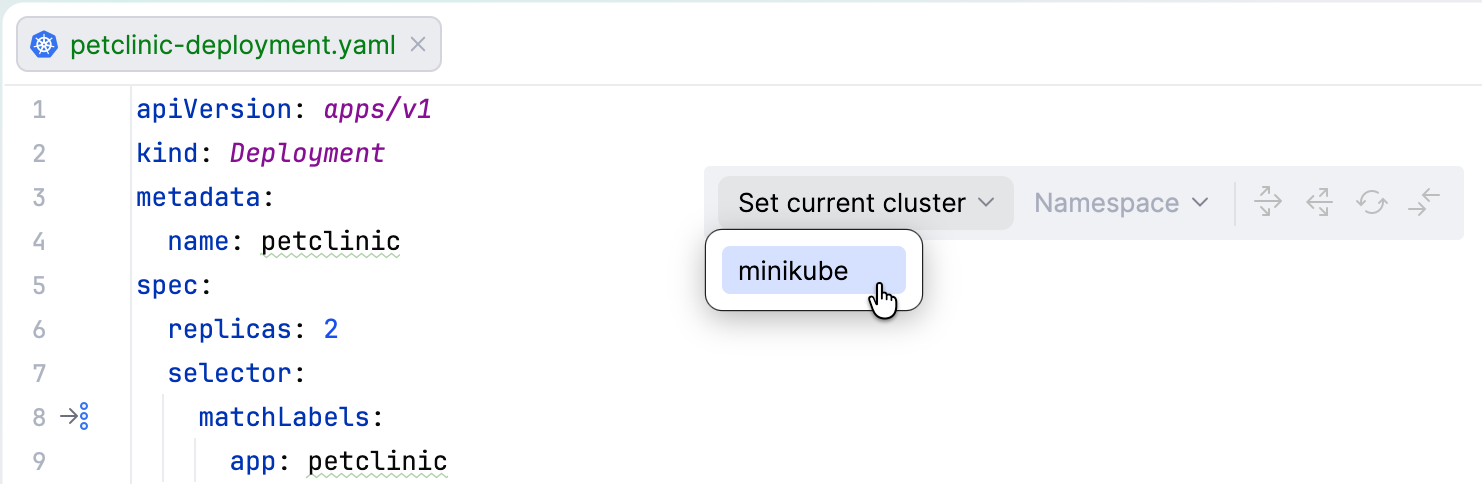
If necessary, you can also select a namespace from the list.
Click
to apply changes to the current cluster and namespace.
Modify cluster resources
Open the Services tool window: go to or press Alt+8.
Right-click a resource and select View YAML.
This will open the manifest of a selected resource in a new tab of the editor. When you change a field, modified lines are highlighted in the gutter. You can click the highlighted area in the gutter to quickly preview or rollback changes.
Make sure the current cluster is selected on the floating toolbar and click
to apply the changes.
View resource details
IntelliJ IDEA allows you to quickly view the details of your Kubernetes resources without running any commands manually.
In the Services tool window, select a resource to view its details.
IntelliJ IDEA displays the live status of a deployed Kubernetes resource directly in the editor. For example, when you open a Deployment manifest, status indicators appear next to the
replicasfield, displaying how many pods are currently running, pending, or failed.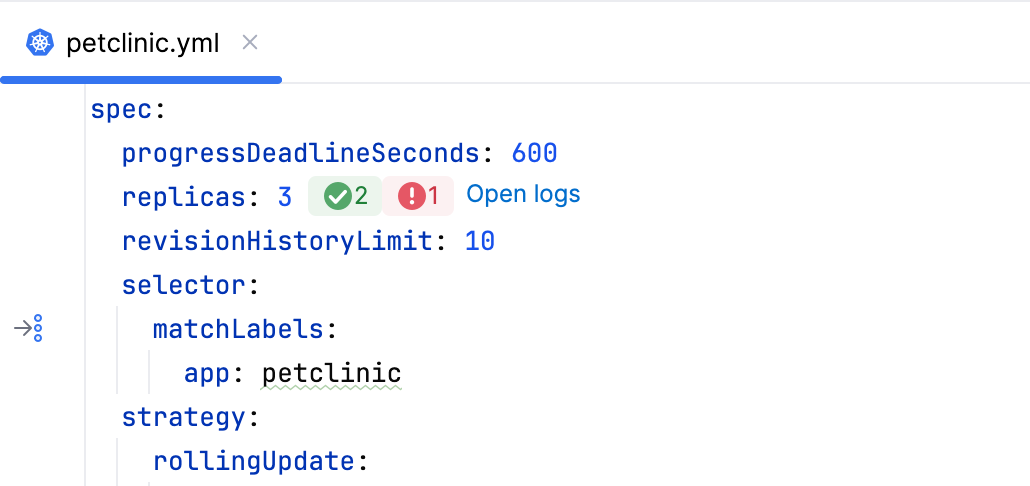
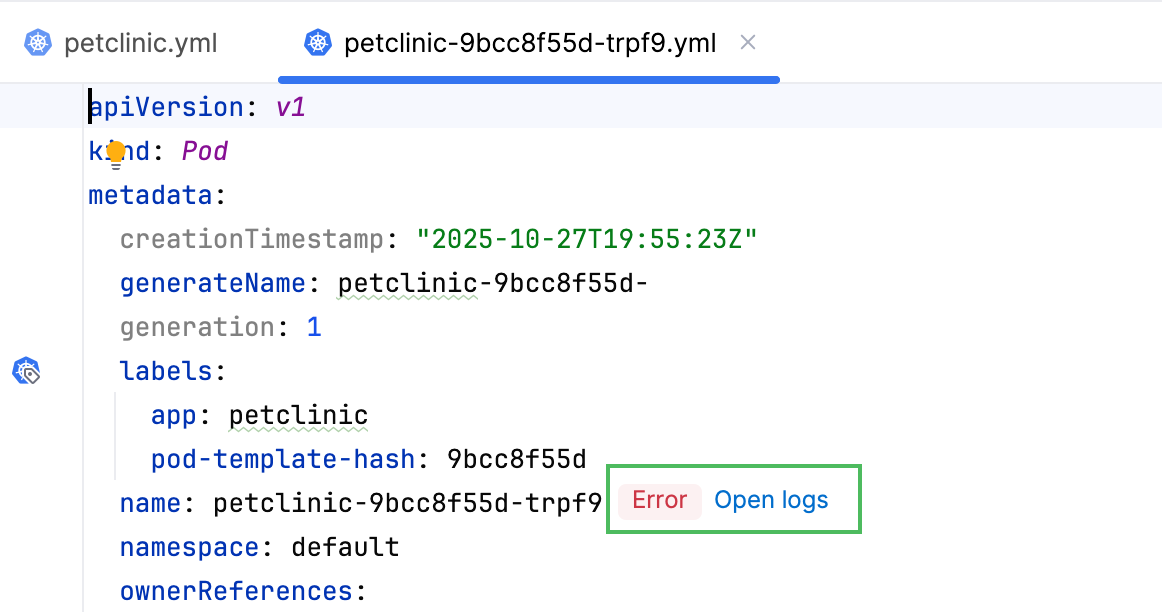
You can check the statuses of individual pods and jobs next to the name field in respective manifests.
If an error occurs and a resource fails, IntelliJ IDEA displays the Open logs link that lets you quickly navigate to the relevant log entry describing the problem.
Delete resources
You can delete a resource in any of the following ways:
In the Services tool window, right-click a resource and select Delete.
In the Services tool window, select a resource and click
 (Delete Resource) on the toolbar.
If the resource YAML file is opened in the editor, select the current cluster on the floating toolbar it and click
 .
.If the resource YAML file is opened, right-click anywhere in the editor and select Delete (Current Cluster Not Configured) if no cluster is selected on the floating toolbar, or Delete from Cluster "cluster_name" and Namespace "namespace_name" if one is selected.
Forward ports
With port forwarding in Kubernetes, you can redirect traffic from a local port on your computer to a port on a Kubernetes pod. IntelliJ IDEA lets you manage port forwarding: you can forward one or more local ports to remote ports, view all active forwarding sessions in your cluster (established in IntelliJ IDEA), stop and restart forwarding sessions.
You can configure port forwarding using one of the following ways:
Open the Services tool window: select or press Alt+8. Right-click a target pod and select Forward Ports.
Click the Forward Ports inlay hint in a Kubernetes manifest. IntelliJ IDEA displays the inlay hint if a destination port is specified (for example, as a value of
containerPort).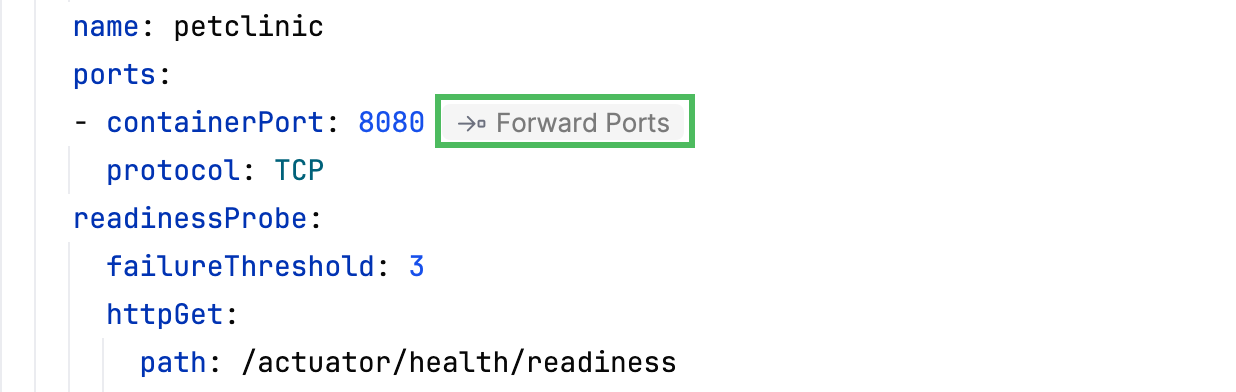
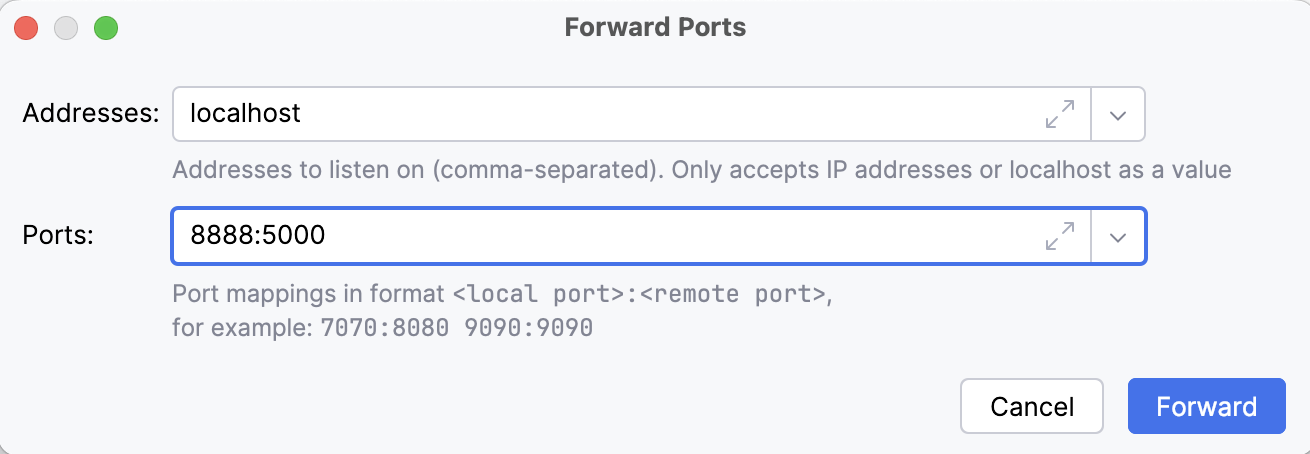
In the Forward Ports dialog:
In the Addresses field, list addresses to listen on. Use commas to separate multiple values.
In the Ports field, specify ports in the
<local port>:<remote port>format. For example,8888:5000to listen on local port8888and forward data to/from remote port5000.IntelliJ IDEA automatically suggests port mappings based on the values defined in a corresponding Kubernetes manifest. If the manifest specifies a port already in use on your local machine, IntelliJ IDEA incrementally increases the suggested value until it finds an available port.
If the specified value is less than
1024, 8000 is added to the suggested local port value.If you manually specify a local port that is currently busy, IntelliJ IDEA will notify you about it before you start forwarding.
Click Forward.
Manage port-forwarding sessions
To view all active port-forwarding sessions, in the Services tool window, expand under your Kubernetes cluster.
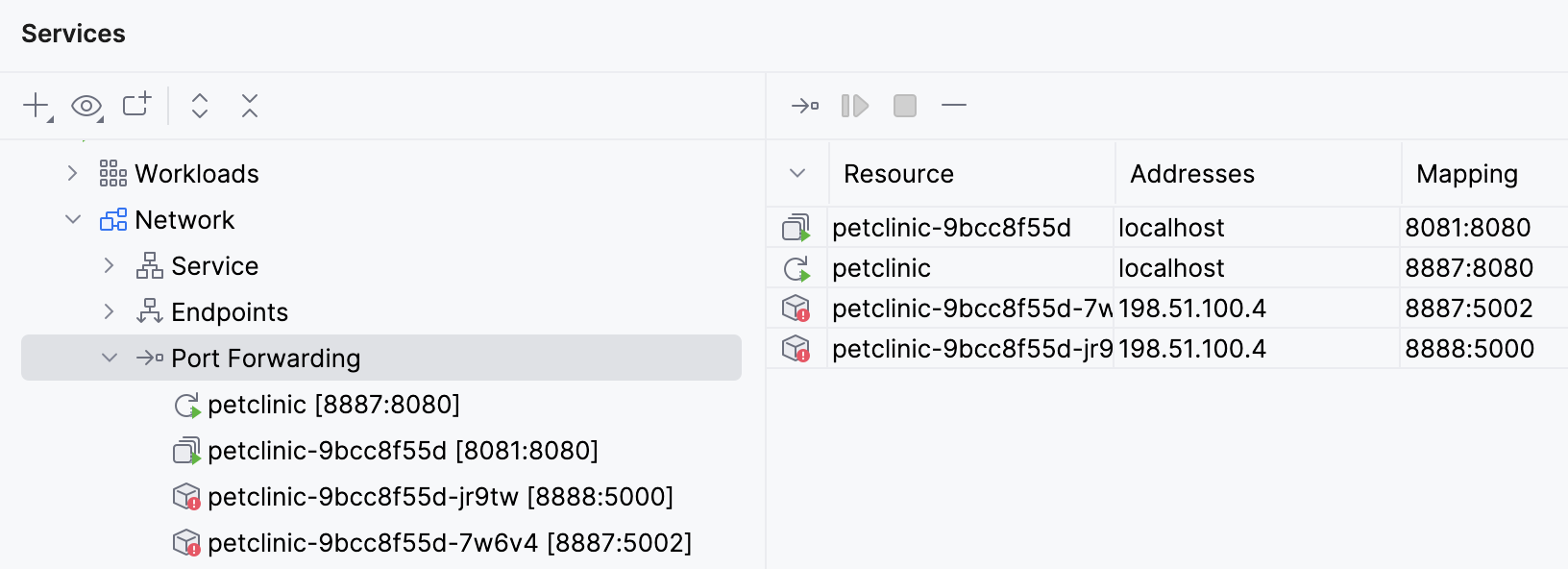
To terminate a port-forwarding session, right-click it and select Stop Port Forwarding or click
 on the toolbar.
To restart a port-forwarding session, right-click it and select Restart Port Forwarding or click
 on the toolbar.
Create secrets
With IntelliJ IDEA, you can quickly create Kubernetes Secrets.
Open the Services tool window: go to or press Alt+8.
Select a cluster and expand Additional Kubeconfig Paths.
Right-click the Secret node and select Create New Secret. Alternatively, select the Secret node and click
 on the toolbar.
In the Create New Secret window that opens, specify the secret name, type, and namespace. To speed up secret creation, IntelliJ IDEA adds required data or annotation keys depending on the selected secret type.
In the Data and Annotations section, click Value and enter values for existing keys, or you can click
and choose the way to provide values:Add Manually to manually enter the value.
Use File Data to select a file (for example, an SSH key file or a Docker config.json) to use the file contents as the value.
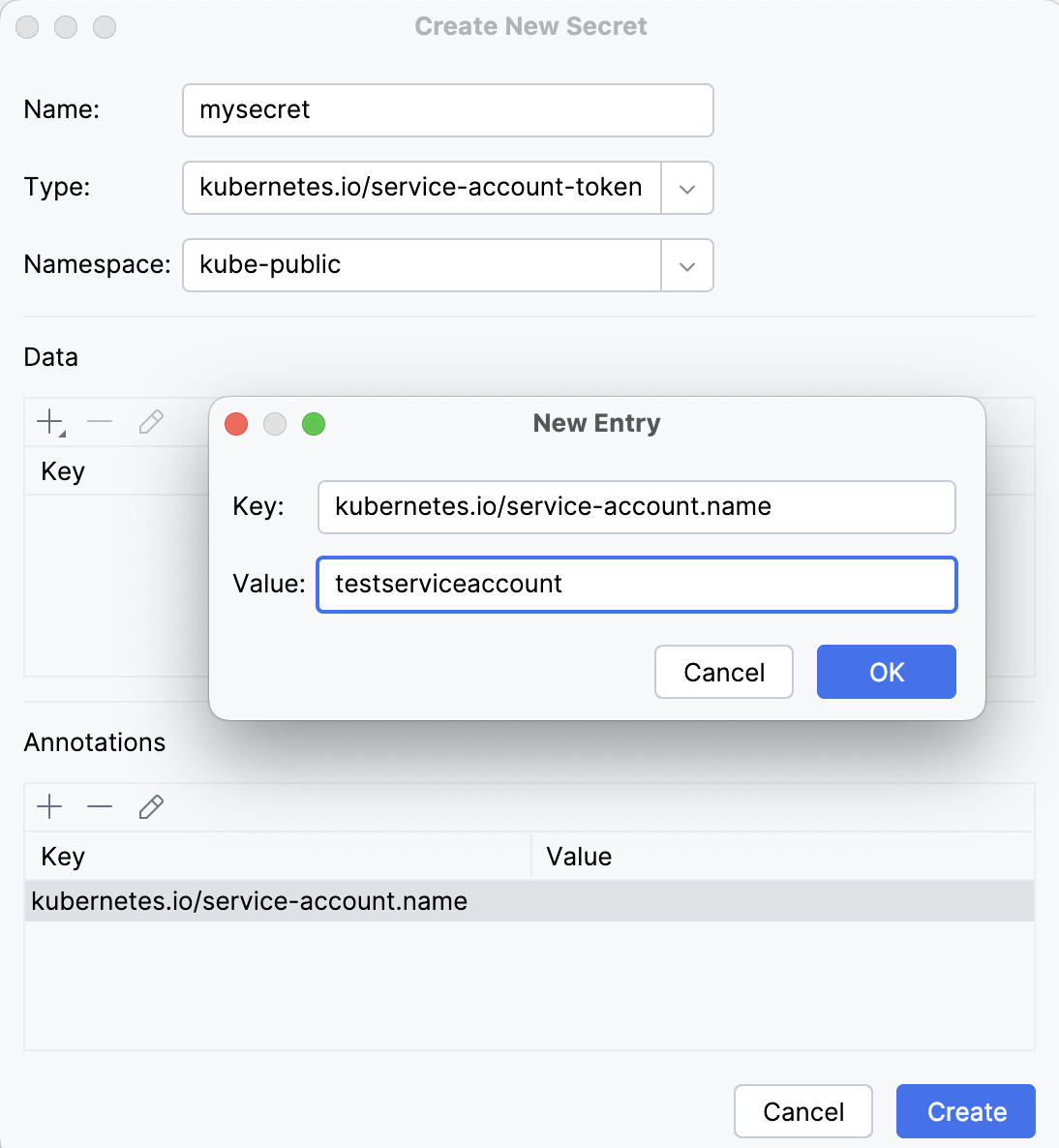
You can view all your Secrets in the Services tool window, under Additional Kubeconfig Paths. To edit a secret, right-click it and select Edit Secret or click  on the toolbar.
Once a Secret is created, you can start typing its name in secretName fields of your Pod configuration file. This will invoke completion for Secret names available in the cluster or in your project.
When working with YAML files that reference secrets, IntelliJ IDEA provides inlay hints with the actions that help you quickly inspect or reuse secret values.
Show: Reveals the decoded value of the referenced secret in a popup.
Copy: Copies the decoded secret value to your clipboard for temporary use.
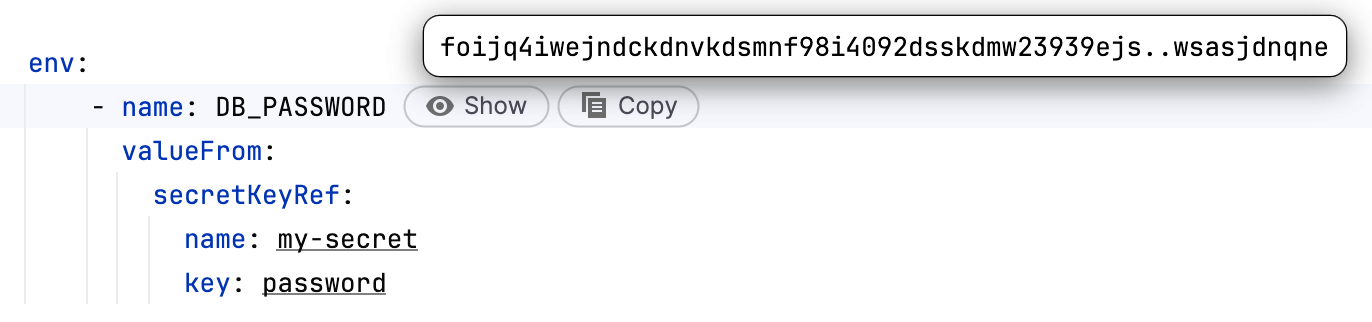
Both actions access and display the real value defined in the secret, rather than the encoded or placeholder text in YAML.
If your account lacks sufficient permissions, clicking the button displays a corresponding tooltip. This prevents accidental exposure of restricted data.
Keep your cluster information up to date
To keep IntelliJ IDEA synchronized with your clusters, use the following actions:
Reload Configuration to get the latest changes in your kubeconfig file.
Refresh Resources to get the latest changes in your Kubernetes resources. This is usually done automatically, provided you have the necessary permissions.
Reload configuration
By default, the configuration is automatically reloaded when you change your kubeconfig file. You can still reload it manually.
Open the Services tool window: go to or press Alt+8.
Right-click a cluster and select .
If you want to disable automatic reload, clear the Reload Configuration Automatically option.
You can also check this setting in the IDE settings (Ctrl+Alt+S), in .
Refresh cluster resources manually
If you have connected to a cluster, any changes you make to its resources will be automatically reflected in the IDE. If your resources are not automatically updated (due to missing rights of your cluster role), there is a message about automatic refresh being forbidden in the Services tool window. In this case, you can refresh resources manually.
Open the Services tool window: go to or press Alt+8.
Right-click a group of resources and select Refresh or click Ctrl+F5.
View logs
With IntelliJ IDEA, you can view cluster logs and logs from selected resources. You can filter them by date, source, and specific values in log messages.
Open resource logs in the editor
Open the Services tool window: go to or press Alt+8.
Select the log source in one of the following ways:
To view logs for all resources, select your Kubernetes cluster and click
 (Follow Log) on the toolbar of the Services tool window.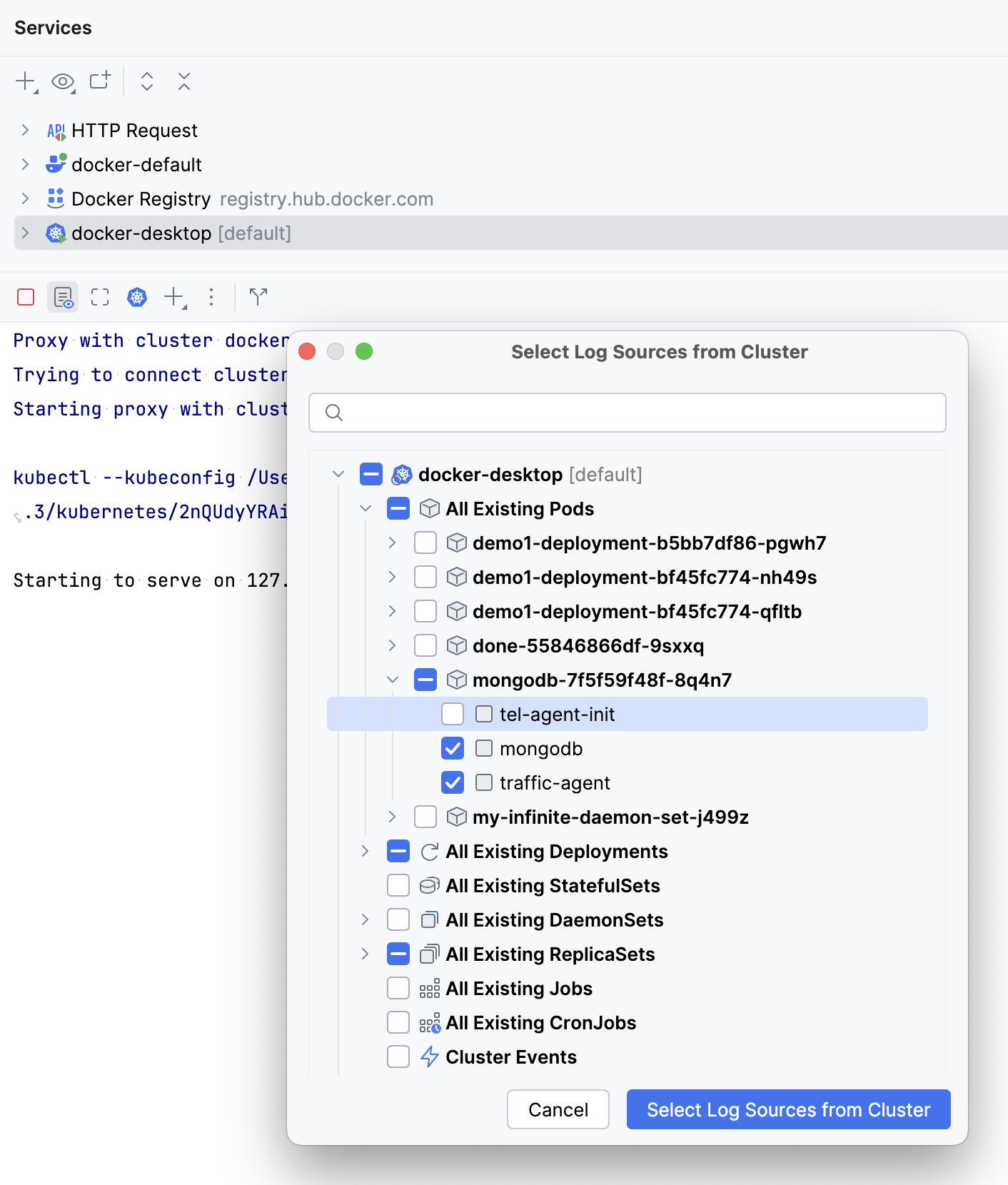
To view logs for a particular resource, select the resource and click
(Follow Log) on the toolbar of the Services tool window. Alternatively, right-click a resource and select Follow Log.If multiple containers exist in the pod, select the one you want to follow logs for from the displayed list of containers.
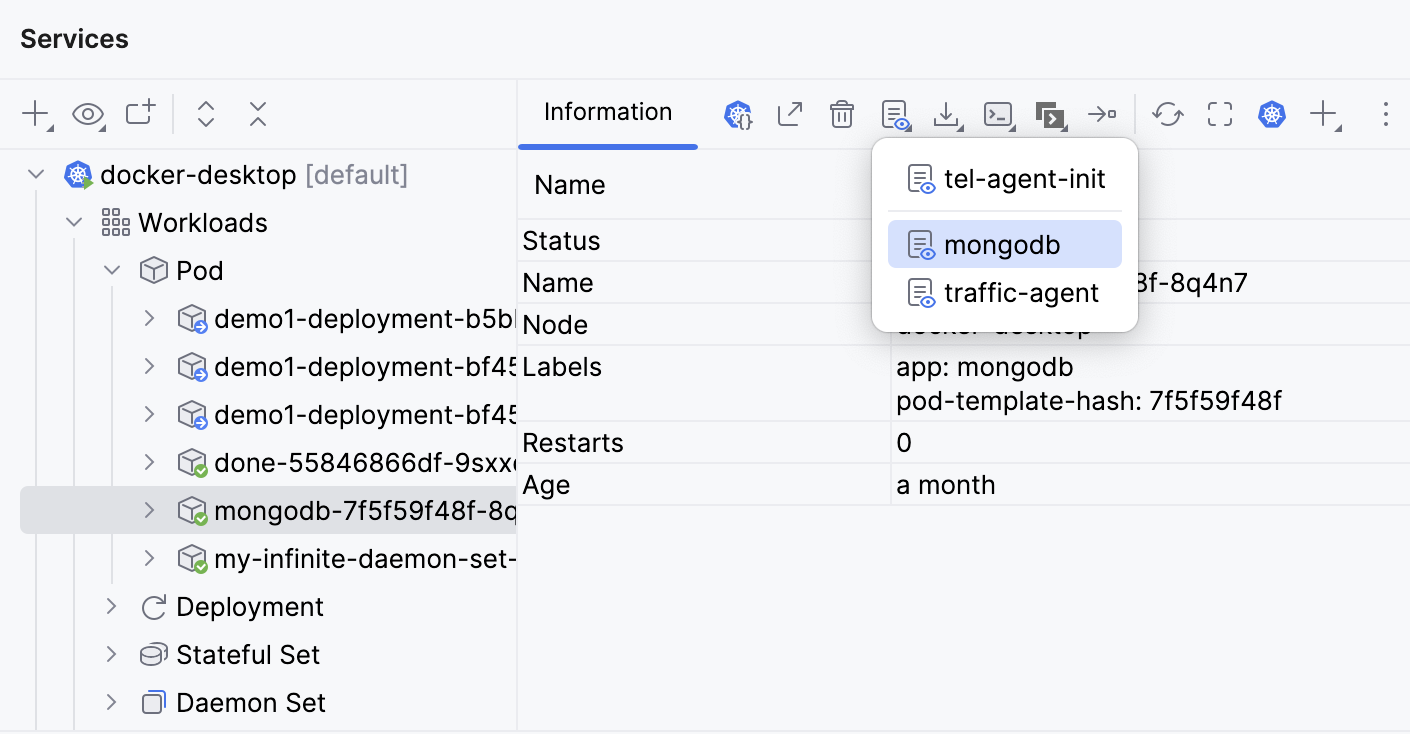
This will live tail logs of the selected resource with the --follow=true flag and open them in a new editor tag.
Manage logs
When viewing cluster logs or logs from selected resources, you can use the main toolbar (1) or the floating toolbar (2) to work with the log output. The floating toolbar provides quick access to frequently used actions.
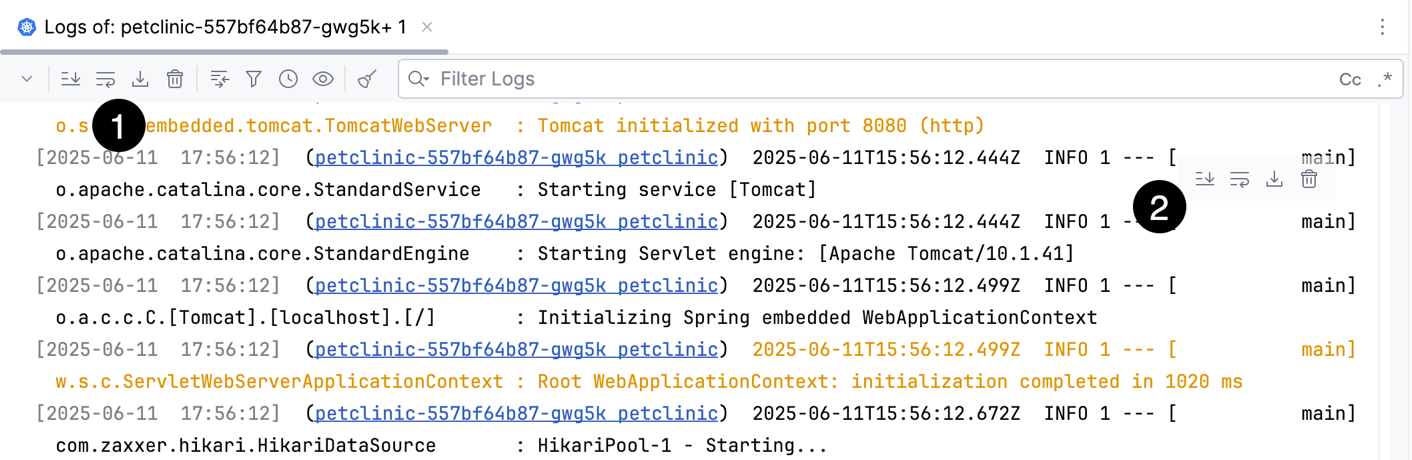
 (Scroll to End): jump to the end of the log output.
 (Soft-Wrap): enable soft-wrapping for log entries when the editor is resized.
 (Download Filtered Logs): download the logs currently opened in the editor, taking into account any filters applied.
- (Clear Displayed Logs): clear the log entries displayed in the editor. This action affects only the current view. When you reopen logs for the same resource, the entries will reappear.
Filter logs
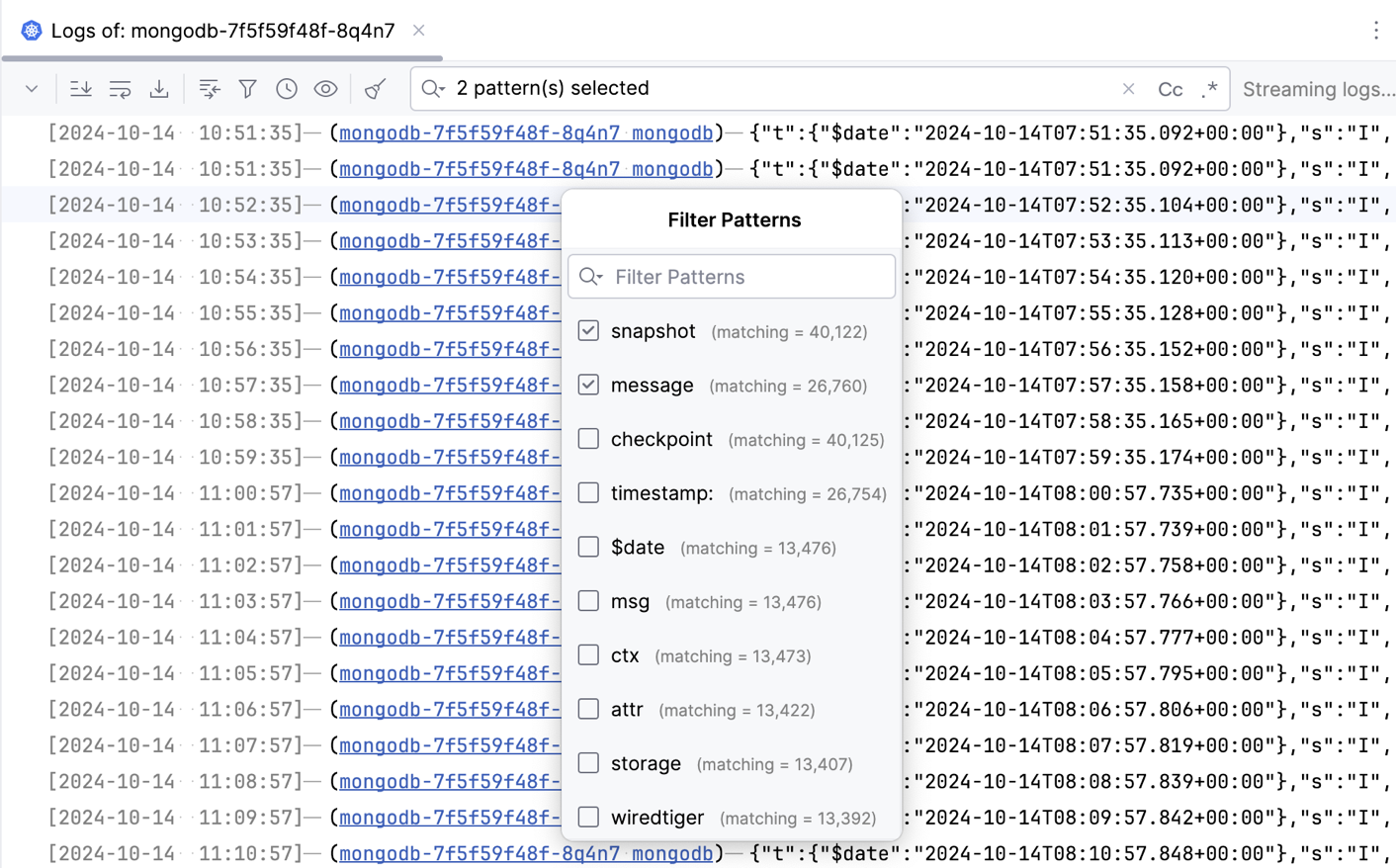
Once you've opened logs, you can refine the log list using the following filters at the top of the editor:
 (Open Pattern Matching): enter or select values or patterns that you want your log data to match. For example, if level information is present in your logs, you can select
 warn,error, or other level values to show only logs corresponding to these levels. (Select Log Sources): select your cluster resources for which you want to show logs.
 (Filter by Date and Time): select a time range for which you want to show logs.
 (Select Log Fields): select whether you want to show log timestamps, source, and messages.
In the input field on top of the editor tab, enter values from log messages. Click
 to use regular expressions and
  to make the search case-sensitive.
 (Clear All Log Filters): discard all the applied filters (except sources) and show all logs.
You can define regular-expression-based highlighting rules for log entries to identify and distinguish important messages, such as errors, warnings, and informational events. In the IDE settings (Ctrl+Alt+S) under , use the Filters table to create and manage rules. For each filter, you can specify a regex pattern and customize its appearance by enabling Bold, Italic, and selecting a color.
Download logs for a single container
Open the Services tool window: go to or press Alt+8.
Select a resource and click
(Download Log) on the right-side toolbar to save the log file.
Configure log options
You can configure log options in the IDE settings (Ctrl+Alt+S) under :
If you want to save logs automatically in a location other than Scratches, specify a directory in Save logs to. Or select Ask where to save log before downloading to prompt you to the location every time you save logs.
To include the log timestamp in the filename, select Append timestamp to log file name.
If you want to remove ANSI color and formatting codes from Kubernetes logs and display them as plain text, select Strip ANSI codes from logs.
Using the Show cluster events in option, you can choose where to display the log output: in the editor or in the Services tool window.
The default log cache size is 300 MB. The IDE notifies you when you exceed this limit. If you want to change the threshold for these notifications, enter the desired value in Warn when log cache exceeds.
To adjust the frequency of log updates in the editor, specify the delay in milliseconds in Log editor update delay in milliseconds.
Custom resource definitions support
If you extend the Kubernetes cluster with custom resources, IntelliJ IDEA can validate them with custom resource definition (CRD) specifications.
Specify the path to CRD specifications
Press Ctrl+Alt+S to open settings and then select .
In the CRD and OpenAPI Specifications table, click
and either select a local CRD file or specify a URL. Then click OK.
Use  and
and  to rearrange the list of CRD files. This defines the priority for conflicting definitions: IntelliJ IDEA will use the lowest one if it is defined in more than one file.
By default, CRDs are applied to the current project only. Change the Scope: option to IDE if you want a certain CRD to be available for any project that you open with this IDE instance.
To load the CRD from the running Kubernetes cluster, enable Use API schema from the active cluster if available.
You can view CRDs for the current cluster, including all their applied resources, under the Kubernetes node of the Services tool window.
The Kubernetes plugin supports CRD files of the following types:
CustomResourceDefinition files in YAML
The following example shows a simple CustomResourceDefinition specification for a custom resource stable.example.com/v1 of the kind CronTab. Obligatory fields to identify the resource are metadata.name, spec.group, spec.versions, and spec.names.
OpenAPI v2.0 schema in JSON
The following example shows a simple OpenAPI v2.0 schema with a CRD specification for a custom resource sample/v1 of the kind Config. The root definition of the custom resource must contain the x-kubernetes-group-version-kind field with the specified group, version, and kind. In the example, the root.Definition object uses a build property to reference the some.Definition object.
CRD validation restrictions
IntelliJ IDEA does not support the following OpenAPI v3 schema features:
multipleOfmaximumexclusiveMaximumminimumexclusiveMinimummaxLengthminLengthpatternmaxItemsminItemsuniqueItemsmaxPropertiesminPropertiesallOfoneOfanyOfnotformatdefaultnullablereadOnlywriteOnlyxmlexternalDocsexampledeprecated
Productivity tips
If you use the features described here frequently, the following tips may be helpful:
Assign shortcuts
You can assign a keyboard shortcut for Kubernetes actions.
In the Settings dialog (Ctrl+Alt+S) , select Keymap.
Type
kubernetesin the search field, then double-click an action to set a shortcut for it.
Alternatively, you can use the Find Action dialog Ctrl+Shift+A, type the necessary action and, and press Alt+Enter.
For example, you can assign a shortcut to Interact with Cluster to quickly open the context menu while modifying a resource configuration file.
Configure code folding
By default, IntelliJ IDEA uses code folding to render value references in Helm templates and definitions in Kubernetes configuration files as the actual values. You can click the value to expand it or press Ctrl+NumPad + and Ctrl+NumPad - to toggle folding. If you want to see the references and definitions expanded by default, do the following:
In the Settings dialog (Ctrl+Alt+S) , select .
On the Code Folding page, clear the necessary checkboxes:
Kubernetes: value references in Helm templates
Kubernetes: EnvVar definitions in YAML files
Kubernetes: ExecAction definitions in YAML files