Inlay hints
Inlay hints are special markers that appear in the editor and provide additional information about your code, like the names of the parameters that a called method expects. Other types of hints inform you about annotations, code authors, usages, and so on (depending on the language).
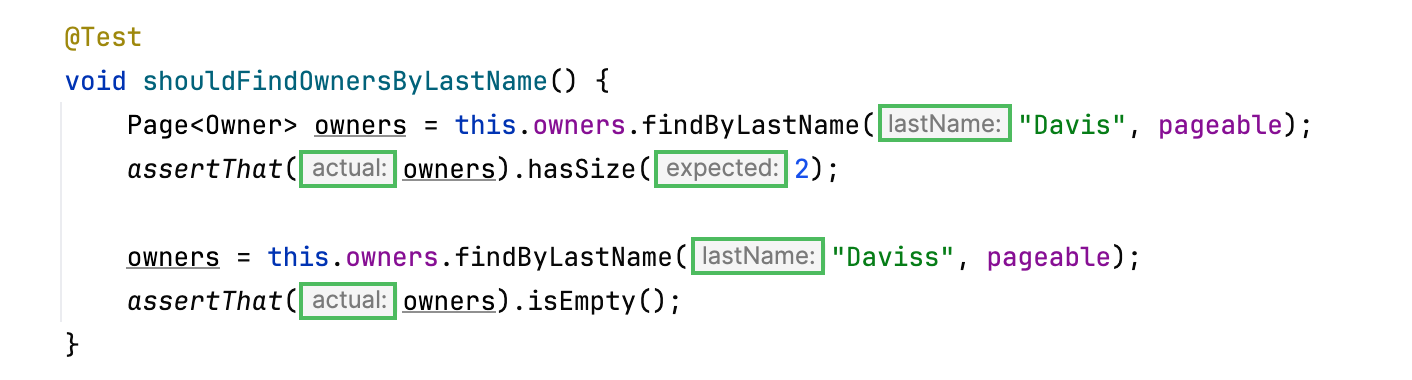
Inlay hints appear in the editor and provide you with additional information about your code to make it easier to read and navigate.
Enable or disable inlay hints
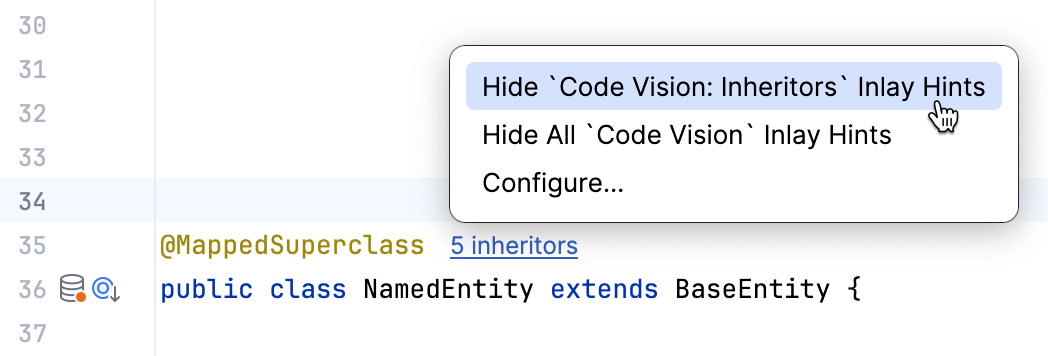
To disable a hint that is currently in front of you in the editor:
Right-click the hint and select whether you want to disable the specific type of hints or all hints in this category.
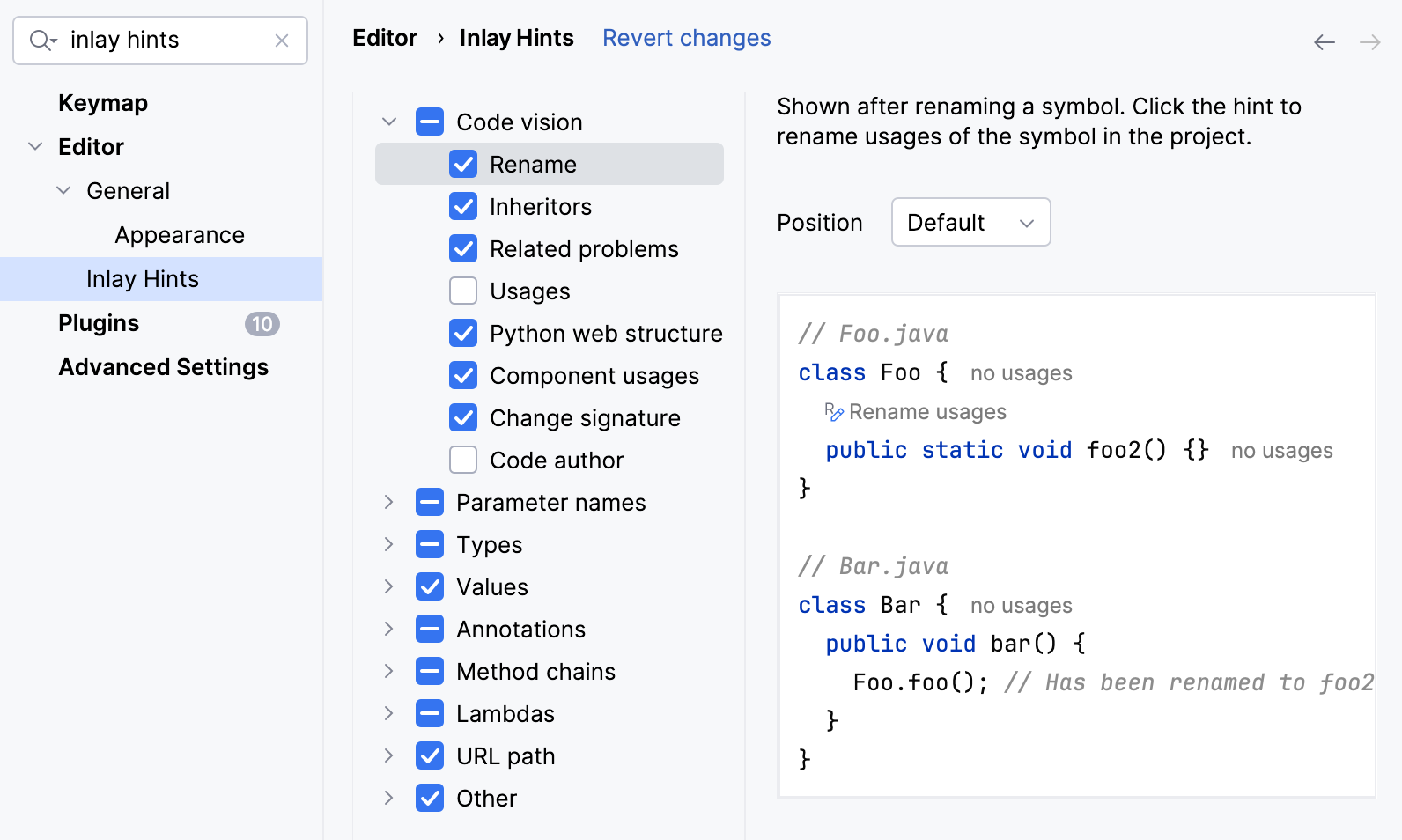
To configure one or more specific groups of inlay hints:
Open the Settings dialog (Ctrl+Alt+S) , go to , and use the checkboxes next to the hints to hide or show the corresponding category of inlay hints.
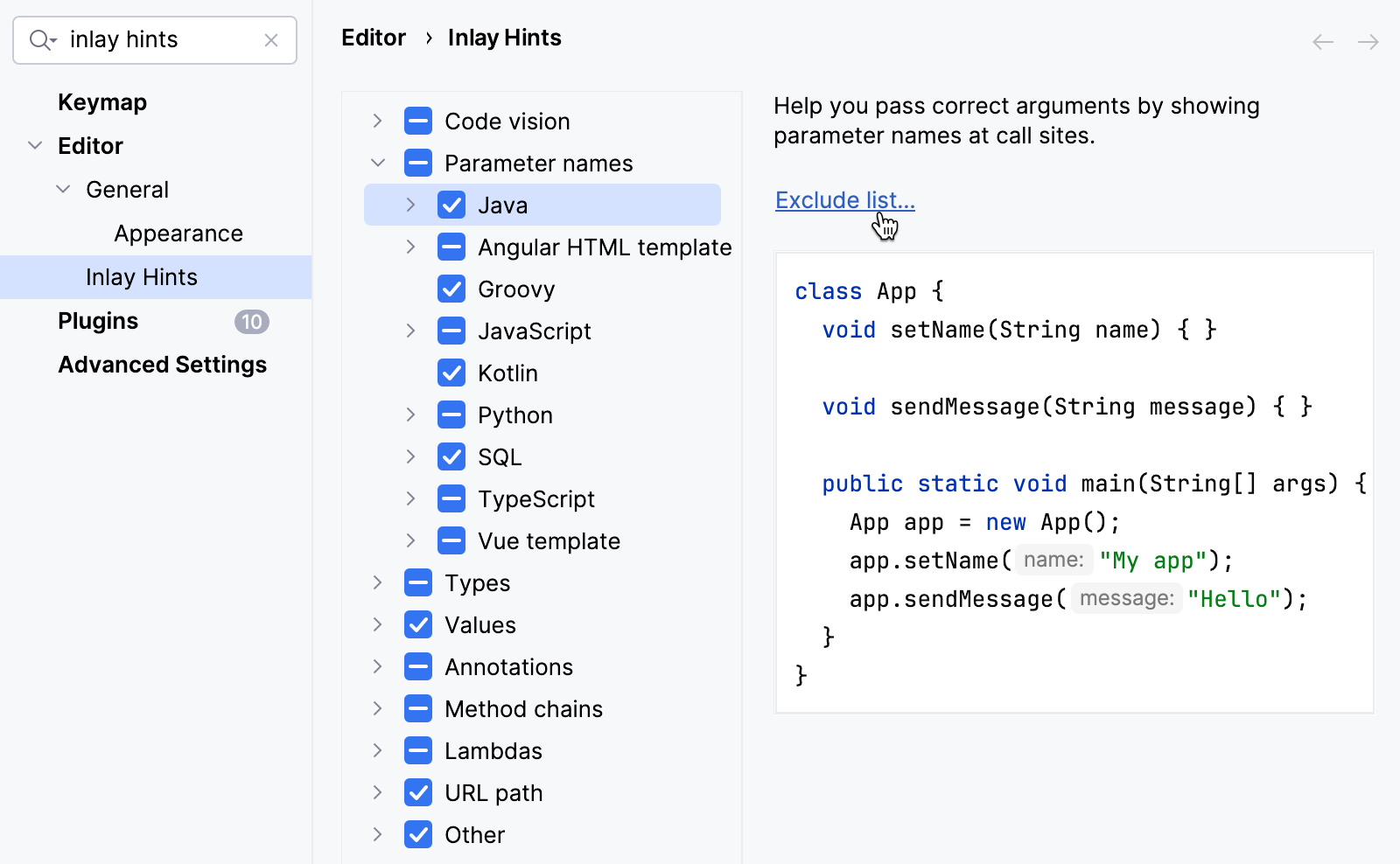
To disable inlay hints for a specific class or method (where applicable) :
Open the Settings dialog (Ctrl+Alt+S) , go to , and click Exclude list. In the dialog that opens, specify the list of symbols to exclude using fully qualified names or wildcard syntax.
To enable or disable all inlay hints at once, use the Toggle Inlay Hints Globally action in the Search Everywhere dialog.
Press Ctrl+Shift+A and start typing
Toggle Inlay Hints Globally. Use the switcher to enable or disable inlay hints in IntelliJ IDEA.Additionally, you can assign a shortcut for this action. Open the Settings dialog (Ctrl+Alt+S) and go to the Keymap page. Type
Toggle Inlay Hints Globallyin the search field, then double-click the action to set a shortcut for it. For more information, refer to Configure keyboard shortcuts.
The list of available languages, contexts, and hint types depends on the installed and enabled plugins. In the inlay hints settings (), you can learn more about the available inlay hints, preview how they appear in the editor, and configure their position.
Configure the appearance of inlay hints
Inlay hints take their color and style from the color scheme. Their size is based on the editor font: most hints are rendered one point smaller than the surrounding code and follow the editor zoom level. By default, IntelliJ IDEA uses the font configured for the IDE user interface.
Change the color and style of inlay hints
In the Settings dialog (Ctrl+Alt+S) , go to , then select Inline hints.
Select the inlay hint type and state, and configure the font color and effects as required.
Use the editor font for inlay hints
In the Settings dialog (Ctrl+Alt+S) , go to .
Select the Use editor font for inlay hints option.
After enabling the option, IntelliJ IDEA uses the font configured in for inlay hints.