Query files
Overview
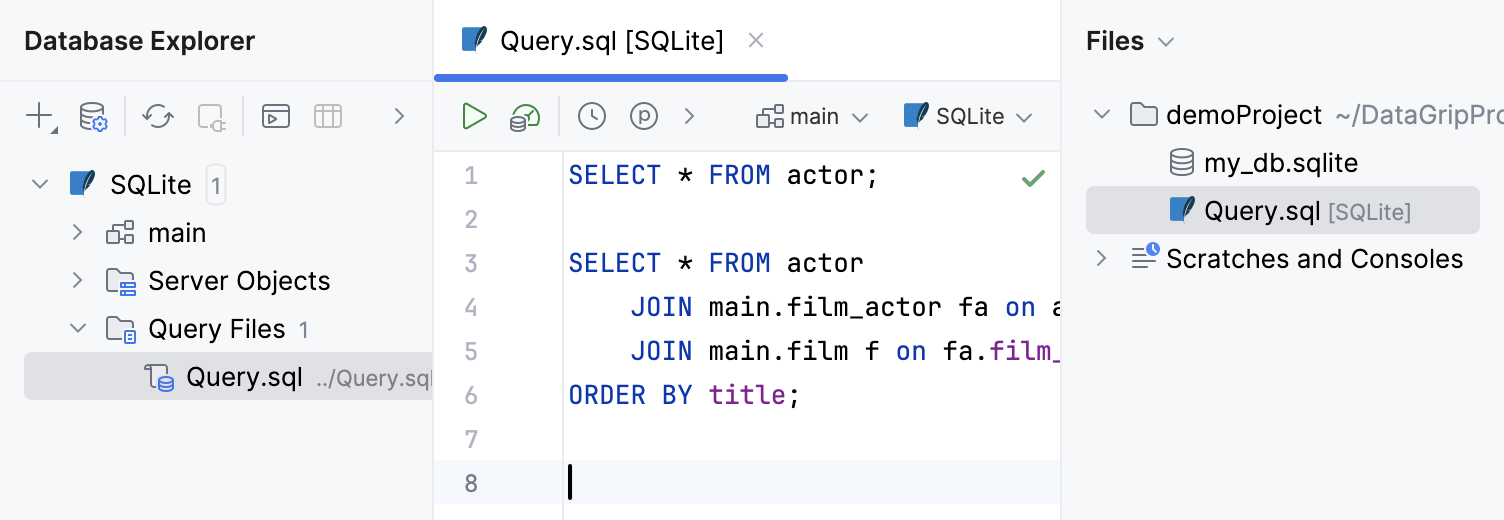
Query files are SQL files that are associated with a data source. You can write and execute SQL statements in query files the same way as you do it in terminal.

For more information about working with query results in query files, refer to Query results.
When you create a data source, a query file is created automatically and associated with this data source by default. If necessary, you can create additional query files for this data source. You can also associate a query file with a different data source using the data source dropdown on the toolbar.
The following video gives a short overview of query files in DataGrip.
Location
By default, query files are stored in the queries subdirectory of the project directory.
- Syntax
%HOMEPATH%\<product>Projects\<project_name>\queries
- Example
C:\Users\JohnS\DataGripProjects\my_project\queries
- Syntax
~/<product>Projects/<project_name>/queries
- Example
~/DataGripProjects/my_project/queries
- Syntax
~/<product>Projects/<project_name>/queries
- Example
~/DataGripProjects/my_project/queries
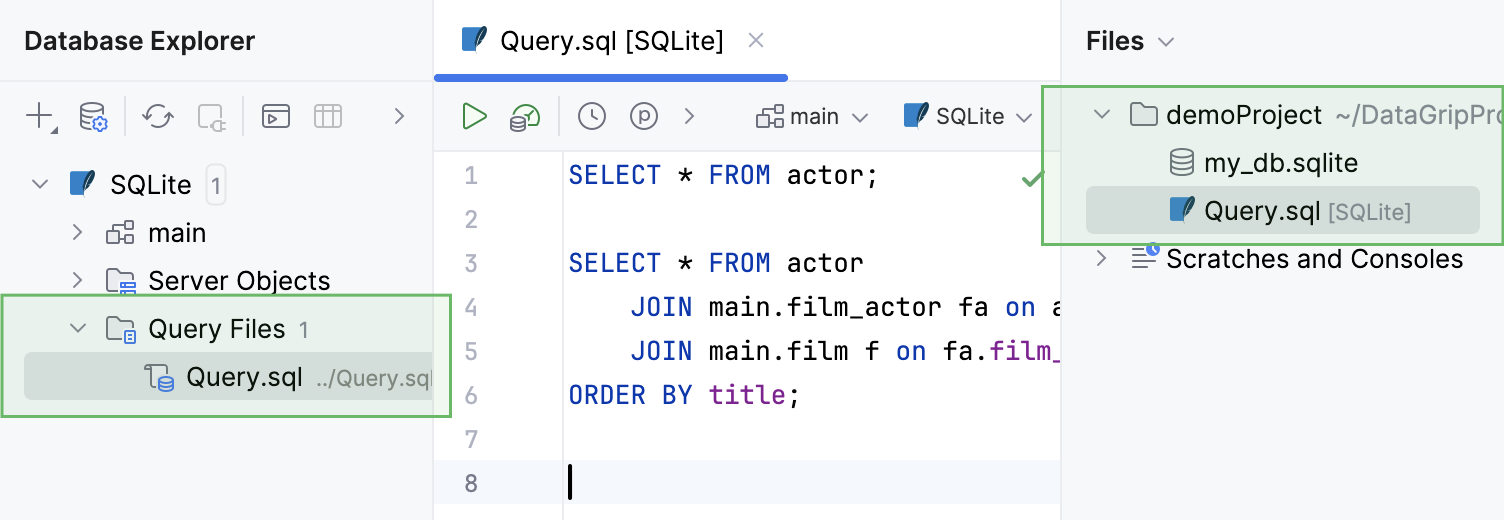
In the IDE, you can find the directory in the Files tool window Alt+2.

Change the query files directory
Press Ctrl+Alt+S to open settings and then select .
In the Query files directory field, specify the directory.
Apply the changes and close the dialog.

Code editor
The code editor is where you compose your SQL statements using the resolve modes and coding assistance features, and execute them against the associated data source.
Find the code editor toolbar controls in Code editor controls. Read more about the editor in Editor basics.
SQL statement execution
When you execute a statement, the Services tool window opens. The Services tool window displays available connection sessions, Output and Result tabs. For more information about the tool window, refer to theServices tool window topic.
If the executed statement retrieves data (for example,
SELECT), results are displayed in the Result tab that has a title of a qualified table name. For more information about creating custom titles for result tabs, refer to Use custom titles for tabs with results.If the executed statement does not retrieve data, results are displayed in the Output tab.
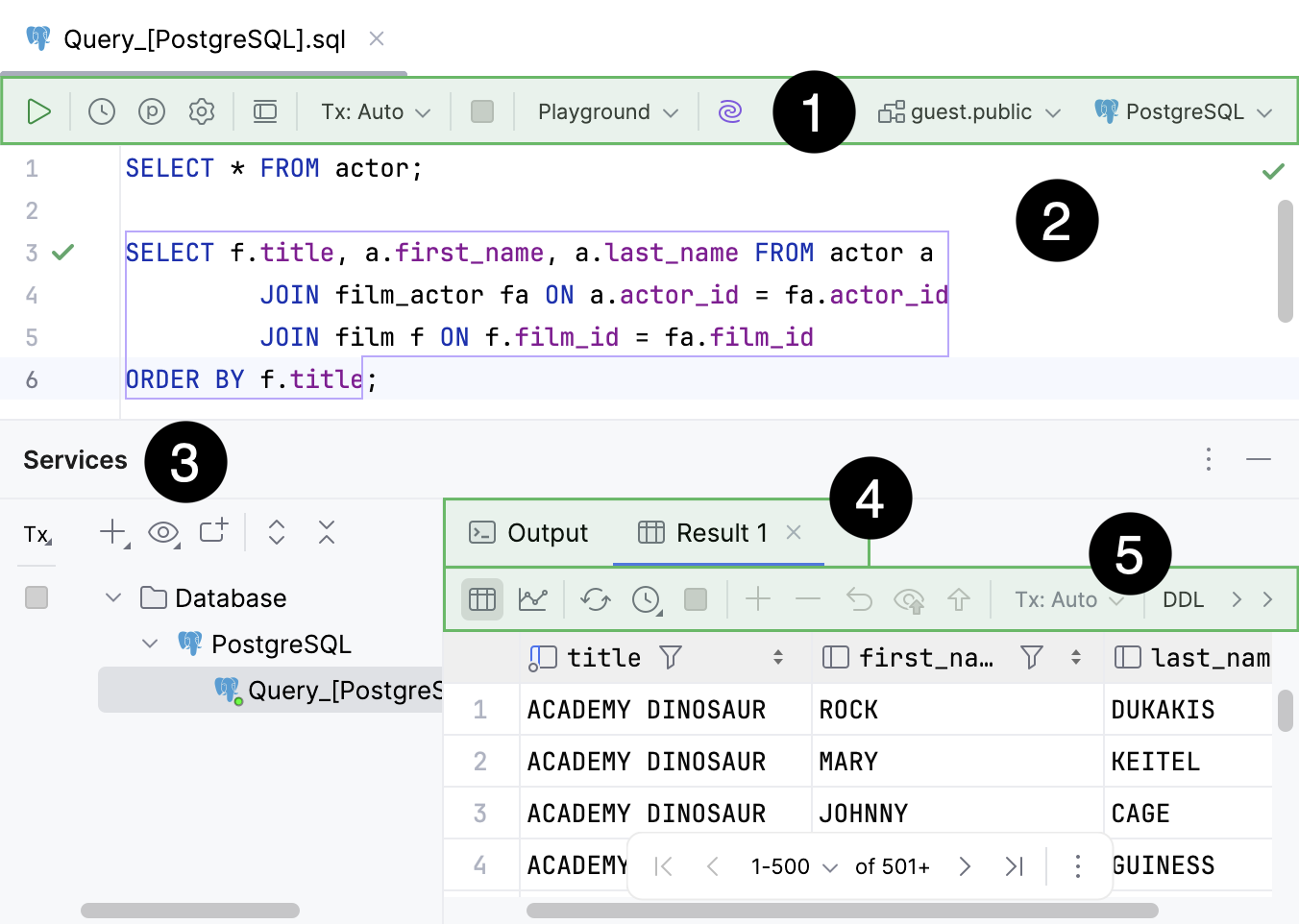
Services tool window.
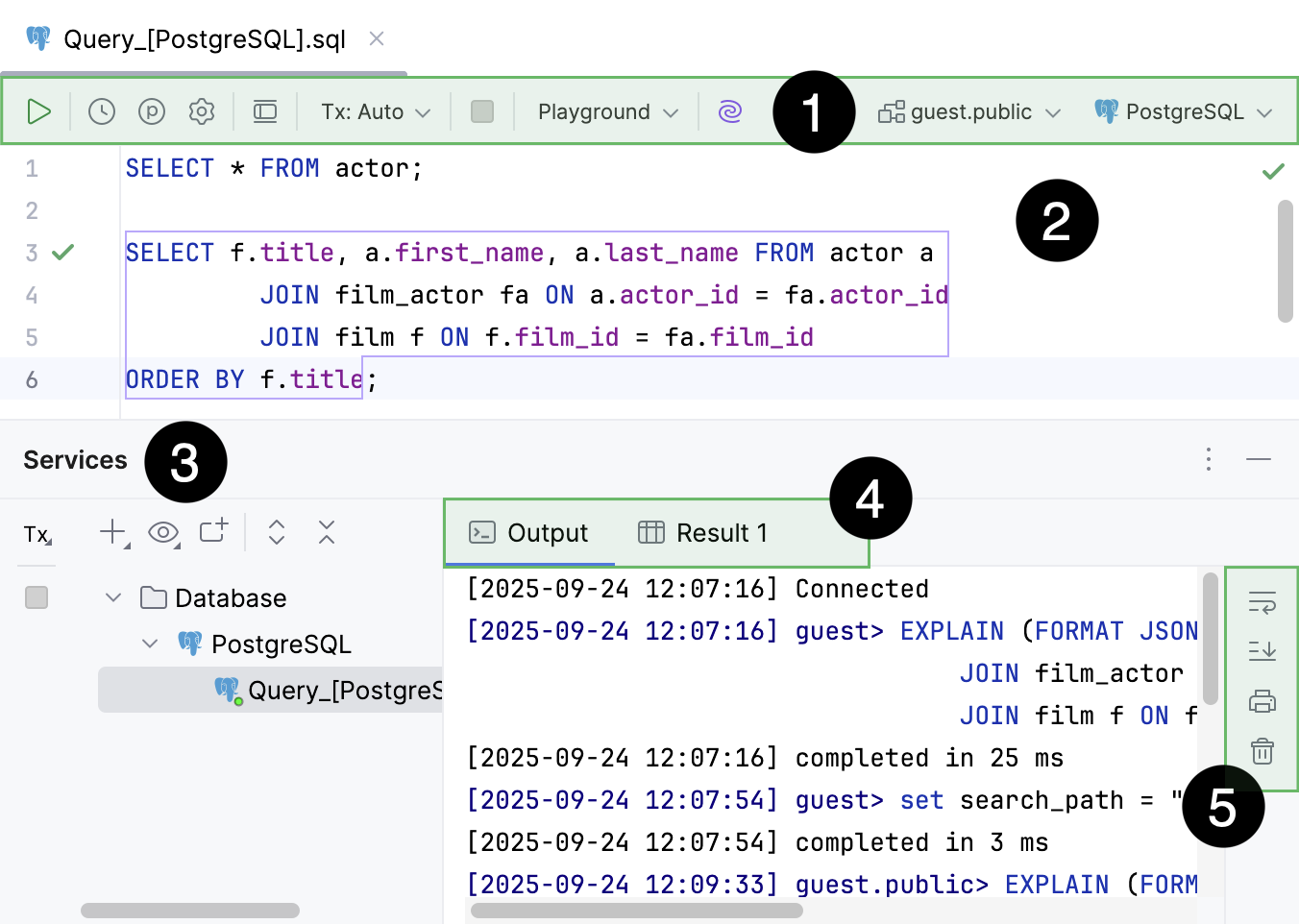
Services tool window.
Work with query file
Create a query file
To create a query file, use one of the following actions in the Database Explorer (⌘ 1) .
Click a data source and select .
Right-click a data source and select .
Click a data source, press Alt+Insert, and select Open New Query Console.
Click a data source, press Ctrl+Shift+F10, and select New Query File.
Click a data source and press Ctrl+Shift+Q.
Open a query file
When a query file is open, you can write SQL here, run it and get the result.
To open the default query file directory In the Files tool window, expand the current project directory and navigate to the queries.
In the Database Explorer, click
Jump to Query Console, navigate to the All submenu, and select a query file that you want to open or create a new one.
To open the default query file of a data source, click the data source and press F4.
Rename a query file
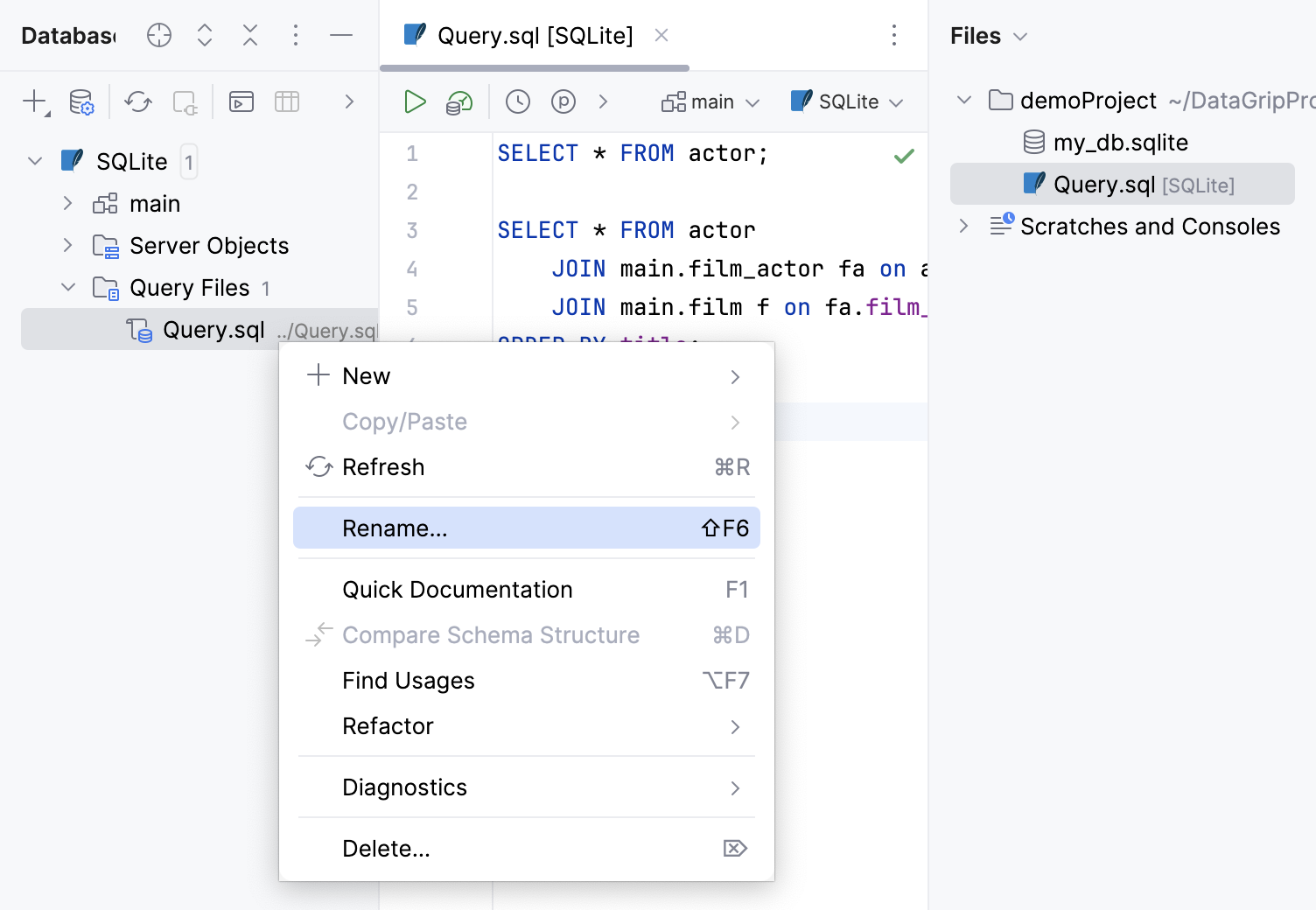
To rename a query file, do one of the following:
Right-click a query file tab and select Rename File.
Open the Files tool window Alt+2 and navigate to the queries subdirectory of the current project directory . Right-click the query file and select Rename (Shift+F6).

Delete a query file
In the Files tool window, navigate to the queries subdirectory of the current project directory .
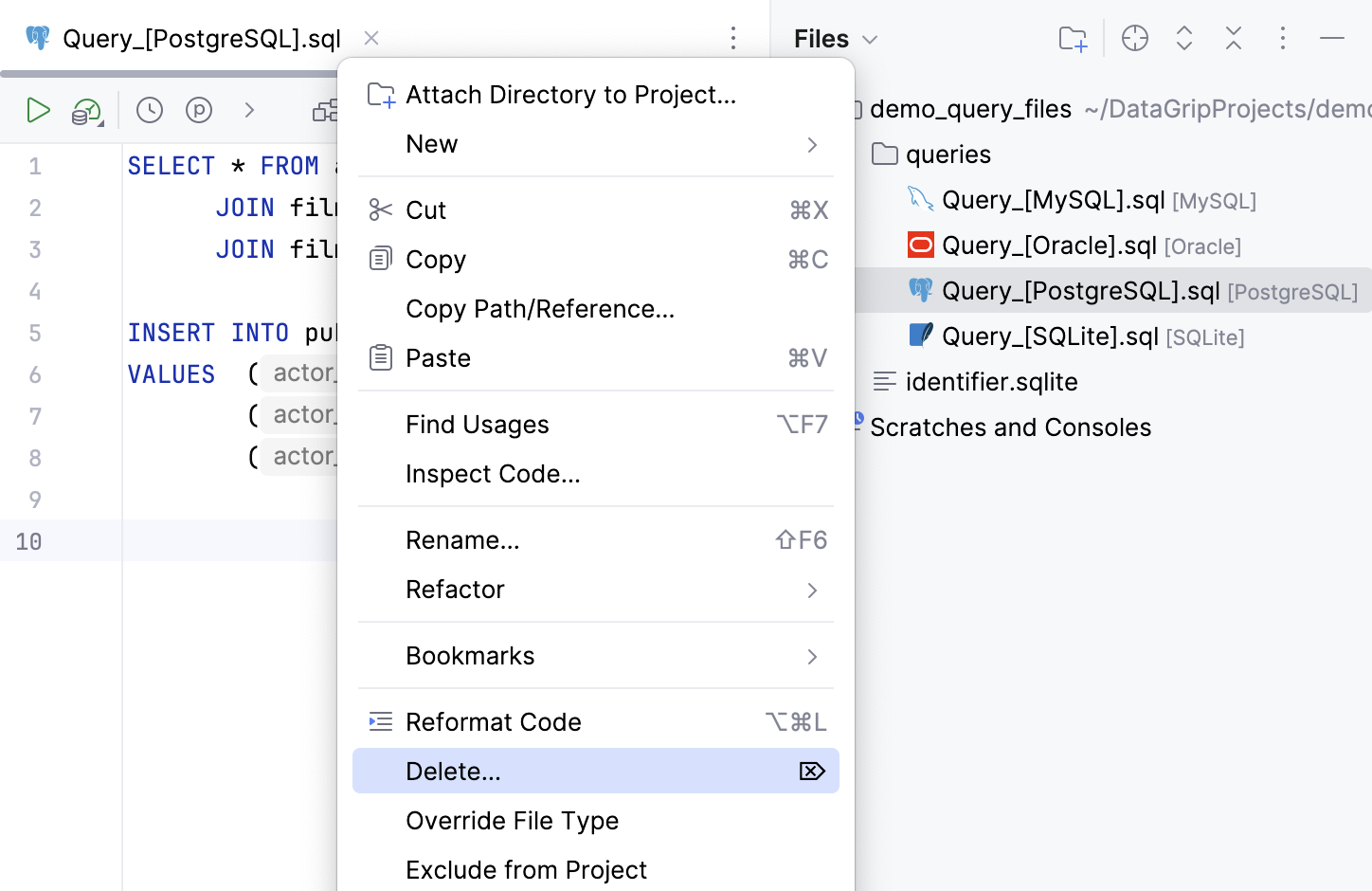
Right-click a query file and select Delete. Alternatively, press Delete.

Copy a query file to a new location
In the Files tool window, navigate to the queries subdirectory of the current project directory .
Right-click a query file and select .
In the To directory field, specify a new location for the file.

Open a query file in the file browser
To open a query file in your file browser, do one of the following:
Right-click a query file tab and navigate to .
Open the Files tool window Alt+2 and navigate to the queries subdirectory of the current project directory . Right-click the query file, and select .

Configure query file settings
Set the default schema
When you select the default schema for a query file, you can omit the name of that schema or database in your statements.
To set the default schema or database, click the <schema> dropdown located in the upper-right part of the toolbar. Then, select the schema that you need.
For more information about schemas, refer to the Schemas topic.

View query execution settings
Open a query file and click
Open Query Execution Settings on its toolbar.
Open settings by pressing Ctrl+Alt+S, navigate to . For more information about the settings, refer to Query execution.

Associate a query file with a data source
To associate a query file with a different data source, do the following:
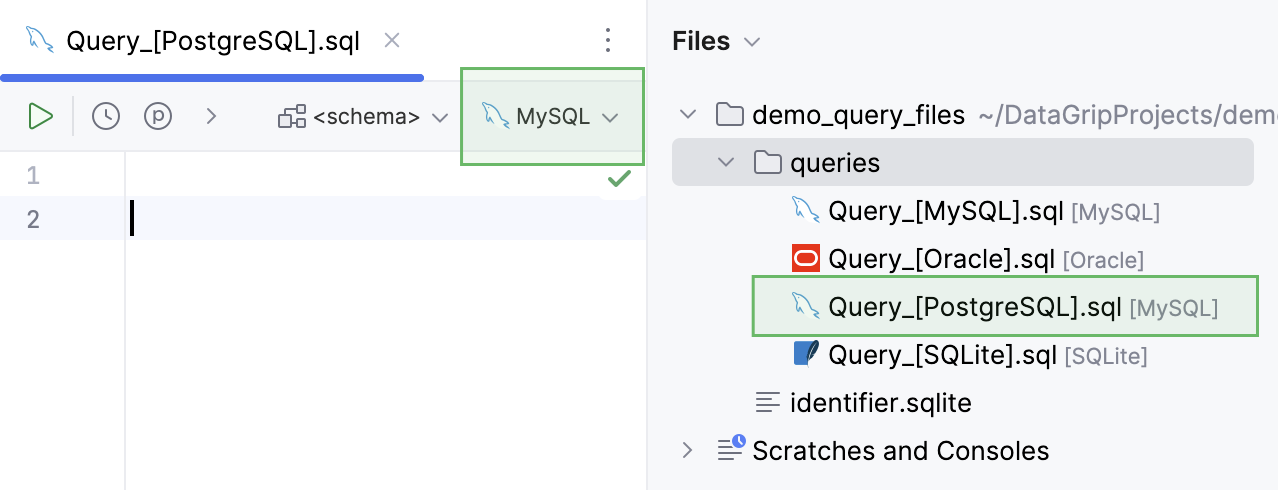
On the toolbar of query file, click the data source dropdown.
Navigate to the All submenu and select the data source you want to associate the query file with.
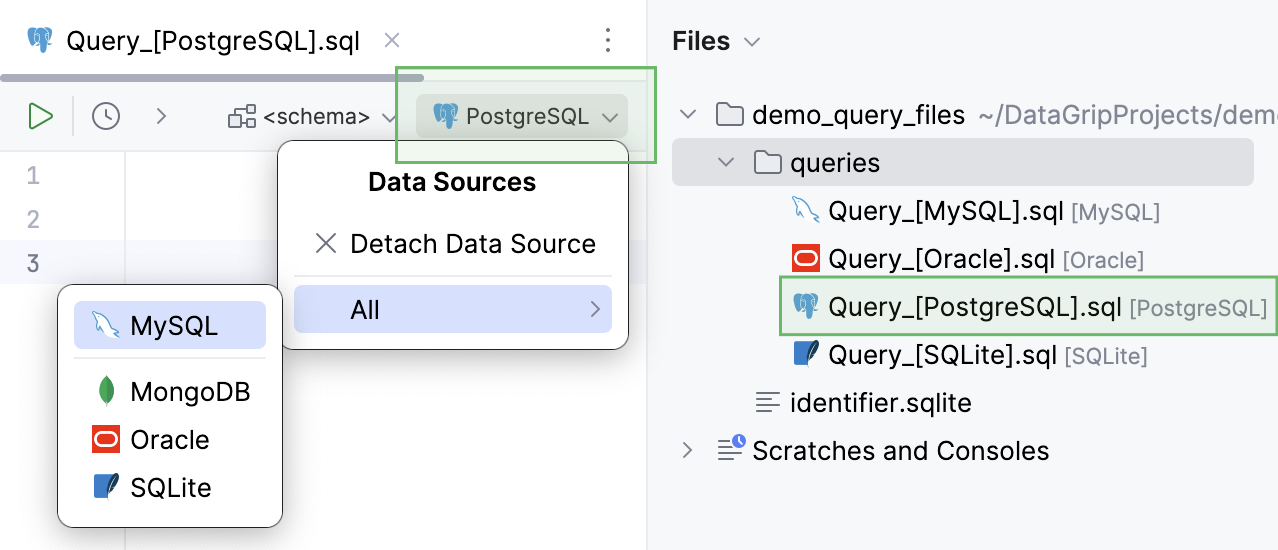
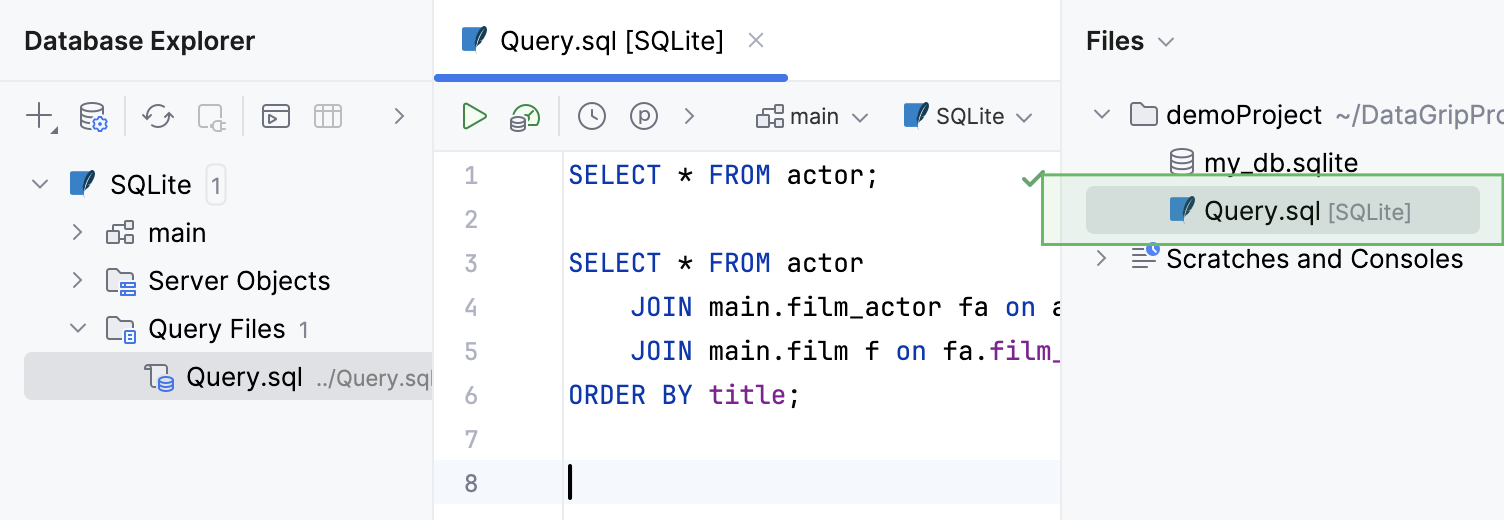
DataGrip automatically associates the query file with the data source you select. After the association, the query file name remains the same and data source is indicated new the query file name in the Files tool window.
Configure query file dialects
Change the SQL dialect in the code editor
Right-click the editing area and select Change Dialect (<current_dialect>) to. In the Change SQL Dialect window, select a dialect.
Productivity tips
View history of a query file
In a query file, right-click any area and select .
Apply a code style in the editor
Right-click any area or a selection of code in the editor and select Reformat Code. Alternatively, press Ctrl+Alt+L.
Select the scope.
Click Run.

View the file path of a query file
To see the details of a file, hover over the query file tab.

Navigate to a query file from the Select In window
Press Alt+F1, select Files View and press Enter.

Edit data in INSERT statements as a table
Select
INSERTstatements that you want to edit.Right-click the selection and click Edit as Table.

In the table editor that opens, make necessary changes in the table cell. Press Enter to confirm.
Context menu
In the code editor context menu, use the following actions to increase your productivity:
Edit as Table
In
INSERTstatements, opens the editor for working with the data in a table format.- Change Dialect (<CurrentDialect>)
Oracle only. Change the SQL dialect. Select a dialect from the list.
Shows an execution plan (or explain plan) for the current statement. The result is shown in a mixed tree/table format on a dedicated Plan tab.
To build a diagram of the execution plan, click
Show Diagram on the left of the Plan tab, or press Ctrl+Alt+Shift+U.
To build a flame graph, click
Flame Graph.
Shows an execution plan (or explain plan) for the current statement. The result is shown in table format. Technically,
EXPLAIN <CURRENT_STATEMENT>or similar statement is executed.Execute Ctrl+Enter
Execute the current statement or the sequence of selected statements.
Execute to File
Execute the current statement and save results in a text file. Select the output format and specify the file location and name.
- Run 'query file [data_source]' Ctrl+Shift+F10
Execute all the statements in the query file.
- Ctrl+Alt+Shift+U
Opens a diagram in a separate editor tab.
- Ctrl+Alt+U
Opens a diagram in a popup.
Query file reference
Use the code editor to compose and execute your SQL statements as well as to perform other associated tasks.
Read more about the editor in Editor basics.
Toolbar controls
Icon | Action and shortcut | Description |
|---|---|---|
Execute Ctrl+Enter | Execute selected SQL statement or statements. If nothing is selected, the current statement is executed. | |
Explain Plan | Open the Explain Plan actions menu. For more information about functionality, refer to the Query execution plan topic. | |
Browse Query History Ctrl+Alt+E | Open a dialog that shows all the statements that you have run for the corresponding data source. See also, Use the Query History dialog. | |
View Parameters | Open or close the Parameters dialog. For more information about user parameters, refer to the Run queries topic. | |
Open Query Execution Settings | Open the section of the Settings dialog to view or edit the query execution settings. For more information about these settings, refer to Query Execution. | |
In-Editor Results | Toggle the display of query result within the code editor of query file. For more information about the in-editor results, refer to In-Editor Results. | |
| Transaction Mode and Transaction Isolation | Select the isolation level for database transactions and the way the transactions are committed.
For more information about database transaction modes and isolation, refer to Submit changes to a database. |
Commit | (For the Manual transaction mode.) Commit the current transaction. This button is available only for the manual transaction mode. See also, transaction mode and isolation. | |
| Roll back | (For the Manual transaction mode.) Roll back changes. This button is available only for the manual transaction mode. See also, transaction modes and isolation. |
Cancel Running Statements Ctrl+F2 | Terminate execution of the current statement or statements. | |
| File Resolve Mode | Select the resolve mode to manage the context that database objects in your code are resolved to.
For more information about the resolve modes, refer to Resolve modes. |
Enable DBMS_OUTPUT | (Oracle and IBM Db2 LUW only) Toggles | |
Generate Code with AI | Opens the input field for your prompt to AI Assistant. For more information about AI Assistant in-editor code generation, refer to the AI Assistant documentation, | |
| Switch current schema | Select the default schema or database. For PostgreSQL, Amazon Redshift, and Greenplum use the <schema> list to form the schema search path. For more information about about default schemas, refer to Set the default schema. |