Review changes with AI
Besides running tasks in a session, JetBrains Air in IDEs brings agents into the work of checking the result. These features start from the code and the changes in front of you, and they let you return to an agent with what you found instead of describing it from scratch.
Summarize the changes of a session
You can review all the changes that an agent made during the session using another agent. Instead of reading every diff yourself, hand the session over and let an agent report what was changed.
To summarize the changes of a session:
In the Agent Sessions tool window, expand the session whose changes you want summarized, as described in Review the files an agent changed.
Double-click
 Generate summary, or select it and press Enter.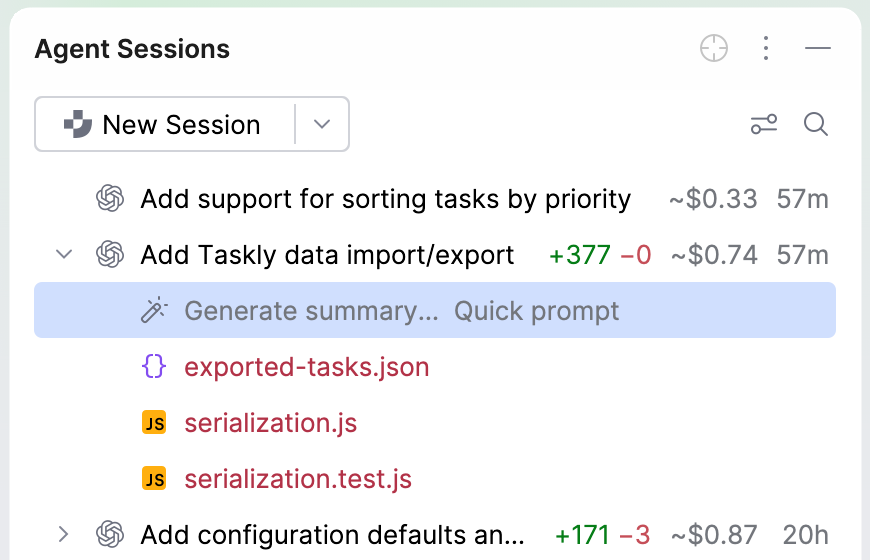
JetBrains Air in IDEs opens a new session and fills its message field with a predefined prompt.
Add any details that you want the summary to cover, such as a specific file or a question about the approach the agent took, and then send the message.
The agent inspects the changes and reports the summary in the new session, keeping it out of the history of the session that made the changes.
Add notes to a diff
While you review the files changed by an agent, you can leave notes on the lines of a diff and send them back to the agent in your next message. Notes let you point at the code you want reworked instead of describing it in the prompt.
To add a note to a diff:
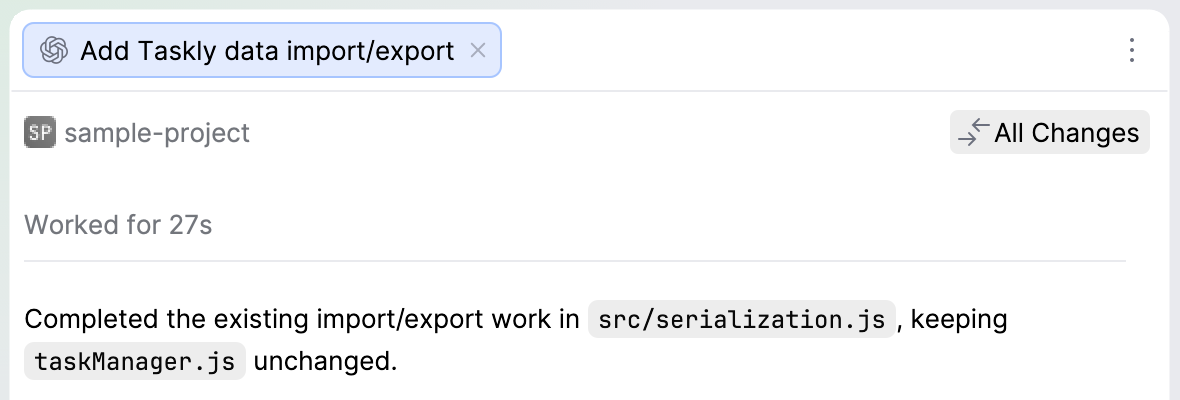
Open the diff of a file that an agent changed from one of the following places:
The Agent Sessions tool window, as described in Review the files an agent changed.
The All Changes button in the session header.
The Commit tool window.
Point at the code you want to comment on:
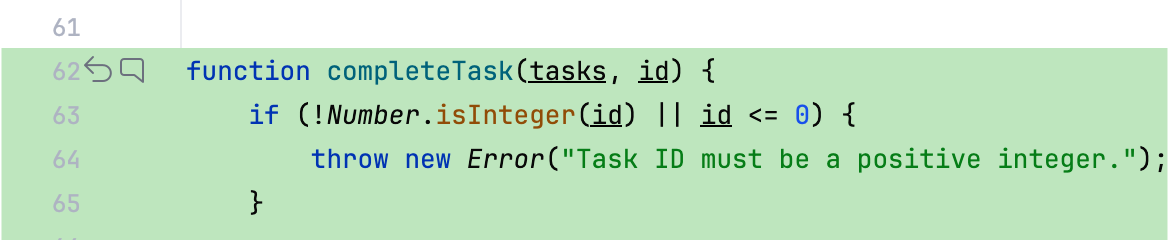
For a single line, click the
 icon in the gutter next to that line.
For several lines, select them in the diff and then click the
icon in the gutter. A note covers anything from a range of lines to an entire changed block.
Alternatively, place the caret on a line or select several lines and press Alt+Shift+K (⌥⇧K on macOS).
Type the note and click Add Note or press Enter. Press Shift+Enter to start a new line inside the note. To discard the draft, click Cancel or press Esc.
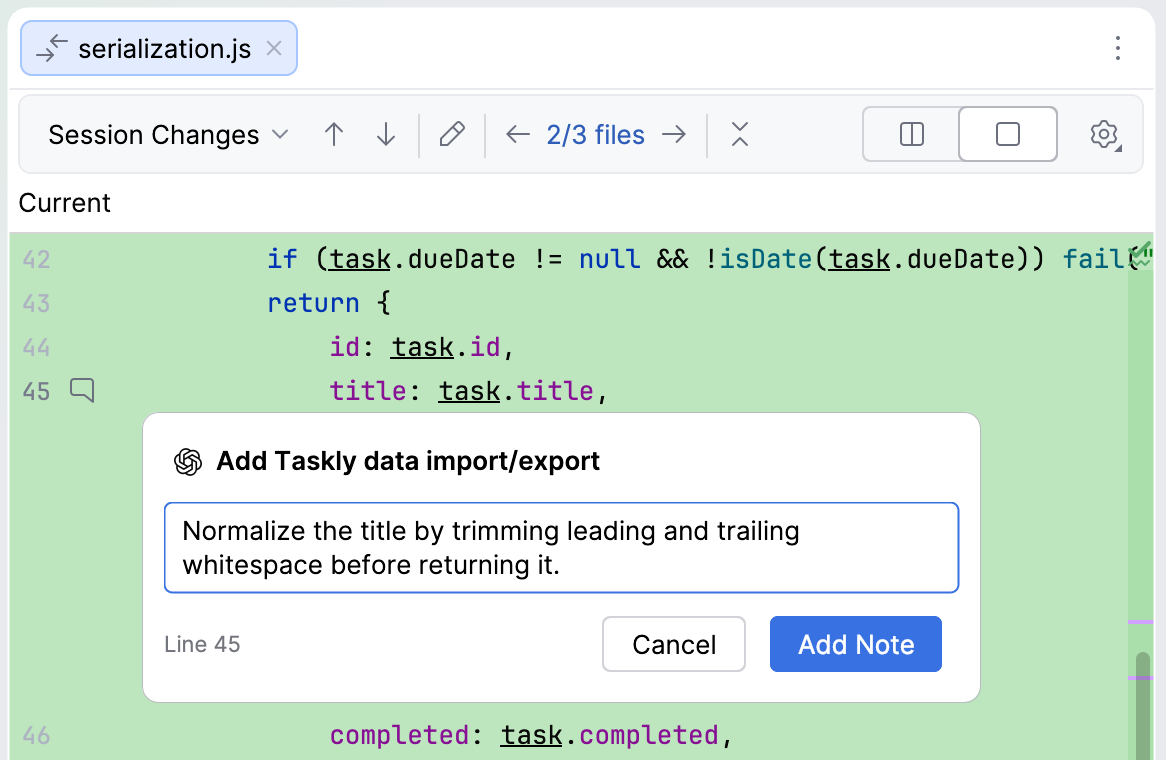
Each note appears as a card under the line or the selection it refers to. When the code moves, the note moves with it and stays attached to the same lines.
Manage notes
Once a file has at least one note, a diff attachment appears in the message field of the session. Each file gets one attachment that shows the file name, the number of notes, and the lines that they cover. Hovering over a specific note also shows the surrounding code to help you restore the context.
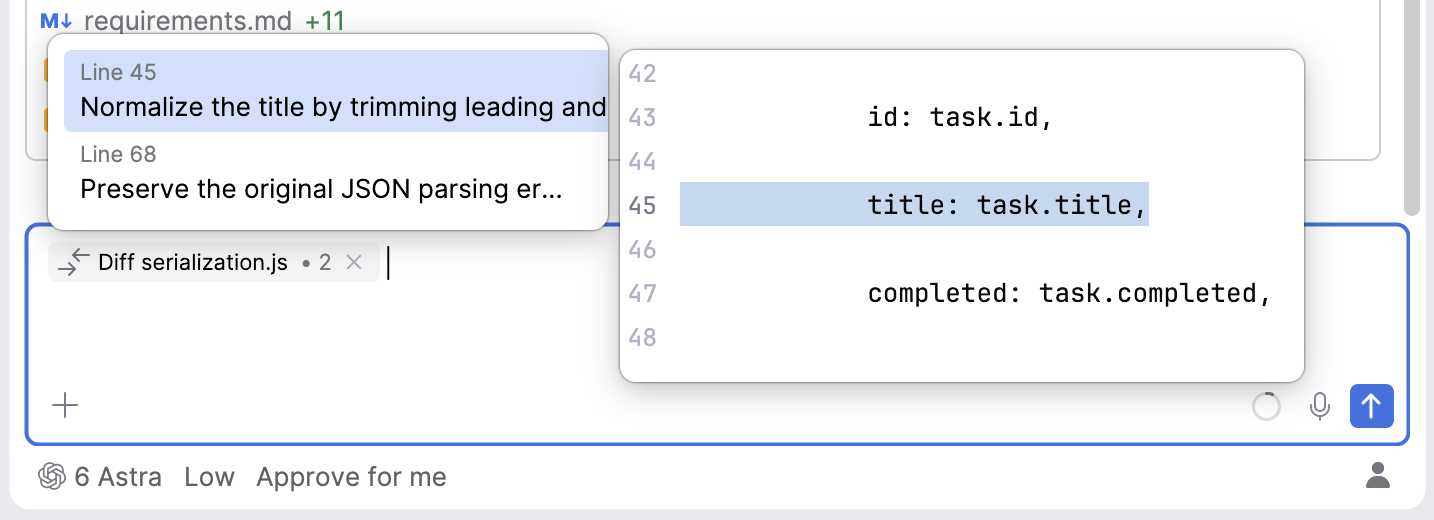
Until you send the message, you can work with the notes of a session:
To return to the notes of a file, click its attachment. The diff opens at the first note.
To edit or delete a note, click
 on its card and select the required action.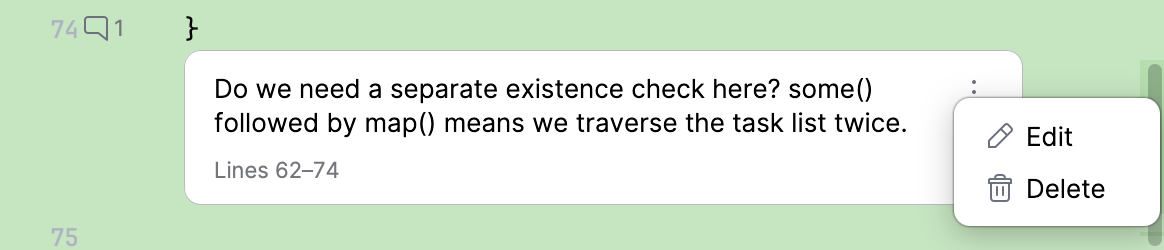
To delete all notes of a file at once, remove its attachment from the message field.
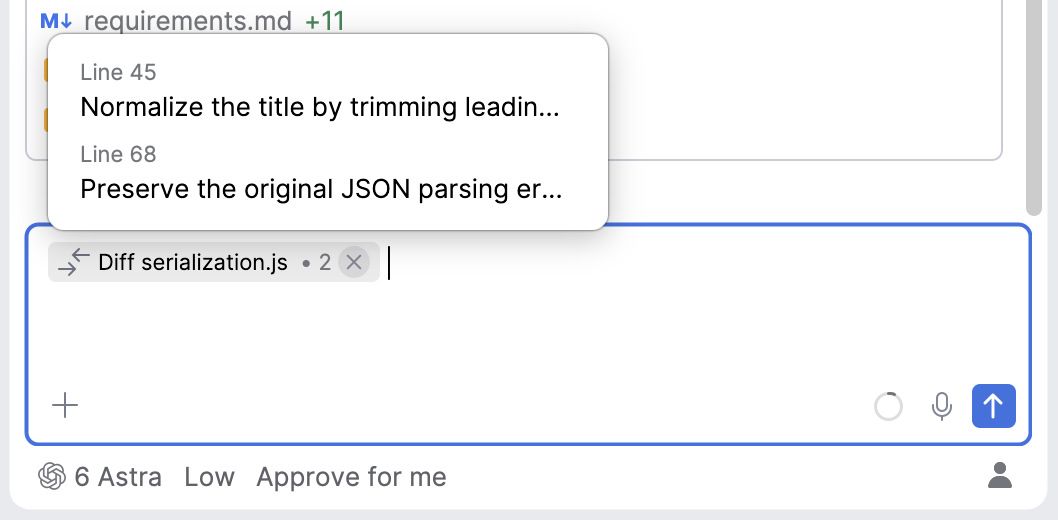
The attachment updates as you delete notes and disappears from the message field once the last note of the file is gone.
After you send the message, the notes disappear from the diff and remain on the sent message as a read-only attachment.
Resolve merge conflicts with an agent
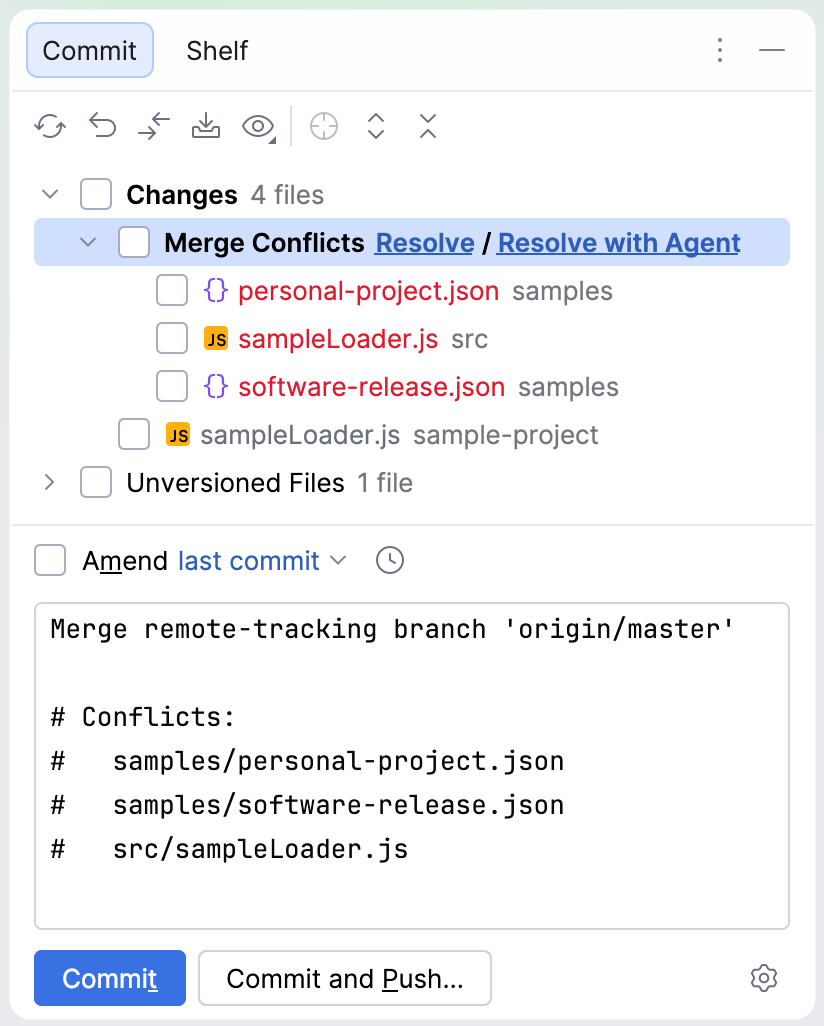
When a version control operation leaves conflicts in your working copy, you can use an agent to resolve them. Click Resolve with Agent in any of the following places:
The dialog that reports the conflicting files after an update or a merge.
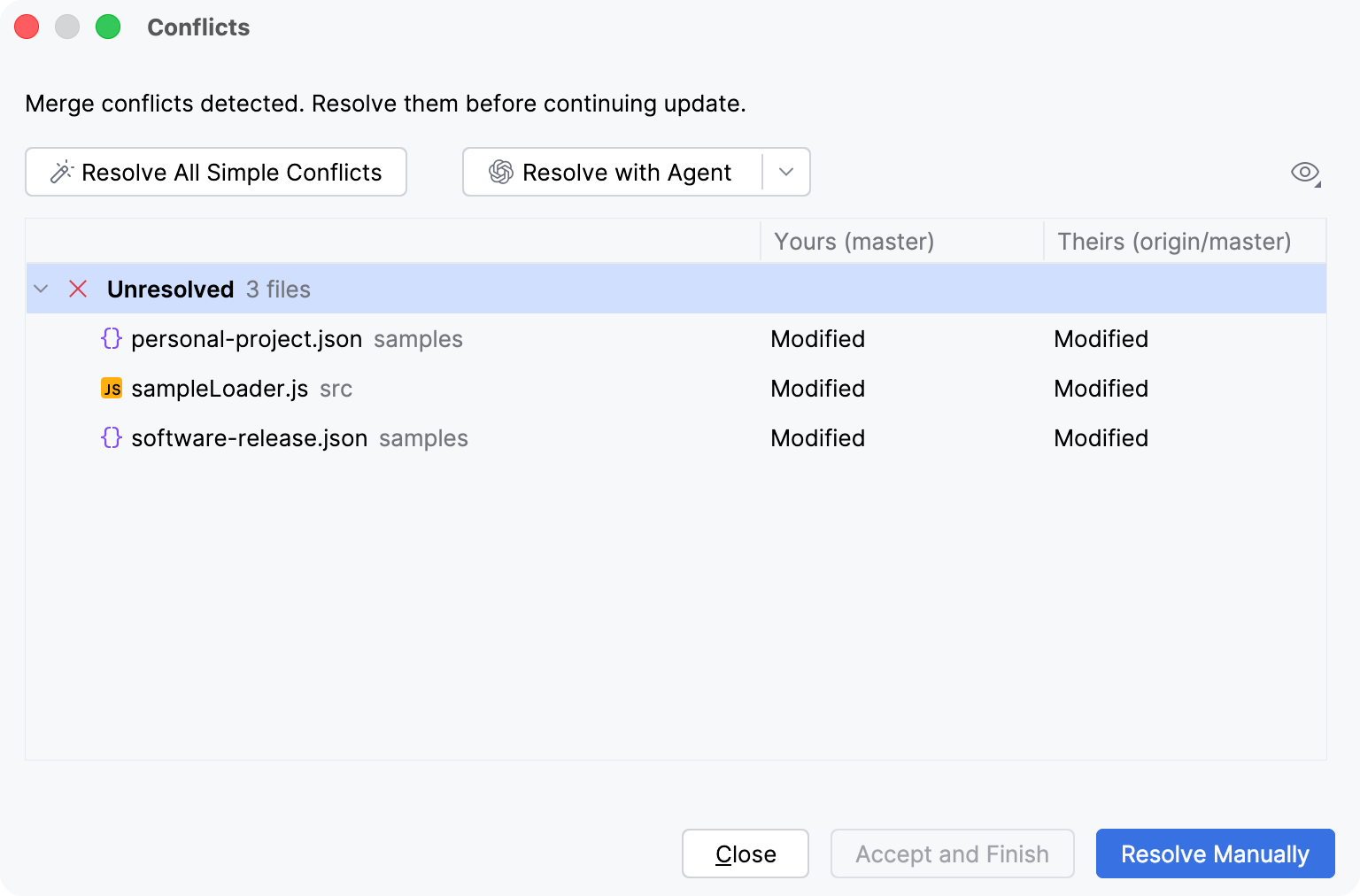
The Merge Conflicts group in the Commit tool window.
The banner in a conflicted file that you opened in the editor.
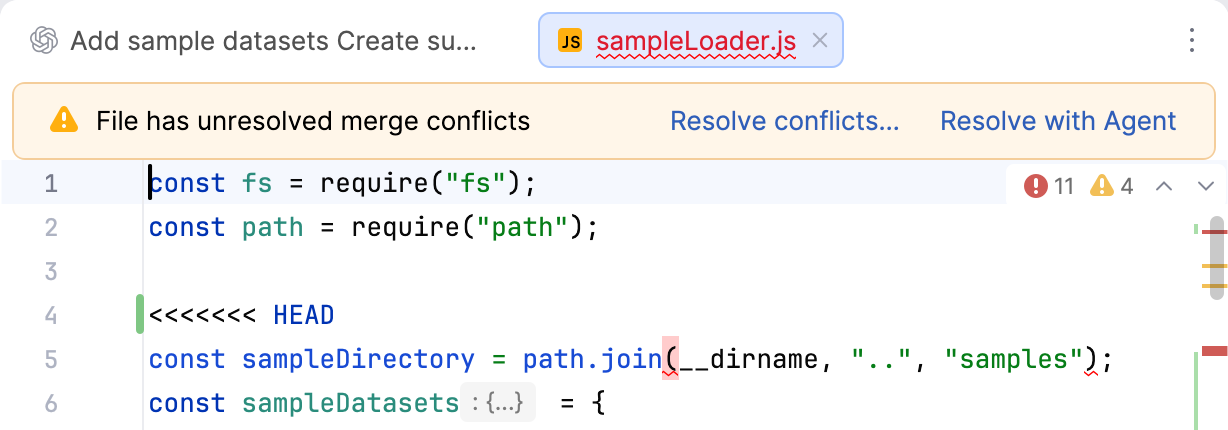
JetBrains Air in IDEs starts a new session scoped to the conflicting files, so the agent focuses on the conflict instead of the rest of the project. Review the result as you review any other merge before you commit it.