Claude Agent
 Claude Agent is a third-party coding agent by Anthropic available for use in AI Assistant. It understands your codebase, can plan and execute development tasks, and interact with your environment using tools, running commands, and analyzing their results to complete complex programming workflows.
Get started with Claude Agent
To use Claude Agent, you need to install and activate it using one of the supported authentication methods. For instructions, refer to:
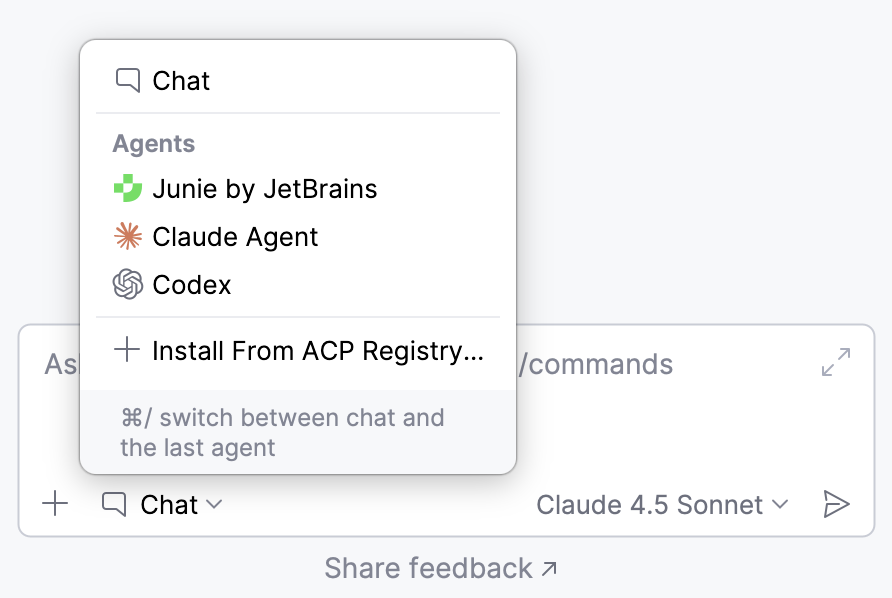
After setup, select Claude Agent in AI Chat to start using it.
Select operation mode
Claude Agent can operate in different modes, each providing a distinct level of autonomy and interaction.
To select an operation mode, click  and select a mode from the list.
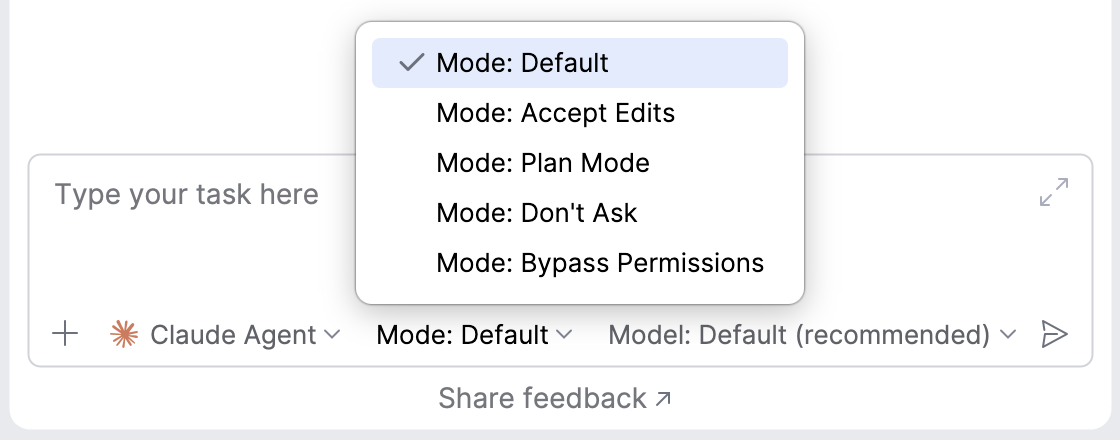
The following modes are available:
Default – standard behavior; prompts for potentially dangerous operations.
Accept Edits – automatically applies file edits.
Plan Mode – enables planning without executing actions.
Don't Ask – does not prompt for permissions and denies actions that are not pre-approved.
Bypass Permissions – bypasses all permission checks.
Select processing model
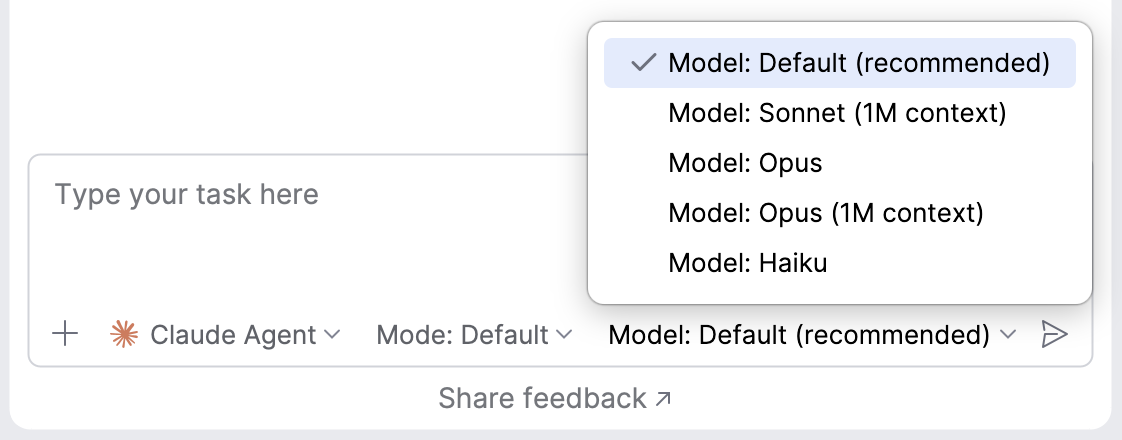
To select a model that Claude Agent uses to process your requests, click and select the model from the list.
Approve operations
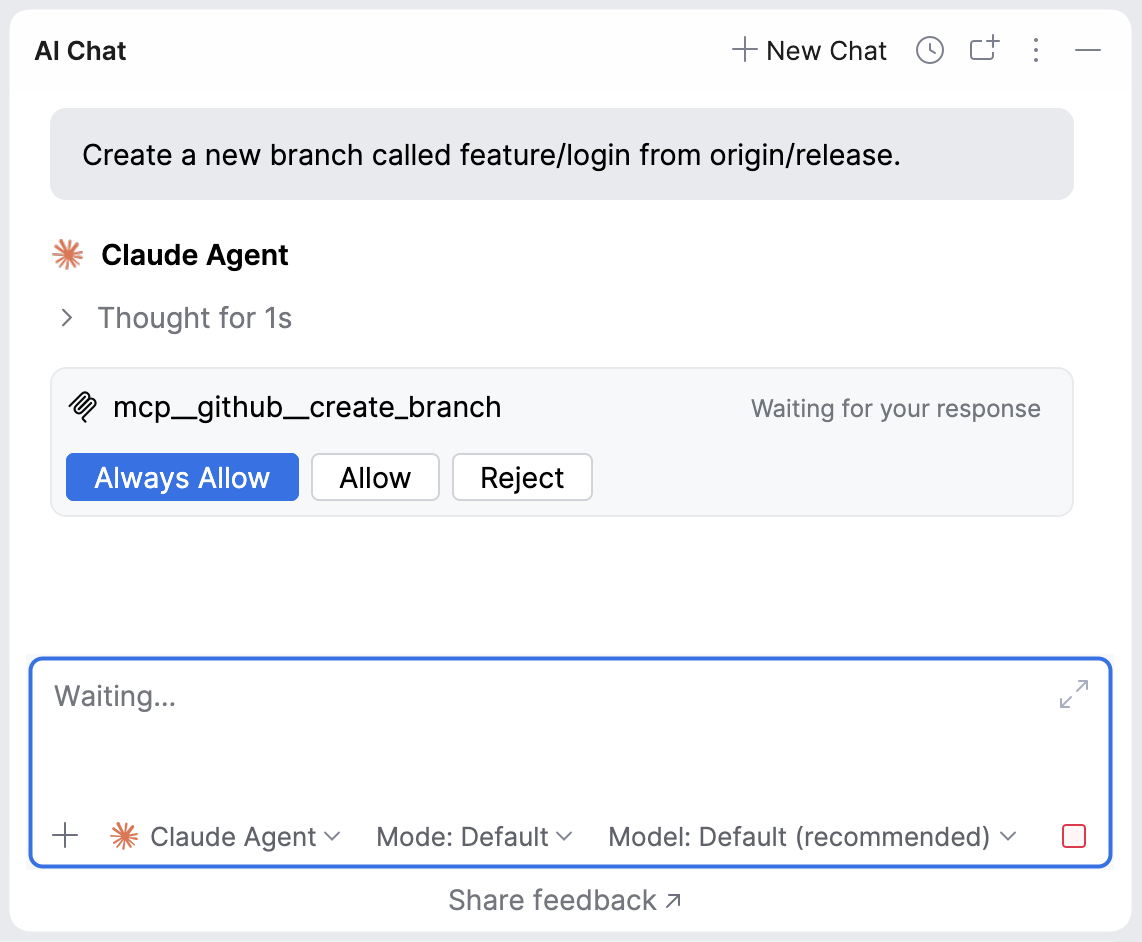
By default, Claude Agent requests your permission to run suggested bash commands, perform file operations, or use external tools. In this case, you can either approve or skip the operation.
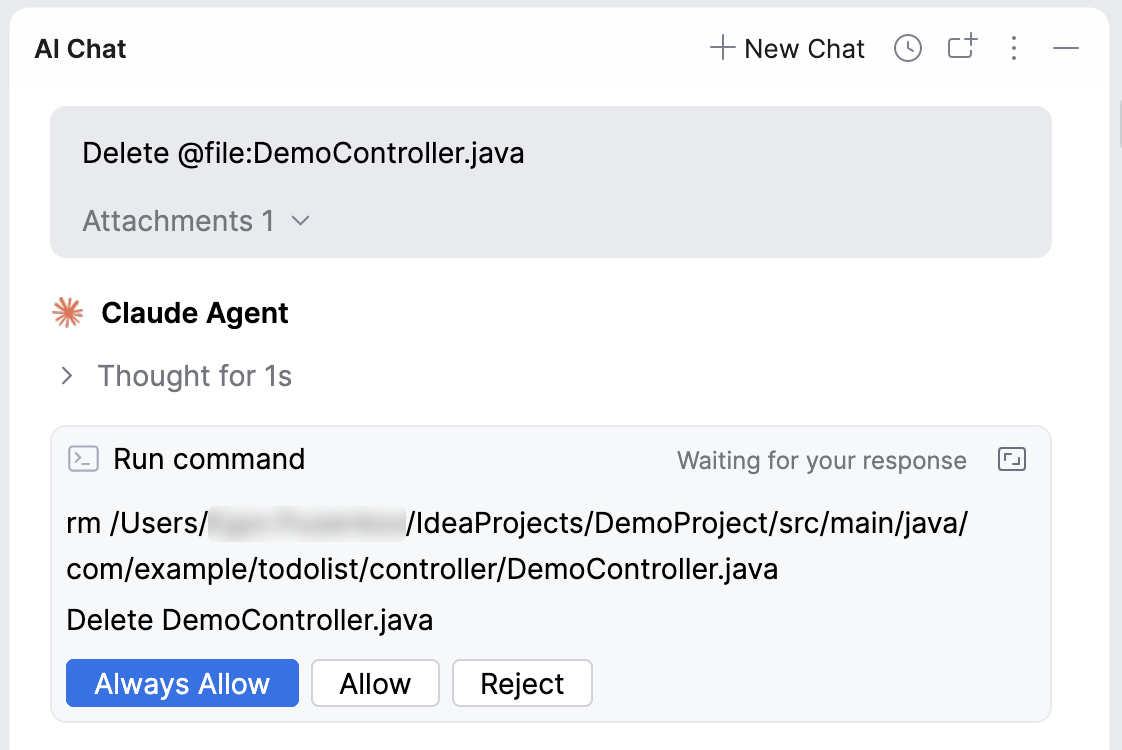
Always Allow – allows Claude Agent to execute this command automatically, without asking for permission.
Allow – allows Claude Agent to execute the command. You will be asked again if the command is requested later.
Reject – prevents Claude Agent from executing this command.
Rollback operations
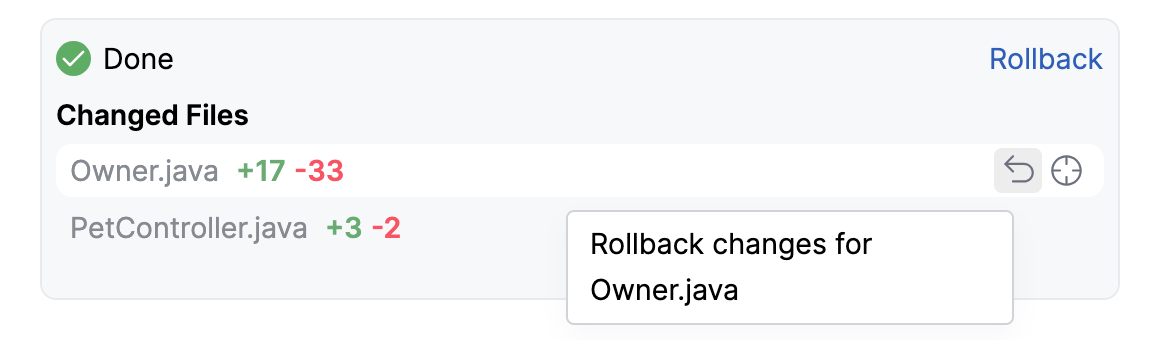
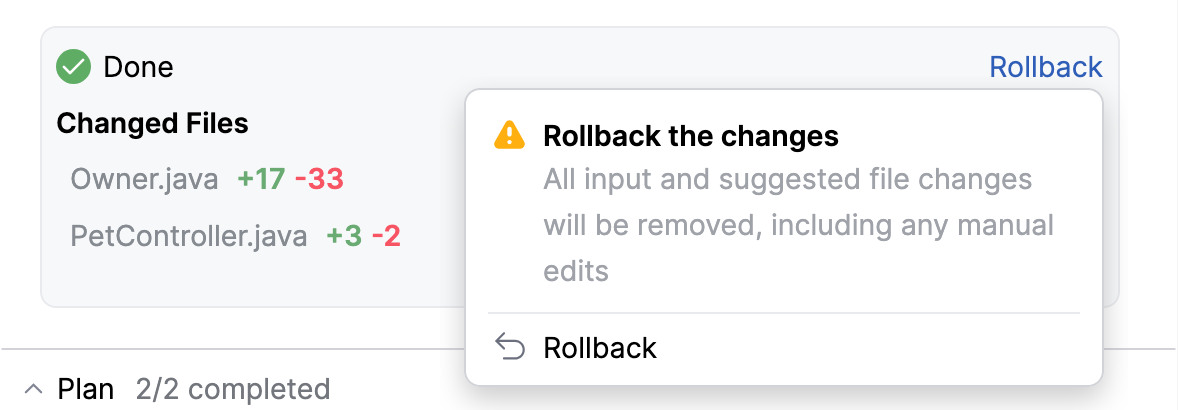
If the changes introduced by Claude Agent do not suit you, you can roll them back. To do this:
Navigate to the pane listing the changed files.
Do one of the following:
To roll back changes in a specific file, hover over it and click
 .
.
To roll back changes in all files, click Rollback.
You can also roll back to a checkpoint, restoring your project to an earlier point in the conversation to undo changes or retry with different instructions. To do this:
Navigate to the prompt you want to roll back to.
Hover over it and click
Rollback here.Confirm the operation by clicking Rollback.
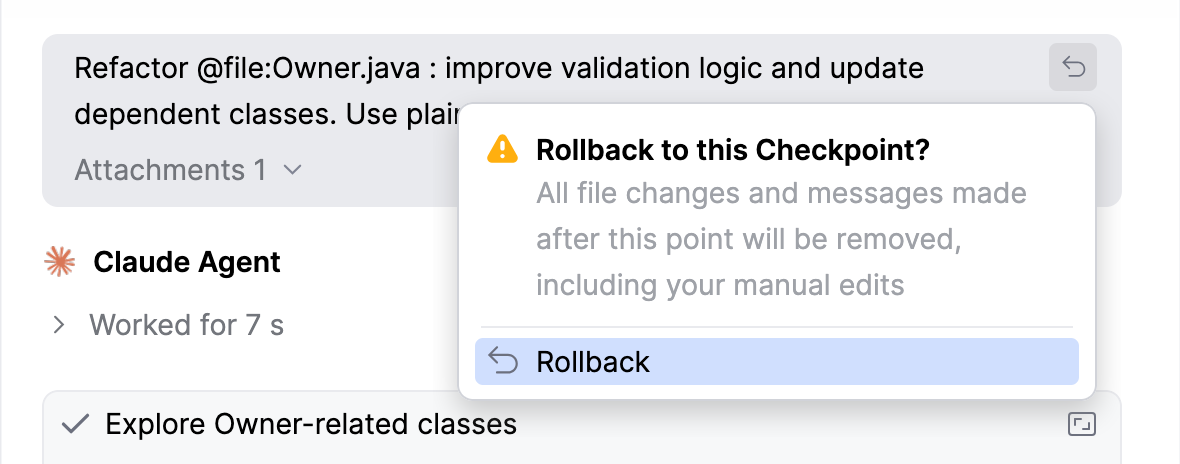
This reverts all changes made by Claude Agent, as well as any manual changes you made after the selected point.
Enable use of external tools
You can enable Claude Agent to use tools provided by configured Model Context Protocol (MCP) servers, extending its capabilities to perform a wider range of tasks. The available tools can be invoked automatically when the agent considers them necessary, or you can call them manually when writing a request.
To enable Claude Agent to use tools:
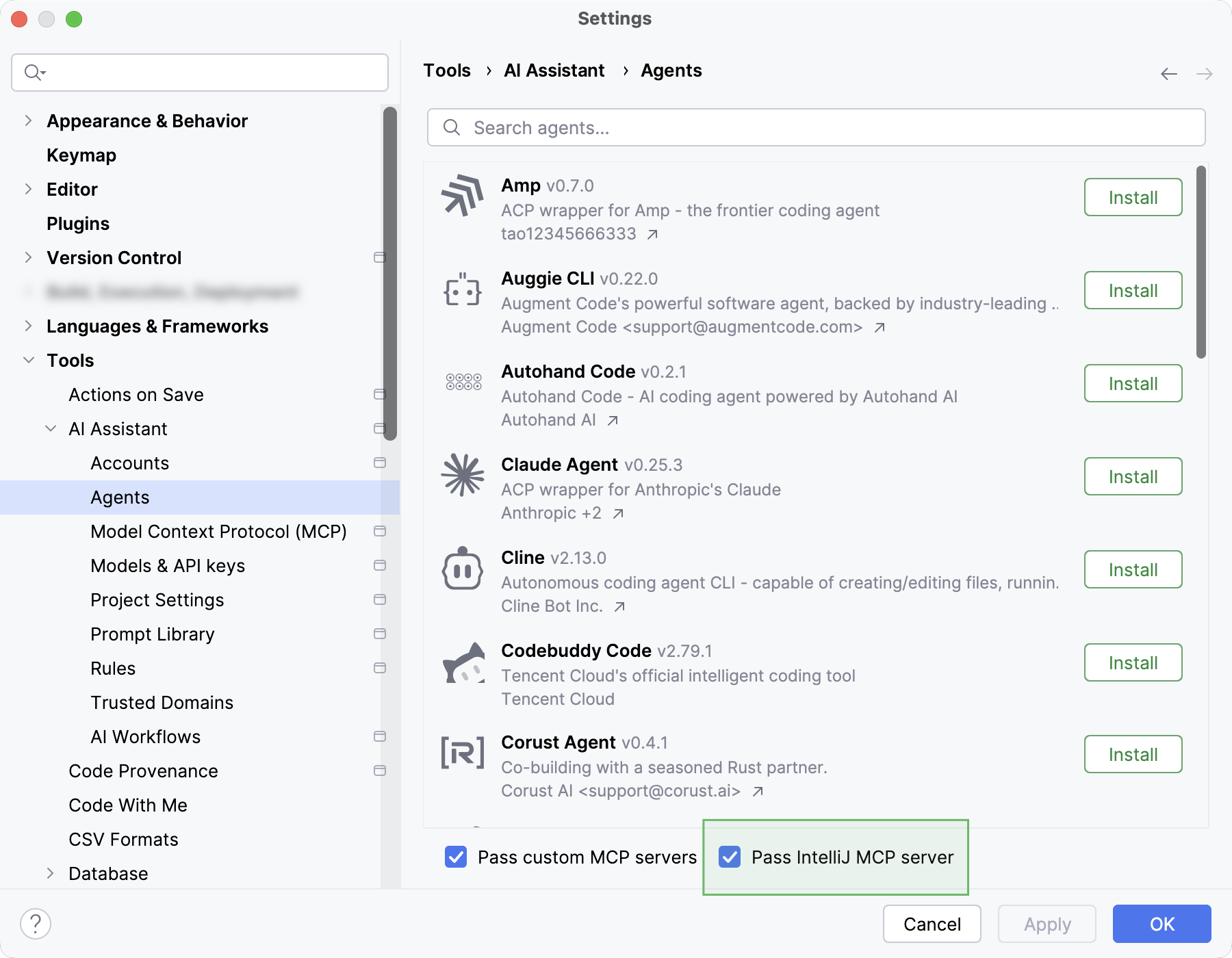
In the IDE settings (Ctrl+Alt+S), go to .
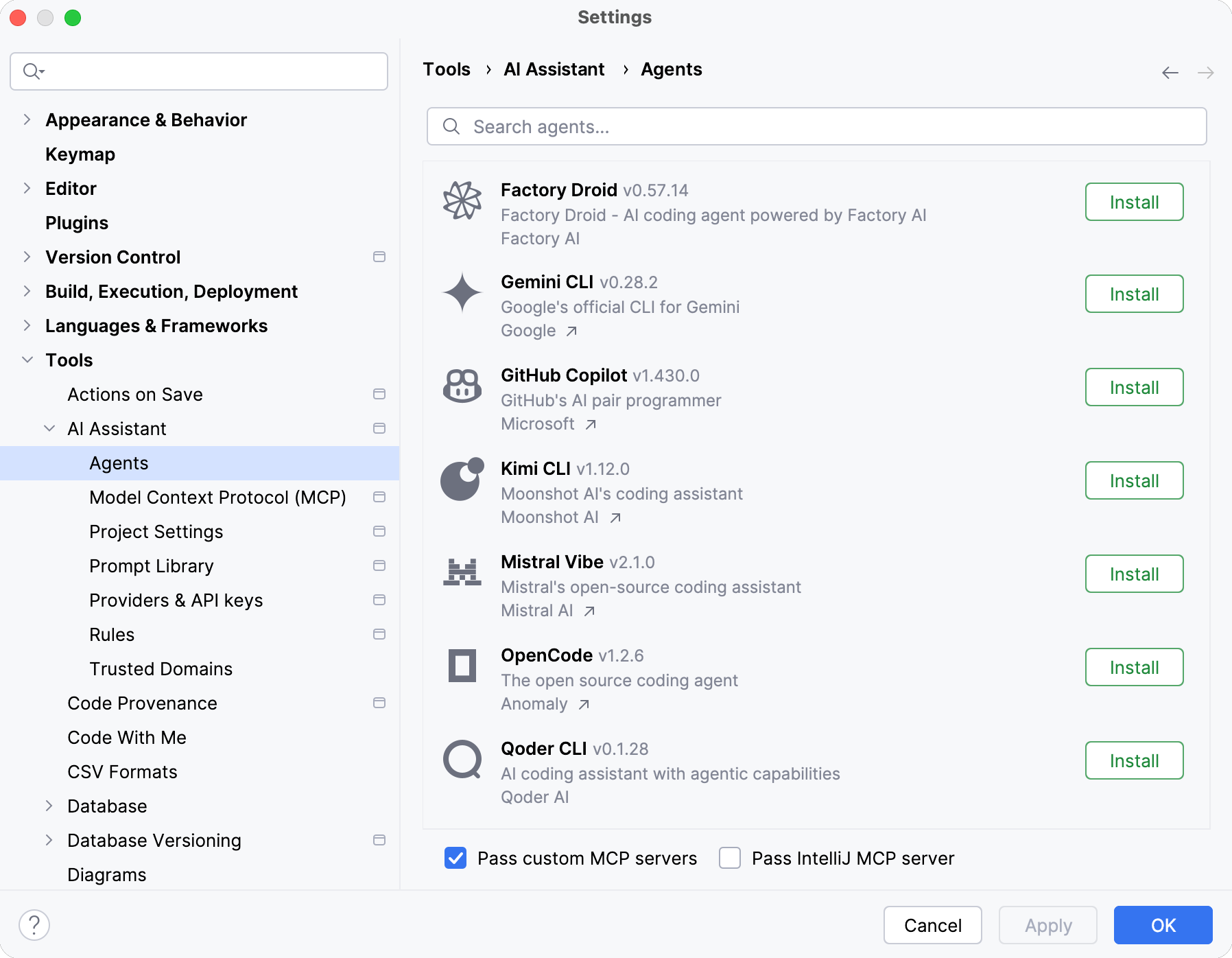
Enable the Pass IntelliJ MCP server setting.
Click OK.
Enable use of database-specific tools
Available in: DataGrip and IDEs with Database Tools and SQL plugin
Claude Agent requires the Pass IntelliJ MCP Server setting to be enabled to use database-specific tools:
In the IDE settings (Ctrl+Alt+S), go to .
Enable the Pass custom MCP servers setting.
Click OK.
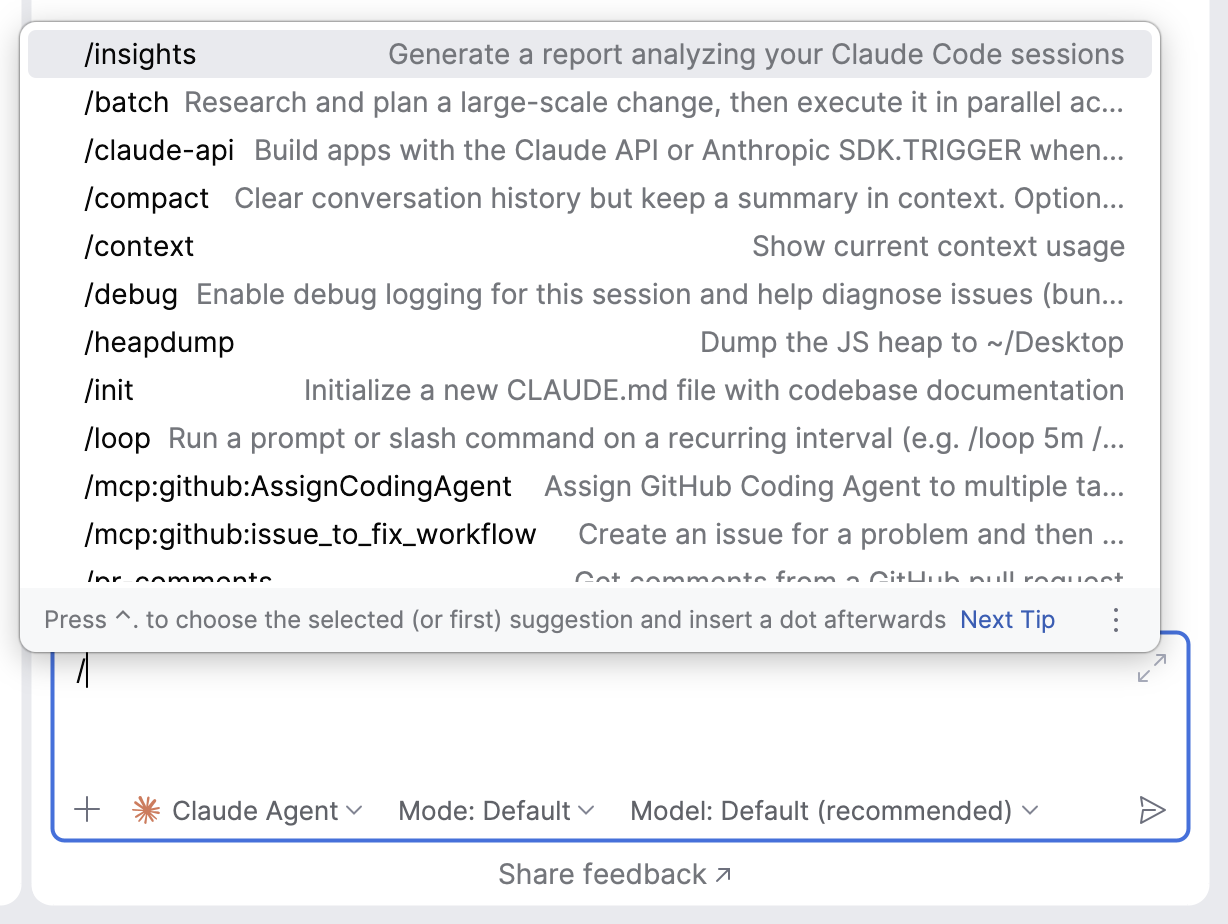
Use /commands
Claude Agent supports a subset of /commands for executing actions directly in the chat, along with bundled skills that extend its capabilities. For details on specific commands, refer to the official Anthropic documentation.