Junie by JetBrains
Not available in: DataGrip
 Junie is an AI coding agent developed by JetBrains whose primary task is to autonomously plan and execute complex, multi-step actions based on your prompt. It can introduce large-scale edits to your project, run tests or terminal commands, and use external tools when needed, while reporting progress to you.
Get started with Junie
To use Junie, you need to install and activate it using one of the supported authentication methods. For instructions, refer to:
After setup, select Junie in AI Chat to start using it.
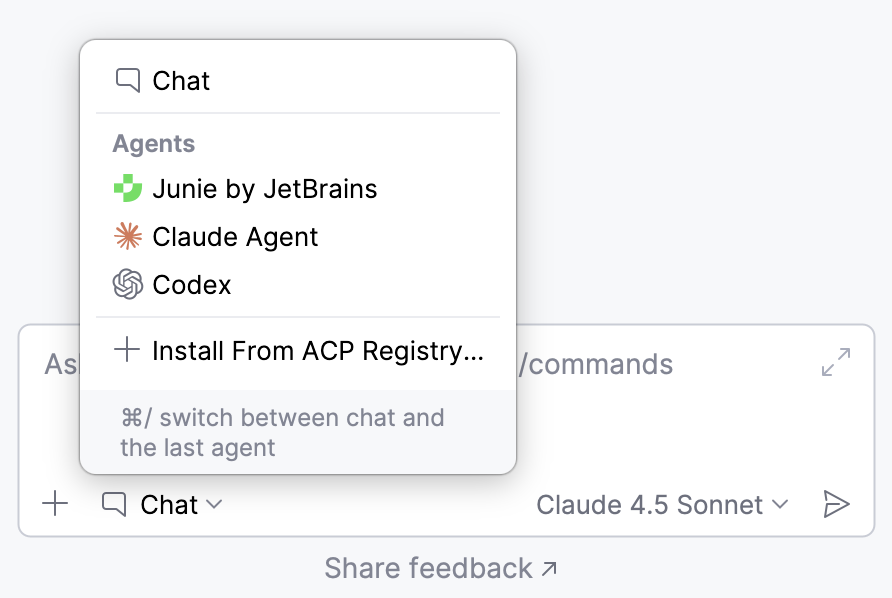
Select mode
Modes in Junie are agent configurations that tailor Junie's behavior to different types of tasks. You can select one of the following modes:
Code – Junie breaks the task into a multi-step plan and executes it while reporting progress. It can autonomously run terminal commands, create new files, write or edit code, run tests, and verify the changes.
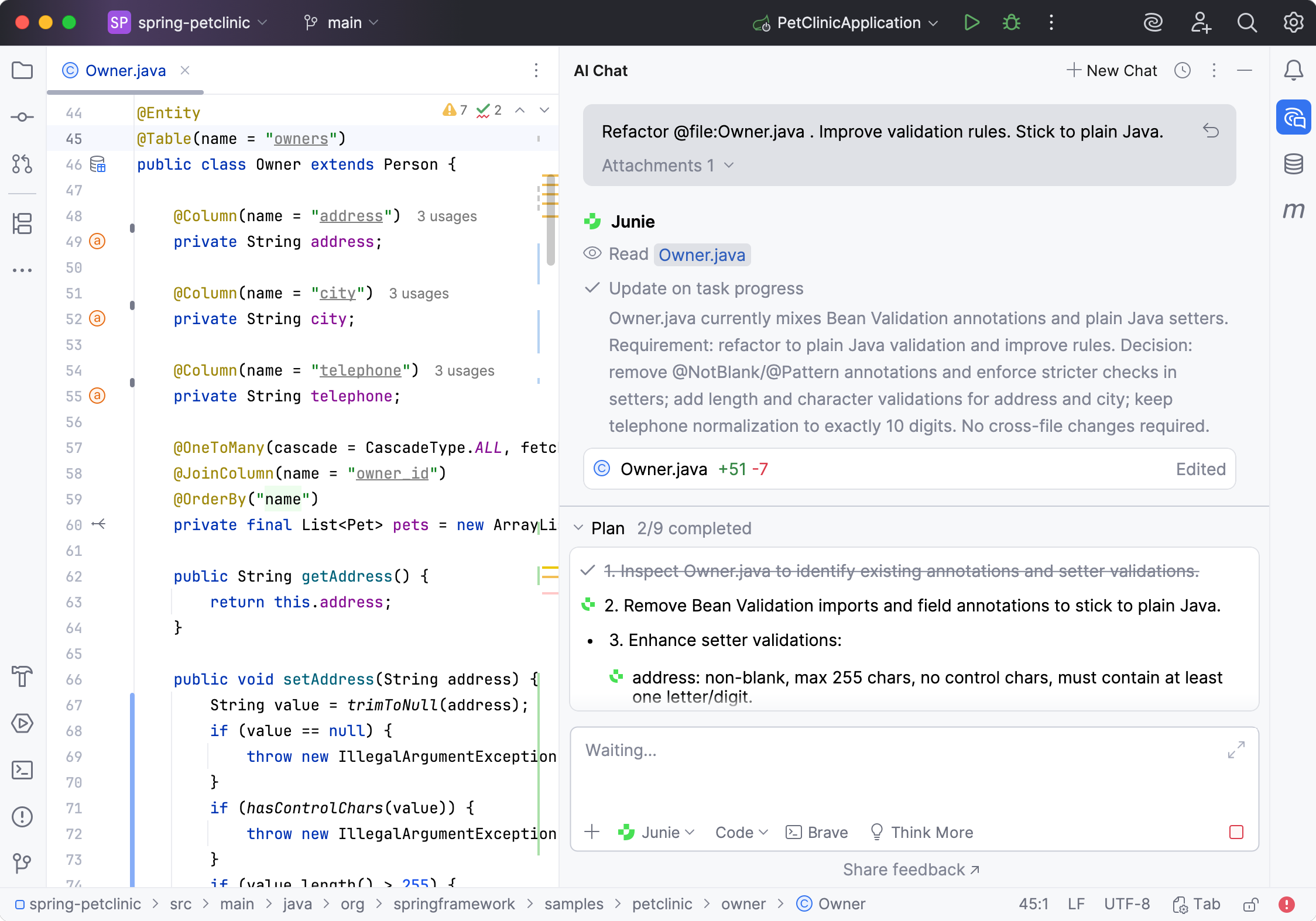
After completing the task, you can give Junie follow-up instructions: keep the changes and start a new task, or decline them and roll everything back.
Ask – Junie operates in read-only mode: it can explore files, analyze code, and understand project structure, but cannot modify the code or the project files.
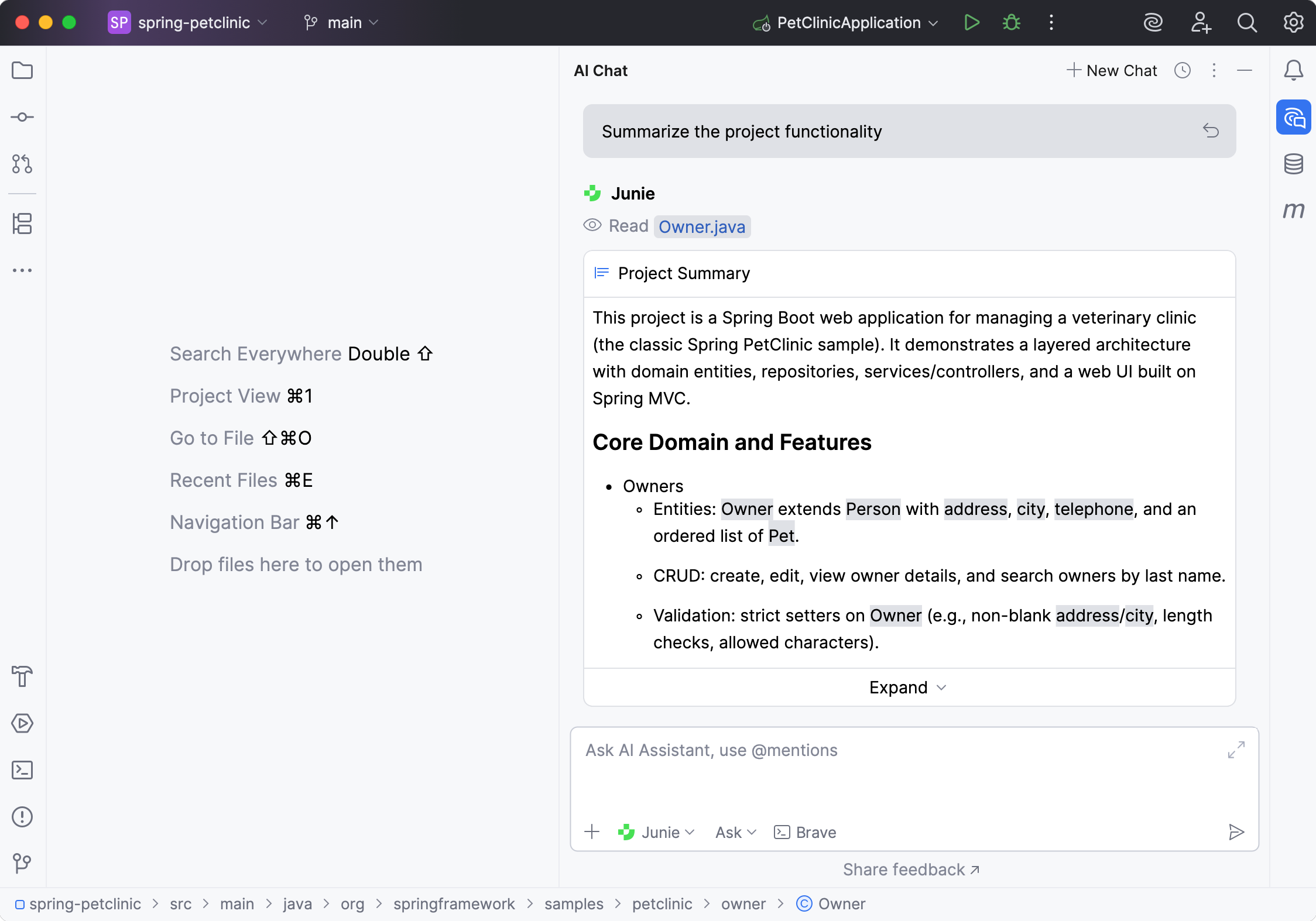
Use Ask mode to get answers to your questions, explore and understand the codebase and the project structure, collaborate with Junie on the action plan, or brainstorm new features and improvements.
To switch between modes, use the mode picker in the prompt window. Select Auto to let Junie determine which mode to use automatically.

Approve operations
By default, Junie requests your permission to run suggested bash commands, perform file operations, or use external tools. In this case, you can either approve or skip the operation.
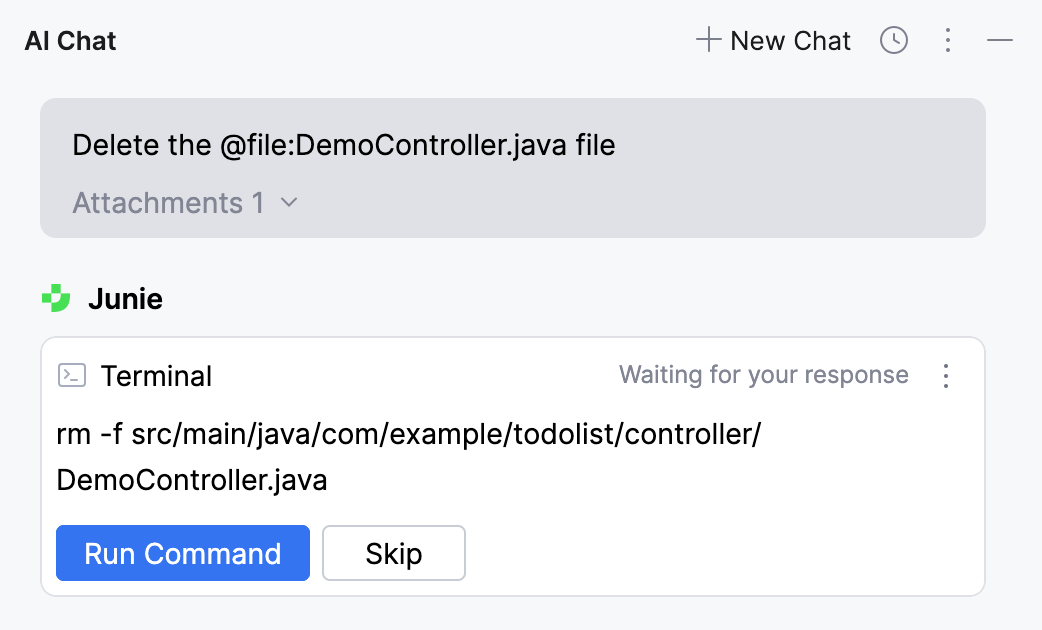
Rollback operations
If the changes introduced by Junie do not suit you, you can roll them back. To do this:
Navigate to the pane listing the changed files.
Do one of the following:
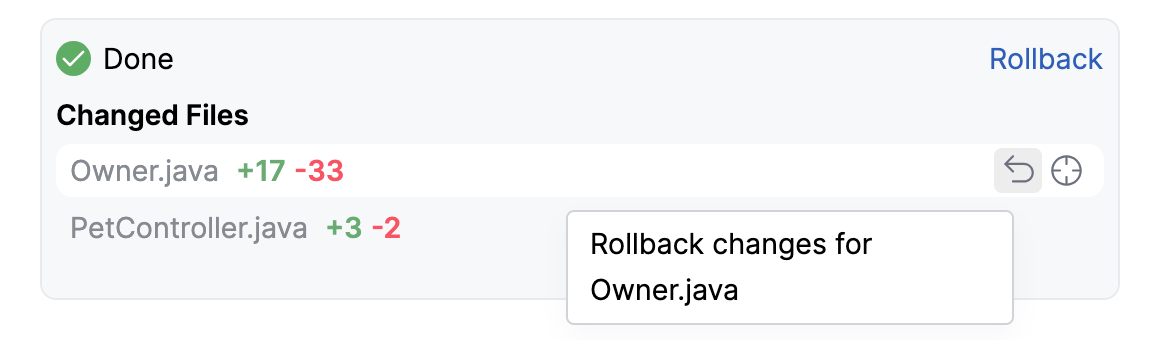
To roll back changes in a specific file, hover over it and click
 .
.
To roll back changes in all files, click Rollback.
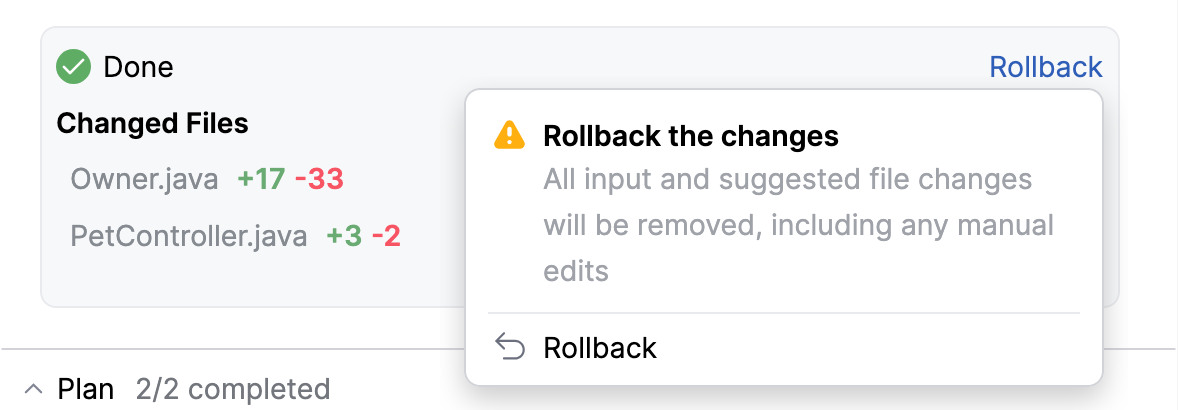
You can also roll back to a checkpoint, restoring your project to an earlier point in the conversation to undo changes or retry with different instructions. To do this:
Navigate to the prompt you want to roll back to.
Hover over it and click
Rollback here.Confirm the operation by clicking Rollback.
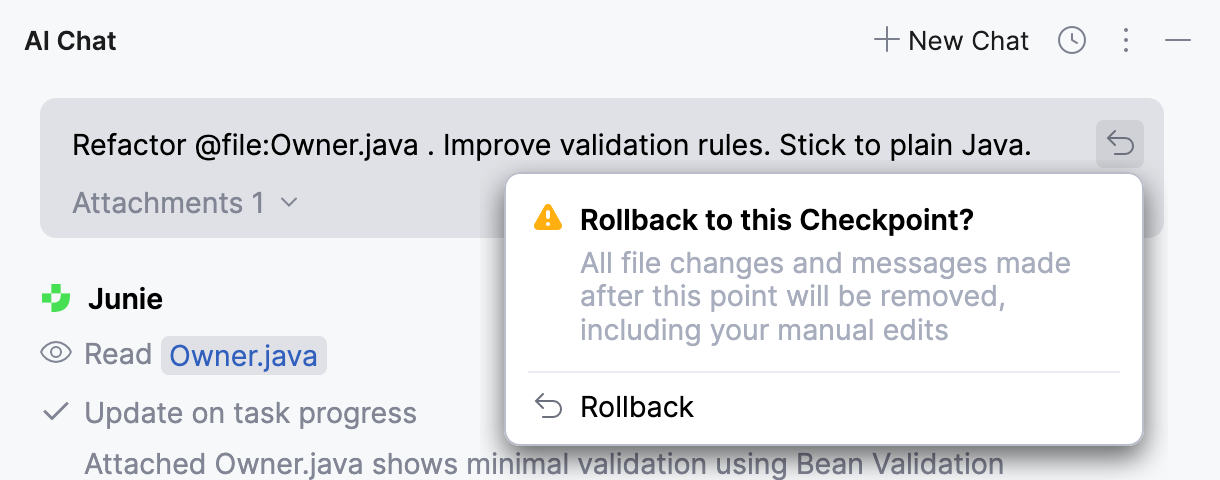
This reverts all changes made by Junie, as well as any manual changes you made after the selected point.
Brave mode
You can allow Junie to execute commands or modify files without asking for your confirmation. To enable this mode, click  Brave in the chat input field.

Think more
You can instruct Junie to Think More, enabling deeper reasoning and more thorough analysis when processing a task. When enabled, Junie spends additional time planning and verifying its actions, which can lead to higher-quality results, such as cleaner code and better-structured solutions.

Action Allowlist
With Action Allowlist, you can specify the actions and commands that Junie is allowed to execute without user approval. This approach is safer than allowing Junie to perform all potentially sensitive actions autonomously.
You can add rules to the Action Allowlist right from the chat while the agent is executing the task. To do so, click  next to the proposed action and select either of the following:
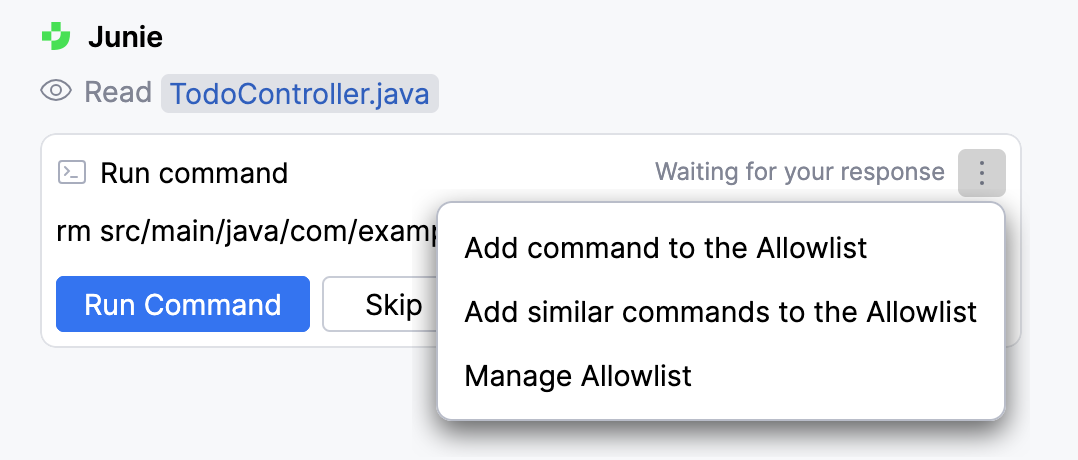
Add command to the Allowlist to add only this particular command to the Action Allowlist.
Add similar commands to the Allowlist to have Junie generate a regular expression (Regex) for this command pattern and add it to the Action Allowlist. For example, for the
git log --oneline -2command, a^\Qgit log --oneline \E\S+$regex will be added.Manage Allowlist to open the Action Allowlist settings page.
Enable use of external tools
You can connect Junie to Model Context Protocol (MCP) servers. This will provide Junie with executable functionality for working with data sources and tools, such as file systems, productivity tools, or databases.
When processing a prompt, Junie analyzes which commands exposed by the configured MCP servers as available tools are relevant and executes them through the respective MCP server.
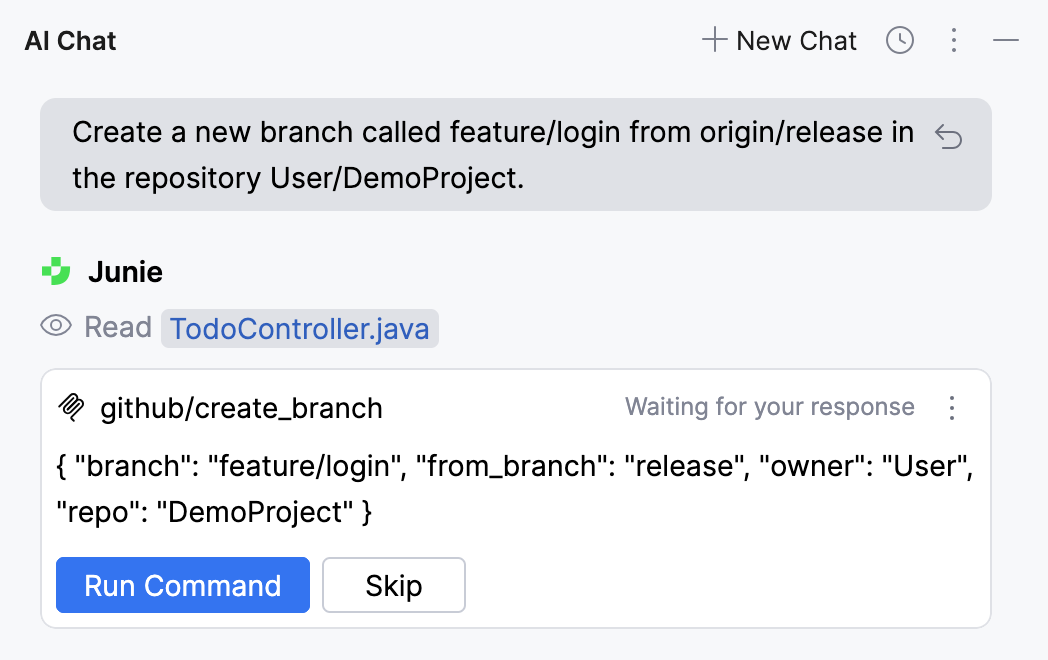
To connect Junie to an MCP server:
In the IDE settings (Ctrl+Alt+S), go to .
Click
 on the toolbar. In the mcp.json file that opens, add one or more server configurations in the
 "mcpServers"key.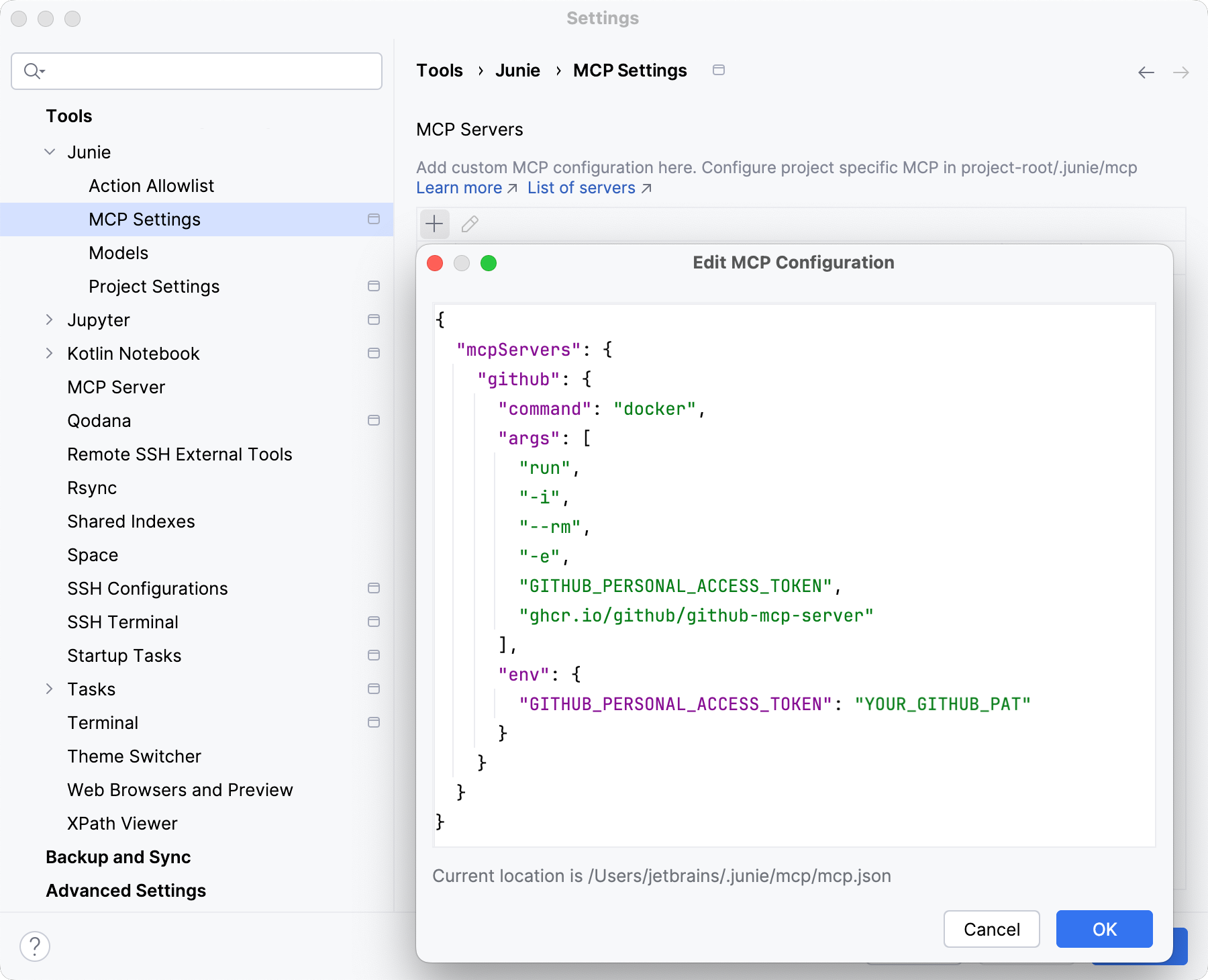
For the JSON schema, refer to the documentation of the MCP server you are adding.
Click OK.
Select processing model
To select a model that Junie uses to process your requests:
Navigate to .
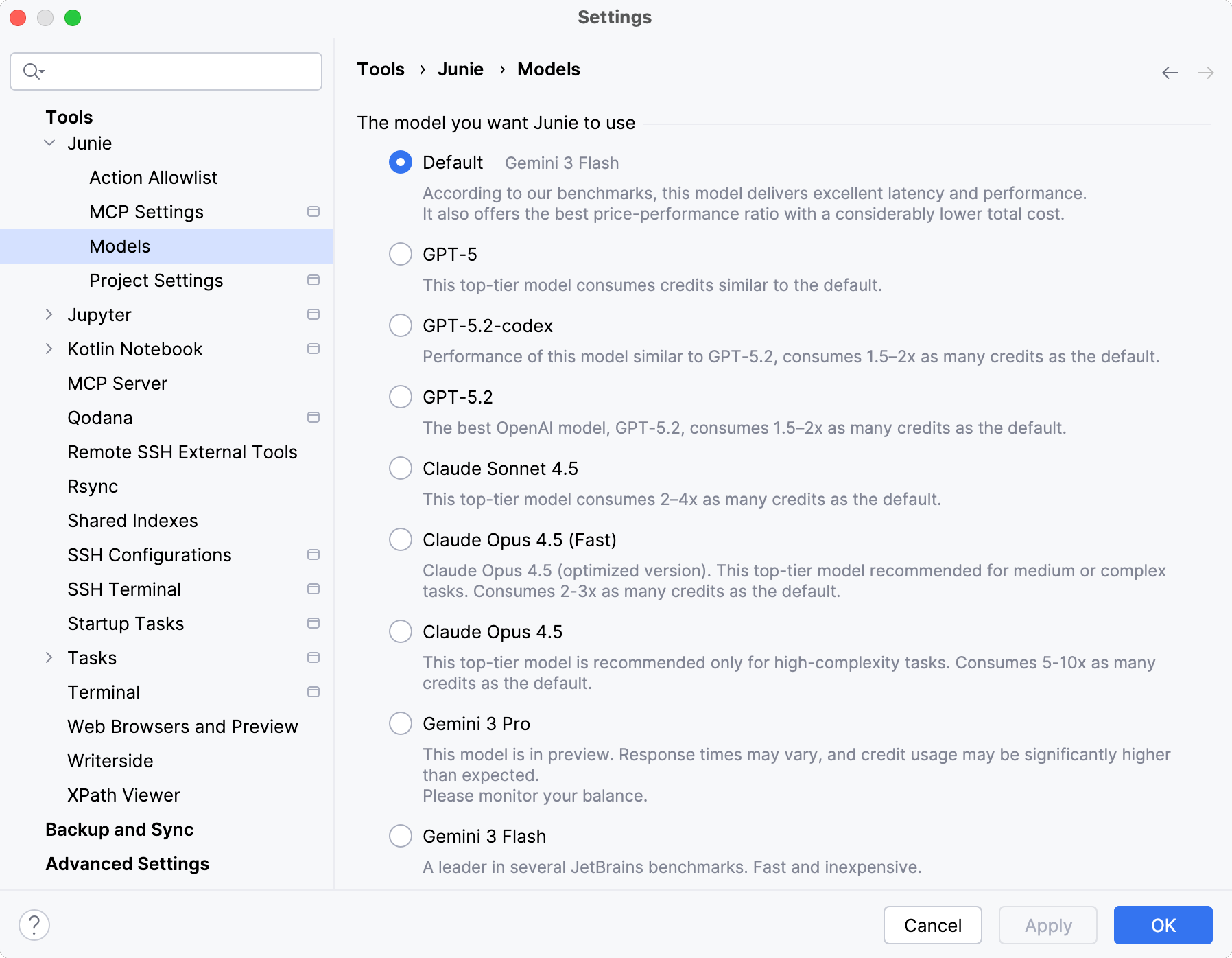
Select the model and click OK.
Restrict access with .aiignore
Junie respects the existing .aiignore file, so if you have one configured in your project, it will not process any files or directories listed there unless you explicitly permit it to do so.
Add guidelines
Guidelines allow you to provide persistent, reusable context to the agent. Junie adds this context to every task it works on.
Guidelines are stored in the .junie/AGENTS.md file in the root project directory, so you can keep them under version control and reuse across the project. For more information on the format, see the AGENTS.md documentation.
When Junie starts a task, it looks for guidelines in the following order:
Custom path: If a specific path to guidelines is specified in the IDE's project settings ().
.junie/AGENTS.md: This is the preferred standard location.
AGENTS.md in the project root folder: If no file is found in the .junie folder, the project root is checked.
Legacy locations (deprecated):
.junie/guidelines.md
.junie/guidelines/ directory (it collects the contents of all .md files inside).
Additional Junie settings
Junie has an additional set of settings that you can configure in :
Project path – the path to the directory where Junie is allowed to make changes. Junie will request confirmation to edit files or folders outside of this directory.
Guidelines path – path to the agent guideline file relative to the project path. Supported file types: AGENTS.md and guidelines.md (legacy).
If no path is specified, Junie looks for agent guidelines at .junie/AGENTS.md by default.
Enabled technologies – select the languages and technologies that Junie will work with. The available languages and technologies depend on your JetBrains IDE.
Frequency of questions from Junie – control the frequency of Junie's questions.
The A normal amount option is selected by default, enabling Junie to ask you questions during task processing.
Select Never ask me to prevent Junie from asking questions during task processing.
Semantic Indexing – select the Allow semantic indexing checkbox to enable Junie to find relevant data faster using semantic search.
Semantic indexing is codebase indexing based on embeddings that focus on semantic meaning and context rather than keyword matching.