Codex
 Codex is a third-party coding agent by OpenAI available for use in AI Assistant. It can help you to design and implement features, fix bugs, answer questions, review code, and assist with a wide range of development tasks.
Get started with Codex
To use Codex, you need to install and activate it using one of the supported authentication methods. For instructions, refer to:
After setup, select Codex in AI Chat to start using it.
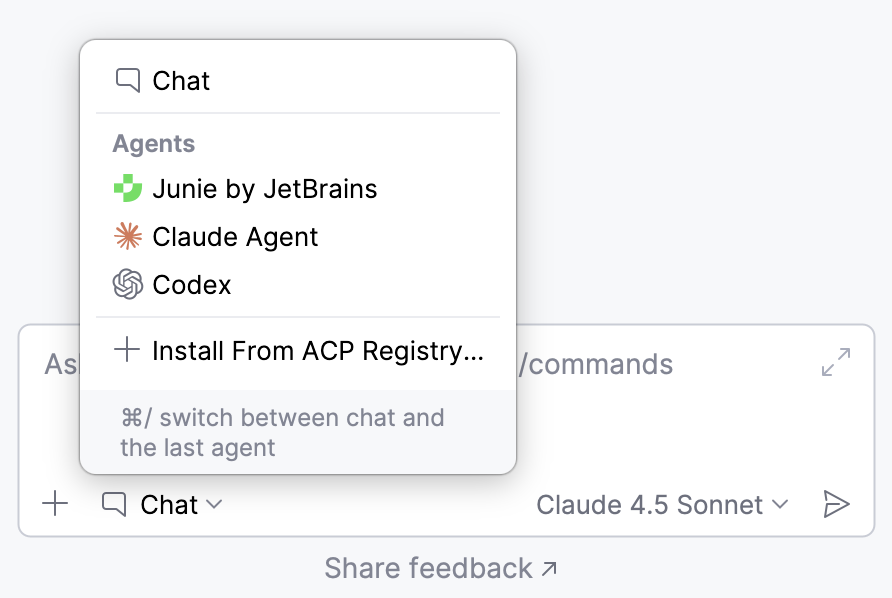
Select operation mode
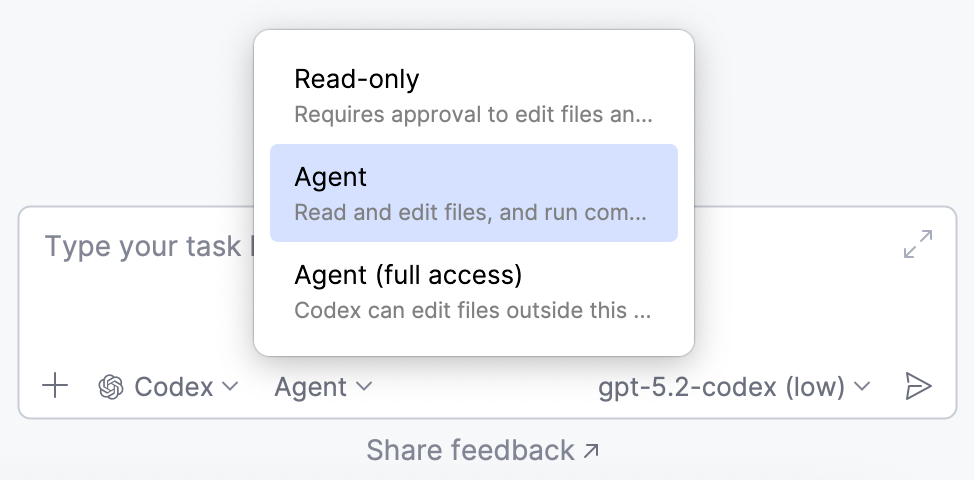
Codex has several operation modes that you can use:
Read-only – Codex can browse and explain the codebase but cannot modify files or run commands.
Agent – Codex can modify files within the project workspace but cannot make changes outside the project without approval.
Agent (full access) – Codex can modify files anywhere on the machine and run commands with minimal restrictions, enabling system-level edits, installs, and full workflows.
To switch between modes, use the mode picker dropdown in the prompt window.
Select processing model
To select a model that Codex uses to process your requests, click  and select the model from the list.
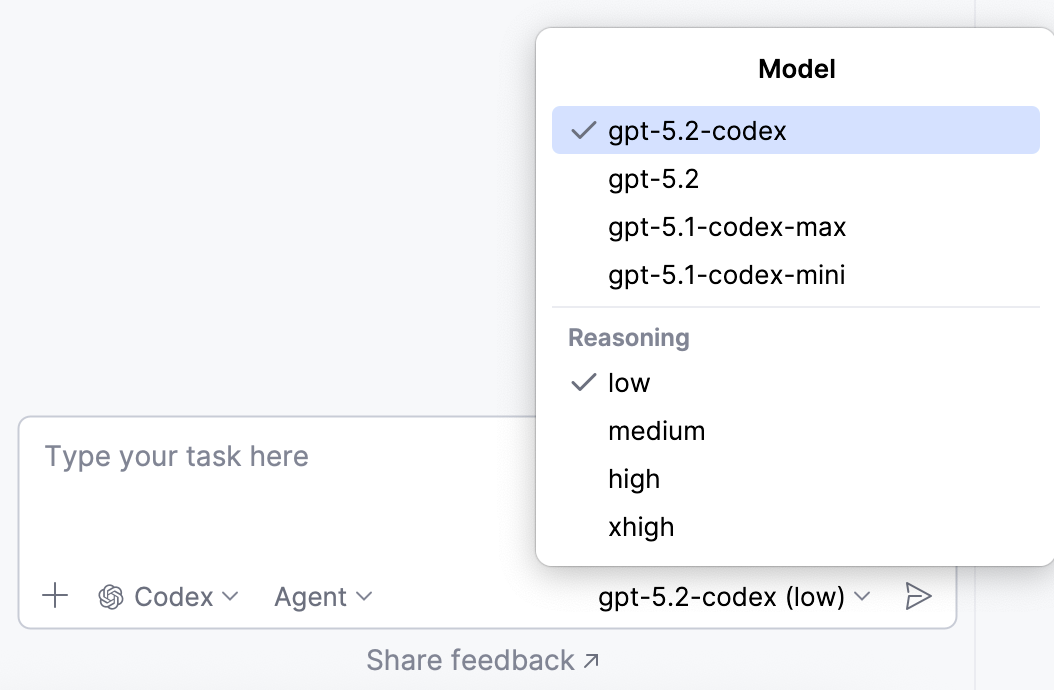
You can also select the Reasoning level for the model. Model reasoning refers to a model's ability to perform multi-step analysis and solve complex tasks. The selected level controls how much analytical processing the model applies when generating responses.
Approve operations
In the Read-only mode, Codex requests your permission to run suggested bash commands, perform file operations, or use external tools. In this case, you can either approve or skip the operation.
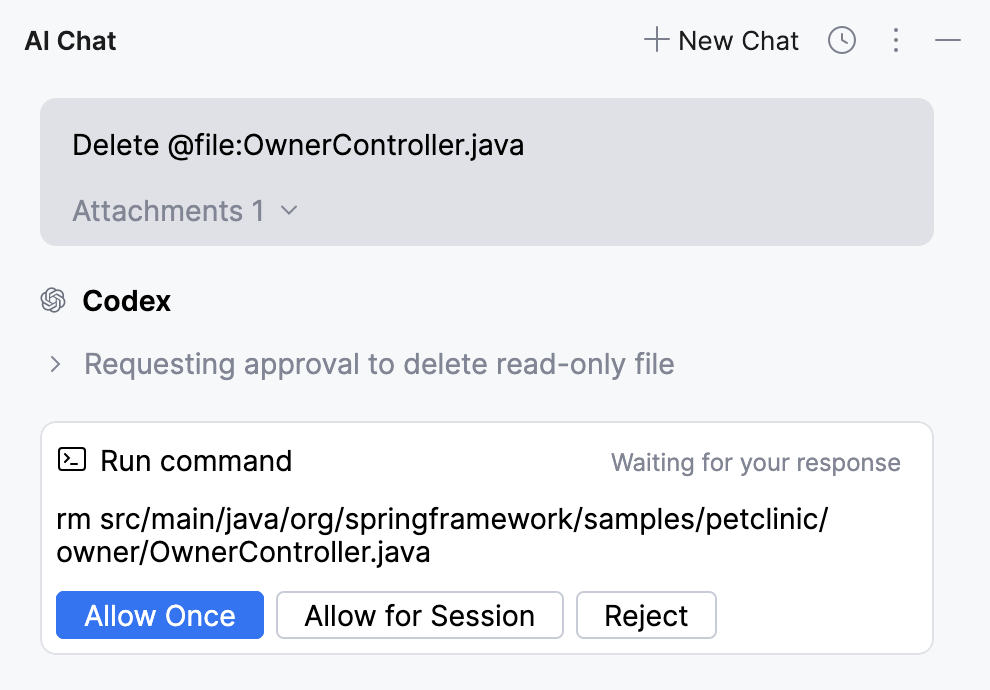
Allow Once – allows Codex to execute the command this time only. You will be asked again if the command is requested later.
Allow for Session – allows Codex to execute this command for the current session without asking again.
Reject – prevents Codex from executing this command.
Rollback operations
If the changes introduced by Codex do not suit you, you can roll them back. To do this:
Navigate to the pane listing the changed files.
Do one of the following:
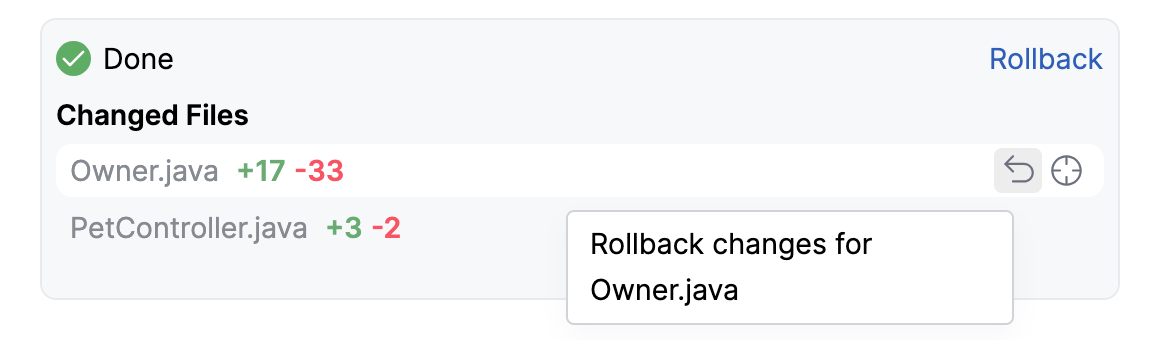
To roll back changes in a specific file, hover over it and click
 .
.
To roll back changes in all files, click Rollback.
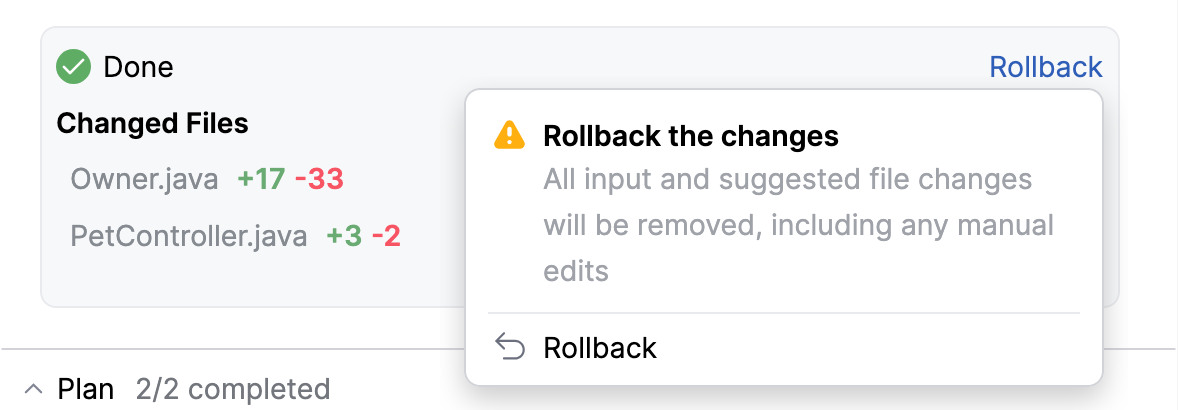
You can also roll back to a checkpoint, restoring your project to an earlier point in the conversation to undo changes or retry with different instructions. To do this:
Navigate to the prompt you want to roll back to.
Hover over it and click
Rollback here.Confirm the operation by clicking Rollback.
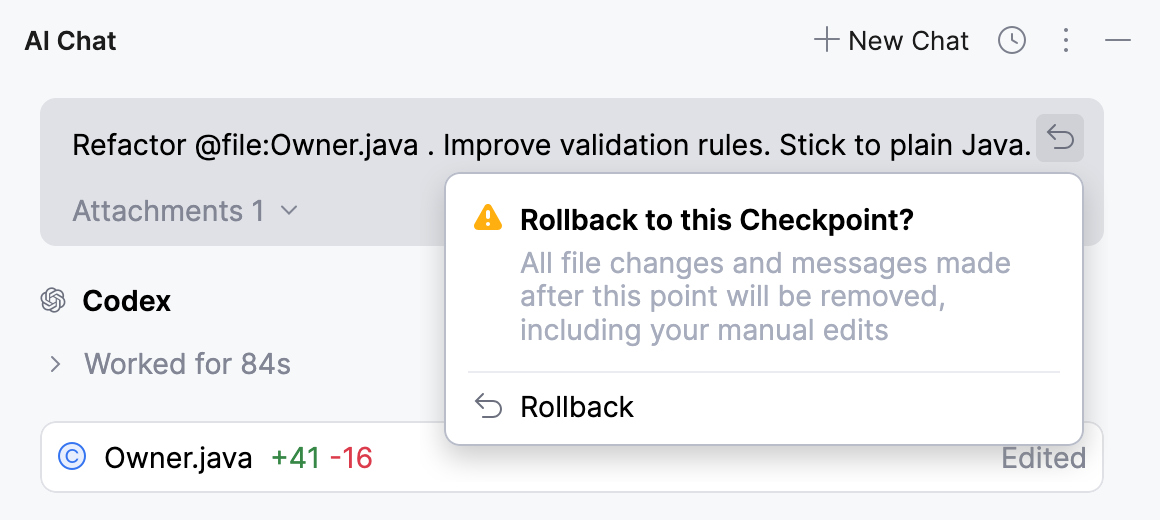
This reverts all changes made by Codex, as well as any manual changes you made after the selected point.
View Codex status and configuration
Codex provides informational / commands to view the current agent configuration and manage the active session:
/mcp– provides the list of configured MCP servers./skills– provides the list of available skills. For more information about skills, refer to Use Codex skills./logout– ends the current session and logs out of the ChatGPT account./status– displays information about the current session, including token usage and the available context window.
Use Codex skills
Skills give Codex additional capabilities to handle specific tasks and structured workflows. Each skill consists of instructions, supporting resources, and scripts that define how the agent performs the task.
You can add skills in two ways:
Install curated skills from public repositories, such as openai/skills. They can be installed by invoking the
$skill-installerskill, which adds them to the Codex environment.Create custom skills by using the $
$skill -creatorskill and describing the required functionality.
Once installed or created, skills can be invoked:
Automatically, when a skill is relevant to the task you describe.
Explicitly, by referencing a specific skill with the
$prefix in your prompt.
To view the skills currently available to Codex, use the /skills command.
Use database-specific tools with Codex
Available in: DataGrip and IDEs with Database Tools and SQL plugin
Currently, Codex requires the following configuration to work with database-specific tools:
In , select the Enable MCP Server checkbox, confirm your action in the Enable MCP Server? dialog, then click Apply.
Click Copy HTTP Stream Config.
In , click Add.
In the New MCP Server dialog that opens, open the HTTP tab and paste the copied value as
idea-httpserver.The resulting JSON configuration is as follows:
{ "mcpServers": { "idea-http": { "type": "streamable-http", "url": "http://127.0.0.1:64344/stream", "headers": {} } } }The port number may vary. Make sure it matches the port configured for the server and shown in Tools | MCP Server in the Enable MCP Server setting.
Click Apply to save the configuration and close the New MCP Server dialog.
On the MCP Server page of the Settings dialog, click Auto-Configure under Codex to apply the new configuration.
Click OK to save the MCP server.
Uninstall Codex
If you want to uninstall Codex and clean up the agent configuration, do the following:
Press Shift twice to open the Search Everywhere window.
Start typing
Clean Up Codex Installation, and select the suggestion.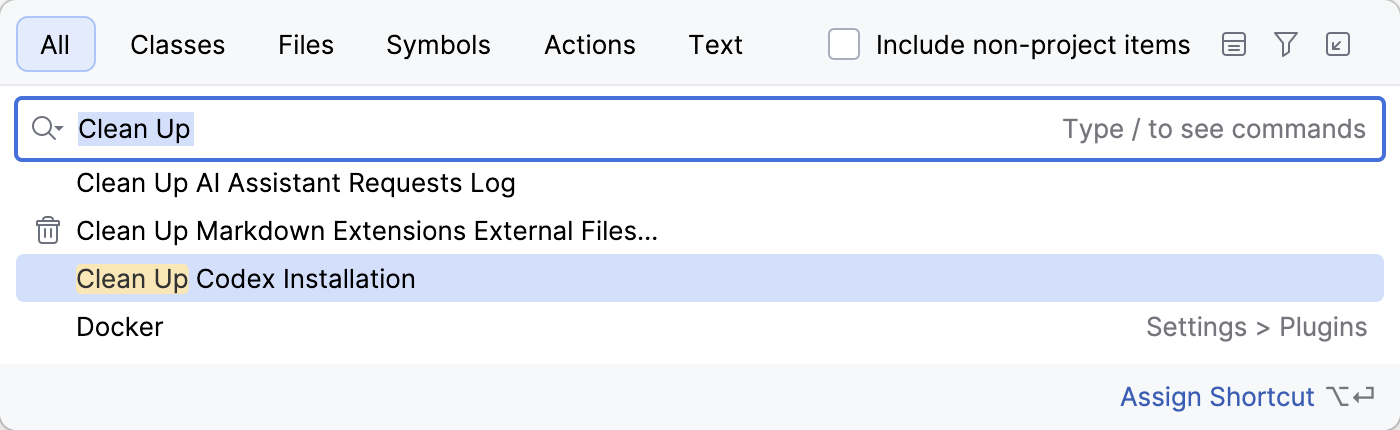
As a result, Codex is removed, and its configuration files are cleaned up.
Alternatively, you can manually delete the codex folder located in the IDE system directory under aia/codex:
Windows: %LOCALAPPDATA%\JetBrains\<product><version>\aia\codex
macOS: ~/Library/Caches/JetBrains/<product><version>/aia/codex
Linux: ~/.cache/JetBrains/<product><version>/aia/codex