Chat with AI
In Chat mode, you can ask questions about your code or project, generate code snippets, and work with AI responses directly in the chat.
Start a conversation
To begin working with AI Assistant, open the AI Chat tool window. You can then start a conversation.
Open AI Chat
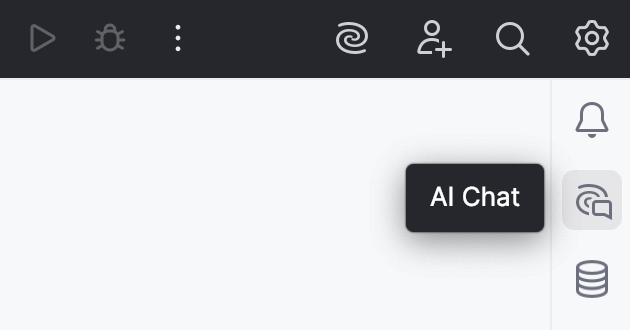
To open the AI Chat tool window, click  AI Chat on the right toolbar (in DataGrip, click
  More tool windows in the header and select AI Assistant).
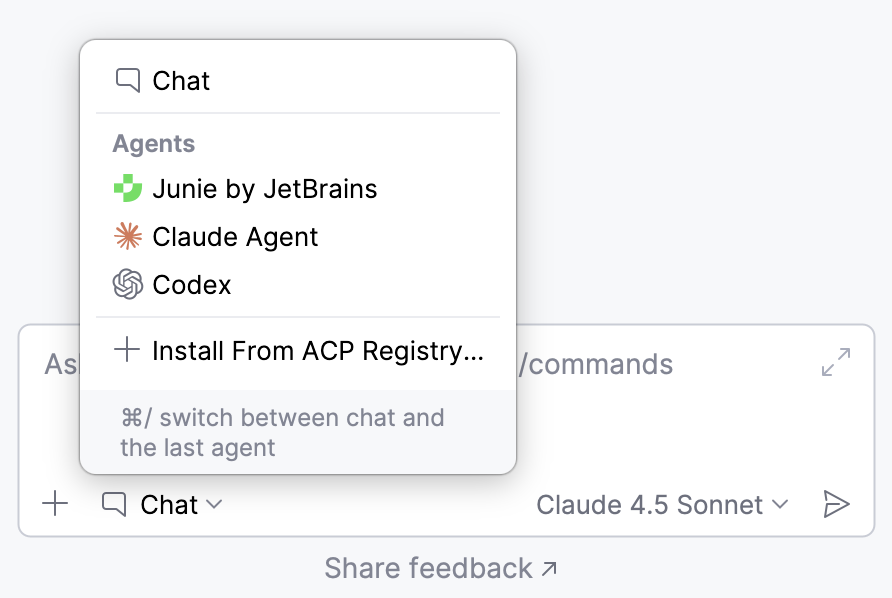
The tool window opens with Chat mode selected by default. If you previously switched to an agent, you can switch back to Chat mode by clicking the  button and selecting it from the list.
Start a new chat
If you already have an open chat and want to start a new one, click  New Chat or press Alt+Insert.
Select a model
You can choose the model that processes your requests. AI Assistant supports models provided through the JetBrains AI service, configured third-party provider, or locally running model.
To select a model you want to use:
In the chat, click the
 button next to the model's name.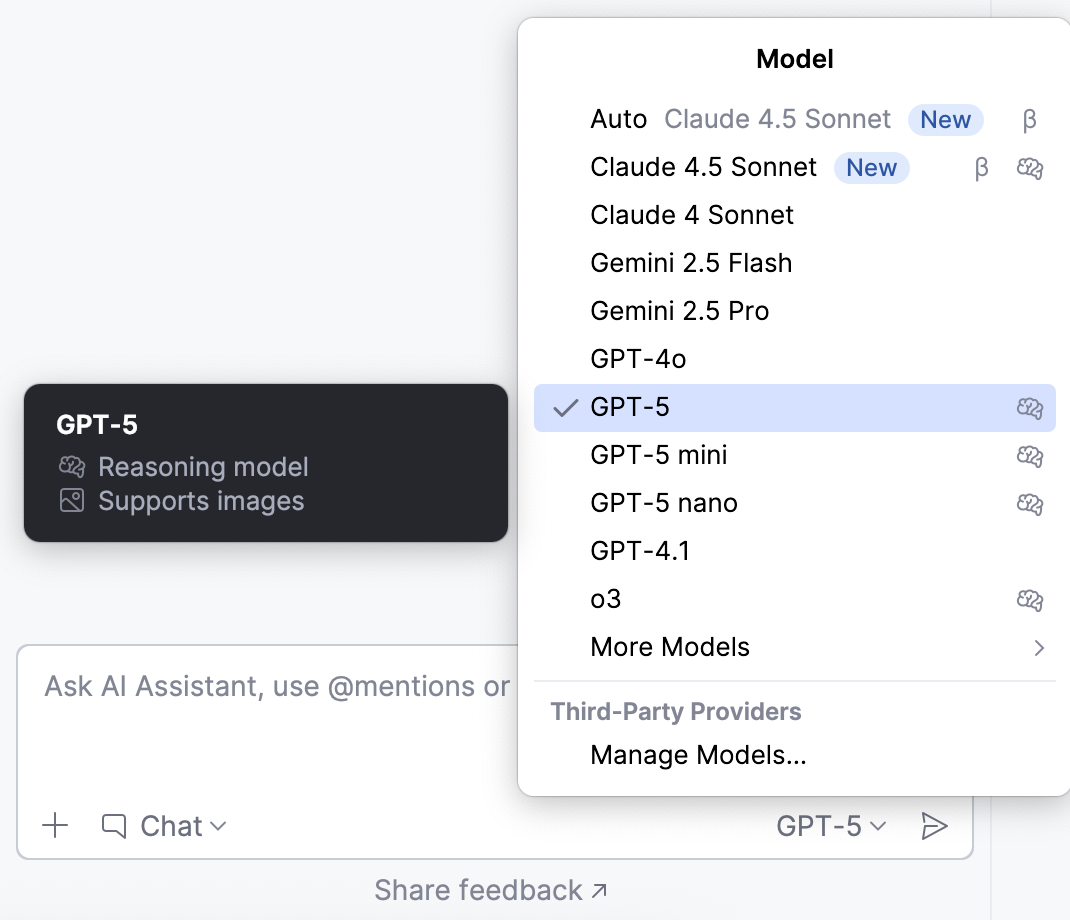
Select the desired model from the list.
AI Assistant provides hints for each model next to its name:
 – these models are better suited for tasks that require logical reasoning, structured output, or deeper contextual understanding.
 – these models can process images, allowing you to add visual context to your request.
 – models marked with this icon may consume more tokens, resulting in higher quota usage.
 – these models may produce varying results, meaning that their behavior or performance is less predictable.
Manage context
AI Assistant uses context from your project to generate responses. It can collect this context automatically or you can add it manually.
Enable codebase mode
By default, AI Assistant automatically gathers relevant context to provide a response. If you prefer to add the context manually, you can disable this behavior. To do this, click  and disable the Enable Codebase Mode setting.
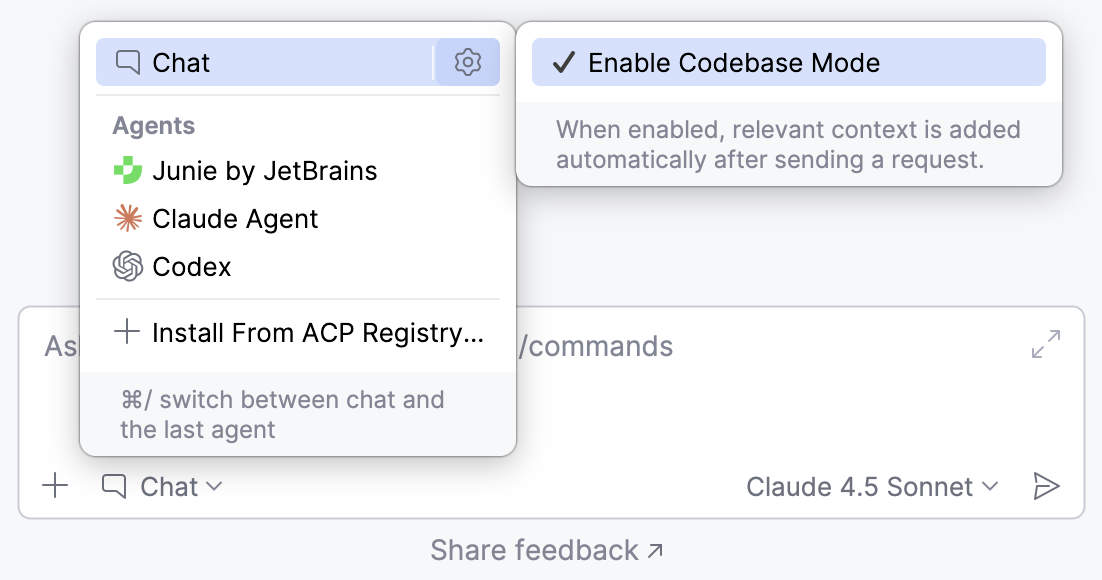
After that, you can add the relevant information manually via the button or using @ references.
Add attachments manually
You can add the relevant context manually by clicking the  Add attachment button. You can then select the category of attachment, and the item you want to add.
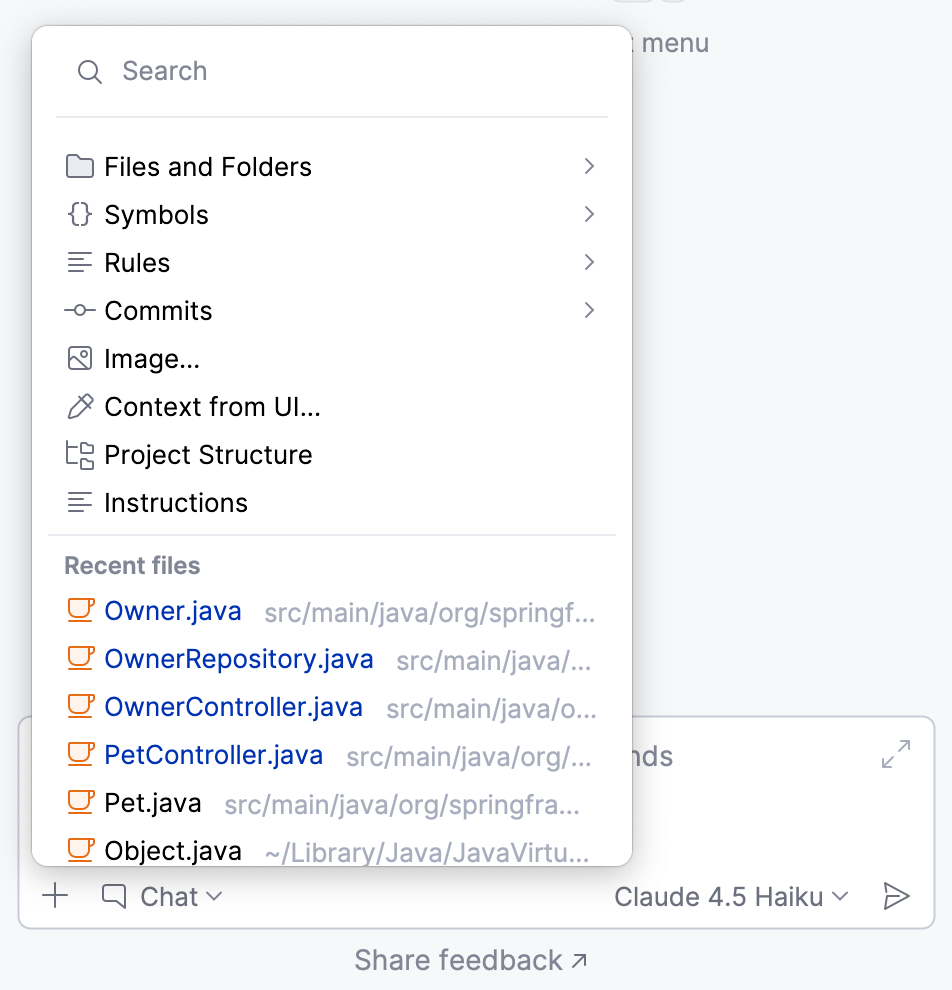
Below you can find detailed instructions on adding specific types of context to your query:
- Add files or folders to context
Adding files and folders to the context gives AI Assistant access to relevant code and project structure, helping it understand dependencies and provide more accurate, context-aware answers.
To add a file or folder to the context:
In the chat, click
Add attachment.Select the Files and Folders option from the menu and specify the file or folder you want to add.
Type your question in the chat and submit the query.
AI Assistant will use the attached file or folder to collect additional context when providing an answer.
- Add images to context
AI Assistant can extract relevant information from images and use it as context when processing your requests. It can read code snippets from screenshots, analyze error messages, or interpret other visual context.
To add an image to your request:
In the chat, select the model that supports image processing. Such models are marked with the
icon.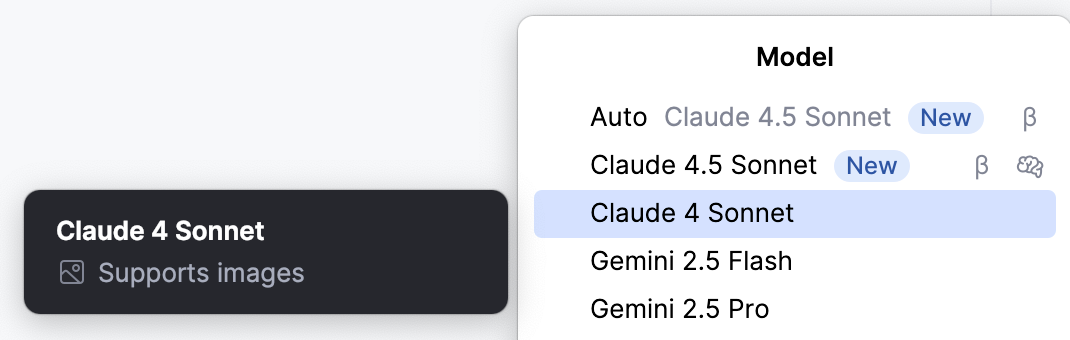
Click
Add attachment.Select the Add Image option from the menu and specify the image you want to add. If needed, you can attach multiple images.
Type your question in the chat and submit the query.
AI Assistant will process the image and extract relevant information needed to generate a reply.
The extracted code snippets can then be further processed as needed.
- Add context from UI
When asking questions in the chat, you can add context to your query directly from a UI element. It can be a terminal, tool window, console, etc. For example, you can attach a build log from the console to ask why your build failed.
In the chat, click
Add attachment.Select the Add context from UI option from the menu.
Select the UI element that contains data that you want to add to the context.
Type your question in the chat and submit the query.
AI Assistant will consider the added context when generating the response.
- Attach database object
Available in: DataGrip and IDEs with Database Tools and SQL plugin starting from IDE version 2025.2
You can attach a specific database object to your request in AI chat to provide the LLM with additional context. To do this:
In the chat, type
@, then start typing or selectdbObject:.From the list of database objects that appears, select the one you want to attach.
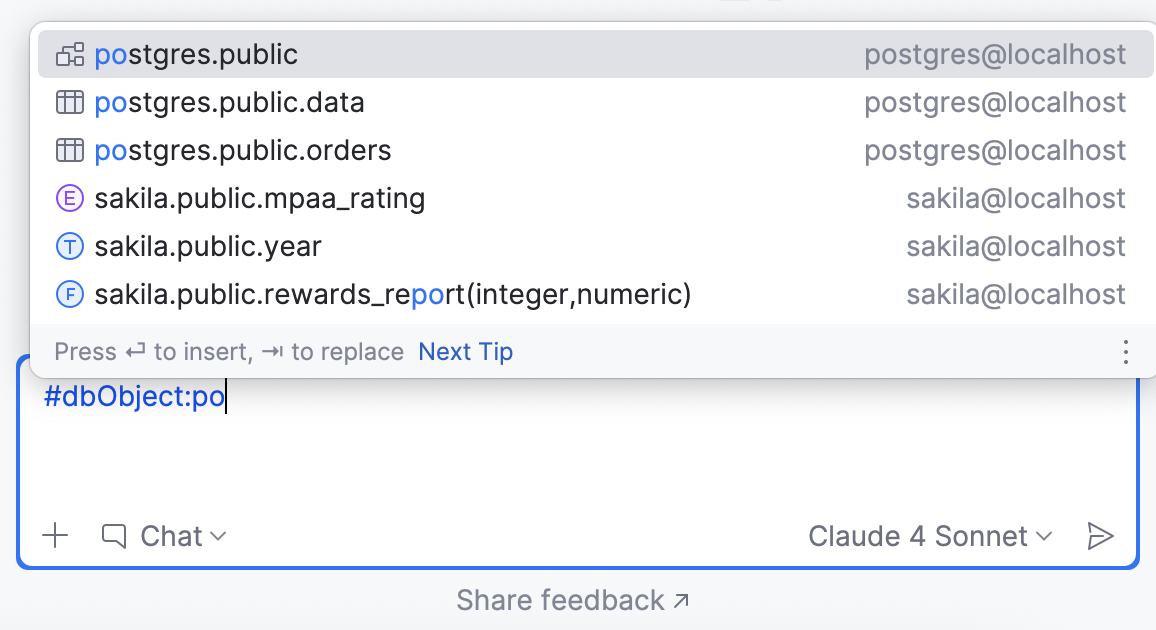
You can see which object was attached to your message and navigate to it by clicking the corresponding attachment in the chat.
Type your question in the chat and submit the query.
- Mention database context
Available in: DataGrip and IDEs with Database Tools and SQL plugin starting from IDE version 2026.1
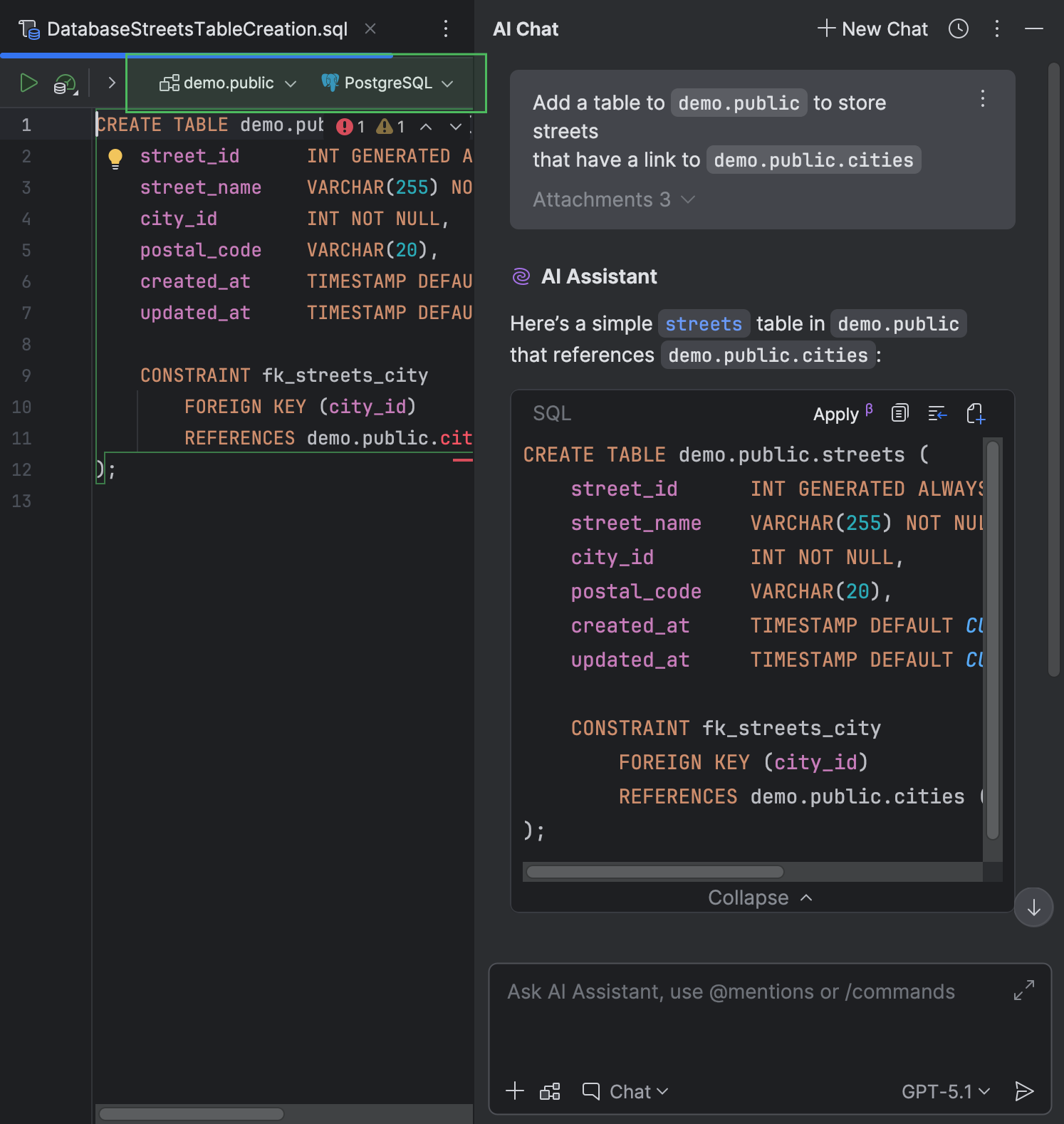
AI Assistant can manage settings for the file created from a code snippet automatically. For this, provide any context relating to the SQL dialect, a data source, or a schema in the chat. Also, if you ask AI Assistant about a file that already has a data source attached, it attaches that data source to the newly created file.
- Attach selection as context
Sometimes, it is necessary to explain a specific part of the code, a runtime warning, terminal output, or other results shown in various tool windows while working with your code. AI Assistant allows you to select this content and add it to the chat as context for your request.
To get an explanation:
Select the content you want explained. This can be a code snippet from the editor, a runtime error, terminal output, or other console messages shown in a corresponding tool window.
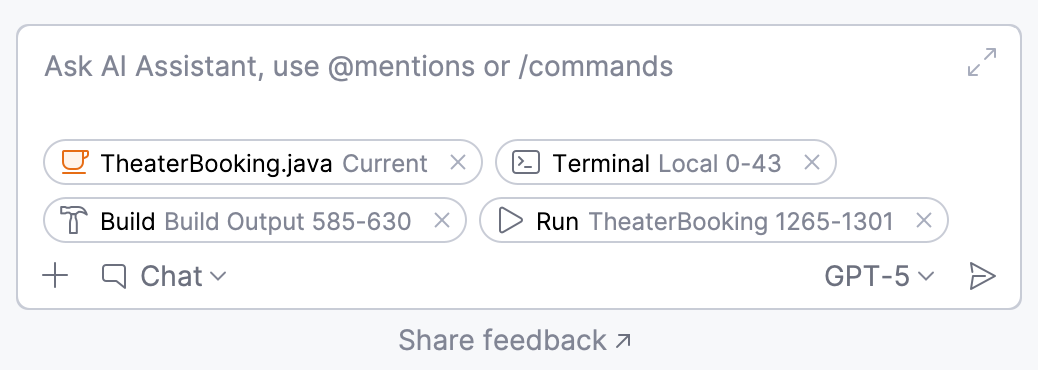
The selection is automatically added to the chat as context.
In the chat, ask AI Assistant to explain the selection.
Use @mentions
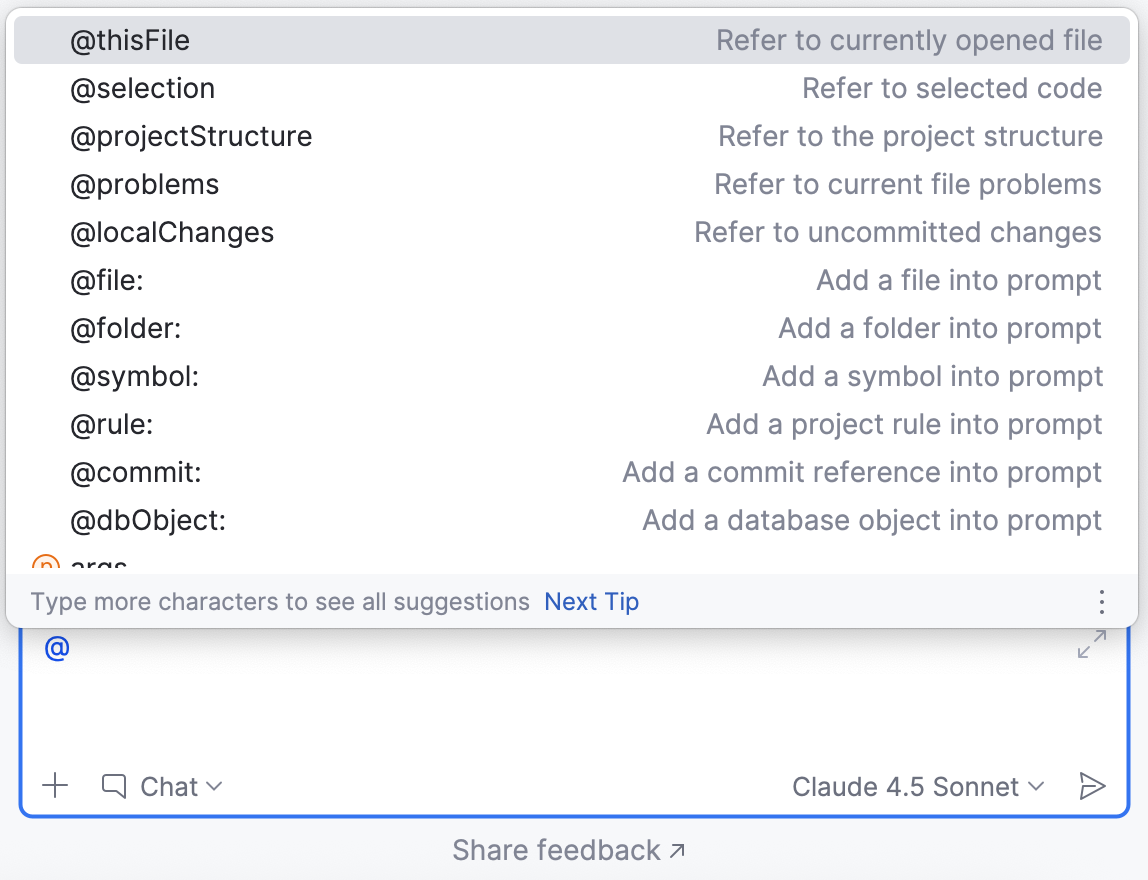
You can use @mentions to add specific items, such as files or symbols, to your request as context.
- Available categories
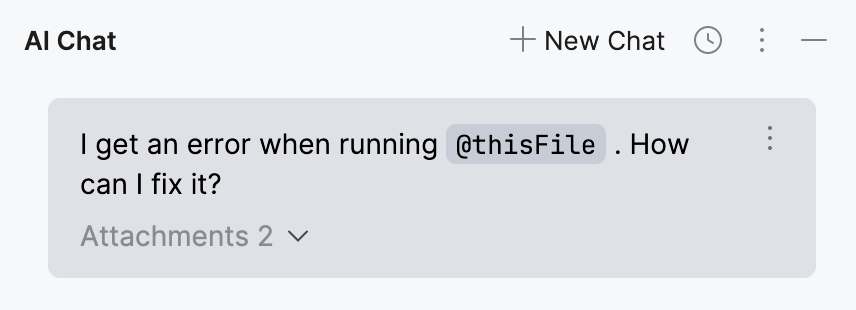
@thisFilerefers to the currently open file.@selectionrefers to a piece of code that is currently selected in the editor.@projectStructurerefers to the structure of the project displayed in the Project tool window.@problemsrefers to the issues detected in the currently open file.@localChangesrefers to the uncommitted changes.@file:invokes a popup with selection of files from the current project. You can select the necessary file or image from the popup or write the name of the file (for example,@file:Foo.mdor@file:img.png).@folder:refers to a folder in the current project. The selected folder, along with all its contents, is added as context to the prompt.@rule:adds a project rule into prompt. You can either select a rule from the invoked popup or write the rule name manually.@dbObject:refers to a database object such as a schema or table. For example, you can attach a database schema to your request to improve the quality of generated SQL queries.@commit:adds a commit reference into prompt. You can either select a commit from the invoked popup or write the commit hash manually.@symbol:adds a symbol into prompt (for example,@symbol:FieldName).@jupyter:for PyCharm and DataDrip, adds a Jupyter variable into prompt (for example,@jupyter:df).
Review attachments
You can review any attachment by clicking it. The item will be opened in a separate window.
If the request was already sent, you can find the attachments that were added to it by clicking the  button.
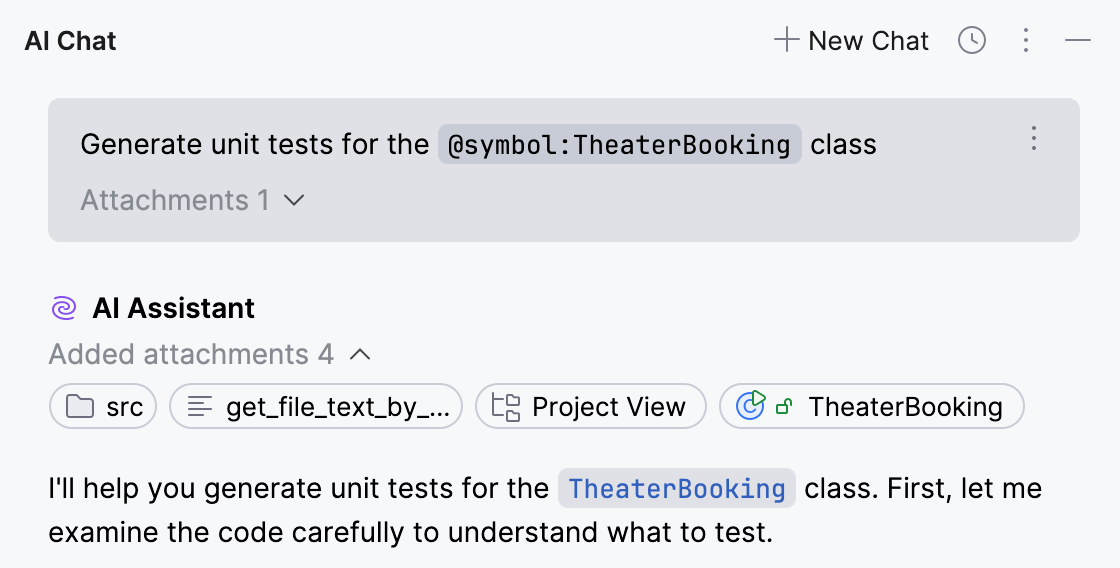
The attachments provided by AI Assistant in the answer are always shown but can be hidden if needed by clicking  .
.
Set a message trimming threshold
Each language model has a context window – the maximum amount of context it can process at once. If this limit is exceeded, the model may produce incomplete responses or discard earlier parts of the conversation.
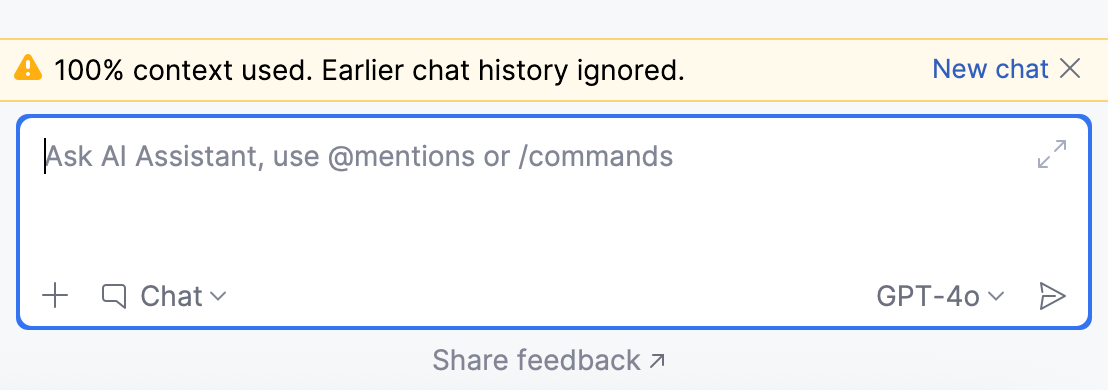
To ensure your requests stay within the model's capacity, you can configure a message trimming threshold. If this threshold is exceeded, AI Assistant starts prioritizing smaller files and extracting key content from larger ones to optimize the amount of context sent to the model.
To set a message trimming threshold:
Go to .
Alternatively, hover over the trimmed attachment, marked with the
 icon, and click Adjust threshold.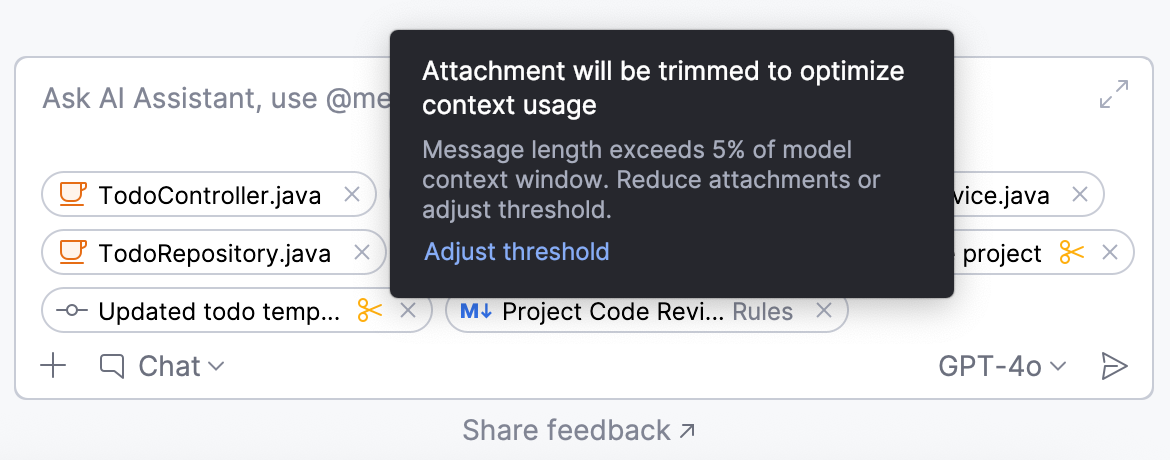
In the Message Trimming Threshold section, select a value for the Trim message if it exceeds % of a model context window setting.

Click OK to save changes.
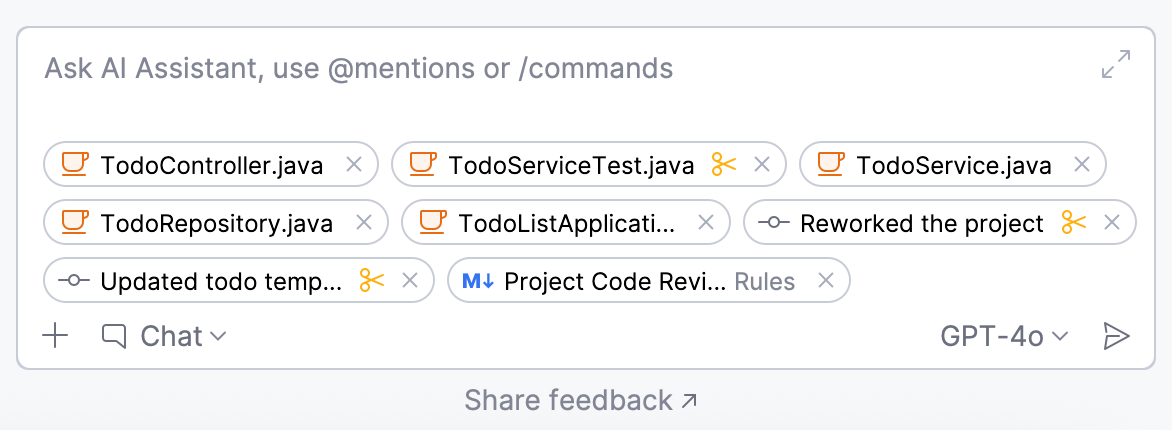
As a result, when your message exceeds the specified threshold, AI Assistant trims the attachments to ensure the model can process the request. The trimmed content is marked with the icon.
Use /commands
Commands act as shortcuts for specific actions, allowing you to save time when typing your query. You can use them in combination with @mentions.
By default, the following / commands are available:
/docs– searches the IDE documentation for information on the specified topic. If applicable, AI Assistant will provide a link to the corresponding setting or documentation page./explain– explains a mentioned entity./help– provides information about AI Chat features./refactor– suggest refactoring for the code selected in the editor./web– searches for information on the internet. AI Assistant will provide an answer and attach a set of relevant links that were used to retrieve the information.
Process responses
In Chat mode, you can apply or reuse AI-generated suggestions using the actions available in the top-right corner of the code snippet.
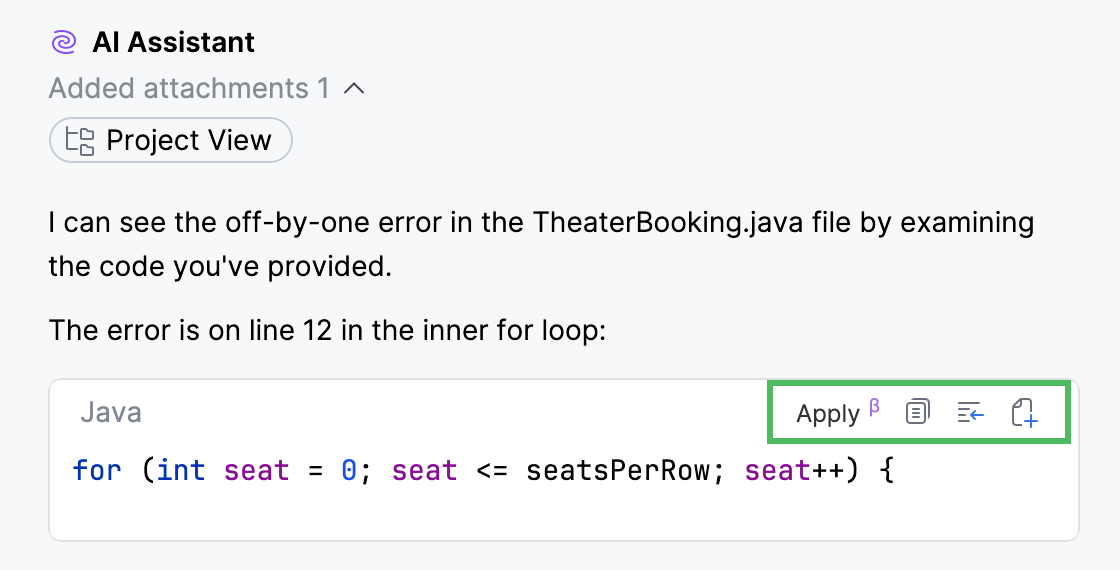
Apply – apply the suggestion to the currently open file.
 Copy to Clipboard – copy the code snippet.
 Insert Snippet at Caret – insert the code snippet into the editor.
 Create File from Snippet – creates a new file from the snippet.
 Run Snippet – execute the generated command or code.
Apply a suggestion to the current file
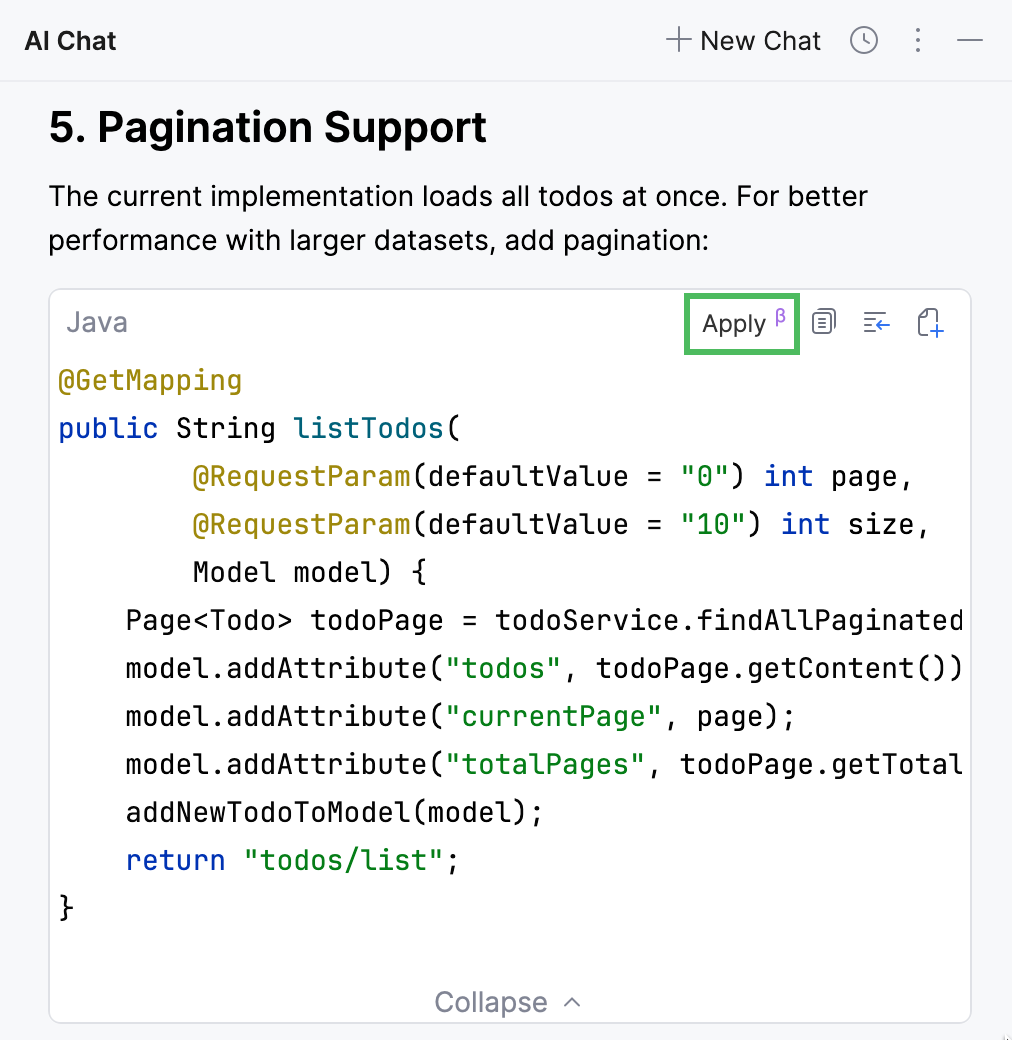
Code snippets generated by AI Assistant in the Chat mode can be applied to the currently open file. The changes are applied to the entire file, with relevant code adjusted to integrate the updates.
To apply the suggestion:
Locate the code snippet that you want to apply.
Click the Apply button.
In the editor, review the changes by clicking
 Next Change or
  Previous Change buttons.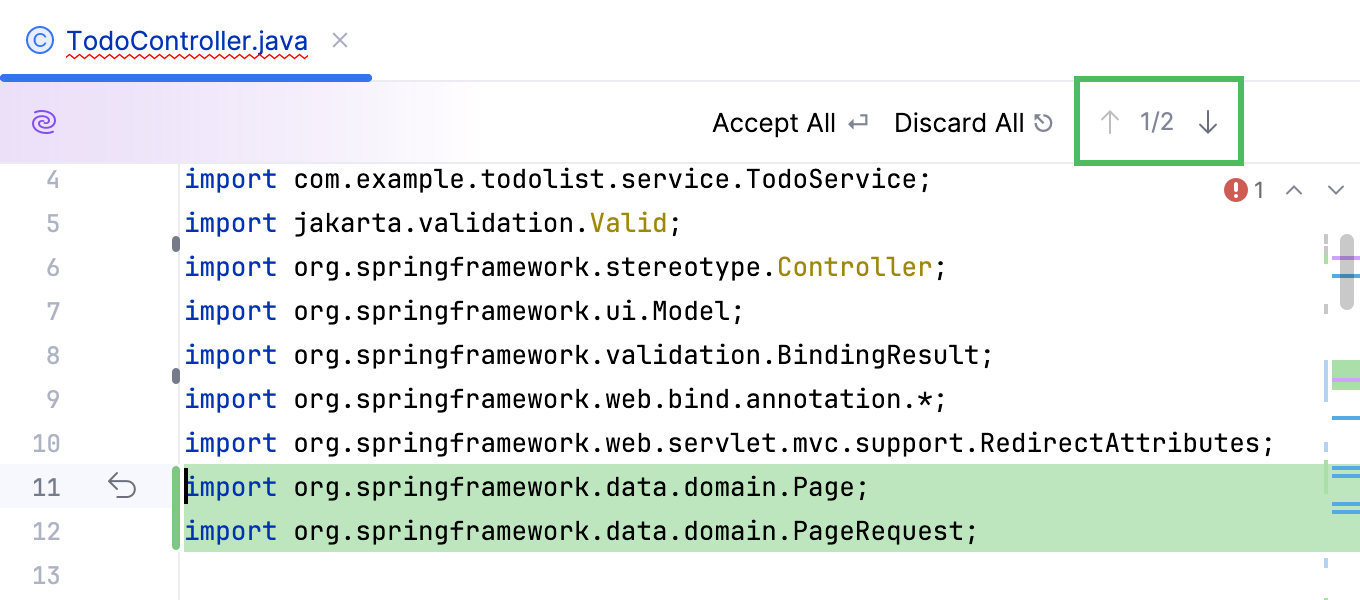
When you are ready to apply the changes, click Accept All. Otherwise, click Discard All to reject the changes.
Regenerate the response
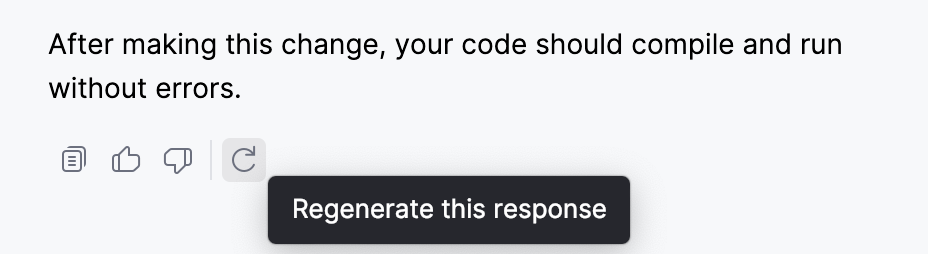
If you do not like the answer provided by AI Assistant, click  Regenerate this response at the end of the response to generate a new one.
View chat history
AI Assistant stores chat history separately for each project across IDE sessions. You can find the saved chats in the  Chat History list.
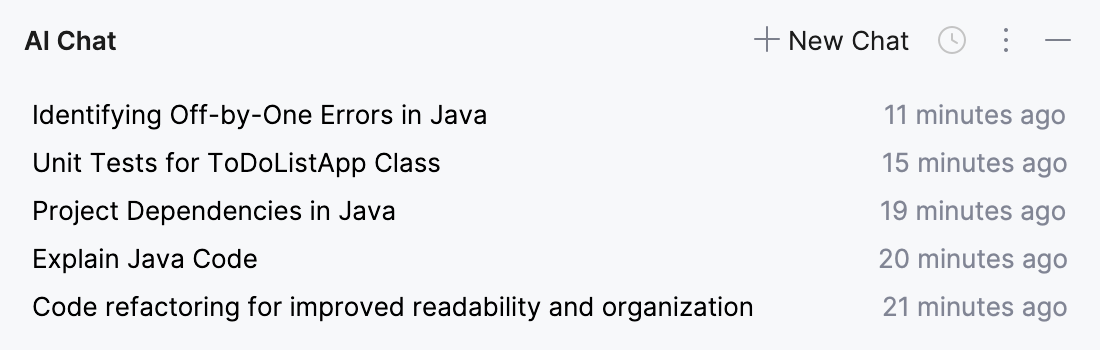
Names of the chats are generated automatically and contain the summary of the initial query. Right-click the chat's name to rename it or delete it from the list. Search for a particular chat name using Ctrl+F.
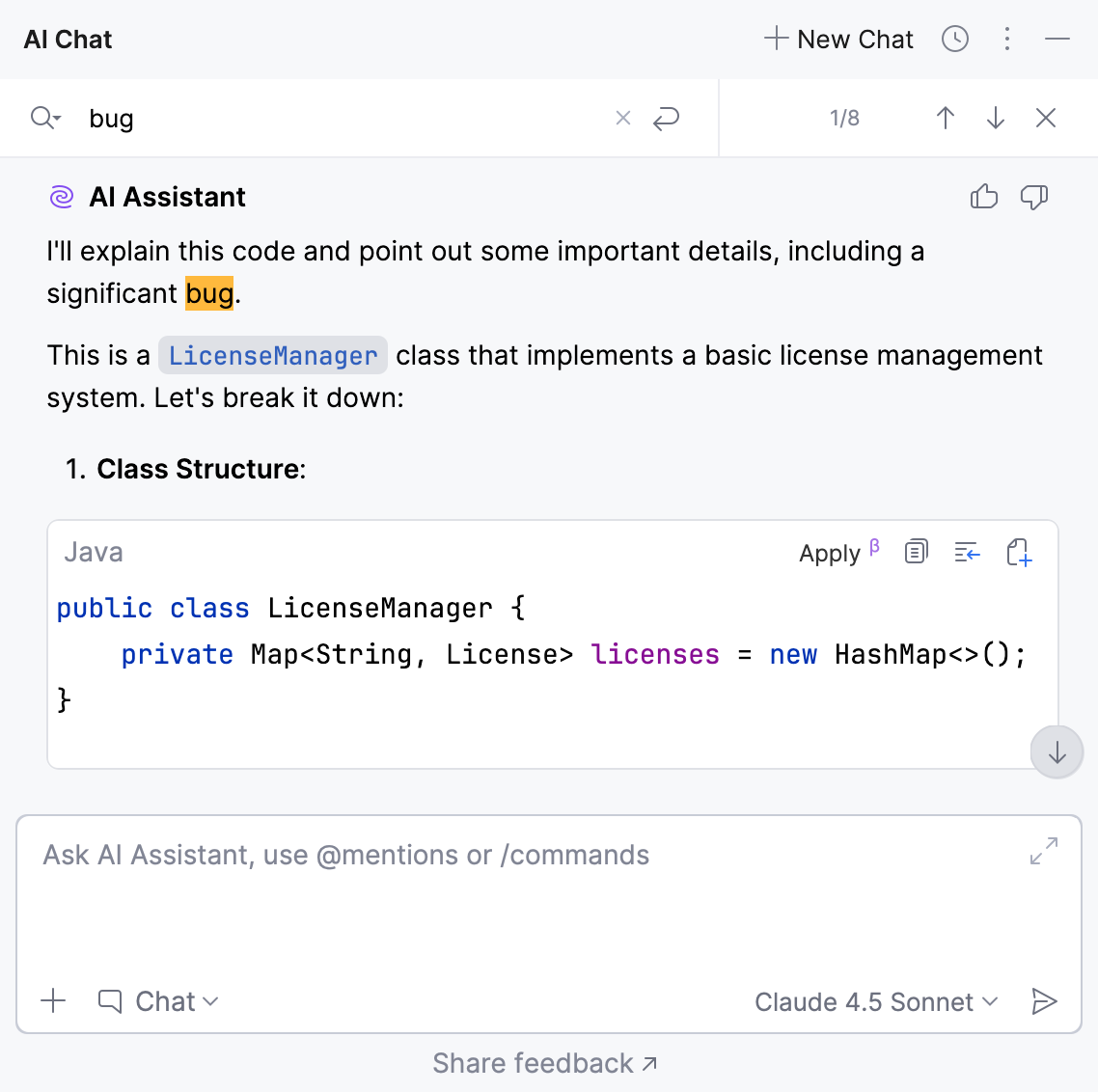
Besides searching for a specific chat, you can also search within a chat instance. To revisit a specific part of the conversation:
In the chat instance, press Ctrl+F. Alternatively, click
 and select Find in Chat.
In the search field, type your query. AI Assistant will highlight all occurrences of the specified text in the chat.
Use
buttons to navigate to the next/previous occurrence.