AI Chat
AI Chat is the main entry point for interacting with the AI models and agents supported by AI Assistant. Here, you can have conversations with language models, ask questions about your code or project, and work with agents to plan and execute development tasks.
AI Chat interactions generally follow this pattern:
Select how you want to interact – choose between a chat for everyday questions or an agent designed for advanced development tasks.
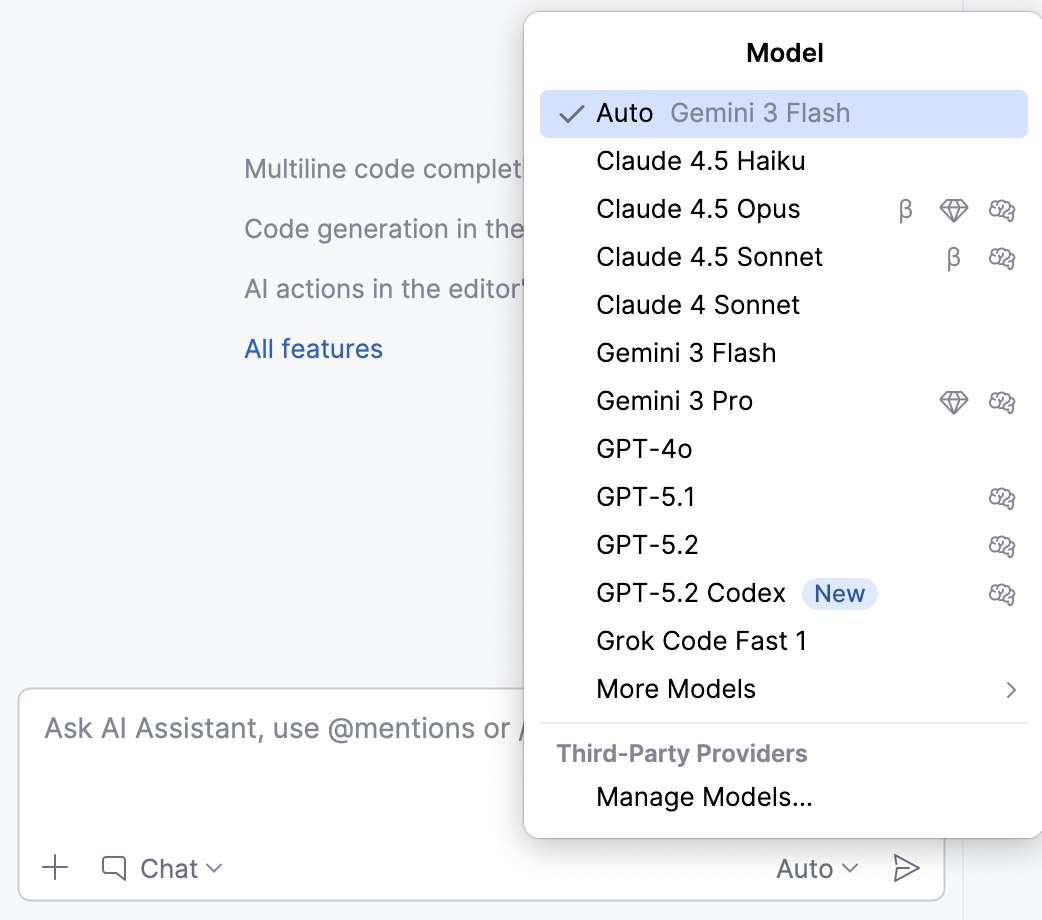
Select a model – choose the AI model that processes your requests. Models can be provided through the JetBrains AI service, accessed from a third-party AI provider, or hosted locally.
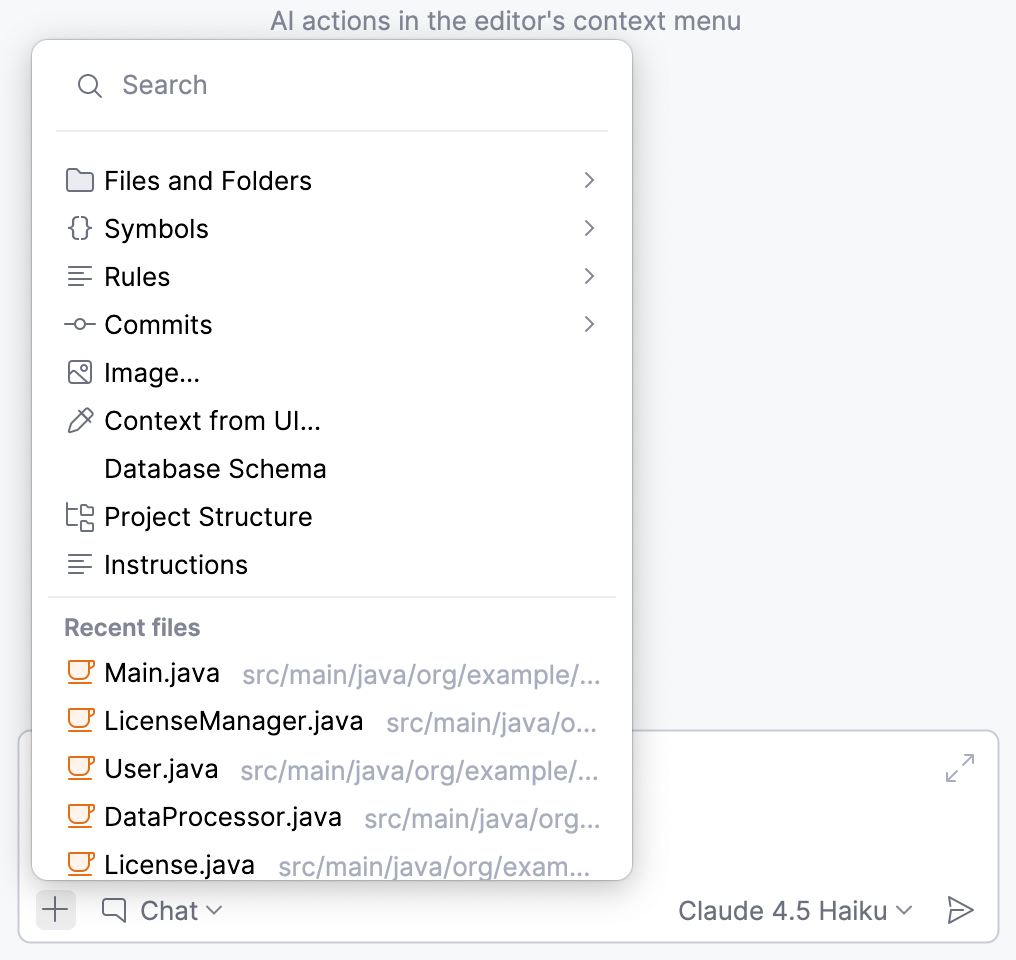
Add context to your request – provide relevant information by attaching files, folders, images, symbols, or other elements that can serve as context for your query.
Process the response – AI Assistant can answer questions, generate code or terminal commands, and suggest file edits. You can review the results produced by the model or agent and process the proposed changes as needed.
This allows you to get relevant answers, generate code, and make changes to your project using AI.
Interface overview
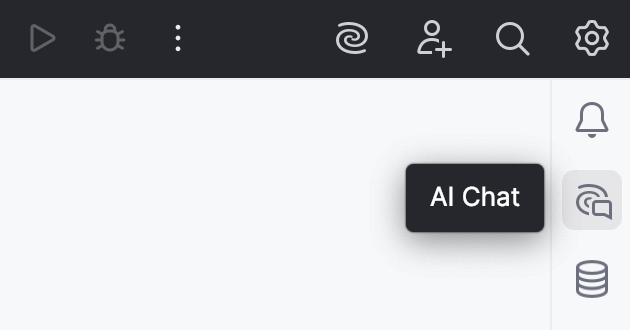
AI Chat is available as a tool window located on the right toolbar. You can open it by clicking the  AI Chat button.
The tool window consists of the following elements:
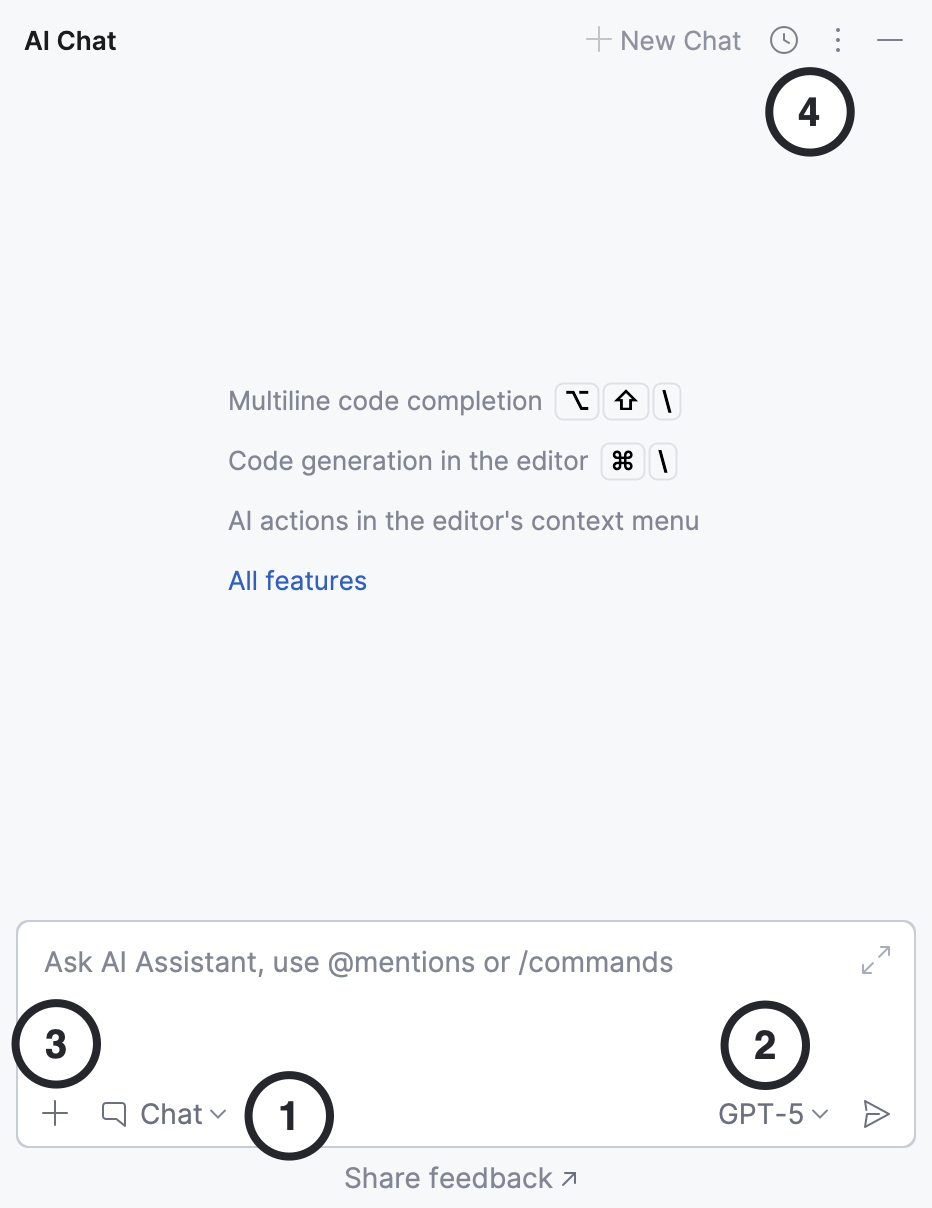
Chat mode and agent selector – switch between Chat for quick conversations and one of the supported Agents for complex tasks.
Model picker – select the model used to process your requests, including locally running models or models provided by configured third-party providers.
Attachments – add files, folders, images, symbols, or other elements that can serve as context for your request.
Chat history and settings – access previous conversations by clicking the
 Chat History button, rename or delete the currently active chat, adjust the chat layout, or manage AI Assistant settings from the
  Options menu.
Interaction modes
AI Chat supports two ways of interacting with AI: Chat and Agents. The selected mode determines how the AI handles your requests.
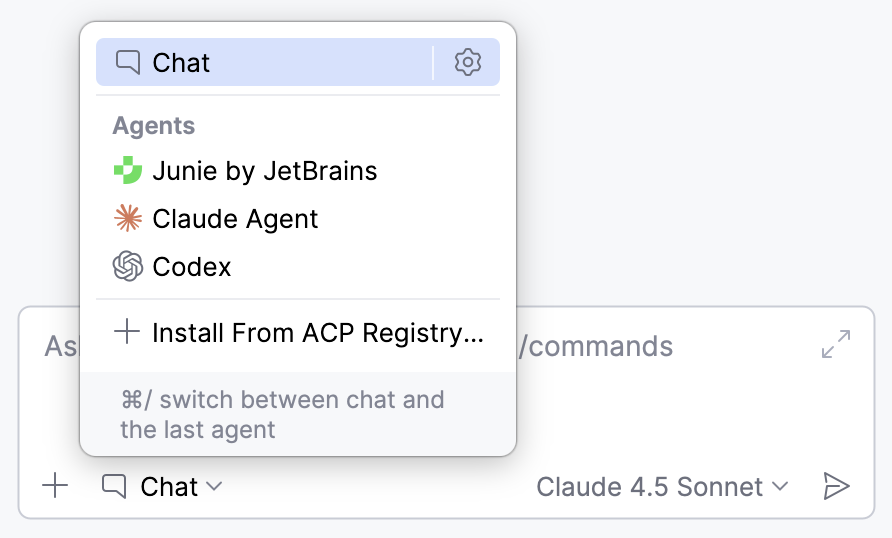
- Chat
Use Chat mode to ask general or project-related questions, request explanations, or generate code snippets. In this mode, the AI provides responses and suggestions but does not apply changes to your project automatically. Any generated code must be reviewed and applied manually.
- Agents
Agents are designed for more complex development tasks. They can perform multi-step actions in your project, modify multiple files, and report progress during execution. You can review the results and keep or roll back the changes if needed.
AI Assistant currently integrates the following agents:
You can also connect external agents through the Agent Client Protocol (ACP). For more information, refer to Agent Client Protocol (ACP).



Models
Different models have different capabilities, so you may want to switch them depending on your task. AI Assistant lets you choose from a list of supported LLMs, models from configured third-party providers, or locally running models.
Context
Attaching the right context to your request helps AI Assistant provide more accurate and relevant responses. You can add files, folders, images, symbols, commits, or other items to provide AI Assistant with additional information related to your question.
Responses
AI Assistant responses can include code snippets, terminal commands, edit suggestions, or changes affecting one or multiple files.
How responses are processed depends on the selected operation mode:
In Chat mode, responses typically contain suggestions or code snippets that you can review and apply if needed.
Agents typically introduce more complex changes across multiple files, which you can review and accept or discard.
Conversations
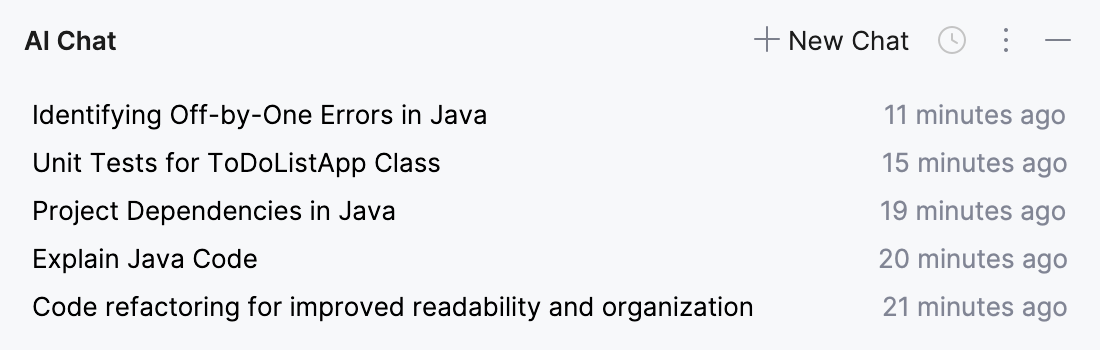
AI Assistant organizes chat interactions as conversations. Each conversation keeps the history of your messages and responses, allowing you to revisit or continue previous interactions later if needed.