Whiteboard Cards and Elements
Whiteboard cards and elements are the essential building blocks of your whiteboard. Cards can be freeform placeholders, or you can link them to work items such as issues and articles. Other elements, like text blocks and widgets, add context or dynamic app content to your planning space.
You can add existing issues and articles onto a whiteboard as cards. Additionally, you can convert text cards into issues or articles whenever needed, making it easy to turn ideas into actionable tasks or documentation.
You can add an infinite number of cards to your whiteboard to represent issues, articles, or any ideas you want to visualize. You can place cards anywhere on the whiteboard and customize them with text and colors.
You can link cards on the whiteboard to visually represent relationships or dependencies.
Card and Element Types
Whiteboard elements include text cards for capturing ideas, existing or new issues for visualizing tasks, existing or new articles for referencing information in the knowledge base, text blocks, and widgets. This flexibility allows you to organize your board in a way that aligns with your project's unique needs.
Action | Description |
|---|---|
Text cards | Freeform cards where you can add notes, ideas, or placeholders for tasks or information. These cards can be converted into issues and articles. |
Issue cards | Cards that represent issues in YouTrack. You can convert text cards into issue cards or add existing YouTrack issues as whiteboard cards. |
Article cards | Cards that represent knowledge base articles in YouTrack. You can convert text cards into article cards or add existing YouTrack articles as whiteboard cards. |
Text blocks | Text blocks are freeform elements on the whiteboard used to add context, notes, or labels. They can be placed anywhere to provide additional information or improve clarity. Hyperlinks in text blocks are working links, enabling you to reference external resources or navigate to relevant content directly. |
Widgets | Widgets are app-powered elements that display dynamic information on a whiteboard. You can add dashboard-compatible widgets, move them on the canvas, resize them, and remove them from the whiteboard. |
Add a New Card
When adding a  New card to the whiteboard, the card begins as a text card. After creating the card, it can stay as text, or you can convert it into an issue or article.
To add a card to a whiteboard:
From the main navigation menu, select
 Whiteboards.
In the whiteboard toolbar, select
New card.Move your cursor from the toolbar onto the whiteboard workspace. A transparent outline of a card appears under your cursor.
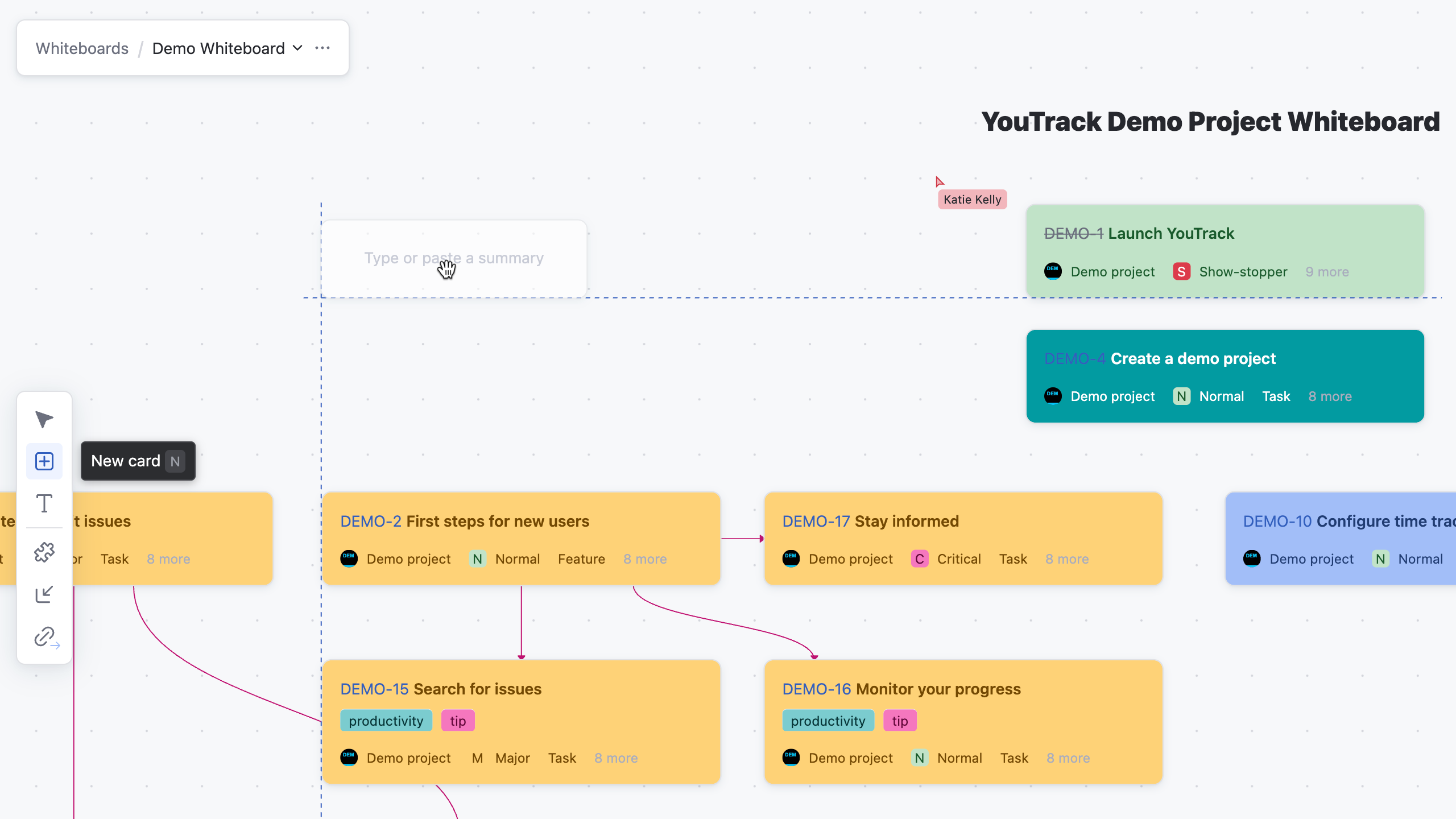
Left-click to set the card onto the whiteboard.
Enter text on the new card.
The viewable text at the top of the card is the summary description.
Select
 Show description in the corner of the card to display or edit the description of the card.
To confirm the new card on the whiteboard, select any other element in YouTrack except for the new card.
Card Toolbars
The card toolbars provide quick actions to manage both standard cards and issue/article cards, including styling, and organizational options.
Card Toolbar
The card toolbar provides quick access to key actions for managing individual cards. You can convert a card into an issue or article, assign a color for organization, or delete it from the whiteboard.
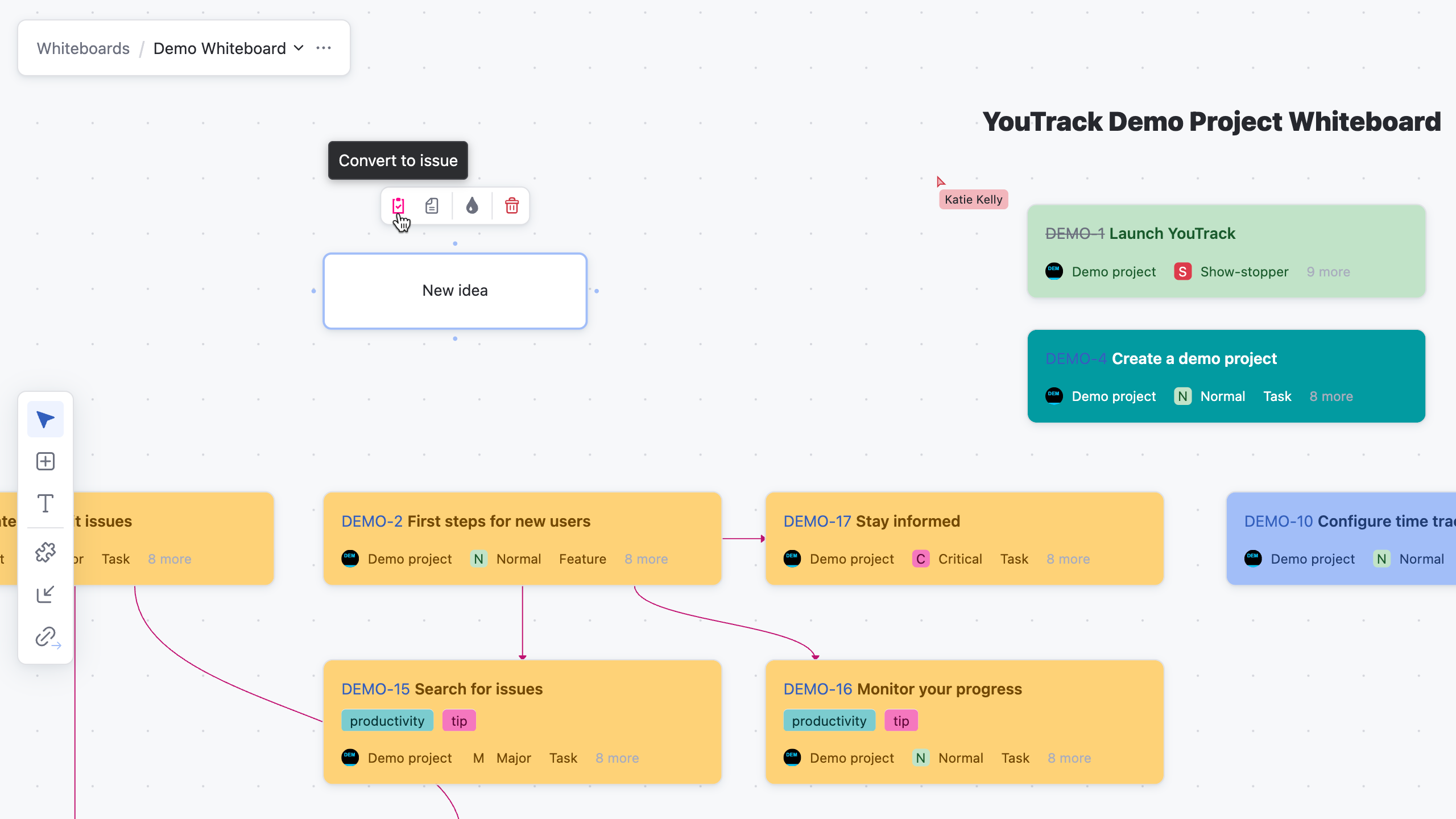
Action | Description |
|---|---|
Convert to issue | Select |
Convert to article | Select |
Set color | Select |
Delete | Select |


Issue and Article Card Toolbar
The issue and article card toolbar offers quick actions for managing the cards on the whiteboard. You can expand the card to open the issue or article, assign a color for organization, or remove it from the whiteboard without affecting the item in YouTrack.
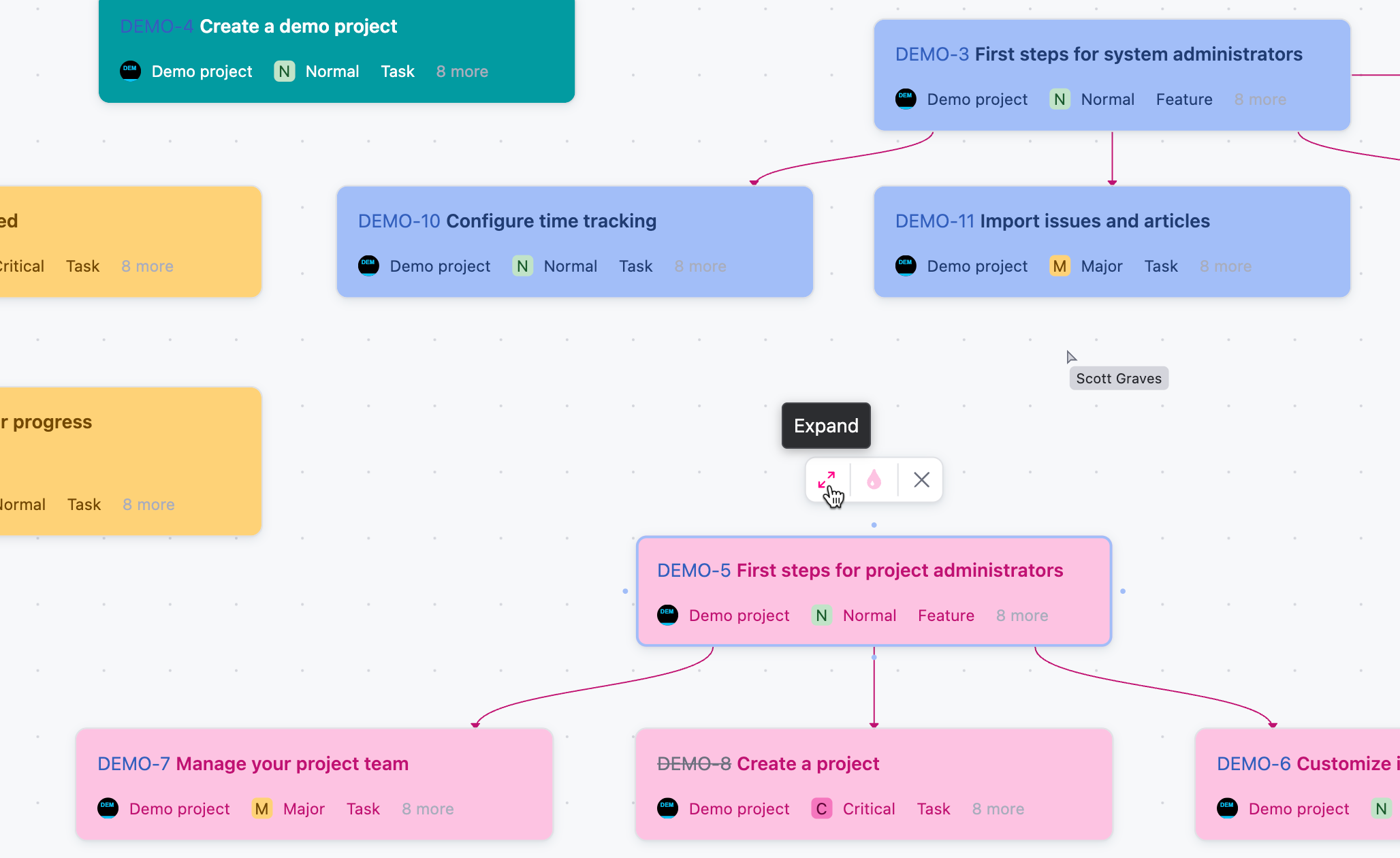
Action | Description |
|---|---|
Expand | Select |
Set color | Select |
Remove | Select |


Add a New Text Block
A  New text block on the whiteboard is a borderless space for adding context, labels, or organizing information. Text blocks cannot be converted into YouTrack issues or articles but can be linked to other elements to provide structure and clarity.
To add a text block to a whiteboard:
From the main navigation menu, select
Whiteboards.In the whiteboard toolbar, select
New text block.Move your cursor from the toolbar onto the whiteboard workspace. A transparent outline of a text block is displayed under your cursor.
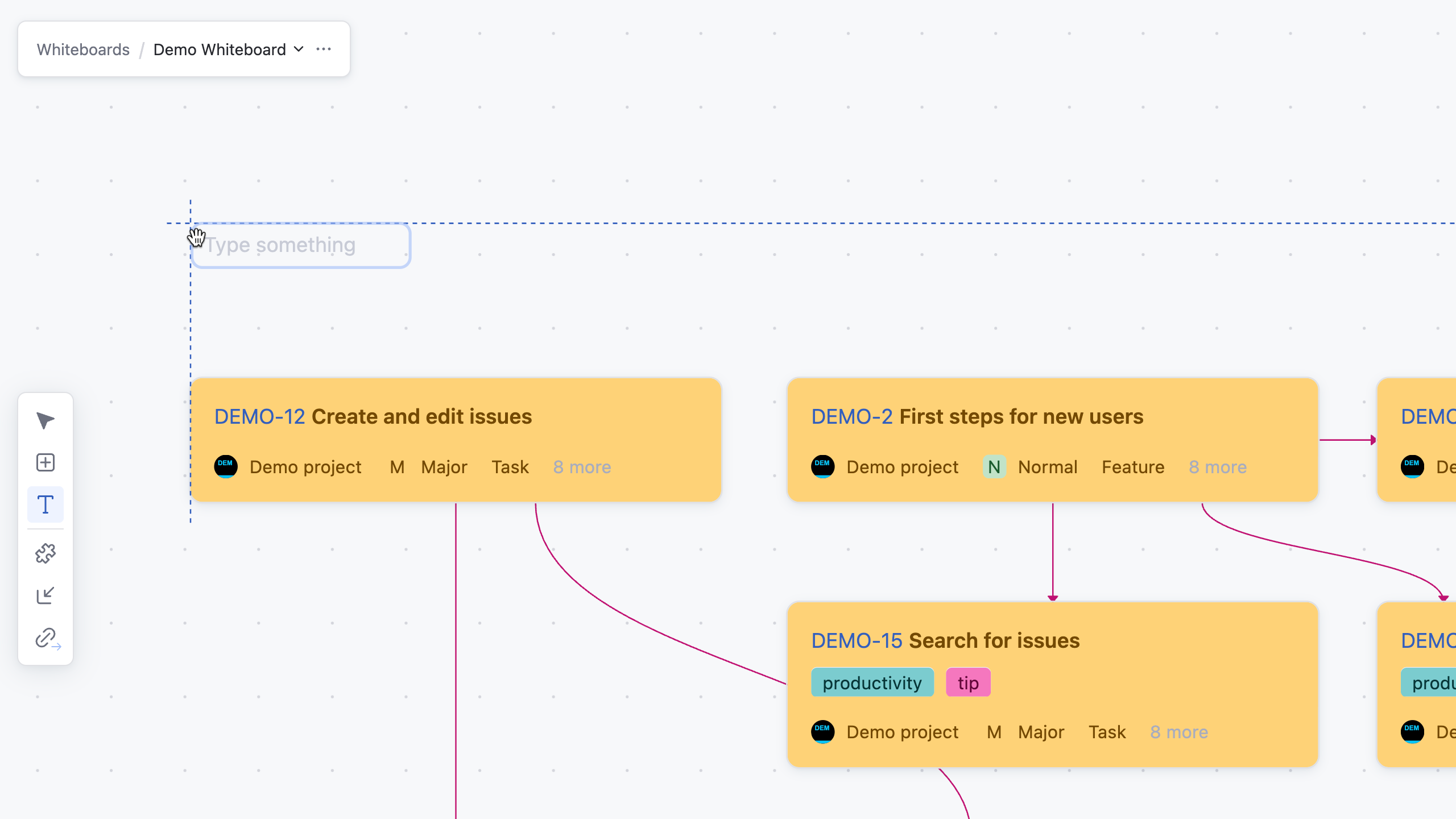
Left-click to set the text block onto the whiteboard.
Enter text on the new text block.
To confirm the new text block on the whiteboard, select any other element in YouTrack except for the new text block.
You can adjust the width of a text block by dragging its left or right edge.
Text Block Toolbar
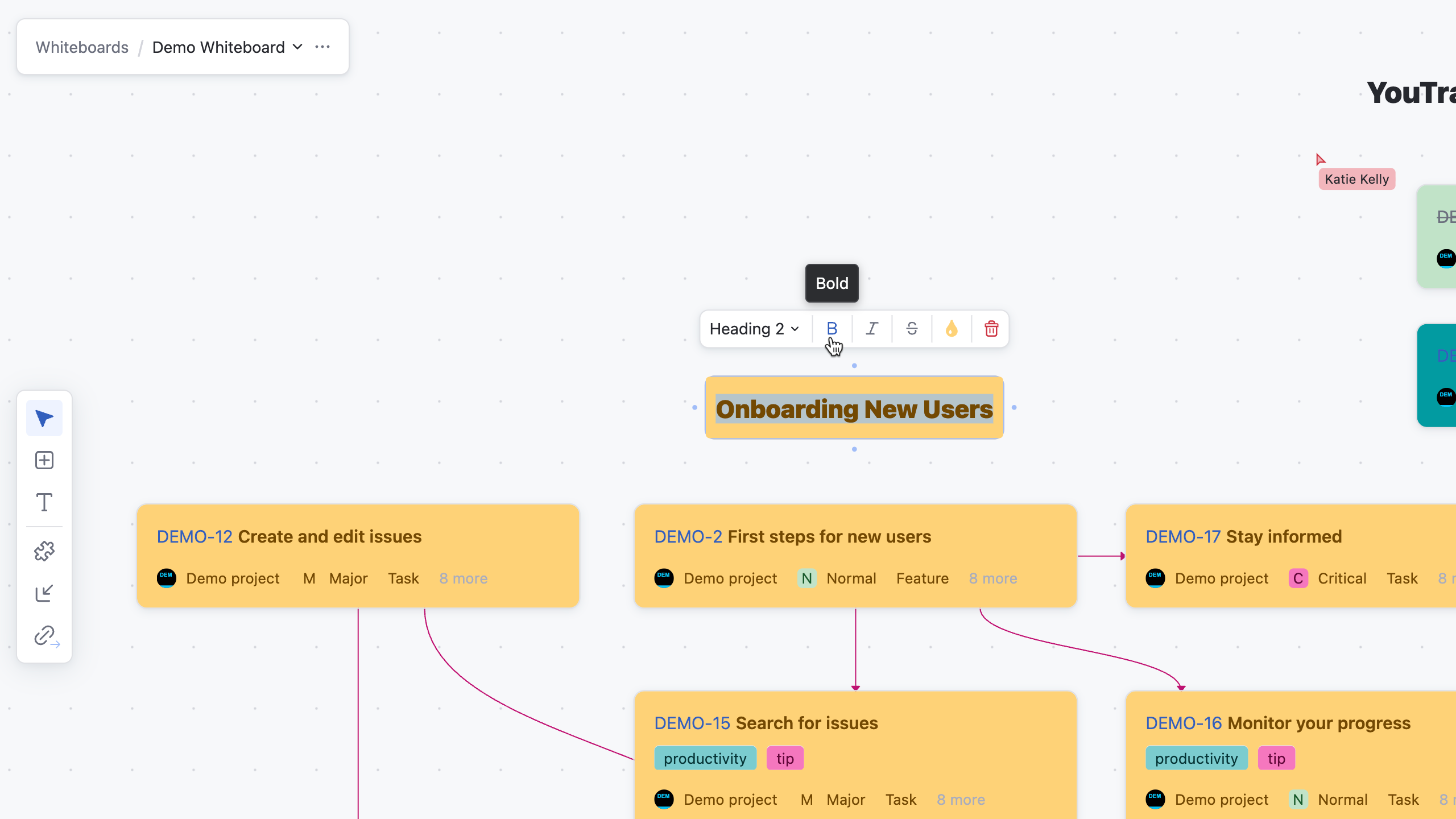
The text block toolbar allows you to style and format your text for better clarity and emphasis on the whiteboard. You can adjust the text type (normal or heading levels), apply formatting such as bold, italic, or strikethrough, and delete the text block if needed.
Action | Description |
|---|---|
Text type | Select the text type from the drop-down menu. Headings are differentiated from the rest of the text through larger boldface font sizes. Lines that are not headings appear as normal text. |
Bold | Select |
Italic | Select |
Strikethrough | Select |
Set color | Select |
Delete | Select |


Add a Widget
Widgets let you place dynamic app content directly on a whiteboard. The widget selector shows dashboard-compatible widgets that are available in YouTrack apps.
To add a widget to a whiteboard:
From the main navigation menu, select
Whiteboards.Open the whiteboard where you want to add a widget.
In the whiteboard toolbar, select
 Add widget.
The widget selector opens.
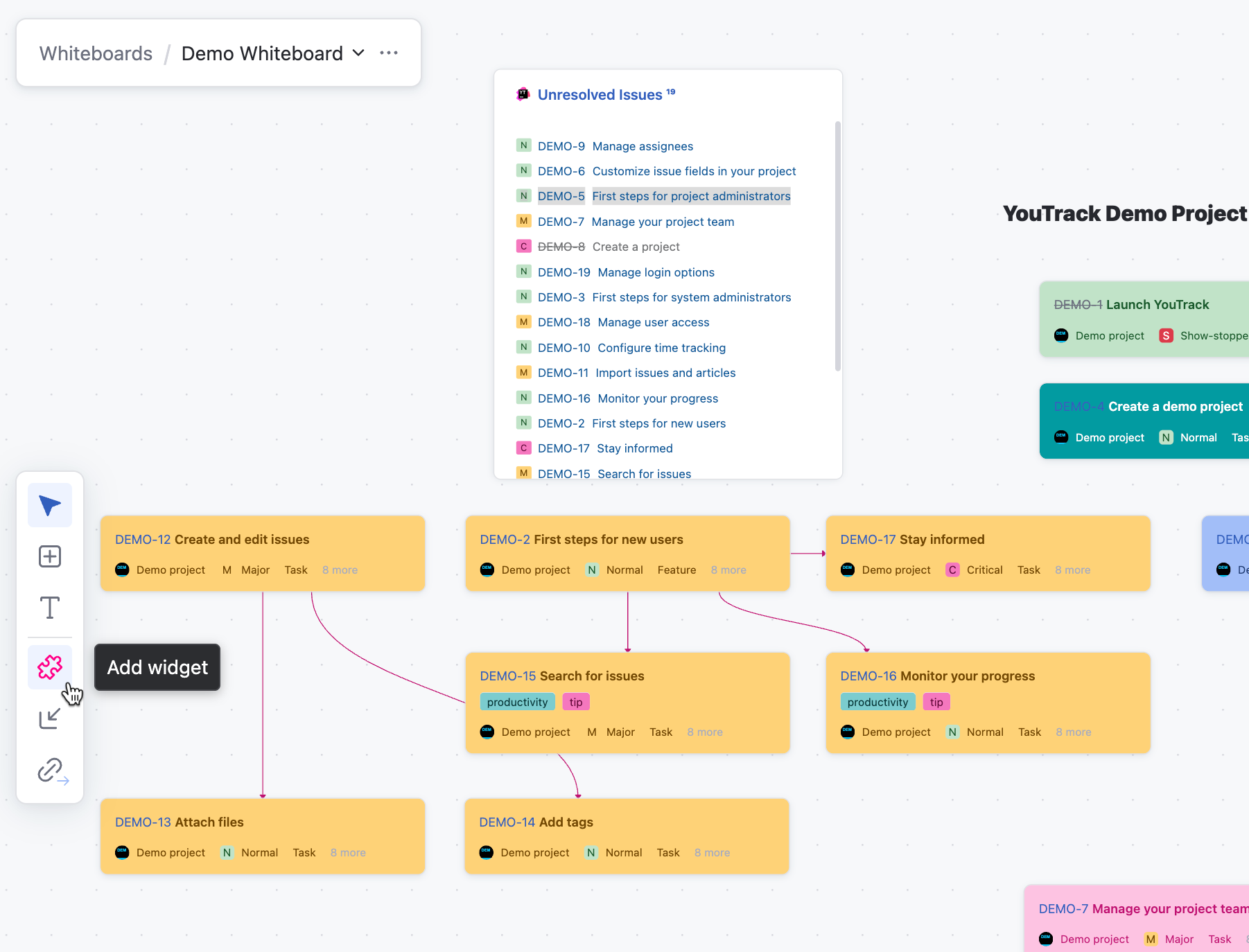
Select the widget you want to add.
The widget settings dialog opens.
Configure the required widget settings, then confirm the configuration.
The widget is added to the visible area of the whiteboard.
Move or resize the widget to arrange it with the rest of the whiteboard content.
Widget actions, settings, and refresh behavior depend on the widget app. If the app that provides a widget is disabled or unavailable, the whiteboard shows a message that the widget is unavailable instead of the widget content.
Widget Toolbar
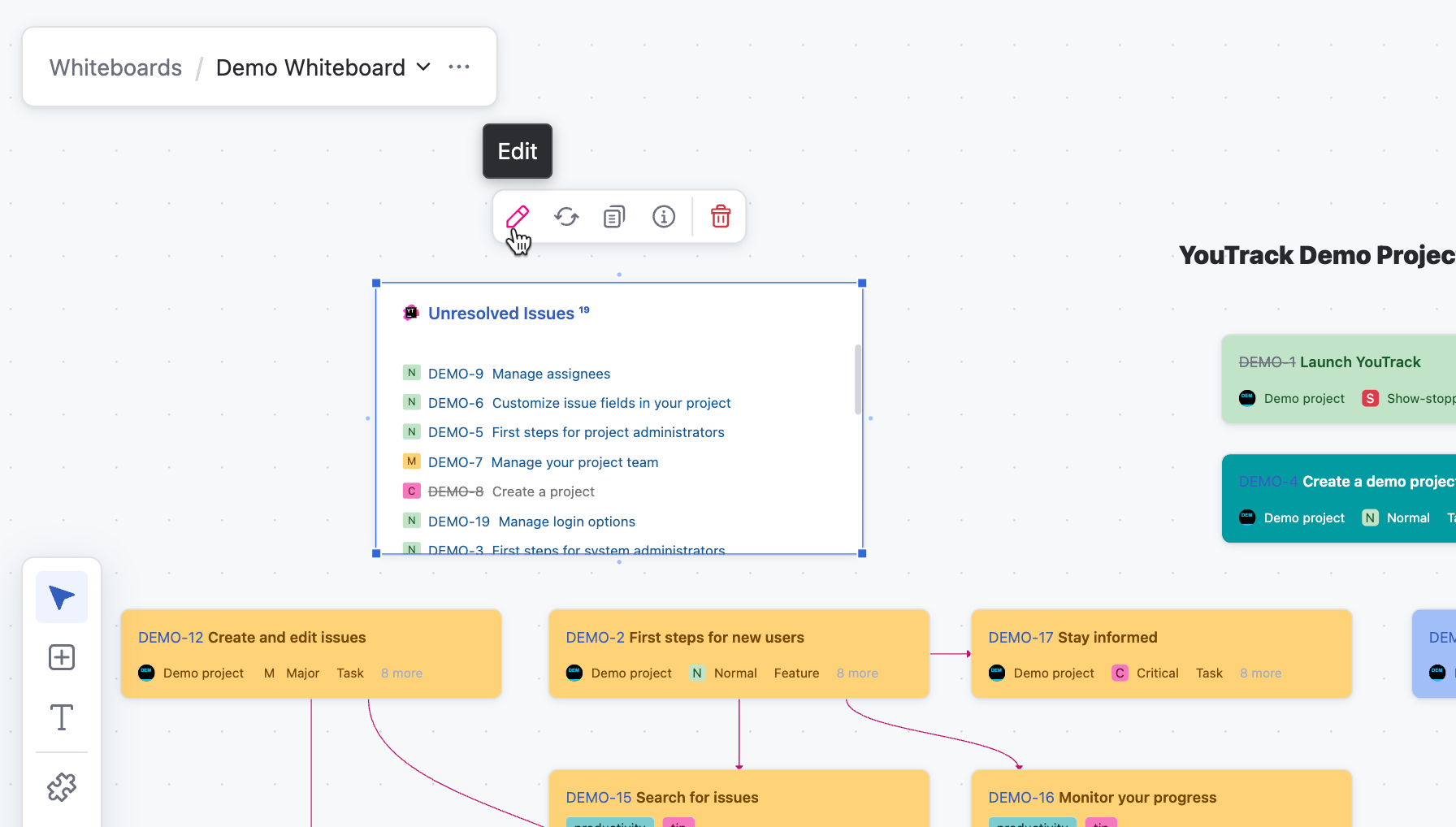
The widget toolbar appears in the header of the selected widget and lets you manage its content and settings. Use it to edit widget settings, refresh widget data, create a copy of the widget, view information about the widget and its associated app, or remove the widget from the whiteboard.
Action | Description |
|---|---|
Edit | Select |
Refresh | Select |
Clone | Select |
About | Select |
Delete | Select |


Select Multiple Elements
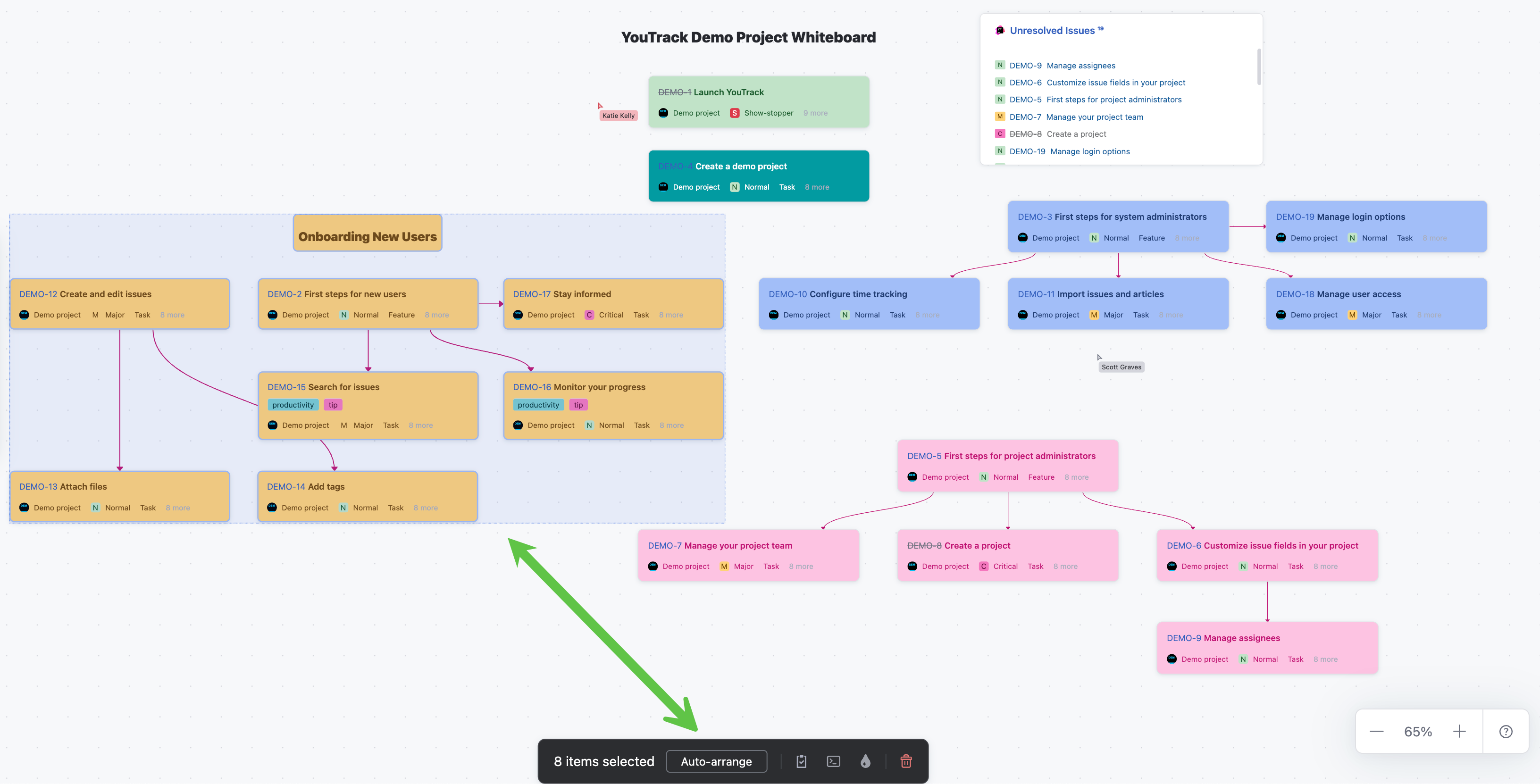
You can select multiple elements on the whiteboard at once to perform actions such as moving, converting cards to issues, background color, or deleting them as a group. Click and drag a highlighted box over the desired elements on the whiteboard, or use the search bar to select multiple elements.
When you select multiple elements, a toolbar is at the bottom of the whiteboard.
Action | Description |
|---|---|
<N> items selected | Displays the number of elements selected on the whiteboard. |
Auto-arrange | Select Auto-arrange to automatically reposition the selected elements into a more compact layout. Auto-arrange uses links between selected elements when calculating the layout. |
Convert to issues | Select |
Apply a command to the selected issues | Select |
Set color | Select |
Delete or Remove | Select |

Undo and Redo Card Movements
Whiteboards support undo and redo for card movement actions during the current editing session.
Shortcut | Shortcut | Description |
|---|---|---|
Ctrl + Z | ⌘ + Z | Undo the most recent card movement. |
Ctrl + Shift + Z | ⌘ + Shift + Z | Redo the most recent card movement. |
Undo and redo apply only to moving cards on the whiteboard canvas and do not affect changes to card content, including text edits or link updates. History is stored only for the current editing session and is cleared when the page is reloaded. In collaborative editing sessions, undo and redo apply only to your own card movements and cannot revert movements for a card that was subsequently updated by another user.
Restricted Cards
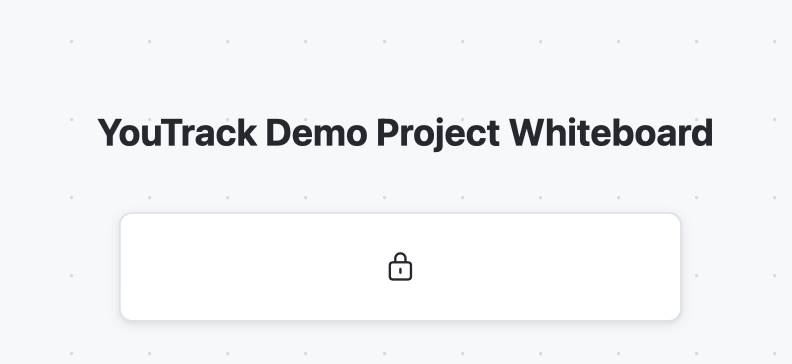
Restricted cards appear on the whiteboard when the user does not have permission for the issue or article in YouTrack. The card is visible as a placeholder, but its summary and description remain hidden.
To learn more about updating issue permission, see Set Visibility.
Learn More
To learn more about related whiteboard workflows, see: