Add Cards From Existing Items
Whiteboards support the ability to add existing issues and articles as cards. This feature allows you to bring relevant items directly into your whiteboard, helping to centralize your planning and ensure your visual workflows include all necessary information.
If added issues are already linked in YouTrack, their relationships automatically appear as links on the whiteboard.
You can also add items by pasting an issue ID, an article ID, an issue or article URL, or plain text directly onto the whiteboard. YouTrack adds matching issues and articles as cards. Pasted plain text is added as a new text card.
Add Existing Items
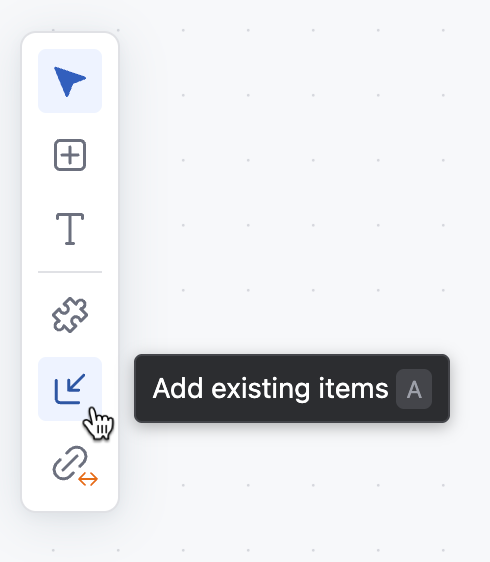
You can add existing items to a whiteboard using the  Add existing items action in the toolbar. When you select this option, YouTrack opens the Add Items dialog box, where you can search for specific items and add them to the whiteboard as cards.
The Add Items list only displays issues and articles that you have permission to view, ensuring access remains limited to authorized items.
Use the search settings in the dialog to switch between Simple search and Advanced search. Simple search lets you narrow results with predefined filters and natural language. Advanced search lets you enter YouTrack search queries with attributes and logical operators.
To add issues or articles to a whiteboard:
From the main navigation menu, select
 Whiteboards.
From the whiteboard toolbar, click
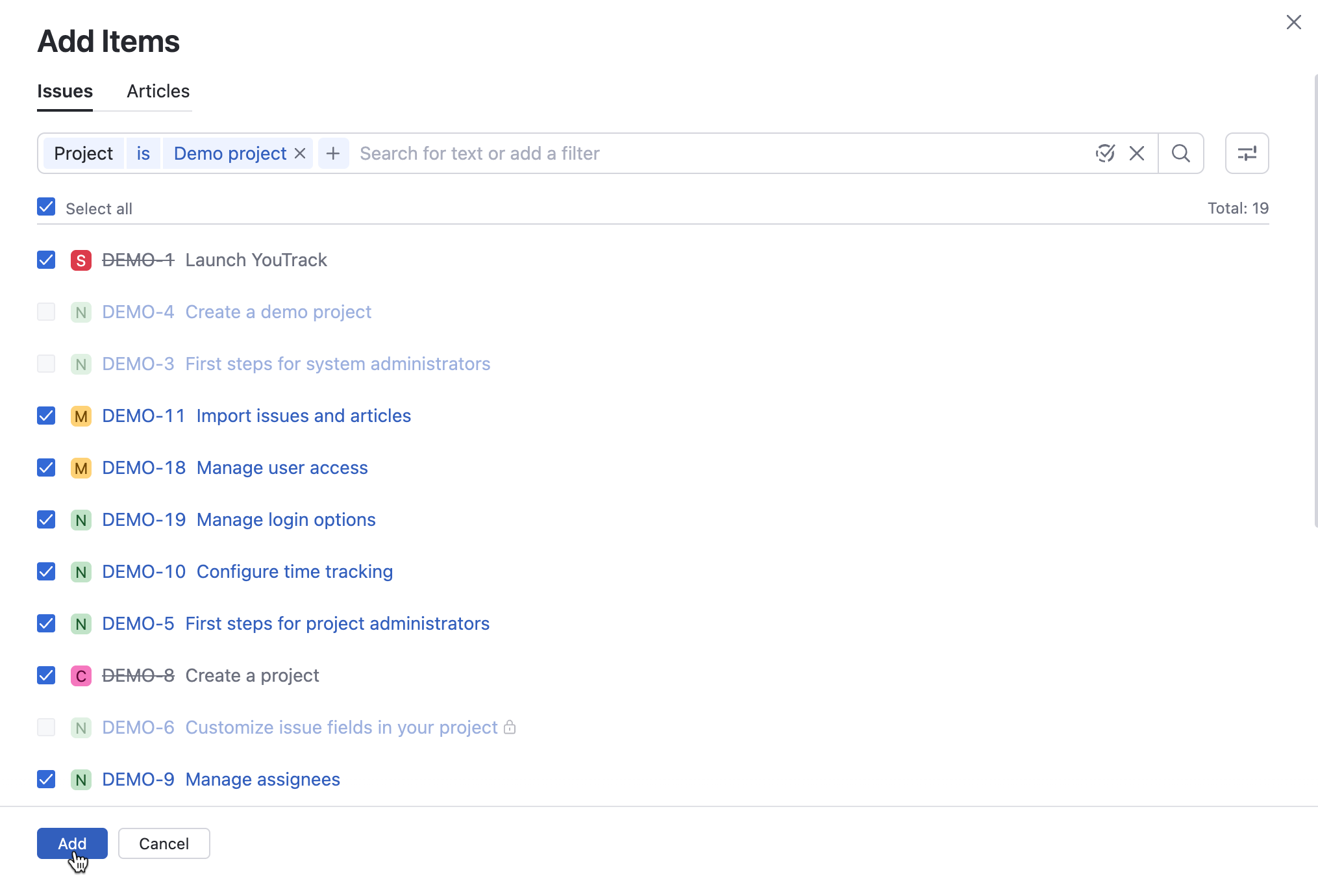
Add existing items.The Add Items dialog box appears.
Open either the Issues or Articles tab at the top of the dialog box.
The Issues tab displays available issues to add.
The Articles tab displays available articles to add.
Select the individual issues or articles to add.
Select Select all to mark every item to add.
Items that are already on the whiteboard are unavailable for selection. Move the pointer over an unavailable item to see a tooltip that confirms it is already on the whiteboard.
Click Add to add the issues or articles as cards on the whiteboard.
Add Items From the Clipboard
You can paste item references or text directly onto a whiteboard instead of opening the Add Items dialog.
To add an item from the clipboard:
Copy an issue ID, article ID, issue or article URL, or plain text to your clipboard.
Open the whiteboard where you want to add the item.
Paste the clipboard content.
If the clipboard contains an issue or article reference, YouTrack adds the matching item as a card.
If the clipboard contains plain text, YouTrack creates a new text card.