Import from ClickUp
The import from ClickUp lets you migrate spaces, tasks, docs, users, comments, attachments, and other data from a ClickUp workspace to YouTrack.
A setup wizard navigates you through the import configuration process. It prompts you to enter connection settings and lets you map ClickUp spaces to target YouTrack projects. YouTrack also creates a separate Knowledge Base project for workspace-level ClickUp docs.
Prerequisites
Before you import data from ClickUp to YouTrack, check the following requirements:
Your YouTrack installation can connect to the ClickUp API.
The ClickUp account you use for the import has access to the workspace, spaces, tasks, docs, and users that you want to import.
You have a personal API token for the ClickUp account that is used to connect to the workspace. For details on generating a token, refer to the ClickUp API documentation.
You have direct access to log in to the source application using a token.
YouTrack's import engine doesn't support authentication through external authentication modules.
Import Details
If the ClickUp workspace contains references to entities that do not exist in YouTrack yet, they are created. The YouTrack user account you use to run the import should have enough permissions to create all imported entities. We recommend using an account with a System Admin role or the Low-level Admin Write permission to run the import.
Imported Entities
Here is the list of entities that are imported from ClickUp and their mapping to YouTrack entities:
Entity in ClickUp | Entity in YouTrack | Details |
|---|---|---|
Spaces | Projects | Each selected space is imported as a YouTrack project. |
Workspace-level docs | Knowledge base articles in a Knowledge Base project | YouTrack creates this project during import. |
Space, folder, and list docs | Knowledge base articles | Article content is imported from ClickUp doc pages in Markdown format. |
Tasks | Issues | Task names, descriptions, creation and update dates, resolved dates, authors, tags, watchers, and assignees are imported when available. |
Task types | Type field values | ClickUp custom item types are imported as values for the YouTrack Type field. |
Task statuses | State field values | Statuses from ClickUp lists are imported as values for the YouTrack State field. |
Priority, due date, start date, and time estimate | Issue fields | Due date and start date are imported as date and time fields. Time estimates are imported as period values. |
Time entries | Work items | ClickUp task time entries are imported as YouTrack work items when task time is available. |
Comments and comment replies | Comments | Replies are imported as separate comments that quote the parent comment. |
Attachments | Attachments | Task attachments and attachments embedded in ClickUp docs are imported. |
Parent tasks and subtasks | Issue links | ClickUp parent-child relationships are imported as Subtask links. |
Task dependencies | Issue links | ClickUp dependencies are imported as Depend links. |
Linked tasks | Issue links | General task links are imported as |
| Issue links | The custom field name is used as the link type name. |
Users | Users | Workspace members are imported and used as authors, assignees, watchers, voters, and comment authors when matching ClickUp user data is available. |
Private spaces | User groups and visibility restrictions | YouTrack creates a group for each private space and applies it to imported projects, issues, and articles. |
Custom Field Mapping
YouTrack creates project fields based on ClickUp custom fields from the lists in each selected space.
ClickUp field type | YouTrack field type |
|---|---|
| String |
| Float |
| Integer |
| Date and time |
| Single-value enum |
| Single-value enum with Yes and No values |
| Multi-value enum |
| Single-value or multi-value user field, depending on the ClickUp field configuration |
| User field values. The first ClickUp votes field with values is also imported as YouTrack voters. |
Import Limitations
The following ClickUp data is not imported by the default import script:
ClickUp Teams.
Issue history.
Article comments and article history.
Custom fields of the
automatic_progress,manual_progress,rollup, andbuttontypes.Custom fields of the
filestype as YouTrack custom fields. Files from these fields are imported as attachments instead.Deleted tasks and tasks from spaces that are not selected for import when they are referenced by task or relationship custom fields.
Set up an Import from ClickUp
Before you add a new import configuration, prepare the ClickUp workspace URL and API token that grant access to the data you want to import.
Configure an Import from ClickUp in YouTrack
The setup wizard guides you through the setup process.
To configure an import from ClickUp:
From the main navigation menu, select
 .
.Click New import to open the setup dialog.
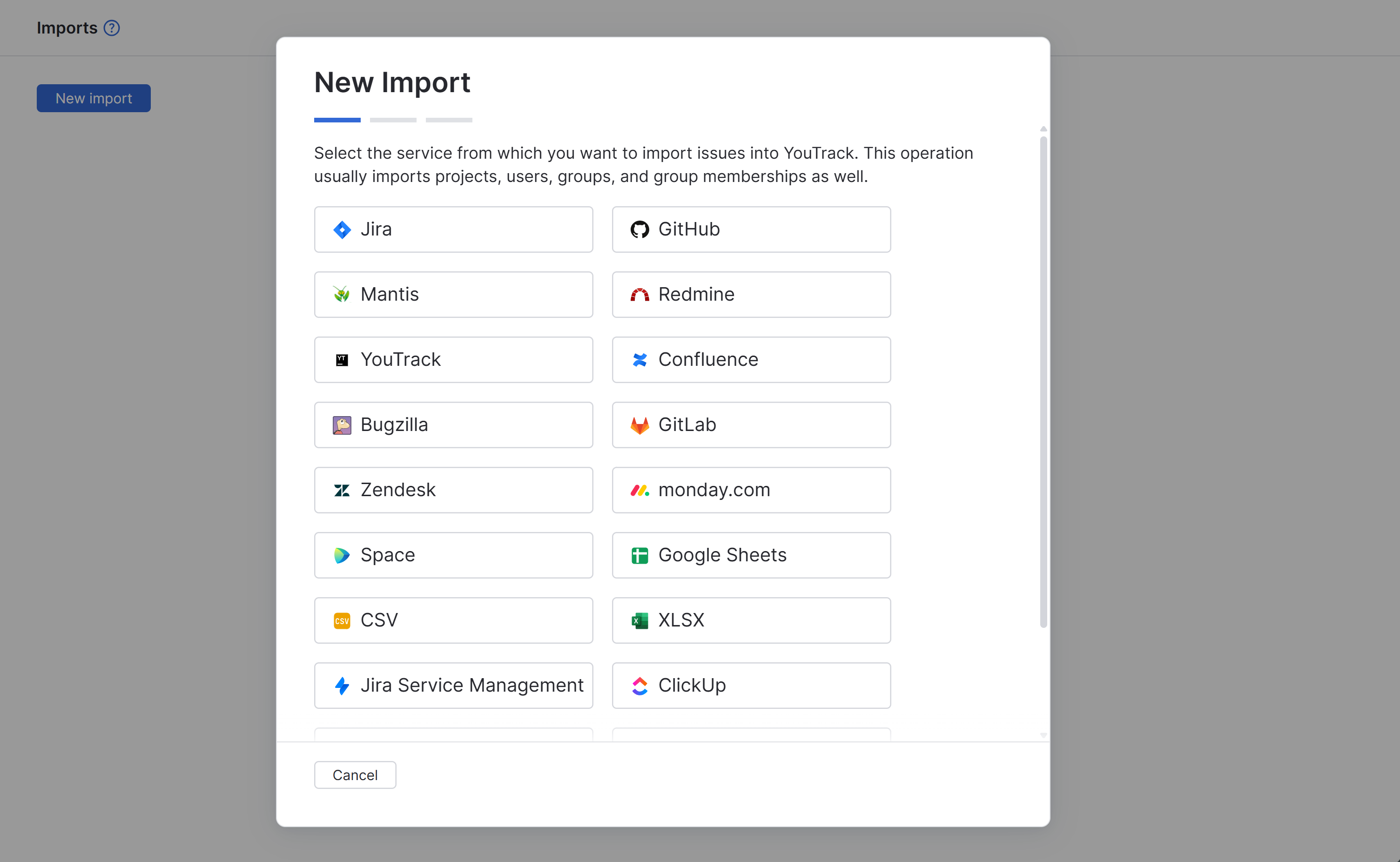
Select ClickUp.
Settings for a New Import from ClickUp are displayed.
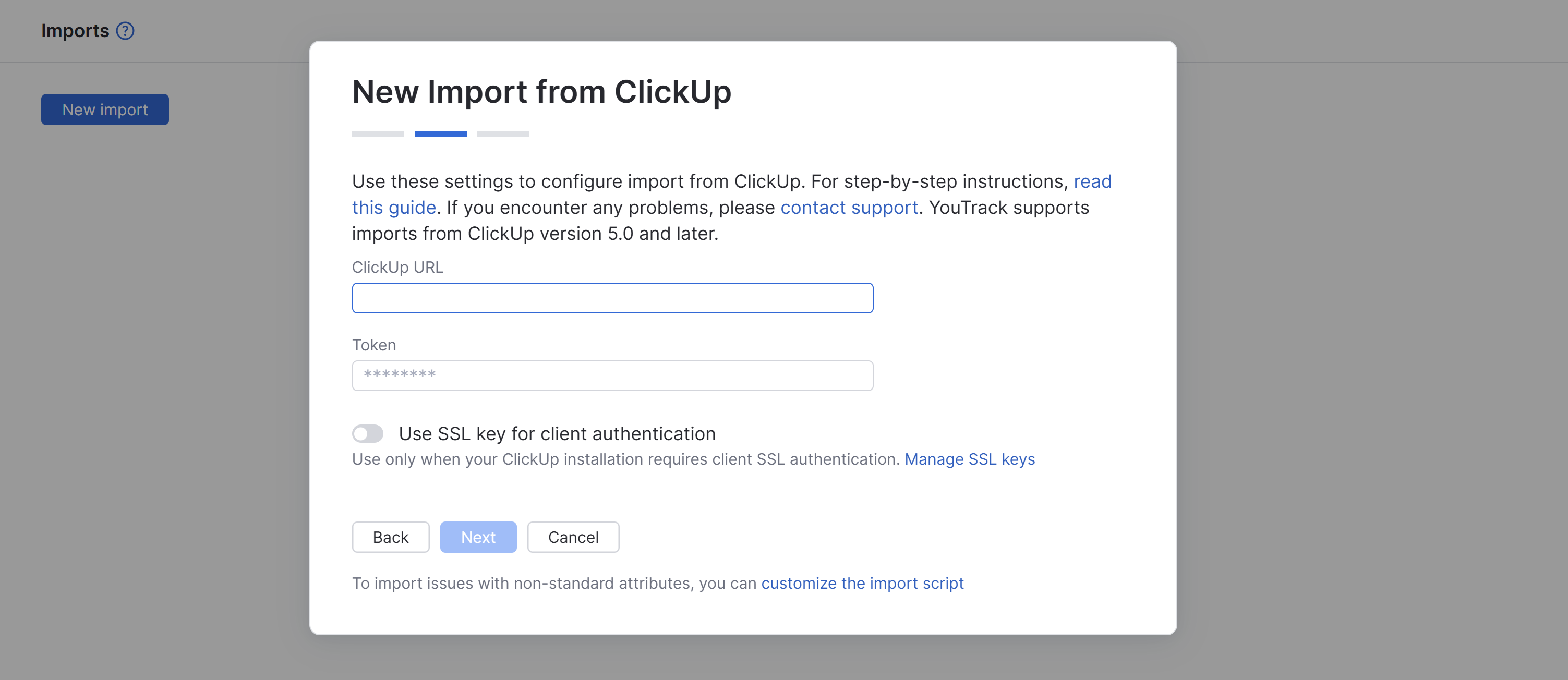
Enter values for the following settings:
Setting
Description
ClickUp URL
The URL of the ClickUp workspace that you want to import. The URL should end with the workspace ID.
Token
The personal API token for the ClickUp account that has access to the selected workspace.
Click the Next button.
The second set of import settings is displayed.
Expand the Manage import for optional datasets section. Here you can configure the import engine to ignore certain parts of the source database during import.
Setting
Description
Issue links
Disable this toggle to ignore links between tasks during import.
Skip failed issues
Enable this toggle to skip issues that cause errors during import instead of stopping the import.
Select the ClickUp spaces and target YouTrack projects for the import. For more details about the project mapping configuration, see Project Mapping.
Optionally, enable the Continuous import. When enabled, YouTrack periodically checks the selected ClickUp spaces and imports updated or new tasks and docs since the last sync.
Click Start import.
YouTrack creates new projects and imports data to the existing ones according to the configured project mapping.
YouTrack imports tasks, docs, comments, attachments, users, and related data from the selected ClickUp spaces.
If the Continuous import option is enabled, YouTrack periodically checks the selected ClickUp spaces for updated and new tasks and docs.
When you have set up an import, it appears in the Imports list. To view configuration and import details, select the import configuration from the list.
In the details sidebar, YouTrack shows import status, the date and time of the last import, and details on the data that was imported. If any problems are encountered during import, error messages are displayed here.
Click the  Resume button in the toolbar to explicitly start polling for changes and importing updates from ClickUp.
You can also download the import log file to study and investigate when needed.
Project Mapping
On the final step of the import setup, you can select the ClickUp spaces that you want to import to YouTrack. You can also choose whether to create a new project for the import or import data into an existing project in YouTrack.
YouTrack recognizes when a web address has already mapped a source project by a previous import. Imported source projects that have already been mapped in YouTrack aren't selectable. You can create multiple import jobs from the same source without importing duplicate data.
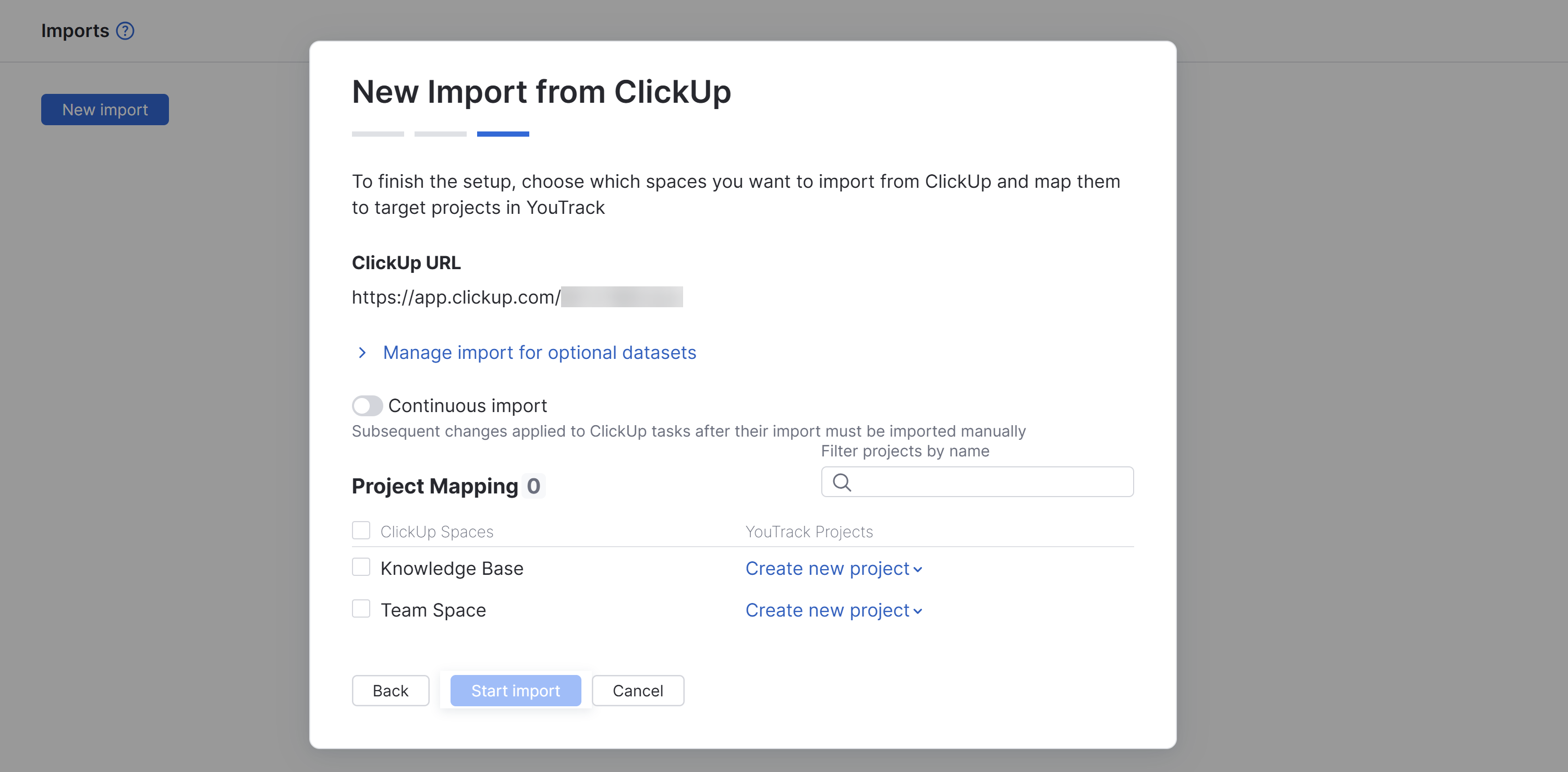
To configure project mapping:
From the main navigation menu, select
.Locate the ClickUp spaces that you want to import.
Use the filter bar on the right to filter spaces by name.
Select the spaces that you want to import. Select the option at the top of the list to import all available ClickUp spaces.
Select a target YouTrack project for each ClickUp space.
When loading the list of ClickUp spaces for mapping, YouTrack checks for existing YouTrack projects with corresponding names. If it finds a YouTrack project with the same name as the ClickUp space, YouTrack suggests it as the target project.
If there is no existing YouTrack project with the corresponding name, YouTrack suggests creating a new one.
YouTrack also shows a Knowledge Base project option for workspace-level ClickUp docs.
If you want to change a target project, select another option from the corresponding dropdown on the list.
Click Start import to finalize import setup and start import.
Import starts.
Import Options
After the initial import, the following controls are available in the sidebar:
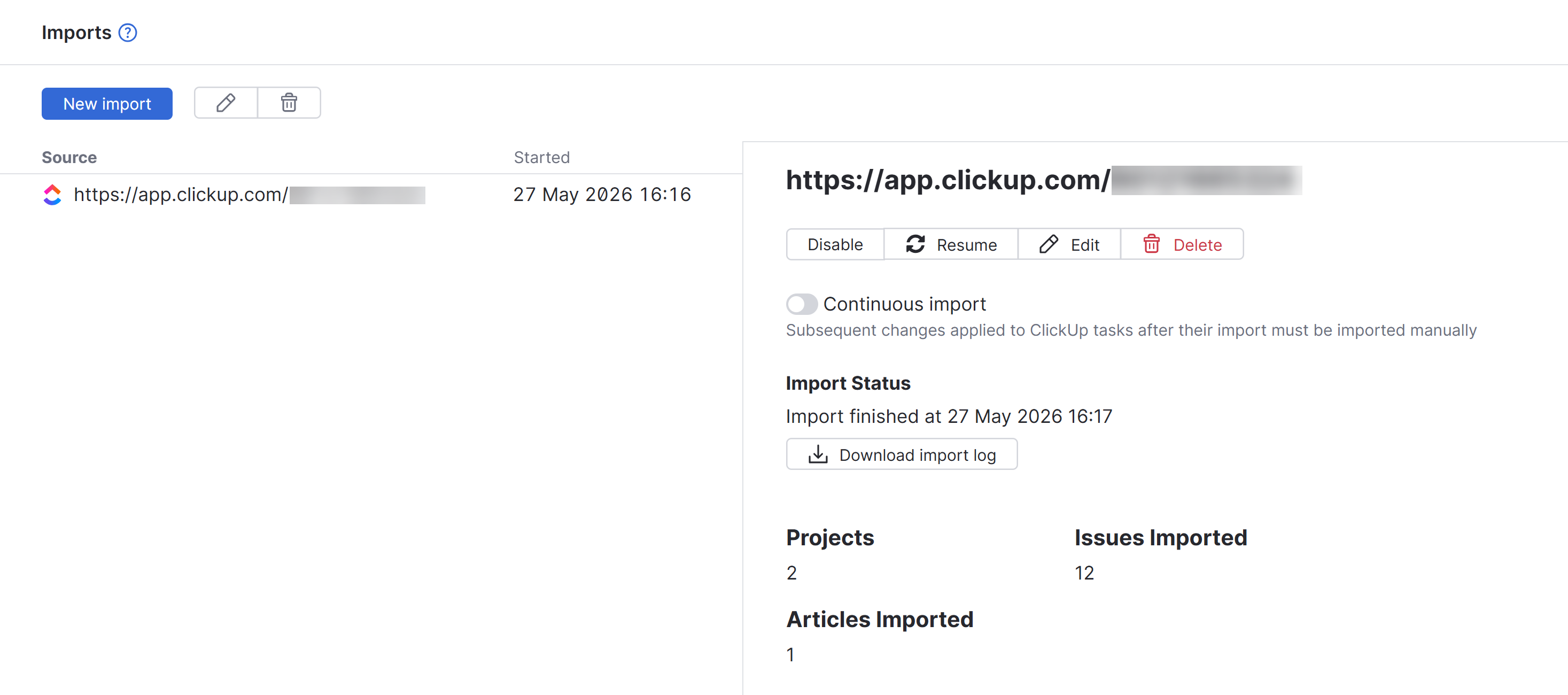
Control | Description |
|---|---|
Disable/Enable | Disable or enable the import. This lets you keep the settings for an import even if you aren't using it. |
Resume | Immediately imports changes made in the selected ClickUp spaces after the previous import. |
Edit | Opens the integration settings page in edit mode. Use this option to connect to a different ClickUp workspace, update the token, or update project mapping. |
Delete | Deletes the current import settings. Imported content remains unless you choose to permanently delete affected projects. For details, see Delete an Import. |
Continuous import | YouTrack periodically checks the selected ClickUp spaces and imports updated and new tasks and docs created since the last sync. |
Download import log | Downloads the import log. Use this option to view and investigate errors that occurred during import. |