Plan Feature
Planning a feature with whiteboards enables you to break down high-level goals, define tasks, and organize workflows visually. Teams can use whiteboards to outline requirements, identify dependencies, and transform ideas into actionable tasks, all while collaborating within YouTrack. This approach ensures that everyone on the team remains aligned and prepared to execute the feature development process.
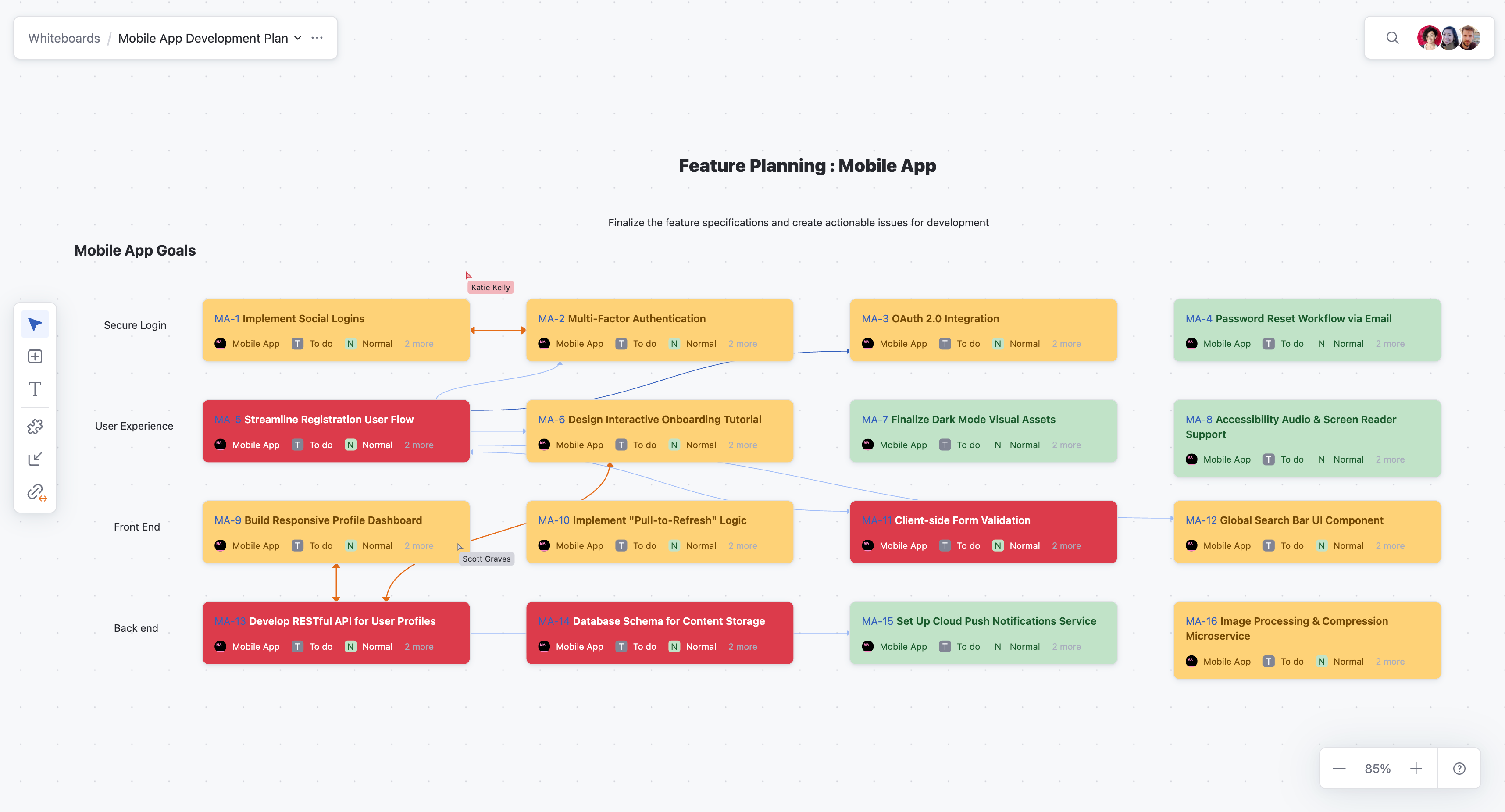
Plan a Feature on a Whiteboard
The early steps for planning a feature can build on the results of a brainstorming session by refining ideas on a whiteboard and converting key cards into actionable tasks. However, brainstorming is not a necessary step. You can also start by directly adding cards for your feature and converting them into issues, or by adding existing issues from YouTrack to the whiteboard to organize and plan your feature.
Planning a feature, such as building a mobile app in this example, is an essential step in defining its scope, requirements, and implementation strategy. A whiteboard in YouTrack enables teams to visually organize key aspects of the feature, such as "user interface design", "backend functionality", and "integration tasks", all while staying within the project management environment. By collaboratively breaking the feature into smaller tasks, identifying dependencies, and prioritizing work, you and your team can ensure a clear understanding of the steps required to deliver a fully functional mobile app. This approach streamlines the planning process and sets the stage for an efficient and organized development cycle.
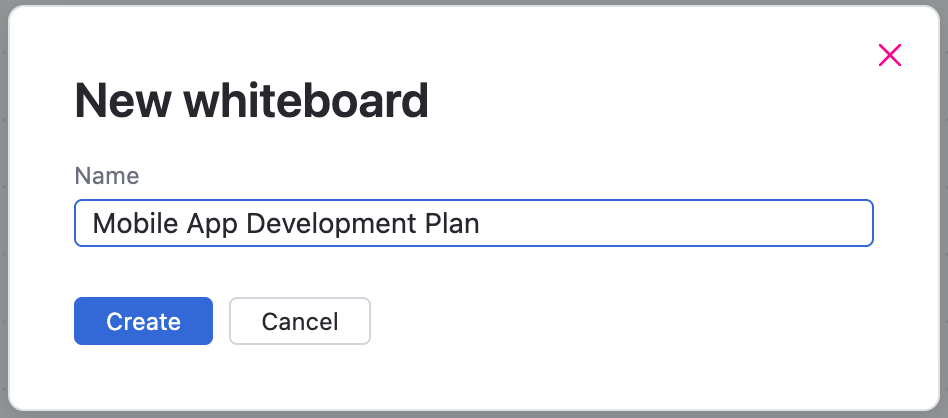
Set up a new whiteboard and name it something like "<Feature Name> Development Plan."
Share the whiteboard with participants who will contribute to feature planning.
Define high-level requirements by adding text blocks or cards that represent the main objectives and goals of the feature.
Break down the feature into actionable tasks by converting cards into YouTrack issues in your project.
Use links to establish relationships or dependencies between cards for better workflow visualization.
Assign priorities by adding text blocks, or card colors to indicate task ownership or priority levels.
Review and finalize the plan, making adjustments as needed based on team feedback.
To plan a feature on a whiteboard like this:
From the main navigation menu, select
 Whiteboards.
Click
 More in the header toolbar. From the drop-down menu, select
  New whiteboard.
If you are using an existing whiteboard and want to rename it, select
 Rename.
Enter a name for the new whiteboard like "<Feature Name> Development Plan" and click Create.
Share the whiteboard with team members or stakeholders by clicking
 Share in the header toolbar. Assign "View" or "Edit" permissions as needed for collaborators.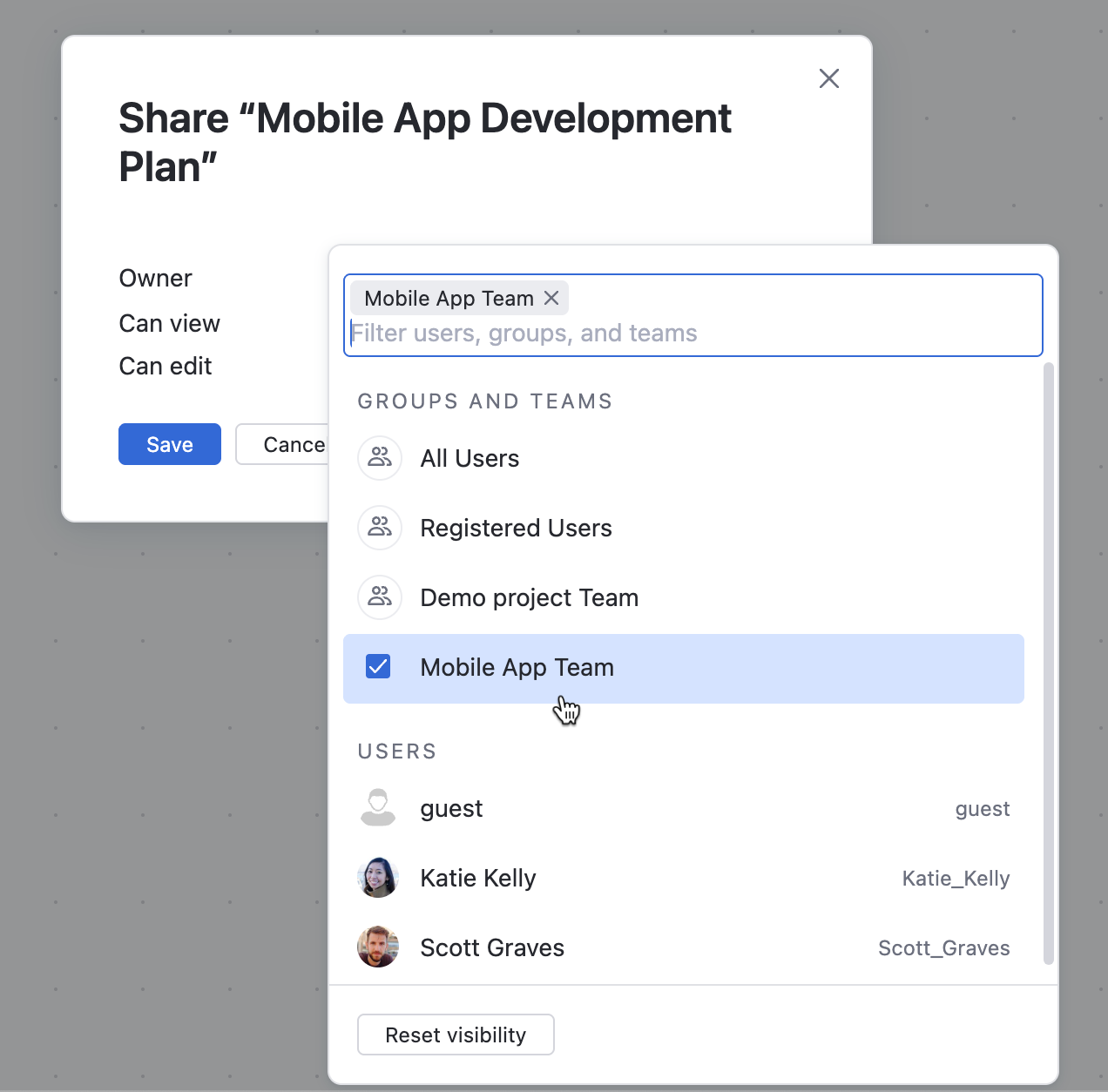
Add text blocks to the whiteboard to define high-level goals and objectives for the feature. Text blocks can group related ideas or define sections of the board.
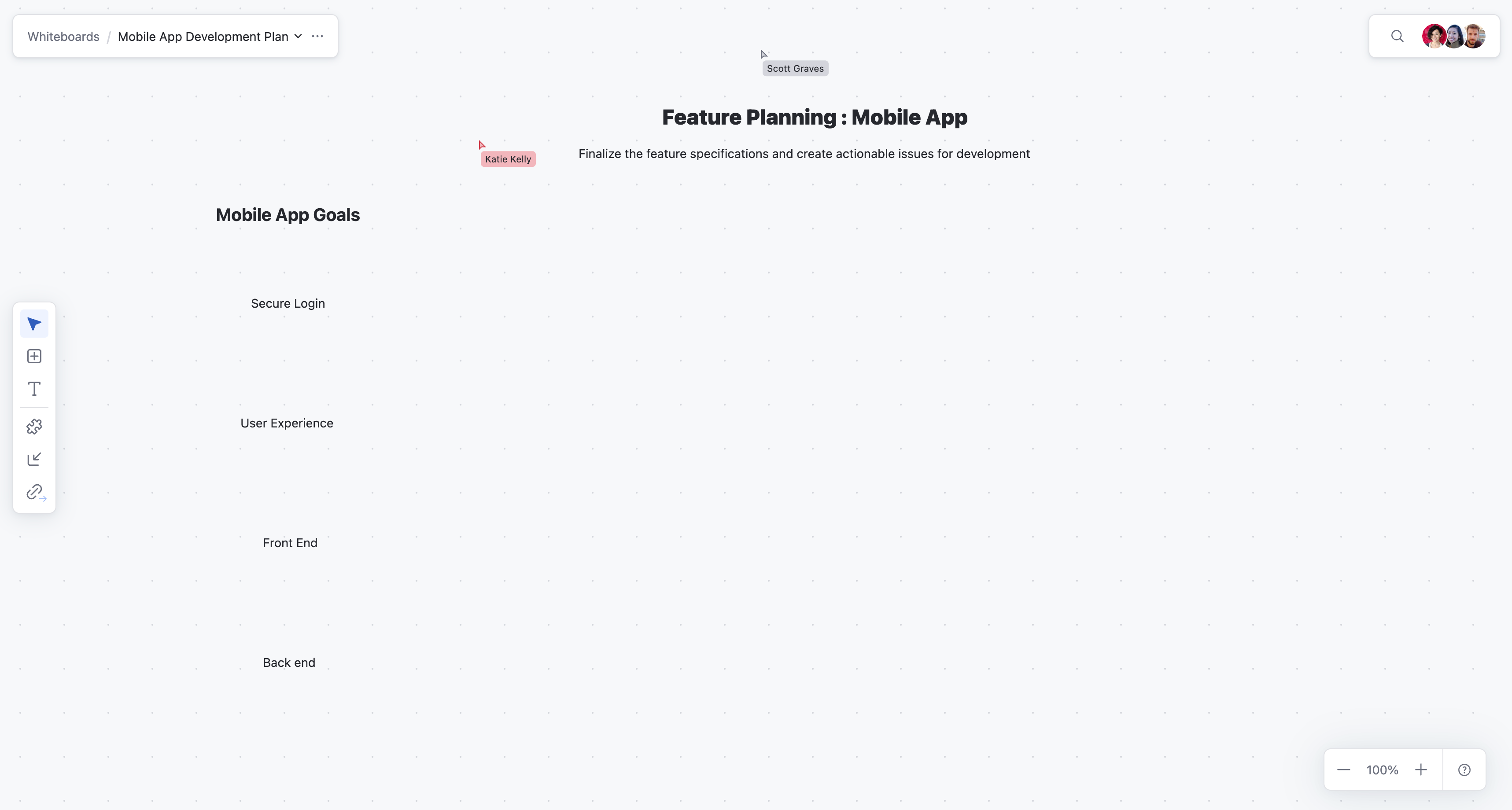
Add cards to represent feature requirements and subtasks.
Select
 New card in the whiteboard toolbar.
Click anywhere on the whiteboard to drop the card. Add a summary title and an optional description to include details about the task or requirement.
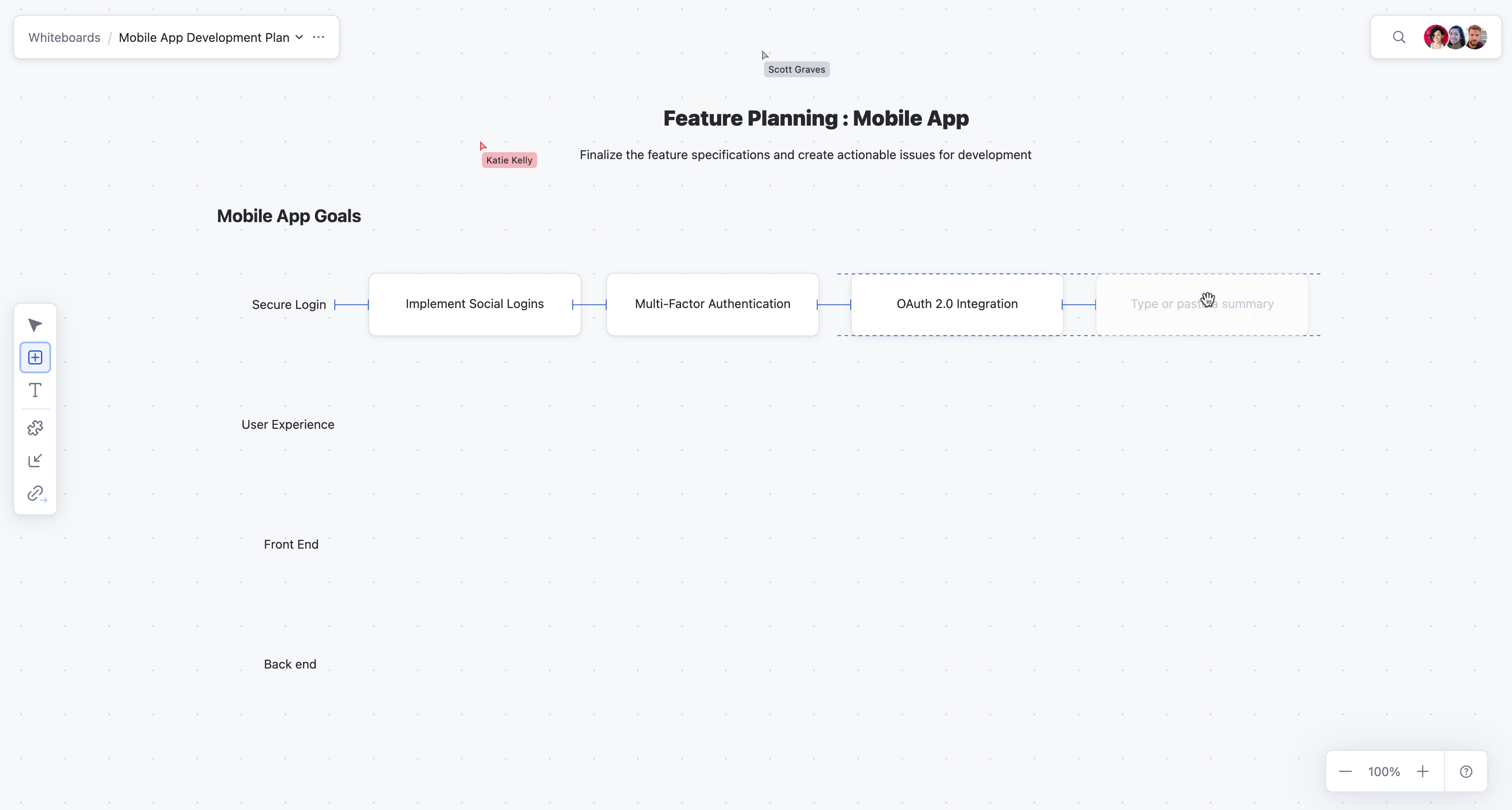
Create YouTrack issues by converting whiteboard cards into issue cards.
Select
 Convert to Issue in the card toolbar to create YouTrack issues from your whiteboard cards. Use these issues to add additional details about the required tasks and assign it to a YouTrack project.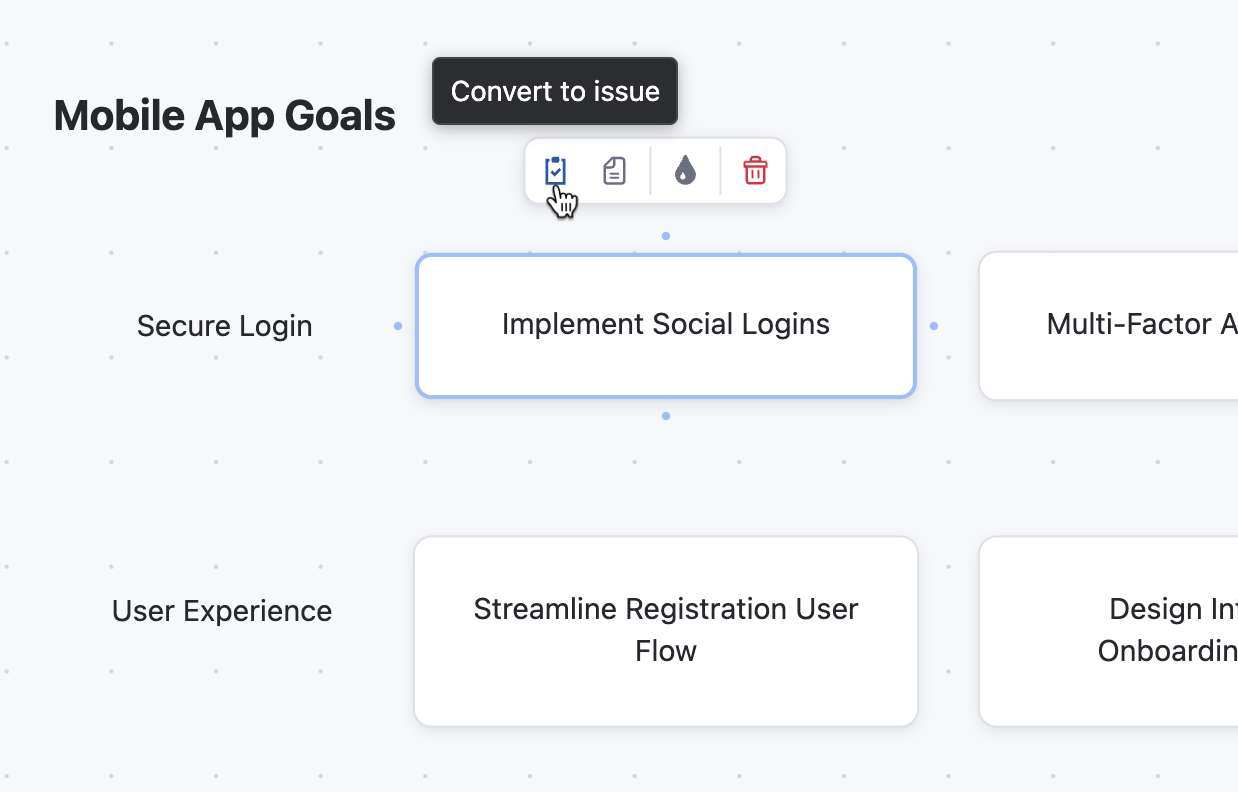
Define relationships between tasks by linking related cards.
For example, connect a "Database Schema Content Storage" card to a "Client-Side Validation" card using the
 Link option from the whiteboard toolbar, or by clicking a point on the side of a card and dragging the connection to another card. One-way and Two-way arrows items help visualize dependencies. Links between cards on a whiteboard also appear within the issues themselves.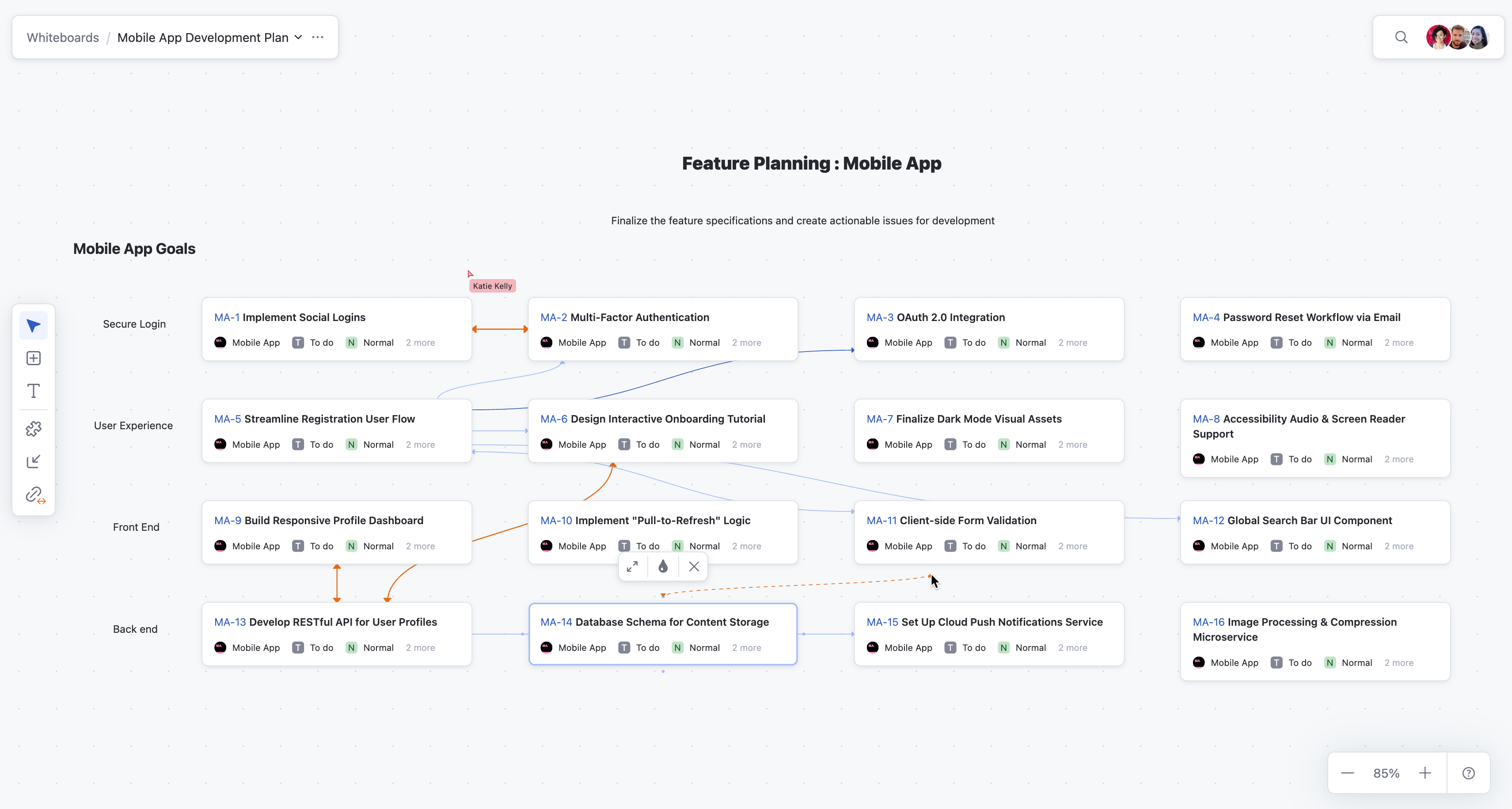
Indicate task priorities by setting colors on the cards with the
 Set color option in the card toolbar. For instance:
Use red for critical tasks that require immediate attention.
Use yellow for medium-priority tasks.
Use green for lower-priority or optional requirements.
Review the plan and collaborate with the team as needed.
Collaborate in real-time with your team to refine the board, move tasks between sections, and finalize your feature development process.
Once your feature plan is complete, the whiteboard serves as a clear visual reference for your team to begin working on the tasks. Cards that you convert into issues ensure that all action items become part of your YouTrack project management workflow.