Brainstorm Ideas
You and your team are designing a new feature for an upcoming release, but the requirements are still unclear. To clarify goals and generate ideas, you decide to hold a brainstorming session using a whiteboard in YouTrack. Your team can collaborate in real-time to turn scattered thoughts into a structured plan. Together, you can discuss priorities and identify potential challenges as they arise.
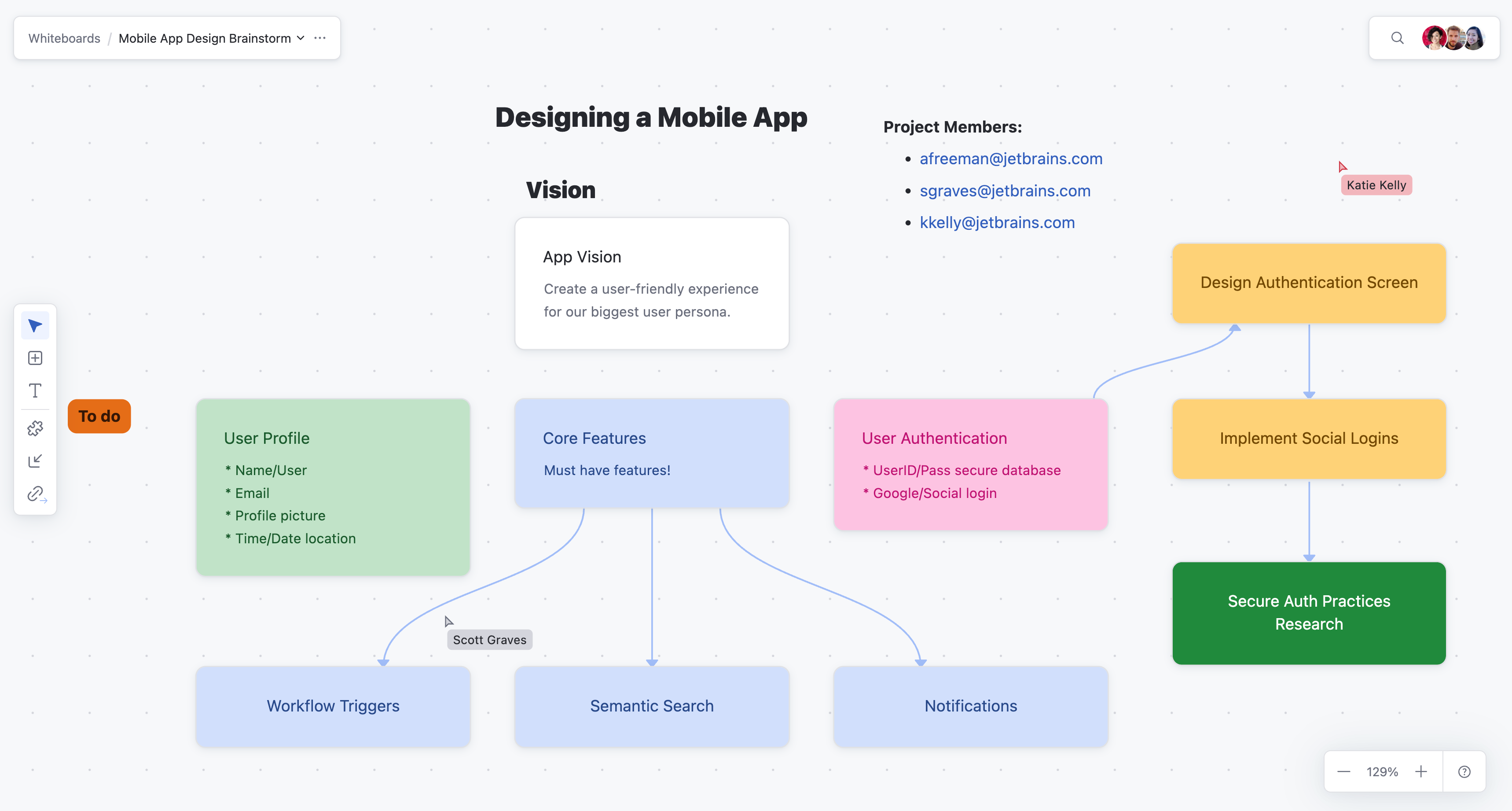
Brainstorm on a Whiteboard
Brainstorming with whiteboards helps you capture ideas, organize them visually, identify relationships, and convert key concepts into actionable tasks all within your project management system.
Set up a whiteboard by opening a new whiteboard and name it something like "<Feature> Design Brainstorm."
Share the whiteboard with your team or any other people you want to participate in the brainstorming session.
Add ideas as they arise and encourage participants to add ideas using text blocks or cards. Keep the structure relaxed to allow creative thoughts to flow freely.
Organize ideas by category or concept. Use card colors to differentiate between themes, such as "User Experience," "Technical Challenges," or "Must-Have Features."
Establish relationships using links to connect complementary ideas or to show dependencies. For example, link "User Feedback" to "Features Priorities" to show their relationship.
Refine and assign next steps as the session progresses. Focus on high-priority ideas. You can convert cards into YouTrack issues to create actionable tasks for further refinement and planning.
To build a brainstorm whiteboard like this:
From the main navigation menu, select
 Whiteboards.
Select
 More in the header toolbar. From the drop-down menu, select
  New whiteboard.
Enter a name for the new whiteboard like "<Feature> Design Brainstorm", and click Create.
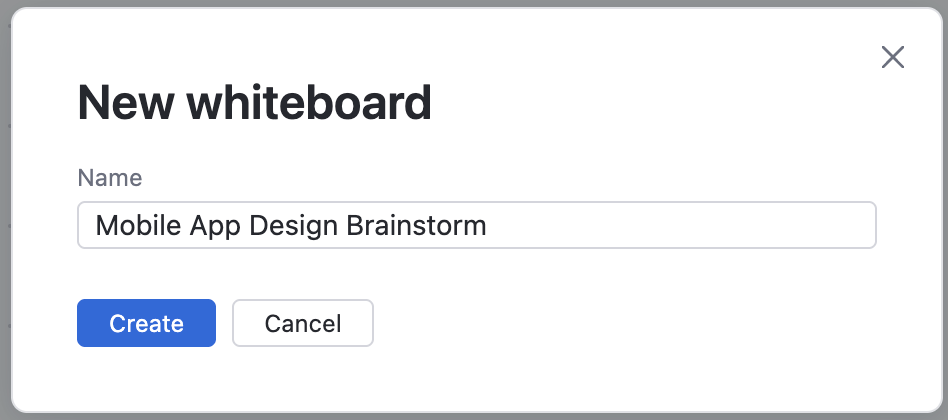
A new blank whiteboard appears.
Select
More from the header toolbar.Select
 Share and add brainstorming participants that can view and edit the whiteboard.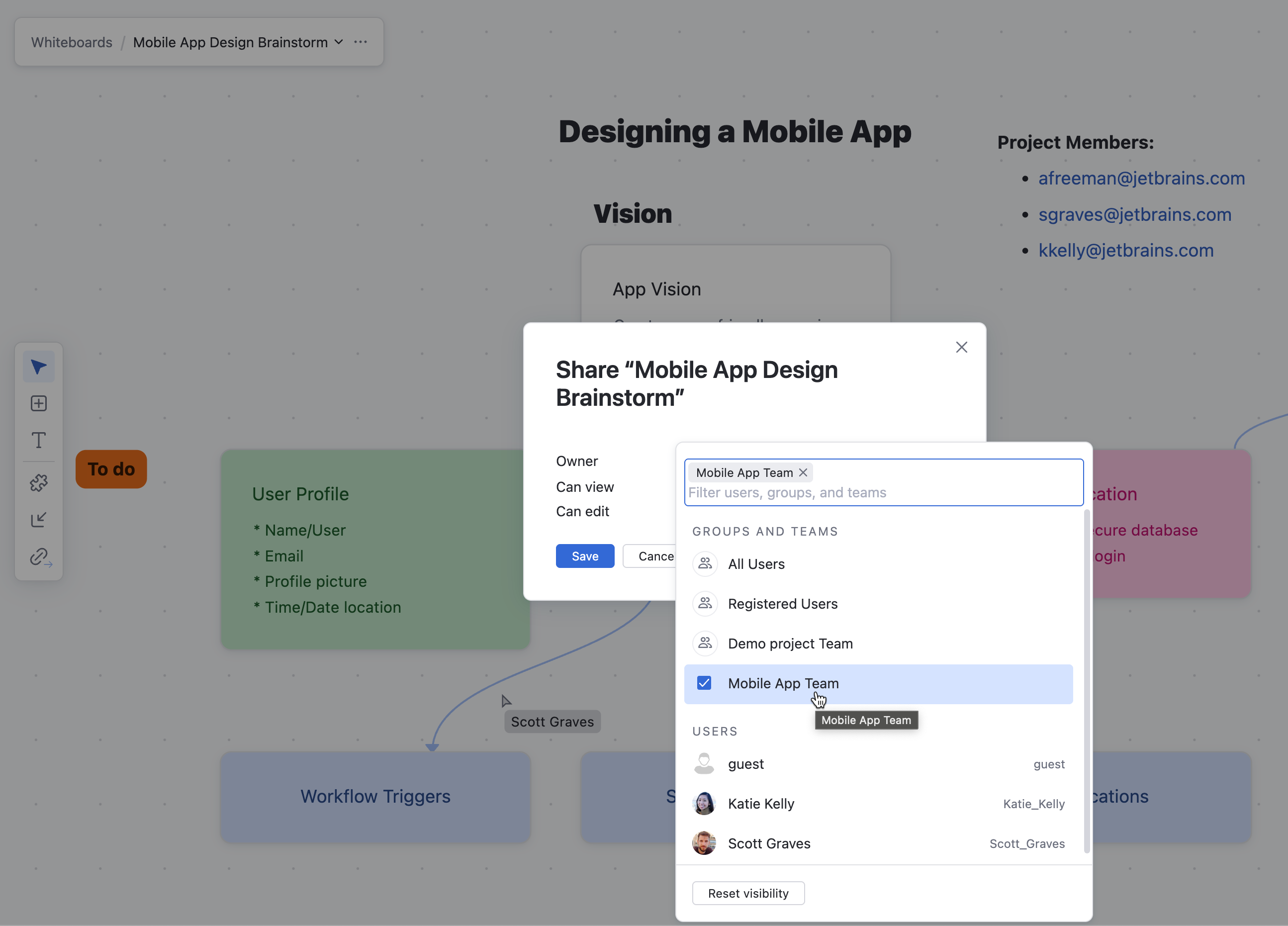
Get started by adding new cards to the whiteboard.
Select
 New card in the whiteboard toolbar. Drop the new card anywhere onto the toolbar.
Type within the card to add a summary title. Select
 Show description on the card to add details in the description section.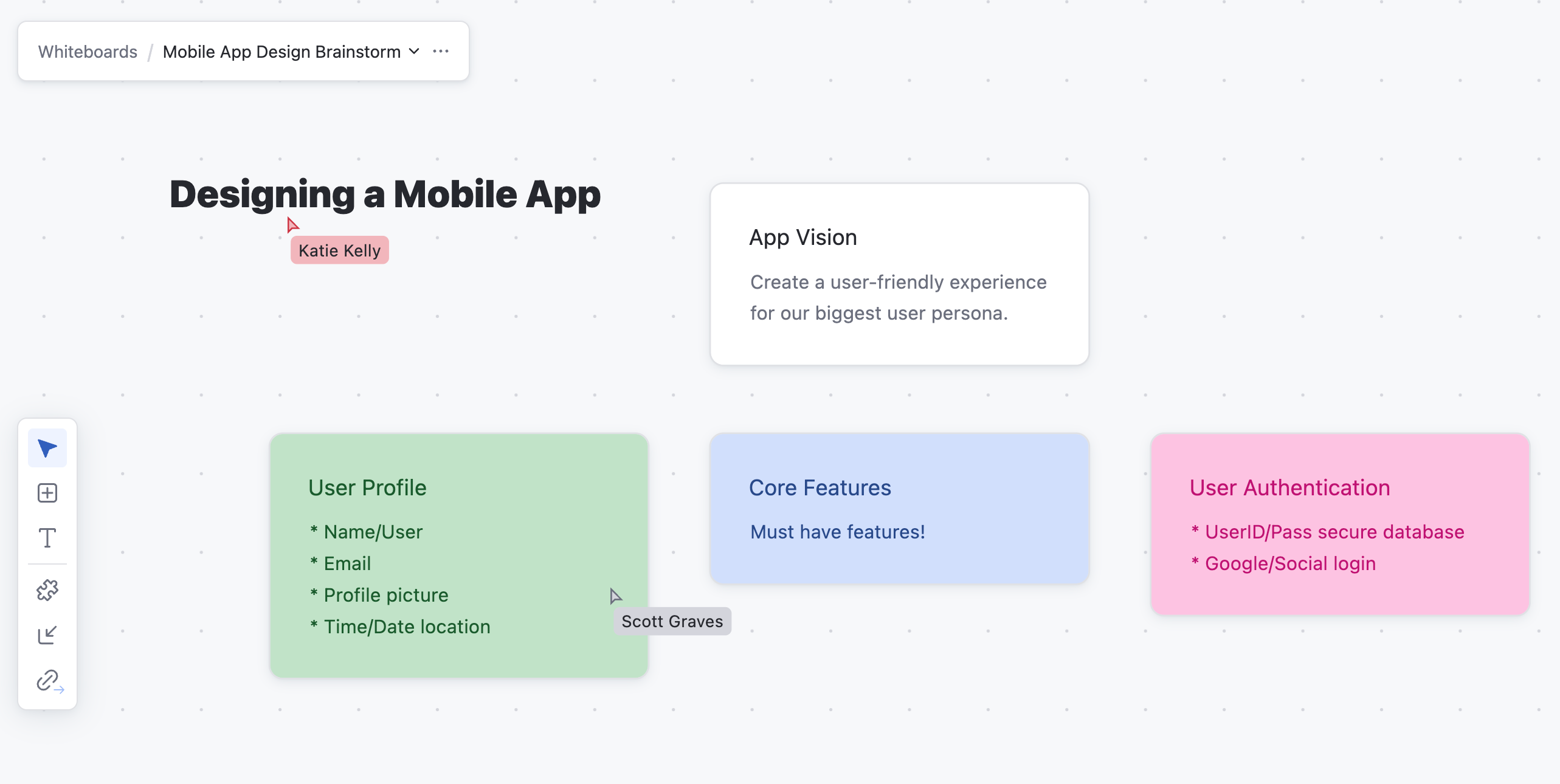
You can see real-time updates of other cards being added to the whiteboard when additional participants are using it at the same time.
Select
 Text block in the whiteboard toolbar to begin making defined sections where you place cards related to that topic.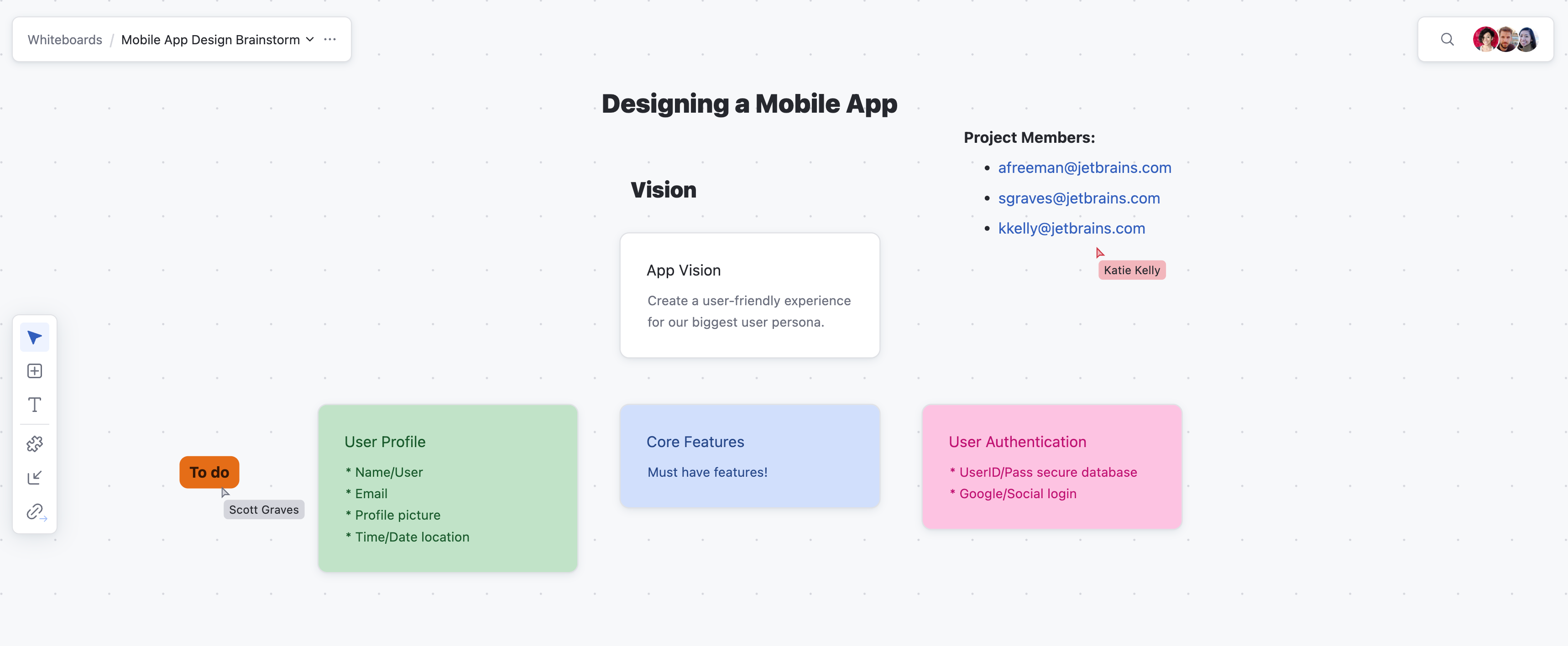
As participants add new ideas to the board as cards, select
 Links in the whiteboard toolbar to begin showing relationships between the ideas on the cards.
Text blocks can also be linked to cards or other text blocks as necessary.
As the brainstorming continues, use the
 Set color action on the card toolbar to help separate ideas.
After your brainstorming session comes to a close, you and your team can continue to use the same whiteboard to start turing your ideas into a reality. To see an example of turning your whiteboard cards into YouTrack issues, see Planning a Feature on a Whiteboard.