Convert Cards
Whiteboards allow you to convert existing cards into issue or article cards. Converted cards not only represent issues or articles within the whiteboard but also create corresponding items in a YouTrack project. This feature ensures that ideas and plans captured on the whiteboard can transition into actionable tasks or documentation within YouTrack.
Convert Cards to Issues
You can convert cards on the whiteboard into YouTrack issues, making it easy to turn your plans into actionable tasks.
To convert a whiteboard card into an issue:
From the main navigation menu, select
 Whiteboards.
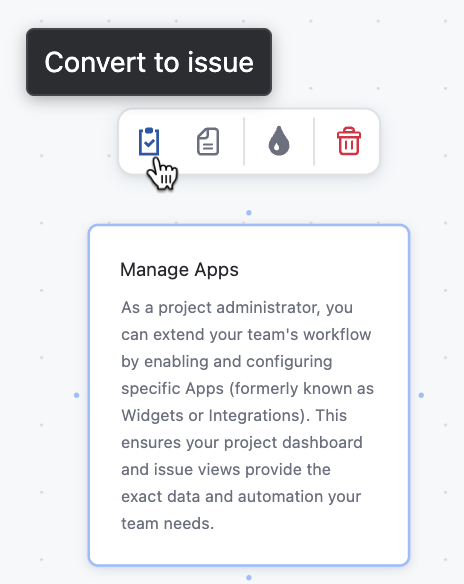
Select an unconverted card on the whiteboard.
The card toolbar appears over the selected card.
Select
 Convert to issue on the card toolbar.
The issue appears in a window on the whiteboard.
Edit the issue as needed and click Create.
YouTrack creates the issue for the specified project in the issue's Project field, and the card on the whiteboard converts into an issue card.
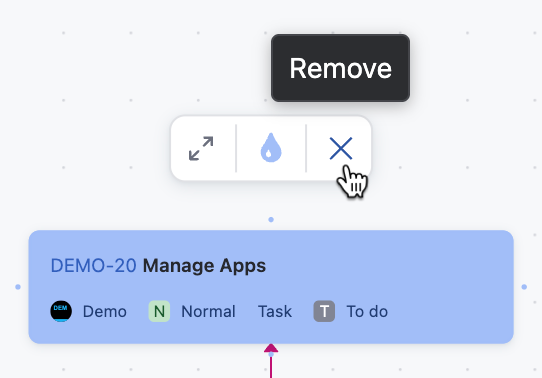
When you convert a card into an issue card, the issue ID and summary appear at the top, while the project name and other populated fields appear at the bottom. Click <n> More at the bottom of the card to view the issue fields that are unable to fit on the card.
The issue description is not visible directly on the whiteboard issue card, but you can access it by viewing the full issue. To view the issue, double-click the issue card to open a detailed view in a box within the whiteboard. Alternatively, select  Expand in the card toolbar or click the issue ID on the card to open the issue in a new browser tab in YouTrack Issues.
When you convert linked cards on a whiteboard into issues, the link between them automatically appears in the corresponding issues in YouTrack. This ensures that the relationships defined on the whiteboard remain and persist in your YouTrack project.
Convert Cards to Articles
You can convert cards on the whiteboard into YouTrack articles, allowing you to transform notes or ideas into Knowledge Base documentation.
To convert a whiteboard card into an article:
From the main navigation menu, select
Whiteboards.Select an unconverted card on the whiteboard.
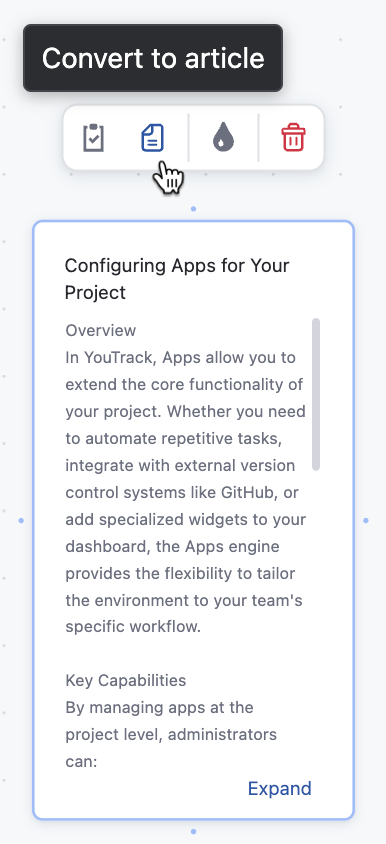
The card toolbar appears over the selected card.
Select
 Convert to article on the card toolbar.
The article appears in a window on the whiteboard.
Edit the article as needed and click Select project and publish.
YouTrack creates the article for the selected project and the card on the whiteboard converts into an article card.
When you convert a card into an article card, the article ID and summary appear on the card, but the description is not visible on the whiteboard. To view the article, double-click the article card to open it in a box within the whiteboard or click Expand in the card toolbar. Clicking the article ID will open the article in a new browser tab within the Knowledge Base.
Remove a Converted Card
The  Remove action replaces the
  Delete toolbar action for issue and article cards. Removing an issue or article card only removes the card from the whiteboard and doesn't delete the issue or article in YouTrack.