Configure a Project
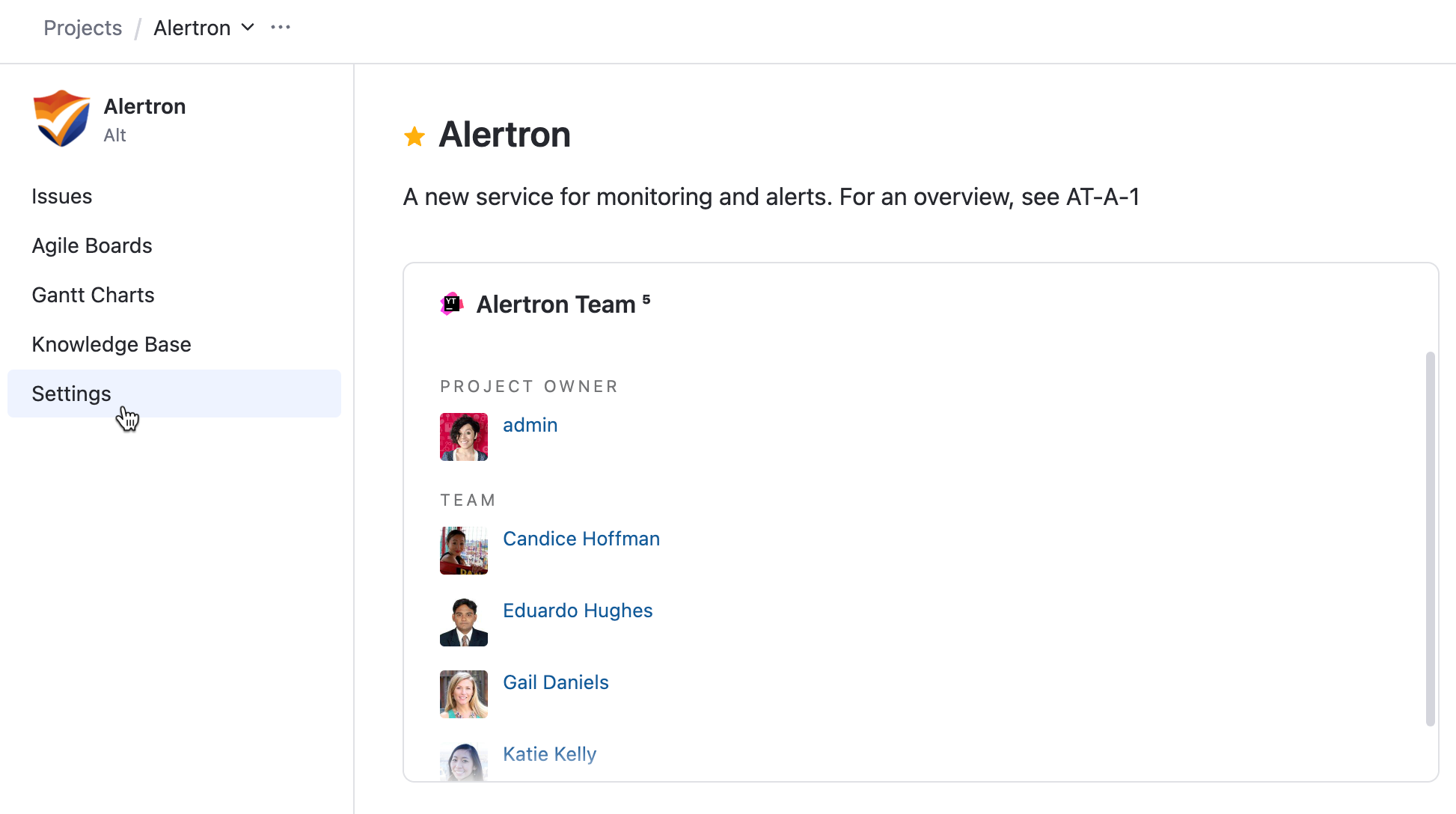
When you create a project, YouTrack opens to the project overview page. This page is also displayed when you select a project from the Projects list.
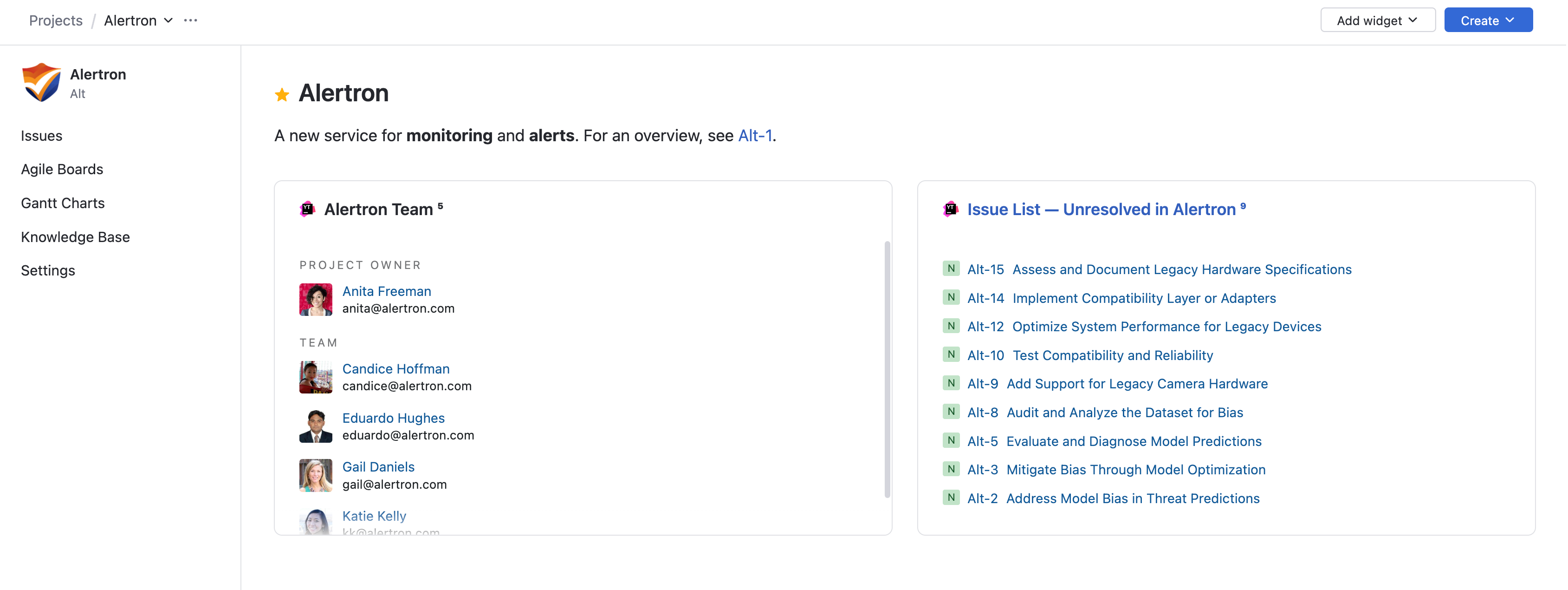
The project overview page gives you quick access to project administration pages.
Project Team
The project team is created automatically when the project is created. The user who created the project is automatically added to the team. Users and groups that are added to the project team are granted the Contributor role in the project. For more information, see Manage Project Members and Access.
When you add users and groups to the project team, these changes are synchronized with the set of values for the Assignee field in the project.
Single users who are added to the project team are added to the set of values for the Assignee field in the project.
Groups that are added to the project team are also added to the set of values for the Assignee field in the project. Each member of the group can be set as the assignee for an issue in the project.
Users and groups who are removed from the project team are not removed from the set of value for the Assignee field. For more information, see Manage Assignees.
Accessing Project Settings
YouTrack projects are highly customizable. To help you make sure that your project supports your team's needs and business logic, you can access the project settings from various locations in the user interface. These navigation options are only visible to users who have Update Project permissions in the project.
Project settings are available from the following locations:
From the Projects list, click the
 More icon for the project you want to configure, then select Settings.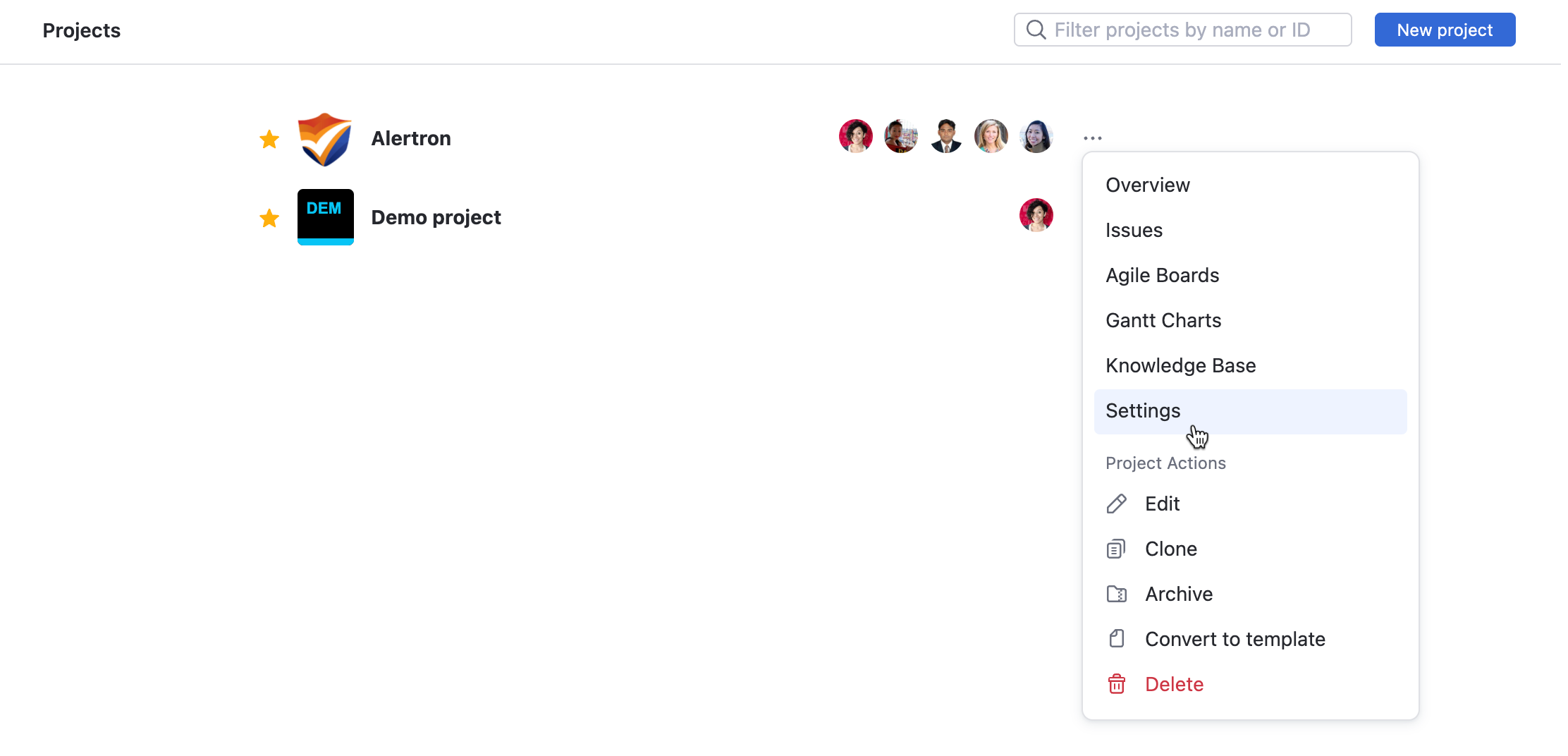
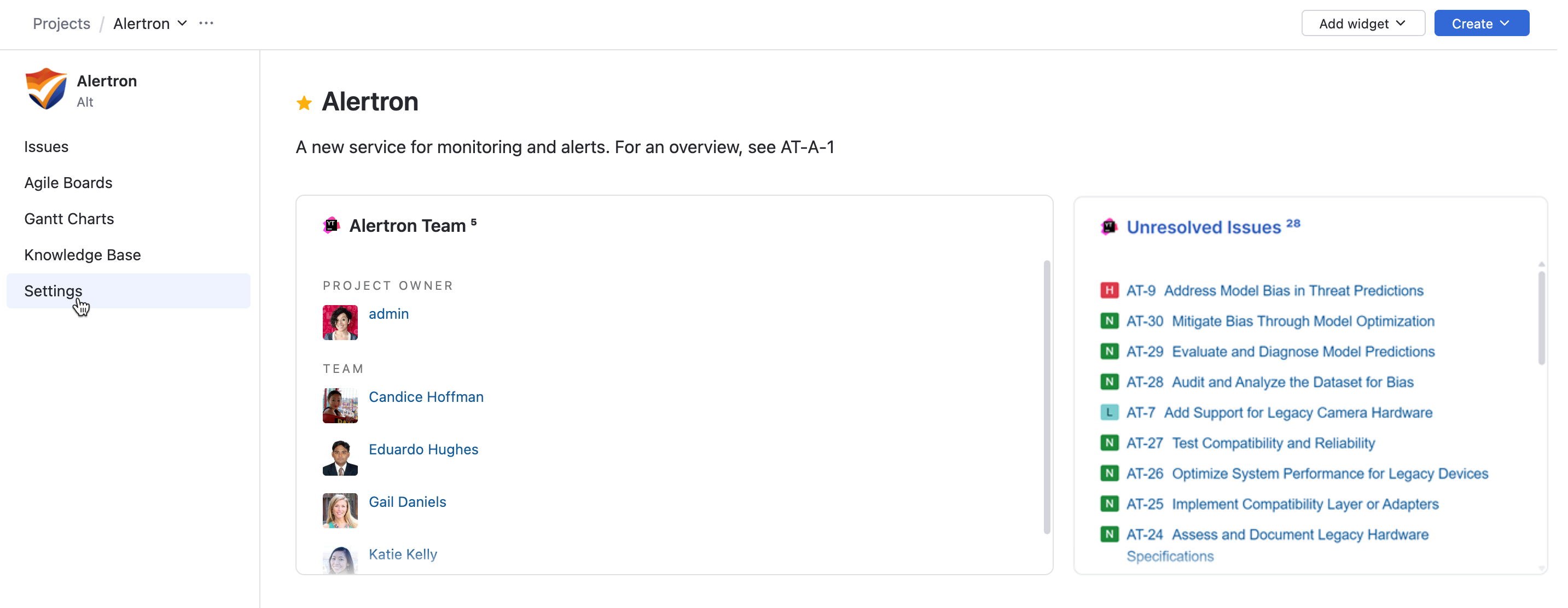
On the project overview page, select Settings in the project navigation menu. This opens the project settings page, where the side panel lists the settings pages that are available for the project.
In single issue view, click the
 settings icon next to the project name in the field panel and select any of the links that appear in the menu.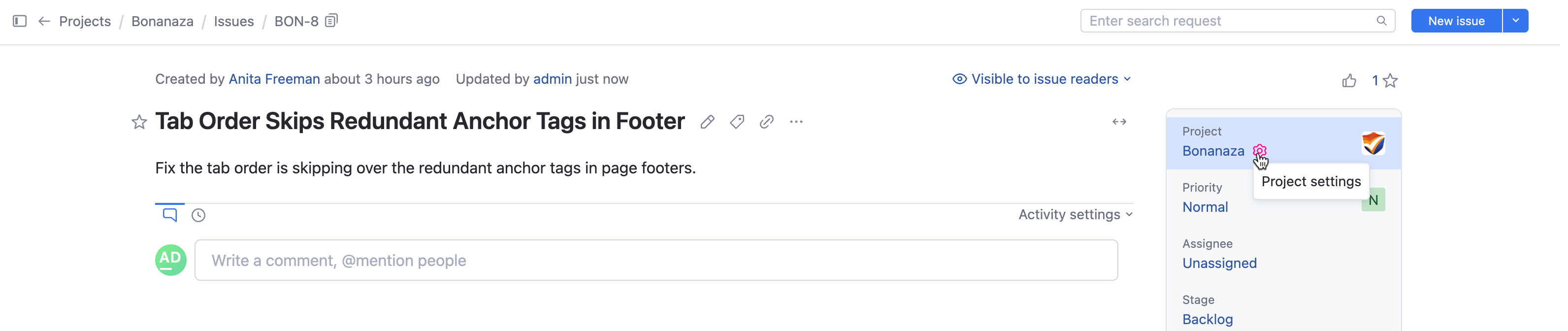
General Project Settings
The project Overview page displays a dashboard-like interface for the selected project. Select Settings in the project navigation menu to open the project settings page. The General tab opens by default.
Here, you can add or change information stored when the project was created and configure default visibility options for new items in the project.
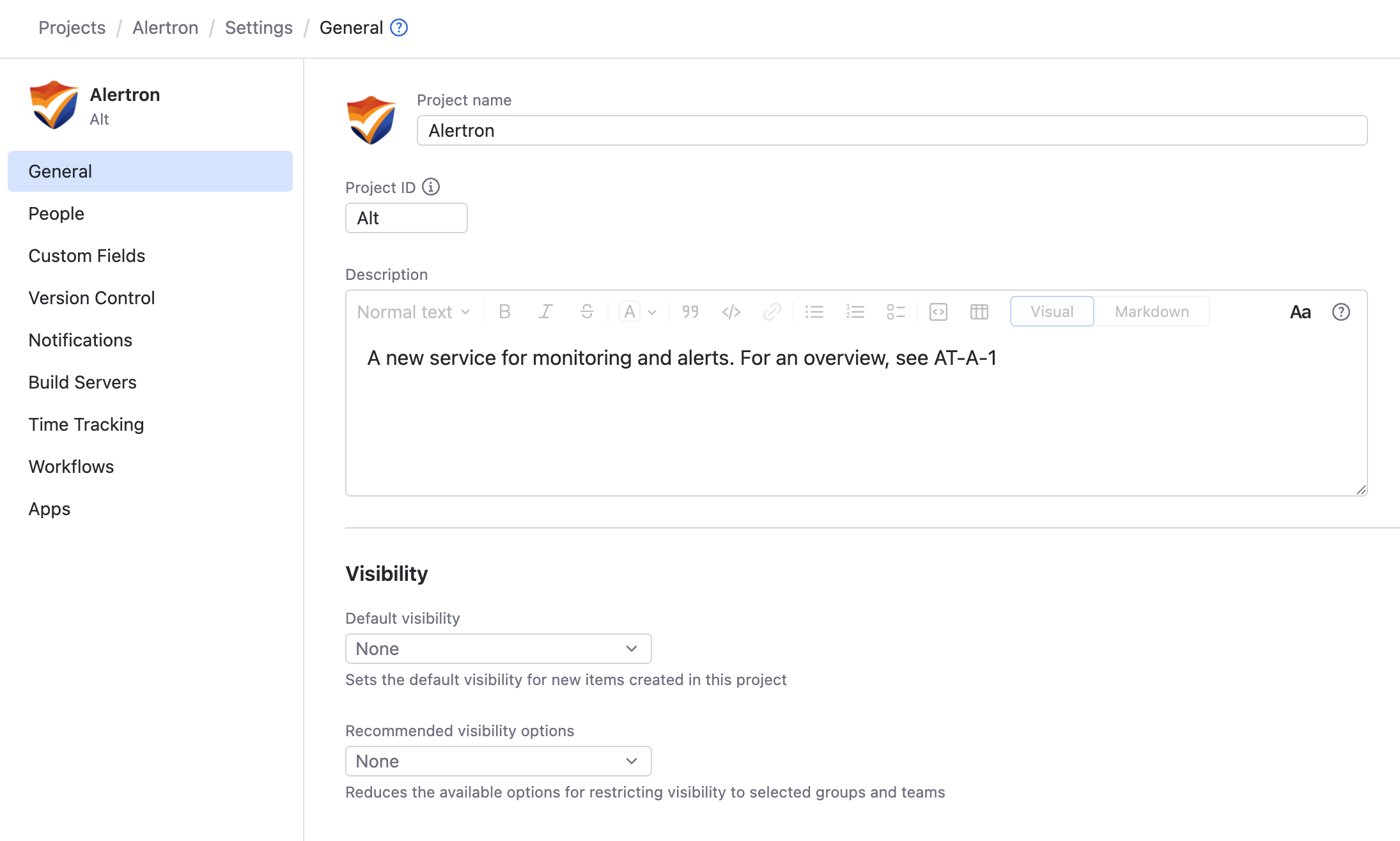
Setting | Description |
|---|---|
Organization> | The organization the project is assigned to. Organizations let you add structure to your project management efforts by grouping resources and projects under one roof. To change the organization, select an organization from the drop-down list. |
Name | The name of the project. The project name must be unique. |
ID | The project ID. This value is used as a prefix for the issue ID in all the issues that are assigned to this project. The project ID must be unique. When you change the project ID, YouTrack stores the ID previously used as an issue prefix in the project. This collection of values is shown in the Historical IDs setting, which is read-only. External links to issues that use historical project IDs are redirected to issues that use the current projectID. The Historical IDs setting is only visible when the project has at least one historical ID. |
Logo | Stores an image used as the logo for the project. This helps distinguish between different projects in the Projects list.
|
Description | An optional description that explains what the project is meant to organize or accomplish. This information is displayed on the project overview page. The rich text editor lets you format the project description text in Visual or Markdown mode.
|
Default visibility | A group or team that is set automatically as the initial default for the Visible to group in new issues and articles in this project. When configured, the default is only applied to new issues and articles. The visibility settings for existing issues and articles aren't affected. |
Recommended visibility options | A list of groups and teams that are displayed in the Recommended visibility options drop-down for issues and articles in the project. Use this setting to help users discover groups that are set up specifically to handle issues in your project. This setting can reduce the available options for restricting visibility of issues and articles to the selected groups and teams. |
Project Settings
On the project settings page, the side panel gives you access to all the settings for your project. Each page provides access to the settings for a specific project feature. The following additional setting pages are available for all project types:
Page | Description |
|---|---|
People | Add users or groups to the project team. For more information, see Manage Project Members and Access. |
Custom Fields | Customize the fields and values for issues in the project. YouTrack provides a set of predefined default fields, such as State, Priority, and Assignee. These fields are attached automatically to any new project created in YouTrack. You can edit or delete most predefined fields or create and attach new custom fields. For more information, see Manage Custom Fields. |
Notifications | Customize the From and Reply-to addresses associated with your project and configure the notification templates for your project. For more information, see Manage Project Notification Settings. |
Time Tracking | Enable time tracking for your project to let your team log their work for issues, track issue progress, and create time reports. For more information, see Enable Time Tracking. |
Workflows | Attach workflows to the project. As with fields, you have a set of predefined default workflows. Some workflows are auto-attached to new projects. In the Workflow tab, you can view the list of attached workflows, detach unnecessary workflows, and activate or deactivate workflow rules. For more information, see Manage Workflows. |
Apps | Add apps to the project. Apps give you the power to extend YouTrack with additional functionality tailored to your specific needs. You can integrate with other tools, add widgets to display important data, and share workflows. For more information, see Manage Apps. |
The following pages are exclusive to standard projects for issue tracking:
Page | Description |
|---|---|
Version Control | Integrate the project with a VCS repository, such as GitHub, GitLab, or BitBucket. For more information, see Integrate with Version Control. |
Build Servers | Select an existing connection or add a new connection to a TeamCity server. You can configure the mapping between the project and the TeamCity configuration. For more information, see Integrate with TeamCity. |
The following pages are exclusive to helpdesk projects:
Page | Description |
|---|---|
Authorized Reporters | Restrict ticket reporting to a hand-selected group of people. For more information, see Restricted Helpdesk Projects. |
SLA Policies | Set up rules and frameworks for handling incoming customer requests. For more information, see SLA Policies. |
Channels | Open lines of communication for submitting support requests in a helpdesk project. For more information, see Channels. |
More Project Settings
Click the More icon next to the project name in the header to open additional project settings.
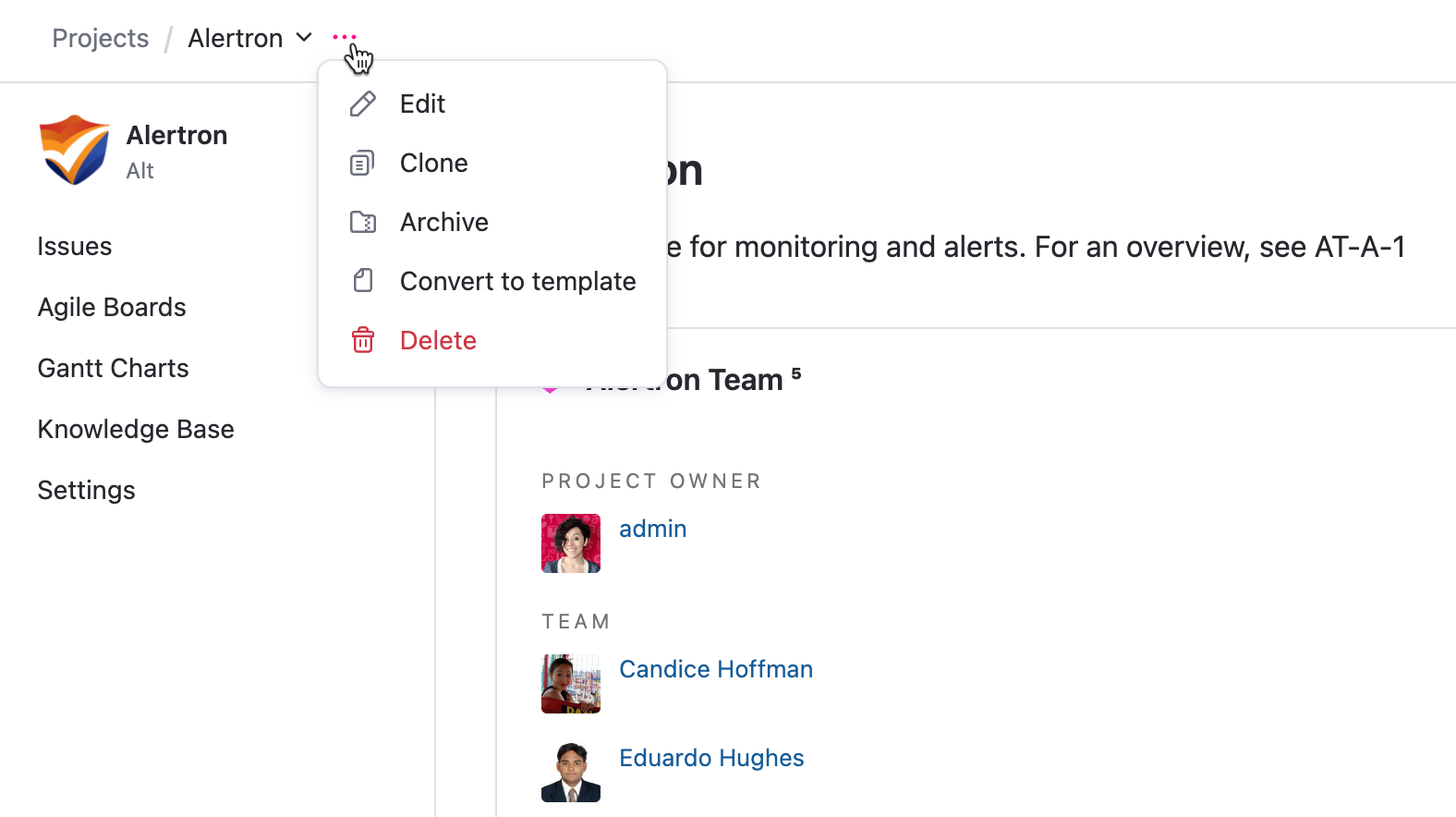
Option | Description |
|---|---|
Edit | Make changes to the general project settings. For more information, see General Project Settings. |
Clone | Create a project that is similar but not identical to an existing project. This operation lets you create new projects without having to configure them from scratch. For more information, see Clone a Project. |
Archive | Preserve a project and its information for future reference when it is no longer active but might be useful later. For more information, see Archive a Project. |
Convert to template | When enabled, the current project is used as a custom template for new projects. The project is added to the list of available project types on the Create Project page. For more information, see Custom Project Templates. |
Delete | Delete a project and all the project data permanently. For more information, see Delete a Project. |