Delete a Project
If you have a project that is no longer actively managed, you can delete it. When you delete a project, all the issues that belong to the project are deleted permanently.
To delete a project:
From the main navigation menu, select
 Projects.
From the
 More menu of the project that you want to delete, select
  Delete.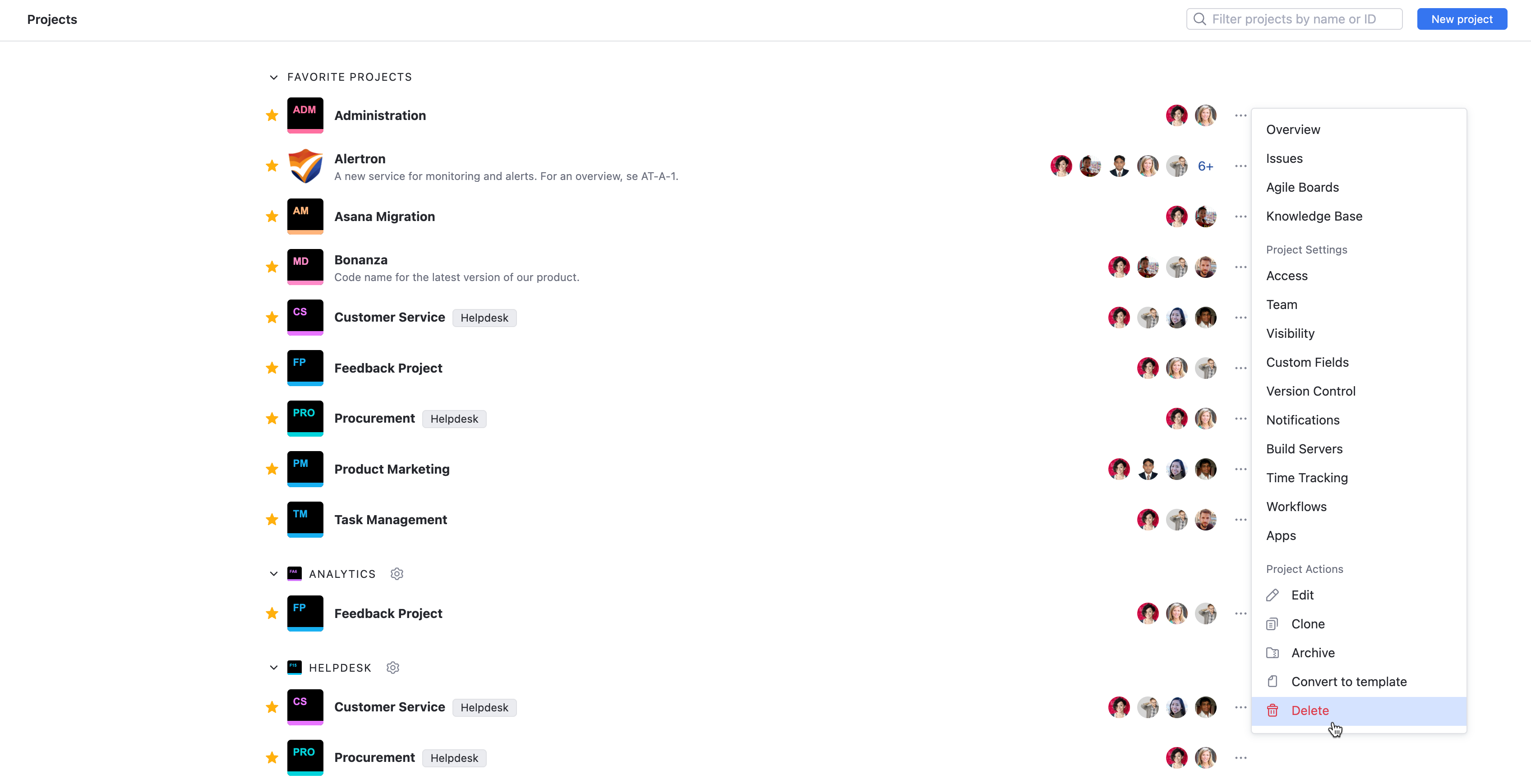
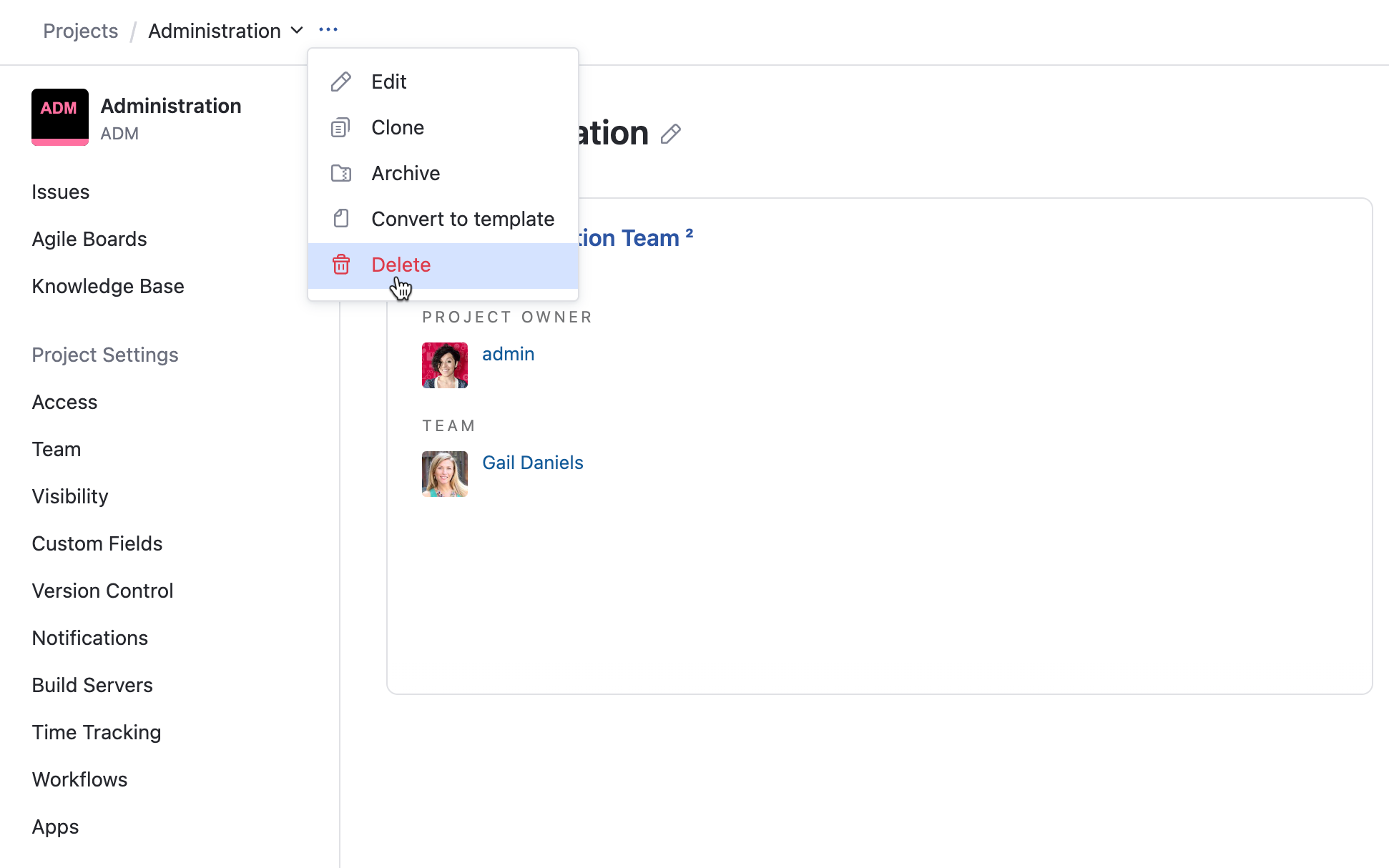
or, select the project from the project list, open the
More menu, and select Delete.To confirm this action, enter the project name in the input field on the confirmation dialog.
Click the Delete project button.
The project is deleted.
All the issues and articles that were created in the project are deleted permanently.
All project settings and customizations are discarded.
This operation can also be performed by selecting Delete in the More menu on the project overview.
Troubleshooting
Condition — The project gets stuck in a "pending deletion" state.
Cause | Solution |
|---|---|
For projects that contain a large number of issues, articles, and other content, the deletion process can take a significant amount of time. If this process takes longer than expected, the application may have encountered an internal error that prevented the deletion process from completing successfully. |
If the problem persists despite your efforts, contact customer support. |