Maven
The Maven build step allows using Apache Maven for automating builds.
Step Settings
The list of Maven step settings and their corresponding UI labels slightly differ depending on whether you configure a build configuration or a pipeline.
Main Settings
- Goals
The list of space-separated Maven goals that you want TeamCity to execute. Some Maven goals can use version control systems, thus they may become incompatible with some VCS checkout modes.
To execute such a goal, select " Automatically on agent " in the VCS Checkout Mode drop-down menu on the Version Control Settings page. This makes the version control system available to the goal execution software. On how to use the
release:preparegoal with Perforce P4, see this section.- Working directory
The directory where the build step starts. By default, this is the same root directory where the agent checks out remote sources. See this topic for more information: Build Working Directory.
Advanced Settings
- POM location
The path to the POM file relative to the build checkout directory. By default, equals to
pom.xml.- Runner arguments
The list of command-line parameters.
- Maven version
Choose the Maven version you want to use. You can also manage the installed versions.
<Auto> — The path to the Maven installation is taken from the
M2_HOMEenvironment variable, otherwise the current default version is used.<Default> — The bundled version is used as default. See how to change the defaults.
<Custom> — Provide a path to a custom Maven version.
Build Configuration Settings
These settings are only available for Maven steps used inside build configurations.
- User settings selection
Allows you to choose different types of user settings. This setting is equivalent to adding the
-sor--settingscommand-line argument. The available options are:<Default> — Import user settings from the default Maven locations on the agent. See also: Maven server-side settings.
<Custom> — Allows you to specify the path to an alternative user settings file. The path should be valid on both the agent and server.
Predefined settings — Allows you to choose one of settings files uploaded to the TeamCity server on the Project settings | Maven Settings page. Uploaded files are available for both the current project and all of its subprojects, and stored in the
<TeamCity Data Directory>/config/projects/%projectID%/pluginData/mavenSettingsdirectory. The uploaded files are used both for the agent and server-side Maven functionality.
If Custom or Predefined settings are used, the path to the effective user settings file is available inside the maven process as the
teamcity.maven.userSettings.pathsystem property.- Artifact repository
Allows you to choose one of the following local artifact repository options:
Per agent (default) — Use a separate repository to store artifacts, produced by all builds run by an agent, under the agent system directory.
Per build configuration — Use a separate repository to store artifacts, produced by all builds of the current build configuration.
Maven default — Use the default Maven repository location. The repository is shared between all build configurations and all agents on the machine.
In this mode, Maven step uses the location specified in the additional command-line parameter
-Dmaven.repo.local. If the parameter is not specified, it will search for values set insettings.xml.
- Incremental building
The general idea of incremental building is to process only changed modules without spending time on reprocessing unchanged modules they are connected with. TeamCity utilizes this method to run tests only for changed Maven modules thus saving time when rerunning a build or a build chain.
Since Maven itself has very limited support for incremental builds, TeamCity uses its own change impact analysis algorithm for determining the set of affected modules and uses a special preliminary phase for making dependencies of the affected modules.
First TeamCity performs own change impact analysis taking into account parent relationship and different dependency scopes and determines affected modules. Then the build is split into two sequential Maven executions.
The first Maven execution called preparation phase is intended for building the dependencies of the affected modules. The preparation phase is to assure there will be no compiler or other errors during the second execution caused by the absence or inconsistency of dependency classes.
The second Maven execution called main phase executes the main goal (for example,
test), thus performing only those tests affected by the change.Also, check the related blog post on the topic.
Container Settings
This build step can run inside a container deployed by Docker or Podman.
Classic build configuration steps display a set of properties that allow you to specify the image name, platform, and additional run arguments. The Pull image explicitly ensures TeamCity pulls an image from the target container every time this step runs.
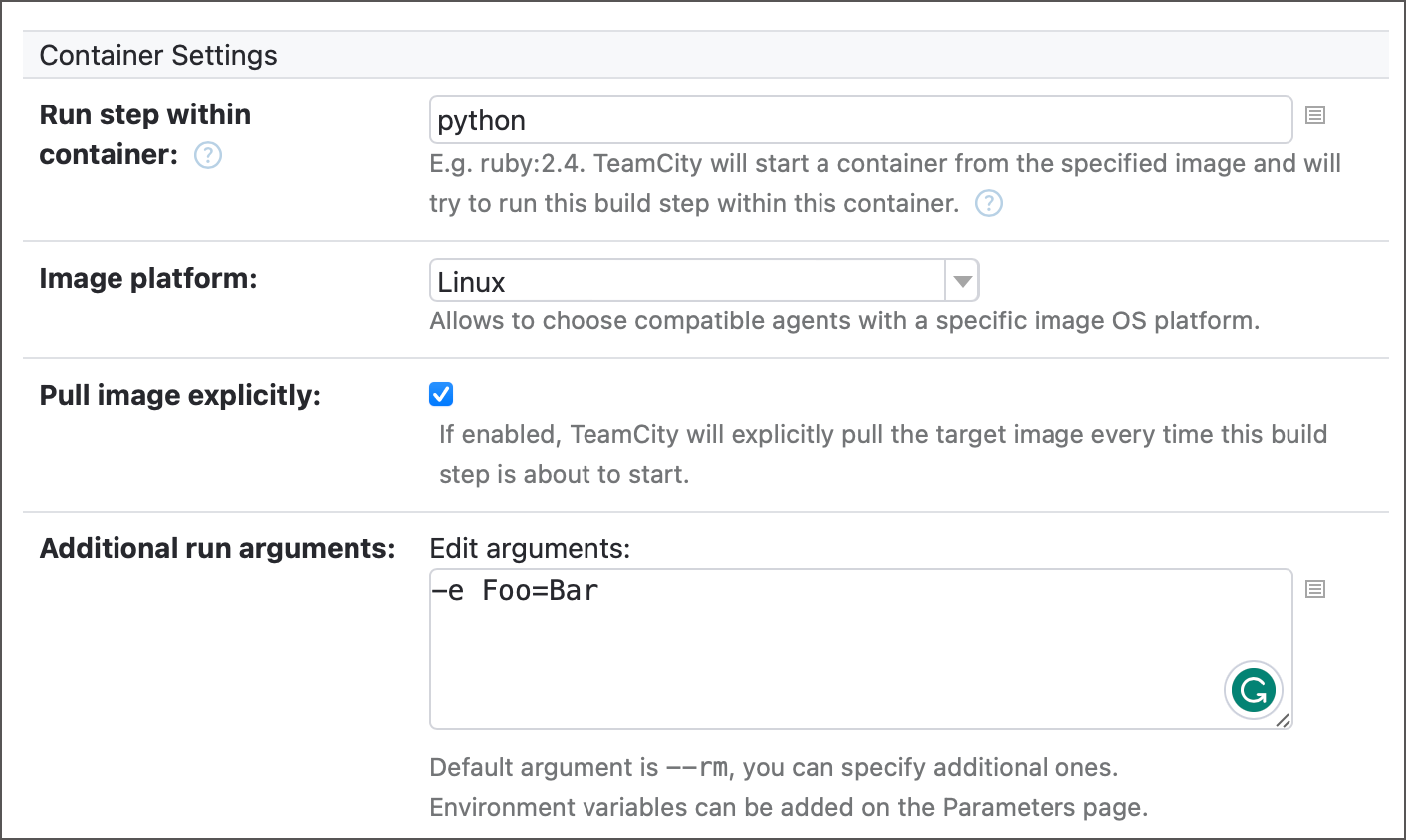
To point TeamCity to a registry where it should look for the specified image, add Docker/Podman connection to your project. By default, this connection allows TeamCity to pull images from Docker Hub in anonymous mode, but you can set it up for any container registry.
See the following article for more information: Container Wrapper.
Toggle Run in Docker on to run a step inside a container. When enabled, this element displays two options.
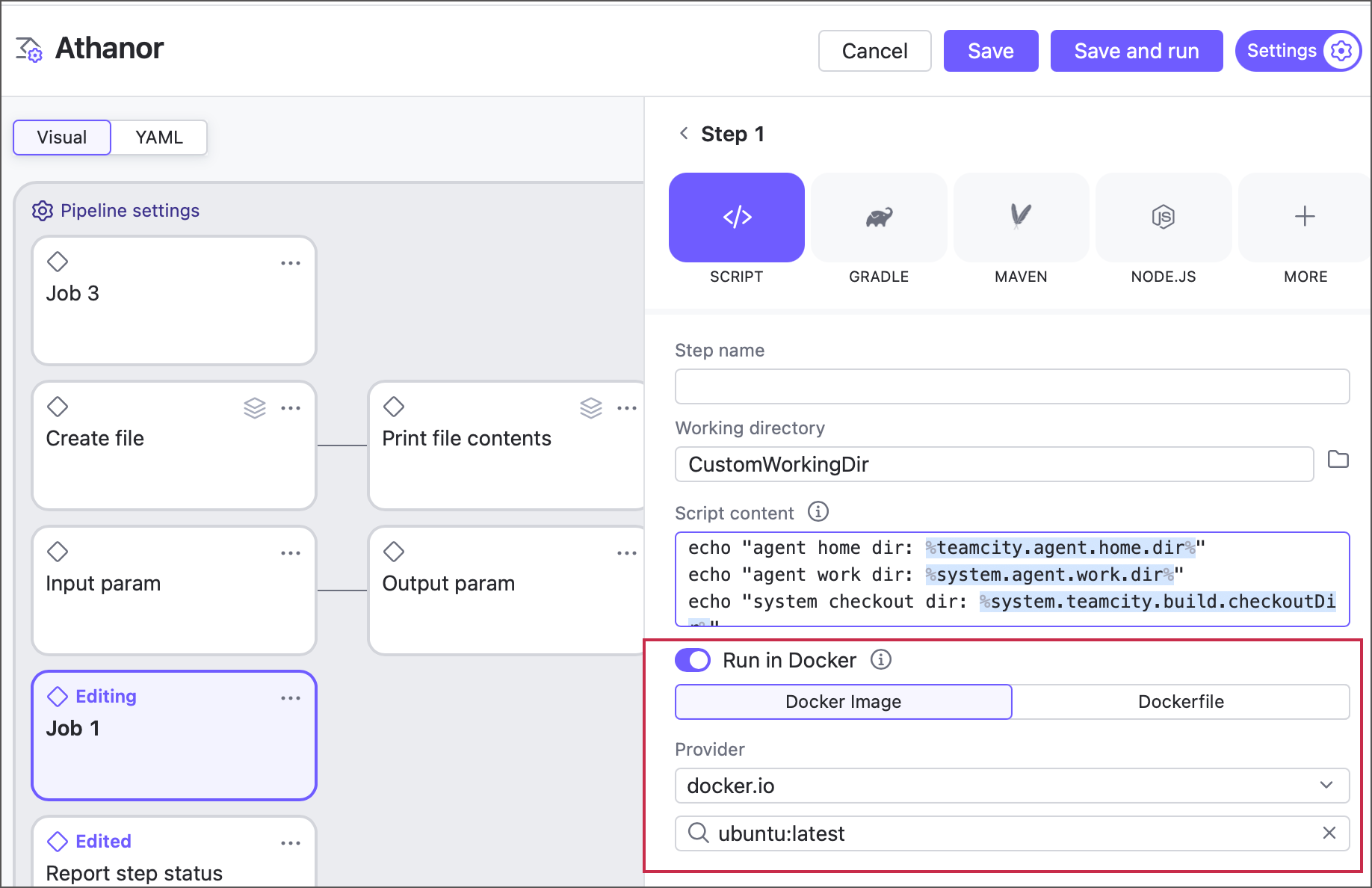
Docker image — allows you to pull an image from a Docker or Podman registry. By default, TeamCity can pull Docker Hub images in anonymous mode. For other cases (private images, custom image registries, non-anonymous mode that ensures you do not violate Docker Hub rate limits), configure a Docker integration on a pipeline or job level.
Dockerfile — allows you to build a custom image from a Dockerfile.
Java Parameters
- JDK
Select a JDK. This section details the available options. The default is
JAVA_HOMEenvironment variable or the agent's own Java.- JDK home path
The option is available when <Custom> is selected above. Use this field to specify the path to your custom JDK used to run the build. If the field is left blank, the path to JDK Home is read either from the
JAVA_HOMEenvironment variable on the agent machine, or from theenv.JAVA_HOMEproperty specified in the build agent configuration file (buildAgent.properties). If these values are not specified, TeamCity uses the Java home of the build agent process itself.- JVM command line parameters
Additional JVM command line parameters allow you to set initial and maximum heap sizes, enable additional logging, select the required bytecode verifier mode, and more.
You can specify both standard (begin with
-, for instance-verbose:[class|module|gc|jni]or--dry-run) and non-standard (begin with-X, for instance-Xmx<size>or-XstartOnFirstThread) JVM options.To specify multiple command line parameters, use space as a separator. For example:
-verbose:gc -Xdiag -Xcomp -Xmx512m -Xms256m
Code Coverage
The Maven build runner supports code coverage based on the IDEA coverage engine. To learn about configuring code coverage options, refer to the Configuring Java Code Coverage page.
If you have several build agents installed on the same machine, by default they use the same local repository. However, there are two ways to allocate a custom local repository to each build agent:
Specify the following property in
teamcity-agent/conf/buildAgent.properties:system.maven.repo.local=%\system.agent.work.dir%/<subdirectory_name>For instance,
%system.agent.work.dir%/m2-repository.Run each build agent under different user account.
Maven Release with Different VCSs
To run the release:prepare Maven task with different VCSs supported by TeamCity, make sure you are using at least 2.0 version of the Maven Release plugin.
Using Maven Release with Perforce
The Maven Release plugin needs a ticket to authenticate in Perforce.
In the Perforce VCS root settings of your build configuration in TeamCity:
Enable the checkout on agent.
Enable Use ticket-based authentication in Perforce VCS root settings.
Make sure your build agent environment doesn't have any occasional P4 variables which can interfere with the execution of Maven Release Plugin.
Specify
release:preparein the Goals field of the Maven build step and run the build.
Using Maven Release with Git VCS
To use this plugin with Git, set a Git SSH URL as SCM URL in your pom.xml.
On the TeamCity agent:
Make sure the agent has Git installed and added to the agent's
$PATHon Unix-like OS's and to the%PATH%environment variable on Windows.On the agent, set your account's identity by executing
git config --system user.email "buildserver@example.com" git config --system user.name "TeamCity Server"Make sure your Git VCS is added to the known hosts database on the agent.
On the TeamCity server:
Upload a Git SSH key to your TeamCity server.
Open configuration settings and navigate to the Version Control Settings settings tab.
Enable the checkout on the agent.
In your Git VCS root, enable Private Key authentication.
Add the SSH Agent build feature to your configuration.
Specify
release:preparein the Goals field of the Maven build step and run the build.
Remote Run limitations
Remote Run Limitations related to the Maven runner:
As a rule, a personal build in TeamCity doesn't affect any "regular" builds run on the TeamCity server, and its results are visible to its initiator only. However, in case of using Maven runner, this behavior may differ.
TeamCity doesn't interfere anyhow with the Maven dependencies model. Hence, if your Maven configuration deploys artifacts to a remote repository, they will be deployed there even if you run a personal build. Thereby, a personal build may affect builds that depend on your configuration.
For example, you have a configuration A that deploys artifacts to a remote repository, and these artifacts are used by configuration B. When a personal build for A has finished, your personal artifacts will appear in B. This can be especially injurious, if configuration A is to produce release-version artifacts, because proper artifacts will be replaced with developer's ones, which will be hard to investigate because of Maven versioning model. Plus, these artifacts will become available to all dependent builds, not only to those managed by TeamCity.
To avoid this, we recommend not using remote run for build configurations which perform deployment of artifacts.
Configuration as Code
The following snippets illustrate a customized build step in both YAML (only pipelines) and Kotlin DSL formats.
See also: MavenBuildStep Kotlin DSL documentation.