Debug Unreal Engine apps on Android
You can use the extensive set of Rider debugging features when working with an Unreal Engine app on an Android device. To get started, complete the following steps:
Connect the target Android device to your machine and enable debugging on the device.
Make sure that the Rider Android Support plugin is installed in Rider.
Make sure that Android Studio and SDK are installed and configured on your machine.
Open your Unreal Project in Rider to connect it with the Unreal Editor and perform the initial deployment.
Start debugging from Rider.
Install the Rider Android Support plugin
This functionality relies on the Rider Android Support plugin, which you need to install and enable.
Press Ctrl+Alt+S to open settings and then select .
Open the Marketplace tab, find the Rider Android Support plugin, and click Install (restart the IDE if prompted).
Install Android Studio and SDK
The installation of Android Studio and the Android SDK Command-Line Tools is describeed in the Unreal Engine documentation.
If Android Studio is not installed on your machine, it is recommended to run Turnkey from the Unreal Editor to automatically install the required version of Android Studio and all necessary components, as described in the Unreal Engine documentation.
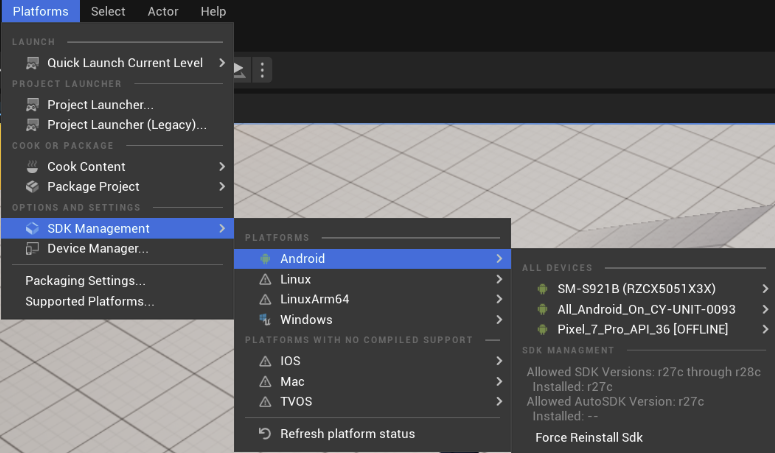
If Android Studio is already installed on your machine, make sure that you finalize and verify your Android SDK setup.
Initial deployment of the Unreal Engine app
Open your Unreal Engine app project in JetBrains Rider.
Open the Solution Configuration selector and choose Editor under Target.
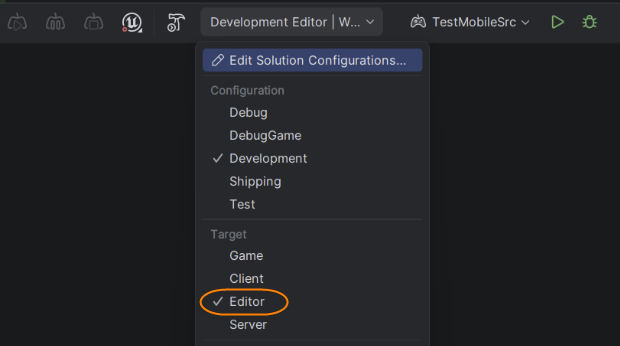
Note that the Solution Configuration can be displayed on the toolbar or hidden. In case it is hidden, you can access it by clicking the selector next to the Build
 button on the toolbar.
Click Run
 on Rider toolbar.
JetBrains Rider will build your Unreal Engine app and open it in the Unreal Editor.
Switch to the Unreal Editor and perform the initial app deployment — select from the menu:

If the build and initial deployment are successful, close the Unreal Editor.
Start debugging
Return to JetBrains Rider, where your Unreal Engine solution is open.
In the solution configuration selector, choose Game under Target, and Android under Platform:
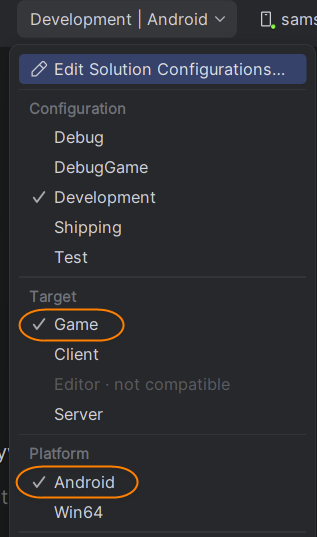
Wait for the solution to reload after changing the configuration properties.
Make sure that the device manager appears on the main toolbar and the target device is selected:

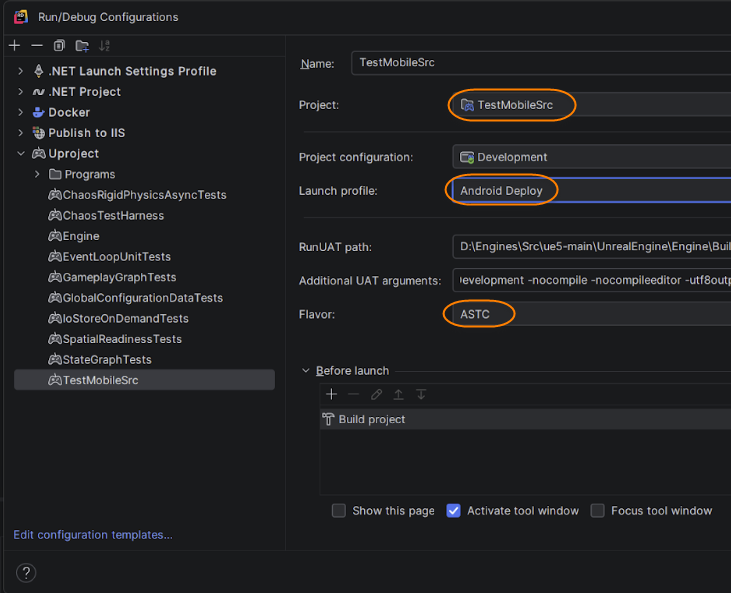
Open the Run/debug configurations dialog () and check that the following properties are correct in the current run configuration. The run configuration is created automatically when you switch the solution configuration on the previous step to Android Game.
The Project is properly selected. It must correspond to the runnable project of your app.
The Launch Profile is
Android Deploy. This is set automatically and should not be changed.The Flavor corresponds to the flavor used during the initial deployment of the app via the Unreal Editor.
Prepare for the debugging session by setting breakpoints in the project code.
Click Debug`
 on the toolbar or use any other method to start the debugging session.
Your Unreal Engine app will be launched on the connected device with the debugger attached.