Unity. Troubleshooting debugger connection on Windows
In some cases Rider debugger is unable to attach to the Unity Editor, showing an error message:
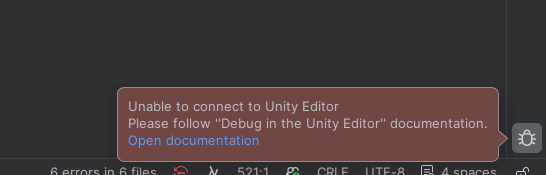
Unity Editor opens a specific port at the start for the external debuggers to attach. This port is defined like this: 56000 + (UnityEditor Process Id % 1000). This means it needs a range of ports to be available: 56000-56999. If something in the system blocks parts of that range — you will not be able to connect any debugger to it.
Check for Windows NAT service
Sometimes this is caused by the Windows NAT service, reserving some ports in Unity's range. To check this, run the following command in your terminal:
If you see some ranges intersecting with 56000-56999, restart this service using the Admin terminal:
Close Unity Hub and Unity Editor and reopen them again. Rider should be able to connect the debugger now.
Troubleshoot other processes
If that didn't help, some other process is blocking a port which uses Unity. You can troubleshoot the issue in the following way:
Open the Task Manager and find the Unity Editor process and note its PID:

Calculate the port number, taking the last three digits and append them to 56. For example, if PID is
207048, the port is56048.Check which processes are using this port, running:
netstat -ano | findstr :[PORT]
Find the process with the PID shown on the right in Task Manager and kill the process or reconfigure it.