Troubleshooting and debugging Unity players
Rider's Attach to Unity Process dialog will list any Unity instances currently running on the network. This includes the Unity editor and any helper processes, plus any standalone or device players. Then it will list any USB devices and finally other projects. When showing iOS USB devices, note that Rider is showing the device and does not know if a Unity project is currently running.
For more details, please see this blog post.
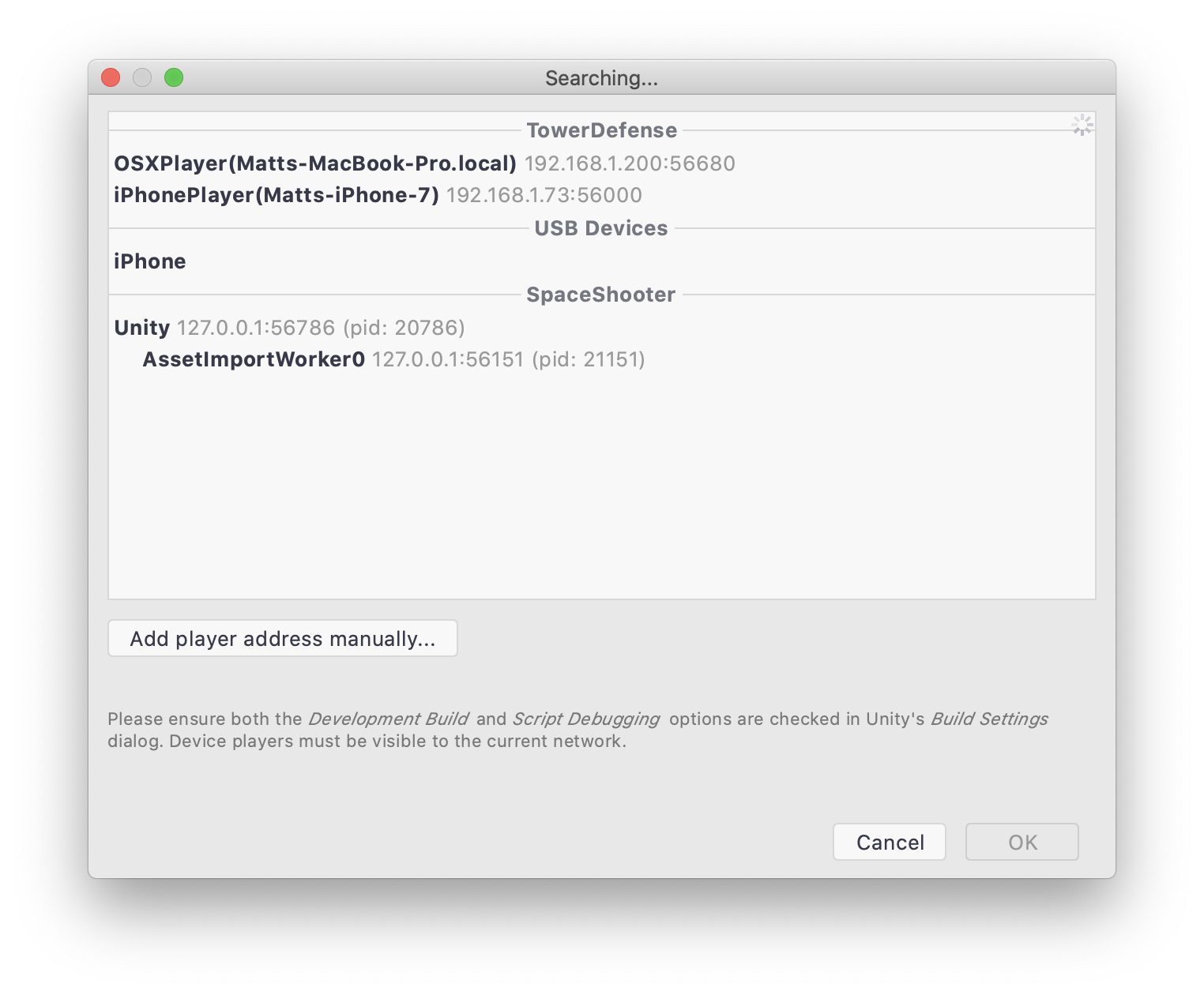
While you can start debugging the editor instance for the current project here, it is easier to use the Attach to Unity Editor or Attach to Unity Editor and Play run configurations and just hit the Debug button to automatically attach.
Troubleshooting
My device doesn't show up in the list
There are certain criteria that must be met to successfully debug a player:
The player must be built with the Development Build and Script Debugging check boxes selected. Rider will only list development builds, but will grey out a player that has script debugging disabled.
IL2CPP based players require Unity 2018.2 or above to build a player that supports the Mono debugging protocol.
Networked players need to be on the same subnet. E.g. if a desktop has an IP address of
192.168.1.200, then the player must also have an IP address in the range192.168.1.x.Networked players might be blocked due to firewalls. Players will continually broadcast a UDP message during execution, so please make sure that UDP messages are not blocked by firewalls. UDP messages are only broadcast within the current subnet, so make sure that the player is on the same subnet as the desktop machine running Rider.
iOS USB debugging should work out of the box on a Mac and Linux, but requires iTunes or the Apple Mobile Device Service on Windows. It also requires the iOS Build Support module to be installed as part of the main Unity install.
iOS USB debugging on Apple Silicon requires Rider 2021.3 or newer. If Rider is run as a native Apple Silicon app, it requires Unity 2021.2 or newer. Rider running as a Rosetta 2 app can work with older versions of Unity.
Nintendo Switch developer kits have two network interfaces - wired and wireless. The UDP message is broadcast over the Wi-Fi connection, so please make sure to configure both networks before debugging.
Debugging does not show all fields and properties
When debugging a player or device, most debugging features should be available, however, it is possible that not all fields, properties and methods are available, as different platforms have different build requirements. For example, IL2CPP builds will apply code trimming to remove unused code. This might result in the debugger being unable to evaluate certain types or type members.
Didn't find the associated module for the breakpoint
This can happen due to various reasons:
IL2CPP backend can only be debugged via Attach (issuetracker.unity3d). You may want to use env.var.
UNITY_GIVE_CHANCE_TO_ATTACH_DEBUGGER=1to start debugging from the very first frame.Debug app targeting Apple silicon with Intel UnityEditor (issue)
Manual configuration
If Rider is unable to find the player or device and show it in the dialog, it can still be possible to debug the player by entering details manually. The player is using the standard Mono debugging protocol, so requires a simple host address and port to enable debugging. This can be found in the player log, and can be retrieved using something like logcat or XCode.
Use the Add player address manually option in the dialog to specify the details.
You can also use the Mono Remote Debug run configuration to set up a persistent run configuration for the player.
Firewalls
Firewalls might block devices, and prevent them from appearing in Rider's Attach to Unity Process dialog. The Mono debugging protocol is simple TCP traffic on a port that is decided by the player. As long as this port is open, debugging should be possible.
If the firewall is blocking UDP or IGMP (Internet Group Membership Protocol) messages, the player might not show up in the list. Please update your system firewall appropriately.
macOS
The macOS firewall is actually two firewalls, only one of which has a user interface.
The firewall that can be configured in the Security & Privacy System Preferences pane is the application firewall and is a coarse-grained firewall that can allow or block incoming connections per-application. It is off by default (a suggested reason is that a firewall is only useful if there are services unnecessarily listening at open ports) but can be easily enabled. It is unlikely to cause problems blocking the UDP multicast packets required to list Unity players, but if this firewall is enabled, make sure that Rider can accept incoming connections. (A technical overview is availble in the 'Firewall' section here.)
The second firewall is the PF packet filter, which has much more flexibility. Unfortunately, the default configuration can prevent Unity players showing up in Rider's dialog.
PF is disabled by default, but can be enabled by system components. For example, the application firewall will enable PF when the "Block all incoming connections" or "Enable stealth mode" checkboxes are selected. It is also used by Internet Sharing, and this can cause PF to be enabled even if Internet Sharing is not active.
You can see if PF is enabled by calling pfctl -s info (this requires root permissions, so you will likely need to use sudo pfctl -s info).
PF's enabled status is independent of the application firewall's status. It is not disabled when the application firewall is turned off, and must be controlled separately.
The default configuration for PF is set up in /etc/pf.conf, which doesn't set up any rules, but defines some "anchors" which can be used by the system to dynamically add rules (such as the Internet Sharing rules). These anchors are defined in /etc/pf.anchors/com.apple. It is possible to view the current rules and statistics using pfctl -s all, although this will only show the rules for the current anchor, which acts like a container. You can use this pfdump.sh script to recursively call pfctl to show all defined rules.
Once enabled, if a packet does not match an existing rule, it is allowed and passes through the firewall, unless the packet includes any IP options. From man pf.conf:
Unfortunately, IGMP (Internet Group Membership Protocol) packets use the RA IP option, which means these packets are dropped. When Rider (or any other software) wants to join a multicast group in order to receive UDP messages, it must send an IGMP "join" packet. If PF is enabled, this outgoing IGMP packet is dropped, and the multicast group isn't joined, which means UDP multicast messages are not received. For Rider, this means Unity players do not show up in the dialog.
This can be fixed with the following configuration. Be careful with modifying /etc/pf.conf - make a backup first. Also, this file is recreated on system updates, so this configuration will need to be reapplied periodically.
Modify /etc/pf.conf to add the following two lines at the end of the file (the pf.conf file will require root permissions to edit):
Then add a file /etc/pf.anchors/unity.udp with the following content:
This rule will allow outgoing IGMP packets so that any application can join the 225.0.0.222 UDP multicast group. This is the group that Unity players use.
Then restart PF:
Support
If this document doesn't help, please contact JetBrains support at support@jetbrains.com.