Navigate and search
JetBrains Rider enables you to find your way through the source code using the declarations, members, method calls, inheritance hierarchy, errors, and so on as well as through IDE items like actions, settings, and tool windows.
The scope of navigation and search is not limited to files of your solution: if necessary, you can include symbols from referenced libraries in your navigation or search results.
Depending on your task, different sets of JetBrains Rider's navigation and search features may help you:
If you need to find anything in your solution or referenced libraries by name, study the commands in the Search by name section.
If you need to go to any items related to the current code symbol, study the commands in the Navigate from symbols section.
JetBrains Rider also provides a general-purpose Navigate To shortcut that groups all navigation options available from the current caret position. For more information about this shortcut, refer to Navigate To section.
If you want to find usages of a particular symbol in the current file, project, solution, or referenced libraries, study the commands in the Find Usages section.
Depending on the current caret position in the editor, JetBrains Rider can suggest a lot of relevant navigation options. For more information about these options, refer to Navigate current context.
Besides, JetBrains Rider provides other means of navigation:
For types and type members that have base symbols or inheritors elsewhere in the solution and referenced assemblies, JetBrains Rider shows gutter icons that let you navigate up and down the inheritance hierarchy:
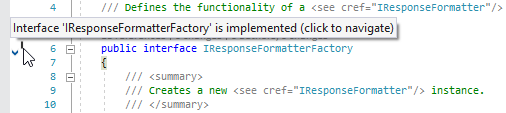
For more information, refer to Navigate inheritance hierarchy with gutter marks.
The Structure window window that represents the structure of the current file retaining navigation features.
The TODO items that help you and your teammates organize your work in a convenient manner and easily retrieve positions in the source code that require attention. For more information, refer to TODO lists.
Shortcuts for navigation and search commands
Find everything
Double Shift | |
Ctrl+F | |
F3 | |
Shift+F3 | |
Ctrl+R | |
Ctrl+Shift+F | |
Ctrl+Shift+R | |
Next Occurrence of the Word at Caret | Ctrl+F3 |
Go to File... | Ctrl+Shift+N |
File Member | Ctrl+F12 |
Go to Symbol... | Ctrl+Alt+Shift+N |
Find Action... | Ctrl+Shift+A |
Navigate from symbols
Navigate To... | Ctrl+Shift+G |
Find Usages | Alt+F7 |
Go to Declaration or Usages | Ctrl+B |
Go to Type Declaration | Ctrl+Shift+B |
Show Usages | Ctrl+Alt+F7 |
Go to Super Method | Ctrl+U |
Go to Implementation(s) | Ctrl+N, K |
Go to Derived Symbols | Ctrl+Alt+B |
Highlight Usages in File | Ctrl+Shift+F7 |
Context navigation
Next Method | Alt+Down |
Previous Method | Alt+Up |
Go to Line/Column... | Ctrl+G |
Ctrl+Tab | |
Alt+F1 | |
Ctrl+J, P | |
Ctrl+E | |
Ctrl+N, E | |
Alt+Shift+C | |
Last Edit Location | Ctrl+Shift+Backspace |
Ctrl+Alt+Left | |
Ctrl+Alt+Right | |
Alt+Right | |
Alt+Left | |
F11 | |
Ctrl+Shift+[digit] | |
Ctrl+F11 | |
Shift+F11 | |
Ctrl+[digit] | |
Ctrl+Shift+F11 | |
Ctrl+J, X | |
Ctrl+J, Z | |
Show Bookmarks window | Alt+2 |
Show Structure window | Alt+7 |
Show Find window | Alt+3 |
Next Occurrence | Ctrl+Alt+Down |
Previous Occurrence | Ctrl+Alt+Up |