Unity shader development
JetBrains Rider supports Unity shader workflows from authoring and code analysis through render-frame inspection and source-level shader debugging. You can edit ShaderLab .shader files, CG/HLSL blocks, shared .cginc/.hlsl includes, and compute shaders with Rider's code insight, navigation, refactoring, and Unity-aware context tools.
Shader support overview
Rider recognizes Unity shader-related files and provides dedicated editor support for:
Unity ShaderLab .shader files
CG/HLSL shader code embedded in ShaderLab files
Shader include files, including Unity-specific .cginc files and HLSL include files such as .hlsl and .hlslinc
Unity compute shader (.compute) files
In ShaderLab files, Rider provides syntax and error highlighting, code completion, color assistance, brace matching, comment/uncomment actions, code folding, breadcrumbs, file structure, live templates for common shader constructs, Search Everywhere integration, and navigation for shader symbols. HLSL code inside ShaderLab files and standalone include files is analyzed with Unity-specific context so Rider can understand shader keywords, platform symbols, and include roots.
Create and edit shader files
Use to create shader files from Rider's Unity file templates. Rider has templates for common shader types, including:
Unlit Shader
Standard Surface Shader
Image Effect Shader
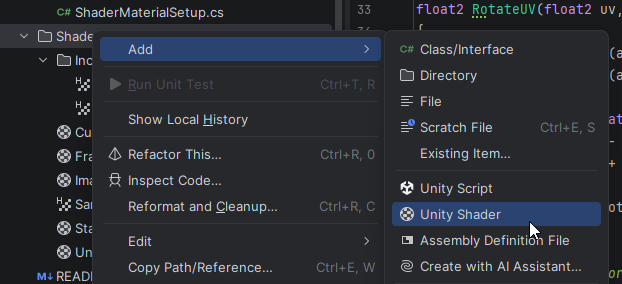
After creating a shader, you can edit ShaderLab declarations, properties, passes, and embedded CG/HLSL code in Rider. Code insight works across ShaderLab structure and embedded shader programs, so you can use completion, navigation, highlighting, and formatting while staying in the IDE.
Work with shader variants and keywords
Working with shader files often requires using #if preprocessor directives to generate different shader variants. These branches can be used to introduce conditional behavior for different platforms, such as mobile or desktop, different graphics APIs such as Vulkan or DirectX, or different user features enabled at runtime with shader keywords.
Rider parses your shader source code while you type. It builds a semantic model and can use this to provide rich functionality such as syntax highlighting, Ctrl+Click navigation, finding usages and smart rename and other refactorings. However, it isn't feasible for Rider to build a semantic model of the content of all preprocessor directives simultaneously; an inactive branch might contain alternative conflicting declarations of existing fields or functions, or broken code, or could even contain unexpected syntax to close one function and declare another one (for example, by including a close brace and a new function declaration). So Rider only analyzes the preprocessor branches based on the currently defined symbols while editing. This leads to "inactive", greyed-out preprocessor branches, with no syntax highlighting or inspections.
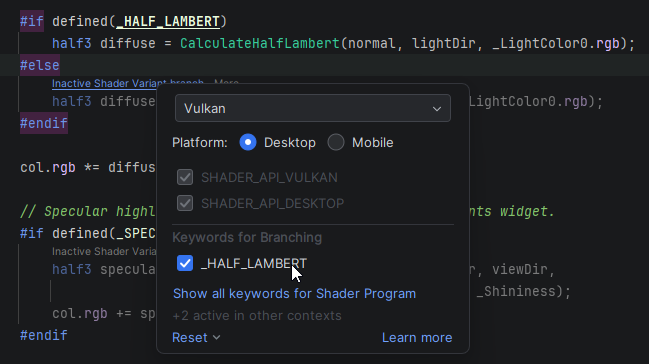
Rider allows you to choose which shader keywords are enabled, and which Unity shader preprocessor symbols are defined.
Use the Variants widget in the top-right corner of the editor to configure the shader analysis context. From this widget, you can:
Select a graphics API, such as DirectX 11, Vulkan, Metal, OpenGL Core, OpenGL ES, or DirectX 11 feature level 9.x.
Switch between desktop and mobile platform symbols.
Enable or disable shader keywords declared in
#pragma shader_featureand#pragma multi_compiledirectives.Reset enabled keywords for the current context or for all contexts.
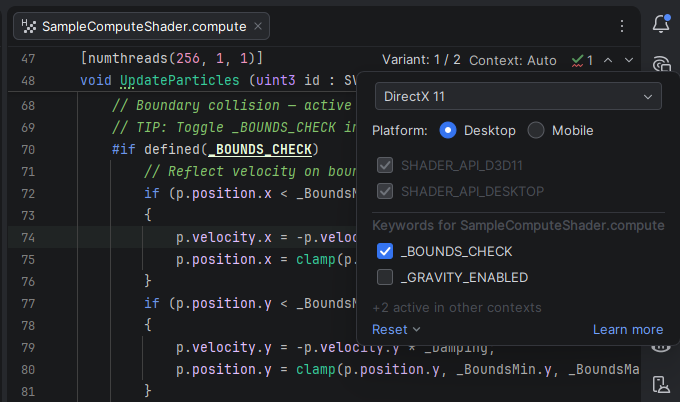
For example, selecting DirectX 11 tells Rider to consider the SHADER_API_D3D11 symbol to be defined, and anything inside #if SHADER_API_D3D11 is parsed as active code, with syntax highlighting and inspections. Switching to Vulkan means that SHADER_API_D3D11 is no longer active, and the preprocessor branch is considered inactive, but anything inside #if SHADER_API_VULKAN is active instead.
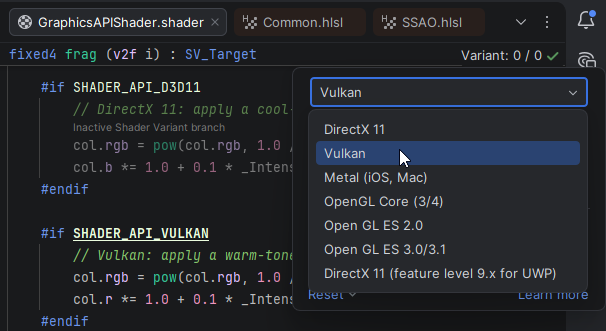
Similarly, Rider can switch between desktop and mobile to activate the SHADER_API_DESKTOP or SHADER_API_MOBILE symbols.
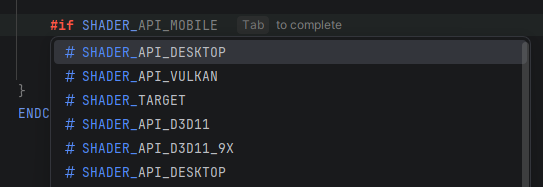
All known SHADER_ symbols appear in the code completion popup:
Keyword highlighting
Rider highlights shader keywords to show how the current variant affects code analysis:
Enabled keywords are active because you selected them explicitly.
Implicitly enabled keywords are active because Unity semantics require a default keyword in a keyword set.
Disabled keywords aren't active in the current variant.
Suppressed keywords were selected but are inactive because another keyword in the same keyword set takes precedence.
The following #pragma directive declares the BLUE, RED, and GREEN shader keywords. These keywords can be enabled at runtime with the Shader.EnableKeyword API (see the docs for shader keywords for more details).
These keywords are also preprocessor define symbols, and Rider can enable these through the shader variants widget, and then processes the appropriate preprocessor branch. When a keyword is enabled, it is highlighted as bold and underlined.
The keyword in the #pragma is also highlighted. You can also enable and disable keywords through the Alt+Enter context menu, either in the #pragma or wherever the symbol is used.
Unity allows multiple keywords to be enabled, but only the first in a pragma directive is considered to be active. All other keywords are suppressed and aren't active. Rider marks suppressed keywords with a strikethrough, and the symbol isn't defined. Rider doesn't automatically disable other keywords in the pragma because it is possible to enable multiple conflicting keywords in code, and it is also possible to define the same keyword in multiple pragmas. The Alt+Enter menu can be used on a suppressed keyword to disable the keyword(s) that cause it to be suppressed.
If a branch is inactive, Rider shows a Code Vision hint indicating that the branch may be active in another shader variant. Click the hint to open the shader keyword configuration popup:
Switch context for shared HLSL includes
A .hlsl shader file can use preprocessor symbols and #if statements to modify behavior at compile time, by changing the definition, availability or implementation of methods and data structures. When analyzing one of these files, Rider uses an automatic context of default-defined symbols by default. This can lead to sections of the .hlsl file being marked as inactive, without syntax highlighting, code completion, inspections and so on.
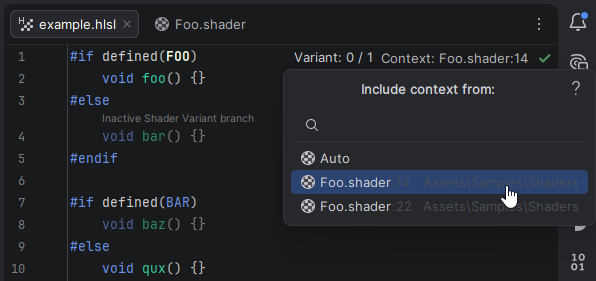
If the .hlsl file is included from multiple .shader files, or from multiple CGPROGRAM blocks within a .shader file, then Rider can use the context defined at the include point to analyze the .hlsl file. You can switch the context using the Context widget in the top-right corner of the editor.
For example, let's assume we have a file example.hlsl that defines different methods if the FOO symbol is defined or not. In the Auto context, Rider will default to FOO being undefined, and mark the first branch of this #if statement as inactive. The bar function is defined in this context, and any attempt to use the foo function will result in an unresolved symbol error.
Let's also assume that we have a Foo.shader file that defines multiple shader programs, and includes example.hlsl multiple times from each CGPROGRAM block. Each shader program has its own context. The first, starting at line 14, defines the symbol FOO before including the example.hlsl, while the second program, starting at line 22, defines BAR, and then includes the HLSL file.
When editing example.hlsl, you can switch context by clicking the context picker and choosing the location of the shader program from the popup. Rider will show the Auto context but will also list the locations that include example.hlsl. If you select Foo.shader:14, then Rider will analyse the example.hlsl file using the context of the CGPROGRAM shader at line 14 of Foo.shader. In other words, the FOO symbol will be defined, and the first branch of the #if statement above will become active, and the foo function will be defined.
Shader and pass name support
Rider provides code insight for shader and pass names declared in ShaderLab files. The shader name declared in the Shader block is resolved in Fallback commands, and pass names are resolved in UsePass commands. Rider provides completion, Ctrl+B navigation, Alt+F7, and Shift+F6 for these references. When you rename a pass, Rider ensures that UsePass references use the required uppercase format.
Shader names are also resolved in C# code. If you use Shader.Find in a C# script, Rider provides completion of the shader name with working navigation, Find Usages, and rename support.
HLSL features
Rider provides additional features for HLSL code inside ShaderLab files and standalone HLSL include files:
Rider resolves method names in
#pragma surfaceand#pragma vertexdirectives and highlights errors if the referenced method isn't declared.Code completion is available for
#pragmadirective parameters.The
Packagesvirtual folder is supported in#includestatements, with completion and navigation for files from project packages and the package cache.The
UNITY_VERSIONpredefined macro is recognized during analysis. Hover over the macro to see its current value based on the Unity version used by the project.
Navigate, search, and refactor shader code
Rider builds a semantic model for shader files and shader-related HLSL code. Depending on the active analysis context, this enables:
Navigation from shader references to declarations Ctrl+B
Find Usages for supported shader symbols Alt+F7
Rename refactoring for shader and HLSL symbols Shift+F6
Quick documentation for ShaderLab commands Ctrl+Q
Search Everywhere results for shader symbols and files
Breadcrumb navigation for ShaderLab structure
For shader code that depends on #if, #ifdef, shader_feature, or multi_compile branches, verify the active variant first. Navigation and analysis follow the currently selected shader context.
Debug shaders with Frame Viewer
The Frame Viewer Tool opens RenderDoc .rdc snapshots directly in the IDE. Use it to inspect rendering behavior and debug graphics issues without switching to a separate tool.
With Frame Viewer, you can:
Open and inspect .rdc rendering snapshots.
Navigate draw calls in a structured tree.
Filter draw calls by shader source usage.
Inspect vertex data, inputs, outputs, and textures.
Expand texture previews.
Start shader debugging for selected vertices or pixels.
Set breakpoints and step through mapped shader source.
Debug Unity shaders
Add
#pragma enable_d3d11_debug_symbolsto the shader program you want to debug.Capture a frame from Unity with RenderDoc.
Click the Frame Viewer icon in the right-hand sidebar of the Rider window, and open the .rdc snapshot there.
Select a draw call.
Use Debug Pixel or Debug Vertex.
Step through the shader in Rider's debugger.
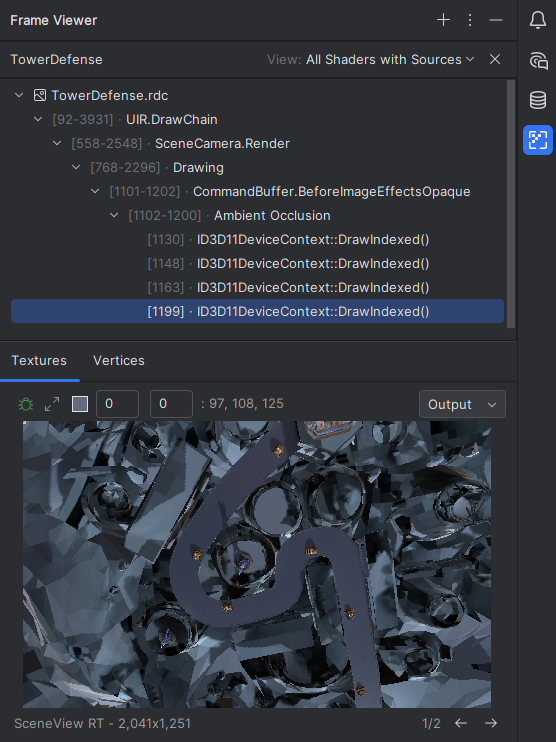
Rider maps the debugging session back to original ShaderLab source where possible, including source ranges inside .shader files and .cginc include files. When the original source mapping is unavailable, Rider can fall back to generated or disassembled shader code.
Troubleshooting
A shader branch is greyed out
Open the Variants widget and check whether the required keyword, graphics API, or platform symbol is enabled. Branch highlighting follows the selected shader variant context.
A keyword is enabled but shown as suppressed
Check the corresponding #pragma shader_feature or #pragma multi_compile directive. If multiple keywords from the same keyword set are enabled, Unity treats only one of them as active. Rider shows the remaining enabled keywords as suppressed.
Completion or inspections are wrong in a shared include file
Use the Context widget to choose the shader program that includes the file. Shared .hlsl and .cginc files can have different active branches depending on the including shader and pass.
Shader debugging doesn't start
Check that:
You are using Rider on Windows.
The Frame Viewer plugin is enabled.
The project is opened as a Unity project.
The .rdc snapshot is loaded successfully.
The shader was captured with debug symbols, for example with
#pragma enable_d3d11_debug_symbols.
If the snapshot fails to load, recapture it with a supported RenderDoc version. Direct3D 12 captures may require RenderDoc 1.33.
Debugger navigation opens generated shader code instead of original ShaderLab
Rider maps generated shader code back to the original source using source line information from the capture. If the original file is missing, changed significantly after capture, or can't be matched because of macro expansion differences, Rider may fall back to generated or disassembled code. Recapture the frame after saving the current shader sources.
Unity asset usages or serialized values are unavailable
Unity asset usages and serialized-field Code Vision data depend on asset indexing. Make sure the Unity project uses text-based asset serialization and wait for initial asset indexing to finish.