Command-line argument presets
Command-line argument presets let you switch between sets of program arguments without editing your run configuration or project properties when launching the program.
You can define arguments with their possible values and select the required arguments and values in the Default preset. If you need several sets of arguments, you can also create presets with different combinations of arguments and values, for example, separate presets for diagnostic logging and normal execution. The arguments from the selected preset will be attached to the end of the command line arguments set in the run configuration or the project properties when you run or debug the program next time.
Supported configurations
Use presets with native executable Run/Debug configurations, including C++ applications and Unreal Engine projects.
Presets currently do not apply to managed .NET project configurations or unit test runs. The preset editor and selector are unavailable in Remote Development sessions.
Enable command-line argument presets for the project
Press Ctrl+Alt+S to open settings and then select .
Select Enable selection of command-line argument presets and save the changes.
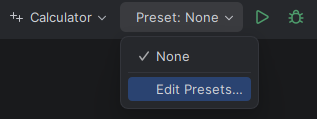
The Preset selector appears in the main toolbar near the Run/Debug controls.
Create arguments and presets
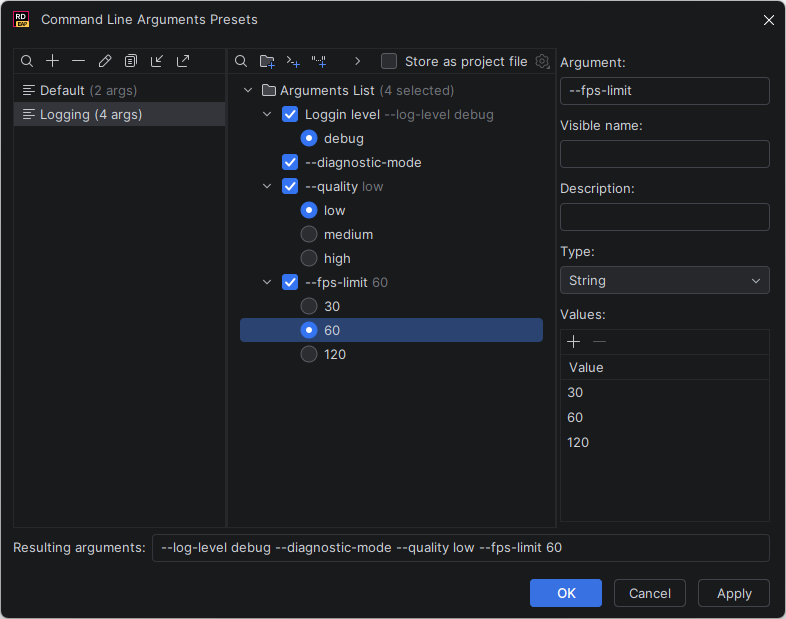
In the Preset selector on the toolbar, choose Edit Presets. The Command Line Arguments Presets dialog that opens, contains:
A list of presets on the left. These presets will appear in the toolbar selector.
A shared argument list in the center. You can keep all arguments with different values in this list and select the necessary set of arguments and values for the preset that is active on the left.
Properties of the selected argument on the right.
A Resulting arguments preview at the bottom shows what arguments and values will be included in the preset.
You can run the dialog commands from the toolbars above the lists, from the context menu, or with keyboard shortcuts.
Initially, the dialog contains an empty Default preset. To configure presets, first define arguments in the shared list, then select them with checkboxes in the Default preset or in presets that you create.
Define an argument
In the argument list, click Add Argument.
Enter the argument as your application expects it, such as
--log-level.Optionally, enter a Visible name and Description. These fields help managing large argument collections in the dialog, they are not passed to the program.
Choose the argument’s Type.
For an argument that takes a value, add the available values.
The following types are available:
Type | Purpose | Example |
|---|---|---|
Flag | An argument without a value. |
|
Boolean | An argument with either |
|
String | An argument with a text value, including a path. |
|
Integer | An argument with an integer value. |
|
Floating-point number | An argument with a numeric value that can include a fractional part. |
|
Boolean arguments have fixed true and false choices. A flag takes no value.
To change the type of several arguments at once, select them in the argument list and set the Type for all of them.
If a value that you add to an argument does not match the argument type, for example, abc for an Integer argument, JetBrains Rider marks this value as an error. Correct such values before saving the changes.
Organize the argument list
Use Add Folder to group related arguments. Folders can contain arguments and other folders.
Drag arguments and folders to reorganize the list. JetBrains Rider generates arguments in the order of the shared list. Folder names are not passed to the application.
All presets use the same argument list. Selecting or clearing arguments and choosing their values in a preset affects only that preset. However, editing the argument itself, for example, changing its name, type, or one of its values, affects every preset that uses this argument.
Import arguments from a command line
Click Import Args from Command Line above the arguments list to populate the shared argument list from existing arguments.
For example, paste:
JetBrains Rider detects the type of each imported argument automatically.
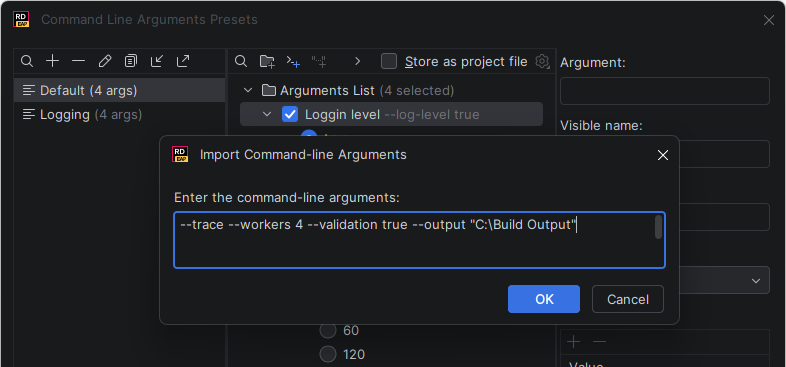
The importer accepts both --option value and --option=value syntax. Repeated options contribute additional value choices to the same argument.
Paste the arguments only, without the executable name. The importer recognizes options that start with a dash. It skips positional arguments and stops at a standalone --.
After importing, review the types and values. Then enable the arguments you need in each preset.
When launching, JetBrains Rider passes an option and its value as separate arguments, such as --workers 4.
Configure a preset
Select a preset on the left, or click Add to create one and enter a name.
In the argument list, select the arguments to include.
For each enabled argument that takes a value, select one of its values.
Check the Resulting arguments preview.
Click Apply or OK to save.
Each preset can select one value per enabled argument. Clear an argument’s checkbox to omit it from that preset.
Use Duplicate to create a preset from an existing one. The copy retains the original argument selections and values.
Use Export to save selected presets and the shared argument list to an XML file, and Import to load presets from a previously exported file. After importing, review the imported arguments and presets, then click Apply or OK. Import and export are useful to transfer a set of presets between projects or workspaces. To share presets with your team on an ongoing basis, store them as a project file.
To enable arguments or choose values in several presets at once, select these presets in the list on the left.
Run or debug with a preset
Select your Run/Debug configuration.
Select a preset from the Preset selector on the toolbar.
Click Run or Debug or use the corresponding shortcuts.
JetBrains Rider appends the selected preset’s arguments to the arguments from the Run/Debug configuration.
For example, if the configuration contains:
and the preset contains:
the application receives:
The preset does not replace or deduplicate arguments from the run configuration. If both contain the same option, your application determines how to handle it.
Select None to run without adding preset arguments. The Run/Debug configuration keeps its own arguments.
The selected preset applies to subsequent supported launches in the current project. It is not tied to one Run/Debug configuration.
Store and share presets
By default, JetBrains Rider stores presets in the project’s local workspace settings. These presets are personal to your workspace.
You can share presets through version control the same way as Run/Debug configurations:
Team members can use the shared presets when JetBrains Rider discovers the file in the project. Each user chooses their active preset locally.