Code Syntax Style: Empty string
In C#, you can assign empty strings either with an empty literal "" or with the string.Empty property. ReSharper allows you to specify the style for empty strings and enforce this style in a specific scope.
ReSharper helps you apply empty string style in the existing code and takes your preferences into account when it produces new code with code completion and code generation features, applies code templates and performs refactorings.
Apply style preferences for empty strings
By default, ReSharper suggests using empty literals "" and reports usages of the string.Empty property — it highlights such usages and suggests the corresponding quick-fix or fix in scope.
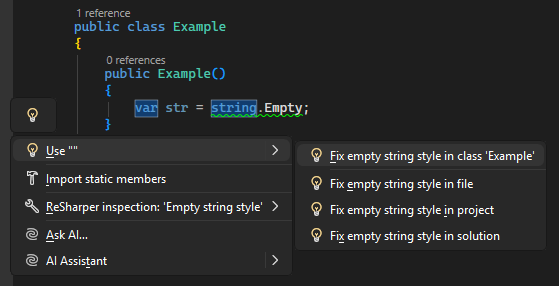
If you prefer the string.Empty property, you can configure the preferences correspondingly and ReSharper will help you enforce your preferences:
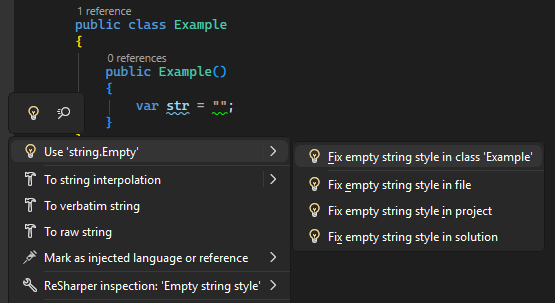
Another option to enforce preferences for empty strings in a bulk mode is code cleanup. You can either run code cleanup with one of the built-in profiles Full Cleanup or Reformat & Apply Syntax Style, or create and run a custom profile solely targeted at your specific task as described below.
Apply empty string style with custom Code Cleanup profile
Select from the main menu or press Alt+R O.
Go to the cleanup profiles settings page: .
Create a new profile as described in the Create a new custom cleanup profile section. In the profile preferences on the right, expand the node and select the Apply empty string style checkbox.
Click Save in the Options dialog to apply the modifications and let ReSharper choose where to save them, or save the modifications to a specific settings layer by choosing this layer from the Save To selector. For more information, see manage and share resharper settings.
Select the scope where you want to enforce your preferences:
Place the caret anywhere in the file to enforce your preferences to the file.
Select one or more items in the Solution Explorer to enforce your preferences in the files under these nodes and their child items.
Do one of the following:
Press Control+Alt+F or choose from the main menu.
Right-click anywhere in the text editor or right-click the selection and choose Cleanup Code in the context menu.
In the Code Cleanup dialog that opens, select the newly created profile .
Click Run. ReSharper will enforce your preferences in the selected scope.
If you want to apply empty string style without opening the Code Cleanup dialog to choose a profile, you can bind the created profile to the silent cleanup and run it by pressing Control+Shift+Alt+F. You can also create a custom cleanup profile that would combine applying empty string style with other code style tasks.
To apply preferences for empty strings together with all other formatting and syntax style rules to the selected code block, Alt+Enter and choose .
You can apply empty string style every time you save changes in a file to make sure that your edits always comply with your code style.
Automatically apply empty string style on saving changes
Select from the main menu or press Alt+R O.
Go to the cleanup profiles settings page: .
Select your custom Code Cleanup profile and click Set as default (the default profile is also used for silent cleanup).
Go to the options page and select Automatically run cleanup when saving a file.
Optionally, you can restrict automatic cleanup to specific files by a file mask.
You can also select Only changed parts of file to make sure that cleanup is applied to the code affected by your changes, and the rest of the code in the file is not modified.
If you choose to clean up only the changed parts of files, you can fine-tune this behavior with the following options:
Perform full cleanup if partial cleanup is not possible — depending on this option, ReSharper will either clean up the whole file or skip the file if it is not possible to restrict the cleanup to the modified parts of the file.
Allow cleanup on save for shared files — use this option to enable or disable partial cleanup in files that are included in the solution several times, such as files from shared projects.
Click Save in the dialog to apply the modifications and let ReSharper choose where to save them, or save the modifications to a specific settings layer by choosing this layer from the Save To selector. For more information, see manage and share resharper settings.
The next time you finish editing and save the file (Ctrl+S) or all files (Ctrl+Shift+S) , ReSharper will clean up the affected files using the selected profile. If the default cleanup profile is not selected, ReSharper will prompt you to choose one of the profiles.
Configure preferences for empty strings
Your empty string style preferences are saved using the mechanism of layer-based settings. Among other things, this mechanism allows you to maintain different preferences for different solutions as well as to keep these preferences under a VCS and automatically share them with your team members.
Configure preferences in ReSharper options
Go to the page of ReSharper options Alt+R, O.
In the Empty String category select string.Empty or Empty literal "" according to your coding practices/standards.
The Notify with selectors in the right column allow you to set severity levels of code inspections detecting code that differs from your preferences.
Click Save in the Options dialog to apply the modifications and let ReSharper choose where to save them, or save the modifications to a specific settings layer by choosing this layer from the Save To selector. For more information, see manage and share resharper settings.
You can also change your preferences for empty strings right in the editor, where corresponding issues are highlighted:
Change preference for empty strings from the editor
Place the caret to a code issue highlighted by a ReSharper's inspection.
Press Alt+Enter or click the action indicator to the left of the caret to open the action list.
In the action list, choose Inspection "Empty string style" | Configure code style and then choose the desired option.
Your change will be saved using the smart save logic.
If you need to save the modified style preference in a shared settings layer, click the Configure code style menu item or press Enter when it is selected. ReSharper will open the page of ReSharper options where you can modify your preference as needed, click Save To and then choose the desired settings layer.
You can configure syntax style settings via EditorConfig for all languages and Clang-Format for C++, JavaScript, and TypeScript . These settings can be stored in .editorconfig, .clang-format, or _clang-format files on different levels of your solution hierarchy. The files are normally put under VCS so that settings defined there are shared among the project team.
ReSharper lets you use EditorConfig to define any of its syntax style preferences that are available in the ReSharper's Options dialog. You can find names and descriptions of supported EditorConfig properties in the EditorConfig reference.
As for Clang-Format, ReSharper will only apply the supported Clang-Format options.
It is important to note that any syntax style property defined in an .editorconfig file will override the same property defined in ReSharper settings in the scope where this .editorconfig file applies. Formatting properties defined in Clang-Format will override both ReSharper settings and EditorConfig settings.
Configure preferences for empty string style using EditorConfig
Open the desired .editorconfig file.
Add the required empty string style properties to the file. For example:
resharper_empty_string = string_empty
This feature is supported in the following languages and technologies:
|
|
|
|
|
|
|
|
|
|---|---|---|---|---|---|---|---|---|
| | | | | | | | |


