Work with unit tests in project or solution
Discover unit tests in solution
To see all supported tests discovered in the current solution, ReSharper for Visual Studio Code uses the Testing window ( ). Using this window, you can explore and run unit tests of all supported frameworks in the entire solution. Note that unit tests from a project only appear in the window after the project is built. Tests from currently opened files are updated automatically, new tests from the opened files appear in the Testing window as soon as you create them.
In the Testing window, you can:
Explore tests in the solution: browse all unit tests in a tree view, search tests and filter by a substring, and so on.
Navigate to the source code of any test by clicking it in the view.
Run selected tests.
Run tests in solution
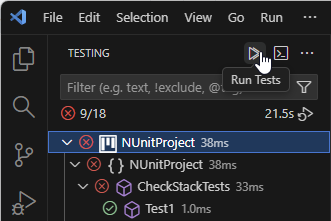
To run all discovered tests in the solution, click Run Tests in the Testing window:
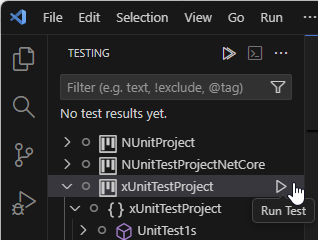
To run an individual test or a test project, hover the mouse over it in the Testing window and click Run Test:
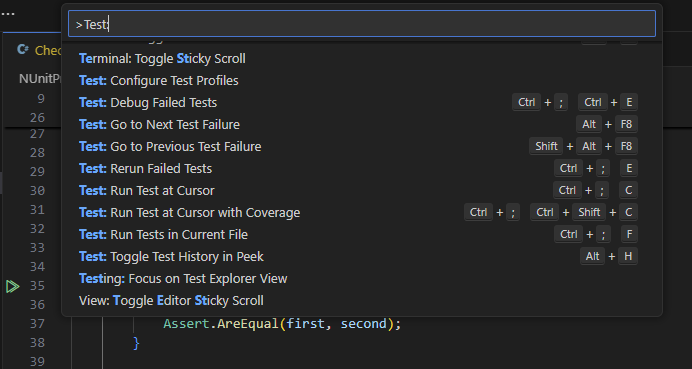
You can also use dedicated actions that you can run either from the command palette or with a shortcut. To see available actions, type >Test: in the search box:
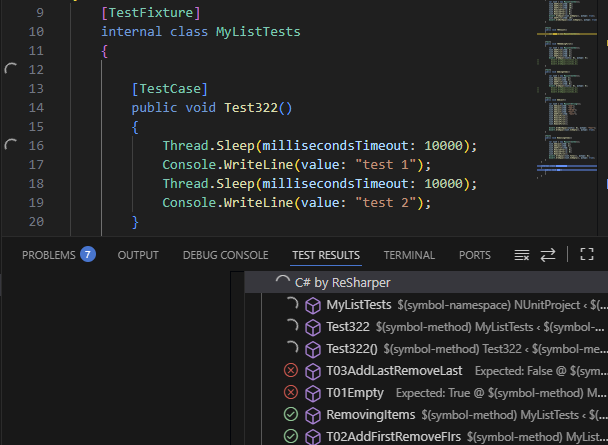
You will see the execution progress, results, and output in the Test Results panel:
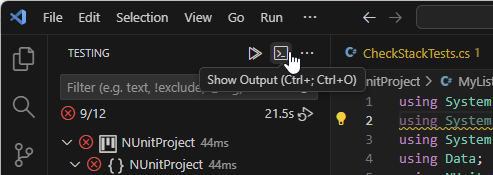
If you close the Test Results panel, you can later reopen it by clicking Show Output in the Testing window: