Create your own application
Now that you've explored and enhanced the sample project created by the wizard, you can create your own application from scratch, using concepts you already know and introducing some new ones.
You'll create a "Local time application" where users can enter their country and city, and the app will display the time in the capital city of that country. All the functionality of your Compose Multiplatform app will be implemented in common code using multiplatform libraries. It'll load and display images within a dropdown menu and will use events, styles, themes, modifiers, and layouts.
At each stage, you can run the application on all three platforms (iOS, Android, and desktop), or you can focus on the specific platforms that best suit your needs.
Lay the foundation
To get started, implement a new App() composable:
In
shared/src/commonMain/kotlin, open theApp.ktfile and replace the code with the followingApp()composable:@Composable @Preview fun App() { MaterialTheme { var timeAtLocation by remember { mutableStateOf("No location selected") } Column( modifier = Modifier .safeContentPadding() .fillMaxSize(), ) { Text(timeAtLocation) Button(onClick = { timeAtLocation = "13:30" }) { Text("Show Time At Location") } } } }The layout is a column containing two composables. The first is a
Textcomposable, and the second is aButton.The two composables are linked by a single shared state, namely the
timeAtLocationproperty. TheTextcomposable is an observer of this state.The
Buttoncomposable changes the state using theonClickevent handler.
Run the application on Android and iOS:

When you run your application and click the button, the hardcoded time, 13:30, is displayed.
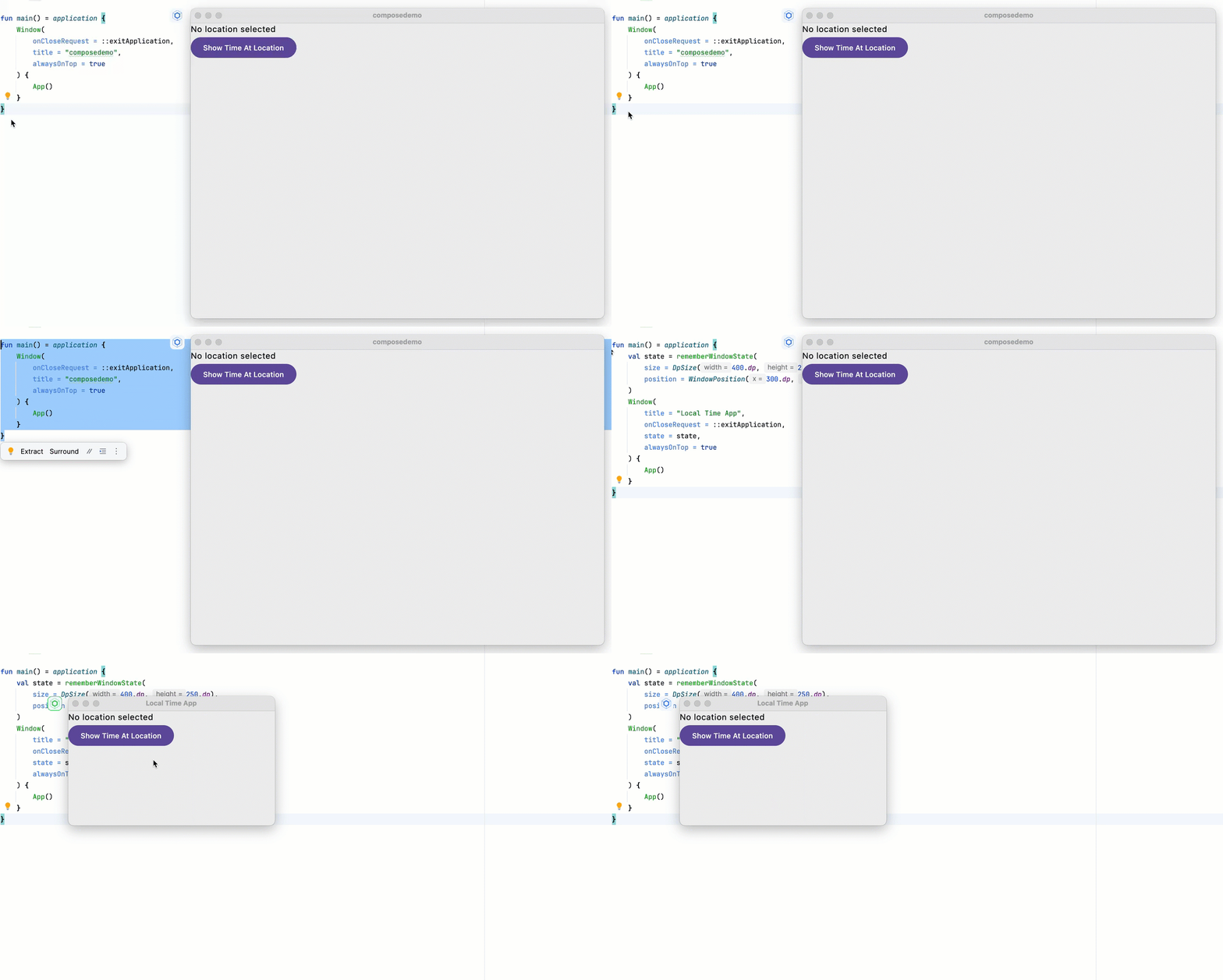
Run the application on the desktop using Compose Hot Reload by starting the desktopApp [hot] 🔥 run configuration. The app works, but the window looks mismatched with the UI:

To fix this, update the
main.ktfile in thedesktopApp/src/kotlindirectory as follows:fun main() = application { val state = rememberWindowState( size = DpSize(400.dp, 350.dp), position = WindowPosition(300.dp, 300.dp) ) Window( title = "Local Time App", onCloseRequest = ::exitApplication, state = state, alwaysOnTop = true ) { App() } }Here, you set the title of the window and use the
WindowStatetype to give the window an initial size and position on the screen.Follow the IDE's instructions to import the missing dependencies.
To see the app automatically update, save any modified files (⌘ S/Ctrl+S). Its appearance should improve:

Support user input
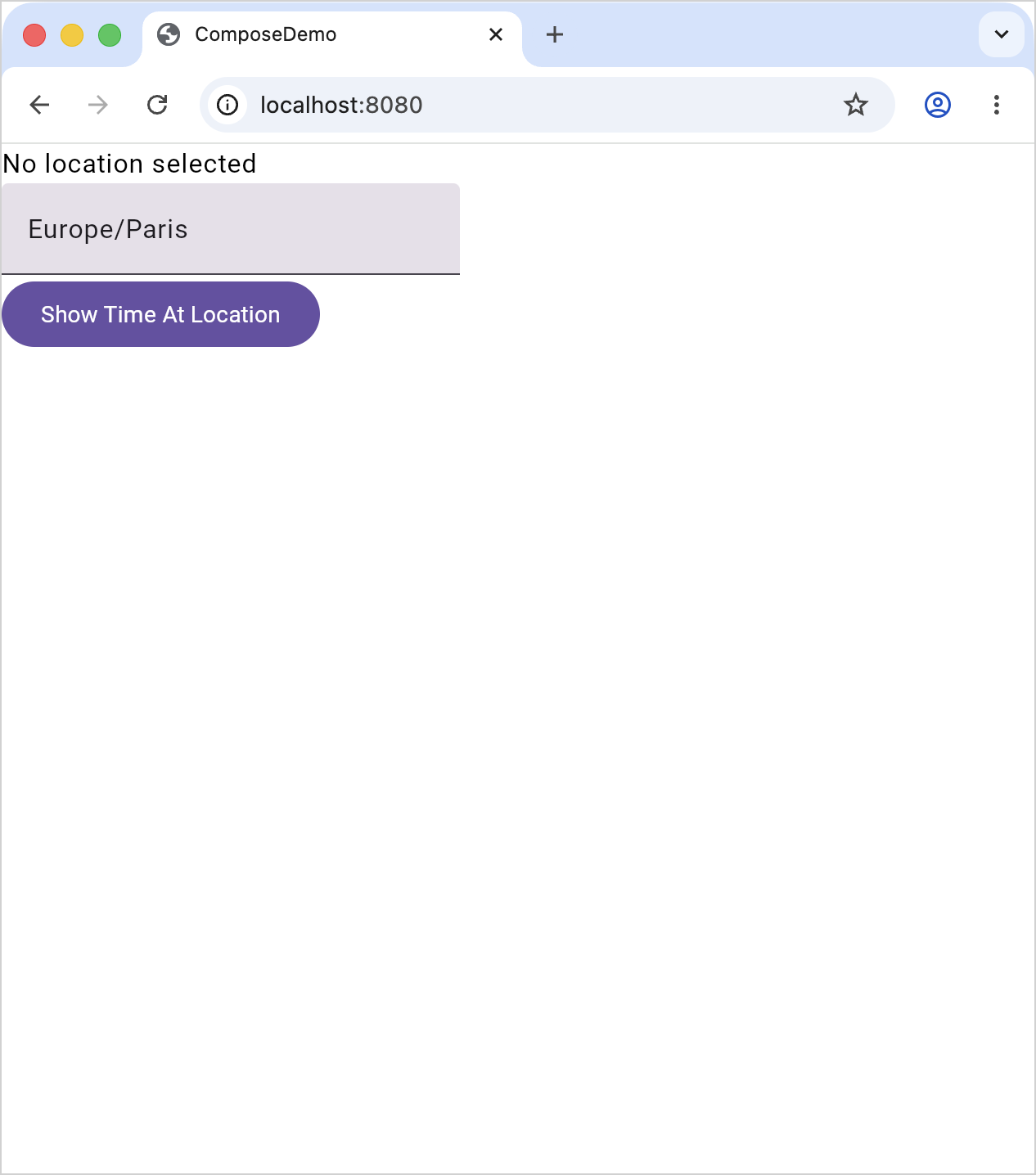
Now let users enter the name of a city to see the time at that location. The simplest way to achieve this is by adding a TextField composable:
Replace the current implementation of
App()incommonMain/kotlin/compose.project.demo/App.ktwith the one below:@Composable @Preview fun App() { MaterialTheme { var location by remember { mutableStateOf("Europe/Paris") } var timeAtLocation by remember { mutableStateOf("No location selected") } Column( modifier = Modifier .safeContentPadding() .fillMaxSize(), ) { Text(timeAtLocation) TextField(value = location, onValueChange = { location = it }) Button(onClick = { timeAtLocation = "13:30" }) { Text("Show Time At Location") } } } }The new code adds both the
TextFieldand alocationproperty. As the user types into the text field, the value of the property is incrementally updated using theonValueChangeevent handler.Follow the IDE's suggestions to import the missing dependencies.
Run the application on each platform you're targeting. The time displayed is still hardcoded, but now you can enter a timezone in the text field:


Calculate time
The next step is to use the given input to calculate time. To do this, create a currentTimeAt() function:
Return to the
shared/src/commonMain/kotlin/compose.project.demo/App.ktfile and add the following function:fun currentTimeAt(location: String): String? { fun LocalTime.formatted() = "$hour:$minute:$second" return try { val time = Clock.System.now() val zone = TimeZone.of(location) val localTime = time.toLocalDateTime(zone).time "The time in $location is ${localTime.formatted()}" } catch (ex: IllegalTimeZoneException) { null } }This function is similar to
todaysDate(), which you created earlier and which is no longer required.Follow the IDE's instructions to import the missing dependencies. Make sure to import the
Clockclass fromkotlin.time, notkotlinx.datetime.Adjust your
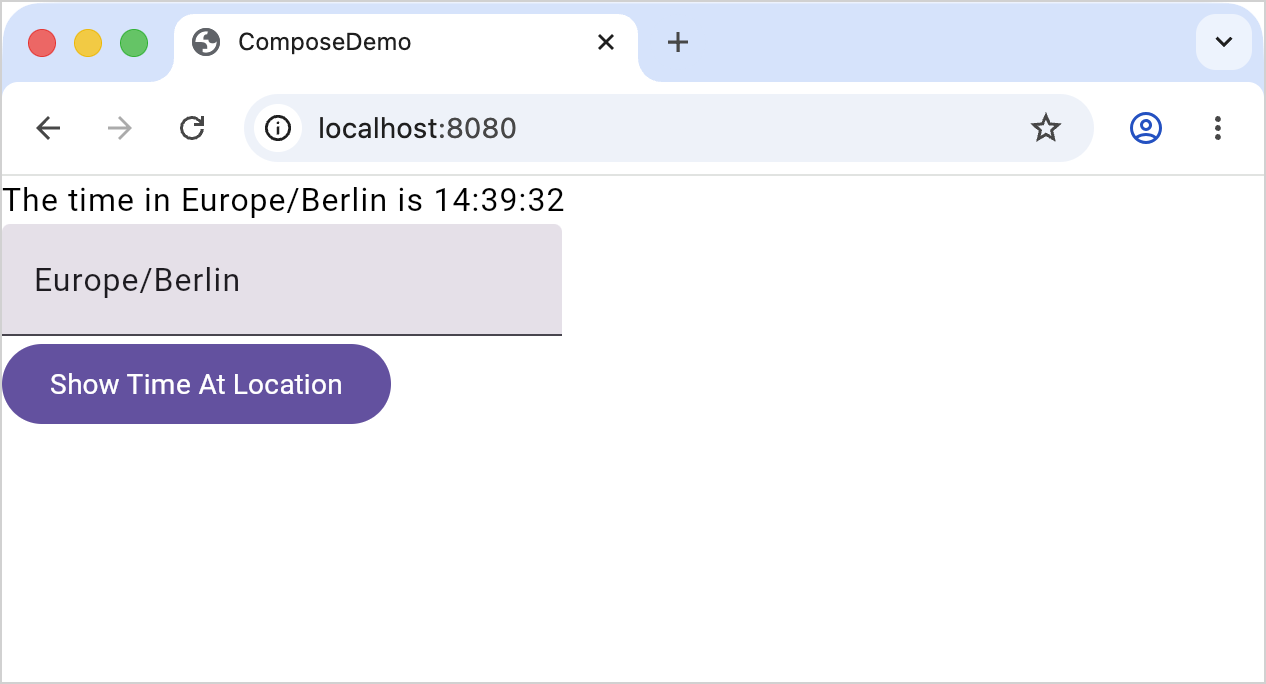
Appcomposable to invokecurrentTimeAt():@Composable @Preview fun App() { MaterialTheme { var location by remember { mutableStateOf("Europe/Paris") } var timeAtLocation by remember { mutableStateOf("No location selected") } Column( modifier = Modifier .safeContentPadding() .fillMaxSize() ) { Text(timeAtLocation) TextField(value = location, onValueChange = { location = it }) Button(onClick = { timeAtLocation = currentTimeAt(location) ?: "Invalid Location" }) { Text("Show Time At Location") } } } }Run the application again and enter a valid timezone.
Click the button. You should see the correct time:


Improve the style
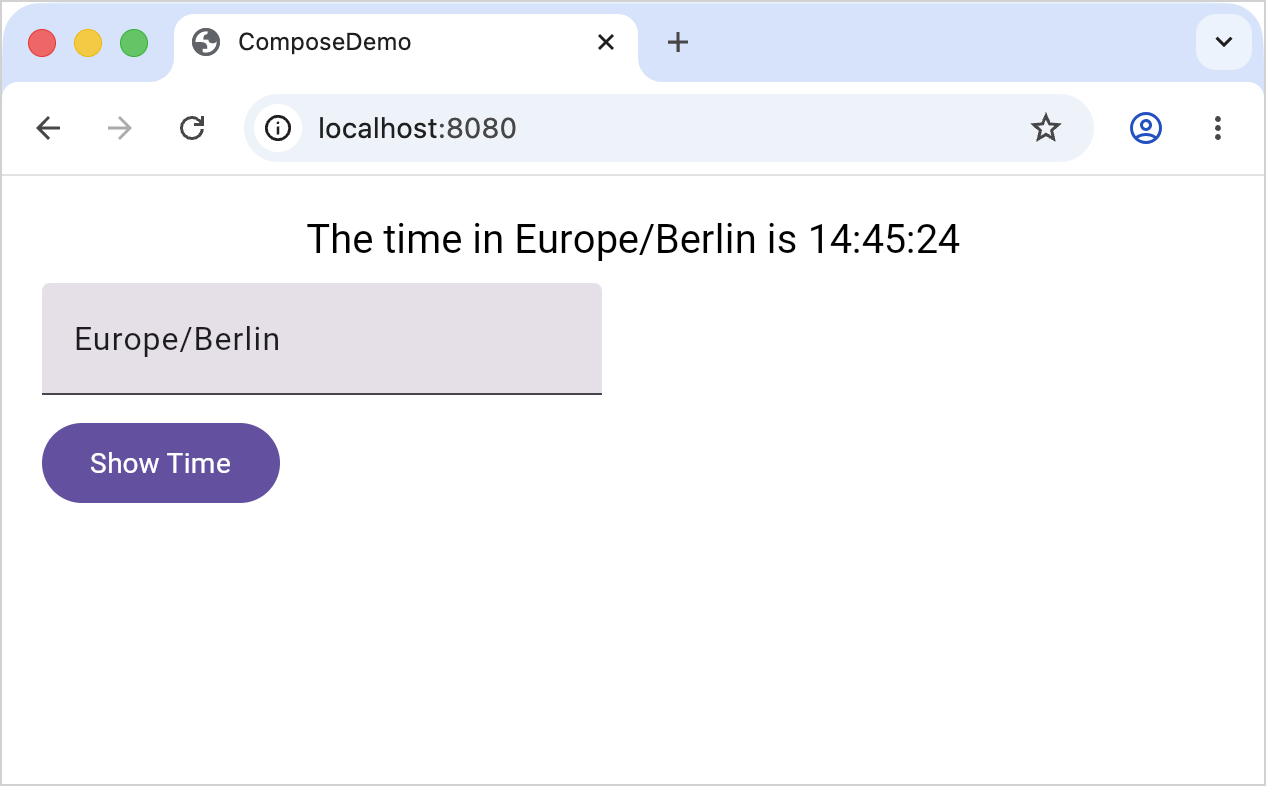
The application is working, but there are issues with its appearance. The composables could be spaced better, and the time message could be rendered more prominently.
To address these issues, use the following version of the
Appcomposable:@Composable @Preview fun App() { MaterialTheme { var location by remember { mutableStateOf("Europe/Paris") } var timeAtLocation by remember { mutableStateOf("No location selected") } Column( modifier = Modifier .padding(20.dp) .safeContentPadding() .fillMaxSize(), ) { Text( timeAtLocation, style = TextStyle(fontSize = 20.sp), textAlign = TextAlign.Center, modifier = Modifier.fillMaxWidth().align(Alignment.CenterHorizontally) ) TextField( value = location, onValueChange = { location = it }, modifier = Modifier.padding(top = 10.dp) ) Button( onClick = { timeAtLocation = currentTimeAt(location) ?: "Invalid Location" }, modifier = Modifier.padding(top = 10.dp) ) { Text("Show Time") } } } }The
modifierparameter adds padding all around theColumn, as well as at the top of theButtonand theTextField.The
Textcomposable fills the available horizontal space and centers its content.The
styleparameter customizes the appearance of theText.
Follow the IDE's instructions to import the missing dependencies.
Run the application to see how the appearance has improved:


Refactor the UI
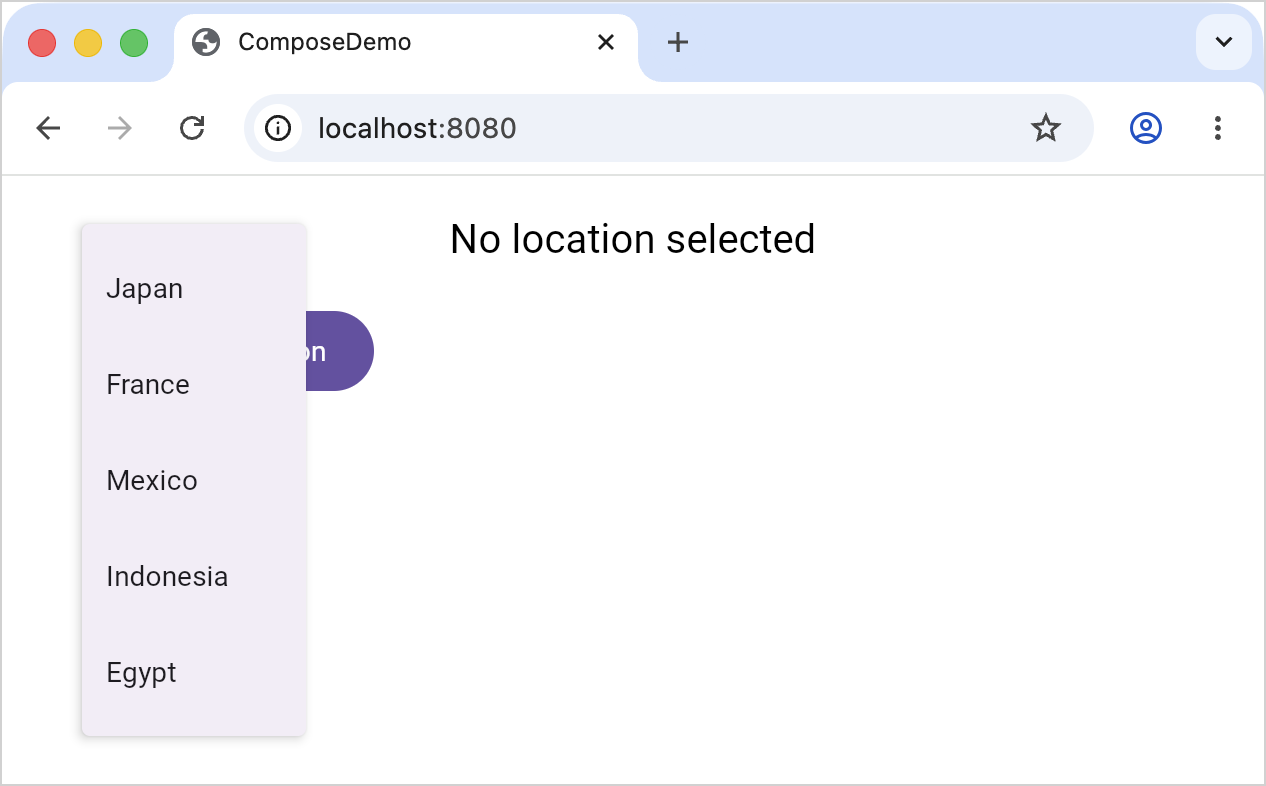
The application works, but it's susceptible to typos. For example, if a user enters "Franse" instead of "France", the app won't be able to process that input. It would be easier for users to pick countries from a predefined list.
To achieve this, update the
App()composable and thecurrentTimeAt()function, adding an auxiliary data class:data class Country(val name: String, val zone: TimeZone) fun currentTimeAt(location: String, zone: TimeZone): String { fun LocalTime.formatted() = "$hour:$minute:$second" val time = Clock.System.now() val localTime = time.toLocalDateTime(zone).time return "The time in $location is ${localTime.formatted()}" } fun countries() = listOf( Country("Japan", TimeZone.of("Asia/Tokyo")), Country("France", TimeZone.of("Europe/Paris")), Country("Mexico", TimeZone.of("America/Mexico_City")), Country("Indonesia", TimeZone.of("Asia/Jakarta")), Country("Egypt", TimeZone.of("Africa/Cairo")), ) @Composable @Preview fun App(countries: List<Country> = countries()) { MaterialTheme { var showCountries by remember { mutableStateOf(false) } var timeAtLocation by remember { mutableStateOf("No location selected") } Column( modifier = Modifier .padding(20.dp) .safeContentPadding() .fillMaxSize(), ) { Text( timeAtLocation, style = TextStyle(fontSize = 20.sp), textAlign = TextAlign.Center, modifier = Modifier.fillMaxWidth().align(Alignment.CenterHorizontally) ) Row(modifier = Modifier.padding(start = 20.dp, top = 10.dp)) { DropdownMenu( expanded = showCountries, onDismissRequest = { showCountries = false } ) { countries().forEach { (name, zone) -> DropdownMenuItem( text = { Text(name)}, onClick = { timeAtLocation = currentTimeAt(name, zone) showCountries = false } ) } } } Button(modifier = Modifier.padding(start = 20.dp, top = 10.dp), onClick = { showCountries = !showCountries }) { Text("Select Location") } } } }There is a
Countrytype, consisting of a name and a timezone.The
currentTimeAt()function takes aTimeZoneas its second parameter.The
Appnow requires a list of countries as a parameter. Thecountries()function provides the list.DropdownMenuhas replaced theTextField. The value of theshowCountriesproperty determines the visibility of theDropdownMenu. There is aDropdownMenuItemfor each country.
Follow the IDE's instructions to import the missing dependencies. When importing
Row(), pick the@Composableversion.Run the application to see the redesigned version:


Introduce images
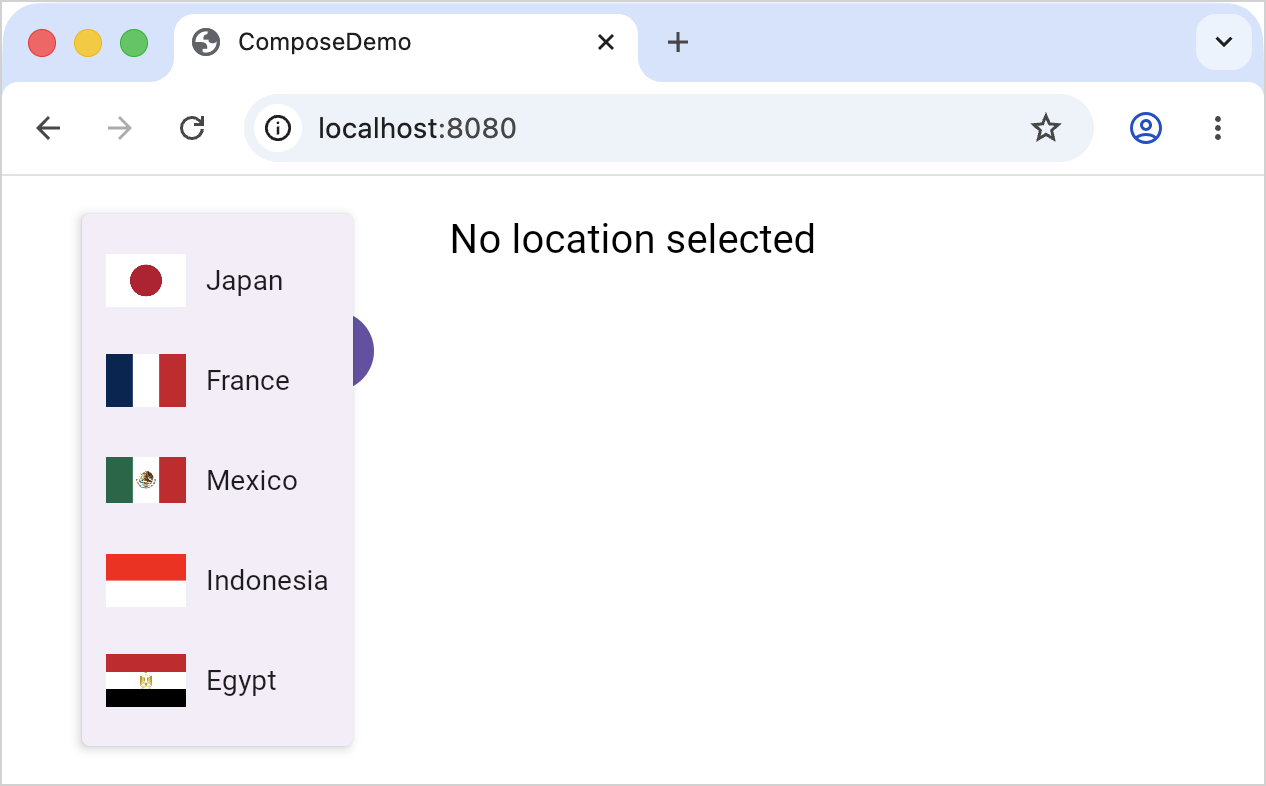
The list of country names works, but it's not a great user experience. You can improve the list by adding images of national flags next to country names.
Compose Multiplatform provides a library for accessing resources through common code across all platforms. The Kotlin Multiplatform wizard has already added and configured this library, so you can start loading resources right away.
To support images in your project, you'll need to download image files, store them in the correct directory, and add code to load and display them:
Download flag images from Flag CDN to match the list of countries you have already created. In this case, these are Japan, France, Mexico, Indonesia, and Egypt.
Move the images to the
composeApp/src/commonMain/composeResources/drawabledirectory so that the same flags are available on all platforms:
Build or run the application to generate the
Resclass with accessors for the added resources.Update the code in the
commonMain/kotlin/.../App.ktfile to support images:import demo.composeapp.generated.resources.jp import demo.composeapp.generated.resources.mx import demo.composeapp.generated.resources.eg import demo.composeapp.generated.resources.fr import demo.composeapp.generated.resources.id data class Country(val name: String, val zone: TimeZone, val image: DrawableResource) fun currentTimeAt(location: String, zone: TimeZone): String { fun LocalTime.formatted() = "$hour:$minute:$second" val time = Clock.System.now() val localTime = time.toLocalDateTime(zone).time return "The time in $location is ${localTime.formatted()}" } val defaultCountries = listOf( Country("Japan", TimeZone.of("Asia/Tokyo"), Res.drawable.jp), Country("France", TimeZone.of("Europe/Paris"), Res.drawable.fr), Country("Mexico", TimeZone.of("America/Mexico_City"), Res.drawable.mx), Country("Indonesia", TimeZone.of("Asia/Jakarta"), Res.drawable.id), Country("Egypt", TimeZone.of("Africa/Cairo"), Res.drawable.eg) ) @Composable @Preview fun App(countries: List<Country> = defaultCountries) { MaterialTheme { var showCountries by remember { mutableStateOf(false) } var timeAtLocation by remember { mutableStateOf("No location selected") } Column( modifier = Modifier .padding(20.dp) .safeContentPadding() .fillMaxSize(), ) { Text( timeAtLocation, style = TextStyle(fontSize = 20.sp), textAlign = TextAlign.Center, modifier = Modifier.fillMaxWidth().align(Alignment.CenterHorizontally) ) Row(modifier = Modifier.padding(start = 20.dp, top = 10.dp)) { DropdownMenu( expanded = showCountries, onDismissRequest = { showCountries = false } ) { countries.forEach { (name, zone, image) -> DropdownMenuItem( text = { Row(verticalAlignment = Alignment.CenterVertically) { Image( painterResource(image), modifier = Modifier.size(50.dp).padding(end = 10.dp), contentDescription = "$name flag" ) Text(name) } }, onClick = { timeAtLocation = currentTimeAt(name, zone) showCountries = false } ) } } } Button(modifier = Modifier.padding(start = 20.dp, top = 10.dp), onClick = { showCountries = !showCountries }) { Text("Select Location") } } } }The
Countrytype stores the path to the associated image.The list of countries passed to the
Appincludes these paths.The
Appdisplays anImagein eachDropdownMenuItem, followed by aTextcomposable with the name of a country.Each
Imagerequires aPainterobject to fetch the data.
Follow the IDE's instructions to import the missing dependencies.
Run the application to see the new behavior:







What's next
We encourage you to explore multiplatform development further and try out more projects:
Join the community:
 Compose Multiplatform GitHub: star the repository and contribute
 Kotlin Slack: Get an invitation and join the #multiplatform channel
 Stack Overflow: Subscribe to the "kotlin-multiplatform" tag
 Kotlin YouTube channel: Subscribe and watch videos about Kotlin Multiplatform