Manage Code With Me Enterprise
Enable Code With Me Enterprise for your organization
Make sure that you have configured Code With Me Enterprise and have a relay server that can be accessed from developer machines deployed.
In the Web UI, open the Configuration page and navigate to the License & Activation tab.
In the Code With Me section, click Enable.
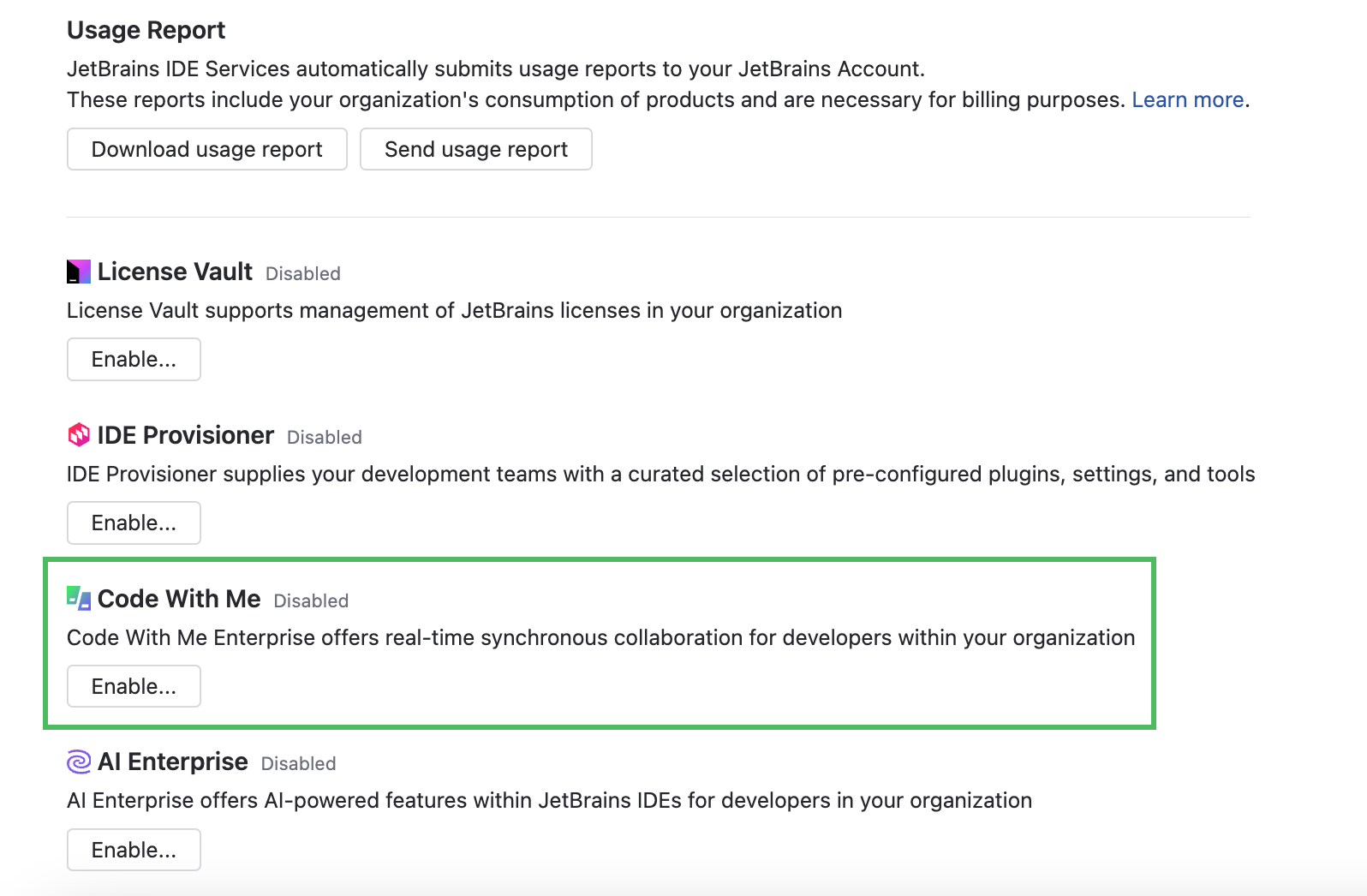
In the Code With Me Enterprise dialog, enable the following options:
I confirm that global Code With Me access will be disabled: developers will need to have Code With Me Enterprise enabled in at least one profile to use the Code With Me functionality. Access to the generally available Code With Me plugin will be disabled.
I confirm that one or more relay servers are configured and running: Code With Me Enterprise requires a relay server for proper functioning. Learn how to configure and start a relay server.
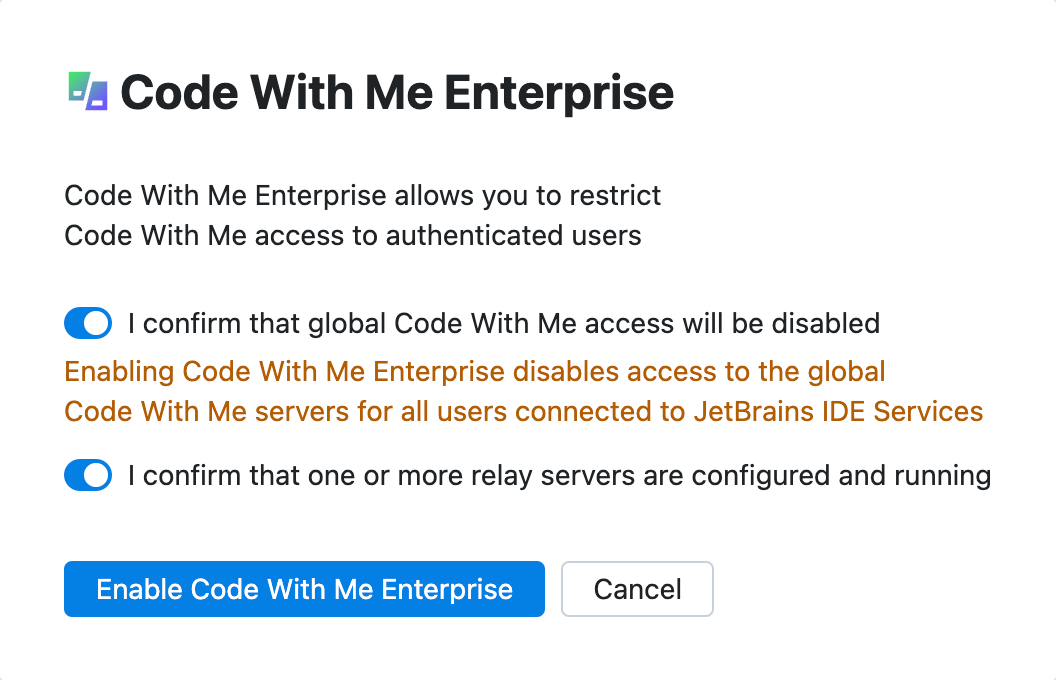
Click Enable Code With Me Enterprise.
If you use the pay as you go billing model, the maximum number of concurrent Code With Me sessions is unlimited by default. You can edit the limits manually later.
If you use the prepaid billing model, you'll see the preconfigured usage limits for Code With Me Enterprise.
Disable Code With Me Enterprise for your organization
In the Web UI, open the Configuration page and navigate to the License & Activation tab.
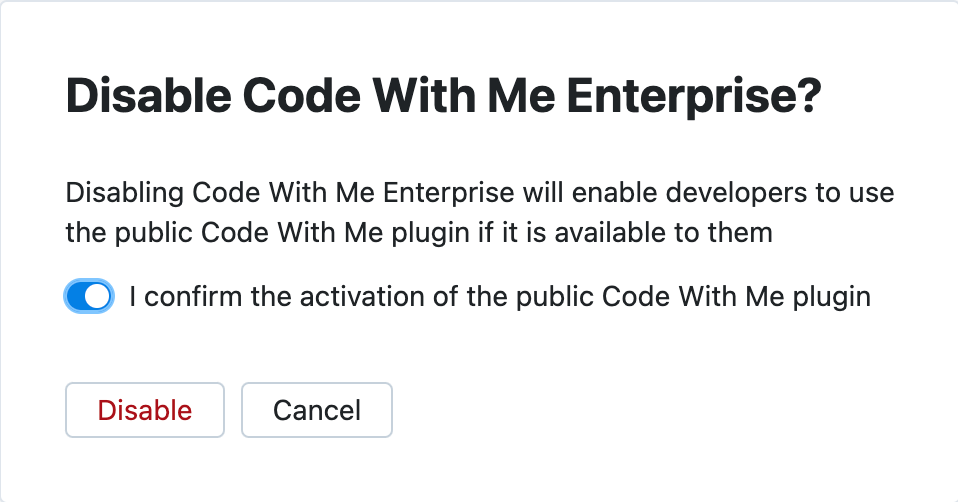
In the Code With Me section, click Disable.
In the Disable Code With Me? dialog, enable the I confirm the activation of the public Code With Me plugin option and click Disable.
Edit Code With Me Enterprise usage limits
In the Web UI, open the Configuration page and navigate to the License & Activation tab.
In the Code With Me section, click Edit limits.
In the Configure Code With Me Enterprise dialog, configure the limits for Code With Me Enterprise.
Enable the Unlimited concurrent sessions option.
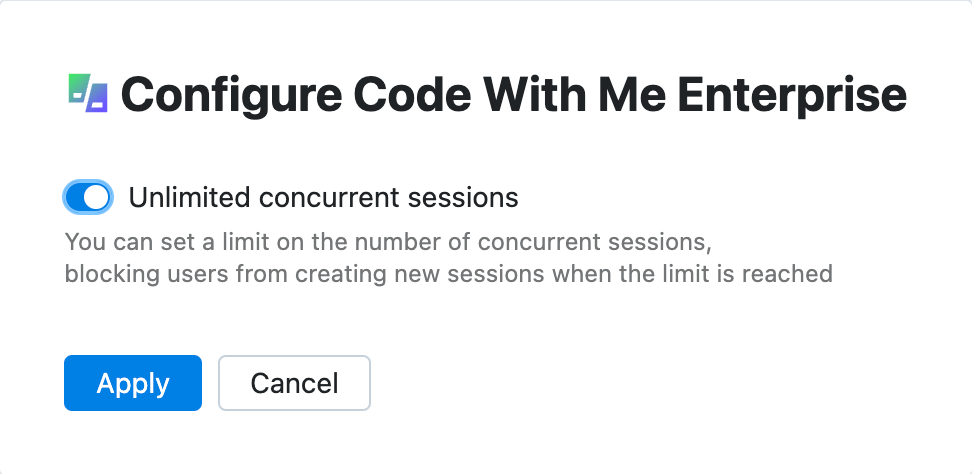
Disable the Unlimited concurrent sessions option and specify the limit on the number of concurrent Code With Me sessions.
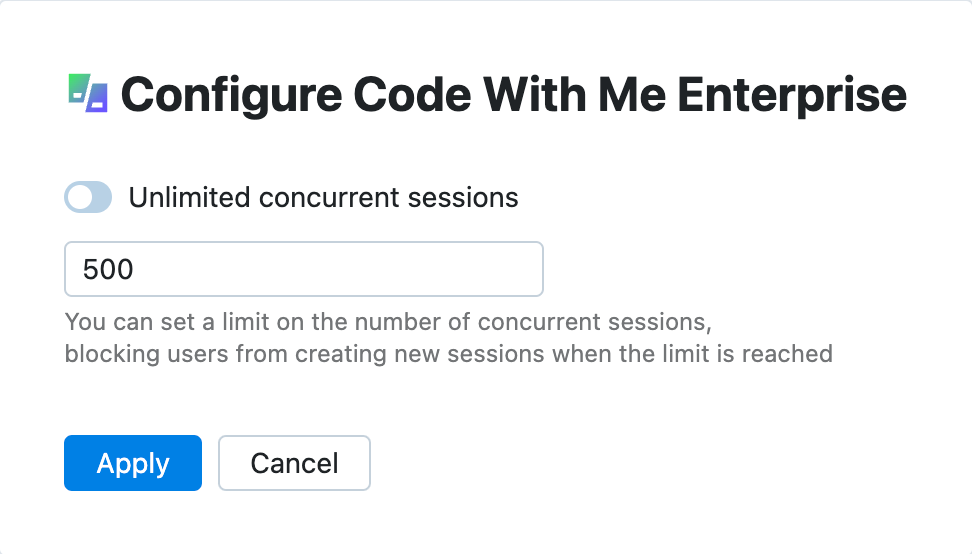
Click Apply.
Add more Code With Me hosts to your IDE Services
With the prepaid billing model, you can purchase more resources for your IDE Services license from your organization's JetBrains Account.
Log in to your JetBrains Account with the organization or team administrator permissions.
In the menu on the left, click your organization's name.
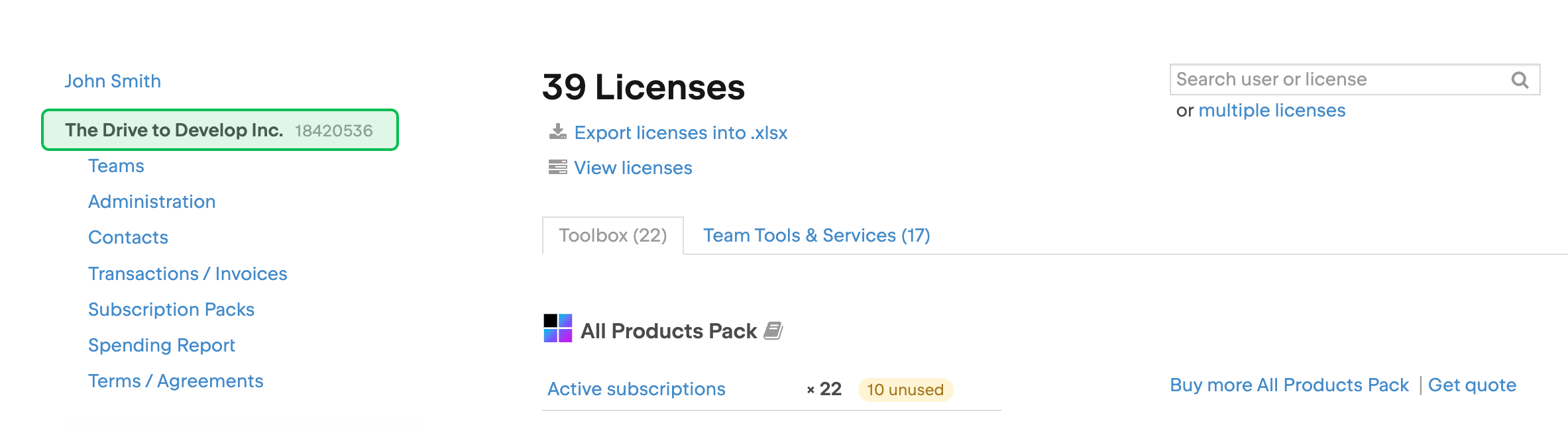
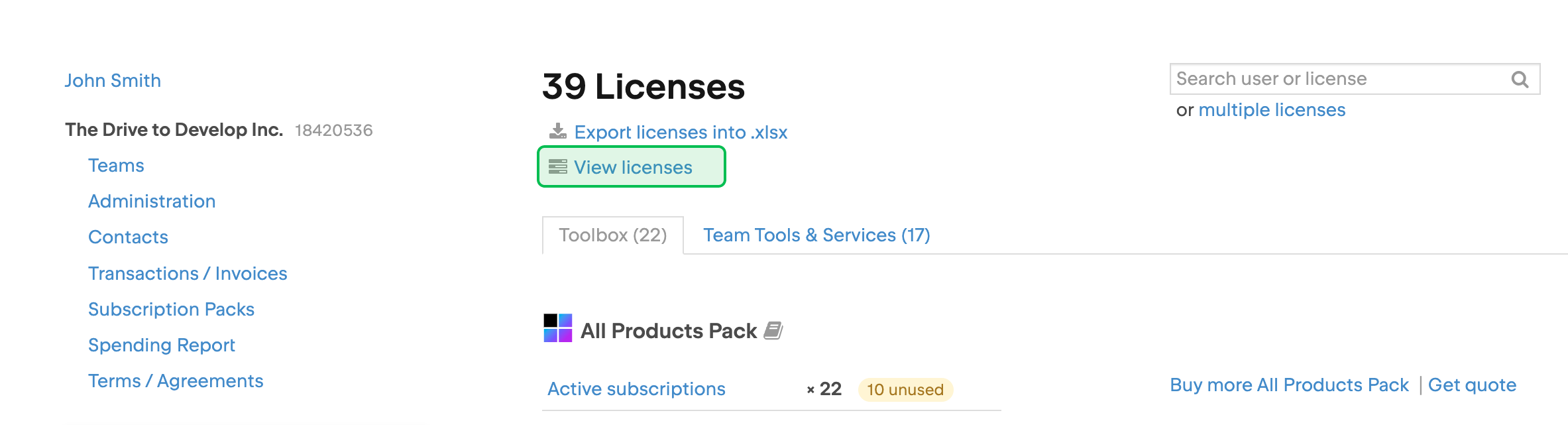
At the top of the page, click .
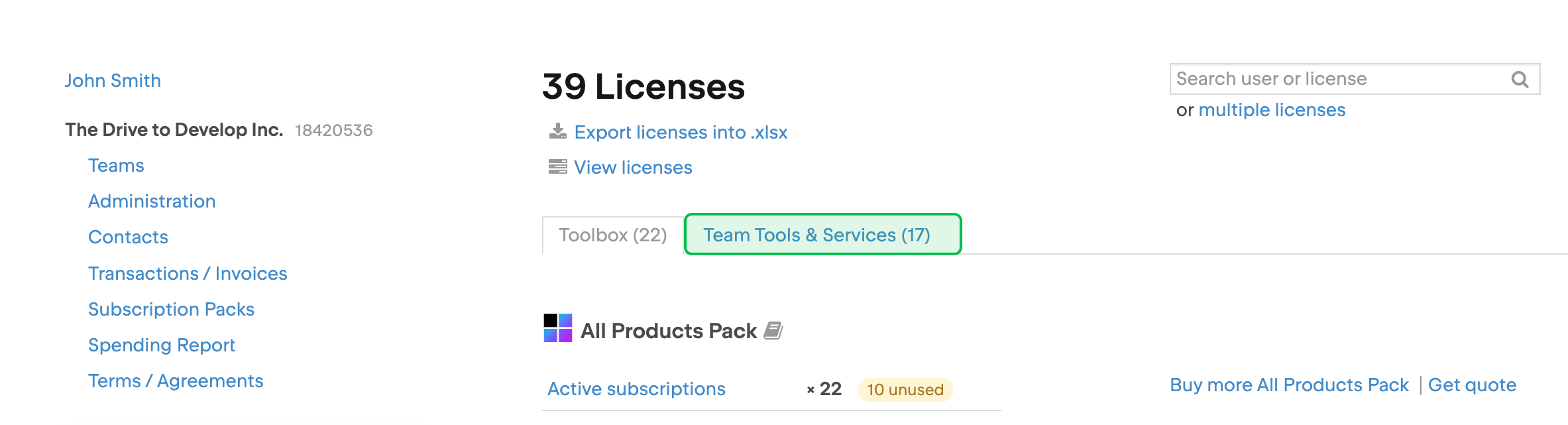
On the license overview page, select the Team Tools & Services tab.
Locate the IDE Services license and click Add more resources. You may need to scroll down to find the license.
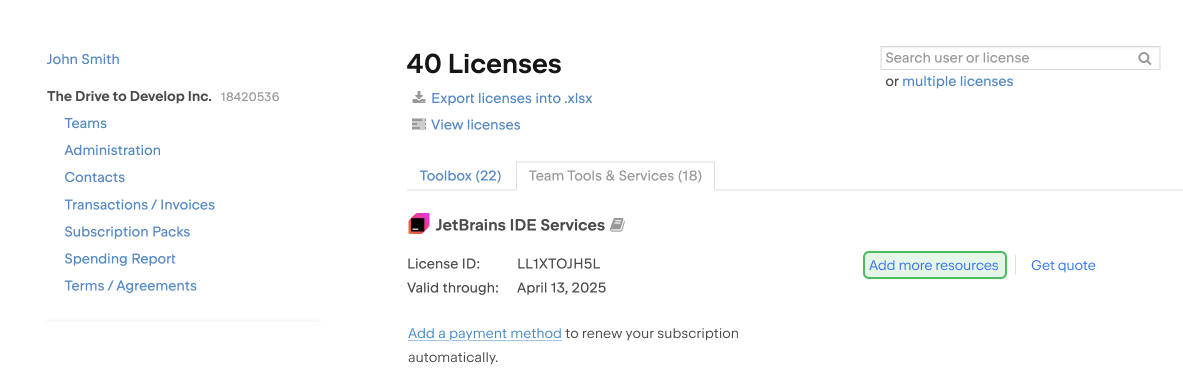
The checkout page will open. There you can select the resources you want to add and pay for them.